


32,99 €
Mehr erfahren.
- Herausgeber: John Wiley & Sons
- Kategorie: Wissenschaft und neue Technologien
- Serie: CertMike Get Certified
- Sprache: Englisch
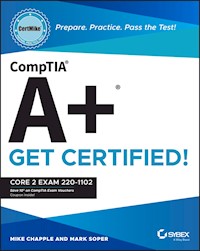
Skip the fluff and get straight to the essentials with an indispensable prep handbook for the CompTIA A+ Core 2 exam In CompTIA A+ CertMike: Prepare. Practice. Pass the Test! Get Certified!Core 2 Exam 220-1102, veteran tech experts and educators Mike Chapple and Mark Soper deliver a hands-on and practical roadmap to taking--and succeeding on--the CompTIA A+ Core 2 exam. You'll learn how to install, configure, and maintain computer equipment, mobile devices, and software for end users, service components based on customer requirements, understand networking basics, and apply essential cybersecurity methods. Ace the test using the proven CertMike approach: * Prepare -- CertMike is your personal study coach, guiding you through all the exam objectives and helping you gain an understanding of how they apply to on-the-job tasks! * Practice -- Each chapter includes two multiple choice practice questions. Work through the detailed explanations to evaluate each answer option and understand the reason for the best answer! * Pass -- On exam day, use the critical knowledge you've learned when you're ready to take the test. You'll feel ready and confident to pass the exam and earn your certification! With a laser-focus on getting you job- and exam-ready, the book skips the fluff and gets right to the point of getting you familiar with IT basics and on the road to an in-demand IT certification and a new career in tech. You'll also get complimentary access to additional online study tools, complete with a bonus practice exam and audio recordings of the CertMike Exam Essentials. Banish test anxiety and feel ready to pass the test--the first time around! An indispensable resource for anyone preparing for their A+ certification, CompTIA A+ CertMike: Prepare. Practice. Pass the Test! Get Certified! Core 2 Exam 220-1102 is also a must-read for hardware and PC technicians seeking to upgrade their skillset.
Sie lesen das E-Book in den Legimi-Apps auf:
Seitenzahl: 710
Veröffentlichungsjahr: 2023
Ähnliche

Table of Contents
COVER
WILEY BOOKS IN THE CERTMIKE SERIES
TITLE PAGE
COPYRIGHT
DEDICATION
ACKNOWLEDGMENTS
ABOUT THE AUTHORS
ABOUT THE TECHNICAL EDITOR
INTRODUCTION
THE A+ PROGRAM
WHAT DOES THIS BOOK COVER?
CORE 1 EXAM 220-1102 EXAM OBJECTIVES
CORE 2 EXAM 220-1102 CERTIFICATION EXAM OBJECTIVE MAP
HOW TO CONTACT THE PUBLISHER
PART I: Domain 1.0: Operating Systems
CHAPTER 1: Microsoft Windows Editions
WINDOWS 10 EDITIONS
FEATURE DIFFERENCES BETWEEN EDITIONS
UPGRADE PATHS
CHAPTER 2: Microsoft Command-Line Tools
NAVIGATION
COMMAND-LINE TOOLS
CHAPTER 3: Windows 10 Operating System Tools
TASK MANAGER
MICROSOFT MANAGEMENT CONSOLE (MMC) SNAP-IN
ADDITIONAL TOOLS
CHAPTER 4: Windows 10 Control Panel
CONTROL PANEL OVERVIEW
OPENING CONTROL PANEL
INTERNET OPTIONS
DEVICES AND PRINTERS
PROGRAMS AND FEATURES
NETWORK AND SHARING CENTER
SYSTEM
WINDOWS DEFENDER FIREWALL
SOUND
USER ACCOUNTS
DEVICE MANAGER
INDEXING OPTIONS
ADMINISTRATIVE TOOLS
FILE EXPLORER OPTIONS
POWER OPTIONS
EASE OF ACCESS
CHAPTER 5: Windows Settings
ACCESSING SETTINGS
TIME & LANGUAGE
UPDATE & SECURITY
PERSONALIZATION
APPS
PRIVACY
SYSTEM
DEVICES
NETWORK & INTERNET
GAMING
ACCOUNTS
CHAPTER 6: Windows Networking
WORKGROUP VS. DOMAIN SETUP
LOCAL OS FIREWALL SETTINGS
CLIENT NETWORK CONFIGURATION
ESTABLISH NETWORK CONNECTIONS
PROXY SETTINGS
PUBLIC NETWORK VS. PRIVATE NETWORK
FILE EXPLORER NAVIGATION – NETWORK PATHS
METERED CONNECTIONS AND LIMITATIONS
CHAPTER 7: Application Installation and Configuration
SYSTEM REQUIREMENTS FOR APPLICATIONS
OS REQUIREMENTS FOR APPLICATIONS
DISTRIBUTION METHODS
PHYSICAL MEDIA VS. DOWNLOADABLE
ISO MOUNTABLE
OTHER CONSIDERATIONS FOR NEW APPLICATIONS
CHAPTER 8: Operating System Types
WORKSTATION OSs
CELL PHONE/TABLET OSs
VARIOUS FILESYSTEM TYPES
VENDOR LIFE-CYCLE LIMITATIONS
COMPATIBILITY CONCERNS BETWEEN OSs
CHAPTER 9: Operating System Installations and Upgrades
BOOT METHODS
TYPES OF INSTALLATIONS
PARTITIONING
DRIVE FORMAT
UPGRADE CONSIDERATIONS
FEATURE UPDATES
CHAPTER 10: macOS
INSTALLATION AND UNINSTALLATION OF APPLICATIONS
APPLE ID AND CORPORATE RESTRICTIONS
BEST PRACTICES
SYSTEM PREFERENCES
FEATURES
DISK UTILITY
FILEVAULT
TERMINAL
FORCE QUIT
CHAPTER 11: Linux
COMMON COMMANDS
BEST PRACTICES
TOOLS
PART II: Domain 2.0: Security
CHAPTER 12: Physical Security
PHYSICAL SECURITY
PHYSICAL SECURITY FOR STAFF
CHAPTER 13: Logical Security
LOGICAL SECURITY
MOBILE DEVICE MANAGEMENT (MDM)
ACTIVE DIRECTORY
CHAPTER 14: Wireless Security
PROTOCOLS AND ENCRYPTION
AUTHENTICATION
CHAPTER 15: Malware
MALWARE
MALWARE PREVENTION AND REMOVAL TOOLS AND METHODS
CHAPTER 16: Social Engineering and Security Threats
SOCIAL ENGINEERING
THREATS
VULNERABILITIES
CHAPTER 17: Windows Security
DEFENDER ANTIVIRUS
FIREWALL
USERS AND GROUPS
LOGIN OS OPTIONS
NTFS VS. SHARE PERMISSIONS
RUN AS ADMINISTRATOR VS. STANDARD USER
BitLocker
BITLOCKER TO GO
ENCRYPTING FILE SYSTEM (EFS)
CHAPTER 18: Workstation Security Configuration
DATA-AT-REST ENCRYPTION
PASSWORD BEST PRACTICES
END-USER BEST PRACTICES
ACCOUNT MANAGEMENT
CHANGE DEFAULT ADMINISTRATOR'S USER ACCOUNT/PASSWORD
DISABLE AutoRun
DISABLE AutoPlay
CHAPTER 19: Mobile and Embedded Device Security
SCREEN LOCKS
LOCATOR APPS AND REMOTE WIPES
OS UPDATES
DEVICE ENCRYPTION
REMOTE BACKUP APPLICATIONS
FAILED LOGIN ATTEMPTS RESTRICTIONS
ANTIVIRUS/ANTIMALWARE
FIREWALLS
POLICIES AND PROCEDURES
INTERNET OF THINGS (IoT)
CHAPTER 20: Data Destruction and Disposal
PHYSICAL DESTRUCTION
RECYCLING OR REPURPOSING BEST PRACTICES
OUTSOURCING CONCEPTS
CHAPTER 21: Network Security
HOME ROUTER SETTINGS
WIRELESS SPECIFIC SETTINGS
FIREWALL SETTINGS
CHAPTER 22: Browser Security
BROWSER DOWNLOAD/INSTALLATION
SETTINGS
PART III: Domain 3.0: Software Troubleshooting
CHAPTER 23: Troubleshooting Windows
COMMON SYMPTOMS
COMMON TROUBLESHOOTING STEPS
CHAPTER 24: Troubleshooting PC Security
COMMON SYMPTOMS
BROWSER-RELATED SYMPTOMS
CHAPTER 25: Troubleshooting Malware
STEP 1. INVESTIGATE AND VERIFY MALWARE SYMPTOMS
STEP 2. QUARANTINE INFECTED SYSTEMS
STEP 3. DISABLE SYSTEM RESTORE IN WINDOWS
STEP 4. REMEDIATE INFECTED SYSTEMS
STEP 5. SCHEDULE SCANS AND RUN UPDATES
STEP 6. ENABLE SYSTEM RESTORE AND CREATE A RESTORE POINT IN WINDOWS
STEP 7. EDUCATE THE END USER
CHAPTER 26: Troubleshooting Mobile Device OS and Applications
COMMON MOBILE OS AND APPLICATION SYMPTOMS
CHAPTER 27: Troubleshooting Mobile Device Security
SECURITY CONCERNS
COMMON SYMPTOMS
PART IV: Domain 4.0: Operational Procedures
CHAPTER 28: Documentation
TICKETING SYSTEMS
ASSET MANAGEMENT
TYPES OF DOCUMENTS
KNOWLEDGE BASE/ARTICLES
CHAPTER 29: Change Management
DOCUMENTED BUSINESS PROCESSES
CHANGE MANAGEMENT
CHAPTER 30: Workstation Backup and Recovery
BACKUP AND RECOVERY
BACKUP TESTING
BACKUP ROTATION SCHEMES
CHAPTER 31: Safety
ELECTROSTATIC DISCHARGE (ESD) STRAPS
ESD MATS
EQUIPMENT GROUNDING
PROPER POWER HANDLING
PROPER COMPONENT HANDLING AND STORAGE
ANTISTATIC BAGS
COMPLIANCE WITH GOVERNMENT REGULATIONS
PERSONAL SAFETY
CHAPTER 32: Environmental Protection
MATERIAL SAFETY DATA SHEET (MSDS): DOCUMENTATION FOR HANDLING AND DISPOSAL
TEMPERATURE, HUMIDITY-LEVEL AWARENESS, AND PROPER VENTILATION
POWER SURGES, UNDER-VOLTAGE EVENTS, AND POWER FAILURES
CHAPTER 33: Privacy, Licensing, Policy, and Incident Response
INCIDENT RESPONSE
LICENSING/DIGITAL RIGHTS MANAGEMENT (DRM)/END-USER LICENSE AGREEMENT (EULA)
REGULATED DATA
CHAPTER 34: Communication and Professionalism
PROFESSIONAL APPEARANCE AND ATTIRE
USE PROPER LANGUAGE AND AVOID JARGON, ACRONYMS, AND SLANG, WHEN APPLICABLE
MAINTAIN A POSITIVE ATTITUDE/PROJECT CONFIDENCE
ACTIVELY LISTEN, TAKE NOTES, AND AVOID INTERRUPTING THE CUSTOMER
BE CULTURALLY SENSITIVE
BE ON TIME (IF LATE, CONTACT THE CUSTOMER)
AVOID DISTRACTIONS
DEALING WITH DIFFICULT CUSTOMERS OR SITUATIONS
SET AND MEET EXPECTATIONS/TIME LINE AND COMMUNICATE STATUS WITH THE CUSTOMER
DEAL APPROPRIATELY WITH CUSTOMERS' CONFIDENTIAL AND PRIVATE MATERIALS
CHAPTER 35: Scripting
SCRIPT FILE TYPES
USE CASES FOR SCRIPTING
OTHER CONSIDERATIONS WHEN USING SCRIPTS
CHAPTER 36: Remote Access
METHODS/TOOLS
SECURITY CONSIDERATIONS OF EACH ACCESS METHOD
INDEX
END USER LICENSE AGREEMENT
List of Tables
Chapter 1
TABLE 1.1 Windows 10 maximum memory sizes by edition
Chapter 7
TABLE 7.1 RAM recommendations for popular Windows 64-bit apps
Chapter 11
TABLE 11.1
chmod
permissions key
Chapter 30
TABLE 30.1 Backup types quick reference
List of Illustrations
Chapter 1
FIGURE 1.1 This system is running Windows 10 Pro.
FIGURE 1.2 This system is connected to a workgroup.
FIGURE 1.3 Typical Windows 10 Start menu in Standard mode
FIGURE 1.4 Typical Windows 10 Start menu in Tablet mode
FIGURE 1.5 Configuring RDP
FIGURE 1.6 Viewing a folder on a remote system with RDC
Chapter 2
FIGURE 2.1 Making and changing to a new folder. The prompt reflects the curr...
FIGURE 2.2 Using
dir /p
to pause a long directory listing
FIGURE 2.3 Removing a folder with
rmdir
FIGURE 2.4 Portions of an
ipconfig /all
report showing the Wi-Fi connection...
FIGURE 2.5 Using
ping
to check connectivity
FIGURE 2.6 Using netstat -r to display the interface list and IPv4 routing t...
FIGURE 2.7 Using nslookup to view this computer's current server and IP addr...
FIGURE 2.8 An error triggered when chkdsk is run from the command prompt in ...
FIGURE 2.9 The end of a
chkdsk
run with no errors detected
FIGURE 2.10 Displaying network accounts with
net user
FIGURE 2.11 Viewing drive mappings with net use and getting condensed help w...
FIGURE 2.12 Tracing the route to a website. Each * indicates no response fro...
FIGURE 2.13 Formatting a 2 GB SD card using its default setting
FIGURE 2.14 Using copy *.log foldername and dir foldername to verify the fil...
FIGURE 2.15 Using xcopy to create a folder and copy the contents of another ...
FIGURE 2.16 Using robocopy to create a folder and copy the contents of anoth...
FIGURE 2.17 Using
gpupdate
and
gpresult /r
FIGURE 2.18 Scanning and repairing Windows system files with
sfc
FIGURE 2.19 Cleaning all contents of a disk with
diskpart
FIGURE 2.20 Portions of the output from a typical
pathping
run
Chapter 3
FIGURE 3.1 The Fewer Details view of Task Manager shows only active apps.
FIGURE 3.2 Viewing background processes with the Processes tab
FIGURE 3.3 The Services tab lists all services, with options to manage a sel...
FIGURE 3.4 The Startup tab on a system with a few Startup events
FIGURE 3.5 The real-time drive transfer rate, read, and write speeds, and di...
FIGURE 3.6 Preparing to sign out a user with the Users tab
FIGURE 3.7 Preparing to install a snap-in for MMC; start the process by sele...
FIGURE 3.8 Viewing details of a critical event recorded in a custom log in E...
FIGURE 3.9 Disk Management displaying the configurations of a system drive a...
FIGURE 3.10 Reviewing conditions for an existing task in Task Scheduler
FIGURE 3.11 Device Manager listing for a disabled device
FIGURE 3.12 Certificate Manager list of trusted root certificate authorities
FIGURE 3.13 Adding a user to the Backup Operators group with Local Users and...
FIGURE 3.14 Checking memory and pagefile usage with Performance Monitor
FIGURE 3.15 Using Group Policy Editor to change the Account Lockout Threshol...
FIGURE 3.16 Reviewing a system summary with System Information
FIGURE 3.17 Reviewing system performance with Resource Monitor
FIGURE 3.18 General and Boot tabs for a Windows 10 system, with some changes...
FIGURE 3.19 Reviewing suggested cleanup items with Disk Cleanup
FIGURE 3.20 Viewing Registry branches and a specific Registry entry
Chapter 4
FIGURE 4.1 Using Windows 10 Search to open Control Panel
FIGURE 4.2 Control Panel's Large Icons view
FIGURE 4.3 Using Devices and Printers to see information about hardware atta...
FIGURE 4.4 Preparing to uninstall an app with Programs and Features
FIGURE 4.5 The Network and Sharing Center
FIGURE 4.6 The About page in Settings opens when you click System in Control...
FIGURE 4.7 Windows Defender Firewall indicates this system is connected to a...
FIGURE 4.8 Windows Defender Firewall indicates this system is being protecte...
FIGURE 4.9 The Mail applet in Control Panel is used with the 32-bit version ...
FIGURE 4.10 Adjusting Speakers properties in the Control Panel Sound applet...
FIGURE 4.11 The User Accounts applet in Control Panel is used for account ma...
FIGURE 4.12 A WD drive shown in Device Manager has problems. Click the devic...
FIGURE 4.13 Installing drivers supplied by Windows Update resolved the probl...
FIGURE 4.14 Preparing to add a location to the index with Indexing Options
FIGURE 4.15 Administrative Tools in Windows 10
FIGURE 4.16 Windows Tools in Windows 11
FIGURE 4.17 The General tab in File Explorer Options
FIGURE 4.18 Showing hidden files and preparing to unhide protected operating...
FIGURE 4.19 The C:\ folder before (left) and after (right) showing hidden fi...
FIGURE 4.20 The C:\ folder before (left) and after (right) unhiding protecte...
FIGURE 4.21 A view of a pictures folder with file extensions hidden (top) an...
FIGURE 4.22 Choose power plans and select power settings to change from the ...
FIGURE 4.23 Turn On Fast Startup (Recommended), Sleep, And Lock are enabled ...
FIGURE 4.24 The Ease of Access Center main menu in High Contrast mode
Chapter 5
FIGURE 5.1 Settings icon for Windows 10 (left) and Windows 11 (right)
FIGURE 5.2 Settings menu for Windows 10
FIGURE 5.3 Settings menu for Windows 11
FIGURE 5.4 Date & Time menu for Windows 10
FIGURE 5.5 Windows Backup and Recovery menus for Windows 10
FIGURE 5.6 Background (left) and Colors (right) menus in Windows 10
FIGURE 5.7 Apps & Features (left) and Startup (right) menus in Windows 10...
FIGURE 5.8 General (left) and Camera (right) privacy menus
FIGURE 5.9 About dialog from the System menu
FIGURE 5.10 Setting up extended desktop using the Display menu
FIGURE 5.11 Bluetooth & Other Devices and AutoPlay menus in Windows 10
FIGURE 5.12 Mobile Hotspot and Proxy menus in Windows 10
FIGURE 5.13 Captures menu in Windows 10
FIGURE 5.14 Sign-in options available in Accounts on Windows 10
Chapter 6
FIGURE 6.1 Connecting to printers
FIGURE 6.2 Mapping a network drive
FIGURE 6.3 Windows Defender Firewall
FIGURE 6.4 Windows Security Alert
FIGURE 6.5 Windows Defender Firewall with Advanced Security
FIGURE 6.6 New Inbound Rule Wizard
FIGURE 6.7 Settings app network configuration
FIGURE 6.8 Control Panel network configuration
FIGURE 6.9 VPN connectivity
FIGURE 6.10 Wireless connectivity
FIGURE 6.11 Windows Cellular settings
FIGURE 6.12 Windows Proxy settings
FIGURE 6.13 Ethernet connection options
Chapter 7
FIGURE 7.1 If an older app won't run on a current 64-bit version of Windows,...
FIGURE 7.2 The Program Compatibility Troubleshooter can be run from the Comp...
FIGURE 7.3 DXDiag's System tab provides a quick view of the Windows version,...
FIGURE 7.4 DXDiag's Display 1 tab lists the display memory (VRAM) installed....
FIGURE 7.5 After starting MSInfo32 (System Information), click Components ➣ ...
FIGURE 7.6 The system drive (C:) has plenty of room remaining for apps.
FIGURE 7.7 Preparing to mount an ISO file with Windows 10's File Explorer...
Chapter 8
FIGURE 8.1 Windows 10's desktop GUI and command-line interfaces
FIGURE 8.2 Ubuntu Linux 22.04's desktop GUI and command-line interfaces...
FIGURE 8.3 macOS Monterey's desktop GUI and command-line interfaces
FIGURE 8.4 Chrome OS uses Google web apps.
FIGURE 8.5 Browsing files with iOS 15.5's Files app
FIGURE 8.6 Using the split-screen multitasking feature of iPadOS
FIGURE 8.7 Two screens from the Samsung A20 smartphone, running a modified v...
FIGURE 8.8 Formatting a 32 GB USB flash drive with FAT32
FIGURE 8.9 Click Advanced on the file's properties sheet to see the options ...
FIGURE 8.10 Formatting a 64 GB flash drive with the exFAT filesystem
Chapter 9
FIGURE 9.1 Using Rufus to create Windows 11 installation media that bypasses...
FIGURE 9.2 Using Rufus to create Ubuntu Linux installation media with the op...
FIGURE 9.3 Burning an Ubuntu Linux ISO to an optical disc with Windows File ...
FIGURE 9.4 Configuring a system to boot from the network
FIGURE 9.5 Preparing to format a portion of a blank drive for use with Windo...
Chapter 10
FIGURE 10.1 Installing a DMG file from the
Downloads
folder
FIGURE 10.2 Examining the contents of an APP folder
FIGURE 10.3 Emptying the Trash to finish uninstalling a macOS app
FIGURE 10.4 Using Software Update to install a macOS update
FIGURE 10.5 System Preferences reminds you to sign in with your Apple ID to ...
FIGURE 10.6 Displays lets you configure the resolution and other settings fo...
FIGURE 10.7 Network dialog boxes
FIGURE 10.8 Scanning an old photo with Printers & Scanners
FIGURE 10.9 Security & Privacy's General and Privacy tabs
FIGURE 10.10 Accessibility's Zoom options
FIGURE 10.11 Running Time Machine
FIGURE 10.12 Restoring selected files to the desktop with Time Machine
FIGURE 10.13 Mission Control's options
FIGURE 10.14 Enabling iCloud and other services with Apple ID
FIGURE 10.15 Searching for Screen Shot with Spotlight
FIGURE 10.16 Enabling more trackpad gestures
FIGURE 10.17 Using the Finder to share files
FIGURE 10.18 Using the Dock & Menu Bar in System Preferences to enable Magni...
FIGURE 10.19 Using Disk Utility to view an SSD's details
FIGURE 10.20 Using Disk Utility to restore the onboard macOS drive to an ext...
FIGURE 10.21 Running
ps
,
kill
, and
pmset -g batt
in macOS Terminal
FIGURE 10.22 Preparing to force quit Photos
Chapter 11
FIGURE 11.1 Preparing to open Terminal from Ubuntu's Activities (programs) m...
FIGURE 11.2 Using ls -l to view the contents of the Pictures folder in Ubunt...
FIGURE 11.3 Using
pwd
,
df
, and
df -h
in Ubuntu
FIGURE 11.4 Using
mv
and
ls
(to confirm the move) in Ubuntu
FIGURE 11.5 Using
cp
and
ls
(to confirm the copy) in Ubuntu
FIGURE 11.6 Using
chmod
in Ubuntu
FIGURE 11.7 Using
chown
in Ubuntu
FIGURE 11.8 Installing gpaint using
apt-get
in Ubuntu
FIGURE 11.9 Viewing IP addresses and routes with
ip
in Ubuntu 22.04
FIGURE 11.10 Finding a word in a file using
grep
in Ubuntu
FIGURE 11.11 Comparison of
ps
and
top
in Ubuntu
FIGURE 11.12 Using find to locate JPEG files and to view files owned by char...
FIGURE 11.13 Using dig to display the IP address of a website and the DNS se...
FIGURE 11.14 Using
cat
to create, append text to, and view a file
FIGURE 11.15 Using
nano
to view the contents of
cpuinfo
FIGURE 11.16 Setting up a backup with Grsync
FIGURE 11.17 Preparing to scan a system with ClamTK Virus Scanner
Chapter 12
FIGURE 12.1 A Kensington security lock before attachment (left) and after at...
Chapter 13
FIGURE 13.1 Network ACL example
FIGURE 13.2 NTFS ACL example
FIGURE 13.3 Hard token example
FIGURE 13.4 Soft token example
FIGURE 13.5 Active Directory security tokens
FIGURE 13.6 A hybrid OU structure
FIGURE 13.7 The Group Policy Management Console
FIGURE 13.8 Group Policy Object settings
FIGURE 13.9 The Profile tab in Active Directory Users and Computers MMC
Chapter 14
FIGURE 14.1 A router that offers both TKIP and AES encryption with WPA
FIGURE 14.2 A router that supports WPA2/WPA3 encryption
FIGURE 14.3 A router with WPA2‐Enterprise enabled must also be configured to...
FIGURE 14.4 To enable RADIUS authentication on this wireless router, enter t...
Chapter 15
FIGURE 15.1 Windows Defender antimalware package
FIGURE 15.2 Windows Firewall
FIGURE 15.3 Windows recovery mode Advanced options
Chapter 16
FIGURE 16.1 A phishing email purportedly from a major drugstore chain
FIGURE 16.2 Belarc Advisor finds several security vulnerabilities on this sy...
FIGURE 16.3 Windows 11's Windows Security dialog box displays a problem with...
Chapter 17
FIGURE 17.1 Virus & Threat Protection is used to configure scanning, updates...
FIGURE 17.2 Virus Threat Protection Settings are activated on this system.
FIGURE 17.3 Windows Defender Firewall's main menu and Customize Settings men...
FIGURE 17.4 Preparing to make changes to Windows Defender Firewall's allowed...
FIGURE 17.5 Reviewing Ports and Protocols settings for Microsoft Office in W...
FIGURE 17.6 Sign-in options for Windows
FIGURE 17.7 NTFS permissions for the owner of a file (left) and an additiona...
FIGURE 17.8 Setting share permissions for an additional user
FIGURE 17.9 Typical folder (left) and file (right) attributes
FIGURE 17.10 Comparing the root folder of C: in normal view (left) and with ...
FIGURE 17.11 Listing file attributes for files beginning with op in My Pictu...
FIGURE 17.12 Preparing to disable permissions inheritance
FIGURE 17.13 Preparing to run Command Prompt (top) or Windows PowerShell (bo...
FIGURE 17.14 The default setting (left) for UAC in Windows 10 compared to ot...
FIGURE 17.15 Preparing to enable BitLocker for C: (system) and BitLocker to ...
FIGURE 17.16 Encrypting a folder with EFS
Chapter 18
FIGURE 18.1 Make a weak password stronger by mixing capital and small letter...
FIGURE 18.2 Use Group Policy to change password settings such as password ag...
FIGURE 18.3 A typical BIOS/UEFI administrator password screen
FIGURE 18.4 A Kensington hardware lock before (left) and after (right) being...
FIGURE 18.5 Preparing to remove personal information from a Microsoft Word d...
FIGURE 18.6 The Account Lockout Policy settings dialog box in Local Group Po...
FIGURE 18.7 Changing the name of the built-in Administrator account
FIGURE 18.8 Typical AutoPlay settings enabled for different types of media (...
Chapter 19
FIGURE 19.1 The Find My iPhone settings
FIGURE 19.2 Apple setting for Face ID & Passcode
Chapter 20
FIGURE 20.1 Make sure you drill one or two holes through the circuit board o...
FIGURE 20.2 A typical SATA SSD with its bottom cover removed showing the loc...
FIGURE 20.3 Cutaway of a typical USB flash memory drive showing the approxim...
FIGURE 20.4 Cutaway of a typical SD memory card showing the approximate loca...
FIGURE 20.5 An optical disc shedder built into an office-grade paper shredde...
FIGURE 20.6 The default format option in Windows is Quick Format.
FIGURE 20.7 An SD flash memory card after the default quick format appears t...
FIGURE 20.8 Locating “lost” photos from the card shown in Figure 20.7 by usi...
FIGURE 20.9 The Quick Format option is not checked, so the drive will receiv...
FIGURE 20.10 Selecting Security Options to access more secure formatting/dis...
FIGURE 20.11 Selecting Fastest (no wiping) to Most Secure (format plus 7-pas...
FIGURE 20.12 Disk wiping options available in Acronis Cyber Protect Home Off...
Chapter 21
FIGURE 21.1 Manual password update on a home router
FIGURE 21.2 Manually check for updates on a home router
FIGURE 21.3 Configuring IP filtering
FIGURE 21.4 The Firewall – URL Filter screen for a typical router
FIGURE 21.5 DHCP configuration
FIGURE 21.6 Static WAN configuration
FIGURE 21.7 Logical screened subnet diagram
FIGURE 21.8 DMZ configuration
FIGURE 21.9 Wireless configuration
FIGURE 21.10 Guest configuration
FIGURE 21.11 Channel configuration
FIGURE 21.12 Firewall configuration
FIGURE 21.13 Administration configuration
FIGURE 21.14 Port Forwarding configuration
Chapter 22
FIGURE 22.1 Typical search engine result
FIGURE 22.2 A hash list
FIGURE 22.3 Edge Add-ons
FIGURE 22.4 Microsoft Credential Manager
FIGURE 22.5 Trusted root CAs
FIGURE 22.6 Permissions for a site
FIGURE 22.7 Clearing browsing data
FIGURE 22.8 Clearing cached images and files
FIGURE 22.9 InPrivate browsing
FIGURE 22.10 Sync is on.
Chapter 23
FIGURE 23.1 A typical BSOD (Windows STOP error) in Windows 10. Look up the c...
FIGURE 23.2 Deselecting the Automatically Restart option in System Propertie...
FIGURE 23.3 Too-small paging file (left) and low memory (right) errors displ...
FIGURE 23.4 A high number of hard faults/second in the memory display in Res...
FIGURE 23.5 Changing the size of the paging file
FIGURE 23.6 Correct boot device settings for Secure Boot and non-Windows 10/...
FIGURE 23.7 Checking temperature and fan speeds in a typical recent UEFI sys...
FIGURE 23.8 An error message triggered by trying to print when the printer i...
FIGURE 23.9 Preparing to start the Print Spooler service
FIGURE 23.10 Using the Compatibility tab to configure an old program to run ...
FIGURE 23.11 A USB 3.0 dual-port header cable and the matching motherboard h...
FIGURE 23.12 Details from MSInfo32 of a system's Windows version and physica...
FIGURE 23.13 Enabling System Restore and creating a restore point
FIGURE 23.14 Preparing to revert Windows to an earlier configuration with Sy...
Chapter 24
FIGURE 24.1 Toast notification
FIGURE 24.2 Toast notification summary
FIGURE 24.3 Web page generated download alert
FIGURE 24.4 User Account Control dialog box
FIGURE 24.5 Notifications menu
FIGURE 24.6 Windows Update Troubleshooter
FIGURE 24.7 Resetting the web browser settings
FIGURE 24.8 Certificate information
FIGURE 24.9 A connection that isn't private
FIGURE 24.10 Details for a certificate
Chapter 25
FIGURE 25.1 Resource Monitor
FIGURE 25.2 Task Manager
FIGURE 25.3 System Protection
FIGURE 25.4 Updating Microsoft Defender definitions
FIGURE 25.5 Performing a Microsoft Defender scan
FIGURE 25.6 A Microsoft Defender offline scan
FIGURE 25.7 Windows Safe Mode
FIGURE 25.8 Creating a Microsoft Defender scheduled scan
Chapter 26
FIGURE 26.1 Battery usage
FIGURE 26.2 Auto restart
FIGURE 26.3 Apple autorotate
FIGURE 26.4 Wireless connectivity options
Chapter 27
FIGURE 27.1 iPhone network data usage
FIGURE 27.2 Setting Data Warning
Chapter 28
FIGURE 28.1 Asset tag and ID number
FIGURE 28.2 An asset life cycle
FIGURE 28.3 Logical vs. physical diagrams
FIGURE 28.4 Steps Recorder
Chapter 30
FIGURE 30.1 Backup options in Windows 10
FIGURE 30.2 The Let Windows Choose backup option for Backup and Restore (Win...
FIGURE 30.3 Selecting an incremental backup with Acronis
FIGURE 30.4 Selecting a differential backup with Acronis
FIGURE 30.5 In this example from Acronis, the Rescue Media Builder is used t...
FIGURE 30.6 Not all files were restored; be sure to save the log file so you...
Chapter 31
FIGURE 31.1 An ESD strap showing the components (wrist strap with metal plat...
FIGURE 31.2 Connecting the ESD strap to a computer case before assembling th...
FIGURE 31.3 This ESD table mat includes a resistor and an alligator clip for...
FIGURE 31.4 A three-prong to two-prong converter “cheater” plug that doesn't...
FIGURE 31.5 Plug the outlet tester in, observe the signal lights, and quickl...
FIGURE 31.6 Close up an antistatic bag to provide maximum protection from th...
FIGURE 31.7 Antistatic bubble wrap protecting a DVD rewriteable drive
FIGURE 31.8 A typical PC power supply after being turned off and its AC powe...
Chapter 36
FIGURE 36.1 The initial RDC dialog box (left) and the RDC dialog box with op...
FIGURE 36.2 A typical full-screen RDC session. Note the banner across the to...
FIGURE 36.3 A typical RDC session in a window on the remote computer
FIGURE 36.4 The Windscribe VPN is configured to report the author's location...
FIGURE 36.5 Configuring the TightVNC server to permit remote access on Windo...
FIGURE 36.6 A typical first-time connection to an SSH server using the Linux...
FIGURE 36.7 The remote access management of this RMM displays essential info...
FIGURE 36.8 An MSRA remote session with the chat window in use
FIGURE 36.9 Using screen-sharing in Zoom for training
FIGURE 36.10 Using text chat in a Microsoft Teams meeting
FIGURE 36.11 Accessing the
GNU.org
FTP server with FileZilla
FIGURE 36.12 Using Goverlan to check IP settings remotely on a Windows 10 wo...
Guide
Cover
Wiley Books in the Certmike Series
Title Page
Copyright
Dedication
Acknowledgments
About the Authors
About the Technical Editor
Introduction
Table of Contents
Begin Reading
Index
End User License Agreement
Pages
ii
v
vi
vii
ix
xi
xiii
xxiii
xxiv
xxv
xxvi
xxvii
xxviii
xxix
xxx
xxxi
xxxii
1
2
3
4
5
6
7
8
9
10
11
12
13
14
15
16
17
18
19
20
21
22
23
24
25
26
27
28
29
30
31
32
33
34
35
37
38
39
40
41
42
43
44
45
46
47
48
49
50
51
52
53
54
55
56
57
58
59
60
61
62
63
64
65
66
67
68
69
70
71
72
73
74
75
76
77
78
79
80
81
82
83
84
85
86
87
88
89
90
91
92
93
94
95
96
97
98
99
100
101
102
103
104
105
106
107
108
109
110
111
112
113
114
115
116
117
118
119
120
121
122
123
124
125
126
127
128
129
130
131
132
133
134
135
136
137
138
139
140
141
143
144
145
146
147
148
149
150
151
152
153
154
155
156
157
158
159
161
162
163
164
165
166
167
168
169
170
171
172
173
174
175
176
177
178
179
180
181
182
183
184
185
186
187
188
189
190
191
192
193
194
195
196
197
198
199
201
202
203
204
205
206
207
208
209
210
211
212
213
214
215
216
217
219
220
221
222
223
224
225
226
227
228
229
230
231
232
233
234
235
236
237
238
239
240
241
242
243
244
245
246
247
249
250
251
252
253
254
255
256
257
258
259
260
261
262
263
264
265
266
267
268
269
271
272
273
274
275
276
277
278
279
280
281
282
283
284
285
286
287
289
290
291
292
293
294
295
296
297
298
299
300
301
302
303
304
305
306
307
308
309
310
311
313
314
315
316
317
318
319
320
321
322
323
324
325
326
327
328
329
331
332
333
334
335
336
337
338
339
340
341
342
343
345
346
347
348
349
350
351
352
353
354
355
356
357
358
359
360
361
362
363
364
365
366
367
368
369
370
371
372
373
374
375
376
377
378
379
380
381
382
383
384
385
386
387
388
389
390
391
392
393
395
397
398
399
400
401
402
403
404
405
406
407
408
409
410
411
412
413
414
415
416
417
419
420
421
422
423
424
425
426
427
428
429
430
431
432
433
434
435
436
437
438
439
440
441
442
443
444
445
446
447
448
449
450
451
452
453
454
455
456
457
458
459
460
461
463
464
465
466
467
468
469
470
471
472
473
474
475
477
478
479
480
481
482
483
484
485
486
487
488
489
490
491
492
493
494
495
496
497
498
499
500
501
502
503
505
506
507
508
509
510
511
512
513
514
515
516
517
518
519
520
521
522
523
524
525
526
527
528
529
530
531
533
534
535
536
537
538
539
540
541
542
543
544
545
546
547
548
549
550
551
553
554
555
556
557
558
559
560
561
562
563
565
566
567
568
569
570
571
572
573
574
575
576
577
578
579
580
581
582
583
584
585
586
587
588
589
590
591
592
593
594
595
596
597
598
599
600
601
602
603
604
605
606
607
608
609
610
611
612
613
614
615
616
617
618
WILEY BOOKS IN THE CERTMIKE SERIES
CompTIA ITF+ CertMike: Prepare. Practice.Pass the Test! Get Certified! Exam FC0-U61by Mike Chapple(ISBN 9781119897811)
CompTIA A+ CertMike: Prepare. Practice.Pass the Test! Get Certified! Core 1 Exam 220-1101by Mike Chapple and Mark Soper(ISBN 9781119898092)
CompTIA A+ CertMike: Prepare. Practice.Pass the Test! Get Certified! Core 2 Exam 220-1102by Mike Chapple and Mark Soper(ISBN 9781119898122)
CompTIA Network+ CertMike: Prepare. Practice.Pass the Test! Get Certified! Exam N10-008by Mike Chapple and Craig Zacker(ISBN 9781119898153)
CompTIA® A+® CertMike
Prepare. Practice. Pass the Test! Get Certified!Core 2 Exam 220-1102
Mike Chapple
Mark Soper
Copyright © 2023 by John Wiley & Sons, Inc. All rights reserved.
Published by John Wiley & Sons, Inc., Hoboken, New Jersey.
Published simultaneously in Canada and the United Kingdom.
ISBN: 978-1-119-89812-2ISBN: 978-1-119-89814-6 (ebk.)ISBN: 978-1-119-89813-9 (ebk.)
No part of this publication may be reproduced, stored in a retrieval system, or transmitted in any form or by any means, electronic, mechanical, photocopying, recording, scanning, or otherwise, except as permitted under Section 107 or 108 of the 1976 United States Copyright Act, without either the prior written permission of the Publisher, or authorization through payment of the appropriate per-copy fee to the Copyright Clearance Center, Inc., 222 Rosewood Drive, Danvers, MA 01923, (978) 750-8400, fax (978) 750-4470, or on the web at www.copyright.com. Requests to the Publisher for permission should be addressed to the Permissions Department, John Wiley & Sons, Inc., 111 River Street, Hoboken, NJ 07030, (201) 748-6011, fax (201) 748-6008, or online at www.wiley.com/go/permission.
Trademarks: Wiley, the Wiley logo, and the Sybex logo are trademarks or registered trademarks of John Wiley & Sons, Inc. and/or its affiliates, in the United States and other countries, and may not be used without written permission. CompTIA and A+ are registered trademarks of CompTIA, Inc. All other trademarks are the property of their respective owners. John Wiley & Sons, Inc. is not associated with any product or vendor mentioned in this book.
Limit of Liability/Disclaimer of Warranty: While the publisher and author have used their best efforts in preparing this book, they make no representations or warranties with respect to the accuracy or completeness of the contents of this book and specifically disclaim any implied warranties of merchantability or fitness for a particular purpose. No warranty may be created or extended by sales representatives or written sales materials. The advice and strategies contained herein may not be suitable for your situation. You should consult with a professional where appropriate. Further, readers should be aware that websites listed in this work may have changed or disappeared between when this work was written and when it is read. Neither the publisher nor authors shall be liable for any loss of profit or any other commercial damages, including but not limited to special, incidental, consequential, or other damages.
For general information on our other products and services or to obtain technical support, please contact our Customer Care Department within the U.S. at (877) 762-2974, outside the U.S. at (317) 572-3993 or fax (317) 572-4002.
Wiley also publishes its books in a variety of electronic formats. Some content that appears in print may not be available in electronic formats. For more information about Wiley products, visit our web site at www.wiley.com.
Library of Congress Control Number: 2023933111
Cover design: Wiley
To my Aunt Jane, who has given so generously to me my entire life. I owe you more than I can ever express. Thank you.—Mark
ACKNOWLEDGMENTS
From Mike Chapple:
This book marks the start of a new series of CertMike Test Prep books and I'd first like to thank the people who helped shape the vision for this series. The original idea was hatched over breakfast with two very supportive editors from the Wiley team: Ken Brown and Jim Minatel. I've worked with both Jim and Ken on many books over many years, and they're both insightful industry experts who know what it takes to produce a great book.
Mark Soper did the heavy lifting of putting this book together, and I am grateful to him for lending this series his expertise on end-user support and the A+ exams.
I'd also like to extend a special thank you to my agent, Carole Jelen of Waterside Productions. Carole is also an experienced industry pro who can deftly navigate the murky waters of publishing. Carole is the one who pushed me to create my own series.
Of course, the creation of any book involves a tremendous amount of effort from many people other than the authors. I truly appreciate the work of Adaobi Obi Tulton, the project editor. Adaobi and I have now worked together on many books, and she keeps the train on the tracks! I'd also like to thank Chris Crayton, the technical editor, who provided insightful advice and gave wonderful feedback throughout the book; and Magesh Elangovan, production editor, who guided me through layouts, formatting, and final cleanup to produce a great book. I would also like to thank the many behind-the-scenes contributors, including the graphics, production, and technical teams who make the book and companion materials into a finished product.
Finally, I would like to thank my family, who supported me through the late evenings, busy weekends, and long hours that a book like this requires to write, edit, and get to press.
From Mark Soper
My name is on the cover, but this book would not be a reality without the efforts of so many people behind the scenes. First, I want to thank CertMike, Mike Chapple, for the opportunity to work on this brand-new certification series. I am also deeply grateful to the editorial and production team at Wiley for all their hard work.
Many thanks to Ken Brown, acquisitions editor; Christine O'Connor, managing editor; Adaobi Obi Tulton, project editor; Chris Crayton, technical editor; Magesh Elangovan, production editor; Elizabeth Welch, copyeditor; and everyone else at Wiley who helped to make this book a reality.
I also want to thank my family for their support and for the many technology problems they've provided me with! It's been enjoyable to fix computer problems and to teach the next generation how things work. Thanks especially to my wife, Cheryl, for smiling and nodding as we've discussed tech issues during Christmas dinner.
Finally, thanks so much to Almighty God, who created everything visible and invisible, including the forces that make computers work, and for His great salvation.
ABOUT THE AUTHORS
Mike Chapple, Ph.D., CySA+, is author of the best-selling CISSP (ISC)2 Certified Information Systems Security Professional Official Study Guide (Sybex, 2021) and the CISSP (ISC)2 Official Practice Tests (Sybex 2021). He is an information technology professional with two decades of experience in higher education, the private sector, and government.
Mike currently serves as Teaching Professor in the IT, Analytics, and Operations department at the University of Notre Dame's Mendoza College of Business, where he teaches undergraduate and graduate courses on cybersecurity, cloud computing, data management, and business analytics.
Before returning to Notre Dame, Mike served as executive vice president and chief information officer of the Brand Institute, a Miami-based marketing consultancy. Mike also spent four years in the information security research group at the National Security Agency (NSA) and served as an active duty intelligence officer in the U.S. Air Force.
Mike has written more than 25 books. He earned both his B.S. and Ph.D. degrees from Notre Dame in computer science and engineering. Mike also holds an M.S. in computer science from the University of Idaho and an MBA from Auburn University. Mike holds the IT Fundamentals (ITF+), Cybersecurity Analyst+ (CySA+), Data+, Security+, Certified Information Security Manager (CISM), Certified Cloud Security Professional (CCSP), and Certified Information Systems Security Professional (CISSP) certifications.
Learn more about Mike and his other security certification materials at his website, CertMike.com.
Mark Edward Soper, MCP, CompTIA A+, is an instructor for University of Southern Indiana's Outreach and Engagement division. He has created and taught Microsoft Windows, Excel, Word, PowerPoint, Access, Outlook, and OneNote to staff, students, community, and corporate clients for USI for over a decade.
Mark is also the co-founder and president of Select Systems & Associates, Inc, a technology research, training, and writing organization. Mark is a world-class technology writer and trainer with an international reach, with books available in English, Spanish, Polish, French, Italian, Swedish, Russian, Chinese, and other languages. A proven bridge between users and technology, helping users to grasp, master, and seek new and better technologies, Mark is a 39-year tech veteran and a human tech multitool, having written or co-authored over 40 books on CompTIA tech certifications, computer hardware and software troubleshooting, operating systems, networking, digital photography, and self-service help desk topics. Mark has also taught these and other topics across the United States.
Mark has CompTIA A+ and Microsoft MOS – Microsoft Excel 2013 certifications, and blogs at www.markesoper.com.
ABOUT THE TECHNICAL EDITOR
Chris Crayton is a technical consultant, trainer, author, and industry-leading technical editor. He has worked as a computer technology and networking instructor, information security director, network administrator, network engineer, and PC specialist. Chris has authored several print and online books on PC repair, CompTIA A+, CompTIA Security+, and Microsoft Windows. He has also served as technical editor and content contributor on numerous technical titles for several of the leading publishing companies. He holds numerous industry certifications, has been recognized with many professional and teaching awards, and has served as a state-level SkillsUSA final competition judge.
INTRODUCTION
If you're preparing to take the A+ Core 2 exam, you might find yourself overwhelmed with information. This exam covers a very broad range of topics, and it's possible to spend weeks studying each one of them. Fortunately, that's not necessary!
As part of the CertMike Test Prep series, CompTIA A+ CertMike: Prepare. Practice. Pass the Test! Get Certified! Core 2 Exam 220-1102 is designed to help you focus on the specific knowledge that you'll need to pass the exam. CompTIA publishes a detailed list of exam objectives, and this book is organized around those objectives. Each chapter clearly states the single objective that it covers and then, in a few pages, covers the material you need to know about that objective.
You'll find two important things at the end of each chapter: Exam Essentials and Practice Questions. The CertMike Exam Essentials distill the major points from the chapter into just a few bullet points. Reviewing the Exam Essentials is a great way to prepare yourself right before the exam. Mike also recorded a free audio version of the Exam Essentials that you'll find on the book's companion website at www.wiley.com/go/sybextestprep. They're great listening when you're in the car, at the gym, or mowing the lawn!
Each chapter concludes with two Practice Questions that are designed to give you a taste of what it's like to take the exam. You'll find that they're written in the same style as the A+ exam questions and have detailed explanations to help you understand the correct answer. Be sure to take your time and thoroughly read these questions.
Finally, the book's website includes a full-length practice exam that you can use to assess your knowledge when you're ready to take the test. Good luck on the A+ Core 2 exam!
NOTE
Don't just study the questions and answers! The questions on the actual exam will be different from the Practice Questions included in this book. The exam is designed to test your knowledge of a concept or objective, so use this book to learn the objectives behind the questions.
THE A+ PROGRAM
A+ is designed to be a vendor-neutral certification for those seeking to enter the information technology field. CompTIA recommends this certification for individuals who want to be problem solvers in the world of endpoint management and technical support. Common job roles held by A+ certified individuals include the following:
Helpdesk technician
Field service technician
Associate network engineer
Junior systems administrator
Desktop support specialist
System support technician
The A+ certification is unique in that earning it requires passing two separate exams:
A+ Core 1
(
220-1101)
, which covers mobile devices, networking technology, hardware, virtualization, and cloud computing
A+ Core 2 (220-1102)
, which covers operating systems, security, software, and operational procedures
This book focuses on the Core 2 exam, which covers four major domains of knowledge:
Operating Systems
Security
Software Troubleshooting
Operational Procedures
These four areas include a range of topics, from configuring operating system settings to preventing malware attacks, while focusing heavily on the basic knowledge expected of IT technicians.
The A+ exam uses a combination of standard multiple-choice questions and performance-based questions that require you to manipulate objects on the screen. This exam is designed to be straightforward and not to trick you. If you know the material in this book, you will pass the exam.
Each exam costs $239 in the United States, with roughly equivalent prices in other locations around the globe. You can find more details about the A+ exams and how to take it at:
www.comptia.org/certifications/a#examdetails
You'll have 90 minutes to take the exam and will be asked to answer up to 90 questions during that time period. Your exam will be scored on a scale ranging from 100 to 900, with a passing score of 700.
NOTE
CompTIA frequently does what is called item seeding, which is the practice of including unscored questions on exams. It does so to gather psychometric data, which is then used when developing new versions of the exam. Before you take the exam, you will be told that your exam may include these unscored questions. So, if you come across a question that does not appear to map to any of the exam objectives—or for that matter, does not appear to belong in the exam—it is likely a seeded question. You never really know whether or not a question is seeded, however, so always make your best effort to answer every question.
Taking the Exam
Once you are fully prepared to take the exam, you can visit the CompTIA website to purchase your exam voucher:
https://store.comptia.org
Currently, CompTIA offers two options for taking the exam: an in-person exam at a testing center and an at-home exam that you take on your own computer.
TIP
This book includes a coupon that you may use to save 10 percent on your CompTIA exam registration.
In-Person Exams
CompTIA partners with Pearson VUE's testing centers, so your next step will be to locate a testing center near you. In the United States, you can do this based on your address or your zip code, while non-U.S. test takers may find it easier to enter their city and country. You can search for a test center near you at the Pearson Vue website, where you will need to navigate to “Find a test center.”
www.pearsonvue.com/comptia
Now that you know where you'd like to take the exam, simply set up a Pearson VUE testing account and schedule an exam on their site.
On the day of the test, take two forms of identification, and be sure to show up with plenty of time before the exam starts. Remember that you will not be able to take your notes, electronic devices (including smartphones and watches), or other materials in with you.
At-Home Exams
CompTIA began offering online exam proctoring in 2020 in response to the coronavirus pandemic. As of this writing, the at-home testing option was still available and appears likely to continue. Candidates using this approach will take the exam at their home or office and be proctored over a webcam by a remote proctor.
Due to the rapidly changing nature of the at-home testing experience, candidates wishing to pursue this option should check the CompTIA website for the latest details.
After the Exam
Once you have taken the exam, you will be notified of your score immediately, so you'll know if you passed the test right away. You should keep track of your score report with your exam registration records and the email address you used to register for the exam.
After you earn the A+ certification, you're required to renew your certification every three years by either earning an advanced certification, completing a CertMaster continuing education program, or earning 20 continuing education units over a three-year period.
Many people who earn the A+ credential use it as a stepping stone to earning other certifications in their areas of interest. Those interested in networking work toward the Network+ credential, data analytics professionals might go on to earn the Data+ certification, and the Security+ program is a gateway to a career in cybersecurity.
WHAT DOES THIS BOOK COVER?
This book covers everything you need to know to pass the A+ Core 2 exam. It is organized into four parts, each corresponding to one of the four A+ Core 2 domains.
Part I: Domain 1.0: Operating Systems
Chapter 1
: Microsoft Windows Editions
Chapter 2
: Microsoft Command-Line Tools
Chapter 3
: Windows 10 Operating System Tools
Chapter 4
: Windows 10 Control Panel
Chapter 5
: Windows Settings
Chapter 6
: Windows Networking
Chapter 7
: Application Installation and Configuration
Chapter 8
: Operating System Types
Chapter 9
: Operating System Installations and Upgrades
Chapter 10
: macOS
Chapter 11
: Linux
Part II: Domain 2.0: Security
Chapter 12
: Physical Security
Chapter 13
: Logical Security
Chapter 14
: Wireless Security
Chapter 15
: Malware
Chapter 16
: Social Engineering and Security Threats
Chapter 17
: Windows Security
Chapter 18
: Workstation Security Configuration
Chapter 19
: Mobile and Embedded Device Security
Chapter 20
: Data Destruction and Disposal
Chapter 21
: Network Security
Chapter 22
: Browser Security
Part III: Domain 3.0: Software Troubleshooting
Chapter 23
: Troubleshooting Windows
Chapter 24
: Troubleshooting PC Security
Chapter 25
: Troubleshooting Malware
Chapter 26
: Troubleshooting Mobile Device OS and Applications
Chapter 27
: Troubleshooting Mobile Device Security
Part IV: Domain 4.0: Operational Procedures
Chapter 28
: Documentation
Chapter 29
: Change Management
Chapter 30
: Workstation Backup and Recovery
Chapter 31
: Safety
Chapter 32
: Environmental Protection
Chapter 33
: Privacy, Licensing, Policy, and Incident Response
Chapter 34
: Communication and Professionalism
Chapter 35
: Scripting
Chapter 36
: Remote Access
Study Guide Elements
This study guide uses a number of common elements to help you prepare. These include the following:
Exam Tips Throughout each chapter, we've sprinkled practical exam tips that help focus your reading on items that are particularly confusing or important for the exam.
CertMike Exam Essentials The Exam Essentials focus on major exam topics and critical knowledge that you should take into the test. The Exam Essentials focus on the exam objectives provided by CompTIA.
Practice Questions Two questions at the end of each chapter will help you assess your knowledge and if you are ready to take the exam based on your knowledge of that chapter's topics.
Additional Study Tools
This book comes with a number of additional study tools to help you prepare for the exam. They include the following.
NOTE
Go to www.wiley.com/go/sybextestprep to register and gain access to this interactive online learning environment and test bank with study tools.
Sybex Test Preparation Software
Sybex's test preparation software lets you prepare with electronic test versions of the Practice Questions from each chapter and the Practice Exam that is included in this book. You can build and take tests on specific domains or by chapter, or cover the entire set of A+ Core 2 exam objectives using randomized tests.
Audio Review
Mike recorded an audio review where he reads each of the sets of chapter Exam Essentials. This provides a helpful recap of the main material covered on the exam that you can use while you're commuting, working out, or relaxing.
CORE 1 EXAM 220-1102 EXAM OBJECTIVES
CompTIA goes to great lengths to ensure that its certification programs accurately reflect the IT industry's best practices. They do this by establishing committees for each of its exam programs. Each committee consists of a small group of IT professionals, training providers, and publishers who are responsible for establishing the exam's baseline competency level and who determine the appropriate target-audience level.
Once these factors are determined, CompTIA shares this information with a group of hand-selected subject matter experts (SMEs). These folks are the true brainpower behind the certification program. The SMEs review the committee's findings, refine them, and shape them into the objectives that follow this section. CompTIA calls this process a job-task analysis.
Finally, CompTIA conducts a survey to ensure that the objectives and weightings truly reflect job requirements. Only then can the SMEs go to work writing the hundreds of questions needed for the exam. Even so, they have to go back to the drawing board for further refinements in many cases before the exam is ready to go live in its final state. Rest assured that the content you're about to learn will serve you long after you take the exam.
CompTIA also publishes relative weightings for each of the exam's objectives. The following table lists the four A+ Core 2 objective domains and the extent to which they are represented on the exam.
NOTE
The A+ exam covers both Windows 10 and 11. You should be familiar with how the information in these objectives applies to both operating systems.
Domain
% of Exam
1.0 Operating Systems
31%
2.0 Security
25%
3.0 Software Troubleshooting
22%
4.0 Operational Procedures
22%
CORE 2 EXAM 220-1102 CERTIFICATION EXAM OBJECTIVE MAP
Objective
Chapter(s)
1.0 Operating Systems
1.1 Identify basic features of Microsoft Windows Editions
1
1.2 Given a scenario, use the appropriate Microsoft command-line tool
2
1.3 Given a scenario, use features and tools of the Microsoft Windows 10 operating system (OS)
3
1.4 Given a scenario, use the appropriate Microsoft Windows 10 Control Panel utility
4
1.5 Given a scenario, use the appropriate Windows settings
5
1.6 Given a scenario, configure Microsoft Windows networking features on a client/desktop
6
1.7 Given a scenario, apply application installation and configuration concepts
7
1.8 Explain common OS types and their purposes
8
1.9 Given a scenario, perform OS installations and upgrades in a diverse OS environment
9
1.10 Identify common features and tools of the macOS/desktop OS
10
1.11 Identify common features and tools of the Linux client/desktop OS
11
2.0 Security
2.1 Summarize various security measures and their purposes
12
and
13
2.2 Compare and contrast wireless security protocols and authentication methods
14
2.3 Given a scenario, detect, remove, and prevent malware using the appropriate tools and methods
15
2.4 Explain common social-engineering attacks, threats, and vulnerabilities
16
2.5 Given a scenario, manage and configure basic security settings in the Microsoft Windows OS
17
2.6 Given a scenario, configure a workstation to meet best practices for security
18
2.7 Explain common methods for securing mobile and embedded devices
19
2.8 Given a scenario, use common data destruction and disposal methods
20
2.9 Given a scenario, configure appropriate security settings on small office/home office (SOHO) wireless and wired networks
21
2.10 Given a scenario, install and configure browsers and relevant security settings
22
3.0 Software Troubleshooting
3.1 Given a scenario, troubleshoot common Windows OS problems
23
3.2 Given a scenario, troubleshoot common personal computer (PC) security issues
24
3.3 Given a scenario, use best practice procedures for malware removal
25
3.4 Given a scenario, troubleshoot common mobile OS and application issues
26
3.5 Given a scenario, troubleshoot common mobile OS and application security issues
27
4.0 Operational Procedures
4.1 Given a scenario, implement best practices associated with documentation and support systems information management
28
4.2 Explain basic change management best practices
29
4.3 Given a scenario, implement workstation backup and recovery methods
30
4.4 Given a scenario, use common safety procedures
31
4.5 Summarize environmental impacts and local environmental controls
32
4.6 Explain the importance of prohibited content/activity and privacy, licensing, and policy concepts
33
4.7 Given a scenario, use proper communication techniques and professionalism
34
4.8 Identify the basics of scripting
35
4.9 Given a scenario, use remote access technologies
36
NOTE
Exam objectives are subject to change at any time without prior notice and at CompTIA's discretion. Please visit CompTIA's website (www.comptia.org) for the most current listing of exam objectives.
HOW TO CONTACT THE PUBLISHER
If you believe you've found a mistake in this book, please bring it to our attention. At John Wiley & Sons, we understand how important it is to provide our customers with accurate content, but even with our best efforts an error may occur. In order to submit your possible errata, please email it to our Customer Service Team at [email protected] with the subject line “Possible Book Errata Submission.”




