


7,49 €
Mehr erfahren.
- Herausgeber: Rob Botwright
- Kategorie: Fachliteratur
- Sprache: Englisch
🖥️
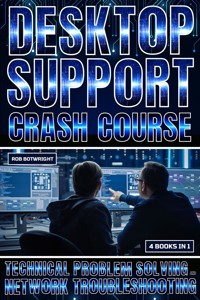
Desktop Support Crash Course Bundle! 🛠️
Are you ready to take your IT skills to the next level? Introducing the
Desktop Support Crash Course bundle, your ultimate guide to mastering technical problem-solving and network troubleshooting. 🚀
With four comprehensive books packed with practical knowledge and expert insights, this bundle is your roadmap to becoming a desktop support superstar. 🌟
📘
Book 1: Desktop Support Essentials Get started with the basics! Learn how to troubleshoot common hardware and software issues like a pro. From diagnosing system errors to resolving user problems, this beginner's guide has you covered.
📗
Book 2: Mastering Network Basics Unlock the secrets of networking fundamentals! Dive into IP addressing, subnetting, and network device configuration to ensure seamless connectivity in any environment.
📙
Book 3: Advanced Desktop Support Strategies Ready to level up? Delve deep into system diagnostics and advanced troubleshooting techniques. Discover how to analyze system logs, tune performance, and tackle complex hardware challenges with confidence.
📕
Book 4: Expert-Level Network Troubleshooting Become a networking ninja! Explore advanced protocols, packet analysis, and network security strategies to resolve even the trickiest issues. With insider tips and pro tricks, you'll be ready to conquer any network problem.
🔍
What You'll Learn:
- Troubleshooting principles and methodologies
- Fundamental networking concepts
- System diagnostics and performance tuning
- Advanced network troubleshooting techniques
🎓 Who Is This Bundle For?
- Aspiring IT professionals seeking to enter the desktop support field
- Experienced desktop support technicians looking to expand their skills
- Network administrators and IT professionals responsible for troubleshooting complex network issues
💼 Why Choose This Bundle?
- Comprehensive coverage of desktop support and network troubleshooting topics
- Practical, real-world examples and scenarios to reinforce learning
- Insider tips and expert advice from industry professionals
- Perfect for self-paced learning or as a reference guide for on-the-job challenges
Don't miss out on this opportunity to become a desktop support expert! Grab your copy of the Desktop Support Crash Course bundle today and take the first step toward a rewarding career in IT support. 💻🔧
Das E-Book können Sie in Legimi-Apps oder einer beliebigen App lesen, die das folgende Format unterstützen:
Veröffentlichungsjahr: 2024
Ähnliche













DESKTOP SUPPORT
CRASH COURSE
TECHNICAL PROBLEM SOLVING AND NETWORK TROUBLESHOOTING
4 BOOKS IN 1
BOOK 1
DESKTOP SUPPORT ESSENTIALS: A BEGINNER'S GUIDE TO TROUBLESHOOTING
BOOK 2
MASTERING NETWORK BASICS: FUNDAMENTAL TECHNIQUES FOR DESKTOP SUPPORT
BOOK 3
ADVANCED DESKTOP SUPPORT STRATEGIES: DEEP DIVE INTO SYSTEM DIAGNOSTICS
BOOK 4
EXPERT-LEVEL NETWORK TROUBLESHOOTING: PRO TIPS FOR RESOLVING COMPLEX ISSUES
ROB BOTWRIGHT
Copyright © 2024 by Rob Botwright
All rights reserved. No part of this book may be reproduced or transmitted in any form or by any means, electronic or mechanical, including photocopying, recording, or by any information storage and retrieval system, without permission in writing from the publisher.
Published by Rob Botwright
Library of Congress Cataloging-in-Publication Data
ISBN 978-1-83938-739-5
Cover design by Rizzo
Disclaimer
The contents of this book are based on extensive research and the best available historical sources. However, the author and publisher make no claims, promises, or guarantees about the accuracy, completeness, or adequacy of the information contained herein. The information in this book is provided on an "as is" basis, and the author and publisher disclaim any and all liability for any errors, omissions, or inaccuracies in the information or for any actions taken in reliance on such information.
The opinions and views expressed in this book are those of the author and do not necessarily reflect the official policy or position of any organization or individual mentioned in this book. Any reference to specific people, places, or events is intended only to provide historical context and is not intended to defame or malign any group, individual, or entity.
The information in this book is intended for educational and entertainment purposes only. It is not intended to be a substitute for professional advice or judgment. Readers are encouraged to conduct their own research and to seek professional advice where appropriate.
Every effort has been made to obtain necessary permissions and acknowledgments for all images and other copyrighted material used in this book. Any errors or omissions in this regard are unintentional, and the author and publisher will correct them in future editions.
BOOK 1 - DESKTOP SUPPORT ESSENTIALS: A BEGINNER'S GUIDE TO TROUBLESHOOTING
Introduction
Chapter 1: Introduction to Desktop Support
Chapter 2: Understanding Common Hardware Issues
Chapter 3: Exploring Operating System Basics
Chapter 4: Software Installation and Configuration
Chapter 5: Introduction to Networking Concepts
Chapter 6: Basic Troubleshooting Techniques
Chapter 7: Resolving Printer Problems
Chapter 8: Handling User Account Issues
Chapter 9: Security Fundamentals for Desktop Support
Chapter 10: Remote Desktop Assistance Techniques
BOOK 2 - MASTERING NETWORK BASICS: FUNDAMENTAL TECHNIQUES FOR DESKTOP SUPPORT
Chapter 1: Introduction to Computer Networks
Chapter 2: Understanding Network Topologies
Chapter 3: OSI Model Demystified
Chapter 4: TCP/IP Protocol Suite Essentials
Chapter 5: Ethernet and LAN Technologies
Chapter 6: Wireless Networking Fundamentals
Chapter 7: Internet and Intranet Concepts
Chapter 8: Network Devices and Infrastructure
Chapter 9: IP Addressing and Subnetting
Chapter 10: Network Troubleshooting Techniques
BOOK 3 - ADVANCED DESKTOP SUPPORT STRATEGIES: DEEP DIVE INTO SYSTEM DIAGNOSTICS
Chapter 1: Understanding System Architecture
Chapter 2: Advanced Operating System Troubleshooting
Chapter 3: Memory Management and Optimization
Chapter 4: Disk Management and Storage Solutions
Chapter 5: Advanced System Performance Tuning
Chapter 6: Malware Detection and Removal Techniques
Chapter 7: System Recovery and Backup Strategies
Chapter 8: Virtualization and Containerization Technologies
Chapter 9: Deep Dive into Diagnostic Tools and Utilities
Chapter 10: Advanced Network Analysis and Monitoring
BOOK 4 - EXPERT-LEVEL NETWORK TROUBLESHOOTING: PRO TIPS FOR RESOLVING COMPLEX ISSUES
Chapter 1: Advanced Routing and Switching Protocols
Chapter 2: VLANs and Inter-VLAN Routing
Chapter 3: Spanning Tree Protocol (STP) Optimization
Chapter 4: Quality of Service (QoS) Implementation
Chapter 5: Network Security Best Practices
Chapter 6: Advanced Firewall Configuration
Chapter 7: VPN and Remote Access Solutions
Chapter 8: Network Design and Optimization Strategies
Chapter 9: Cloud Networking and SDN Fundamentals
Chapter 10: Troubleshooting Scalability and Performance Issues
Conclusion
Introduction
Welcome to the "Desktop Support Crash Course: Technical Problem Solving And Network Troubleshooting" bundle, a comprehensive collection designed to equip you with the essential skills and knowledge needed to excel in desktop support and network troubleshooting roles. Whether you're just starting your journey in IT support or looking to advance your existing skills, this bundle offers a structured learning path that covers everything from the fundamentals to expert-level techniques.
Book 1, "Desktop Support Essentials: A Beginner's Guide to Troubleshooting," serves as your entry point into the world of desktop support. This book provides a solid foundation in troubleshooting principles, teaching you how to identify and resolve common hardware and software issues encountered in desktop environments. With step-by-step instructions and practical examples, you'll learn how to diagnose problems, troubleshoot operating system issues, and communicate effectively with end-users.
Building on this foundation, Book 2, "Mastering Network Basics: Fundamental Techniques for Desktop Support," explores the fundamentals of networking essential for desktop support professionals. From understanding IP addressing and subnetting to configuring network devices and protocols, this book covers the essential networking concepts needed to troubleshoot basic network connectivity issues. By the end of this book, you'll have a solid understanding of network fundamentals and be ready to tackle common network problems with confidence.
Book 3, "Advanced Desktop Support Strategies: Deep Dive into System Diagnostics," takes your troubleshooting skills to the next level by diving deep into system diagnostics and advanced troubleshooting techniques. You'll learn how to analyze system logs, perform performance tuning, and troubleshoot complex hardware and software issues encountered in desktop environments. With real-world scenarios and practical examples, this book prepares you to handle challenging desktop support scenarios with ease.
Finally, Book 4, "Expert-Level Network Troubleshooting: Pro Tips for Resolving Complex Issues," focuses on advanced network troubleshooting strategies and techniques. From packet analysis to protocol analysis and network security, this book equips you with the knowledge and tools needed to diagnose and resolve complex network issues efficiently. With expert tips and best practices, you'll learn how to tackle even the most challenging network problems like a seasoned professional.
Whether you're a novice looking to break into the field of desktop support or an experienced professional seeking to enhance your skills, the "Desktop Support Crash Course" bundle has something for everyone. Join us on this learning journey as we explore the essentials of desktop support and network troubleshooting, from beginner to expert level.
BOOK 1
DESKTOP SUPPORT ESSENTIALS
A BEGINNER'S GUIDE TO TROUBLESHOOTING
ROB BOTWRIGHT
Chapter 1: Introduction to Desktop Support
Desktop Support Technicians play a crucial role in ensuring the smooth functioning of an organization's IT infrastructure. They are the frontline responders to various technical issues encountered by end-users, ranging from hardware malfunctions to software glitches. These technicians possess a diverse skill set encompassing hardware troubleshooting, software installation, network configurations, and user support. They serve as the bridge between technology and end-users, translating complex technical jargon into understandable terms for non-technical staff.
One of the primary responsibilities of Desktop Support Technicians is to diagnose and resolve hardware issues encountered by users. Whether it's a malfunctioning keyboard, a faulty monitor, or a malfunctioning printer, technicians must quickly identify the root cause of the problem and provide an effective solution. This often involves conducting hardware diagnostics, testing components, and, if necessary, replacing defective parts. For instance, if a user reports a non-responsive mouse, technicians may use diagnostic tools to check the connection, replace the batteries, or swap the mouse with a functioning one.
In addition to hardware troubleshooting, Desktop Support Technicians are also tasked with software installation and configuration. They are responsible for deploying new software applications across the organization, ensuring compatibility with existing systems, and configuring settings according to user requirements. This may involve using command-line interface (CLI) commands or graphical user interface (GUI) tools to install software packages, configure settings, and perform necessary updates. For example, technicians may deploy software updates using package management tools like apt-get or yum in Linux environments, or PowerShell commands in Windows environments.
Furthermore, Desktop Support Technicians are entrusted with maintaining and managing the organization's network infrastructure. They are responsible for setting up network connections, configuring routers and switches, and troubleshooting network-related issues. This includes ensuring proper IP addressing, subnetting, and DNS configurations to facilitate seamless communication between devices. Technicians may use CLI commands such as ipconfig, ifconfig, or ping to troubleshoot network connectivity problems, identify IP conflicts, or diagnose DNS resolution issues.
Moreover, Desktop Support Technicians serve as the first point of contact for end-users seeking assistance with various IT-related issues. They provide technical support via phone, email, or in-person interactions, guiding users through troubleshooting steps and resolving issues in a timely manner. Effective communication skills are essential in this role, as technicians must communicate technical information clearly and concisely to users with varying levels of technical expertise.
Another critical aspect of the Desktop Support Technician's role is ensuring the security of the organization's IT infrastructure. They are responsible for implementing security measures such as antivirus software, firewalls, and access controls to protect against cyber threats and unauthorized access. This includes educating users about security best practices, conducting security audits, and enforcing compliance with IT security policies. Technicians may use CLI commands to configure firewall rules, update antivirus definitions, or perform security scans to detect and mitigate potential vulnerabilities.
Furthermore, Desktop Support Technicians play a vital role in data backup and recovery efforts. They are responsible for implementing backup solutions to safeguard critical data against loss or corruption and facilitating data recovery in the event of a disaster. This may involve configuring backup schedules, monitoring backup jobs, and conducting regular data integrity checks. In the event of data loss or system failure, technicians must quickly restore data from backups using appropriate recovery procedures.
Additionally, Desktop Support Technicians are involved in user training and documentation efforts to promote IT literacy and self-service capabilities among end-users. They create user manuals, knowledge base articles, and instructional materials to assist users in troubleshooting common issues independently. This proactive approach not only empowers users to resolve minor technical issues on their own but also reduces the workload on support staff, allowing them to focus on more complex tasks.
In summary, Desktop Support Technicians play a multifaceted role in ensuring the efficient operation of an organization's IT environment. From diagnosing hardware issues to providing software support, configuring network infrastructure, ensuring cybersecurity, and facilitating user training, these technicians are indispensable members of the IT team. Their expertise and dedication contribute to the overall productivity, efficiency, and security of the organization's IT infrastructure.
Customer service skills are paramount in today's business landscape, transcending industries and organizational structures. These skills form the cornerstone of successful interactions between businesses and their customers, shaping the overall perception of the brand and fostering long-term relationships. In a world where consumer expectations continue to evolve rapidly, mastering customer service skills has become a critical priority for businesses seeking to differentiate themselves in competitive markets and cultivate customer loyalty.
Effective communication lies at the heart of exceptional customer service. Whether interacting with customers face-to-face, over the phone, or through digital channels, the ability to convey information clearly, empathetically, and courteously is essential. Active listening, a fundamental component of communication, enables service representatives to understand customer needs, concerns, and preferences accurately. By listening attentively and asking probing questions, representatives can gather pertinent information to provide tailored solutions and personalized assistance. This fosters a sense of trust and rapport, signaling to customers that their concerns are valued and understood.
Empathy is another key attribute of exemplary customer service. Empathetic service representatives demonstrate genuine concern for customers' well-being and strive to understand their perspectives and emotions. By placing themselves in the customer's shoes and acknowledging their feelings, representatives can establish a deeper connection and build rapport. Empathy enables representatives to handle challenging situations with sensitivity and tact, defusing tensions and de-escalating conflicts effectively. When customers feel heard, understood, and cared for, they are more likely to develop a positive perception of the brand and remain loyal in the long run.
Moreover, effective problem-solving skills are indispensable in the realm of customer service. Customers often turn to businesses seeking solutions to issues or challenges they encounter. Service representatives must possess the analytical acumen and resourcefulness to identify root causes, evaluate alternatives, and implement viable solutions promptly. This may involve troubleshooting technical problems, resolving billing discrepancies, or addressing product-related concerns. By demonstrating proficiency in problem-solving, representatives instill confidence in customers and reaffirm the organization's commitment to delivering value and satisfaction.
In addition to communication, empathy, and problem-solving, adaptability is a crucial attribute in the realm of customer service. The modern business landscape is dynamic and ever-changing, characterized by evolving customer preferences, emerging technologies, and shifting market trends. Service representatives must possess the flexibility and agility to navigate these changes adeptly, adjusting their approach and strategies to meet evolving customer needs. Whether integrating new communication channels, embracing innovative technologies, or adapting workflows to accommodate changing demand patterns, adaptability enables representatives to stay responsive and relevant in a dynamic environment.
Furthermore, professionalism is a cornerstone of exceptional customer service. Professionalism encompasses a range of attributes, including reliability, integrity, and accountability. Service representatives must conduct themselves with professionalism at all times, adhering to ethical standards, company policies, and industry regulations. This entails honoring commitments, maintaining confidentiality, and handling sensitive information with discretion and integrity. Professionalism fosters trust and credibility, reinforcing the organization's reputation and instilling confidence in customers.
Additionally, patience and resilience are essential virtues in the field of customer service. Dealing with diverse customer personalities, resolving complex issues, and managing high-stress situations can be inherently challenging. Service representatives must remain composed, patient, and resilient in the face of adversity, maintaining a positive attitude and persevering through obstacles. By demonstrating patience and resilience, representatives can effectively manage customer expectations, diffuse tension, and navigate difficult interactions with professionalism and grace.
Moreover, continuous learning and development are essential for staying abreast of evolving customer service trends and best practices. The customer service landscape is constantly evolving, driven by technological advancements, changing consumer behaviors, and emerging market trends. Service representatives must commit to lifelong learning, seeking out opportunities to enhance their skills, expand their knowledge, and stay updated on industry developments. This may involve participating in training programs, attending workshops and seminars, or pursuing professional certifications in customer service excellence.
Furthermore, a customer-centric mindset is fundamental to delivering exceptional service experiences. Service representatives must prioritize the needs, preferences, and satisfaction of customers above all else. This entails adopting a proactive approach to anticipating and addressing customer needs, going above and beyond expectations to deliver memorable service encounters. By aligning their actions and decisions with the overarching goal of customer satisfaction, representatives can cultivate a culture of service excellence that permeates throughout the organization.
In summary, customer service skills are indispensable in today's business landscape, driving customer satisfaction, loyalty, and advocacy. Effective communication, empathy, problem-solving, adaptability, professionalism, patience, resilience, continuous learning, and a customer-centric mindset are all essential components of exceptional customer service. By investing in the development and cultivation of these skills, businesses can elevate the quality of their service experiences, differentiate themselves from competitors, and foster lasting relationships with customers.
Chapter 2: Understanding Common Hardware Issues
Troubleshooting hardware failures is an essential skill for IT professionals tasked with maintaining the reliability and performance of computer systems. Hardware failures can manifest in various forms, ranging from simple malfunctions such as a non-responsive keyboard to more complex issues like system crashes or component failures. Effectively diagnosing and resolving hardware failures requires a systematic approach, encompassing diagnostic tools, troubleshooting techniques, and practical knowledge of hardware components.
One of the first steps in troubleshooting hardware failures is to identify the symptoms exhibited by the malfunctioning hardware. This may involve observing error messages, abnormal system behavior, or hardware indicators such as blinking lights or unusual noises. By gathering information about the symptoms, technicians can narrow down the scope of the problem and formulate an appropriate troubleshooting strategy.
Once the symptoms are identified, technicians can begin the diagnostic process by checking the physical connections and external peripherals associated with the malfunctioning hardware. For example, if a user reports that their monitor is not displaying any images, technicians may start by ensuring that the monitor's power cable is securely plugged in, and the video cable is properly connected to both the monitor and the computer's graphics card.
If the external connections appear to be intact, technicians may proceed to perform basic hardware tests to assess the functionality of individual components. Diagnostic tools such as built-in hardware diagnostics or third-party software utilities can be used to run tests on components such as the CPU, RAM, hard drive, and graphics card. For example, in a Windows environment, technicians can use the built-in Windows Memory Diagnostic tool (mdsched.exe) to check for memory errors, or third-party software such as Memtest86 for more comprehensive memory testing.
In addition to software-based diagnostic tools, technicians may also utilize hardware diagnostic devices such as multimeters or loopback plugs to test the electrical conductivity and functionality of hardware components. For example, technicians can use a multimeter to measure the voltage output of a power supply unit (PSU) or the resistance of a circuit on a motherboard to identify potential faults.
Furthermore, if the hardware failure is suspected to be caused by overheating or inadequate cooling, technicians may inspect the system's thermal management components, such as fans, heat sinks, and thermal paste. Accumulated dust and debris can obstruct airflow and cause components to overheat, leading to performance degradation or hardware failures. Technicians can use compressed air or antistatic brushes to clean out dust from cooling vents and components, ensuring optimal airflow and heat dissipation.
In cases where the hardware failure is attributed to a specific component, such as a faulty RAM module or a malfunctioning hard drive, technicians may need to replace the defective part to restore system functionality. For example, if a diagnostic test indicates that a RAM module is faulty, technicians can remove the defective module and install a replacement module of compatible specifications. Similarly, if a hard drive is failing due to bad sectors or mechanical issues, technicians can replace the failing drive with a new one and restore data from backups if necessary.
Moreover, software-related issues can sometimes masquerade as hardware failures, leading to misdiagnosis and unnecessary hardware replacements. Therefore, technicians should also consider software troubleshooting techniques such as updating device drivers, reinstalling operating system components, or performing system restores to resolve software-related conflicts or corruptions that may be causing hardware symptoms.
Additionally, documenting the troubleshooting process is essential for tracking progress, identifying recurring issues, and sharing knowledge with colleagues. Technicians should maintain detailed records of hardware failures, diagnostic tests performed, solutions implemented, and outcomes observed. This documentation can serve as a valuable reference for future troubleshooting efforts and contribute to the development of best practices and standardized procedures within the organization.
Furthermore, preventive maintenance measures can help mitigate the risk of hardware failures and prolong the lifespan of computer systems. Regularly scheduled maintenance tasks such as cleaning dust and debris, updating firmware and device drivers, and monitoring system temperatures can help identify potential issues before they escalate into full-fledged failures. By proactively addressing potential hardware issues, organizations can minimize downtime, reduce repair costs, and optimize the reliability and performance of their IT infrastructure.
In summary, troubleshooting hardware failures requires a systematic approach, encompassing diagnostic tools, practical knowledge of hardware components, and effective problem-solving skills. By accurately identifying symptoms, performing diagnostic tests, and implementing appropriate solutions, technicians can diagnose and resolve hardware failures efficiently, minimizing downtime and ensuring the reliability and performance of computer systems. Moreover, preventive maintenance measures and documentation practices are essential for mitigating the risk of future hardware failures and optimizing the long-term health of IT infrastructure.
Diagnosing peripheral device problems is a critical aspect of troubleshooting for IT professionals and individuals alike. Peripheral devices such as keyboards, mice, printers, and external storage devices play integral roles in computer systems, enhancing functionality and productivity. However, when these devices encounter issues, it can disrupt workflow and impede productivity. Effectively diagnosing peripheral device problems requires a systematic approach, encompassing both hardware and software troubleshooting techniques.
One of the first steps in diagnosing peripheral device problems is to check the physical connections and ensure that the device is properly connected to the computer. For wired peripherals such as keyboards, mice, and printers, technicians should inspect the cables for any signs of damage or wear and ensure that they are securely plugged into the appropriate ports on the computer. Similarly, for wireless peripherals, technicians should verify that the devices are powered on, and the wireless receivers are properly connected to the computer's USB ports.
If the physical connections appear to be intact, technicians can proceed to check the device settings and configurations in the operating system. In a Windows environment, technicians can use the Device Manager utility to view the status of peripheral devices, check for driver issues, and update device drivers if necessary. To access Device Manager, technicians can press the Windows key + X on the keyboard and select "Device Manager" from the menu, or they can run the command "devmgmt.msc" in the Run dialog box.
Similarly, in a macOS environment, technicians can use the System Information utility to view detailed information about connected peripherals and check for any driver or configuration issues. To access System Information, technicians can navigate to the "Apple" menu, select "About This Mac," and then click on the "System Report" button. From the System Report window, technicians can navigate to the "Hardware" section and select "USB" or "Bluetooth" to view information about connected peripherals.
In addition to checking device settings and configurations, technicians can also use diagnostic tools and utilities to test the functionality of peripheral devices. For example, keyboard testing software such as KeyboardTester.com or PassMark KeyboardTest can be used to check for keypress responsiveness, detect stuck or malfunctioning keys, and identify hardware issues with the keyboard. Similarly, mouse testing software such as MouseTester.com or PassMark MouseTest can be used to evaluate mouse movement, button clicks, and scroll wheel functionality.
Furthermore, technicians can use built-in diagnostic tools and utilities provided by peripheral device manufacturers to troubleshoot specific issues. For example, printer manufacturers often provide diagnostic utilities that can help identify and resolve printing problems, such as print quality issues, paper jams, or connectivity issues. These utilities may include tools for cleaning print heads, aligning cartridges, or troubleshooting communication errors between the printer and the computer.
Moreover, if peripheral device problems persist despite troubleshooting efforts, technicians may need to perform more advanced troubleshooting steps, such as testing the device on another computer or reinstalling device drivers. Testing the device on another computer can help determine whether the issue is specific to the device itself or related to the computer's hardware or software configuration. If the device functions normally on another computer, the issue may be related to the original computer's configuration or drivers.
Additionally, reinstalling device drivers can help resolve driver-related issues that may be causing peripheral device problems. To reinstall device drivers in a Windows environment, technicians can use the Device Manager utility to uninstall the device driver, then restart the computer to allow Windows to automatically reinstall the driver. Alternatively, technicians can download the latest driver from the manufacturer's website and manually install it on the computer.
Furthermore, if peripheral device problems persist despite troubleshooting efforts, technicians may need to consider hardware repair or replacement options. For example, if a keyboard or mouse has physical damage or malfunctioning components that cannot be repaired, technicians may recommend replacing the device with a new one. Similarly, if a printer or external storage device experiences hardware failures such as mechanical issues or electronic component failures, technicians may advise replacing the device or seeking professional repair services.
In summary, diagnosing peripheral device problems requires a systematic approach, encompassing both hardware and software troubleshooting techniques. By checking physical connections, verifying device settings and configurations, using diagnostic tools and utilities, testing devices on other computers, reinstalling device drivers, and considering hardware repair or replacement options, technicians can effectively identify and resolve peripheral device problems, ensuring the reliability and functionality of computer systems. Moreover, proactive maintenance practices such as regular cleaning, updating drivers, and monitoring device performance can help prevent peripheral device problems and optimize the longevity of peripheral devices.
Chapter 3: Exploring Operating System Basics
Operating systems (OS) are the backbone of modern computing, serving as the interface between hardware components and user applications. They provide essential functionality such as managing hardware resources, facilitating communication between software and hardware, and providing a platform for running applications. However, the landscape of operating systems is diverse, with various options catering to different needs, preferences, and use cases.
One of the most widely used operating systems is Microsoft Windows, known for its user-friendly interface, broad compatibility with hardware and software, and extensive support for productivity applications. Windows operating systems such as Windows 10 and Windows 11 dominate the desktop computing market, offering features such as a graphical user interface (GUI), built-in security features, and support for multitasking and multimedia applications. Moreover, Windows operating systems are widely used in enterprise environments, providing robust management tools, network integration capabilities, and compatibility with business applications.
Another prominent operating system is macOS, developed by Apple Inc. and designed exclusively for Macintosh computers. macOS is known for its sleek and intuitive interface, seamless integration with Apple hardware and software, and strong emphasis on user experience and productivity. macOS offers features such as the Finder file manager, Spotlight search functionality, and the macOS App Store, providing users with access to a wide range of productivity, creativity, and entertainment applications. Additionally, macOS includes built-in security features such as Gatekeeper and FileVault, protecting users' data and privacy.
Linux is an open-source operating system renowned for its flexibility, stability, and customizability. Linux distributions such as Ubuntu, Fedora, and Debian cater to a diverse range of users, from casual desktop users to enterprise servers and embedded systems. Linux offers a command-line interface (CLI) as well as graphical user interfaces (GUIs) such as GNOME and KDE, providing users with a choice of interfaces and workflows. Moreover, Linux distributions are known for their robust security features, with built-in firewall tools, package management systems, and access control mechanisms.
In addition to mainstream operating systems, there are specialized operating systems designed for specific purposes and use cases. For example, Chrome OS is a lightweight operating system developed by Google and designed for Chromebook laptops and Chromebox desktops. Chrome OS is optimized for web-based applications and cloud computing, with a minimalistic interface, fast boot times, and seamless integration with Google services such as Gmail, Google Drive, and Google Classroom. Chrome OS also includes built-in security features such as automatic updates, sandboxed applications, and verified boot process.
Furthermore, mobile operating systems such as Android and iOS dominate the smartphone and tablet markets, providing users with a rich ecosystem of apps, games, and services. Android, developed by Google, is an open-source operating system based on the Linux kernel and designed for a wide range of devices, including smartphones, tablets, smartwatches, and smart TVs. Android offers features such as the Google Play Store, Google Assistant, and seamless integration with Google services such as Gmail, Google Maps, and Google Photos. Similarly, iOS, developed by Apple Inc., powers devices such as the iPhone, iPad, and iPod Touch, offering features such as the App Store, Siri voice assistant, and iCloud storage service.
Moreover, real-time operating systems (RTOS) are designed for embedded systems and time-critical applications such as industrial automation, automotive systems, and medical devices. RTOS such as FreeRTOS, VxWorks, and QNX provide deterministic behavior, low-latency response times, and support for multitasking and real-time scheduling. These operating systems are optimized for resource-constrained environments, with minimal overhead and efficient use of system resources.
Additionally, server operating systems such as Windows Server, Linux server distributions, and FreeBSD are tailored for hosting and managing network services, websites, and applications. Server operating systems provide features such as server roles, virtualization support, and remote administration tools, enabling organizations to deploy and manage scalable and reliable server infrastructures. Moreover, server operating systems offer security features such as role-based access control (RBAC), encryption, and auditing capabilities to protect sensitive data and resources.




