


7,99 €
Mehr erfahren.
- Herausgeber: Rob Botwright
- Kategorie: Fachliteratur
- Sprache: Englisch
Unlock the Secrets to Financial Management and Accounting Success!
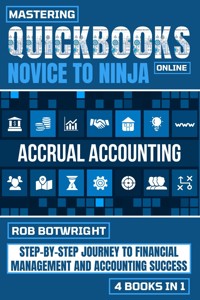
Are you ready to take control of your finances and master the art of accounting with QuickBooks Online? Look no further than our comprehensive book bundle, "Mastering QuickBooks Online: Novice to Ninja." This series of four meticulously crafted books is your ultimate guide to navigating the world of financial management, from novice to ninja.
📕
BOOK 1 - QuickBooks Online Basics: A Beginner's Guide to Financial Management
In the first book of this bundle, we'll start at the very beginning, ensuring even those new to QuickBooks Online can confidently step into the world of financial management. You'll learn how to set up your accounts, manage income and expenses, and create financial reports with ease. With a solid foundation in place, you'll be well-prepared for your financial journey ahead.
📗
BOOK 2 - Intermediate QuickBooks Online Mastery: Advanced Accounting Skills for Success
Ready to take your skills to the next level? Book 2 is tailored for those who have a grasp of the basics and are eager to dive deeper. You'll explore advanced accounting skills, manage complex transactions, and master budgeting and forecasting. This book will transform you into an intermediate QuickBooks Online pro, ready to tackle complex financial challenges.
📘
BOOK 3 - Advanced QuickBooks Online Techniques: Mastering Financial Management
Book 3 takes you further into the realm of financial management, introducing advanced QuickBooks Online techniques that will supercharge your abilities. Discover how to optimize your cash flow, streamline invoicing and payments, and gain invaluable insights through real-time financial reporting. You'll become a true master of financial management.
📙
BOOK 4 - Expert QuickBooks Online Strategies: Maximizing Efficiency and Profit
For those aiming for the pinnacle of QuickBooks Online proficiency, Book 4 is your key to achieving expert status. Here, you'll uncover advanced strategies for payroll processing, taxation, advanced inventory control, and more. These techniques will not only save you time and effort but will also drive your business toward unparalleled efficiency and profit.
Join us on this step-by-step journey from novice to ninja as you unlock the power of QuickBooks Online for financial management and accounting success. Each book in this bundle is carefully crafted to provide you with the knowledge, skills, and confidence to navigate the financial landscape with ease.
🌟
Why Choose "Mastering QuickBooks Online: Novice to Ninja"?
- Comprehensive Learning: Covering everything from the basics to expert-level strategies, this bundle is your all-in-one resource for QuickBooks Online mastery.
- Expert Guidance: Our books are written by seasoned professionals with extensive experience in financial management and QuickBooks Online.
- Practical Application: Learn not only the theory but also how to apply your newfound knowledge to real-world financial challenges.
- Financial Success: By mastering QuickBooks Online, you'll be equipped to make informed financial decisions and lead your business toward success.
Whether you're just starting your financial journey or seeking to reach the pinnacle of QuickBooks Online expertise, "Mastering QuickBooks Online: Novice to Ninja" has the tools, techniques, and guidance you need. Get ready to transform your financial management skills and achieve accounting success like never before. Your journey begins now!
Das E-Book können Sie in Legimi-Apps oder einer beliebigen App lesen, die das folgende Format unterstützen:
Veröffentlichungsjahr: 2023
Ähnliche















MASTERING QUICKBOOKS ONLINE
NOVICE TO NINJA
STEP-BY-STEP JOURNEY TO FINANCIAL MANAGEMENT AND ACCOUNTING SUCCESS
4 BOOKS IN 1
BOOK 1
QUICKBOOKS ONLINE BASICS: A BEGINNER'S GUIDE TO FINANCIAL MANAGEMENT
BOOK 2
INTERMEDIATE QUICKBOOKS ONLINE MASTERY: ADVANCED ACCOUNTING SKILLS FOR SUCCESS
BOOK 3
ADVANCED QUICKBOOKS ONLINE TECHNIQUES: MASTERING FINANCIAL MANAGEMENT
BOOK 4
EXPERT QUICKBOOKS ONLINE STRATEGIES: MAXIMIZING EFFICIENCY AND PROFIT
ROB BOTWRIGHT
Copyright © 2023 by Rob Botwright
All rights reserved. No part of this book may be reproduced or transmitted in any form or by any means, electronic or mechanical, including photocopying, recording, or by any information storage and retrieval system, without permission in writing from the publisher.
Published by Rob Botwright
Library of Congress Cataloging-in-Publication Data
ISBN 978-1-83938-533-9
Cover design by Rizzo
Disclaimer
The contents of this book are based on extensive research and the best available historical sources. However, the author and publisher make no claims, promises, or guarantees about the accuracy, completeness, or adequacy of the information contained herein. The information in this book is provided on an "as is" basis, and the author and publisher disclaim any and all liability for any errors, omissions, or inaccuracies in the information or for any actions taken in reliance on such information.
The opinions and views expressed in this book are those of the author and do not necessarily reflect the official policy or position of any organization or individual mentioned in this book. Any reference to specific people, places, or events is intended only to provide historical context and is not intended to defame or malign any group, individual, or entity.
The information in this book is intended for educational and entertainment purposes only. It is not intended to be a substitute for professional advice or judgment. Readers are encouraged to conduct their own research and to seek professional advice where appropriate.
Every effort has been made to obtain necessary permissions and acknowledgments for all images and other copyrighted material used in this book. Any errors or omissions in this regard are unintentional, and the author and publisher will correct them in future editions.
TABLE OF CONTENTS – BOOK 1 - QUICKBOOKS ONLINE BASICS: A BEGINNER'S GUIDE TO FINANCIAL MANAGEMENT
Introduction
Chapter 1: Getting Started with QuickBooks Online
Chapter 2: Setting Up Your Company File
Chapter 3: Navigating the QuickBooks Online Interface
Chapter 4: Recording Income and Expenses
Chapter 5: Managing Your Chart of Accounts
Chapter 6: Tracking Customers and Sales
Chapter 7: Handling Vendor Transactions and Expenses
Chapter 8: Running Financial Reports
Chapter 9: Customizing QuickBooks for Your Business
Chapter 10: Troubleshooting and Getting Help
TABLE OF CONTENTS – BOOK 2 - INTERMEDIATE QUICKBOOKS ONLINE MASTERY: ADVANCED ACCOUNTING SKILLS FOR SUCCESS
Chapter 1: Reviewing QuickBooks Basics
Chapter 2: Working with Advanced Transactions
Chapter 3: Mastering Payroll and Taxes
Chapter 4: Inventory Management and Costing
Chapter 5: Advanced Reporting and Analytics
Chapter 6: Multi-Currency Transactions
Chapter 7: Budgeting and Forecasting
Chapter 8: Integrating QuickBooks with Other Software
Chapter 9: Audit Trails and Data Security
Chapter 10: Optimizing Workflow and Efficiency
TABLE OF CONTENTS – BOOK 3 - ADVANCED QUICKBOOKS ONLINE TECHNIQUES: MASTERING FINANCIAL MANAGEMENT
Chapter 1: Advanced QuickBooks Overview
Chapter 2: Customizing Your Chart of Accounts
Chapter 3: Advanced Sales and Invoicing Strategies
Chapter 4: Complex Expense Tracking and Management
Chapter 5: Advanced Inventory Control
Chapter 6: In-Depth Financial Analysis
Chapter 7: Handling Multi-Location and Multi-Entity Operations
Chapter 8: Automating Processes with QuickBooks Online
Chapter 9: Enhanced Security and User Permissions
Chapter 10: Strategic Financial Planning and Decision-Making
TABLE OF CONTENTS – BOOK 4 - EXPERT QUICKBOOKS ONLINE STRATEGIES: MAXIMIZING EFFICIENCY AND PROFIT
Chapter 1: Expert QuickBooks Online Overview
Chapter 2: Streamlining Workflows and Processes
Chapter 3: Advanced Reporting and Analytics
Chapter 4: Integrating Third-Party Apps for Efficiency
Chapter 5: Advanced Inventory and Cost Management
Chapter 6: Fine-Tuning Sales and Customer Management
Chapter 7: Maximizing Profit Through Tax Planning
Chapter 8: Strategic Budgeting and Forecasting
Chapter 9: Data Security and Compliance
Chapter 10: Scaling Your Business with QuickBooks Online
Conclusion
Introduction
Are you ready to take control of your finances and master the art of accounting with QuickBooks Online? Look no further than our comprehensive book bundle, "Mastering QuickBooks Online: Novice to Ninja." This series of four meticulously crafted books is your ultimate guide to navigating the world of financial management, from novice to ninja.
📕 BOOK 1 - QuickBooks Online Basics: A Beginner's Guide to Financial Management
In the first book of this bundle, we'll start at the very beginning, ensuring even those new to QuickBooks Online can confidently step into the world of financial management. You'll learn how to set up your accounts, manage income and expenses, and create financial reports with ease. With a solid foundation in place, you'll be well-prepared for your financial journey ahead.
📗 BOOK 2 - Intermediate QuickBooks Online Mastery: Advanced Accounting Skills for Success
Ready to take your skills to the next level? Book 2 is tailored for those who have a grasp of the basics and are eager to dive deeper. You'll explore advanced accounting skills, manage complex transactions, and master budgeting and forecasting. This book will transform you into an intermediate QuickBooks Online pro, ready to tackle complex financial challenges.
📘 BOOK 3 - Advanced QuickBooks Online Techniques: Mastering Financial Management
Book 3 takes you further into the realm of financial management, introducing advanced QuickBooks Online techniques that will supercharge your abilities. Discover how to optimize your cash flow, streamline invoicing and payments, and gain invaluable insights through real-time financial reporting. You'll become a true master of financial management.
📙 BOOK 4 - Expert QuickBooks Online Strategies: Maximizing Efficiency and Profit
For those aiming for the pinnacle of QuickBooks Online proficiency, Book 4 is your key to achieving expert status. Here, you'll uncover advanced strategies for payroll processing, taxation, advanced inventory control, and more. These techniques will not only save you time and effort but will also drive your business toward unparalleled efficiency and profit.
Join us on this step-by-step journey from novice to ninja as you unlock the power of QuickBooks Online for financial management and accounting success. Each book in this bundle is carefully crafted to provide you with the knowledge, skills, and confidence to navigate the financial landscape with ease.
🌟 Why Choose "Mastering QuickBooks Online: Novice to Ninja"?
Comprehensive Learning: Covering everything from the basics to expert-level strategies, this bundle is your all-in-one resource for QuickBooks Online mastery.
Expert Guidance: Our books are written by seasoned professionals with extensive experience in financial management and QuickBooks Online.
Practical Application: Learn not only the theory but also how to apply your newfound knowledge to real-world financial challenges.
Financial Success: By mastering QuickBooks Online, you'll be equipped to make informed financial decisions and lead your business toward success.
Whether you're just starting your financial journey or seeking to reach the pinnacle of QuickBooks Online expertise, "Mastering QuickBooks Online: Novice to Ninja" has the tools, techniques, and guidance you need. Get ready to transform your financial management skills and achieve accounting success like never before. Your journey begins now!
BOOK 1
QUICKBOOKS ONLINE BASICS
A BEGINNER'S GUIDE TO FINANCIAL MANAGEMENT
ROB BOTWRIGHT
Chapter 1: Getting Started with QuickBooks Online
When you start your journey with QuickBooks Online, one of the crucial initial steps is selecting the right plan for your business. The choice you make here will significantly impact how effectively you can manage your finances and accounting tasks.
QuickBooks offers a range of plans, each designed to cater to different business needs. As a beginner, it's essential to understand the options available and how they align with your requirements.
The first thing to consider is the Simple Start plan, which is perfect for sole proprietors or freelancers. It provides basic features like tracking income and expenses, creating invoices, and capturing receipts. It's a cost-effective option for those who are just getting started and need to keep their financial records in order.
As your business grows and your accounting needs become more complex, you may want to consider the Essentials plan. This plan includes all the features of Simple Start and adds more advanced capabilities like managing and paying bills and tracking time. It's suitable for small businesses with a few employees.
For businesses with more extensive financial requirements, the Plus plan might be the right choice. It includes all the features of Simple Start and Essentials while also offering inventory tracking and the ability to prepare and print 1099s. This plan is ideal for businesses that sell products and need robust inventory management.
QuickBooks also offers a specialized plan called Self-Employed, which is tailored to freelancers and independent contractors. It simplifies tracking income and expenses, making it easier to manage self-employment taxes.
Each plan comes with a different price tag, so it's essential to consider your budget when making your decision. However, keep in mind that the features and capabilities of each plan can save you time and money in the long run. It's often worth investing a bit more in a plan that meets all your needs.
Another important factor to consider is scalability. QuickBooks Online allows you to upgrade or downgrade your plan as your business evolves. This flexibility is particularly valuable because it means you can start with a more basic plan and move to a more advanced one as your business grows and your accounting needs become more sophisticated.
Additionally, QuickBooks Online offers a free 30-day trial for each plan, allowing you to test the features and functionality before committing to a subscription. This trial period is a great opportunity to explore the software and ensure it aligns with your business requirements.
It's also worth mentioning that QuickBooks Online frequently updates its software to enhance usability and add new features. Subscribing to any of the plans ensures that you'll have access to these updates, helping your business stay up-to-date with the latest accounting tools and technologies.
In summary, choosing the right QuickBooks Online plan is a critical decision for your business's financial management. It involves considering your current needs, budget, scalability, and the free trial period to explore the software's capabilities. Remember that your choice isn't set in stone, and you can always adjust your plan as your business evolves.
Creating your QuickBooks Online account is a straightforward process that sets the stage for managing your business finances effectively. This step is crucial for getting started with the platform and accessing its robust features.
To begin, you'll need to visit the QuickBooks Online website. Once there, you'll find an option to sign up or create an account. Click on this option to initiate the process.
Next, you'll be prompted to choose the QuickBooks Online plan that best suits your business needs. As we discussed earlier, you can select from various plans, depending on the complexity of your financial requirements and budget constraints. Be sure to pick the plan that aligns with your objectives.
After selecting your plan, you'll be asked to provide some essential information. This includes details about your business, such as your company name, industry, and business type. It's essential to input accurate information here, as it will help tailor the software to your specific needs.
You'll also need to provide your contact information, including your email address and phone number. This information is crucial because it's how QuickBooks will communicate with you and provide updates or notifications about your account.
As part of the account creation process, you'll need to choose a unique username and password. It's crucial to select a strong password that combines letters, numbers, and special characters to enhance security. Additionally, QuickBooks Online may have specific password requirements that you'll need to meet.
Once you've completed these steps, QuickBooks Online will guide you through the initial setup process. This includes entering information about your bank accounts and connecting them to QuickBooks. By doing this, you can streamline the process of tracking income and expenses, as QuickBooks can automatically sync with your bank transactions.
During the setup process, you'll also have the opportunity to customize your account further. This includes setting up your chart of accounts, which is a critical component of your accounting system. QuickBooks Online provides pre-defined categories, but you can tailor them to match your specific business needs.
Additionally, you can personalize your invoices, reports, and other financial documents to reflect your brand identity. This is an essential step for creating a professional image when interacting with customers and vendors.
Once you've completed the account setup and customization, you'll be ready to start using QuickBooks Online to manage your financial data. The platform's user-friendly interface makes it easy to navigate and perform essential accounting tasks.
Remember that your QuickBooks Online account is cloud-based, which means you can access it from anywhere with an internet connection. This flexibility allows you to manage your finances on the go, whether you're in the office, at home, or traveling.
In summary, creating your QuickBooks Online account is a fundamental step in gaining control over your business finances. It involves selecting the right plan, providing accurate business and contact information, choosing a secure username and password, and customizing the software to meet your specific needs. Once your account is set up, you can start leveraging QuickBooks Online's powerful tools for effective financial management.
Chapter 2: Setting Up Your Company File
Configuring your company's information and preferences in QuickBooks Online is a pivotal step in tailoring the software to your specific business needs and ensuring accurate financial management. This section outlines the essential aspects to consider when setting up your company information and preferences.
Begin by logging into your QuickBooks Online account, and from the dashboard, navigate to the "Settings" or "Company Settings" menu. Within this menu, you'll find various tabs or sections that allow you to input and adjust your company details.
Company Information: Start by providing basic information about your business, including your company name, legal business name (if different), and the business address. Ensuring the accuracy of this information is critical as it will appear on your financial documents, such as invoices and reports.
Contact Information: Enter your primary contact details, including your business phone number, email address, and website URL. This information helps facilitate communication with customers, vendors, and your team.
Business Type: Specify your business type, whether it's a sole proprietorship, partnership, corporation, or another legal structure. QuickBooks Online will use this information to customize certain features and reports based on your business type.
Industry: Choose the industry that best describes your business. QuickBooks offers a wide range of industry options, and selecting the most appropriate one helps tailor the software's settings and reports to suit your specific needs.
Accounting Method: Select your preferred accounting method, either cash basis or accrual basis. This choice determines how you record income and expenses and can have tax implications, so it's important to choose the method that aligns with your business's financial practices.
First Month of Fiscal Year: Set the fiscal year's start month for your business. This information is essential for generating accurate financial reports, including income statements and balance sheets.
Tax Information: Provide your federal and state tax identification numbers, if applicable. Accurate tax identification is essential for tax compliance and reporting.
Currency: If your business operates in multiple currencies, you can enable multi-currency settings. This allows you to record transactions in different currencies and can be valuable for businesses with international operations.
Time Zone: Set your business's time zone to ensure that all time-sensitive transactions, such as invoicing and reporting, are recorded accurately.
Date Format and Number Format: Customize the date and number formats according to your regional preferences. This ensures consistency and readability in your financial documents.
Default Language: Select the default language for your QuickBooks Online account. This choice affects the language used in communication with customers and vendors.
Custom Fields: Depending on your business needs, you can create custom fields to capture additional information about customers, vendors, or transactions. This customization can help you tailor QuickBooks Online to your specific requirements.
Sales Tax: If your business collects sales tax, you can set up and configure your sales tax settings within this section.
Once you've configured these company information and preference settings, make sure to save your changes. These settings form the foundation of your QuickBooks Online account, and ensuring their accuracy and relevance is essential for effective financial management.
In summary, setting up your company information and preferences in QuickBooks Online involves providing accurate business details, specifying your accounting method, choosing your fiscal year start month, and customizing various settings to align with your business's unique needs and regional requirements. These settings play a crucial role in tailoring the software to your business and ensuring that your financial records are accurate and compliant.
Customizing your company settings in QuickBooks Online allows you to fine-tune the software to match your business's specific requirements and preferences. These settings help ensure that QuickBooks Online aligns with your unique needs for efficient financial management. Let's explore the key aspects of customizing your company settings:
1. Chart of Accounts: Your chart of accounts is the backbone of your accounting system. In this section, you can customize and manage your accounts to reflect your business's financial structure accurately. You can add, edit, or delete accounts to match your specific needs, including income, expenses, and asset categories.
2. Categories: Categorizing your expenses and income is essential for tracking your financial transactions effectively. QuickBooks Online allows you to customize and manage your categories, which helps you organize and analyze your financial data more efficiently.
3. Sales: In the sales settings, you can configure various aspects related to your sales process. This includes setting up default terms for invoices, customizing invoice templates, specifying sales tax settings, and enabling features like online payments to make it easier for customers to pay you.
4. Expenses: Customize your expense settings to streamline your accounts payable process. You can configure default accounts for expenses, enable features like billable expenses, and set up your bill payment preferences to match your business's needs.
5. Payments: Manage your payment settings to facilitate seamless transactions with your customers and vendors. This includes configuring payment methods, setting up bank accounts for payment processing, and customizing payment reminders to ensure you get paid on time.
6. Advanced: In the advanced settings, you can configure options related to various aspects of your business. This includes customizing accounting, enabling features like budgeting, adjusting automation settings, and configuring other advanced preferences to suit your requirements.
7. Automation: Streamline your workflow by automating specific tasks in QuickBooks Online. This can include automating recurring invoices, scheduling bill payments, and setting up rules for categorizing transactions automatically.
8. Account and Settings: This section provides access to a wide range of additional settings that allow you to fine-tune your QuickBooks Online experience. You can customize your account details, notifications, user access, and data export preferences.
9. Integrations: QuickBooks Online offers integrations with various third-party apps and services. In this section, you can explore and configure integrations that enhance your accounting and financial management capabilities.
10. QuickBooks Labs: QuickBooks Labs is a feature that allows you to try out experimental features and enhancements. While not all features in Labs may be fully developed, they can provide additional functionality to enhance your experience. Customizing your company settings is a dynamic process. As your business evolves, you may need to revisit and adjust these settings to accommodate changes in your operations, financial structure, or business objectives. QuickBooks Online offers a high degree of flexibility, enabling you to tailor the software to your business's ever-changing needs. In summary, customizing your company settings in QuickBooks Online is essential for tailoring the software to your unique business requirements. These settings allow you to configure your chart of accounts, categories, sales, expenses, payment preferences, automation, and more. By customizing these settings, you can optimize your financial management processes and ensure that QuickBooks Online aligns seamlessly with your business operations.
Chapter 3: Navigating the QuickBooks Online Interface
The Dashboard and Home Page in QuickBooks Online serve as your central hub for accessing and managing your financial data. These two elements play a crucial role in providing you with a quick overview of your business's financial health and ensuring you can efficiently navigate the software.
When you log in to your QuickBooks Online account, the first thing you'll encounter is the Dashboard. Think of the Dashboard as your business's financial cockpit—a place where you can see all the essential data at a glance. It's designed to provide a snapshot of your company's financial status, giving you instant insights into your income, expenses, bank account balances, and more.
The Dashboard is customizable, allowing you to arrange and display various widgets or cards to suit your preferences. You can choose what information is most important for you to see immediately upon logging in. For instance, you might want to see your outstanding invoices, account balances, or a profit and loss summary front and center.
One of the advantages of the Dashboard is that it can save you time. Instead of digging through menus and reports, you can quickly access key financial information. This can be especially helpful for business owners and managers who need to make informed decisions on the fly.
Now, let's talk about the Home Page. The Home Page is another essential feature of QuickBooks Online, and it's accessible via the main menu. Unlike the Dashboard, which provides a summarized view of your finances, the Home Page offers easy access to specific tasks and workflows.
The Home Page is organized into different sections, each focusing on a particular aspect of your business's financial activities. You'll typically find sections related to income, expenses, and other common accounting functions. The goal is to guide you through the various tasks you might need to perform daily or regularly.
For example, in the income section, you'll find shortcuts to create invoices, receive payments, or generate sales receipts. In the expenses section, you can enter bills, write checks, or record expenses. The Home Page serves as a practical launching pad for these actions, making it convenient and efficient to manage your financial transactions.
Another benefit of the Home Page is its user-friendly design. It's laid out in a way that's easy to navigate, even for users who might not have extensive accounting experience. This is a deliberate design choice by QuickBooks to ensure that business owners and employees can confidently handle financial tasks without feeling overwhelmed.
Both the Dashboard and Home Page are fully responsive, meaning they work seamlessly on various devices, including desktops, laptops, tablets, and smartphones. This flexibility allows you to access your financial data and perform essential tasks wherever you are, whether you're in the office, on the go, or working from home.
One important aspect to highlight is the interactivity of these pages. For example, from the Dashboard, you can click on any of the displayed widgets to dive deeper into the corresponding report or transaction. This interactivity enhances your ability to explore your financial data and gain deeper insights.
QuickBooks Online is continually evolving, and the Dashboard and Home Page are no exceptions. QuickBooks often updates these features to improve their functionality and provide users with even more valuable insights and tools. This means that as you become more familiar with QuickBooks Online, you can expect these elements to become even more user-friendly and efficient.
In summary, the Dashboard and Home Page in QuickBooks Online are essential tools for managing your business's financial data and tasks efficiently. The Dashboard offers a snapshot of your financial health, while the Home Page provides quick access to common accounting functions. These features are designed to save you time, enhance your decision-making, and make financial management more accessible, whether you're at your desk or on the go. As you become more comfortable with QuickBooks Online, you'll find that these tools become invaluable in your day-to-day business operations.
Navigating QuickBooks Online effectively requires an understanding of the Navigation Bar, a fundamental element of the software's user interface. The Navigation Bar is your gateway to various functions and features, allowing you to seamlessly move through different areas of QuickBooks Online. It's like the compass that guides you on your financial journey.
Located on the left side of your QuickBooks Online window, the Navigation Bar is always accessible, providing easy access to essential tasks and sections. The first item you'll typically see is the "Dashboard," which we discussed earlier. This serves as the starting point for many users and provides an overview of your financial data.
Below the Dashboard, you'll find a series of icons and menu items that represent different aspects of your business's finances. These icons are your keys to unlock the various features and tools that QuickBooks Online offers.
One of the most commonly used sections is "Sales." Clicking on the sales icon will take you to a menu where you can create and manage sales-related transactions, such as invoices, estimates, and sales receipts. This section is crucial for businesses that provide products or services and need to keep a record of their sales.
Another vital area is "Expenses." Here, you can record and manage your business expenses, including bills, checks, and credit card transactions. Properly categorizing expenses is essential for accurate financial reporting and tax preparation.
If your business involves managing inventory, you'll find the "Products and Services" section helpful. It allows you to add, edit, and track the items you buy and sell. Properly managing your products and services is vital for accurate financial statements and inventory control.
For those who need to track time and bill clients for hours worked, the "Time Tracking" section offers tools to do just that. You can enter time records, create invoices from them, and keep tabs on billable hours efficiently.
Banking is another critical area in QuickBooks Online. Here, you can connect your bank accounts and credit cards, reconcile transactions, and keep your financial records in sync with your real-world banking activities. This section can save you a significant amount of time and reduce the risk of errors.
Reports play a crucial role in understanding your business's financial performance. The "Reports" section provides a wide range of pre-built reports that give you insights into your income, expenses, profit and loss, and much more. These reports are invaluable for making informed decisions and tracking your financial progress.
The "Taxes" section is vital for businesses dealing with tax obligations. It allows you to manage your sales tax, prepare and file tax returns, and stay compliant with tax regulations. Staying on top of your taxes is essential to avoid penalties and legal issues.
Managing your employees and payroll is made more accessible through the "Workers" section. You can set up payroll, pay employees, and handle related tasks like tax forms and year-end filings.
If you have an accountant or bookkeeper who assists with your financials, the "Accountant" section provides access to tools and features designed to facilitate collaboration and streamline financial processes.
The "Apps" section is where you can explore the various third-party apps and integrations available for QuickBooks Online. These apps can extend the functionality of QuickBooks and help you tailor the software to your specific business needs.
The Navigation Bar is not static; it can adapt to your workflow and preferences. You can customize it by rearranging the icons or hiding sections that you don't frequently use. This flexibility ensures that QuickBooks Online remains efficient and user-friendly, no matter the size or complexity of your business.
In summary, the Navigation Bar is your passport to the world of QuickBooks Online. It provides access to essential features and functions, making it easy to manage your finances, track your business performance, and stay compliant with tax and accounting regulations. Whether you're new to QuickBooks Online or a seasoned user, mastering the Navigation Bar is key to unlocking the full potential of the software and navigating your financial journey with confidence.
Chapter 4: Recording Income and Expenses
Entering sales transactions in QuickBooks Online is a fundamental task that enables you to record and manage the income generated by your business. Whether you're selling products or providing services, accurate and organized recording of sales is essential for maintaining financial clarity and making informed decisions.
The process begins with accessing the "Sales" section from the Navigation Bar on the left side of your QuickBooks Online window. This is where you'll find a range of options for entering different types of sales transactions, such as invoices, sales receipts, and estimates.
Let's start with the most common sales transaction: the invoice. Invoices are used when you provide products or services to customers and expect to receive payment at a later date. When creating an invoice, you'll first select the customer or client you're billing. QuickBooks Online allows you to choose from your list of existing customers or add a new customer if needed.
Once the customer is selected, you'll input details about the products or services you're billing for. This includes item descriptions, quantities, unit prices, and any applicable taxes. QuickBooks Online provides a user-friendly interface that simplifies this process, making it easy to add line items to your invoice.
Customization is another feature that QuickBooks Online excels in. You can personalize your invoices by adding your business logo, adjusting the layout, and choosing a style that aligns with your brand. Customization not only enhances the professional appearance of your invoices but also reinforces your business identity.
After entering the invoice details, you'll specify the payment terms, such as the due date and any early payment discounts you offer. This information ensures clear communication with your customers about when payment is expected.
Once the invoice is complete, you have the option to save it as a draft, send it to the customer immediately, or print a hard copy for mailing. QuickBooks Online also provides the convenience of sending invoices via email, which speeds up the billing process and reduces paper usage.
Now, let's talk about sales receipts. Sales receipts are used when you receive immediate payment from a customer at the time of the sale. For example, if you run a retail store and a customer makes a purchase, you'll issue a sales receipt as proof of the transaction.
Creating a sales receipt in QuickBooks Online is straightforward. You'll select the customer, specify the products or services sold, and record the payment method. QuickBooks Online allows you to accept various payment types, including cash, credit card, check, and more. This flexibility ensures that you can accurately capture your sales, regardless of how customers choose to pay.
Estimates, also known as quotes or proposals, are another type of sales transaction you can manage in QuickBooks Online. Estimates are useful when you want to provide potential customers with a quote for your products or services before they commit to making a purchase. Once the customer accepts the estimate, you can easily convert it into an invoice or sales receipt.
QuickBooks Online also enables you to track the status of your sales transactions. You can see at a glance which invoices are open and awaiting payment, which have been paid, and which are overdue. This visibility helps you stay on top of your accounts receivable and follow up with customers when necessary.
Moreover, QuickBooks Online allows you to set up recurring sales transactions for services or products that you bill customers for regularly. This is particularly useful for businesses with subscription models or ongoing service agreements.
In addition to entering sales transactions, QuickBooks Online offers robust reporting capabilities. You can generate reports to gain insights into your sales performance, track customer balances, and assess the overall health of your business. These reports provide valuable data for making informed decisions and shaping your sales strategies.
In summary, entering sales transactions in QuickBooks Online is a pivotal aspect of managing your business's finances. Whether you're creating invoices, sales receipts, estimates, or recurring transactions, the software provides user-friendly tools and customization options to streamline the process. Accurate recording of sales transactions ensures that you maintain financial clarity, track your income, and communicate effectively with your customers. With QuickBooks Online, you can confidently manage your sales transactions and use the data to drive your business forward.
Managing expenses and bills is a crucial aspect of maintaining financial control and ensuring the smooth operation of your business. QuickBooks Online offers a comprehensive set of tools and features to help you efficiently handle your expenses, track your costs, and stay on top of your financial obligations.
To get started with managing expenses and bills in QuickBooks Online, you can access the "Expenses" section from the Navigation Bar. Here, you'll find a range of options for recording and tracking your expenditures.
One of the primary functions in this section is the ability to create and manage bills. Bills are essentially records of money you owe to vendors or suppliers for products or services received. When you receive a bill from a vendor, it's essential to record it accurately and promptly in QuickBooks Online to ensure that your financial records are up-to-date.
To enter a bill, you'll select the vendor or supplier, specify the due date, and provide details about the products or services received. QuickBooks Online allows you to itemize the bill, including quantities, unit costs, and tax information. This level of detail ensures that your records are precise and complete.
QuickBooks Online also provides options for customizing your bill templates. You can personalize your bills with your company's branding, including your logo and contact information. This customization not only enhances the professional appearance of your bills but also reinforces your business's identity.
Once you've recorded a bill in QuickBooks Online, you have the flexibility to schedule payments and set reminders. This feature helps you manage your cash flow effectively by ensuring that you pay your bills on time and avoid late fees or penalties.
Additionally, QuickBooks Online offers a powerful feature called "Bill Pay" that allows you to pay bills directly from within the software. You can link your bank account or credit card, schedule payments, and track your payment history. This integration simplifies the bill payment process and reduces the need for manual data entry.
In addition to managing bills, QuickBooks Online provides tools for tracking other types of expenses. You can record expenses paid with cash, checks, credit cards, or other payment methods. This flexibility allows you to capture a comprehensive view of your financial transactions, regardless of how you make payments.
One valuable feature is the ability to categorize expenses. QuickBooks Online provides pre-defined expense categories, but you can also create custom categories to match your specific business needs. Properly categorizing expenses is essential for accurate financial reporting, tax preparation, and cost analysis.
Furthermore, you can attach receipts and documents to your expenses in QuickBooks Online. This digital record-keeping eliminates the need for paper receipts and simplifies the process of verifying expenses for tax purposes or audits.
Tracking your business's spending is essential, but QuickBooks Online goes a step further by providing robust reporting capabilities. You can generate expense reports that provide insights into your spending patterns, vendor payments, and expense trends. These reports offer valuable data for budgeting and cost management.




