


6,99 €
Mehr erfahren.
- Herausgeber: BookRix
- Kategorie: Wissenschaft und neue Technologien
- Sprache: Englisch
Have a brand-new Mac Mini M4 sitting on your desk… and feeling unsure where to begin?
You’re not alone.
For many beginners and seniors, unboxing a new computer brings a mix of excitement and quiet anxiety:
- What if I press the wrong button?
- What if I break something?
- What if I’m just not a “computer person”?
💡 This Is Not a Technical Manual.
This Is a Patient, Step-by-Step Companion.
Unlike complicated, jargon-filled manuals, this book speaks in plain English. It walks you through everything calmly, clearly, and without assuming you already “know computers.”
From the moment you open the box to confidently browsing the web, emailing family, organizing photos, and staying safe online — every step is explained with care.
If you can follow simple numbered instructions, you can master your Mac Mini.
What Makes This Guide Different?
✅ Designed Specifically for Beginners & Seniors
The most important words in the title aren’t “Mac Mini” or “M4.”
They’re Beginners and Seniors.
This book assumes:
- You may feel intimidated.
- You may worry about breaking something.
- You may have been rushed through explanations before.
✅ Starts at Absolute Zero
You’ll learn:
- What’s actually in the box (and what’s not)
- What every port on the back does (in simple language)
- How to choose the right monitor, keyboard, and mouse
- How to plug everything in correctly (with no stress)
- Exactly what to expect when you press the power button
- How to navigate the Setup Assistant confidently
✅ Master the Essentials with Confidence
Once you’re up and running, you’ll learn:
- How to use the Desktop, Dock, and Finder (your digital filing cabinet)
- How to create, organize, and delete files
- How to browse the internet safely with Safari
- How to send emails using the Mail app
- How to FaceTime family and send messages
- How to use Photos, Calendar, Reminders, and everyday apps
- Your Desktop = your desk
- The Dock = your tool belt
- Finder = your filing cabinet
✅ Built-In Confidence Boosters
This guide doesn’t just teach — it reassures.
It tackles the two biggest fears head-on: “I’m going to break it.”
(You won’t. Modern Macs are designed to protect you.) “I’m not a computer person.”
(There’s no such thing. Only people who’ve been shown properly — and people who haven’t.)
This book shows you properly.
✅ Accessibility & Comfort Included
Special attention is given to:
- Making text and icons bigger
- Adjusting sound and captions
- Using Dictation and Voice Control
- Customizing settings for easier use
- Reducing visual clutter
- Making your Mac comfortable for aging eyes and hands
The computer adapts to you.
✅ Security & Scam Protection
One of the most valuable sections in this guide teaches you:
- How to keep your Mac updated
- How to manage passwords safely
- How to recognize phishing emails
- How to avoid fake “virus” pop-ups
- What to do when something feels wrong
- How to restart properly
- How to use “Undo” and fix simple mistakes
This Book Is Perfect For:
✔ First-time Mac users
✔ Seniors switching from Windows
✔ Parents or grandparents receiving a Mac as a gift
✔ Anyone who feels intimidated by new technology
✔ Anyone who wants calm, step-by-step guidance
What You Gain After Reading
By the end of this guide, you won’t just “own” a Mac Mini.
You’ll:
- Feel comfortable turning it on.
- Navigate confidently.
- Send emails and video call family.
- Organize your files without confusion.
- Understand what’s happening on your screen.
- Know how to protect yourself online.
- Feel proud of what you’ve learned.
Your Mac Mini M4 isn’t just a computer.
It’s a key to:
- Staying connected with loved ones
- Exploring hobbies
- Managing your digital life
- Learning new skills
- Gaining independence and confidence
This is it.
Buy a copy now and start your Mac journey with clarity, confidence, and peace of mind.
Das E-Book können Sie in Legimi-Apps oder einer beliebigen App lesen, die das folgende Format unterstützen:
Veröffentlichungsjahr: 2026
Ähnliche



















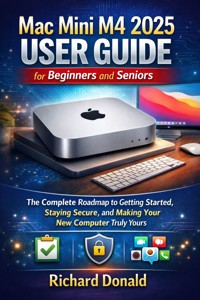
Mac Mini M4 2025 User Guide for Beginners and Seniors
The Complete Roadmap to Getting Started, Staying Secure, and Making Your New Computer Truly Yours
Richard Donald
Copyright © 2026
All rights reserved.
No part of this publication may be reproduced, distributed, or transmitted in any form or by any means, including photocopying, recording, or other electronic or mechanical methods, without the prior written permission of the author, except in the case of brief quotations embodied in critical reviews and certain other noncommercial uses permitted by copyright law.
Disclaimer of Liability:
The information in this guide is provided on an "as-is" basis. The author and/or publisher have made every effort to ensure the accuracy and completeness of the information contained in this book. However, we assume no responsibility for errors, omissions, or contrary interpretation of the subject matter herein. Any perceived slights of specific persons, peoples, or organizations are unintentional.
The reader is advised to follow all instructions at their own risk. The author and/or publisher shall not be held liable for any damages, direct or indirect, in connection with, or arising out of, the furnishing, performance, or use of the instructions and information contained in this guide.
Trademark Acknowledgment:
Apple, the Apple logo, Mac, Mac Mini, macOS, Safari, FaceTime, iCloud, Time Machine, AirPrint, Touch ID, and Launchpad are trademarks or registered trademarks of Apple Inc., registered in the U.S. and other countries.
This book is an independent publication and has not been authorized, sponsored, or otherwise approved by Apple Inc. All other trademarks or product names are the property of their respective owners.
Contents
Introduction
A Warm Welcome to Your New Mac Mini
Chapter 1: Welcome to Your New Mac Mini
1.1: What's in the Box (and What Isn't)
1.2: A Guided Tour of the Ports: What Every Hole and Slot Does
1.3: Choosing Your "Peripherals": A Simple Guide to Monitors, Keyboards, and Mice
1.4: Plugging It All In: A Step-by-Step Connection Guide
Chapter 2: The First-Time Setup
2.1: Turning It On for the First Time and What to Expect
2.2: The Setup Assistant: What to Click and Why
2.3: Connecting to Your Home Wi-Fi
2.4: Your Apple ID: What It Is, Why You Need One, and How to Set It Up
Chapter 3: Meet Your New Digital "Map"
3.1: The Desktop and the Menu Bar: Your Main Workspace
3.2: The Dock: Your Shortcut Bar for Favorite Things
3.3: Understanding the Mouse or Trackpad: Clicking, Scrolling, and Right-Clicking
3.4: Launchpad and Mission Control: How to See All Your Apps and Windows
Chapter 4: The Absolute Basics: Files, Folders, and the Finder
4.1: What is the "Finder"? Your Mac's Digital Filing Cabinet
4.2: Understanding Files and Folders: A Simple Analogy
4.3: How to Create, Name, and Organize Your Folders
4.4: The "Big Three": How to Copy, Paste, and Delete
4.5: The Trash Can: How to Throw Things Away and Take Them Back Out
Chapter 5: Connecting to the World
5.1: Using Safari to Browse the Internet Safely
5.2: Bookmarks and Tabs: Saving Favorite Websites and Juggling Open Pages
5.3: Setting Up and Using the Mail App
5.4: FaceTime and Messages: Video Calling and Texting Your Family
Chapter 6: Making Your Mac Yours (Accessibility & Comfort)
6.1: Navigating System Settings: Your Mac's Control Panel
6.2: "I Can't See!" – Making Text and Icons Bigger
6.3: "I Can't Hear!" – Adjusting Sounds and Using Captions
6.4: "I Can't Type!" – Using Your Voice to Control Your Mac (Dictation & Voice Control)
6.5: The Fun Part: Changing Your Desktop Wallpaper
Chapter 7: Your Everyday Apps
7.1: The Photos App: Your New Digital Photo Album
7.2: Writing a Note or Letter with TextEdit
7.3: Using the Calendar and Reminders to Stay Organized
7.4: Listening to Music, Podcasts, and News
Chapter 8: Staying Safe and Solving Problems
8.1: How to Keep Your Mac Updated (and Why It's So Important)
8.2: Passwords and Security: A Simple Guide
8.3: How to Spot Scams: Avoiding Fake Emails and "Virus" Pop-ups
8.4: "When in Doubt...": How to Restart or Shut Down Properly
8.5: The "Undo" Button and Other Ways to Fix Simple Mistakes
Appendix
Appendix A: A Friendly Glossary (Jargon-Buster)
Appendix B: Your "Secret" Keyboard Shortcuts
Appendix C: Your "Day 2" Setups: Printers & Backups
Appendix D: Your "Fix-It" Cheat Sheet (Troubleshooting)
Appendix E: Your "At-a-Glance" Cheat Sheet
Introduction
A Warm Welcome to Your New Mac Mini
Hello, and a very warm welcome.
If you’re reading this, chances are you have a sleek, beautiful, and brand-new Mac Mini M4 sitting on your desk. It’s probably still in the box, or maybe you’ve just taken it out, holding it in your hands, feeling the cool, solid metal and thinking, "Well... now what?"
It’s a feeling we all know. That mix of excitement and, let’s be honest, a little bit of apprehension. Getting a new piece of technology can feel like being handed the keys to a brand-new car—a car with a shiny dashboard, a lot of buttons you don’t recognize, and a quiet-but-powerful engine. You know it’s capable of amazing things, but your first thought isn’t about racing. It’s about, "How do I turn on the windshield wipers?" and "Which one is the 'Drive' gear?"
I want you to hold onto that feeling. That sense of possibility, and even that small knot of uncertainty. This book was written for you, to honor both of all of it. This is not a technical manual written by engineers for other engineers. This is a conversation. This is a guided tour, and I’ll be sitting in the passenger seat with you for the entire journey. We won’t be speeding, and we will never, ever leave you behind.
This is the Mac Mini M4 2025 User Guide for Absolute Beginners and Seniors. The most important words in that title aren't "Mac Mini" or "M4." They are "Beginners" and "Seniors." This guide was designed from the ground up with a single, clear purpose: to take you from "I’m afraid to touch it" to "I can’t believe I ever lived without it," all at your own pace, and with a friendly voice guiding you every single step of the way.
So, let’s take a deep breath. Put the kettle on. Get a comfortable chair. There is absolutely no rush. Your new Mac Mini is a wonderful tool, and we’re going to learn how to use it together.
The Two Elephants in the Room
Before we plug in a single cable, let’s talk about the two big elephants that are probably in the room with us. They are a noisy pair, and they love to whisper things in our ears.
The first elephant is named "I’m Going to Break It."
This is, without a doubt, the single biggest fear any new computer user has. It’s the feeling that if you click the wrong button, download the wrong thing, or press the wrong key, the whole machine will—poof!—explode in a puff of smoke. You imagine alarms going off, your screen freezing, and all your information being lost forever.
Let me tell you a secret: You cannot break this computer by pressing the wrong button.
Let me say that again, because it is the most important promise of this entire book: You cannot. This isn't a delicate piece of 1980s electronics. This is a modern, robust, and incredibly smart machine designed with billions of dollars of research to prevent you from ever getting into that kind of trouble. The worst thing that will likely happen is you’ll close a window you didn't mean to, or you’ll save a file in a place you can't immediately find. And guess what? This book has chapters to help you with that, too. Think of your Mac as having a giant, friendly "Undo" button for life. We’ll show you where it is. This book is your safety net.
The second elephant is a bit more personal. It’s the one that whispers, "I’m Not a 'Computer Person'."
This elephant sounds different for everyone. For some, it sounds like, "I'm too old to learn this." For others, "My grandkids make it look so easy, I just feel stupid." Or, "I've lived my whole life without this, why bother now?" Or, "All this technology is just too complicated."
This elephant is a liar.
There is no such thing as a "computer person." That is a myth. There are only people who have been shown how, and people who have not. You are simply someone who has not yet been shown, or—more likely—has been shown in a way that was rushed, confusing, and full of jargon. A 14-year-old isn't a 'computer person' because they were born with a microchip in their brain; it's because they were given the freedom to play, click, and explore without fear.
This book is your permission to do the same. We will never use confusing jargon without explaining it in plain English first. We will never assume you know something. We will start at zero. The goal here is not to turn you into a Silicon Valley programmer. The goal is to help you send an email to your son. The goal is to let you video call with your grandkids. The goal is to let you look up that gardening tip, manage your digital photos, or write that story you’ve been thinking about for years.
This book believes three things, and I want you to believe them, too:
You are capable of learning this.
You are not 'stupid' or 'too old'.
You cannot 'break it' by exploring.
This is our pact. I will provide the simple, clear, and patient instructions. All you have to do is be patient with yourself. That’s the deal.
Why the Mac Mini? The Humble Hero of Computers
So, why this computer? Of all the laptops, giant towers, and all-in-one screens in the world, you’ve ended up with this one: the Mac Mini.
Let me tell you: You’ve made a brilliant choice.
In a world of flashy, fragile, and complex gadgets, the Mac Mini is what I call the "humble hero." It’s not a laptop, so you don’t have to worry about a tiny screen, a cramped keyboard, or a finicky little touchpad. It’s not a giant, intimidating tower with a dozen whirring fans and a web of confusing cables.
It is a simple, elegant, and powerful box.
The beauty of the Mac Mini is that it does one job, and it does it perfectly: it is the computer. It’s the brains. This leaves you in charge of the rest. You get to pick the monitor (the screen) that is the perfect size for your eyes. You get to choose the keyboard that feels most comfortable for your hands. You get to pick the mouse that fits your grip. You are building a setup that is custom-tailored to your comfort, not the other way around. This is especially vital for seniors, who may have specific needs for larger text (a bigger monitor) or more comfortable typing (a specific keyboard).
And what about that "M4 2025" part? You'll hear a lot of technical noise about this, about "chips" and "processors" and "performance."
Here is all you need to know: It’s the engine.
Just like with that new car, you don’t need to know how the fuel injection works. You just need to know that when you press the gas, it will go. The "M4" is Apple’s newest, most reliable, and most efficient engine. It means that for the next many, many years, your computer will be fast, responsive, and a complete joy to use. It won't huff and puff when you open a web page. It won't stutter and freeze when you’re watching a video. It will just work.
You haven’t just bought a computer. You’ve bought a reliable, frustration-free experience. You’ve bought a tool that will stay out of your way and let you do the things you want to do. And that’s why the Mac Mini is, in my opinion, the perfect computer for a beginner. It’s all the power you’ll ever need, in a package that doesn’t shout at you.
A New Way of Thinking: The "Mac" Philosophy
Whether this is your first computer ever or you're moving over from an old, clunky Windows machine, it's helpful to know that you're not just learning a new computer—you're learning a new philosophy.
Using a Mac is different. It’s designed from the ground up to be simple, clean, and intuitive. If you’re used to the clutter, confusion, and constant warnings of other systems, the Mac way of doing things might take a moment to get used to. It's like moving from a cluttered garage into a bright, clean, perfectly organized kitchen. At first, you might wonder where everything is. But then you realize that everything is exactly where you expect it to be.
The Mac philosophy is built on a few core ideas that you’ll come to love.
1. Your "Desktop" is Your Desk:
The main screen you see is called the Desktop. Just like a real, physical desk, you can put things on it. You can have a messy desk or a clean desk. But it's yours. It's your main workspace, and you can put a pretty picture on it (we’ll show you how!).
2. The "Dock" is Your Tool Belt:
At the bottom of your screen, you’ll see a beautiful row of icons. This is called the Dock. This is not a confusing list of programs. Think of it as your tool belt, or the junk drawer in your kitchen—it holds all the essential things you use every day. Your Mail. Your Internet browser. Your photos. Your calendar. All in one place, always visible, ready with a single click.
3. The "Finder" is Your Filing Cabinet:
One of the icons in your Dock looks like a smiling blue face. This is the Finder. This is, quite simply, the most important tool you have. The Finder is your digital filing cabinet. It’s how you "find" everything on your computer: your documents, your photos, your downloads. Any time you feel lost and wonder, "Where did that file go?"—the Finder is your answer. We will spend a lot of time in this book making you a master of the Finder, because once you understand your filing cabinet, you’ll never feel lost again.
4. Everything is Visual and Clean:
On a Mac, you don’t have to guess. Windows (the pop-up kind, not the operating system!) are clean and have three simple buttons at the top: Red (Close), Yellow (Minimize), and Green (Full Screen). That’s it. Red means stop, green means go. It’s intuitive. You don't need to be a "computer person" to understand that.
5. It’s a "Walled Garden" (and That's a Good Thing!):
You'll often hear people say that Apple's system is a "walled garden." This is meant to be an insult, but for us, it’s a feature. It means that Apple is very, very protective of you and your computer. It makes it incredibly difficult for viruses, scams, and other nasty things to get in. You get your apps from one safe, central place (the App Store). Your computer updates itself with new security features quietly in the background. That "walled garden" isn't a prison; it's a beautiful, safe, and private backyard where you can relax without worrying about who's looking over the fence. For a beginner or senior, this peace of mind is priceless.
This philosophy is the "why" behind everything you're about to learn. We're not just learning to use a computer; we're learning to think in a simpler, more organized, and more enjoyable way.
How This Book is Designed for You (The "Map" of Your Journey)
A good guide doesn’t just throw you into the wilderness. A good guide gives you a map, points out the landmarks, and explains the signposts along the way. This book is no different. I have designed it with a very specific set of tools to make sure you never feel overwhelmed.
Think of this section as the "user guide" for your user guide. Here's what to look for as you read.
1. The 8-Chapter Journey:
This book is a journey in 8 simple steps. We don't jump into the deep end.
Chapter 1 & 2:
We start with the physical. We'll literally just plug things in and turn the computer on. We'll get you connected to your home Wi-Fi and set up your Apple ID. We will go
very
slowly here.
Chapter 3 & 4:
We'll learn the "map" of your new digital world. We'll explore the Desktop, the Dock, and that all-important Finder (your filing cabinet). This is where we build your core confidence.
Chapter 5 & 6:
Now we get to the fun part. We'll connect to the world! We'll use Safari (for the internet), Mail (for email), and FaceTime (for video calls). We'll also show you how to make your Mac
yours
by changing text size, volume, and the background picture. This is the "comfort" section.
Chapter 7 & 8:
This is where you become a real user. We'll explore everyday apps for photos, writing, and calendars. Most importantly, we'll finish with a chapter on staying safe, spotting scams, and knowing how to restart or shut down. We end by giving you the confidence that you're in control.
2. The Special Call-Out Boxes:
As you read, you'll see special boxes, like the one below. These are designed to grab your attention and give you different kinds of help.
💡 Pro Tip:
This box will show up when there's a handy shortcut or a "secret" trick that makes life a little easier. It's an "insider" tip.
👵 Senior's Corner:
This box is designed specifically for our senior readers. It will have advice on things like making text even bigger, using accessibility features for hearing or vision, or simplifying the screen to be less distracting.
⚠️ Important Note:
When you see this, pay close attention. This isn't to scare you! It's to prevent a common, frustrating mistake. It's the equivalent of me gently tapping you on the shoulder and saying, "Oh, just make sure you do this part first."
🔍 What Does That Mean?
This is our jargon-buster box. Any time we must use a technical term (like "USB-C" or "Wi-Fi"), we'll have one of these boxes nearby to explain exactly what it means in plain, simple English.
3. Step-by-Step Numbered Lists:
We will never just say, "Now connect to the internet." We will always give you a numbered list of steps to follow.
It will look just like this.
Each step will be a single, clear action.
We will bold the names of buttons you need to click, so you can't miss them.
This method breaks down a big, scary task ("Setting up email") into five or six small, simple, and achievable little steps.
4. Bolding for Emphasis:
You'll notice I use bold text for key words. This isn't shouting. This is to help your eyes. It guides you to the most important concepts on the page. When you're scanning a page looking for "that one word," this will help you find it.
5. Image and Illustration Cues:
This book is built to be visual.
These are designed to make the book feel less like a technical manual and more like a friendly, illustrated "how-to" guide. After all, seeing is believing.
Our Pact (And Your Next Step)
You’ve got the new computer. You’ve got the guide. You have a friend in the passenger seat, a map in your hands, and a promise that you cannot and will not break anything.
So, what now?
All I ask is that you make a pact with yourself. This is not a race. There is no test at the end. There is no "falling behind." The only goal is to feel a little more comfortable and a little more confident than you did yesterday. If it takes you a week to get through Chapter 1, you are doing it perfectly. If you read a page and need to take a break and come back tomorrow, you are winning.
This Mac Mini M4 in front of you is a key. It's a key to connecting with family, a key to exploring new hobbies, a key to organizing your life, or simply a key to looking up the answer to that nagging question you’ve always had. It is a tool, and a tool is meant to serve you.
You have already taken the hardest step: you've decided to start.
You've unboxed the machine.
You've opened the book.
The rest is just a conversation, one step at a time.
I'm so excited for you. Let's begin.
When you’re ready, turn the page, and let’s dive into Chapter 1: Welcome to Your New Mac Mini.
Chapter 1: Welcome to Your New Mac Mini
Hello again, and welcome to the very first step of our journey. This is it. The moment you've been waiting for. You have the box, you've read the introduction, and now it's time to actually get started. This first chapter is all about getting comfortable with the physical things. We're not going to turn anything on just yet, and we're certainly not going to dive into any software. This chapter is purely about taking a calm, guided look at what you've just brought into your home. It’s about "kicking the tires," as the saying goes.
Think of this process like moving into a new house. Before you start arranging the furniture or deciding what color to paint the walls, you just walk through. You open the cabinets. You flick the light switches. You see where the windows are. You get a feel for the place. That's exactly what we're going to do here. We're going to open the box, identify every single item, and then take a close look at the Mac Mini itself. We'll learn its "geography"—where all the important connections are and what they do.
I can't stress this enough: there is no rush. The goal of this chapter is to build your confidence by removing all the mystery. By the time you're done here, you will have touched every part, you'll know what it's for, and you'll understand what you have (and what you still might need). We'll go slowly, we'll explain everything, and we'll make sure that when it's time to plug things in, you feel like you're greeting an old friend.
The most common mistake people make at this stage is rushing. They tear open the box, pull everything out, and try to plug it all in at once, only to get frustrated when a cable doesn't reach or they realize they're missing a piece. We won't be doing that. We're going to be deliberate. We're going to be calm. We're going to find a nice, clear space on a table or desk, take a deep breath, and do this the right way.
So, let's begin. Find a good, well-lit spot, maybe put on some music, and let's get acquainted with your new Mac Mini. This is the fun part, the "new car smell" moment. Let's enjoy it together.
1.1: What's in the Box (and What Isn't)
This is the "main event." The unboxing. Apple is famous for its boxes, and they've turned this simple act into a real experience. They want you to feel good about your purchase from the very first second. We're going to find a flat, stable surface, like a dining room table, to do this.
First, you'll see the box is likely wrapped in a clear plastic film. You can either peel this off or, if there's a small pull-tab, gently pull that. Once the plastic is off, take a moment to look at the box itself. It's beautiful, isn't it? It’s sturdy, simple, and has a very clear, beautiful picture of your new Mac Mini right on the top. This is all part of that "clean and simple" philosophy we talked about.
Now, place your hands on the lid of the box. You'll notice it's a very snug fit. This is intentional. The best way to open it is to place the box on the table, hold the bottom part steady with one hand, and lift the top lid straight up with the other. You'll feel a gentle whoosh of air as the vacuum seal breaks and the lid slides off. There are no complicated clips or messy tape. Just a perfect, clean reveal.
And there it is.
The very first thing you'll see, nestled perfectly in a custom-fit tray, is the Mac Mini M4 itself.
Let's pause here and just appreciate it. It's probably wrapped in a protective, semi-transparent film. Go ahead and gently lift it out of the box. It will have a surprising bit of "heft" to it. It doesn't feel like a hollow plastic toy; it feels solid, cool to the touch, and very well-made. This is that "humble hero" we talked about. This small, dense square is the entire computer. It's the engine, the filing cabinet, the post office, and the photo album, all in one.
Feel free to peel off the protective wrapper. You'll reveal the smooth, metallic finish. On top, you'll see the iconic, shiny Apple logo. On the bottom, you'll find a round, black, rubbery pad. This is its "foot." It's designed to grip your desk gently so it doesn't slide around, and it also allows for air to circulate underneath.
For now, just set the Mac Mini gently to the side, on a soft cloth if you have one, or just on your clear table.
🔍 What Does That Mean? "This is the whole computer?"
Yes! This is a very important concept for beginners. If you've used an older "tower" computer, you're used to a big, noisy box on the floor and a separate screen. If you're used to a laptop, you're used to the screen and keyboard being attached.
The Mac Mini is different. It is just the "brains." It contains the engine (the M4 chip), the memory (its short-term thinking), and the storage (its long-term memory). It has no built-in screen, no built-in keyboard, and no built-in mouse. You are in charge of bringing those items to the party. This is a good thing, as it gives you total control over your comfort.
Now, look back into the box. Underneath the tray where the Mac Mini was sitting, you'll find the rest of the contents. It’s a very minimalist set.
You should see two, and only two, other major items:
1. The Power Cable:
This is a single, neatly coiled cable. It will be the same color as your Mac Mini (likely silver or space gray). Pick it up. You'll notice it has two ends.
One end
is the standard plug for your country's wall outlet.
The other end
is a special connector that is perfectly shaped to fit into the back of the Mac Mini. It's
not
a standard plug.
This is the only cable Apple provides in the box. This is critical, and we'll come back to it. This cable's one and only job is to get electricity from your wall to your Mac.
2. The Documentation Packet:
Tucked into the lid or in a small recess, you'll find a slim, elegant cardboard packet. It usually just says "Mac Mini" on it. Let's slide it out.
Inside this packet, you'll find a few things:
A "Hello" Card:
A very simple, visual-based quick-start guide. It usually just shows a picture of the Mac Mini and a few other devices.
The "Important Information":
This is the legal and warranty booklet. It's very small print, and you can safely ignore it for now. Just keep it somewhere safe with your box.
The Apple Stickers:
This is a tradition. In almost every Apple product box, you'll find one or two stickers of the Apple logo. People love to put these on their cars, notebooks, or refrigerators. It's just a fun little "welcome to the club" gesture.
And... that's it.
That is literally everything. The Mac Mini itself, the power cable, and the small paperwork packet.
This is often the first moment of confusion for a beginner. You might be thinking, "Wait, how do I connect it to my screen? Where's the cable for that? Where is the mouse? Where is the keyboard?"
This brings us to the most important part of this subchapter.
What Isn't in the Box (And Why It's a Good Thing)
The single most common "getting started" problem is getting your new Mac Mini home, unboxing it, and realizing you can't actually use it yet. You're missing key components.
Let's be very clear, so this doesn't happen to you. The box DOES NOT contain:
A Monitor (or Screen):
The Mac Mini has no screen. It is designed to be plugged into
any
modern monitor or even a High-Definition (HD) television.
Why this is good:
You get to choose! Do your eyes need a very large, 27-inch screen? You can get that. Do you already have a perfectly good computer monitor from your old setup? You can probably use that. You are not locked into a specific screen size, as you would be with a laptop or an iMac.
A Keyboard (for Typing):
The Mac Mini does not come with a keyboard.
Why this is good:
You get to choose! Do you prefer a keyboard with a full number pad on the side? Do you need one with large, high-contrast letters? Do you like a "clicky" feel or a soft, quiet one? Do you want one that connects with a wire (a "wired" keyboard) or one that's wireless (using "Bluetooth")? You get to pick the one that feels most comfortable for
your
hands.
A Mouse (or Trackpad):
The Mac Mini does not come with a mouse.
Why this is good:
Just like the keyboard, you get to choose. You can use a simple, wired two-button mouse. You can get a fancy, wireless Apple "Magic Mouse." Or you could get a "Trackpad," which is a flat, glassy square that you control with your fingertips, just like on a laptop. If you have any discomfort in your hands, you can buy a special "ergonomic" mouse that is shaped to help. The choice is all yours.
A Video Cable (This is the big one!):
This is the "gotcha." You have your Mac Mini. You have your monitor. But you have no way to connect them. The box
does not
include the cable that runs from the computer to the screen.
Why?
Because Apple has no idea what kind of monitor you have. Your monitor might use a cable called
HDMI
. Or it might use a newer one called
DisplayPort
or
USB-C
. Instead of guessing and giving you a cable you can't use, Apple leaves it to you.
What to do:
We'll cover this in the next subchapter! We will look at the "ports" (the holes) on the back of your Mac and the "ports" on your monitor, and we'll play a simple game of "match." The most common cable you'll need is an
HDMI cable
.
👵 Senior's Corner: My "Shopping List"
Think of the Mac Mini as a brilliant, powerful, but incomplete kit. Before you can use it, you must have these four things. You might already have them! But if not, here is your shopping list:
A Monitor:
The screen.
A Keyboard:
To type.
A Mouse:
To click.
A Video Cable:
The cable that connects the Monitor (1) to the Mac Mini. (An
HDMI cable
is the most common and best bet).
If you are missing any of these, you won't be able to set up your computer. It's a great idea to check your monitor right now and see what kind of ports it has on the back. Look for one that's D-shaped—that's HDMI.
So, to recap, our unboxing was a success. We have identified:
The Mac Mini M4:
The brains of the operation.
The Power Cable:
The
only
cable included.
The Paperwork:
To be filed away.
A "To-Do List":
We now know we need to supply our own monitor, keyboard, mouse, and the cable to connect them.
This is a fantastic start. You've unboxed your computer like a pro, and you've learned exactly what its parts are. You are now more prepared than 90% of new users.
Now, let's put everything else aside. Take that beautiful, solid Mac Mini and let's go on our next tour. It's time to examine the back of the machine and identify every single one of those mysterious holes and slots.
1.2: A Guided Tour of the Ports: What Every Hole and Slot Does
Alright, let's continue our physical tour. You've got the Mac Mini out of the box. It's sitting on your table. You've probably noticed that the front and sides are just smooth, beautiful metal. There are no buttons, no slots, no lights. It's incredibly clean.
Now, gently turn the Mac Mini around so you are looking at the back.
...Woah.
This is where the magic happens. This black panel is the "nerve center" of your computer. It's the connection hub. It's where your Mac Mini talks to the rest of the world. It can look like a lot. It can look a little intimidating. You might be seeing six, seven, or even eight different holes and slots, all with different shapes.
You're probably thinking, "What on earth do all of these do? What if I plug something into the wrong one?"
Let's get that fear out of the way immediately. You cannot plug a cable into the wrong port.
It's just like a children's shape-sorting toy. The square block won't fit in the round hole. The HDMI plug (which is D-shaped) will only fit in the D-shaped HDMI port. The USB plug (rectangular) will only fit in the rectangular USB port. Apple and the entire computer industry have designed them this way on purpose, specifically to save you from this worry.
So, our goal here is simple. We're going to go on a "guided tour" of this back panel. We'll start on one side and move to the other. I'll tell you the name of each port, what it's for, and how important it is for you, a beginner. By the end of this, this panel won't be a scary, jumbled mess; it will be a simple tool belt, and you'll know what every tool is for.
Let's get started.
We're going to go from left to right, just like reading a book. (Note: Your model's layout might be slightly different, but all these ports will be here).
1. The Power Button
Tucked away on the far left (or far right, depending on the model), you'll find a small, round, perfectly circular button. It's not a "port," but it's the most important button on the entire machine.
This is your Power Button.
It's small, it's subtle, and you press it with one finger. This is how you turn your Mac on. You'll press it once to start it up (we'll do this in the next chapter). That's it. It's not on the front because, frankly, you'll almost never use it. Macs are designed to "sleep" (a low-power nap) and wake up instantly. But, to get started, this is your button. Find it, feel it with your finger. It's a nice, "clicky" button.
2. The Power Port (The "Electricity" Port)
Right next to the power button (or on the far other side) is the only port that looks like it. It's a small slot with two prongs. This is the Power Port.
Do you remember that one cable that did come in the box? This is its home. The specially-shaped end of that power cord will slide in here with a satisfying, snug "click." This is step one for everything. Your Mac can't do anything until it has its "food," and this is its mouth.
Pro Tip: The "Wiggle Test"
When you plug this cable in (which we'll do in the next chapter), make sure it's all the way in. Give it a very gentle wiggle. It shouldn't feel loose. A loose power cable is the #1 reason a new computer "won't turn on."
3. The Ethernet Port (The "Wired Internet" Port)
Moving along, you'll see a port that looks like a squarish hole with a little "ramp" and a tiny clip on one side. This is the Ethernet Port.
What is it for? This is for plugging your Mac Mini directly into your home's internet modem or router using a cable (called an Ethernet cable).
Now, let me tell you a secret: You will probably never, ever use this port.
Why? Because your Mac Mini has Wi-Fi built in. Wi-Fi is the "wireless internet" that your phone, your tablet, and your laptop use to connect to the internet through the air. In the next chapter, we will connect your Mac to your home's Wi-Fi, and it will remember it forever. It's easier, it's cleaner, and there are no extra cables.
So, why is this port even here? Because a "wired" connection is sometimes faster and more reliable than Wi-Fi. For people who are downloading gigantic files or playing fast-paced online games, they prefer to plug in. For us? We're going to happily ignore it and use Wi-Fi. It's good to know what it is, but feel free to forget about it.
4. The Thunderbolt / USB-C Ports (The "Magic" Ports)
Next, you will see a set of two (or maybe four) identical, very small, oval-shaped ports. These are the most modern and most powerful ports on your entire computer. They are called Thunderbolt, which is a fancy name for Apple's super-fast version of USB-C.
🔍 What Does That Mean? "USB-C?"
You've probably seen this connector before. It's the new, small, oval-shaped plug that's on all new smartphones (including iPhones), iPads, and laptops. Its best feature? It's reversible. You know how with the "classic" rectangular USB, you always try to plug it in, and it's upside down... so you flip it, and it's still upside down? That's gone. A USB-C plug goes in either way. First try. Every time.
These ports are like the Swiss Army knives of your computer. They can do everything. A single one of these little ports can:
Connect to a monitor
(if your monitor has a USB-C cable)
Connect to a "dock" or "hub"
(a brick that turns one port into
ten
different ports)
Connect to super-fast external hard drives
(for backing up your photos)
Charge your iPhone or iPad
Connect to thousands of other new accessories.
For you, as a beginner, you don't need to worry too much about these yet. Just know that these are your "future-proof" ports. They are your high-performance, do-it-all connections. You can't use the wrong one. They are all identical.




