


30,99 €
Mehr erfahren.
- Herausgeber: John Wiley & Sons
- Kategorie: Wissenschaft und neue Technologien
- Serie: Bible
- Sprache: Englisch
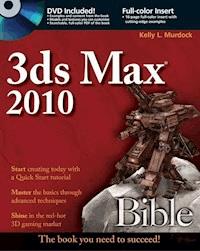
The bestselling 3ds Max book ever, now updated for the latest version 3ds Max is the world's most popular animation modeling and rendering software used to create 80 percent of commercially available video games, including those for Microsoft's Xbox 360, Sony's Playstation 3, and Nintendo's Wii. It is an expensive, intricate program that can take years to thoroughly master. As the ultimate comprehensive reference and tutorial on 3ds Max, this guide contains in-depth coverage of every aspect of 3ds Max and explores the newest features that the latest version has to offer. You'll learn to master the complexities of 3ds Max under the guidance of 3D expert Kelly Murdock. * Includes in-depth detail on all the latest features for veterans of earlier versions of 3ds Max from 3D expert Kelly Murdock * Shares expert advice, timesaving techniques, and more than 150 step-by-step tutorials * Features a 16-page, full-color insert with inspiring examples of cutting-edge 3ds Max art * Bonus DVD contains all the examples from the book, unique models and textures that you can customize on your own, and a searchable, full-color version of the book A Quick Start chapter shows you how to create an exciting animation on your very first day with the software so you can dive in and get started immediately. Note: CD-ROM/DVD and other supplementary materials are not included as part of eBook file.
Sie lesen das E-Book in den Legimi-Apps auf:
Seitenzahl: 1926
Veröffentlichungsjahr: 2009
Ähnliche
















3ds®Max Bible
Table of Contents
Part I: Getting Started with 3ds Max
Quick Start: Landing a Space Vehicle
Spaceships and Ports—Planning the Production
Setting Up the Scene
Tutorial: Gathering models
Tutorial: Adding a ground plane
Adding Materials and Lights
Tutorial: Adding materials
Tutorial: Adding a Sun & Sky system
Tutorial: Rendering the scene
Animating the Spaceship
Tutorial: Animating a spaceship landing
Summary
Chapter 1: Exploring the Max Interface
Learning the Interface Elements
Using the Menus
Using the Toolbars
Docking and floating toolbars
Using tooltips and flyouts
Using the Caption Bar
Learning the main toolbar
Using the Ribbon
Using the Viewports
Using the Command Panel
Working with rollouts
Increasing the Command Panel's width
Tutorial: Rearranging the interface for lefties
Using the Lower Interface Bar Controls
Interacting with the Interface
Gaining quick access with the right-click quadmenus
Understanding the button color cues
Using drag-and-drop features
Controlling spinners
Understanding modeless and persistent dialog boxes
Getting Help
Using the InfoCenter toolbar
Viewing the Essential Skills Movies
Using the browser-based reference guides
Using the rest of the Help menu
Summary
Chapter 2: Controlling and Configuring the Viewports
Understanding 3D Space
Learning Axonometric versus Perspective
Learning Orthographic and Isometric views
Discovering the viewports in Max
Using the Navigation Gizmos
Working with the ViewCube
Using the SteeringWheels
Tutorial: Navigating the active viewport
Controlling Viewports with a Scroll Wheel
Using the Viewport Navigation Controls
Zooming a view
Panning a view
Walking through a view
Rotating a view
Maximizing the active viewport
Controlling camera and spotlight views
Changing the Viewport Display
Undoing and saving viewport changes
Disabling and refreshing viewports
Viewing materials in the viewports
Displaying lights and shadows in the viewports
Enabling Exposure Control and Ambient Occlusion
Configuring viewport lighting and shadows
Locating mesh problems with xView
Configuring the Viewports
Setting the viewport rendering method
Altering the viewport layout
Using Safe Frames
Understanding Adaptive Degradation
Defining regions
Viewing statistics
Working with Viewport Backgrounds
Loading viewport background images
Loading viewport background animations
Tutorial: Loading reference images for modeling
Summary
Chapter 3: Working with Files, Importing, and Exporting
Working with Max Scene Files
Using the Application Button
Starting new
Saving files
Archiving files
Opening files
Setting a Project Folder
Merging and replacing objects
Getting out
Setting File Preferences
Handling files
Backing up files
Tutorial: Setting Up Auto Backup
Maintaining log files
Importing and Exporting
Importing supported formats
Import preference
Exporting supported formats
Exporting utilities
Using the File Utilities
Using the Asset Browser utility
Finding files with the Max File Finder utility
Collecting files with the Resource Collector utility
Using the File Link Manager utility
Using i-drop
Accessing File Information
Displaying scene information
Viewing file properties
Viewing files
Summary
Chapter 4: Customizing the Max Interface and Setting Preferences
Using the Customize User Interface Window
Customizing keyboard shortcuts
Customizing toolbars
Tutorial: Creating a custom toolbar
Customizing quadmenus
Customizing menus
Tutorial: Adding a new menu
Customizing colors
Customizing Modify and Utility Panel Buttons
Working with Custom Interfaces
Saving and loading a custom interface
Locking the interface
Reverting to the startup interface
Switching between default and custom interfaces
Configuring Paths
Configuring user paths
Configuring system paths
Selecting System Units
Using Custom and Generic units
Handling mismatched units
Rescaling world units
Setting Preferences
General preferences
Files panel preferences
Viewport preferences
Gamma preferences
Other preference panels
Summary
Part II: Working with Objects
Chapter 5: Creating and Editing Primitive Objects
Creating Primitive Objects
Using the Create menu
Using the Create panel
Naming and renaming objects
Assigning colors
Using the Color Clipboard
Using different creation methods
Using the Keyboard Entry rollout for precise dimensions
Altering object parameters
Recovering from mistakes and deleting objects
Tutorial: Exploring the Platonic solids
Exploring the Primitive Object Types
Starting with the Standard Primitives
Extended Primitives
Modifying object parameters
Tutorial: Filling a treasure chest with gems
Using Architecture Primitives
Using AEC Objects
Tutorial: Adding stairs to a clock tower building
Summary
Chapter 6: Selecting Objects and Setting Object Properties
Selecting Objects
Selection filters
Select buttons
Selecting with the Edit menu
Selecting multiple objects
Using the Paint Selection Region tool
Tutorial: Selecting objects
Locking selection sets
Using named selection sets
Editing named selections
Isolating the current selection
Selecting objects in other interfaces
Setting Object Properties
Viewing object information
Setting display properties
Setting rendering controls
Enabling Motion Blur
Using the Advanced Lighting and mental ray panels
Using the User-Defined panel
Hiding and Freezing Objects
Using the Display Floater dialog box
Using the Display panel
Tutorial: Hidden toothbrushes
Using Layers
Using the Layer Manager
Using the layer list
Tutorial: Dividing a scene into layers
Using the Scene Explorer
Selecting and filtering objects
Finding objects
Editing in the Scene Explorer
Summary
Chapter 7: Transforming Objects, Pivoting, Aligning, and Snapping
Translating, Rotating, and Scaling Objects
Translating objects
Rotating objects
Scaling objects
Using the transform buttons
Working with the Transform Gizmos
Using the Transform Toolbox
Using the Transform Type-In dialog box
Using the status bar Type-In fields
Understanding the Transform Managers
Tutorial: Landing a spaceship in port
Using Pivot Points
Positioning pivot points
Aligning pivot points
Using the Working Pivot
Transform adjustments
Using the Reset XForm utility
Tutorial: A bee buzzing about a flower
Using the Align Commands
Aligning objects
Using the Quick Align tool
Aligning normals
Tutorial: Aligning a kissing couple
Aligning to a view
Using Grids
The Home Grid
Creating and activating new grids
Using AutoGrid
Tutorial: Creating a spyglass
Using Snap Options
Tutorial: Creating a 2D outline of an object
Setting snap points
Setting snap options
Using the Snaps toolbar
Tutorial: Creating a lattice for a methane molecule
Summary
Chapter 8: Cloning Objects and Creating Object Arrays
Cloning Objects
Using the Clone command
Using the Shift-clone method
Tutorial: Cloning dinosaurs
Using Quick Clone
Understanding Cloning Options
Working with copies, instances, and references
Tutorial: Creating instanced doughnuts
Tutorial: Working with referenced apples
Mirroring Objects
Using the Mirror command
Tutorial: Mirroring a robot's leg
Cloning over Time
Using the Snapshot command
Tutorial: Creating a path through a maze
Spacing Cloned Objects
Using the Spacing tool
Tutorial: Stacking a row of dominoes
Using the Clone and Align Tool
Aligning source objects to destination objects
Tutorial: Cloning and aligning trees on a beach
Creating Arrays of Objects
Linear arrays
Tutorial: Building a white picket fence
Circular arrays
Tutorial: Building a Ferris wheel
Working with a ring array
Tutorial: Using Ring Array to create a carousel
Summary
Chapter 9: Grouping, Linking, and Using Containers
Working with Groups
Creating groups
Ungrouping objects
Opening and closing groups
Attaching and detaching objects
Tutorial: Grouping a plane's parts together
Building Assemblies
Understanding Parent, Child, and Root Relationships
Building Links between Objects
Linking objects
Unlinking objects
Tutorial: Linking a family of ducks
Displaying Links and Hierarchies
Displaying links in the viewport
Viewing hierarchies
Working with Linked Objects
Locking inheriting transformations
Using the Link Inheritance utility
Selecting hierarchies
Linking to dummies
Tutorial: Circling the globe
Working with Containers
Creating and filling containers
Closing and saving containers
Updating and reloading containers
Summary
Part III: Modeling Basics
Chapter 10: Accessing Subobjects and Using Modeling Helpers
Exploring the Model Types
Parametric objects versus editable objects
Converting to editable objects
Understanding Normals
Viewing normals
Tutorial: Cleaning up imported meshes
Lesen Sie weiter in der vollständigen Ausgabe!
Lesen Sie weiter in der vollständigen Ausgabe!
Lesen Sie weiter in der vollständigen Ausgabe!
Lesen Sie weiter in der vollständigen Ausgabe!
Lesen Sie weiter in der vollständigen Ausgabe!
Lesen Sie weiter in der vollständigen Ausgabe!
Lesen Sie weiter in der vollständigen Ausgabe!
Lesen Sie weiter in der vollständigen Ausgabe!
Lesen Sie weiter in der vollständigen Ausgabe!
Lesen Sie weiter in der vollständigen Ausgabe!
Lesen Sie weiter in der vollständigen Ausgabe!
Lesen Sie weiter in der vollständigen Ausgabe!
Lesen Sie weiter in der vollständigen Ausgabe!
Lesen Sie weiter in der vollständigen Ausgabe!
Lesen Sie weiter in der vollständigen Ausgabe!
Lesen Sie weiter in der vollständigen Ausgabe!
Lesen Sie weiter in der vollständigen Ausgabe!
Lesen Sie weiter in der vollständigen Ausgabe!
Lesen Sie weiter in der vollständigen Ausgabe!
Lesen Sie weiter in der vollständigen Ausgabe!
Lesen Sie weiter in der vollständigen Ausgabe!
Lesen Sie weiter in der vollständigen Ausgabe!
Lesen Sie weiter in der vollständigen Ausgabe!
Lesen Sie weiter in der vollständigen Ausgabe!
Lesen Sie weiter in der vollständigen Ausgabe!
Lesen Sie weiter in der vollständigen Ausgabe!
Lesen Sie weiter in der vollständigen Ausgabe!
Lesen Sie weiter in der vollständigen Ausgabe!
Lesen Sie weiter in der vollständigen Ausgabe!
Lesen Sie weiter in der vollständigen Ausgabe!
Lesen Sie weiter in der vollständigen Ausgabe!
Lesen Sie weiter in der vollständigen Ausgabe!
Lesen Sie weiter in der vollständigen Ausgabe!
Lesen Sie weiter in der vollständigen Ausgabe!
Lesen Sie weiter in der vollständigen Ausgabe!
Lesen Sie weiter in der vollständigen Ausgabe!
Lesen Sie weiter in der vollständigen Ausgabe!
Lesen Sie weiter in der vollständigen Ausgabe!
Lesen Sie weiter in der vollständigen Ausgabe!
Lesen Sie weiter in der vollständigen Ausgabe!
Lesen Sie weiter in der vollständigen Ausgabe!
Lesen Sie weiter in der vollständigen Ausgabe!
Lesen Sie weiter in der vollständigen Ausgabe!
Lesen Sie weiter in der vollständigen Ausgabe!
Lesen Sie weiter in der vollständigen Ausgabe!
Lesen Sie weiter in der vollständigen Ausgabe!
Lesen Sie weiter in der vollständigen Ausgabe!
Lesen Sie weiter in der vollständigen Ausgabe!
Lesen Sie weiter in der vollständigen Ausgabe!
Lesen Sie weiter in der vollständigen Ausgabe!
Lesen Sie weiter in der vollständigen Ausgabe!
Lesen Sie weiter in der vollständigen Ausgabe!
Lesen Sie weiter in der vollständigen Ausgabe!
Lesen Sie weiter in der vollständigen Ausgabe!
Lesen Sie weiter in der vollständigen Ausgabe!
Lesen Sie weiter in der vollständigen Ausgabe!
Lesen Sie weiter in der vollständigen Ausgabe!
Lesen Sie weiter in der vollständigen Ausgabe!
Lesen Sie weiter in der vollständigen Ausgabe!
Lesen Sie weiter in der vollständigen Ausgabe!
Lesen Sie weiter in der vollständigen Ausgabe!
Lesen Sie weiter in der vollständigen Ausgabe!
Lesen Sie weiter in der vollständigen Ausgabe!
Lesen Sie weiter in der vollständigen Ausgabe!
Lesen Sie weiter in der vollständigen Ausgabe!
Lesen Sie weiter in der vollständigen Ausgabe!
Lesen Sie weiter in der vollständigen Ausgabe!
Lesen Sie weiter in der vollständigen Ausgabe!
Lesen Sie weiter in der vollständigen Ausgabe!




