


27,99 €
Mehr erfahren.
- Herausgeber: John Wiley & Sons
- Kategorie: Wissenschaft und neue Technologien
- Sprache: Englisch
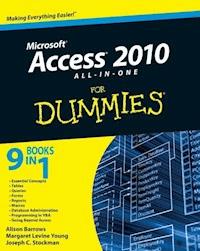
The all-in-one reference to all aspects of Microsoft Access 2010 If you want to learn Microsoft Access inside and out, the nine minibooks in this easy-access reference are exactly what you need. Read the book cover to cover, or jump into any of the minibooks for the instruction and topics you need most. Learn how to connect Access to SQL Server, manipulate your data locally, use nifty new features from Office 2010 such as the enhanced Ribbon, create queries and macros like a champ, and much more. From the basics to advanced functions, it's what you need to make Access more accesssible. * Shows you how to store, organize, view, analyze, and share data using Microsoft Access 2010, the database application included with Microsoft Office 2010 * Includes nine minibooks that cover such topics as database design, tables, queries, forms, reports, macros, database administration, securing data, programming with Visual Basic for Applications (VBA), and using Access with the Web * Helps you build database solutions that integrate with the Web and other enterprise data sources * Offers plenty of techniques, tips, and tricks to help you get the most out of Access This all-in-one guide contains everything you need to start power-using Access 2010!
Sie lesen das E-Book in den Legimi-Apps auf:
Seitenzahl: 1130
Veröffentlichungsjahr: 2010
Ähnliche


















Access® 2010 All-in-One For Dummies®
Table of Contents
Introduction
About Access 2010 All-in-One Desk Reference For Dummies
Conventions
Foolish Assumptions
What You Don’t Have to Read
Icons
Organization
Where to Go from Here
Book I : Essential Concepts
Book I : Chapter 1: Introducing Access 2010
Why Use a Database?
Plan, Plan, Plan
The Six Types of Access Objects
Tables for storing your data
Queries for selecting your data
Forms for editing and displaying your data
Reports for printing your data
Macros for saving keystrokes
Modules for writing your own programs
Essential Database Concepts
Book I : Chapter 2: Getting Started, Getting Around
Running Access
Opening a Database
Opening oldies
Saving in a different version
I have that open already!
Creating a sample database from a template
Making Friends with the Access Window
The Ribbon
Minimizing the Ribbon
The Quick Access toolbar
Mission Control: The Navigation Pane
Choosing how database objects are grouped
Choosing size and details for Navigation pane objects
Sorting objects in the Navigation pane
Searching for an object
Viewing Objects in Your Database
Viewing lots of objects at the same time
Switching views
Creating, Deleting, Renaming, Copying, and Printing Objects
Introducing Backstage View
Using Wizards
Getting Help
Saving Time with Keyboard Shortcuts
Book I : Chapter 3: Designing Your Database the Relational Way
What Are Tables, Fields, and Keys?
Data types
Primary key fields for your tables
What Are Relationships?
How relationships work
One-to-many relationships
One-to-one relationships
Many-to-many relationships
Designing a Database
Identifying your data
Eliminating redundant fields
Organizing fields into tables
Add tables for codes and abbreviations
Choosing primary keys for each table
Linking your tables
Refining your links
What’s in a name?
Cleaning up the design
Tips for Choosing Field Types
Choosing between Text and Yes/No fields
Choosing between Text and Memo fields
Choosing between Text and Number (or Currency) fields
Storing pictures and other files
Storing names, money, codes, and other stuff
Storing Single Facts
Creating a Database
Creating a database from scratch
Creating a new database using a template
Book II : Tables for Storing Your Data
Book II : Chapter 1: Creating and Modifying Tables
Deciding How You’ll View Your Tables
Making a Table for Your Data
Starting with an application part
Creating a new table using Datasheet view
Entering data and creating fields
Creating fields
Quick-starting your table
Choosing field names
Changing a field name
Saving your table
Working with a Datasheet Full of Data
Looking at a datasheet
Navigating the data
Adding and Editing Records
Keystrokes that enter data
Editing the data you have
Adding Calculated Fields to Tables
Entering and Editing Hyperlinks
Using the Hyperlink Builder
Using the Attachment Data Type
Deleting records
Entering special characters
Checking Your Spelling
Using AutoCorrect for Faster Data Entry
Formatting a Datasheet
Formatting a field
Changing the font
Taking advantage of Rich Text
Changing gridlines and background color
Rearranging columns in a datasheet
Changing column width
Changing row height
Inserting and deleting columns
Hiding columns
Freezing columns
Changing default formatting for new tables
Taking Advantage of Subdatasheets
Adding a Totals Row to the Datasheet
Book II : Chapter 2: Refining Your Table in Design View
Creating Tables Using Design View
Refining Your Table Using Design View
Using the Caption property
Adding a field
Copying a field
Moving a field
Deleting a field
Choosing a data type
Formatting Fields with Field Properties
Formatting Number and Currency fields
Setting the field size
Formatting Date/Time fields
Formatting Text fields
Defining the Primary Key
Indexing Fields
Printing Table Designs
Book II : Chapter 3: Sorting, Finding, and Filtering Data in a Datasheet
Sorting the Rows of a Datasheet
Finding (and Replacing) Data
Exploring the Find and Replace dialog box and its options
Replacing the data you find
Filtering a Datasheet
Filtering the filtering basics
Using different types of datasheet filters
Filtering by selection
Filtering with common filters
Filtering using criteria on multiple fields
Filtering Using Advanced Filter/Sort
Book II : Chapter 4: Importing and Exporting Data
Cutting, Copying, and Pasting
Using the Office Clipboard
Cutting and pasting small to medium-ish amounts of data
Moving data from Excel to Access
Importing or Linking to Data
Understanding what applications are compatible with Access
Making data available: To link or to import, that is the question
Getting external data
Importing text or spreadsheet data
Importing with the Import Spreadsheet and Link Spreadsheet Wizards
Getting contacts from Outlook into Access
Managing links
Cleaning up your imported data
Running and scheduling saved imports
Getting Data from Another Access Database
Getting Data Out of Access
Collecting Data with Outlook
Using Access Data in a Word Mail Merge
Book II : Chapter 5: Avoiding “Garbage In, Garbage Out”
Finding the Right Tool to Keep Garbage Out
Using Input Masks to Validate and Format Data
Using the Input Mask Wizard
Creating an input mask manually
Creating a Lookup Field
Using the Lookup Wizard
When to use the Allow Multiple Selections option
Modifying the lookup list
Validating Data as It’s Entered
Book II : Chapter 6: Relating Your Tables and Protecting Your Data
Creating Relationships and Protecting Your Data with Referential Integrity
Deciding on the best path to take
Opening the Relationships window
Adding tables to the Relationships window
Setting referential integrity between two tables
Editing and deleting relationships
Referential Integrity with Many-to-Many Relationships
Printing the Relationships Window
Book III : Queries (or Getting Information from Your Data)
Book III : Chapter 1: Creating Select Queries
Types of Queries
Creating a Query in Design View
Creating a Query with the Simple Query Wizard
Viewing Your Query
Understanding Design View
Design view
Working with tables in Design view
Introducing the query design grid
Navigating Design view
Displaying or hiding table names
Tips for Creating a Query
Adding tables to the query
Inserting fields in a design grid
Editing a Query
Sorting a query
Viewing top values
Hiding fields
Changing the format of a query field
Limiting Records with Criteria Expressions
Querying by example
Using dates, times, text, and values in criteria
Using operators in criteria expressions
Using multiple criteria
Using lookup fields in criteria
Queries with multivalue lookup fields
Working with Multiple Related Tables
Joining tables in Design view
Choosing the type of join and setting join properties
Working with Query Datasheets
Using the query datasheet to edit data
AutoLookup queries to fill in data automagically
Saving Queries
Book III : Chapter 2: Letting Queries Do the Math
Doing Math in Queries
Writing Expressions in Access
Using operators in expressions
Field names in expressions
Using functions in expressions
Using the Expression Builder
Getting help with functions
About text in < and > brackets
Nesting functions
Going beyond Basic Arithmetic
Formatting calculated numbers in queries
Avoiding problems with null values
Date and Time Calculations
Using literal dates and times in expressions
Using the Date/Time functions
Manipulating Text with Expressions
Adding spaces to text expressions
Using the Access Text functions
Writing Decision-Making Expressions
Making comparisons in IIf()
Combining comparisons
To tax or not to tax?
Testing for Empty Fields
Sort by name or company
Creating Flexible Parameter Queries
Totals, Subtotals, Averages, and Such
Calculating subtotals in a query
Filtering records based on calculated fields
Book III : Chapter 3: Doing Neat Things with Action Queries and Query Wizards
Creating Action Queries
The dangers of the Run button
Creating action queries safely
Changing Data with Update Queries
Creating New Tables with Make-Table Queries
Moving Data from One Table to Another with Append Queries
Deleting Lots of Records with Delete Queries
Finding Unmatched Records with a Wizard
Finding Duplicate Records
Book III : Chapter 4: Viewing Your Data from All Angles Using Crosstabs and PivotTables
Aggregating Data in a Crosstab Query
Using the Crosstab Query Wizard
Creating a Crosstab query in Design view
Modifying your Crosstab query
Analyzing Data with PivotTables
Creating a blank PivotTable
Displaying data in your PivotTable
Modifying your PivotTable
Working with PivotTable data
Formatting PivotTables
Filtering the PivotTable data
Book IV : Forms for Editing Data
Book IV : Chapter 1: Designing and Using Forms (and Reports)
Forms and Reports Are Secretly Related
Form Basics
What kind of form would you like?
Making and Using a Form
Making the easiest possible form by using the Form button
Viewing a form
Editing data in Form view
Creating Forms with Wizards
Wizard, make me a form!
More super-speedy forms
Modifying Existing Forms (and Reports)
Getting Your Fields Lined Up in Layout View
Using a control layout to rearrange fields
Adding and deleting fields
Making a new form from scratch in Layout view
Adding and deleting rows and columns in the control layout
Controlling your control layouts
Trying out your new, improved form
Configuring the Whole Form or Report
Naming the form
Where records come from
Deciding the order of the records
One record or many?
Some other cool form properties
Applying a theme to a form (or report)
Storing Your Forms and Reports
Form and report management
Importing forms and reports from other databases
Printing forms
Book IV : Chapter 2: Jazzing Up Your Forms (and Reports)
An Efficient Way to Create New Forms
Making All Kinds of Changes in Design View
Changing the layout of an existing form or report
Changing the size of a form
Taking Control of Your Form or Report
Form control types
Making a new control by dragging a field
Making a new control by choosing a control
Setting control properties
Binding a control to data in the record source
Making Controls That Display Text, Numbers, and Dates
Making and editing labels
Adding hyperlink controls
Putting Text and Memo fields in text boxes
Displaying number, currency, and date fields
Breaking Out of the Control Layout
Removing the control layout
Moving or resizing a control
Neatening up your controls
Renaming, Resizing, Deleting, and Copying Controls
Formatting Numbers and Dates
Choosing Fonts, Colors, and Other Decorative Touches
Copying your formatting
Make it red if it’s bad news
Creating Check Boxes for Yes/No Fields
Adding Lines, Boxes, and Backgrounds
Controlling Cursor Movement in Your Form
Book IV : Chapter 3: Creating Smarter Forms
Creating and Configuring Combo and List Boxes
Making combo boxes the really easy way
Running the Combo or List Box Wizard
Changing the properties of a combo or list box
Cool Looks for Yes/No Fields
Creating Option Groups
Creating Command Buttons
Making a Close button
Making a button to display a related form
Making a button to print the current record
Making other cool buttons
Customizing your command button
Making a Find Box
Displaying Attachments
Adding Form Headers and Footers
Creating Tabbed Forms
You Can’t Type That Here!
Making a Main Menu for Your Database
Creating a navigation form
The alternative to navigation forms
Opening a form automatically when the database opens
Book IV : Chapter 4: Doing Calculations in Forms and Subforms (and Reports)
Doing Elementary Calculations
Making a calculated control
Checking your expression
Troubleshooting expressions
Calculating and Formatting Numbers
Calculating and Formatting Dates
Calculating and Formatting Text
Displaying Values That Depend on Conditions
Formatting Calculated Controls
Using a Split Form to Display a Datasheet
Using a Subform to Display Detail Records
Creating a subform
The properties of subform controls
Adding Subtotals and Totals from Subforms
Using aggregate functions
Referring to a control on a subform
Creating the controls to total a subform
Book V : Reporting in Words and Pictures
Book V : Chapter 1: Creating and Spiffing Up Reports
If You Know Forms, You Already Know Reports
Creating Reports Automagically
Making the easiest possible report
Running the Report Wizard
Editing Reports in Layout and Design View
Report Sections and How They Work
Setting report and section properties
Adding page headers, footers, and numbers
Grouping your records
Sorting the records in your report
Calculating group subtotals and report totals
Formatting Tips and Tricks
Copying Forms to Reports
Adding and Formatting Subreports
Making a subreport
Printing information from a subreport on the main report
Displaying Empty or Long Fields
Displaying long text
Displaying fields that may be empty
Viewing Your Reports On-Screen
Book V : Chapter 2: Printing Beautiful Reports
Viewing Your Report
Adjusting the view
Looking at lots of pages
Previewing reports with parameters
Formatting the Page
Selecting a printer
Setting margins, paper size, and paper orientation
Controlling page breaks
Avoiding blank pages
Printing only the data
Printing the Report
Printing on an actual printer
Creating a PDF, XPS, HTML, or other file of your report
Creating Mailing Labels
Running the Label Wizard
Behind the scenes in a mailing-label report
Changing the page setup for labels
Sending a Report to Another Application
Exporting your report to Excel
Exporting your report to Word
E-Mailing your report
Exporting your report in other formats
Automating your exports
Book V : Chapter 3: Creating Charts and Graphs from Your Data
Pull Up a Seat at the Data Bar
Displaying Information with Charts
Creating charts with the Chart Wizard
Making bar charts
Making line and area charts
Making pie and doughnut charts
Making bubble and XY scatter plots
Changing your chart
Formatting charts with colors, legends, and titles
Changing how the data is graphed
Changing which data is charted
Analyzing Your Data Graphically with PivotCharts
Creating PivotCharts
Saving and viewing your PivotChart
Sprucing up your PivotCharts
Book VI : Automation with Macros
Book VI : Chapter 1: Making Macros Do the Work
What Is a Macro?
Creating and Editing Standalone Macros
Naming, saving, and editing macros
Taking action!
Specifying arguments to actions
Moving your actions around
Adding comments
Creating subroutines in macros — submacros
Running Standalone Macros and Submacros
Running a macro when the database opens
Assigning macros to keys
Opening Databases That Contain Macros
Can a macro be a virus?
Putting your database in a safe place
Signing your database
Which actions can you take?
Run This Only If I Say So
If-then macros
If-then-else macros
Book VI : Chapter 2: Making Macros Smarter
Attaching Macros to Tables
Running data macros
Creating a data macro
Cool data macro tricks
Running Macros in Forms
Running a macro when a form event happens
Creating command buttons on forms
Referring to form controls in macros
Printing matching records from a form
Changing the Way Your Form Looks Dynamically
Setting the properties of form controls
Hiding unneeded controls on a form
Setting Up Your Own Main Menu Form
Creating a form that appears when the database opens
Creating command buttons for your main menu form
Using Temporary Variables in Macros
Book VII : Database Administration
Book VII : Chapter 1: Database Housekeeping
Compacting and Repairing Your Database
Making Backups
Converting Databases
Analyzing and Documenting Your Database
Viewing relationships in the Relationships window
Viewing object dependencies
Analyzing database performance
Documenting your database
Loading and Managing Add-Ins
Book VII : Chapter 2: Sharing the Fun: Managing Multiuser Access
Putting Your Database Where They Can See It
Splitting Your Database into a Front End and a Back End
Why split?
Let’s split!
Splitting by hand
Handing out front ends
Relinking your tables
Editing with Multiple Users
Fixing exclusive access
Managing record-locking
Book VII : Chapter 3: Securing Your Access Database
Don’t Forget Basic Windows Security
Controlling What Happens When You Open the Database
Password-Protecting and Encrypting Your Database
Encrypting your database with a password
Opening a password-protected database
Decrypting a database
Locking Up Your Database as an ACCDE File
Creating an ACCDE file
Making updates later
Using the Trust Center
Book VIII : Programming in VBA
Book VIII : Chapter 1: What the Heck Is VBA?
Finding VBA Code
Opening a class module
Creating or opening a standard module
Enabling VBA Code
How code is organized
Using the Visual Basic Editor
Using the Code window
Using the Immediate window
Using the Object Browser
Searching the Object Library
Referring to objects and collections
Choosing object libraries
Closing the Visual Basic Editor
Discovering Code as You Go
Converting macros to VBA code
Copying and pasting code
Book VIII : Chapter 2: Writing Code
How VBA Works
VBA Syntax
Arguing with VBA
Module level versus procedure level
Declaring Module Options
Writing Your Own VBA Procedures
Creating a new standard procedure
Creating a new event procedure
Passing arguments to procedures
Returning a value from a function
Typing and Editing in the Code Window
Shortcut keys used in the Code window
Typing comments
Breaking lines of code
Dealing with compile errors
Testing and Running Your Code
Testing sub procedures
Running sub procedures from Access
Testing function procedures
Using function procedures in Access
Book VIII : Chapter 3: Writing Smarter Code
Creating Variables and Constants
Make me a variable
Scope and lifetime of variables
Defining constants
Organizing variables into arrays
Multidimensional arrays
Naming conventions for variables
Making Decisions in VBA Code
Using If...End If statements
Nesting If...End If statements
Using a Select Case block
Executing the Same Code Repeatedly
Using Do...Loop to create a loop
Using While...Wend to create a loop
Using For...Next to create a loop
Looping through an array
Analyzing each character in a string
Using Custom Functions
Book VIII : Chapter 4: Controlling Forms with VBA
Displaying Custom Messages
Displaying a message box
Responding to what the user clicks
Opening Forms with DoCmd
Umpteen ways to open a form
Closing a form with DoCmd
Changing Form Controls with VBA
Some cool control properties
Controlling properties example
Understanding Objects and Collections
Properties, methods, and events
Referring to objects and collections
An example: Seeing whether a form is open
Looping through collections
Using With...End With
Book VIII : Chapter 5: Using SQL and Recordsets
Recordsets and Object Models
Quick and easy recordsets
ADO recordset properties and methods
Looping through a recordset
Defining a recordset’s cursor type
Field names in recordsets
SQL and Recordsets
Breaking up long SQL statements
Running Action Queries from VBA
Cleaning up connections
Book VIII : Chapter 6: Debugging Your Code
Considering Types of Program Errors
Fixing Compiler Errors
Trapping Runtime Errors
Fixing the runtime error
Preventing the runtime error
Dealing with Logical Errors
Watching things happen
Slowing down procedures
Cleaning up
Book IX : Going Beyond Access
Book IX : Chapter 1: Automation with Other Office Programs
What Is Automation?
Using Object Libraries
Exploring an object library
The Application object
Adding a Contact to Outlook
Merging Data with a Word Document
Creating a Word template
Writing the merge code
Exporting Data to Excel
Book IX : Chapter 2: Using Access as a Front-End to SQL Server
What Is SQL Server?
Using ODBC
Connecting to SQL Server with ODBC
Using linked tables in Access
Maintaining linked tables
Using pass-through queries
Creating an Access Data Project
Designing ADP tables and views
Creating other objects in an ADP
Book IX : Chapter 3: Using Access with SharePoint
What Is SharePoint?
Using a SharePoint List as a Data Source
Creating a new SharePoint list
Linking to an existing SharePoint list
Moving an existing database to SharePoint
Building a Web Database
What is a Web database?
Creating a Web database
Designing Web Databases
Creating a Web table
Creating Web forms and reports
Creating Web macros
Converting client databases to Web databases
Publishing a Web Database
Viewing the results in a browser
When publishing fails
Synchronizing changes
Book IX : Appendix: Installing Microsoft Access
Access® 2010 All-in-One For Dummies®
by Margaret Levine Young, Alison Barrows, and Joseph C. Stockman
Access® 2010 All-in-One For Dummies®
Published byWiley Publishing, Inc.111 River St.Hoboken, NJ 07030-5774www.wiley.com
Copyright © 2010 by Wiley Publishing, Inc., Indianapolis, Indiana
Published simultaneously in Canada
No part of this publication may be reproduced, stored in a retrieval system or transmitted in any form or by any means, electronic, mechanical, photocopying, recording, scanning or otherwise, except as permitted under Sections 107 or 108 of the 1976 United States Copyright Act, without either the prior written permission of the Publisher, or authorization through payment of the appropriate per-copy fee to the Copyright Clearance Center, 222 Rosewood Drive, Danvers, MA 01923, (978) 750-8400, fax (978) 646-8600. Requests to the Publisher for permission should be addressed to the Permissions Department, John Wiley & Sons, Inc., 111 River Street, Hoboken, NJ 07030, (201) 748-6011, fax (201) 748-6008, or online at http://www.wiley.com/go/permissions.
Trademarks: Wiley, the Wiley Publishing logo, For Dummies, the Dummies Man logo, A Reference for the Rest of Us!, The Dummies Way, Dummies Daily, The Fun and Easy Way, Dummies.com, Making Everything Easier, and related trade dress are trademarks or registered trademarks of John Wiley & Sons, Inc. and/or its affiliates in the United States and other countries, and may not be used without written permission. All other trademarks are the property of their respective owners. Wiley Publishing, Inc., is not associated with any product or vendor mentioned in this book.
Limit of Liability/Disclaimer of Warranty: The publisher and the author make no representations or warranties with respect to the accuracy or completeness of the contents of this work and specifically disclaim all warranties, including without limitation warranties of fitness for a particular purpose. No warranty may be created or extended by sales or promotional materials. The advice and strategies contained herein may not be suitable for every situation. This work is sold with the understanding that the publisher is not engaged in rendering legal, accounting, or other professional services. If professional assistance is required, the services of a competent professional person should be sought. Neither the publisher nor the author shall be liable for damages arising herefrom. The fact that an organization or Website is referred to in this work as a citation and/or a potential source of further information does not mean that the author or the publisher endorses the information the organization or Website may provide or recommendations it may make. Further, readers should be aware that Internet Websites listed in this work may have changed or disappeared between when this work was written and when it is read.
For general information on our other products and services, please contact our Customer Care Department within the U.S. at 877-762-2974, outside the U.S. at 317-572-3993, or fax 317-572-4002.
For technical support, please visit www.wiley.com/techsupport.
Wiley also publishes its books in a variety of electronic formats. Some content that appears in print may not be available in electronic books.
Library of Congress Control Number: 2010923554
ISBN: 978-0-470-53218-8
Manufactured in the United States of America
10 9 8 7 6 5 4 3 2 1
About the Authors
Margaret Levine Young has co-authored several dozen computer books about the Internet, UNIX, WordPerfect, Access, and (stab from the past) PC-File and Javelin, including The Internet For Dummies (Wiley) and Windows XP Home Edition: The Complete Reference (Osborne/McGraw-Hill). She met her future husband Jordan in the R.E.S.I.S.T.O.R.S., a high-school computer club before there were high-school computer clubs. Her other passions are her children, music, Unitarian Universalism (www.uua.org), reading, gardening, chickens, and anything to do with cooking or eating.
Alison Barrows has authored or co-authored books on Windows, the Internet, Microsoft Access, WordPerfect, Lotus 1‑2-3, and other topics. In addition to writing books, Alison writes and edits technical documentation and training material. In real life she hangs out with her “guys” — Parker, 6, and Mason, 4, and Evan 2 — and tries to carve out some time to practice yoga. Alison lives with her family in central Massachusetts.
Joe Stockman has been using Microsoft Access since its initial release and has authored or co-authored several books on Access, including Access 2007 Bible and Access 2007 Workbook For Dummies. He’s also developed courseware in Access and VBA and has been on the speaker circuit for Microsoft Access seminars. Joe works as a consultant and software designer for Facilities Survey Inc. in Pittsburgh, PA. He also enjoys music, cooking, and anything else that lets him express his creative side.
Dedication
To my husband Jordan, my kids Meg and Zac, and my supportive friends. (MLY)
To Matt, Parker, Mason, and Evan. (AB)
To Mom, as always. (JCS)
Authors' Acknowledgments
We would like to acknowledge the care of Kyle Looper and Chris Morris, and all the others who shepherded this book through the editing and production process, as well as all the folks listed on the Publisher’s Acknowledgments page who worked on this book. (It takes ALL of these people, not just those of us on the cover.) We’d also like to thank the folks at Microsoft for making Access a wonderful tool to create robust database applications.
Margy thanks her co-workers for their support and for making work fun — the Information Technology team at the UUA: Sean, Matt, Nick, Michelle, Scott, James, Bob, and Mark.
Alison thanks Dotty, Christy, and Matt for taking great care of my guys so I can get work done. Matt (also known as Honey) gets special thanks as my hardware guru.
Joe thanks his mom and dad, for always encouraging but never pushing. Also thanks to my friends and family for their support and understanding of the time it takes to finish this project.
Publisher’s Acknowledgments
We’re proud of this book; please send us your comments through our online registration form located at www.dummies.com/register/.
Some of the people who helped bring this book to market include the following:
Acquisitions, Editorial, and Media Development
Sr. Project Editor: Christopher Morris
Acquisitions Editor: Kyle Looper
Copy Editors: Teresa Artman, Virginia Sanders, Heidi Unger, Brian Walls
Technical Editor: Dan DiNicolo
Editorial Manager: Kevin Kirschner
Editorial Assistant: Amanda Graham
Sr. Editorial Assistant: Cherie Case
Cartoons: Rich Tennant (www.the5thwave.com)
Composition Services
Project Coordinator: Patrick Redmond
Layout and Graphics: Carl Byers, Samantha K. Cherolis, Amy Hassos, Joyce Haughey
Proofreader: Toni Settle
Indexer: Christine Karpeles
Publishing and Editorial for Technology Dummies
Richard Swadley, Vice President and Executive Group Publisher
Andy Cummings, Vice President and Publisher
Mary Bednarek, Executive Acquisitions Director
Mary C. Corder, Editorial Director
Publishing for Consumer Dummies
Diane Graves Steele, Vice President and Publisher
Composition Services
Debbie Stailey, Director of Composition Services
Introduction
Whoa! What happened to menu bars, toolbars, and all that other stuff I used to have? Well, in case you haven’t noticed yet, they’re all gone. Of course, if you never used Access before in your life, you’re starting fresh, so never mind. Whether you never used any version of Microsoft Access, and aren’t even sure what a “version” is, you’ve come to the right book.
The basic idea behind Microsoft Access is to allow individuals and small businesses to manage large amounts of information the way the big corporations do — with relational databases. The difference is that while the big boys spend millions on computer hardware, software, and staffs of nerdy database-administrator types, Access allows you to do it all yourself with a run-of-the-mill PC and a realistic software budget.
Lesen Sie weiter in der vollständigen Ausgabe!
Lesen Sie weiter in der vollständigen Ausgabe!
Lesen Sie weiter in der vollständigen Ausgabe!
Lesen Sie weiter in der vollständigen Ausgabe!
Lesen Sie weiter in der vollständigen Ausgabe!
Lesen Sie weiter in der vollständigen Ausgabe!
Lesen Sie weiter in der vollständigen Ausgabe!
Lesen Sie weiter in der vollständigen Ausgabe!
Lesen Sie weiter in der vollständigen Ausgabe!
Lesen Sie weiter in der vollständigen Ausgabe!
Lesen Sie weiter in der vollständigen Ausgabe!
Lesen Sie weiter in der vollständigen Ausgabe!
Lesen Sie weiter in der vollständigen Ausgabe!
Lesen Sie weiter in der vollständigen Ausgabe!
Lesen Sie weiter in der vollständigen Ausgabe!
Lesen Sie weiter in der vollständigen Ausgabe!
Lesen Sie weiter in der vollständigen Ausgabe!
Lesen Sie weiter in der vollständigen Ausgabe!
Lesen Sie weiter in der vollständigen Ausgabe!
Lesen Sie weiter in der vollständigen Ausgabe!
Lesen Sie weiter in der vollständigen Ausgabe!
Lesen Sie weiter in der vollständigen Ausgabe!
Lesen Sie weiter in der vollständigen Ausgabe!
Lesen Sie weiter in der vollständigen Ausgabe!
Lesen Sie weiter in der vollständigen Ausgabe!
Lesen Sie weiter in der vollständigen Ausgabe!
Lesen Sie weiter in der vollständigen Ausgabe!
Lesen Sie weiter in der vollständigen Ausgabe!
Lesen Sie weiter in der vollständigen Ausgabe!
Lesen Sie weiter in der vollständigen Ausgabe!
Lesen Sie weiter in der vollständigen Ausgabe!
Lesen Sie weiter in der vollständigen Ausgabe!
Lesen Sie weiter in der vollständigen Ausgabe!
Lesen Sie weiter in der vollständigen Ausgabe!
Lesen Sie weiter in der vollständigen Ausgabe!
Lesen Sie weiter in der vollständigen Ausgabe!
Lesen Sie weiter in der vollständigen Ausgabe!
Lesen Sie weiter in der vollständigen Ausgabe!
Lesen Sie weiter in der vollständigen Ausgabe!
Lesen Sie weiter in der vollständigen Ausgabe!
Lesen Sie weiter in der vollständigen Ausgabe!
Lesen Sie weiter in der vollständigen Ausgabe!
Lesen Sie weiter in der vollständigen Ausgabe!
Lesen Sie weiter in der vollständigen Ausgabe!




