


3,99 €
Mehr erfahren.
- Herausgeber: Richardson Dunne
- Kategorie: Wissenschaft und neue Technologien
- Sprache: Englisch
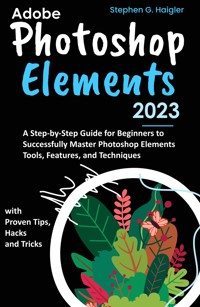
By Following This User Guide, You Can Quickly Master Adobe Photoshop Elements 2023's Technical Nuances.
Are you in search of a highly thorough instructional guide that will help you learn Photoshop Element? Here it is, then. The material in this work is thorough, relatable for first-time users, and simple to read. This book's information was carefully prepared to help you through every aspect of photo editing making use of the useful Adobe Photoshop Element tool.
This book is going to get your proficiency to a place at which you are comfortable working with Elements on your own given that it comes loaded with detailed instructions, and easy to follow explanations. Within, you will uncover the remarkable settings, tools, and features available in Photoshop Element as you discover how to use them to the fullest effectiveness.
This book is intended to offer you with all the knowledge and abilities necessary for transforming photographs into stunning creations of art, irrespective of where you are at on your photo editing path. The mentioned shortcuts, tips, and techniques continue to be useful and will make working with the program much easier.
You will discover how you can use Photoshop Elements to manage your photo library, arrange photos, trim and resize images, remove inconsistencies and unnecessary elements, alter contrast and color, apply amazing filters and effects, use Camera Raw, and carry out an extensive number of other tasks.
This is an overview of a few of the topics that were addressed:
- Learning How To Use The Home Screen
- Getting The Photo Editor Started
- Performing Basic Edits in Quick Mode
- Making use of the History Panel
- Learning How to Share a Photo
- Concepts for Basic Image-Editing
- Making A Resolution Decision For Printing Or Onscreen
- Learning All You Need to Know About Resolution
- Color Management
- Understanding File Formats
- How to Calibrate Your Monitor
- Discovering How to Navigate the Organizer
- How to add Files From Removable Media and Folders
- How to Organize Media and Photos on a Hard Drive
- How to Place Pictures on Maps
- How to Create and Album and Add Images to an Album
- Learning to Work with Events
- How to Find and View Your Images
- Dealing with Catalogs
- Learning to Catalog Files
- Making Use of the Catalog Manager
- Learning All You Need to Know About Camera Raw
- How to Edit Camera Raw Images
- Learning How To Use The Raw Editor
- How to Sharpen and Reduce Noise
- Making Use of the Basic Panel
- How to Make Selections and Modify Selections
- Making Elliptical and Rectangular Selections
- How to Adjust Contrast and Brightness
- How to Adjust Highlights and Shadows
- How to Adjust Skin Tone
- How to Adjust Saturation and Hue
- How to Adjust Skin Tone
- How to Use The Healing Brush Tool
- Sharpening and Blurring
- How to Straighten Images
- Using the Eraser Tool
- Working with Adobe Photoshop Element's Special Filters
- Understanding Layers and Working with Them.
- And countless more
If you're looking to advance your skill, have only recently begun, or just have a need for motivation and cool concepts, methods, and hacks, this is the book to pick up.
Scroll Up and Click the "Buy Now" button to get a copy!
Das E-Book können Sie in Legimi-Apps oder einer beliebigen App lesen, die das folgende Format unterstützen:
Veröffentlichungsjahr: 2023
Ähnliche



















Adobe Photoshop Elements 2023
A Step-by-Step Guide for Beginners to Successfully Master Photoshop Elements Tools, Features, and Techniques, with Proven Tips, Hacks and Tricks
Stephen G. Haigler
Copyright © 2023 Stephen G. Haigler
All rights reserved. No part of this publication may be reproduced, distributed, or transmitted in any form or by any means, including photocopying, recording, or other electronic or mechanical methods, without the prior written permission of the publisher, except in the case of brief quotations embodied in critical reviews and certain other noncommercial uses permitted by copyright law.
Limit of Liability/Disclaimer of Warranty: While the publisher and author have used their best efforts in preparing this book, they make no representations or warranties with respect to the accuracy or completeness of the contents of this book and specifically disclaim any implied warranties of merchantability or fitness for a particular purpose. No warranty may be created or extended by sales representatives or written sales materials. The advice and strategies contained herein may not be suitable for your situation. You should consult with a professional where appropriate. Neither the publisher nor author shall be liable for any loss of profit or any other commercial damages, including but not limited to special, incidental, consequential, or other damages.
Contents
Introduction
Chapter 1: Getting to Know the Home Screen
1.1 Launching The Photo Editor
1.2 Making Basic Edits in Quick Mode
1.2.1 Quick Mode Group Icons
1.2.2 Applying an Effect, Texture, or Frame
1.3 Sharing a Photo
1.3.1 How to Share Photos in Lightroom.
1.3.2 How to Use Quick Share in Adobe Photoshop
1.4 Using The History Panel
1.5 Reverting to the Last Save
1.6 Using the Save/Save as Dialog Box
1.6.1 Loading a Saved Selection
1.6.2 Deleting a Selection
Chapter 2: Basic Image-Editing Concepts
2.1 Understanding Resolution
2.1.1 Image Resolution
2.1.2 Monitor Resolution
2.1.3 Changing the Image Resolution
2.1.4 Image Resampling: Upsampling and Downsampling
2.2 Choosing A Resolution for Print or Onscreen
2.2.1 Changing a Digital Photo's Resolution for Printing
2.2.2 Resizing a Scanned Image for Print Output
2.3 Working with File Formats
2.3.1 Photoshop (PSD)
2.3.2 JPEG File Format
2.3.3 GIF File Format
2.3.4 PNG File Format
2.3.5 TIFF File Format
2.3.6 EPS File Format
2.3.7 PDF File Format
2.3.8 High-Efficiency Image File Format (HEIF)
2.4 Working with PSD Files in Adobe Photoshop
2.5 Getting Familiar with Color
2.6 Color the Easy Way
2.6.1 How to Correct Color in Quick Mode
2.7 Calibrating Your Monitor
2.7.1 How to Start your Color Calibration.
2.7.2 Using a Colorimeter to Calibrate Your Monitor
2.8 Setting Up Color Management
2.8.1 Profiling devices
2.8.2 Monitors
2.8.3 Printers
2.9 How to Set up Color Management
Chapter 3: Navigating the Organizing
3.1 Organizing Photos and Media On a Hard Drive
3.1.1 Adding Files from Folders and Removable Media
3.1.2 Importing a Photo from Folders
3.1.3 How to Import Images from a Folder?
Chapter 4: Creating an Album and Adding Images to an Album
4.1 How to Create an Album?
4.2 Creating a Smart Album
4.3 Creating an Album Category
4.4 Adding People in the Media Browser (People Recognition)
4.5 Placing Pictures on Maps
4.6 Working with Events
4.6.1 How to Add Events in Events View
4.6.2 Viewing Media Items in an Event Stack
Chapter 5: Viewing and Finding your Images
5.1 Cataloging Files
5.1.1 Where to Find the Catalog File
5.2 Working with Catalogs
5.2.1 Opening the Catalog Manager.
5.2.3 Creating a Custom Location
5.3 Using the Catalog Manager
5.4 Backing up Your Catalogs
5.5 Searching for Untagged Items
5.6 Searching for Photos with Discover Panel
5.7 Searching for Captions and Notes
5.8 Searching by History
5.9 Searching Similarities
5.10 How to Search for Duplicate Photos
Chapter 6: Editing Camera Raw Images
6.1 Launching the Camera Raw Editor
6.1.1 Opening a RAW File in Photoshop
6.1.2 Apply a Camera Raw Filter to a Layer
6.2 Understanding Camera Raw
6.2.1 How to Use Adobe Bridge to Open Camera Raw?
6.3 Learning Raw File Format Attributes
6.4 Getting Familiar with the Raw Editor
6.4.1 Using Adobe Camera Raw to Open Images
6.5 Using the Basic Panel
6.6 Sharpening and Reducing Noise
6.7 Using The Calibrating Panel
6.8 Adobe Camera Raw Profiles
6.8.1 How to use Camera Raw's Color Profiles?
6.9 Opening Non-Raw Images in The Camera Raw Editor
6.9.1 How to Use Camera Raw to Open Non-Raw Files
Chapter 7: Making and Modifying Selections
7.1 Defining Selections
7.2 Creating Rectangular and Elliptical Selections
7.3 Selecting the Lasso Tool
7.4 Snapping with the Magnetic Lasso Tool
7.5 Working with Magic Wand
7.6 Adjusting the Shadows and Highlights
7.6.1 Lighten Shadows
7.6.2 Darken Highlights
7.6.3 Middle Tone Contrast
7.7 Adjusting the Brightness and Contrast
7.8 Adjusting Hue and Saturation
7.9 Adjusting Skin Tone
7.10 Adjusting Color Curves
7.11 Blurring and Sharpening
7.11.1 Tips for Image Sharpening
7.12 Using the Healing Brush Tool
7.13 Straightening Images
Chapter 8: Working with Layers
8.1 How to Use Photoshop Element Layers: A Quick Guide?
8.1.1 Adding a Layer in Photoshop Elements
8.1.2 Launching a photo
8.1.3 Adding a New Layer
8.1.4 Giving the New Layer a name.
8.1.5 Adding an Object.
Chapter 9: Exploring Elements Unique Filters
9.1 The High Pass Filter
9.2 The Maximum and Minimum Filters
9.3 The Offset Filter
9.4 Blend Modes
Chapter 10: Using Photo Merge
10.1 Photomerge Panorama
10.1.1 Accurately Overlapping Images
10.1.2 Using A Single Focal Length.
10.1.3 Keeping Your Camera Level
10.1.4 Maintaining Your Position.
10.1.5 Avoid using distortion lenses
10.1.6 Maintaining the Same Level of Exposure
10.1.7 Creating a Photomerge Composition
10.2 Making 360-degree Panoramas
10.3 Photomerge Group Shot
10.3.1 Choosing Primary Photos for Photomerge Group Shot
10.4 Photomerge Scene Cleaner
10.4.1 Steps to Add or Delete Areas from the Final Window
10.5 Photomerge Exposure
10.6 Photomerge Compose
Chapter 11: Drawing and Painting
11.1 Choosing a Color
11.2 Sampling with the Eyedropper Tool
11.3 Color Swatches Panel
11.3.1 Adding A Color to the Color Swatches Panel.
11.4 Replacing a Color in the Swatch Panel
11.4.1 How to Use the Color Replacement Tool
11.4.2 How to Use the Replace Color Dialog?
11.5 Resetting a Swatch panel
11.6 Saving Custom Swatch Libraries in Swatch Panel
11.7 Pencil and Brush Tools
11.7.1 How to Apply the Pencil Tool?
11.8 Painting with the Brush Tool
11.9 Drawing with the Pencil Tool
11.10 Splashing On Color with the Paint Bucket Tool
Chapter 12: Working with Patterns
12.1 Applying a Preset Pattern
12.2 Ending Shapes
12.3 Drawing Shape
Chapter 13: Working with Type
13.1 Understanding Type
13.1.1 How to Create a Quick Type?
13.2 Text on Shape
13.3 Text on Custom Path
Chapter 14: Making Additional Creations
14.1 How to Make a Pattern in Photoshop Elements
14.2 How to Make a Custom Pattern in Photoshop Elements
14.3 How to Make a Dot Pattern in Photoshop Elements
14.4 How to Make a Stripe Pattern in Photoshop Elements
Chapter 15: Sharing Your Work
15.1 Getting Print On Paper
15.1.1 Types of Printing
15.2 Sharing Your Creations
15.3 Uploading your Project from Adobe Photoshop Elements to Cloud storage
Conclusion
Introduction
Since its introduction in 2001, Photoshop Elements has gone through several changes. The original intention was for it to compete with the once-dominant PhotoImpact and PhotoSuite products, but with time it evolved into the powerful and advanced photo-editing tool that we know today. Photoshop Elements is quite affordable and easy to use for beginners and intermediate users, especially when compared to its oldest cousin-the Photoshop Creative Suite.
The Photoshop Elements plugin makes it simple for amateurs to access significant parts of Adobe Photoshop's creative wonders.
A huge chunk of the creative power of the Adobe Photoshop software is easily accessible to beginners via Photoshop Elements. Thanks to this reasonably priced image editing tool, beginners can now have access to colorful and bright Photoshop effects. The most recent edition of Photoshop Elements uses Sensei, an AI tool from Adobe, to provide web compatibility that is very similar to some of the features found on the company's premium Creative Cloud (CC) solutions.
Elements comes packed with a lot of Photoshop's features and tools without asking you to subscribe, unlike its older sibling. Photoshop Elements continues to be a popular user favorite for adventurous picture editing as a result of its numerous features and simplicity.
Notwithstanding Photoshop Elements shouldn't be taken for a scaled-down version of the Photoshop Creative Suite, as Photoshop Elements includes a number of features that drastically ease photo processing.
Additionally, the program comes with a handy organizer that you can use to manage and organize your photos. It quickly makes adjustments within the organizer on its own without having to launch the main program. Nevertheless, many features assist in making transferring your images satisfying, whether they are on a DVD or CD, in a photo book, online, or as prints.
A new version of Photoshop Elements is released annually during the start of winter in line with the company's current marketing approach. This means that even after purchasing a version, it is likely to soon become obsolete, at least in terms of the version update. In terms of functionality and usability, there have been significant changes from version to version, however, the most recent updates are now nearly indistinguishable from one another.
In most cases, only a few characters or hidden commands are included in a new release. Nonetheless, the basic framework on which "picture processing operations" are based has been in place for a while and hasn't been changed.
Although Adobe Photoshop Elements received significant improvements and adjustments up until version 6, only minor changes started taking place after that.
Before version 6, we had duotone photos, ideal landscapes (even with clearer skies), AI-powered moving photos, which change still images into animated GIFs, face tilting, social post creation with text overlays, and more. Users of Adobe Creative Cloud online storage can now work together on tasks created in Photoshop Elements and other Creative Cloud applications like Photoshop and Adobe Lightroom.
Other updates in recent years have progressively added more powerful tools and seen better improvements, often inherited from Photoshop itself. Notable among them are Subject Select, Automatic Colorization, Object Removal, One-Click Skin Smoothing, Pattern Objects, and the astounding Open/Closed Eyes Capability. The interface, underlying performance, and image format support are all being continually improved by Adobe. One such change is the introduction of the HEIC image format support, which is used by the latest Apple iPhones.
Chapter 1: Getting to Know the Home Screen
1.1 Launching The Photo Editor
Adobe Photoshop has become my favorite app over the years since it provides users with countless options for editing their images and designing graphics. Photoshop offers a variety of editing options.
The user-friendly design of the Adobe Photoshop Elements interface enables you to edit your photo projects any way you like it. You have options of working in Quick, Guided, or Expert modes, depending on how proficient you are with Photoshop Elements.
Open Adobe Photoshop, then select File from the Option (dropdown menu) that appears at the top of your screen.




