


7,99 €
Mehr erfahren.
- Herausgeber: Tylara LLC
- Kategorie: Wissenschaft und neue Technologien
- Sprache: Englisch
Master Every Feature of Your Apple Watch Series 10
Your Apple Watch Series 10 is far more than a timepiece—it's a sophisticated health monitor, fitness companion, and communication device that can transform how you approach wellness, productivity, and daily life. But without proper guidance, most users barely scratch the surface of what their watch can do.
This comprehensive activation guide takes you from initial setup through advanced features, providing clear, practical instructions that help you unlock the full potential of your Series 10. Whether you're a first-time Apple Watch owner or upgrading from an earlier model, you'll discover how to configure settings that match your lifestyle, interpret health metrics accurately, and leverage features you didn't know existed.
Inside This Guide, You'll Learn:
How to set up and pair your Apple Watch Series 10 correctly the first time, avoiding common setup frustrations that waste hours of troubleshooting.
The complete health monitoring system—understanding what your heart rate, blood oxygen, ECG readings, and temperature data actually mean, and when these metrics warrant attention from healthcare providers.
Fitness tracking strategies that go beyond basic step counting, including advanced workout metrics, training zones, swimming protocols, and how to calibrate your watch for maximum accuracy.
Battery management techniques that extend runtime dramatically, plus troubleshooting methods for the most common battery drain issues users face.
Communication features that keep you connected without being overwhelmed—configuring notifications intelligently, using Apple Pay seamlessly, making calls from your wrist, and managing messages efficiently.
Advanced tips and hidden features that power users rely on, including custom Siri shortcuts, accessibility options that benefit everyone, and automation strategies that make your watch adapt to your routine.
What Makes This Guide Different:
Unlike generic manuals that simply list features, this guide explains why settings matter and how to configure them for real-world situations. You'll find practical examples, comparison tables, troubleshooting solutions, and honest assessments of what works well and what has limitations.
The content is organized for both quick reference and comprehensive learning. Need to solve a specific problem right now? The quick reference section and detailed index help you find answers in seconds. Want to truly master your watch? Read chapter by chapter to build complete knowledge systematically.
Who This Guide Is For:
- New Apple Watch Series 10 owners setting up their first wearable device
- Users upgrading from earlier Apple Watch models who want to understand new capabilities
- Fitness enthusiasts seeking to optimize workout tracking and training metrics
- Health-conscious individuals wanting to leverage monitoring features effectively
- Anyone frustrated by incomplete or confusing official documentation
Scroll up and click "Buy Now" to transform your Apple Watch from a confusing gadget into an indispensable tool you use confidently every single day.
Das E-Book können Sie in Legimi-Apps oder einer beliebigen App lesen, die das folgende Format unterstützen:
Veröffentlichungsjahr: 2025
Ähnliche



















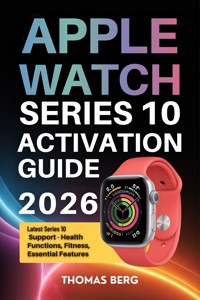
APPLE WATCH SERIES 10 ACTIVATION GUIDE 2026
Latest Series 10 Support - Health Functions, Fitness, Essential Features
Thomas Berg
Copyright © 2025 Thomas Berg. All rights reserved.
All rights reserved. No part of this publication may be reproduced, distributed, or transmitted in any form or by any means, including photocopying, recording, or other electronic or mechanical methods, without the prior written permission of the publisher, except in the case of brief quotations embodied in critical reviews and certain other noncommercial uses permitted by copyright law.
Disclaimer: This is an independent guide and is not affiliated with, endorsed by, or sponsored by Apple Inc. Apple, Apple Watch, watchOS, iPhone, and other Apple products mentioned in this guide are trademarks of Apple Inc., registered in the U.S. and other countries. The information provided in this guide is based on publicly available information and the author's research and experience. While every effort has been made to ensure accuracy, the author and publisher assume no responsibility for errors or omissions, or for damages resulting from the use of the information contained herein.
This guide is for informational purposes only and should not be considered as medical advice. Health-related features discussed in this guide are not intended to diagnose, treat, cure, or prevent any disease. Always consult with a qualified healthcare professional regarding any health concerns.
Product specifications and features are subject to change without notice through software updates or hardware revisions.
First Edition: 2025
Publisher: Tylara LLC
Chapter 1: Getting Started with Apple Watch Series 10
The Apple Watch Series 10 represents a significant evolution in wearable technology, building on years of refinement to deliver what Apple calls their thinnest and most advanced watch to date. Released in September 2024, the Series 10 introduces several hardware improvements that enhance both functionality and user experience. This chapter will guide you through everything you need to know to get your Apple Watch Series 10 up and running, from understanding what makes it special to completing your first successful pairing with your iPhone.
Understanding the Series 10 Lineup
The Series 10 comes in two distinct size options, departing from the traditional naming convention Apple has used in previous generations. Instead of the familiar 41mm and 45mm designations, Apple now offers 42mm and 46mm case sizes. This shift isn't just about larger numbers; it reflects genuine improvements in screen real estate and overall wearability.
The 42mm model features a display area that's approximately 30% larger than the Series 9's 41mm version, while the 46mm model offers similar gains over its predecessor. These size increases come without proportional increases in weight or bulk, thanks to Apple's engineering focus on reducing overall thickness. The Series 10 is nearly 10% thinner than the Series 9, making it more comfortable for extended wear and less likely to catch on sleeves or other clothing.
Both sizes are available in aluminum and titanium finishes. The aluminum models come in silver, rose gold, and jet black colorways, offering a balance between affordability and aesthetic appeal. These models use Ion-X glass for the display, which provides good scratch resistance for everyday use. The titanium models, available in natural titanium and slate finishes, use sapphire crystal displays that offer superior scratch resistance and a more premium feel. Titanium cases are also lighter than stainless steel options from previous generations while maintaining exceptional durability.
Each size and material combination is available in both GPS-only and GPS + Cellular configurations. The GPS model relies on your iPhone's connection for most internet-dependent features, while the GPS + Cellular model includes an embedded SIM that allows the watch to function independently when your phone isn't nearby. This distinction becomes important when you're exercising without your phone, making emergency calls, or simply want the freedom to leave your iPhone at home occasionally.
What's New in Series 10
Understanding the improvements Apple introduced with the Series 10 helps you appreciate the capabilities of your new device and make informed decisions about which features to explore first.
The most immediately noticeable change is the display. Apple has implemented a wider-angle OLED panel that not only increases viewing angles but also appears brighter when viewed from the side. This improvement matters more than you might initially think. When you're typing on a keyboard, holding a steering wheel, or simply have your arm in a natural resting position, the watch face is rarely directly in front of your eyes. The improved viewing angles mean you can glance at notifications, check the time, or monitor workout metrics without having to rotate your wrist as much.
The display also supports a higher refresh rate when rendering certain animations and transitions, making interactions feel smoother and more responsive. When you're scrolling through messages or navigating between apps, this enhanced fluidity contributes to an overall feeling of refinement that distinguishes the Series 10 from earlier models.
Apple has also introduced what they call their most advanced health sensor array to date. The optical heart rate sensors now use more LEDs and photodiodes arranged in a new configuration that improves accuracy during high-intensity workouts and in challenging conditions. If you have tattoos, darker skin tones, or often exercise in cold weather (all factors that can affect heart rate measurement accuracy), you'll likely notice improved consistency compared to older models.
The temperature sensors, first introduced in Series 8, have been refined to provide faster and more accurate readings. These sensors work primarily during sleep to establish your baseline body temperature, which the watch then uses for various health insights including cycle tracking predictions for menstruating individuals. The Series 10's implementation processes this data more efficiently, reducing the time needed to establish reliable baseline measurements from several weeks to approximately one week of consistent nighttime wear.
Charging speeds have also improved significantly. Apple redesigned the magnetic charging architecture to support up to 80% charge in about 45 minutes when using compatible fast-charging adapters. This means that if you forget to charge your watch overnight, you can get a meaningful power boost during your morning routine. The watch will also reach approximately 50% charge in just 30 minutes, which provides roughly a full day of typical use.
The speaker system has been upgraded with a refined acoustic design that increases volume output by roughly 30% compared to Series 9. This enhancement improves phone call clarity, makes Siri responses easier to hear in noisy environments, and delivers better audio when using the watch as a media remote or for standalone music playback.
Water resistance remains at 50 meters (the same 5 ATM rating as previous models), but Apple has improved the water ejection system that clears the speaker after swimming or showering. The process now completes faster and more effectively, reducing the likelihood of muffled audio immediately after water exposure.
Finally, the S10 chip inside the Series 10 delivers modest performance improvements over the S9. While Apple hasn't dramatically increased raw processing power, they've focused on efficiency gains that extend battery life and improve the responsiveness of certain features, particularly those involving on-device machine learning like Siri processing and fitness metric calculations.
Box Contents and Initial Inspection
When you first open your Apple Watch Series 10 box, you'll find the packaging designed with Apple's typical attention to detail and environmental consciousness. The box itself is smaller than previous generations, reflecting Apple's ongoing commitment to reducing packaging waste and shipping volume.
Inside, you'll find the Apple Watch Series 10 with one band already attached and a second band piece included separately. Apple ships watches with bands designed to fit a range of wrist sizes, but you'll need to determine which pieces work best for you during initial setup. The specific band combination varies depending on which band style you selected at purchase.
You'll also find the magnetic fast-charging cable, which features a USB-C connector rather than the USB-A connector included with older models. This change aligns with Apple's broader shift toward USB-C across their product line and with international regulations requiring standardized charging ports. If you have older USB-A charging cables from previous Apple Watches, they will still work with the Series 10, but they won't provide fast-charging capabilities.
The box includes minimal printed documentation—typically just a quick start guide and regulatory information. Apple has moved most instructional content to digital formats accessible through the Apple Watch app on your iPhone. This approach not only reduces paper waste but also ensures you have access to the most current information, as the digital guides are updated regularly to reflect software changes and feature additions.
Before proceeding with setup, take a moment to inspect your watch carefully. Examine the display for any scratches, cracks, or imperfections. Check the Digital Crown (the rotating button on the side) and the side button to ensure they move freely without excessive resistance or unusual sounds. Look at the case edges and back crystal (the glass or sapphire surface that contacts your skin) for any signs of damage.
If you purchased a GPS + Cellular model, you'll notice a small strip of material on one edge of the case—this is the antenna array for cellular connectivity. On aluminum models, this appears as a color-matched ceramic inlay, while titanium models use a precisely machined groove design. This area should be smooth and flush with the surrounding case.
The back crystal contains the health sensors—a collection of green, red, and infrared LEDs surrounded by four photodiodes, plus two temperature sensors positioned near the edges. These sensors should be clean and free from any protective film. Some users mistakenly leave protective covers on these sensors, which significantly impacts measurement accuracy.
Compatibility Requirements
Your Apple Watch Series 10 requires a compatible iPhone to function. Unlike some competitors in the smartwatch market that offer Android compatibility, Apple Watches are designed exclusively for use with iPhones. This integration allows for seamless feature implementation but does create a firm boundary for device compatibility.
The Series 10 requires an iPhone running iOS 18 or later. As of late 2024, this includes iPhone XS and newer models. Specifically, you'll need one of the following:
If you're using an older iPhone model, you won't be able to pair and activate your Series 10. Apple enforces this requirement because newer watchOS features depend on capabilities and APIs only available in recent iOS versions. Additionally, the pairing process itself requires technologies like Bluetooth LE and specific encryption protocols that older iPhones may not support adequately.
Beyond just iPhone model compatibility, you'll want to ensure your iPhone has adequate storage space available. The pairing process downloads watchOS and related data to your iPhone temporarily, and the Apple Watch app itself requires several hundred megabytes of space for the app and associated content. Apple recommends having at least 6GB of free storage on your iPhone before beginning the pairing process, though the process can sometimes succeed with less available space.
Your iPhone will also need an active internet connection during setup. The pairing process verifies your Apple ID, downloads any necessary software updates, and configures various cloud-connected features. While you can technically pair a watch without internet access, you'll be unable to complete the setup fully or enable many features until you establish connectivity.
If you're setting up a GPS + Cellular model, you'll need an iPhone with an active cellular plan from a carrier that supports Apple Watch cellular connectivity. Not all carriers support this feature, and even among those that do, not all plans include Apple Watch support. You'll typically need to contact your carrier or use their app to add your watch to your cellular account, which usually incurs an additional monthly fee ranging from $10 to $15 in the United States.
Choosing the Right Band Size
Getting the proper band fit is crucial not just for comfort but also for the accurate functioning of the Apple Watch's health sensors. An improperly fitted band can lead to inaccurate heart rate readings, less reliable blood oxygen measurements, and general discomfort during extended wear.
Apple includes band sizing information with each watch, but the general principle is straightforward: the watch should sit snugly on your wrist without feeling uncomfortably tight. You should be able to slide one finger between the band and your wrist, but not two fingers. The watch should remain relatively stationary on your wrist during normal movement but should be able to shift slightly when you deliberately move it with your other hand.
For the most accurate health measurements, the watch should sit approximately one finger-width behind the wrist bone (the prominent bone that protrudes on the thumb side of your wrist where it meets your hand). This positioning places the sensors over a good location for detecting blood flow while keeping the watch out of the way during most hand and wrist movements.
Different band styles require different approaches to sizing:
Sport Band and Sport Loop: These bands come in two pieces with multiple connection points. The Sport Band uses a traditional pin-and-hole closure system, while the Sport Loop uses a hook-and-loop (Velcro-style) closure. Both styles offer extensive adjustability. When Apple ships a watch with these bands, they typically include a Small/Medium band already attached and a Medium/Large band piece separately. You'll need to determine which combination works for your wrist.
To measure for these bands, you can use a soft measuring tape (like those used for sewing) or a piece of string that you later measure against a ruler. Wrap the measuring device around your wrist at the point where you plan to wear the watch, pulling it snug but not tight. The measurement you get corresponds to Apple's sizing charts:
Braided Solo Loop and Solo Loop: These bands are made from a continuous piece of material without any clasps or adjustments. They stretch to fit over your hand and then sit snugly on your wrist. Getting the size right is more critical with these bands because there's no way to adjust the fit once you have them.
Apple provides a printable measuring tool on their website specifically for sizing these bands. The tool is a paper strip with numbered markings that you wrap around your wrist. The number that aligns with the starting point corresponds to the band size you need. These bands are available in sizes ranging from 1 to 12, with each number representing approximately a 5mm difference in circumference.
Link Bracelet and Metal Bands: These premium bands use individual links that can be added or removed to adjust the length. Most users will need to have links removed for proper fit. You can have this done at an Apple Store free of charge, or you can purchase a link removal tool and do it yourself. Each link represents approximately 10-15mm of length, so you may need to remove several links for an optimal fit.
Leather and Nylon Bands: These bands typically use traditional watch-style buckles with multiple holes for adjustment. They offer good flexibility in sizing and are relatively straightforward to fit properly.
When trying different band sizes, wear each option for at least 15-20 minutes during normal activity. A band that feels comfortable while standing still might feel too loose or too tight after you've moved around, gestured while talking, or changed positions. Similarly, a band that feels right at room temperature might feel too tight after exercise when your wrist swells slightly, or too loose in cold weather when your wrist contracts.
First-Time Setup and Pairing Process
With your iPhone and Apple Watch both charged and ready, you can begin the pairing process. This process establishes the secure connection between your devices and configures the essential settings that will define your Apple Watch experience.
Start by turning on your Apple Watch if it isn't already powered on. Press and hold the side button (the flat button below the Digital Crown) until you see the Apple logo appear on the screen. The watch will take 30-45 seconds to boot up fully. You'll eventually see a message that says "Bring iPhone Near to Set Up" along with an animation of an Apple Watch approaching an iPhone.
On your iPhone, ensure Bluetooth is enabled and you're connected to Wi-Fi. Hold your iPhone near the watch. Your iPhone should automatically detect the watch and display a pairing card that says "Use your iPhone to set up this Apple Watch." Tap "Continue" on your iPhone.
Your iPhone's camera will activate automatically. You'll see instructions to point your iPhone's camera at the watch face so that the animated pattern on the watch appears within the yellow frame on your iPhone's screen. This visual pairing method uses the watch's display to transmit an encrypted pairing code to your iPhone via the camera. Hold your iPhone steady above the watch—you don't need to tap anything or take a picture. The pairing happens automatically when the pattern is properly aligned in the frame.
If you're having difficulty with the visual pairing method (perhaps due to bright sunlight or camera issues), tap "Pair Apple Watch Manually" on your iPhone. You'll see an icon (i) button appear on your watch. Tap this button, and your watch will display a six-digit pairing code. Enter this code on your iPhone to complete the pairing.
Once pairing succeeds, you'll choose whether you're setting up the watch for yourself or for a family member. If setting up for yourself (the most common scenario), tap "Set Up for Myself." The Family Setup option is designed for situations where you're configuring a cellular-enabled watch for someone without their own iPhone, such as a child or elderly family member.
Next, you'll agree to Apple's terms and conditions. You'll then see options for watch settings. The first decision is whether to restore from a backup if you had a previous Apple Watch, or set up as new. If this is your first Apple Watch or you want a fresh start, select "Set Up as New Apple Watch."
If you choose to restore from a backup, your iPhone will display available backups from your iCloud account. These backups include your watch face configurations, app layouts, Health and Activity data, and various settings. Select the most recent backup or the backup that corresponds to the watch you're replacing. Be aware that restoring a backup can take several minutes to over an hour depending on how much data needs to transfer.
You'll then create or enter a passcode for your Apple Watch. This passcode is separate from your iPhone passcode and is required to use features like Apple Pay and to prevent others from accessing your watch if you remove it from your wrist. Apple strongly recommends setting a passcode, and some features (particularly Apple Pay) absolutely require one.
You can choose a four-digit simple passcode or a longer, more complex passcode for enhanced security. The simple four-digit option balances convenience and security for most users. You'll need to confirm your passcode choice by entering it a second time.
After setting your passcode, you'll decide which wrist you'll wear the watch on. This setting might seem trivial, but it affects how the watch interprets certain movements and gestures, and it determines the default orientation of the watch face (you can wear the Digital Crown on either the left or right side of the case).
The next screens walk you through enabling various features. You'll choose whether to enable location services (strongly recommended, as many features including workout tracking and weather depend on this), whether to share Apple Watch Analytics with Apple (optional and purely your preference), and whether to enable Siri.
You'll then decide whether to enable Activity and Health features. These are core functions of the Apple Watch, so most users will want to enable them. When you enable these features, you'll enter some basic information:
Height: Used to calibrate step counting and distance calculations. Enter your height accurately for best results.
Weight: Used to calculate calories burned and other metabolic calculations. You can update this later if your weight changes.
Age and Biological Sex: Used for various health calculations including heart rate zones, VO2 max estimates, and cycle tracking. The watch uses this information strictly for algorithmic purposes and doesn't share it beyond your personal Health app data.
Wheelchair User Status: If you use a wheelchair, enable this option. The watch will track pushes instead of steps and adjust Activity goals and workout types accordingly.
After entering this information, you'll see information about the Activity Rings (Move, Exercise, and Stand goals). The watch will suggest a Move goal based on your age, weight, and biological sex, but you can adjust this goal to be more or less ambitious. We'll discuss Activity Rings in detail in Chapter 5, but for now, know that you can always change your goals later if the initial suggestion proves too easy or too challenging.
If you have a GPS + Cellular model, you'll now see options to set up cellular service. You can skip this step and add cellular connectivity later, or proceed with setup by following your carrier's specific activation process. For most major carriers, this involves:
Confirming that your iPhone has an active cellular plan
Agreeing to add your watch to your cellular account (which typically adds a monthly charge)
Waiting while your carrier provisions the watch's eSIM (this can take a few minutes)
Confirming successful activation
The exact process varies by carrier, and some carriers may require you to activate through their app or website rather than through the Apple Watch setup flow.
With cellular setup complete (or skipped), you'll choose which apps to install on your watch. The setup process displays a list of apps currently on your iPhone that have Apple Watch companion apps available. You can choose to install all available apps automatically, or manually select which apps you want. If you're not sure, installing all available apps is reasonable—you can always remove apps you don't use later, and having them available initially lets you explore what's possible.
The final setup screen confirms that your Apple Watch is ready to use. Tap "Continue" on your iPhone, and you'll see a brief tutorial on your watch demonstrating basic navigation gestures: tapping to select, swiping to scroll, pressing the Digital Crown to return home, and pressing the side button to access recently used apps.
The watch will now sync data from your iPhone, including contacts, messages, calendar events, photos for watch faces, music (if you've selected playlists to sync), and any apps you chose to install. This initial sync can take anywhere from 5-10 minutes to over an hour depending on how much data needs to transfer. You can use your watch during this time, but some features may not be fully available until syncing completes.
You'll see a syncing indicator (a circular progress bar) at the top of the watch screen when you swipe down to access Notification Center. Once this indicator disappears, your watch is fully synced and ready for regular use.
One final note about setup: if you ever need to pair your watch to a different iPhone or reset it completely, you'll need to unpair it first through the Apple Watch app on your iPhone. Unpairing creates a backup of your watch data and removes the secure pairing between devices. You can't simply pair a watch that's already paired to a different iPhone—attempting to do so will prompt you to unpair the watch first.
Chapter 2: Understanding Your Series 10 Hardware
The Apple Watch Series 10 represents a carefully engineered piece of technology packed into a remarkably compact form factor. Understanding the physical characteristics of your device helps you appreciate its capabilities and use it more effectively. This chapter examines every aspect of the Series 10's hardware, from the display technology to the sensor array that enables its health and fitness features.
Display Specifications and Size Options
The most prominent feature of any Apple Watch is its display, and the Series 10 brings meaningful improvements to this critical component. Apple uses what they call an LTPO3 (Low-Temperature Polycrystalline Oxide, third generation) OLED display. This technology allows the watch to vary its refresh rate dynamically between 1Hz when showing static content (like an always-on watch face) and up to 60Hz when showing active content or responding to touches.
The 42mm model features a display area measuring approximately 1.69 inches (measured diagonally), while the 46mm model offers a 1.96-inch display. These measurements represent the active viewing area rather than the overall case size. Both sizes use a resolution that Apple has optimized for clarity at typical viewing distances—the pixel density is high enough that individual pixels are imperceptible during normal use.
The display extends nearly to the edges of the case, with minimal bezels surrounding the active area. This design maximizes the usable screen space and creates a more immersive experience when viewing photos, reading messages, or following workout metrics. The curved edges of the display blend seamlessly into the case, though the actual touchscreen surface is slightly recessed beneath a protective crystal (Ion-X glass on aluminum models, sapphire crystal on titanium models).
One of the most significant improvements in the Series 10 is the wider viewing angle. Previous Apple Watch models used OLED panels that were optimized primarily for direct viewing. When you looked at the watch from an angle (which happens frequently given how your arm naturally positions the watch relative to your eyes), the display would appear dimmer and colors would shift slightly. The Series 10's display uses a different OLED subpixel arrangement and improved polarizer technology that maintains brightness and color accuracy even when viewed from significant angles.
This improvement has practical benefits throughout daily use. When you're typing on a keyboard and glance at your wrist for the time or a notification, the watch face remains clearly visible without requiring you to rotate your wrist directly toward your face. During workouts, when your arm position might vary considerably, you can still read workout metrics at a glance. The enhanced viewing angles also help in bright sunlight, where the extra brightness margin makes the display more legible.
The display supports Apple's Always-On Display technology, which keeps the watch face visible even when your wrist is down. This feature uses the 1Hz refresh rate capability to show a dimmed version of your watch face that updates time, complications, and certain other information without requiring you to raise your wrist. The watch uses an ambient light sensor to adjust the always-on brightness based on your environment—it's brighter in well-lit spaces and dims considerably in dark rooms or at night.
Maximum brightness has increased to approximately 2000 nits under direct sunlight, which Apple achieves through improved OLED efficiency and power management. This high brightness is reserved for brief periods when the ambient light sensor detects very bright conditions. Under normal indoor lighting, the display operates at substantially lower brightness levels to conserve battery.
The display also features improved contrast ratios that make blacks appear truly black (since OLED pixels can turn off completely) and colors appear more vibrant and saturated. This characteristic is particularly noticeable with watch faces that use dark backgrounds, which appear to blend seamlessly with the bezels surrounding the display.
Touch responsivity has been enhanced through improved digitizer technology and faster processing. The watch now recognizes taps, swipes, and force presses with less latency. Force Touch, which was removed in earlier watchOS versions, is no longer used in the Series 10's interface design, but the digitizer is still capable of detecting pressure variations, which the system uses for certain interactions like adjusting haptic feedback strength during setup.
Physical Controls and Navigation
The Apple Watch Series 10 uses a combination of physical controls and touch gestures for navigation. Understanding how these controls work and when to use each one will make operating your watch feel natural and intuitive.
The Digital Crown is the rotating button on the side of the watch case. Its name references traditional mechanical watch crowns, though its functionality extends far beyond what a conventional watch crown can do. You can press the Digital Crown, rotate it, or combine both actions for different functions.
Pressing the Digital Crown once returns you to the home screen (the grid of app icons) from any app. If you're already on the home screen, pressing the Digital Crown switches to your most recently used app. Pressing and holding the Digital Crown activates Siri, allowing you to issue voice commands without saying "Hey Siri."
Rotating the Digital Crown scrolls through content in most apps. In Messages, it scrolls through conversations; in Mail, it scrolls through emails; on most watch faces, it adjusts the time displayed (useful for seeing how many calendar events you have later in the day). The rotation provides haptic feedback—you can feel distinct clicks as you turn the crown, even though the crown isn't physically clicking. Apple generates these clicks using the Taptic Engine (more on this shortly), and the sensation helps you scroll precisely through content without having to look at the watch constantly.
The Digital Crown also controls volume during phone calls and media playback. When audio is playing, rotating the crown adjusts volume instead of scrolling through content. This override makes sense given how frequently you need to adjust volume compared to how rarely you need to scroll during active audio playback.
Double-pressing the Digital Crown activates Apple Pay if you have cards set up in your Wallet app. This shortcut provides quick access to your default payment card without needing to unlock your watch separately. The Digital Crown also serves as the power control in combination with the side button—holding both buttons simultaneously for several seconds activates the Emergency SOS feature, which we'll discuss in Chapter 6.
The Side Button is the flat, oval-shaped button below the Digital Crown. Pressing this button once displays your most recently used apps as a vertically scrolling list. This feature, called the Dock, provides quick access to apps you use frequently. You can customize which apps appear in the Dock through the Apple Watch app on your iPhone.
Double-pressing the side button activates Apple Pay, identical to the double-press function on the Digital Crown. Apple provides this redundancy because users have different preferences for which button they prefer to double-press for payments.
Pressing and holding the side button displays the power menu, which offers options to power off the watch, enter Power Reserve mode (a ultra-low-power state that only shows the time), or access your Medical ID if you've configured one. During a phone call, pressing and holding the side button mutes your microphone.
The side button also plays a role in two emergency features. As mentioned earlier, holding both the side button and Digital Crown together triggers Emergency SOS. Additionally, if you enable Fall Detection (covered in Chapter 6), the watch uses the side button as part of the interface for responding to detected falls.
Touch Gestures handle most navigation within apps and interfaces. The watch's touchscreen recognizes several types of gestures:
The Taptic Engine is the name Apple gives to the linear actuator inside the watch that produces haptic feedback. Unlike traditional vibration motors that spin a weighted component, the Taptic Engine uses electromagnets to precisely move a mass back and forth. This technology allows Apple to create distinct haptic sensations for different types of notifications and interactions.
When you receive a text message, you feel a gentle double-tap sensation on your wrist. Phone calls produce a more insistent, repeated tapping. Calendar alerts use a different pattern, and Activity achievements trigger celebratory patterns. Over time, you'll learn to distinguish between notification types without looking at your watch, simply based on how the haptic feedback feels.
The Taptic Engine also provides feedback for the Digital Crown rotation clicks mentioned earlier, and it produces subtle taps when you successfully pair Apple Pay for a transaction. These tiny bits of feedback make the watch feel more responsive and help confirm that your inputs have been registered by the system.
You can adjust the strength of haptic feedback through the Apple Watch app on your iPhone. Some users prefer more pronounced taps, while others find subtle feedback sufficient. The watch offers three levels: Default, Prominent (stronger), and None (no haptic feedback). Most users find the Default setting appropriate, but if you have reduced tactile sensitivity or frequently miss notifications, switching to Prominent can help ensure you feel every alert.




