


3,99 €
Mehr erfahren.
- Herausgeber: BookRix
- Kategorie: Geisteswissenschaft
- Sprache: Englisch
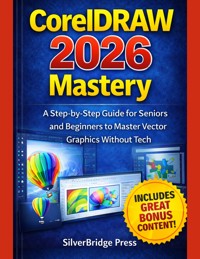
Are you terrified of breaking your computer just by opening a design program? Many beginners freeze when faced with software that looks like the cockpit of a jet airplane, full of intimidating buttons and written for tech engineers.
Enter CorelDRAW 2026 Mastery by SilverBridge Press. This guide is strictly a "no-jargon zone" built specifically to help seniors and absolute beginners turn tech-overwhelm into creative confidence. It ditches the confusing buzzwords and acts as a patient mentor, translating complex digital concepts into plain English so you can learn comfortably at your own pace.
This guide is structured to transform you from a stressed consumer into an empowered creator by offering:
- The "No-Panic" Guarantee: It completely eliminates the fear of making mistakes by proving you cannot break the software, while teaching you to rely on the "Undo" command as your ultimate digital safety net.
- An Action-Oriented "Recipe" Format: Designed to stay open right next to your screen, the book uses bold action words and simple numbered steps so you build muscle memory by doing, rather than passively reading .
- Hands-On Real-World Projects: You will quickly move beyond drawing basic shapes to crafting physical items like customized greeting cards, community club logos, highly visible yard sale flyers, and iron-on t-shirts.
- A Future-Proof AI Co-Pilot: A bonus section unveils the 2026 design revolution, teaching you to seamlessly blend local AI idea-generators like Vision FX with the highly sought-after "human touch" of tactile craft.
Das E-Book können Sie in Legimi-Apps oder einer beliebigen App lesen, die das folgende Format unterstützen:
Veröffentlichungsjahr: 2026
Ähnliche

















CorelDRAW 2026 Mastery
A Step-by-Step Guide for Seniors and Beginners to Master Vector Graphics Without Tech
SilverBridge Press
Copyright © 2026 by SilverBridge Press
All rights reserved. No part of this publication may be reproduced, distributed, or transmitted in any form or by any means, including photocopying, recording, or other electronic or mechanical methods, without the prior written permission of the publisher, except in the case of brief quotations used in reviews or scholarly work.
About SilverBridge Press
SilverBridge Press builds the bridge from complexity to clarity. We publish premium, jargon-free guides designed to turn "tech-overwhelm" into creative confidence.
Our mission is simple: making the world’s most powerful tools accessible to every creator, regardless of age or experience. With a "patient mentor" approach, we ensure that every reader can master new skills without the stress.
SilverBridge Press Technology Made Simple. Creativity Made Accessible.
Disclaimer
General Limit of Liability and Disclaimer of Warranty
The information contained in this book, CorelDRAW 2026 Mastery, is for educational and entertainment purposes only. While every effort has been made to verify the accuracy of the information contained within this publication, the author and publisher assume no responsibility for errors, omissions, or contradictory interpretation of the subject matter herein. The strategies, guidelines, and techniques outlined in this book may not be suitable for every individual or situation, and the author makes no guarantees regarding specific results or the "mastery" of the software.
No Official Affiliation
This publication is an independent guide and is not affiliated with, endorsed by, sponsored by, or connected to Corel Corporation or any of its subsidiaries or affiliates. The opinions expressed in this book are solely those of the author.
Software Versions and Updates
The instructions, screenshots, and tutorials in this book are based on CorelDRAW Graphics Suite 2026. Software developers frequently release updates, patches, and new versions that may alter the user interface, tools, or menu locations described in this text. The author and publisher are not liable for any discrepancies between the software version described in this book and the version installed on the reader’s computer.
Third-Party Resources and Websites
This book may contain references to third-party websites, resources, and software (such as Google Fonts, DaFont, Unsplash, Pixabay, and Pexels). These references are provided as a convenience and for informational purposes only. The author and publisher have no control over the content, security, or privacy policies of these third-party sites and disclaim any liability for the use of such resources. Readers are responsible for verifying the licensing terms (e.g., Public Domain, Creative Commons, Personal Use Only) of any assets they download.
Risk of Loss
The author and publisher shall not be liable for any direct, indirect, incidental, or consequential damages resulting from the use of this book, including but not limited to loss of data, computer failure, printing errors, or material waste (such as transfer paper or ink) incurred during the execution of projects described herein. Readers are strongly advised to maintain regular backups of their work as described in the text.
Trademark Acknowledgment
Corel, CorelDRAW, Corel PHOTO-PAINT, and PowerTRACE are trademarks or registered trademarks of Corel Corporation in Canada, the United States, and/or other countries. All other trademarks, product names, and company names or logos cited herein are the property of their respective owners. The use of any trade name or trademark is for identification and reference purposes only and does not imply any association with the trademark holder.
How to Use This Guide
To get the most out of this book, treat it like a recipe book rather than a novel. You wouldn’t bake a cake by reading the entire book and then walking into the kitchen without it; instead, keep this guide open next to your computer while you work .
The Sequential Path:
The chapters are arranged in a logical, brick-by-brick order. Chapter 1 sets up your studio, Chapter 2 introduces your tools, and Chapter 3 starts your design journey. It is strongly recommended to read them in order to avoid frustration.
The Action-Oriented Format:
Each section is designed to help your eye scan and find actions quickly:
Bold Terms:
Specific buttons, menus, or keys you need to press (e.g., "Click
File
and select
Save As
") are always in
Bold
.
Step-by-Step Lists:
Complex tasks are broken into numbered steps. Complete one, look at your screen, and proceed only when ready.
Pro Tips:
Look for side notes that share professional shortcuts or secrets to help you work faster .
The "Play as You Read" Rule:
Reading is passive, but doing is active. When a tool like the
Rectangle Tool
is explained, stop and draw several rectangles to build muscle memory .
Your No-Panic Guarantee:
Remember that you cannot break the software, and the
Undo
button (
Ctrl + Z
) is your ultimate safety net. If you get lost, you can always close the file without saving and start over .
Leveraging 2026 Innovation:
As you reach the final sections, utilize the
Bonus Chapter
and
AI Cheat Sheets
to integrate modern trends like
Vision FX
and
Bento Grid Layouts
into your projects.
By following this method, you aren't just reading a manual—you are engaging in a conversation designed to unlock your creative potential. Let's turn the lights on in your new digital studio.
TABLE OF CONTENTS
About SilverBridge Press
Disclaimer
How to Use This Guide
Introduction: Your Journey Begins Here
Welcome to CorelDRAW 2026: Why You Made the Right Choice
Who This Book Is For: A Promise of No Jargon
How to Use This Guide: Following the Steps Successfully
Your "No-Panic" Guarantee: Breaking Down the Fear of Technology
Chapter 1: Setting Up Your Digital Studio
1.1 Installation Day: A Pain-Free, Click-by-Click Guide to Installing
1.2 The Grand Tour: Learning the Screen Layout Without Confusion
1.3 Custom Comfort: Setting Up Your Workspace for Easy Reading
1.4 Safe Keeping: How to Save, Open, and Back Up Your First File
Chapter 2: The Toolbox Basics (No Art Degree Required)
2.1 The Essentials: Mastering the Pick, Shape, and Zoom Tools
2.2 Drawing Made Easy: Creating Lines, Rectangles, and Perfect Circles
2.3 The "Oops" Kit: Using the Eraser and Undo Button to Fix Mistakes
2.4 Fill & Stroke: Adding Basic Colors to Your Shapes and Lines
Chapter 3: Working with Text like a Pro
3.1 The Text Tool: Typing Headlines, Labels, and Paragraphs
3.2 Formatting Fun: Changing Fonts, Sizes, and Colors Easily
3.3 Artistic Text: How to Curve Words Around Circles and Shapes
3.4 Polishing Words: Using Spell Check and Adding Drop Shadows
Chapter 4: Mastering Images and Photos
4.1 Importing Photos: Getting Pictures from Your Computer to the Canvas
4.2 The Perfect Fit: Cropping, Resizing, and Straightening Images
4.3 Photo Fixes: Adjusting Brightness and Contrast for Clarity
4.4 Background Removal: Using the "Cutout Lab" for Clean Images
Chapter 5: The Magic of Vector Shapes
5.1 Connecting the Dots: Understanding Nodes and Paths Simply
5.2 Drawing Curves: Using the Bezier Tool Without Frustration
5.3 Shape Building: Welding and Trimming to Create New Objects
5.4 Smart Tools: Using Smart Fill to Color Complex Areas Instantly
Chapter 6: Organizing Your Artwork
6.1 Order out of Chaos: Grouping, Ungrouping, and Locking Items
6.2 Layers 101: Stacking Your Art to Make Editing Easier
6.3 The Alignment Guide: Straightening Up Your Layouts Automatically
6.4 Lost & Found: Using the Object Manager to Find Hidden Items
Chapter 7: Advanced Colors and Outlines
7.1 Beyond Basic Red: Mixing Custom Shades with the Color Docker
7.2 Fills with Flair: Using Gradients, Textures, and Patterns
7.3 The Eyedropper: Stealing Colors from Photos to Match Your Design
7.4 Perfect Lines: Changing Thickness, Styles, and Arrowheads
Chapter 8: Special Effects for "Wow" Factor
8.1 See-Through Magic: Mastering Transparency and Opacity
8.2 Morphing Shapes: Using the Blend and Contour Tools
8.3 PowerClip: Placing Photos Inside Hearts, Stars, and Text
8.4 Fun Warps: Stretching Text and Objects with the Envelope Tool
Chapter 9: Real-World Projects (Part 1)
9.1 Project A: Creating a Personalized Birthday Card from Scratch
9.2 Project B: Designing a Simple Logo for a Club or Group
9.3 Templates: How to Save Your Designs to Use Again Later
9.4 Home Printing: Settings for Standard Letter-Sized Paper
Chapter 10: Real-World Projects (Part 2)
10.1 Project C: Designing a Bold "Yard Sale" or Event Flyer
10.2 Project D: Creating Graphics for Facebook and Social Media
10.3 Project E: Making T-Shirt Designs for Iron-On Transfers
10.4 Exporting Your Art: Saving as JPEG vs. PNG for the Web
Chapter 11: Speed and Customization Tips
11.1 Keyboard Shortcuts: The Top 10 Keys That Save You Hours
11.2 My Way: Customizing the Toolbar to Hide Tools You Don't Use
11.3 The "Hints" Docker: Using the Built-In Tutor When You Get Stuck
11.4 Safety First: Setting Up Auto-Save to Protect Your Work
Chapter 12: Troubleshooting Common Headaches
12.1 "Where Did It Go?": Restoring Missing Toolbars and Windows
12.2 Drawing Glitches: Closing Curves so You Can Color Them
12.3 Text Troubles: Fixing Missing Fonts and Overflowing Boxes
12.4 Performance Boosts: What to Do When the Software Slows Down
Chapter 13: Beyond the Basics
13.1 Switching Gears: Introduction to Corel PHOTO-PAINT
13.2 Magic Trace: Turning Low-Quality Sketches into Crisp Vector Art
13.3 Resource Hunt: Where to Find Safe, Free Fonts and Clipart
13.4 Next Steps: Joining Communities and Continuing Your Journey
Bonus Chapter: The 2026 Design Revolution—AI as Your Co-Pilot
1. Vision FX: Your Infinite Idea Generator
2. Trends of 2026: Designing for the "Human Touch"
3. The "Anti-AI" Style: Tactile Craft
2026 Cheat Sheet: AI Prompts for Your Projects
The 2026 Style Gallery: From Prompt to Masterpiece
Introduction: Your Journey Begins Here
Welcome to the start of a new adventure. If you are holding this book (or reading it on your screen), it means you have decided to take a bold step. You have decided to stop just looking at the beautiful designs, logos, and artwork that fill our world, and you have decided to start creating them yourself. That is a wonderful decision. Whether you are seventy years old and looking for a new hobby to keep your mind sharp, or you are twenty years old and just starting to explore digital art, this moment is significant. You are moving from being a consumer of technology to being a master of it.
For many people, opening a professional software program like CorelDRAW 2026 feels a little bit like sitting down in the cockpit of an airplane. You look at the screen, and you see hundreds of tiny buttons, strange icons, and menus that seem to speak a different language. It is perfectly normal to feel a flutter of nervousness. You might be thinking, "Did I bite off more than I can chew?" or "Am I too old to learn this?" Let me answer those questions right now with a resounding no. You are not too old, you are not too inexperienced, and you are absolutely capable of creating stunning, professional-quality artwork.
This book is not just a manual; it is a conversation. I wrote this guide because I believe that technology should be a bridge, not a barrier. Too many instruction manuals read like they were written by robots for other robots. They use words like "vector interpolation" and "bezier nodes" without ever stopping to explain what those things actually mean to you. We are going to do things differently here. We are going to treat this learning process like a walk through a garden. We will stop to look at the flowers, we will explain the tools in plain English, and we will make sure you never feel left behind.




