


45,50 €
Mehr erfahren.
- Herausgeber: John Wiley & Sons
- Kategorie: Wissenschaft und neue Technologien
- Serie: Bible
- Sprache: Englisch
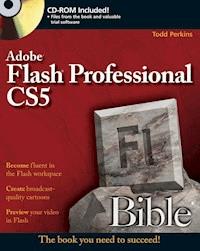
Master the latest version of Flash with this revised edition ofa perennial bestsellerFlash enables you to create animations and can also be used tobuild an interactive, multimedia Web site. Completely enhanced andrevised, this must-have reference covers everything you need toknow to learn and master the latest version of Flash. Top Flashtrainer and author Todd Perkins provides you with unparalleledcomprehensive coverage of tips, tricks, and techniques that youwon't find in any other resource. The reader-friendly formatwill appeal to both the novice as well as the accomplishedprofessional and everyone in between.* Serves as a comprehensive reference on all the latest updatesand enhancements to the newest version of Flash Professional* Appeals to both novice and experienced Flash developers andfunctions as their guide to the capabilities and possibilities ofthe new Flash* Written by an experienced Adobe Flash instructor who is adeptat making difficult topics easy to understand* Includes a CD-ROM that features trial software, add-ons,plug-ins, shareware, templates, and examplesFlash CS5 Professional Bible is an ideal resource to gofrom learning to mastering the latest version of Flash in aflash!
Sie lesen das E-Book in den Legimi-Apps auf:
Seitenzahl: 1355
Veröffentlichungsjahr: 2010
Ähnliche



















Flash® Professional CS5 Bible
Table of Contents
Part I: An Introduction to Flash Web Production
Chapter 1: Understanding the Adobe Flash CS5 Blueprint
The Key Is Integration
The topography of Flash CS5
File types in Flash CS5
The Many Worlds of Flash CS5
Bitmap handler
Vector-based drawing program
Vector-based animator
Video engine
Audio player
Multimedia authoring program
Animation sequencer
Programming and database front end
Desktop application authoring program
iPhone application development program
Summary
Chapter 2: Exploring Web Technologies
Contextualizing Flash in the Internet Evolution
High expectations for Web experiences
To Flash or not to Flash?
Alternative methods of multimedia authoring
Exploring Companion Technologies
HTML is here to stay
Client-side scripting using JavaScript
The world of Web services
Adobe server technologies
Recognizing Project Potential
Linear presentations
Interactive presentations
Data-driven presentations
Data-driven applications (or Rich Internet Applications)
Summary
Chapter 3: Planning Flash Projects
Workflow Basics
Phase I: Establishing the concept and goals
Phase II: Producing, testing, and staging the presentation
Using the Project Panel in Flash CS5
1. Establishing a project structure
2. Creating the project in Flash CS5
3. Changing project and panel preferences
4. Opening and editing files in the project
5. Publishing the entire project
Summary
Part II: Mastering the Flash Environment
Chapter 4: Interface Fundamentals
Getting Started
Welcome to Flash CS5
Start Page
Help menu options
The Flash CS5 interface on Macintosh and Windows
What to expect from the Properties panel
Managing Windows and Panels
Contextual menus
Floating and docking panels
Focus: Making panels or windows active
Creating custom workspace layouts
Keyboard shortcuts
The Tools Panel
Controlling the Tools panel
Reading the Tools panel
Using Tool options
Customizing the Tools panel
The Document Window
Controlling the Document window
Reading the Document window
Using scenes
Using Document window menu options
Working with Flash templates
The Timeline Window
Controlling the Timeline window
Using the Timeline Controller toolbar
Reading the Timeline
Editing frames and layers
Using Frame View options
Printing
Summary
Chapter 5: Drawing in Flash
Using Geometric Shape Tools
The Oval tool
The Oval Primitive tool
The Rectangle tool and Rectangle Primitive tool
Join and Miter settings
The PolyStar tool
The Line tool
Using Drawing Tools
The Pencil tool
The Brush tool
The Eraser tool
Creating Precise Lines and Bezier Curves with the Pen Tool
Using Fill and Stroke Controls
Choosing colors
Choosing line styles
Controlling stroke Scale behavior
Optimizing Drawings
Putting Selection Tools to Work
The Selection tool
The Lasso tool
The Subselection tool
Designing and Aligning Elements
Simplifying snapping settings
Design panels
The Edit Menu
Creating Patterns with Symbols Using the Spray Brush Tool and the Deco Tool
Applying random “ink” with the Spray Brush tool
Creating order and pattern with the Deco tool
Summary
Chapter 6: Symbols, Instances, and the Library
Understanding the Document Library
Working with Common Libraries and External Libraries
Working with multiple Document Libraries
Reading the Library panel
Organizing Library panels
Defining Content Types
Raw data
Drawing objects and shape primitives
Groups
Native symbols
Imported media elements
Editing Symbols
Modifying a symbol in Edit mode
Editing a symbol in a new window
Editing a symbol in place
Editing symbols from the Library
Returning to the Main Timeline or scene
Modifying Instance Properties
Applying basic color effects to symbol instances
Changing the symbol type of an instance
Swapping symbols
Building Nested Symbol Structures
Converting a raw shape into a Graphic symbol
Using Graphic symbols in a button
Animating Graphic symbols in a Movie Clip
Adding a Movie Clip to a Button symbol
Modifying a MovieClip instance
9-Slice Scaling for Movie Clip Backgrounds
Using the Movie Explorer
Filtering buttons
The display list
The Movie Explorer Options menu
The contextual menu
Using Authortime Shared Libraries
Summary
Chapter 7: Applying Color
Introducing Color Basics
Discussing Web-safe color issues
Using hexadecimal values
Using color effectively
Working in the Swatches Panel
Swatches panel options
Importing custom palettes
Using the Color Panel
Adjusting fill and stroke transparency
Working with gradient fills
Controlling gradient fill colors
Using alpha settings with gradients
Selecting bitmap fills
Working with Droppers, Paint Buckets, and Ink Bottles
Summary
Chapter 8: Working with Text
Considering Typography
Text Field Types in Flash
Editable text fields
The Text Tool and the Properties Panel
Working with the Text tool
Setting text attributes in the Properties panel
Controlling flow between multiple text fields
Font Export and Display
Smoothing text with anti-alias settings
Understanding device fonts
Working with the Use Device Fonts setting
Troubleshooting font display
Controlling font substitution
Font Symbols and Shared Font Libraries
Creating a font symbol
Updating font symbols at authortime
Using font symbols in runtime shared libraries
Modifying Text
Editing text manually
Moving beyond the box with live filter effects
Summary
Chapter 9: Modifying Graphics
Sampling and Switching Fills and Strokes
The Eyedropper tool
The Ink Bottle tool
The Paint Bucket tool
Using the Paint Bucket Gap size option
Using the Paint Bucket Lock Fill option
Transforming Gradients and Bitmap Fills
Adjusting the center point with the Gradient Transform tool
Rotating a fill with the Gradient Transform tool
Adjusting scale with the Gradient Transform tool
Setting gradient fill overflow styles
Skewing a bitmap fill with the Gradient Transform tool
Gradient Transform Used for Lighting Effects
Applying Modify Shape Menu Commands
Convert Lines to Fills
Creating scalable artwork
Expand Fill
Soften Fill Edges
Free Transform Commands and Options
The Transform panel
The Modify Transform menu
The Free Transform tool
Transforming shapes, symbols, text, and groups
Manipulating Symbols in 3D Space
Controlling the camera view: Perspective and vanishing point
Transforming symbols with the 3D Rotation tool
Moving symbols with the 3D Translation tool
Modifying Item Types
Stacking order
Grouping
Applying Break apart
About the Magic Wand option
Tracing bitmaps
Working with Drawing Objects and Combine Object Commands
Working with Compound Shapes
Editing with Find and Replace
Using the History Panel
Replay Steps
Copy Steps
Clear History
History View
Save As Command
Summary
Part III: Creating Animation and Effects
Chapter 10: Timeline Animation and the Motion Editor
Basic Methods of Flash Animation
Frame-by-Frame Animation
Adding keyframes
Creating frame-by-frame animation
Modifying Multiframe Sequences
Onion skinning
Editing multiple frames
Using Tweens for Animation
Shape tweening
Adding shape hints
Motion tweening
Modifying motion tween properties
Working with motion tween spans and layers
Editing motion paths
Adding control to animation along a motion path
Working with motion presets
Adjusting Easing and Tween Properties with the Motion Editor
Controlling property views in the Motion Editor
Editing tween curves and property key frames
Eases and custom eases
Animating 3-D properties
Integrating Multiple Animation Sequences
Moving tweens onto symbol timelines
Organizing symbol instances on the Main Timeline
Reusing and Modifying Tweened Symbol Instances
Creating IK Armatures with the Bone Tool and Bind Tool
Adding Spring to IK animations
Animating shapes with IK
Runtime bitmap caching
Bitmaps
Make Flash work for you
Summary
Chapter 11: Applying Filters, Blends, Guides, and Masks
Applying Filters in Flash
Adding and adjusting filters
Creating dimensional shadows
Combining filters and saving custom presets
Animating filters with motion tweens
Using the Motion Editor to control filter interpolation
Controlling Color: Properties versus Filters
Adjust Color filter
Color properties
Using advanced color effects: Understanding relative and absolute color settings
Layering Graphics with Blend Modes
Understanding blend modes
Applying basic blends
Applying compound blend modes: Alpha and Erase
Creating an animated Alpha blend
Working with Special Layer Types: Guides and Masks
Using guide layers
Adding masks
Masking with a filled shape
Masking with a group
Masking with a symbol instance
Masking text
Using Distribute to Layers
Summary
Part IV: Integrating Media Files with Flash
Chapter 12: Adding Sound
Identifying Sound File Import and Export Formats
Import formats
Export formats
Importing Sounds into Flash
Assigning a Sound to a Button
Adding Sound to the Timeline
Organizing Sounds on the Timeline
Enhanced viewing of sound layers
Organizing sound layers with a layer folder
Synchronizing Audio to Animations
Event
Start
Stop
Stream
Stopping Sounds
Stopping an event sound
Stopping a single instance of a stream sound
Stopping all sounds
Editing Audio in Flash
Sound-editing controls
Applying effects from the Effect menu of the Properties panel
Sound Optimization Overview
Publish Settings for Audio
The Set options
Supporting audio and MP3 playback
Fine-Tuning Sound Settings in the Library
Settings for audio in the library
Combining methods for controlling sounds
Final Sound Advice and Pointers
VBR (Variable Bit Rate) MP3
Optimizing sounds for bandwidth usage
Extracting a sound from a Flash document
Summary
Chapter 13: Importing Artwork
Defining Vectors and Bitmaps
Knowing the File Formats for Import to Flash
Preparing Bitmaps
Preserving Bitmap Quality
Importing and Copying Bitmaps
Importing sequences
Working with layered bitmap files
Copying and pasting a bitmap into Flash
Applying color effects, alpha, and filters to bitmaps
Setting Bitmap Properties
Being prepared for common problems
Cross-browser consistency
Using the Bitmap Buttons in the Properties Panel
Swap
Edit
Making Sense of Bitmap Compression
24-bit or 32-bit lossless source files
8-bit lossless source files
Source files with lossy compression
Converting Rasters to Vectors
Using External Vector Graphics
Importing Vector Artwork
Copying and pasting a vector image into Flash
Importing Adobe Illustrator files
Optimizing Vectors
Interpreting complex vector artwork
Converting text to outlines
Optimizing curves
Runtime bitmap caching
Working with XFL: The New Flash Format
Summary
Chapter 14: Displaying Video
Integrating Video: The Solutions
Loading a Flash Video file at runtime
Real-time streaming a Flash Video file at runtime
Embedding video into a Flash movie
Importing the Video
An overview of codec options
Compressing video with Adobe Media Encoder CS5
Using the Video Import wizard
Deploying video files with Flash CS5
Working with the Component parameters
Using FLVPlayback Custom UI components
Adding Cue Points
Working with Video Alpha Channels
Live action footage
Summary
Part V: Adding Basic Interactivity to Flash Movies
Chapter 15: Understanding Actions and Event Handlers
Actions and Event Handlers
What is ActionScript?
Navigating the Actions panel
A brief primer on code syntax
Your First Five Actions
gotoAndPlay() and gotoAndStop()
nextFrame() and prevFrame()
nextScene() and prevScene()
play() and stop()
navigateToURL()
Making Actions Happen with Event Handlers
Using the Code Snippets panel
Combining an action with an event handler to make a functioning button
The Flash event handlers
Creating Invisible Buttons and Using navigateToURL
Summary
Chapter 16: Building Timelines and Interactions
A Brief History of Movie Clips: The Key to Self-Contained Playback
How Movie Clips interact within a Flash movie
One movie, several timelines
Targets and Paths Explained
Absolute paths
Relative paths
Targeting Movie Clips in Flash CS5
Summary
Chapter 17: Making Your First Flash CS5 Project
The Main Timeline As the Site Layout
Creating a plan
Setting up a local folder structure
Determining Flash movie properties
Mapping presentation areas to keyframes
Creating content for each area
Adding Navigation Elements to the Main Timeline
Creating text buttons for a menu
Browsing the video items
Text Scrolling with the TextArea Component
Using the Custom BlurFader Component
Making the Movie Accessible
Summary
Part VI: Distributing Flash Movies
Chapter 18: Publishing Flash Movies
Testing Flash Movies
Using the Test Scene or Test Movie command
Using the Bandwidth Profiler
Using the size report
Publishing Your Flash Movies
Publish Settings
Selecting formats
Using the Flash settings
Using the HTML settings
Using the GIF settings
Using the JPEG settings
Using the PNG settings
Creating Windows and Mac projectors
Publish Preview and Publish Commands
Using Publish Preview
Using Publish
Using Publish Profiles
Summary
Chapter 19: Integrating Flash Content with Web Pages
Writing Markup for Flash Movies
Using the <object> tag
Using the <embed> tag
Detecting the Flash Player
Plug-in versus ActiveX: Forcing content without a check
Detecting the Flash Player with Flash CS5
Detecting the Flash Player with SWFObject
Using Flash Movies with JavaScript and DHTML
A word of caution to Web developers
Understanding how Flash movies work with JavaScript
Changing HTML attributes
Adding a percentLoaded() method
Summary
Chapter 20: Using the Flash Player and Projector
Using the Stand-Alone Flash Player and Projector
Creating a projector
Distribution and licensing
Distribution on CD-ROM or DVD-ROM
Stand-Alone Limitations and Solutions
Using the Flash Player Plug-In for Web Browsers
Supported operating systems
Supported browsers
Plug-in and Flash movie distribution on the Web
Plug-in installation
Using the Settings in Flash Player 6 and Later
Privacy
Local Storage
Microphone
Camera
Player Utilities
Summary
Chapter 21: Creating Adobe AIR Applications Using Flash CS5
Understanding Adobe AIR
Learning security differences between standard Flash Player and AIR
Creating a simple AIR application
Understanding additional AIR APIs
Publishing and Sharing AIR Applications
Preparing to publish an AIR app
Publishing an AIR application
Distributing an AIR Application
Summary
Chapter 22: Using Flash to Create iPhone Applications
Understanding Flash on the iPhone
Learning how it works
Differences when working with Flash for iPhone development
Preparing to Develop iPhone Apps
Joining the Developer Program
Obtaining your device's ID
Requesting a development certificate
Downloading your development certificate
Creating a provisioning profile for your device
Creating a .p12 version of your certificate
Creating an application identifier
Publishing a IPA file from Flash
Using a default loading image
Getting the IPA file on your iPhone
Building a Flash iPhone Application
Understanding performance in Flash iPhone applications
Summary
Part VII: Appendixes
Appendix A: Using the CD-ROM
Appendix B: Guest Experts' Information
Appendix C: Digital Audio Basics
What is sound?
What affects the quality and size of sound files?
Appendix D: Digital Video Basics
Source format
Image quality
Sound quality
Subject matter
Flash® Professional CS5 Bible
Todd Perkins
Flash® Professional CS5 Bible
Published byWiley Publishing, Inc.111 River St.Hoboken, NJ 07030-5774www.wiley.comCopyright © 2010 by Wiley Publishing, Inc., Indianapolis, Indiana
Library of Congress Control Number: 2010929311
ISBN: 978-0-470-60228-7
Manufactured in the United States of America
10 9 8 7 6 5 4 3 2 1
Published by Wiley Publishing, Inc., Indianapolis, IndianaPublished simultaneously in Canada
No part of this publication may be reproduced, stored in a retrieval system or transmitted in any form or by any means, electronic, mechanical, photocopying, recording, scanning or otherwise, except as permitted under Sections 107 or 108 of the 1976 United States Copyright Act, without either the prior written permission of the Publisher, or authorization through payment of the appropriate per-copy fee to the Copyright Clearance Center, 222 Rosewood Drive, Danvers, MA 01923, (978) 750-8400, fax (978) 646-8600. Requests to the Publisher for permission should be addressed to the Permissions Department, John Wiley & Sons, Inc., 111 River Street, Hoboken, NJ 07030, (201) 748-6011, fax (201) 748-6008, or online at http://www.wiley.com/go/permissions.
Limit of Liability/Disclaimer of Warranty: THE PUBLISHER AND THE AUTHOR MAKE NO REPRESENTATIONS OR WARRANTIES WITH RESPECT TO THE ACCURACY OR COMPLETENESS OF THE CONTENTS OF THIS WORK AND SPECIFICALLY DISCLAIM ALL WARRANTIES, INCLUDING WITHOUT LIMITATION WARRANTIES OF FITNESS FOR A PARTICULAR PURPOSE. NO WARRANTY MAY BE CREATED OR EXTENDED BY SALES OR PROMOTIONAL MATERIALS. THE ADVICE AND STRATEGIES CONTAINED HEREIN MAY NOT BE SUITABLE FOR EVERY SITUATION. THIS WORK IS SOLD WITH THE UNDERSTANDING THAT THE PUBLISHER IS NOT ENGAGED IN RENDERING LEGAL, ACCOUNTING, OR OTHER PROFESSIONAL SERVICES. IF PROFESSIONAL ASSISTANCE IS REQUIRED, THE SERVICES OF A COMPETENT PROFESSIONAL PERSON SHOULD BE SOUGHT. NEITHER THE PUBLISHER NOR THE AUTHOR SHALL BE LIABLE FOR DAMAGES ARISING HEREFROM. THE FACT THAT AN ORGANIZATION OR WEBSITE IS REFERRED TO IN THIS WORK AS A CITATION AND/OR A POTENTIAL SOURCE OF FURTHER INFORMATION DOES NOT MEAN THAT THE AUTHOR OR THE PUBLISHER ENDORSES THE INFORMATION THE ORGANIZATION OR WEBSITE MAY PROVIDE OR RECOMMENDATIONS IT MAY MAKE. FURTHER, READERS SHOULD BE AWARE THAT INTERNET WEBSITES LISTED IN THIS WORK MAY HAVE CHANGED OR DISAPPEARED BETWEEN WHEN THIS WORK WAS WRITTEN AND WHEN IT IS READ.
For general information on our other products and services or to obtain technical support, please contact our Customer Care Department within the U.S. at 877-762-2974, outside the U.S. at 317-572-3993 or fax 317-572-4002.
Wiley also publishes its books in a variety of electronic formats. Some content that appears in print may not be available in electronic books.
Trademarks: Wiley, the Wiley logo, and related trade dress are trademarks or registered trademarks of John Wiley & Sons, Inc. and/or its affiliates, in the United States and other countries, and may not be used without written permission. Adobe and Flash are registered trademarks of Adobe Systems Incorporated in the United States and/or other countries. All other trademarks are property of their respective owners. Wiley Publishing, Inc. is not associated with any product or vendor mentioned in this book.
About the Author
As a lifelong fan of animation, Todd's childhood dream was to become a cartoonist. In 2000, Todd had an opportunity to create his first Web site, and at the time, Flash was a popular tool for doing so. He quickly fell in love with Flash, and a few years later got a job as a Flash designer at a graphic design company. After gaining real-world experience using Flash to develop Web sites, Todd decided to become a Flash consultant, using his skills to help others master Flash. Since then, Todd has written several books, including Flash CS3 Hands on Training, ActionScript 3.0 in Flash CS3 Hands on Training, Nintendo Wii Flash Game Creator's Guide, and Search Engine Optimization for Flash. He has also recorded a vast array of video titles about Flash and ActionScript for Lynda.com, including Flash CS5 Essential Training, ActionScript 3.0 in Flash CS4 for Designers, Object Oriented Programming in ActionScript 3.0, and several others. Todd also speaks at conferences, trains in classrooms, and has taught Flash to employees in several major organizations including Disney, Boeing, and Los Angeles Times. Todd also loves to create Flash applications and games, and has created Web sites and apps for clients, such as Chris Orwig and Douglas Kirkland.
When Todd is not teaching Flash or creating Flash applications, he enjoys playing video games, and spending quality time with his wife and son in southern California.
Credits
Acquisitions Editor
Aaron Black
Project Editor
Beth Taylor
Technical Editor
Zachary Szukala
Copy Editor
Beth Taylor
Editorial Director
Robyn Siesky
Business Manager
Amy Knies
Senior Marketing Manager
Sandy Smith
Vice President and Executive Group Publisher
Richard Swadley
Vice President and Executive Publisher
Barry Pruett
Project Coordinator
Katherine Crocker
Graphics and Production Specialists
Jennifer MayberryRonald G. Terry
Quality Control Technicians
Laura AlbertRebecca Denoncour
Proofreader
Christine Sabooni
Indexer
Potomac Indexing, LLC
Media Development Project Manager
Laura Moss
Media Development Assistant Project Manager
Jenny Swisher
Media Development Associate Producer
Josh Frank
Preface
In 1997, Macromedia acquired a small Web graphics program, FutureSplash, from a company named FutureWave. FutureSplash was a quirky little program with the astounding capability to generate compact, vector-based graphics and animations for delivery over the Web. With Macromedia's embrace, Flash blossomed. In 2005, Adobe Systems, Inc. acquired Macromedia and, in three short years, has successfully integrated Flash into their family of powerhouse graphics, video, and design software. Not only has the Flash platform obtained ubiquity, but Flash content is now more easily created across a wide range of professional software applications. The Flash Player plug-in ships with most major browsers and operating systems. Flash graphics appear not only all over the Web, but also on television and movie screens, on phones, on kiosks, and even in art galleries.
As the Web-surfing public and the development community have continued to demand more of Flash, Adobe has delivered. After Creative Suite 3 was released, Adobe went out into the world and sat with people using its programs to see what they used, what they needed, and how the next generation of Creative Suite tools could support daily workflow and specialize tasks more effectively. The result is a release that promotes expressiveness and enhances efficiency while encouraging best practices in development — a functional and an inspiring combination that has earned rave reviews from visual designers and code-oriented developers at all levels.
The Flash CS5 Professional interface is consistent with other Creative Suite 5 (CS5) products; it has tool options and other editing features contained in streamlined panels and lots of important changes to the authoring environment. The Mac interface is nearly 100 percent identical to the Windows interface, with support for docked panels, tabbed panels, and enhancements to the coding environments in Flash CS5 and Dreamweaver CS5.
Flash movies can communicate directly with server-side scripts and programs, using standard URL-encoded variables, XML-formatted structures, Web services, or powerhouse data transfers from Flash Remoting–enabled servers. Sounds can be imported and exported as MP3 audio for high-quality music on the Web at the smallest file sizes. Flash Player 10 supports nearly every Web file format you'll ever come across. Loading of JPEG, PNG, GIF, MP3, FLV, AAC, and H.264 video content streamlines production and maintenance of dynamic high-volume media sites. The updated FLVPlayback component and the addition of custom tools, custom effects, and behaviors offer Flash users of all skill levels some exciting possibilities. Evidence of the dominance of the Flash format can be found in the wide range of third-party developers creating applications that output to the Flash movie format (.swf files). Flash has fulfilled its promise of becoming the central application for generating interactive content for delivery on the Web; the potential only seems to expand as more developers tap into the data-handling power of Flash and its increasingly sophisticated graphics capabilities as it continues to grow beyond the computer screen.
Is there any other Flash book for you?
Adobe Flash CS5 Professional Bible is the most comprehensive and exhaustive reference on Flash. It helps you get started on your first day with the program and will still be a valuable resource when you've attained mastery of the program. When you're looking for clues on how to integrate Flash with other programs so that you can deliver unique and compelling content in the Flash format, you'll know where to turn. We've put significant effort into this edition, updating all ActionScript content to use ActionScript 3.0, the most recent version of the ActionScript language available in Flash Player 9 or higher.
Flash is not just a single tool. You can think of Flash as a multitasking application. It's an illustration program, an image/sound/video editor, an animation machine, and a scripting engine, all rolled into one. In this book, we look at each of these uses of Flash and explain how all the features work together.
To address advanced scripting topics and more server-side development issues, Roger Braunstein, Mims Wright, Josh Noble, and Joey Lott have written the ActionScript 3 Bible (Wiley, 2007) to fully address advanced use of the ActionScript 3.0 scripting language. If you're already adept at creating animation and basic interactive interfaces in Flash and you want to expand your knowledge of more complex coding techniques, you may want to compare the table of contents in this book with that of ActionScript Bible to determine which book covers the topics you're most interested in.
How to Get the Most Out of This Book
Here are some things to know so you can get the most out of this book:
First, to indicate that you need to select a command from a menu, the menu and command are separated by an arrow symbol. For example, if we tell you to select the default workspace layout from the Flash application menu, the instructions will say to choose Window ⇒ Workspace ⇒ Essentials.
Parts I and II of the book are entirely dedicated to project planning and getting familiar with the Flash interface. Parts III and IV explain how to generate animation and integrate other media files into your Flash movies. Parts V through VIIgradually introduce you to the power of ActionScript and show you how to take advantage of Flash components to quickly create dynamic applications that support live data. Although this book was written to take a beginner by the hand, starting from page one, you can also use it as a reference. Use the index and the table of contents to find what you're looking for, and just go there, or jump in anywhere. If you already know Flash and want to get some details on sound, for example, just go to any of the chapters in Part IV, “Integrating Media Files with Flash.”
This is a real-world production book: We've worked hard to ensure that our lessons, examples, and explanations are based on professional conventions. The CD-ROM that accompanies this book contains many of the source Flash project files (.fla), with original artwork and ActionScript for the examples and lessons in the book. You can also find sample video files to encode with Flash video!
Icons: What Do They Mean?
Although the icons are pretty standard and self-explanatory (they have their names written on them!), here's a brief explanation of what they are and what they mean.
Tip
Tips offer you extra information that further explains a given topic or technique, often suggesting alternatives or workarounds to a listed procedure. •
Note
Notes provide supplementary information to the text, shedding light on background processes or miscellaneous options that aren't crucial to the basic understanding of the material. •
Caution
When you see the Caution icon, make sure you're following along closely to the tips and techniques being discussed. Some external applications may not work exactly the same with Flash on different operating systems and some workflows have inherent risks or drawbacks. •
Cross-Reference
If you want to find related information to a given topic in another chapter, look for the Cross-Reference icons. •
New Feature
The New Feature icons point out differences between Flash 8 and previous versions of Flash. •
Web Resource
For related information, resources, or software available online, look for the Web Resource icons. •
On the CD-ROM
This icon indicates that the CD-ROM contains a related file and points you to the folder location. •
How This Book Is Organized
This book has been written in a format that gives you access to need-to-know information very easily in every section (or part) of the book. If you are completely new to Flash, then you'll want to read Parts I through VI. After you have developed a familiarity with the Flash interface and the new drawing and effects tools, you can proceed to Parts VII and VII. We've included step-by-step descriptions of real Flash projects to help you “leap” from the intro topics to the advanced topics. These sections of the book guide you through the production process, helping you apply ActionScript and production techniques that may be new to you.
If you've already used Flash, then you may want to review the changes to the Flash CS5 interface in Part I, and then jump right into other specific parts to learn more about animation, ActionScript, creating artwork and content in other applications, integrating Flash with HTML, and using Flash to publish iPhone applications. There are many new features and workflow enhancements for new and experienced users alike in every section of the book, so even if you've done a lot of work in Flash, it's worth scanning each part for an introduction to new tools and techniques.
Part I: An Introduction to Flash Web Production
The first part of this book explores the Flash file format and how Flash CS5 fits into the evolution of the program (Chapter 1), explains the context in which Flash movies interact on the Web (Chapter 2), and gives an overview of multimedia planning and some specific techniques and suggestions that will make your Flash project development less painful and more productive (Chapter 3).
Part II: Mastering the Flash Environment
This part gives you all the information you need to feel comfortable in the Flash CS5 authoring environment. Get an introduction to, and some tips for, customizing the Flash UI (Chapter 4). Learn where to find your drawing tools and how to use them efficiently (Chapter 5), and then discover all the ways that Flash helps you to organize and optimize project assets (Chapter 6). Learn key color concepts relevant to multimedia production and find out why Flash has the best color tools yet (Chapter 7). Jump into using text-editing tools and see how to get the best-looking type and the smallest file sizes in your Flash projects (Chapter 8). Finally, learn how to modify text and graphics to get the most out of your Flash artwork (Chapter 9).
Part III: Creating Animation and Effects
After you've learned how to find your way around the Flash interface and how to create static graphics, you can learn to make things move and how to work with different symbol types to optimize your animation workflow (Chapter 10). Then, add polish and pizzazz with Flash filter effects and blend modes (Chapter 11).
Part IV: Integrating Media Files with Flash
Now that you're fluent in the Flash workspace, take your projects to the next level by adding sound, special graphics, and video assets. In Chapter 12, you learn the basics of digital sound, and how to import, optimize, and export high-quality sound for different types of projects. Chapter 13 gives you an overview of how to bring vector or raster artwork from other programs into Flash and how to protect image quality while optimizing your Flash movies. Chapter 14 introduces the exciting video features of Flash CS5 and the new Adobe Media Encoder CS5 application, including the use of the high-quality AVC/H.264 video codec and adding ActionScript cue points without writing ActionScript code.
Part V: Adding Basic Interactivity to Flash Movies
Learn how to start using Flash actions to create interactive and responsive presentations. Get oriented in the Flash CS5 Actions panel and fundamental ActionScript in your movies (Chapter 15). Use ActionScript in Flash movies to control internal elements on multiple timelines, such as nested Movie Clips (Chapter 16). Finally, use Flash CS5 to create your first full application (Chapter 17).
Part VI: Distributing Flash Movies
You need to learn how to export (or publish) your Flash presentations to the .swf file format for use in an HTML document, or within presentations in other formats. Chapter 18 details options in the Flash CS5 Publish settings, and provides tips for optimizing your Flash movies in order to achieve smaller file sizes for faster download performance. If you prefer to hand-code your HTML, read Chapter19, which describes how to use the <embed> and <object> tags and how to create plug-in detection systems for your Flash movies using the SWFObject JavaScript library. If you want to find out how to create a Flash stand-alone projector, or use the Flash stand-alone player, check out Chapter 20. Learn how to publish cross-platform applications using Adobe AIR in Chapter 21. In Chapter 22, use Flash to create iPhone applications and learn how to get those apps on your iPhone and in the App Store.
Getting in Touch
Check Appendix B to learn more about this book's various contributors and guest experts, including URLs of their work and contact information for people who don't mind being contacted directly by our readers.
For quality concerns or issues with the CD-ROM, you can call the Wiley Customer Care phone number: (877) 762-2974. Outside the United States, call 1 (317) 572-3994, or contact Wiley Customer Service by e-mail at [email protected]. Wiley Publishing, Inc. will provide technical support only for CD-ROM installation and other general quality-control items; for technical support on the applications themselves, consult the program's vendor.
Adobe Wants to Help You
Adobe has created a Feature Request and Bug Report form to make it easier to process suggestions and requests from Flash users. If you have an idea or feature request for the next version or you find a bug that prevents you from doing your work, let the folks at Adobe know. You can find the online form at www.adobe.com/support/email/wishform.
The simple fact is this: If more users request a specific feature or improvement, it's more likely that Adobe will implement it.
Regardless of your geographic location, you always have access to the global Flash community for support and the latest information through the Adobe online forums at www.adobe.com/cfusion/webforums/forum/index.cfm?forumid=15.
For inspiration and motivation check out the Site of the Day, weekly features, and case studies at www.adobe.com/showcase.
This book would not have been possible without the dedication and talent of many people. Although much of the content in this edition has changed to reflect changes in the tools, there is also a good deal of content from dedicated contributors that has been carried over from the previous edition. We are always grateful for the added breadth and depth the tutorials from our guest experts bring to the content. First and foremost, we would like to thank the Flash development community. In our combined experiences in research and multimedia production, we haven't seen another community that has been so open, friendly, and willing to share advanced tips and techniques. It has been gratifying to be involved as the community keeps expanding and to see the innovators in the first wave of Flash development become mentors to a whole new generation. Thank you all for continuing to inspire and challenge audiences and each other with the possibilities for Flash.
I would like to thank everyone at Wiley Publishing who supported us as we researched and revised, week after week. A Flash Bible production team can't steer itself — our gratitude goes to Aaron Black, the acquisitions editor, and Beth Taylor, the project editor. Zachary Szukala, the technical editor, was instrumental in helping me keep our material honest and effective.
Of course, this book about Flash wouldn't even exist without the hard work of the people at Adobe who make it all possible. Many thanks to the developers, engineers, and support staff at Adobe, especially Jay Armstrong, for answering so many of my questions. I am also indebted, as always, to all our intrepid fellow developers and authors, who helped us to get our bearings in early versions of Flash CS5.
Part I: An Introduction to Flash Web Production
IN THIS PART
Chapter 1Understanding the Adobe Flash CS5 BlueprintChapter 2Exploring Web TechnologiesChapter 3Planning Flash Projects
If you're new to Flash or to multimedia production, this section gets you started on the right foot. If you are a veteran Flash user, this section gives you some perspective on the evolution of Flash and the workflow options available in Adobe Flash CS5.
Chapter 1 provides a comprehensive overview of the strengths and weaknesses of the Flash format and some background on where Flash came from and how it has evolved. Chapter 2 explores the various ways that Flash movies interact with other Web formats and introduces some of the issues that need to be considered when planning for specific audiences. Chapter 3 has expanded coverage of strategies for multimedia project planning, including descriptions of how to create flowcharts, site maps, and functional specification documents.
Chapter 1: Understanding the Adobe Flash CS5 Blueprint
IN THIS CHAPTER
Exploring the uses of Flash CS5Identifying Flash file typesIntroducing the structure of Flash documents
Since its humble beginnings as FutureSplash in 1997, the Flash authoring tool and the Flash platform have matured into a powerful tool for deploying a wide range of media content. With every new version released, the possibilities have increased for imaginative and dynamic content creation — for the Web and beyond. After Adobe acquired Macromedia in 2005, Adobe has expanded Flash capabilities in several Creative Suite products, as well as development tools such as Adobe Flex Builder. The Adobe user interface is consistent across powerhouse applications such as Adobe Photoshop, Adobe Flash, and Adobe Illustrator.
Lesen Sie weiter in der vollständigen Ausgabe!
Lesen Sie weiter in der vollständigen Ausgabe!
Lesen Sie weiter in der vollständigen Ausgabe!
Lesen Sie weiter in der vollständigen Ausgabe!
Lesen Sie weiter in der vollständigen Ausgabe!
Lesen Sie weiter in der vollständigen Ausgabe!
Lesen Sie weiter in der vollständigen Ausgabe!
Lesen Sie weiter in der vollständigen Ausgabe!
Lesen Sie weiter in der vollständigen Ausgabe!
Lesen Sie weiter in der vollständigen Ausgabe!
Lesen Sie weiter in der vollständigen Ausgabe!
Lesen Sie weiter in der vollständigen Ausgabe!
Lesen Sie weiter in der vollständigen Ausgabe!
Lesen Sie weiter in der vollständigen Ausgabe!
Lesen Sie weiter in der vollständigen Ausgabe!
Lesen Sie weiter in der vollständigen Ausgabe!
Lesen Sie weiter in der vollständigen Ausgabe!
Lesen Sie weiter in der vollständigen Ausgabe!
Lesen Sie weiter in der vollständigen Ausgabe!
Lesen Sie weiter in der vollständigen Ausgabe!
Lesen Sie weiter in der vollständigen Ausgabe!
Lesen Sie weiter in der vollständigen Ausgabe!
Lesen Sie weiter in der vollständigen Ausgabe!
Lesen Sie weiter in der vollständigen Ausgabe!
Lesen Sie weiter in der vollständigen Ausgabe!
Lesen Sie weiter in der vollständigen Ausgabe!
Lesen Sie weiter in der vollständigen Ausgabe!
Lesen Sie weiter in der vollständigen Ausgabe!
Lesen Sie weiter in der vollständigen Ausgabe!
Lesen Sie weiter in der vollständigen Ausgabe!
Lesen Sie weiter in der vollständigen Ausgabe!




