


46,99 €
Mehr erfahren.
- Herausgeber: John Wiley & Sons
- Kategorie: Wissenschaft und neue Technologien
- Serie: Bible
- Sprache: Englisch
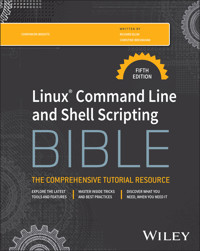
The latest update to the gold standard in Linux shell scripting guides
In the newly revised fifth edition of Linux Command Line and Shell Scripting Bible, experienced system and network administrator Richard Blum delivers an up-to-date and authoritative discussion of the fundamentals of shell scripting in Linux, as well as the advanced topics, working examples, and real-world applications that equip you to administer Linux systems.
The book includes usable scripts and brand-new coverage for DevOps engineers interested in deploying applications on a variety of Linux distributions and cloud platforms while minimizing compatibility issues. You'll also find:
- Concrete strategies and practical tips to help you understand the Linux Shell and write basic script utilities
- Step-by-step instructions on how to schedule scripts to run automatically to perform standard Linux administration and DevOps functions for you
- Easy-to-follow tutorials of alternative shells, including zsh, tcsh, and the Korn shell
- Advanced shell scripting techniques, including functions, sed, gawk, and regular expressions
Perfect for aspiring and practicing Linux system administrators, Linux Command Line and Shell Scripting Bible is also a must-read for anyone who uses a Linux at home or at work.
Sie lesen das E-Book in den Legimi-Apps auf:
Seitenzahl: 944
Veröffentlichungsjahr: 2025
Ähnliche
















Table of Contents
Cover
Table of Contents
Title Page
Copyright
Dedication
About the Authors
About the Technical Editor
Acknowledgments
Introduction
Who Should Read This Book
How This Book Is Organized
Minimum Requirements
Downloading Sample Scripts
Where to Go from Here
Part I: The Linux Command Line
Chapter 1: Starting with Linux Shells
Investigating Linux
Examining Linux Distributions
Summary
Chapter 2: Getting to the Shell
Reaching the Command Line
Accessing the CLI via a Linux Console Terminal
Accessing the CLI via Graphical Terminal Emulation
Using the GNOME Terminal Emulator
Using the Konsole Terminal Emulator
Summary
Chapter 3: Basic Bash Shell Commands
Starting the Shell
Using the Shell Prompt
Interacting with the Bash Manual
Navigating the Filesystem
Listing Files and Directories
Handling Files
Managing Directories
Viewing File Contents
Summary
Chapter 4: More Bash Shell Commands
Monitoring Programs
Monitoring Disk Space
Working with Data Files
Summary
Chapter 5: Understanding the Shell
Investigating Shell Types
Exploring Parent and Child Shell Relationships
Understanding External and Built-In Commands
Summary
Chapter 6: Using Linux Environment Variables
Exploring Environment Variables
Setting User-Defined Variables
Removing Environment Variables
Uncovering Default Shell Environment Variables
Setting the PATH Environment Variable
Locating System Environment Variables
Learning about Variable Arrays
Summary
Chapter 7: Understanding Linux File Permissions
Exploring Linux Security
Using Linux Groups
Decoding File Permissions
Changing Security Settings
Sharing Files
Using Access Control Lists
Summary
Chapter 8: Managing Filesystems
Exploring Linux Filesystems
Working with Filesystems
Managing Logical Volumes
Summary
Chapter 9: Installing Software
Exploring Package Management
Inspecting the Debian-Based Systems
Understanding the Red Hat–Based Systems
Managing Software Using Containers
Summary
Chapter 10: Working with Editors
Visiting the vim Editor
Navigating the nano Editor
Exploring the Emacs Editor
Exploring the KDE Family of Editors
Exploring the GNOME Editor
Summary
Part II: Shell Scripting Basics
Chapter 11: Basic Script Building
Using Multiple Commands
Creating a Script File
Displaying Messages
Using Variables
Redirecting Input and Output
Employing Pipes
Performing Math
Exiting the Script
Summary
Chapter 12: Using Structured Commands
Working with the if-then Statement
Exploring the if-then-else Statement
Nesting ifs
Trying the test Command
Considering Compound Testing
Working with Advanced if-then Features
Considering the case Command
Summary
Chapter 13: More Structured Commands
Looking at the for Command
Trying the C-Style for Command
Exploring the while Command
Using the until Command
Nesting Loops
Looping on File Data
Controlling the Loop
Processing the Output of a Loop
Summary
Chapter 14: Handling User Input
Passing Parameters
Using Special Parameter Variables
Being Shifty
Working with Options
Standardizing Options
Getting User Input
Summary
Chapter 15: Presenting Data
Understanding Input and Output
Redirecting Output in Scripts
Redirecting Input in Scripts
Creating Your Own Redirection
Listing Open File Descriptors
Suppressing Command Output
Using Temporary Files
Logging Messages
Summary
Chapter 16: Script Control
Handling Signals
Running Scripts in Background Mode
Running Scripts Without a Hang-Up
Controlling the Job
Being Nice
Running Like Clockwork
Summary
Part III: Advanced Shell Scripting
Chapter 17: Creating Functions
Exploring Basic Script Functions
Returning a Value from a Function
Using Variables in Functions
Investigating Array Variables and Functions
Considering Function Recursion
Creating a Library
Using Functions on the Command Line
Summary
Chapter 18: Writing Scripts for Graphical Desktops
Creating Text Menus
Doing Windows
Getting Graphic
Summary
Chapter 19: Introducing sed and gawk
Manipulating Text
Looking at the sed Editor Basic Commands
Summary
Chapter 20: Regular Expressions
Exploring Regular Expressions
Defining BRE Patterns
Trying Out Extended Regular Expressions
Summary
Chapter 21: Advanced sed
Looking at Multiline Commands
Holding Space
Negating a Command
Changing the Flow
Replacing via a Pattern
Placing sed Commands in Scripts
Creating sed Utilities
Summary
Chapter 22: Advanced gawk
Using Variables
Working with Arrays
Considering Patterns
Understanding Structured Commands
Printing with Formats
Using Built-in Functions
Trying Out User-Defined Functions
Summary
Part IV: Working with Alternative Shells
Chapter 23: The zsh Shell
History of the zsh Shell
Installing the zsh Shell
Parts of the zsh Shell
Scripting with zsh
Summary
Chapter 24: The tcsh Shell
What Is the tcsh Shell?
Installing the tcsh Shell
The tcsh Shell Components
Scripting in tcsh
Summary
Chapter 25: The Korn Shell
The Korn Shell History
Installing the ksh93 Shell
Understanding Parts of the ksh93 Shell
Scripting in the ksh93 Shell
Summary
Appendix A: Quick Guide to Bash Commands
Reviewing Built-In Commands
Looking at Common Bash Commands
Assessing Environment Variables
Appendix B: Quick Guide to
sed
and
gawk
The
sed
Editor
The
gawk
Program
Index
End User License Agreement
List of Illustrations
Chapter 1
Figure 1.1 The Linux system.
Figure 1.2 The KDE Plasma desktop on an openSUSE Linux system.
Figure 1.3 A GNOME 3 desktop on an Ubuntu Linux system.
Chapter 2
Figure 2.1 A simple terminal emulator running on a Linux desktop.
Figure 2.2 Linux virtual console login screen.
Figure 2.3 Finding GNOME Terminal on Ubuntu 24.04.
Figure 2.4 GNOME Terminal on Ubuntu.
Figure 2.5 The Konsole terminal emulator in openSUSE Leap 15.6.
Chapter 3
Figure 3.1 Manual pages for the hostname command.
Figure 3.2 A Linux virtual directory file path.
Figure 3.3 The Linux file structure.
Figure 3.4 Using the more command to display a text file.
Chapter 4
Figure 4.1 The output of the top command while it is running.
Chapter 5
Figure 5.1 Parent and child Bash shell processes.
Figure 5.2 Subshell nesting.
Figure 5.3 External command forking.
Chapter 7
Figure 7.1 The Linux file permissions.
Chapter 10
Figure 10.1 The vim main window.
Figure 10.2 The nano editor window.
Figure 10.3 Editing a file using the Emacs editor in console mode.
Figure 10.4 The Emacs file browser.
Figure 10.5 The Emacs graphical window.
Figure 10.6 The default KWrite window editing a shell script program.
Figure 10.7 The main Kate editing window.
Figure 10.8 The Kate documents list.
Figure 10.9 The Kate Plugin Manager.
Figure 10.10 The Kate built-in terminal window.
Figure 10.11 The gedit main editor window.
Figure 10.12 The gedit menu system.
Chapter 11
Figure 11.1 Using piping to send data to the more command.
Figure 11.2 Using the more command with the ls command.
Chapter 18
Figure 18.1 Displaying a menu from a shell script.
Figure 18.2 Using the msgbox widget in the dialog command.
Figure 18.3 Using the yesno widget in the dialog command.
Figure 18.4 The inputbox widget.
Figure 18.5 The textbox widget.
Figure 18.6 The menu widget with menu items.
Figure 18.7 The fselect widget.
Figure 18.8 The meminfo command output displayed using the textbox dialog option.
Figure 18.9 A kdialog checklist dialog window.
Figure 18.10 The sys admin menu script using kdialog.
Figure 18.11 The zenity calendar dialog window.
Figure 18.12 The zenity file selection dialog window.
Figure 18.13 The system admin menu using zenity.
Chapter 20
Figure 20.1 Matching data against a regular expression pattern.
Chapter 21
Figure 21.1 Reversing the order of a text file using the hold space.
Chapter 23
Figure 23.1 The zsh configuration menu.
List of Tables
Chapter 1
Table 1.1 Linux Filesystems
Table 1.2 Linux Shells
Table 1.3 Other Linux Graphical Desktops
Table 1.4 Core Linux Distributions
Table 1.5 Specialized Linux Distributions
Chapter 2
Table 2.1 Options for Foreground and Background Appearance
Table 2.2 Popular Graphical Terminal Emulator Packages
Table 2.3 The File Menu
Table 2.4 The Edit Menu
Table 2.5 The View Menu
Table 2.6 The Search Menu
Table 2.7 The Terminal Menu
Table 2.8 The Tabs Menu
Table 2.9 The File Menu
Table 2.10 The Edit Menu
Table 2.11 The View Menu
Table 2.12 The Bookmarks Menu
Table 2.13 The Settings Menu
Table 2.14 The Help Menu
Chapter 3
Table 3.1 Common Linux Directory Names
Chapter 4
Table 4.1 The Command UNIX Parameters
Table 4.2 The Command BSD Parameters
Table 4.3 The Command GNU Parameters
Table 4.4 Linux Process Signals
Table 4.5 The Command Parameters
Table 4.6 The Command Parameters
Table 4.7 Linux File Compression Utilities
Table 4.8 The Command Functions
Table 4.9 The Command Options
Chapter 5
Table 5.1 The Command-Line Options
Chapter 6
Table 6.1 The Bash Shell Bourne Variables
Table 6.2 The Bash Shell Environment Variables
Chapter 7
Table 7.1 The Command-Line Parameters
Table 7.2 The Change Default Values Parameters
Table 7.3 User Account Modification Utilities
Table 7.4 The Command Parameters
Table 7.5 Linux File Permission Codes
Table 7.6 The SUID, SGID, and Sticky Bit Octal Values
Chapter 8
Table 8.1 Journaling Filesystem Methods
Table 8.2 Common Commands
Table 8.3 Common Commands
Table 8.4 Command-Line Programs to Create Filesystems
Table 8.5 The Commonly Used Command-Line Options
Table 8.6 The Growing and Shrinking LVM Commands
Chapter 10
Table 10.1 vim Editing Commands
Table 10.2 nano Control Commands
Chapter 11
Table 11.1 The Command Operators
Table 11.2 Linux Exit Status Codes
Chapter 12
Table 12.1 The Numeric Comparisons
Table 12.2 The String Comparisons
Table 12.3 The File Comparisons
Table 12.4 The Double Parentheses Command Symbols
Chapter 14
Table 14.1 Common Linux Command-Line Options
Chapter 15
Table 15.1 Linux Standard File Descriptors
Table 15.2 Default Output
Chapter 16
Table 16.1 Linux Signals
Table 16.2 The Command Parameters
Chapter 18
Table 18.1 The Widgets
Table 18.2 The Command Options
Table 18.3 Window Options
Table 18.4 The zenity Window Widgets
Chapter 19
Table 19.1 The Command Options
Table 19.2 The Options
Chapter 20
Table 20.1 BRE Special Character Classes
Chapter 21
Table 21.1 The Editor Hold Space Commands
Chapter 22
Table 22.1 The Data Field and Record Variables
Table 22.2 More Built-in Variables
Table 22.3 Format Specifier Control Letters
Table 22.4 The Mathematical Functions
Table 22.5 The String Functions
Table 22.6 The Time Functions
Chapter 23
Table 23.1 The zsh Shell Command Line Parameters
Table 23.2 The zsh Environment Variables
Table 23.3 The typeset Command Parameters
Table 23.4 The zsh Core Built-In Commands
Table 23.5 The zsh Modules
Chapter 24
Table 24.1 The tcsh Shell Command Line Parameters
Table 24.2 The tcsh Special Shell Variables
Table 24.3 The tcsh Shell Environment Variables
Table 24.4 The tcsh Shell Built-in Commands
Table 24.5 The tcsh File Test Operators
Chapter 25
Table 25.1 The ksh93 Command Line Parameters
Table 25.2 The ksh93 Environment Variables
Table 25.3 The typeset Command Parameters
Table 25.4 The ksh93 Subscript Variables
Table 25.5 The ksh93 Built-in Commands
Appendix A
Table A.1 Bash Built-In Commands
Table A.2 The Bash Shell External Commands
Table A.3 Bash Shell Environment Variables
Appendix B
Table B.1 The
sed
Command Options
Table B.2 The
gawk
Options
Table B.3 The
gawk
Data Field and Record Variables
Table B.4 More
gawk
Built-In Variables
Guide
Cover
Table of Contents
Title Page
Copyright
Dedication
About the Authors
About the Technical Editor
Acknowledgments
Introduction
Begin Reading
Appendix A: Quick Guide to Bash Commands
Appendix B: Quick Guide to smdiaitalicsedemdiaitalic and smdiaitalicgawkemdiaitalic
Index
End User License Agreement
Pages
iii
iv
v
vii
ix
xi
xxxi
xxxii
xxxiii
xxxiv
1
3
4
5
6
7
8
9
10
11
12
13
14
15
17
18
19
20
21
22
23
24
25
26
27
28
29
30
31
32
33
34
35
37
38
39
40
41
42
43
44
45
46
47
48
49
50
51
52
53
54
55
56
57
58
59
60
61
62
63
64
65
66
67
68
69
70
71
72
73
74
75
76
77
78
79
80
81
82
83
84
85
86
87
88
89
90
91
93
94
95
96
97
98
99
100
101
102
103
104
105
106
107
108
109
110
111
113
114
115
116
117
118
119
120
121
122
123
124
125
126
127
128
129
130
131
132
133
134
135
136
137
138
139
140
141
142
143
144
145
146
147
148
149
150
151
152
153
154
155
156
157
158
159
160
161
162
163
164
165
166
167
168
169
170
171
172
173
174
175
176
177
178
179
181
182
183
184
185
186
187
188
189
190
191
192
193
194
195
196
197
198
199
201
202
203
204
205
206
207
208
209
210
211
212
213
214
215
216
217
218
219
220
221
222
223
224
225
226
227
229
231
232
233
234
235
236
237
238
239
240
241
242
243
244
245
246
247
248
249
250
251
252
253
254
255
257
258
259
260
261
262
263
264
265
266
267
268
269
270
271
272
273
274
275
276
277
278
279
280
281
282
283
284
285
286
287
288
289
290
291
292
293
294
295
296
297
298
299
300
301
302
303
304
305
306
307
308
309
310
311
312
313
314
315
316
317
318
319
320
321
322
323
324
325
326
327
328
329
330
331
332
333
334
335
336
337
338
339
340
341
342
343
344
345
347
348
349
350
351
352
353
354
355
356
357
358
359
360
361
362
363
364
365
366
367
369
370
371
372
373
374
375
376
377
378
379
380
381
382
383
384
385
386
387
388
389
390
391
392
393
394
395
396
397
399
400
401
402
403
404
405
406
407
408
409
410
411
412
413
414
415
416
417
418
419
420
421
422
423
424
425
426
427
428
429
430
431
432
433
434
435
436
437
438
439
440
441
442
443
444
445
446
447
449
450
451
452
453
454
455
456
457
458
459
460
461
462
463
464
465
466
467
468
469
470
471
472
473
474
475
477
478
479
480
481
482
483
484
485
486
487
488
489
490
491
492
493
494
495
496
497
498
499
500
501
502
503
504
505
506
507
508
509
510
511
512
513
514
515
516
517
518
519
520
521
522
523
524
525
526
527
528
529
530
531
532
533
534
535
536
537
538
539
540
541
542
543
544
545
546
547
548
549
550
551
552
553
554
555
557
558
559
560
561
562
563
564
565
566
567
568
569
570
571
572
573
574
575
576
577
578
579
580
581
582
583
584
585
586
587
588
589
590
591
592
593
594
595
596
597
598
599
600
601
602
603
604
605
606
607
608
609
610
611
612
613
614
615
616
617
618
619
620
621
622
623
624
625
626
627
628
629
630
631
632
633
634
635
636
637
638
639
640
641
642
643
644
645
647
648
649
650
651
652
653
654
655
656
657
659
660
661
662
663
664
665
666
667
668
669
Linux® Command Line and Shell Scripting
BIBLE
THE COMPREHENSIVE TUTORIAL RESOURCE
Richard Blum
Christine Bresnahan
Fifth Edition
Copyright © 2026 by John Wiley & Sons, Inc. All rights reserved, including rights for text and data mining and training of artificial intelligence technologies or similar technologies.
Published by John Wiley & Sons, Inc., Hoboken, New Jersey.
No part of this publication may be reproduced, stored in a retrieval system, or transmitted in any form or by any means, electronic, mechanical, photocopying, recording, scanning, or otherwise, except as permitted under Section 107 or 108 of the 1976 United States Copyright Act, without either the prior written permission of the Publisher, or authorization through payment of the appropriate per-copy fee to the Copyright Clearance Center, Inc., 222 Rosewood Drive, Danvers, MA 01923, (978) 750-8400, fax (978) 750-4470, or on the web at www.copyright.com. Requests to the Publisher for permission should be addressed to the Permissions Department, John Wiley & Sons, Inc., 111 River Street, Hoboken, NJ 07030, (201) 748-6011, fax (201) 748-6008, or online at http://www.wiley.com/go/permission.
The manufacturer’s authorized representative according to the EU General Product Safety Regulation is Wiley-VCH GmbH, Boschstr. 12, 69469 Weinheim, Germany, e-mail: [email protected].
Trademarks: Wiley and the Wiley logo are trademarks or registered trademarks of John Wiley & Sons, Inc. and/or its affiliates in the United States and other countries and may not be used without written permission. All other trademarks are the property of their respective owners. John Wiley & Sons, Inc. is not associated with any product or vendor mentioned in this book.
Limit of Liability/Disclaimer of Warranty: While the publisher and the authors have used their best efforts in preparing this work, including a review of the content of the work, neither the publisher nor the authors make any representations or warranties with respect to the accuracy or completeness of the contents of this work and specifically disclaim all warranties, including without limitation any implied warranties of merchantability or fitness for a particular purpose. Certain AI systems have been used in the creation of this work. No warranty may be created or extended by sales representatives, written sales materials or promotional statements for this work. The fact that an organization, website, or product is referred to in this work as a citation and/or potential source of further information does not mean that the publisher and authors endorse the information or services the organization, website, or product may provide or recommendations it may make. This work is sold with the understanding that the publisher is not engaged in rendering professional services. The advice and strategies contained herein may not be suitable for your situation. You should consult with a specialist where appropriate. Further, readers should be aware that websites listed in this work may have changed or disappeared between when this work was written and when it is read. Neither the publisher nor authors shall be liable for any loss of profit or any other commercial damages, including but not limited to special, incidental, consequential, or other damages.
For general information on our other products and services or for technical support, please contact our Customer Care Department within the United States at (800) 762-2974, outside the United States at (317) 572-3993 or fax (317) 572-4002.
Wiley also publishes its books in a variety of electronic formats. Some content that appears in print may not be available in electronic formats. For more information about Wiley products, visit our web site at www.wiley.com.
Library of Congress Cataloging-in-Publication Data has been applied for:
Print ISBN: 9781394364947
EPDF ISBN: 9781394364961
EPUB ISBN: 9781394364954
OBOOK ISBN: 9781394406364
Cover Design: Wiley
Cover Image: © aleksandarvelasevic/Getty Images
To the Lord God Almighty, “in whom are hidden all the treasures of wisdom and knowledge.”
—Colossians 2:3
About the Authors
Richard Blum has worked in the IT industry for more than 35 years as both a systems and a network administrator. During that time, he’s had the opportunity to work with lots of different computer products, including Windows, NetWare, Cisco, Avaya, different flavors of UNIX, and of course, Linux. Over the years he’s also volunteered for several nonprofit organizations to help support small networks that had little financial support. Rich is the author of many Linux-based books for total Linux geeks and teaches online courses in Linux and web programming. When he’s not busy being a computer nerd, Rich enjoys playing piano and bass guitar and spending time with his wife, Barbara, and their two daughters, Katie Jane and Jessica.
Christine Bresnahan started working with computers more than 30 years ago in the IT industry as a systems administrator. Christine is an adjunct professor at Ivy Tech Community College, where she teaches Linux certification and Python programming classes. She also writes books and produces instructional resources for the classroom. During her downtime, Christine enjoys spending time with her husband and family, hiking, and gardening.
About the Technical Editor
Daniel Wilson has worked as an IT professional for over 38 years. His background ranges from software development, *NIX Engineer and Oracle DBA, consulting, security and as an author/co-author for several books on UNIX (Linux, Solaris, and HP-UX) and the Oracle database. He currently works as a Cloud Information System Security Officer (ISSO).
Acknowledgments
First, all glory and praise go to God, who through His Son, Jesus Christ, makes all things possible and gives us the gift of eternal life.
Many thanks go to the fantastic team of people at John Wiley & Sons for their outstanding work on this project. Thanks to Kenyon Brown, the acquisitions editor, for offering us the opportunity to work on this book. Also thanks to Christine O’Connor, the managing editor, and Karen Weller, the project manager, for keeping things on track and making the book more presentable. The technical editor, Dan Wilson, did an amazing job of double-checking all of the work in this book, in addition to making suggestions to improve the content. Thanks Dan!
We would also like to thank Carole Jelen at Waterside Productions, Inc., for arranging this opportunity for us, and for helping us out in our writing careers.
Christine would like to thank her husband, Timothy, for his encouragement, patience, and willingness to listen, even when he has no idea what she is talking about. Rich would like to thank his wife, Barbara, for the life-sustaining baked goods she readily prepared to help him keep up his energy while writing!
Introduction
Welcome to the fifth edition of Linux Command Line and Shell Scripting Bible. Like all books in the Bible series, you can expect to find both hands-on tutorials and real-world information, as well as reference and background information that provides a context for what you are learning. This book is a fairly comprehensive resource on the Linux command line and shell commands. By the time you have completed Linux Command Line and Shell Scripting Bible, you will be well prepared to write your own shell scripts that can automate practically any task on your Linux system.
Who Should Read This Book
If you’re a systems administrator in a Linux environment (whether with servers on-premise or in the cloud), you’ll benefit greatly by knowing how to write shell scripts. The book doesn’t walk you through the process of setting up a Linux system, but after you have it running, you’ll want to start automating some of the routine administrative tasks. That’s where shell scripting comes in, and that’s where this book helps you out. This book demonstrates how to automate any administrative task using shell scripts, from monitoring system statistics and data files to generating reports for your boss.
If you’re a home Linux enthusiast, you’ll also benefit from Linux Command Line and Shell Scripting Bible. Nowadays, it’s easy to get lost in the graphical world of prebuilt widgets. Most desktop Linux distributions try their best to hide the Linux system from the typical user. However, sometimes you must know what’s going on under the hood. This book shows you how to access the Linux command line prompt and what to do when you get there. Often, performing simple tasks, such as file management, can be done more quickly from the command line than from a fancy graphical interface. You can use a wealth of commands from the command line, and this book shows you how to use them.
How This Book Is Organized
This book leads you through the basics of the Linux command line and into more complicated topics, such as creating your own shell scripts. The book is divided into four parts, each one building on the previous parts.
Part I assumes that you either have a Linux system running or are looking into getting a Linux system. Chapter 1, “Starting with Linux Shells,” describes the parts of a total Linux system and shows how the shell fits in. After describing the basics of the Linux system, this part continues with the following:
Using a terminal emulation package to access the shell (
Chapter 2
)
Introducing the basic shell commands (
Chapter 3
)
Using more advanced shell commands to peek at system information (
Chapter 4
)
Understanding what the shell is used for (
Chapter 5
)
Working with shell variables to manipulate data (
Chapter 6
)
Understanding the Linux filesystem and security (
Chapter 7
)
Working with Linux filesystems from the command line (
Chapter 8
)
Installing and updating software from the command line (
Chapter 9
)
Using the Linux editors to start writing shell scripts (
Chapter 10
)
In Part II, you begin writing shell scripts. As you go through the chapters, you’ll do the following:
Learn how to create and run shell scripts (
Chapter 11
)
Alter the program flow in a shell script (
Chapter 12
)
Iterate through code sections (
Chapter 13)
Handle data from the user in your scripts (
Chapter 14
)
See different methods for storing and displaying data from your script (
Chapter 15
)
Control how and when your shell scripts run on the system (
Chapter 16
)
Part III dives into more advanced areas of shell script programming, including these things:
Creating your own functions to use in all your scripts (
Chapter 17
)
Utilizing the Linux graphical desktop for interacting with your script users (
Chapter 18
)
Using advanced Linux commands to filter and parse data files (
Chapter 19
)
Using regular expressions to define data (
Chapter 20
)
Learning advanced methods of manipulating data in your scripts (
Chapter 21
)
Working with advanced features of scripting to generate reports from raw data (
Chapter 22
)
The last section of the book, Part IV, discusses a few of the other shells you may run across in the Linux environment. In this part, you will learn these things:
How to write shell scripts using the newer zsh shell (
Chapter 23
)
How the tcsh shell differs from the Bash shell, and how to convert your scripts for the tcsh shell (
Chapter 24
)
Work with the Korn shell, learning the command line commands, and how to write shell scripts (
Chapter 25
)
Conventions and features
You will find many different organizational and typographical features throughout this book designed to help you get the most out of the information.
Tips and warnings
Whenever the authors want to bring something important to your attention, the information appears in a Warning.
Warning
This information is important and is set off in a separate paragraph with a special icon. Warnings provide information about things to watch out for, whether simply inconvenient or potentially hazardous to your data or systems.
For additional items of interest that relate to the chapter text, the authors use Tips.
Tip
Tips provide additional, ancillary information that is helpful, but somewhat outside of the current presentation of information.
Minimum Requirements
Linux Command Line and Shell Scripting Bible doesn’t focus on any specific Linux distribution, so you can follow along in the book using any Linux system you have available. The bulk of the book references the Bash shell, which is the default shell for most Linux systems.
Downloading Sample Scripts
The book’s companion website, https://www.wiley.com/go/linuxbible5e, contains all the sample scripts found in the chapters so you don’t need to type them by hand. It also has some extra scripts showing more advanced shell scripting examples that aren’t shown in the chapters.
Where to Go from Here
After you’ve finished reading Linux Command Line and Shell Scripting Bible, you’re well on your way to incorporating Linux commands in your daily Linux work. In the ever-changing world of Linux, it’s always a good idea to stay in touch with new developments. Often, Linux distributions change, adding new features and removing older ones. To keep your knowledge of Linux fresh, always stay well informed. Find a good Linux forum site and monitor what’s happening in the Linux world. Many popular Linux news sites, such as Slashdot and DistroWatch, provide up-to-the-minute information about new advances in Linux.
Part IThe Linux Command Line
In This Part
Chapter 1
Starting with Linux Shells
Chapter 2
Getting to the Shell
Chapter 3
Basic Bash Shell Commands
Chapter 4
More Bash Shell Commands
Chapter 5
Understanding the Shell
Chapter 6
Using Linux Environment Variables
Chapter 7
Understanding Linux File Permissions
Chapter 8
Managing Filesystems
Chapter 9
Installing Software
Chapter 10
Working with Editors
Chapter 1Starting with Linux Shells
In This Chapter
Investigating Linux
Understanding parts of the Linux kernel
Exploring the Linux desktop
Examining Linux distributions
Before you can dive into working with the Linux command line and shells, it’s a good idea to first understand what Linux is, where it came from, and how it works. This chapter walks you through what Linux is and explains where the shell and command line fit in the overall Linux picture.
Investigating Linux
If you’ve never worked with Linux before, you may be confused as to why there are so many different versions of it available. We’re sure that you’ve heard various terms such as distribution, LiveDVD, and GNU when looking at Linux packages and been confused. Wading through the world of Linux for the first time can be a tricky experience. This chapter takes some of the mystery out of the Linux system before you start working on commands and scripts.
For starters, four main parts make up a Linux system:
The Linux kernel
The GNU utilities
A graphical desktop environment
Application software
Each of these four parts has a specific job in the Linux system. Each one of the parts by itself isn’t very useful. Figure 1.1 shows a basic diagram of how the parts fit together to create the overall Linux system.
Figure 1.1 The Linux system.
This section describes these four main parts in detail and gives you an overview of how they work together to create a complete Linux system.
Looking into the Linux kernel
The core of the Linux system is the kernel. The kernel controls all the hardware and software on the computer system, allocating hardware when necessary and executing software when required.
If you’ve been following the Linux world at all, no doubt you’ve heard the name Linus Torvalds. Linus is the person responsible for creating the first Linux kernel software while he was a student at the University of Helsinki. He intended it to be a copy of the UNIX system, at the time a popular operating system used at many universities.
After developing the Linux kernel, Linus released it to the Internet community and solicited suggestions for improving it. This simple process started a revolution in the world of computer operating systems. Soon Linus was receiving suggestions from students as well as professional programmers from around the world.
Allowing anyone to change programming code in the kernel would result in complete chaos. To simplify things, Linus acted as a central point for all improvement suggestions. It was ultimately Linus’s decision whether or not to incorporate suggested code in the kernel.
This same concept is still in place with the Linux kernel code, except that instead of just Linus controlling the kernel code, a team of developers has taken on the task.
The kernel is primarily responsible for four main functions:
System memory management
Software program management
Hardware management
Filesystem management
The following sections explore each of these functions in more detail.
System memory management
One of the primary functions of the operating system kernel is memory management. Not only does the kernel manage the physical memory available on the server, but it can also create and manage virtual memory, or memory that does not actually exist.
It does this by using space on the hard disk, called the swap space. The kernel swaps the contents of virtual memory locations back and forth from the swap space to the actual physical memory. This allows the system to think there is more memory available than what physically exists.
Software program management
The Linux operating system calls a running program a process. A process can run in the foreground, displaying output on a display, or it can run in background, behind the scenes. The kernel controls how the Linux system manages all the processes running on the system.
The kernel creates the first process, called the init process, to start all other processes on the system. When the kernel starts, it loads the init process into virtual memory. As the kernel starts each additional process, it gives the process a unique area in virtual memory to store the data and code that the process uses.
A few different types of init process implementations are available in Linux, but these days the two most popular are
SysVinit:
The
SysVinit
(SysV) initialization method, the original method used by Linux, was based on the UNIX System V initialization method. Although it is not used by many Linux distributions these days, you still may find it around in older Linux distributions.
Systemd:
The
systemd
initialization method, created in 2010, has become the most popular initialization and process management system used by Linux distributions.
Note
In Chapter 4, “More Bash Shell Commands,” you see how to use the ps command to view the processes currently running on the Linux system.
Hardware management
Still another responsibility of the kernel is hardware management. Any device that the Linux system must communicate with needs driver code inserted inside the kernel code. The driver code allows the kernel to pass data back and forth to the device, acting as an intermediary between applications and the hardware. Two methods are used for inserting device driver code in the Linux kernel:
Drivers compiled in the kernel
Driver modules added to the kernel
Previously, the only way to insert device driver code was to recompile the kernel. Each time you added a new device to the system, you had to recompile the kernel code. This process became even more inefficient as Linux kernels supported more hardware. Fortunately, Linux developers devised a better method to insert driver code into the running kernel.
Programmers developed the concept of kernel modules to allow you to insert driver code into a running kernel without having to recompile the kernel. Also, a kernel module could be removed from the kernel when the device was finished being used. This greatly simplified and expanded using hardware with Linux.
The Linux system identifies hardware devices as special files, called device files. There are three classifications of device files:
Character:
Devices that handle data one character at a time, such as terminals.
Block:
Devices that handle data in blocks, such as disk drives.
Network:
Devices that handle data in packets, such as network cards.
Linux creates special files, called nodes, for each device on the system. All communication with the device is performed through the device node. Each node has a unique number pair that identifies it to the Linux kernel. The number pair includes a major and a minor device number. Similar devices are grouped into the same major device number. The minor device number is used to identify a specific device within the major device group.
Filesystem management
Unlike some other operating systems, the Linux kernel can support different types of filesystems to read and write data to and from hard drives. Besides having over a dozen filesystems of its own, Linux can read to and write from filesystems used by other operating systems, such as Microsoft Windows. The kernel must be compiled with support for all types of filesystems that the system will use. Table 1.1 lists the standard filesystems that a Linux system can use to read and write data.
Table 1.1 Linux Filesystems
Filesystem
Description
ext
Linux Extended filesystem—the original Linux filesystem
ext2
Second extended filesystem; provided advanced features over ext
ext3
Third extended filesystem; supports journaling
ext4
Fourth extended filesystem; supports advanced journaling
eCryptfs
The Enterprise Cryptographic File System, encrypts stored data automatically
btrfs
A newer, high-performance filesystem that supports journaling and large files
exfat
The extended Windows filesystem, used mainly for SD cards and USB sticks
HFS
The Hierarchical File System, created by Apple for macOS systems
jfs
IBM’s journaling filesystem
ISO9660
ISO 9660 filesystem (CD-ROMs)
minix
MINIX filesystem
msdos
Microsoft FAT16
nfs
Network File System
ntfs
Support for Microsoft NT filesystem
proc
Access to system information
smb
Samba SMB filesystem for network access
sysv
Older UNIX filesystem
swap
The virtual memory space on a hard drive
tmpfs
The temporary filesystem, creates a filesystem in memory
ufs
BSD filesystem
umsdos
UNIX-like filesystem that resides on top of ms-dos
vfat
Windows 95 filesystem (FAT32)
XFS
High-performance 64-bit journaling filesystem
ZFS
The Zetabyte File System created by Sun Microsystems
Any hard drive that a Linux server accesses must be formatted using one of the filesystem types listed in Table 1.1.
The Linux kernel interfaces with each filesystem using the Virtual File System (VFS). This provides a standard interface for the kernel to communicate with any type of filesystem. VFS caches information in memory as each filesystem is mounted and used.
The GNU utilities
Besides having a kernel to control hardware devices, a computer operating system needs utilities to perform standard functions, such as controlling files and programs. Although Linus created the Linux system kernel, he had no system utilities to run on it. Fortunately for him, at the same time he was working, a group of people were working together on the Internet trying to develop a standard set of computer system utilities that mimicked the popular UNIX operating system.
The GNU organization (GNU stands for GNUs Not UNIX) developed a complete set of UNIX utilities but had no kernel system to run them on. Although the bundling of the Linux kernel and GNU utilities is often just called Linux, you will see some Linux purists on the Internet refer to it as the GNU/Linux system to give credit to the GNU organization for its contributions to the cause.
The core GNU utilities
The GNU project was mainly designed for UNIX system administrators to have a UNIX-like environment available. This focus resulted in the project porting many common UNIX system command-line utilities. The core bundle of utilities supplied for Linux systems is called the coreutils package.
The GNU coreutils package consists of three parts:
Utilities for handling files
Utilities for manipulating text
Utilities for managing processes
Each of these three main groups of utilities contains several utility programs that are invaluable to the Linux system administrator and programmer. This book covers each of the utilities contained in the GNU coreutils package in detail.
The shell
The GNU/Linux shell is a special interactive utility. It provides a way for users to start programs, manage files on the filesystem, and manage processes running on the Linux system. The core of the shell is the command prompt. The command prompt is the interactive part of the shell. It allows you to enter text commands, and then it interprets the commands and executes them in the kernel.
The shell contains a set of internal commands that you use to control tasks such as copying files, moving files, renaming files, displaying the programs currently running on the system, and stopping programs running on the system. Besides the internal commands, the shell allows you to enter the name of a program at the command prompt. The shell passes the program name to the kernel to start it.
You can also group shell commands into files to execute as a program. Those files are called shell scripts. Any command that you can execute from the command line can be placed in a shell script and run as a group of commands. This provides great flexibility in creating utilities for commonly run commands or processes that require several commands grouped together.
Quite a few Linux shells are available to use on a Linux system. Different shells have different characteristics, some being more useful for creating scripts and some being more useful for managing processes. The default shell used in all Linux distributions is the Bash shell. The Bash shell was developed by the GNU project as a replacement for the standard UNIX shell, called the Bourne shell (after its creator). The Bash shell name is a play on this wording, referred to as the “Bourne again shell.”
In addition to covering the Bash shell, this book covers a few other popular shells. Table 1.2 lists the different shells examined here.
Table 1.2 Linux Shells
Shell
Description
korn
A programming shell compatible with the Bourne shell but supporting advanced programming features like associative arrays and floating-point arithmetic
tcsh
A shell that incorporates elements from the C programming language into shell scripts
zsh
An advanced shell that incorporates features from Bash, tcsh, and korn, providing advanced programming features, shared history files, and themed prompts
Most Linux distributions include more than one shell, although usually they pick one of them to be the default. If your Linux distribution includes multiple shells, feel free to experiment with different shells and see which one fits your needs.
The Linux desktop environment
In the early days of Linux (the early 1990s), all that was available was a simple text interface to the Linux operating system. This text interface allowed administrators to start programs, control program operations, and move files around on the system.
With the popularity of Microsoft Windows, computer users expected more than the old text interface to work with. This spurred more development in the open-source software community, and the Linux graphical desktops emerged.
Linux is famous for being able to do things in more than one way, and no place is this more relevant than in graphical desktops. In Linux you can choose from a plethora of graphical desktops. The following sections describe a few popular ones.
The X Window software
Two basic elements control your video environment—the video card in your PC and your monitor. To display fancy graphics on your computer, the Linux software needs to know how to talk to both of them. The X Window software is the core element in presenting graphics.
The X Window software is a low-level program that works directly with the video card and monitor in the PC and controls how Linux applications can present fancy windows and graphics on your computer.
Linux isn’t the only operating system that uses X Window; versions have been written for many different operating systems. In the Linux world, a few software packages can implement it. Two X Window packages are most commonly used in Linux:
X.org
Wayland
The X.org package is older of the two, based on the original UNIX X Window System version 11 (often called X11). These days, though, most Linux distributions have migrated to the newer Wayland software, which is more secure and easier to maintain.
The core X Window software produces a graphical display environment but nothing else. Although this is fine for running individual applications, it is not too useful for day-to-day computer use. There is no desktop environment allowing users to manipulate files or launch programs. To do that, you need a desktop environment on top of the X Window system software.
The KDE Plasma desktop
The K Desktop Environment (KDE) was first released in 1996 as an open source project to produce a graphical desktop similar to the Microsoft Windows environment. The KDE desktop incorporates all the features you are probably familiar with if you are a Windows user. Figure 1.2 shows the current version, called KDE Plasma, running in the openSUSE 15.6 Linux distribution.
Figure 1.2 The KDE Plasma desktop on an openSUSE Linux system.
The KDE Plasma desktop allows you to place both application and file icons in a special area on the desktop. If you single-click an application icon, the Linux system starts the application. If you single-click a file icon, the KDE desktop attempts to determine what application to start to handle the file.
The bar at the bottom of the desktop is called the Panel. The Panel consists of four parts:
The K menu:
Much like the Windows Start menu, the K menu contains links to start installed applications.
Program shortcuts:
These are quick links to start applications directly from the Panel.
The taskbar:
The taskbar shows icons for applications currently running on the desktop.
Applets:
These are small applications that have an icon in the Panel that can often change depending on information from the application.
All of the Panel features are similar to what you would find in Windows. In addition to the desktop features, the KDE project has produced a wide assortment of applications that run in the KDE environment.
The GNOME desktop
The GNU Network Object Model Environment (GNOME) is another popular Linux desktop environment. First released in 1999, GNOME has become the default desktop environment for many Linux distributions.
Note
The GNOME desktop underwent a radical change with version 3, released in 2011. It departed from the standard look and feel of most desktops using standard menu bars and taskbars to make the interface more user-friendly across multiple platforms, such as tablets and mobile phones. This change led to controversy, resulting in the development of other desktops based on the GNOME version 2 code, but slowly many Linux enthusiasts accepted the new look and feel of the GNOME 3 desktop.
Figure 1.3 shows the standard GNOME desktop used in the Ubuntu 24.04 Linux distribution.
Figure 1.3 A GNOME 3 desktop on an Ubuntu Linux system.
The GNOME 3 desktop cleans up the desktop interface by reducing the available menus to just three:
Activities:
Displays favorites, as well as any running application icons.
Calendar:
Shows the current date/time, along with any system notification messages.
System:
Shows network connections, system settings, and options to restart the system.
The GNOME 3 desktop was designed to work on multiple types of devices, so you won’t find a lot of menus. To launch applications, you must search for them using the Activities Overview, which is a search feature on the Activities menu.
Not to be outdone by KDE, the GNOME developers have also produced a host of graphical applications that integrate with the GNOME desktop.
Other desktops
One of the main features of Linux is choice, and nowhere is that more evident than in the graphical desktop world. There are a plethora of graphical desktops available in the Linux world. If you’re not happy with the default desktop in your Linux distribution, it usually doesn’t take much effort to change it to something else!
Table 1.3 shows some of the other Linux graphical desktop environments that you can install on your Linux system.
Table 1.3 Other Linux Graphical Desktops
Desktop
Description
Cinnamon
A popular desktop based on GNOME version 2, used in Linux Mint
MATE
Another desktop based on GNOME version 2, used in Arch Linux
Fluxbox
A bare-bones desktop that doesn’t include a Panel, only a pop-up menu to launch applications
Xfce
A desktop that’s similar to the GNOME 2 desktop but with fewer graphics for low-memory environments
JWM
Joe’s Window Manager, a very lightweight desktop ideal for low-memory and low-disk space environments
fvwm
Supports some advanced desktop features such as virtual desktops and Panels, but runs in low-memory environments
fvwm95
Derived from fvwm but made to look like a Windows 95 desktop
Most of these graphical desktop environments are not as fancy as the KDE Plasma and GNOME 3 desktops, but they provide basic graphical functionality just fine.
Examining Linux Distributions
Now that you have seen the four main components required for a complete Linux system, you may be wondering how you are going to get them all together to make a Linux system. Fortunately, there are people who have already done that for you.
A complete Linux system package is called a distribution. Numerous Linux distributions are available to meet just about any computing requirement you could have. Most distributions are customized for a specific user group, such as business users, multimedia enthusiasts, software developers, or average home users. Each customized distribution includes the software packages required to support specialized functions, such as audio- and video-editing software for multimedia enthusiasts, or compilers and integrated development environments (IDEs) for software developers.
The different Linux distributions are often divided into two categories:
Full-core Linux distributions
Specialized distributions
The following sections describe these types of Linux distributions and show examples in each category.
Core Linux distributions
A core Linux distribution contains a kernel, one or more graphical desktop environments, and just about every Linux application that is available, precompiled for the kernel. It provides one-stop shopping for a complete Linux installation. Table 1.4 shows some popular core Linux distributions.
Table 1.4 Core Linux Distributions
Distribution
Description
Slackware
One of the original Linux distribution sets; popular with Linux geeks
Red Hat Exterprise
A commercial business distribution used mainly for Internet servers
Gentoo
A distribution designed for advanced Linux users, containing only Linux source code
openSUSE
Different distributions for business and home use
Debian
Popular with Linux experts and commercial Linux products
In the early days of Linux, a distribution was released as a set of floppy disks. You had to download groups of files and then copy them onto disks. It would usually take 20 or more disks to make an entire distribution! Needless to say, this was a painful experience.
Nowadays, Linux distributions are released as an ISO image file. The ISO image file is a complete disk image of a DVD as a single file. There are several ways to get a Linux system running from a DVD image. One method is to use a software application to either burn the ISO image file onto a DVD or create a bootable USB stick. You then just boot your workstation from the DVD or USB stick to install Linux. Another method that is becoming more popular these days is to use a virtual server package, such as Oracle’s VirtualBox, to boot a virtual Linux server on top of an existing host operating system, such as Microsoft Windows or macOS. With the virtual server you can boot your Linux distribution directly from the ISO image file, without having to burn a DVD. This makes installing Linux much easier.
However, beginners still often run into problems when they install one of the core Linux distributions. To cover just about any situation in which someone might want to use Linux, a single distribution has to include lots of application software. They include everything from high-end Internet database servers to common games.
Although having lots of options available in a distribution is great for Linux geeks, it can become a nightmare for beginning Linux users. Most core distributions ask a series of questions during the installation process to determine which applications to load by default, what hardware is connected to the PC, and how to configure the hardware. Beginners often find these questions confusing. As a result, they often either load way too many programs on their computer or don’t load enough and later discover that their computer won’t do what they want it to.
Fortunately for beginners, there’s a much simpler way to install Linux.
Specialized Linux distributions
A new subgroup of Linux distributions has started to appear. These are typically based on one of the main distributions but contain only a subset of applications that would make sense for a specific area of use.
In addition to providing specialized software (such as only office products for business users), customized Linux distributions attempt to help beginning Linux users by autodetecting and autoconfiguring common hardware devices. This makes installing Linux a much more enjoyable process.
Table 1.5 shows some of the specialized Linux distributions available and what they specialize in.
Table 1.5 Specialized Linux Distributions
Distribution
Description
Rocky
A free distribution built from the Red Hat Enterprise Linux source code
Ubuntu
A free distribution for school and home use
MX Linux
A free distribution for home use
Linux Mint
A free distribution for home entertainment use
Puppy Linux
A free small distribution that runs well on older PCs
That’s just a small sampling of specialized Linux distributions. There are literally hundreds of specialized Linux distributions, and more are popping up all the time on the Internet. No matter your specialty, you’ll probably find a Linux distribution made for you.
Many of the specialized Linux distributions are based on the Debian Linux distribution. They use the same installation files as Debian but package only a small fraction of a full-blown Debian system.
Note
Most Linux distributions also have a LiveDVD version available. The LiveDVD version is a self-contained ISO image file that you can burn onto a DVD (or USB stick) to boot up a running Linux system directly, without having to install it on your hard drive. Depending on the distribution, the LiveDVD contains either a small subset of applications or, in the case of specialized distributions, the entire system. The benefit of the LiveDVD is that you can test it with your system hardware before going through the trouble of installing the system.
Summary
This chapter discussed the Linux system and the basics of how it works. The Linux kernel is the core of the system, controlling how memory, programs, and hardware all interact with one another. The GNU utilities are also an important piece in the Linux system. The Linux shell, which is the main focus of this book, is part of the GNU core utilities. The chapter also discussed the final piece of a Linux system, the Linux desktop environment. Things have changed over the years, and Linux now supports several graphical desktop environments.
The chapter also discussed the various Linux distributions. A Linux distribution bundles the various parts of a Linux system into a simple package that you can easily install on your PC. The Linux distribution world consists of full-blown Linux distributions that include just about every application imaginable, as well as specialized Linux distributions that only include applications focused on a special function. The Linux LiveDVD craze has created another group of Linux distributions that allow you to easily test-drive Linux without even having to install it on your hard drive.
In the next chapter, you learn what you need to start your command line and shell scripting experience. You’ll see what you have to do to get to the Linux shell utility from your fancy graphical desktop environment. These days, that’s not always an easy thing.




