


40,99 €
Mehr erfahren.
- Herausgeber: John Wiley & Sons
- Kategorie: Wissenschaft und neue Technologien
- Sprache: Englisch
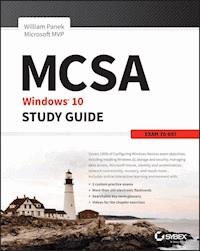
NOTE: The correct URL to access the Sybex interactive online test bank and study tools is www.wiley.com/go/sybextestprep. The book's back cover, Introduction, and last page in the book provided the wrong URL. We apologize for any confusion and inconvenience this may have caused you. Master 100 percent of Microsoft Windows 10 exam with real-world hands-on practice MCSA: Microsoft Windows 10 Complete Study Guide is your ultimate preparation resource for the new Windows 10 certification. Fully updated to align with the latest version of the exam, this new edition digs deeper into the intricacies of the Windows OS and provides the most up-to-date information on new Windows 10 technologies. With complete coverage of all exam topics, this invaluable guide walks you through device planning, deployment, and management; network and storage configuration; access, data, app, and recovery management, and much more to help you master the exam material. You also get access to the Sybex interactive online learning environment, featuring electronic flashcards, a searchable glossary, an assessment test, and bonus practice exams designed to give you a preview of exam day. MCSA: Microsoft Windows 10 is the Microsoft Certified Solutions Associate certification for Windows 10, testing your abilities in a broad variety of associate-level tasks. This book rounds them up into a comprehensive knowledge base to help you clarify, memorize, and deepen your understanding so you can approach exam day with confidence. * Master 100 percent of exam 70-697, Configuring Windows Devices, objectives * Get more hands-on practice in real-world scenarios * Test your knowledge with challenging review questions * Access digital study aids and practice tests for comprehensive prep Windows is the world's leading operating system, with an estimated 90 percent share of the desktop OS market. There are currently over 110 million Windows 10 users, and that number is expected to rise--putting Windows 10 Specialists in high demand in the job market. If you're ready to fill the growing need for trained Windows 10 associates, Microsoft Configuring Windows Devices Study Guide Exam 70-697 has you covered for complete and detailed exam preparation.
Sie lesen das E-Book in den Legimi-Apps auf:
Seitenzahl: 797
Veröffentlichungsjahr: 2016
Ähnliche







MCSA Windows® 10 Study Guide Exam 70-697
William Panek
Senior Acquisitions Editor: Kenyon Brown Development Editor: Kathryn Duggan Technical Editor: Doug Bassett Production Editor: Rebecca Anderson Copy Editors: Judy Flynn, Linda Recktenwald Editorial Manager: Mary Beth Wakefield Production Manager: Kathleen Wisor Executive Editor: Jim Minatel Book Designers: Judy Fung and Bill Gibson Proofreader: Kim Wimpsett Indexer: John Sleeva Project Coordinator, Cover: Brent Savage Cover Designer: Wiley Cover Image: ©Getty Images Inc./Jeremy Woodhouse
Copyright © 2016 by John Wiley & Sons, Inc., Indianapolis, Indiana
Published simultaneously in Canada
ISBN: 978-1-119-25230-6 ISBN: 978-1-119-25231-3 (ebk.) ISBN: 978-1-119-25232-0 (ebk.)
Manufactured in the United States of America
No part of this publication may be reproduced, stored in a retrieval system or transmitted in any form or by any means, electronic, mechanical, photocopying, recording, scanning or otherwise, except as permitted under Sections 107 or 108 of the 1976 United States Copyright Act, without either the prior written permission of the Publisher, or authorization through payment of the appropriate per-copy fee to the Copyright Clearance Center, 222 Rosewood Drive, Danvers, MA 01923, (978) 750-8400, fax (978) 646-8600. Requests to the Publisher for permission should be addressed to the Permissions Department, John Wiley & Sons, Inc., 111 River Street, Hoboken, NJ 07030, (201) 748-6011, fax (201) 748-6008, or online at http://www.wiley.com/go/permissions.
Limit of Liability/Disclaimer of Warranty: The publisher and the author make no representations or warranties with respect to the accuracy or completeness of the contents of this work and specifically disclaim all warranties, including without limitation warranties of fitness for a particular purpose. No warranty may be created or extended by sales or promotional materials. The advice and strategies contained herein may not be suitable for every situation. This work is sold with the understanding that the publisher is not engaged in rendering legal, accounting, or other professional services. If professional assistance is required, the services of a competent professional person should be sought. Neither the publisher nor the author shall be liable for damages arising herefrom. The fact that an organization or Web site is referred to in this work as a citation and/or a potential source of further information does not mean that the author or the publisher endorses the information the organization or Web site may provide or recommendations it may make. Further, readers should be aware that Internet Web sites listed in this work may have changed or disappeared between when this work was written and when it is read.
For general information on our other products and services or to obtain technical support, please contact our Customer Care Department within the U.S. at (877) 762-2974, outside the U.S. at (317) 572-3993 or fax (317) 572-4002.
Wiley publishes in a variety of print and electronic formats and by print-on-demand. Some material included with standard print versions of this book may not be included in e-books or in print-on-demand. If this book refers to media such as a CD or DVD that is not included in the version you purchased, you may download this material at http://booksupport.wiley.com. For more information about Wiley products, visit www.wiley.com.
Library of Congress Control Number: 2016938154
TRADEMARKS: Wiley, the Wiley logo, and the Sybex logo are trademarks or registered trademarks of John Wiley & Sons, Inc. and/or its affiliates, in the United States and other countries, and may not be used without written permission. Windows is a registered trademark of Microsoft Corporation. All other trademarks are the property of their respective owners. John Wiley & Sons, Inc. is not associated with any product or vendor mentioned in this book.
This book is dedicated to the three ladies of my life: Crystal, Alexandria, and Paige.
Acknowledgments
I would like to thank my wife and best friend, Crystal. She is always the light at the end of my tunnel. I want to thank my two daughters, Alexandria and Paige, for all of their love and support during the writing of all my books. The three of them are my support system, and I couldn't do any of this without them.
I want to thank my family, especially my brothers, Rick, Gary, and Rob. They have always been there for me. I want to thank my father, Richard, who helped me become the man I am today, and my mother, Maggie, for all of her love and support.
I would like to thank all of my friends and co-workers at StormWind Studios. I want to especially thank the team who I work with on a daily basis and that includes Tom W, Quinn, Corey F, Ronda, Dan, Jessica, Dave, Tiffany, Tara, Ashley, Brittany, Doug, Mike, Vince, Desiree, Ryan, Ralph, Tyler, Jeff B, Shayne, Patrick, Noemi, Michelle, Zachary, Colin, and the man who makes it all possible, Tom Graunke. Thanks to all of you for everything that you do. I would not have been able to complete this book without all of your help and support.
I want to thank everyone on my Sybex team, especially my development editor Kathryn Duggan, who helped me make this the best book possible, and Rodney R. Fournier, who is the technical editor of many of my books. It's always good to have the very best technical guy backing you up. I want to thank Rebecca Anderson, who was my production editor, and Judy Flynn and Linda Recktenwald for being the copy editors, and I want to also thank Kim Wimpsett who helped proofread this book. I want to also thank Doug Bassett, who is my technical proofreader and who also works with me at StormWind Studios. Special thanks to my acquisitions editor, Kenyon Brown, who was the lead for the entire book. Finally, I want to thank everyone else behind the scenes who helped make this book possible. It's truly an amazing thing to have so many people work on my books to help make them the very best. I can't thank you all enough for your hard work.
About the Author
William Panek holds the following certifications: MCP, MCP+I, MCSA, MCSA+ Security and Messaging, MCSE-NT (3.51 & 4.0), MCSE 2000, 2003, 2012/2012 R2, MCSE+Security and Messaging, MCDBA, MCT, MCTS, MCITP, CCNA, CCDA, and CHFI. Will is also a three-time and current Microsoft MVP winner.
After many successful years in the computer industry, Will decided that he could better use his talents and his personality as an instructor. He began teaching for schools such as Boston University and the University of Maryland, just to name a few. He has done consulting and training for some of the biggest government and corporate companies in the world, including the United States Secret Service, Cisco, United States Air Force, and United States Army.
In 2015, Will became a lead Microsoft instructor for StormWind Studios (http://www.stormwindstudios.com). He currently lives in New Hampshire with his wife and two daughters. Will was also a representative in the New Hampshire House of Representatives from 2010 to 2012. In his spare time, he likes to golf, ski, shoot, snowmobile, play racquetball, and ride his Harley. Will is also a commercially rated helicopter pilot.
CONTENTS
Introduction
The Microsoft Certification Program
Who Should Read This Book?
What’s Inside?
What’s Included with the Book
Recommended Home Lab Setup
How to Contact Sybex or the Author
MCSA Microsoft Windows 10: Exam 70-697 Objectives Map
Assessment Test
Answers to Assessment Test
Chapter 1 Installing Windows 10
Introducing Windows 10
Windows 10 Architecture
Preparing to Install Windows 10
Installing Windows 10
Summary
Video Resources
Exam Essentials
Review Questions
Chapter 2 Automated Windows 10 Deployments
Understanding Automated Deployment Options
Deploying Unattended Installations
Understanding Hyper-V
Summary
Video Resources
Exam Essentials
Review Questions
Chapter 3 Configuring Storage and Security
Understanding File Systems
Configuring NTFS
Configuring Disk Storage
Using the Disk Management Utility
Managing Storage
Troubleshooting Disk Management
Managing Data Compression
Understanding Distributed File System
Managing Data Encryption with EFS
Understanding RAID
Using Disk-Maintenance Tools
Summary
Video Resources
Exam Essentials
Review Questions
Chapter 4 Managing Data Access
Managing File and Folder Security
Managing Network Access
Understanding Hardware Security
Summary
Video Resources
Exam Essentials
Review Questions
Chapter 5 Managing the Windows 10 Environment
Configuring the Windows 10 Operating System
Understanding Mobility Options
Using the Registry Editor
Configuring Remote Connections
Managing Windows 10 Services
Summary
Video Resources
Exam Essentials
Review Questions
Chapter 6 Planning and Managing Microsoft Intune
Managing Devices with Microsoft Intune
Supporting Applications
Understanding Updates
Summary
Video Resources
Exam Essentials
Review Questions
Chapter 7 Configuring Applications
Supporting Desktop Applications
Understanding Azure
Supporting the Windows Store
Understanding Web Browsers
Summary
Video Resources
Exam Essentials
Review Questions
Chapter 8 Managing Identity and Authorization
Overview of Windows 10 User Accounts
Working with User Accounts
Managing User Properties
Troubleshooting User Account Authentication
Managing and Creating Groups
Managing Security Using GPOs and LGPOs
Configuring User Account Control
Understanding Smart Cards
Summary
Video Resources
Exam Essentials
Review Questions
Chapter 9 Configuring Network Connectivity
Understanding Networking
Configuring Windows 10 NIC Devices
Understanding TCP/IP
Summary
Video Resources
Exam Essentials
Review Questions
Chapter 10 Configuring Recovery
Safeguarding and Recovery Basics
Using Advanced Boot Options
Maintaining Windows 10 with Backup and Restore
Using System Protection
Summary
Video Resources
Exam Essentials
Review Questions
Appendix Answers to the Review Questions
Chapter 1: Installing Windows 10
Chapter 2: Automated Windows 10 Deployments
Chapter 3: Configuring Storage and Security
Chapter 4: Managing Data Access
Chapter 5: Managing the Windows 10 Environment
Chapter 6: Planning and Managing Microsoft Intune
Chapter 7: Configuring Applications
Chapter 8: Managing Identity and Authorization
Chapter 9: Configuring Network Connectivity
Chapter 10: Configuring Recovery
Advert
EULA
List of Tables
Chapter 1
Table 1.1
Table 1.2
Table 1.3
Table 1.4
Table 1.5
Table 1.6
Chapter 2
Table 2.1
Table 2.2
Table 2.3
Table 2.4
Table 2.5
Table 2.6
Table 2.7
Table 2.8
Table 2.9
Table 2.10
Chapter 3
Table 3.1
Table 3.2
Table 3.3
Table 3.4
Table 3.5
Table 3.6
Chapter 4
Table 4.1
Table 4.2
Table 4.3
Chapter 5
Table 5.1
Table 5.2
Table 5.3
Table 5.4
Table 5.5
Chapter 6
Table 6.1
Chapter 7
Table 7.1
Table 7.2
Table 7.3
Chapter 8
Table 8.1
Table 8.2
Table 8.3
Table 8.4
Table 8.5
Table 8.6
Table 8.7
Table 8.8
Chapter 9
Table 9.1
Table 9.2
Table 9.3
Table 9.4
Table 9.5
Table 9.6
Table 9.7
Table 9.8
Table 9.9
Chapter 10
Table 10.1
Table 10.2
List of Illustrations
Chapter 1
Figure 1.1
Windows Setup screen
Figure 1.2
Windows install screen
Figure 1.3
Windows license screen
Figure 1.4
Type of install screen
Figure 1.5
Windows disk setup screen
Figure 1.6
Windows installation status screen
Figure 1.7
Windows express settings screen
Figure 1.8
Choosing a domain
Figure 1.9
PC account screen
Figure 1.10
Windows 10 screen
Figure 1.11
Windows 8.1
Figure 1.12
DVD setup screen
Figure 1.13
User Account Control screen
Figure 1.14
Preparing screen
Figure 1.15
Ready To Install screen
Figure 1.16
Installing Status screen
Figure 1.17
Welcome screen
Figure 1.18
Windows 10 screen
Figure 1.19
User Profiles Settings button
Figure 1.20
Local user profiles
Figure 1.21
The Windows Activation Wizard screen
Figure 1.22
Check for updates button
Chapter 2
Figure 2.1
MDT console
Figure 2.2
MDT Setup Wizard Welcome screen
Figure 2.3
MDT Custom Setup screen
Figure 2.4
New Deployment Share Wizard screen
Figure 2.5
Descriptive Name screen
Figure 2.6
Options screen
Figure 2.7
Unattended installation with distribution share and a target computer
Figure 2.8
Windows Deployment Services (WDS) uses a WDS server and WDS clients.
Figure 2.9
Installing Hyper-V
Figure 2.10
Hyper-V Manager
Chapter 3
Figure 3.1
NTFS Security tab
Figure 3.2
Setting up encryption on a folder
Figure 3.3
Two simple volumes
Figure 3.4
A spanned volume set
Figure 3.5
A spanned volume set
Figure 3.6
OneDrive welcome screen
Figure 3.7
OneDrive login screen
Figure 3.8
OneDrive file location screen
Figure 3.9
Open My OneDrive Folder screen
Figure 3.10
The administrative tools running in MMCs
Figure 3.11
The MMC tree, details pane, and Actions pane
Figure 3.12
The MMC Add Or Remove Snap-Ins screen
Figure 3.13
The MMC console screen
Figure 3.14
The MMC console on desktop
Figure 3.15
The Disk Management window
Figure 3.16
The Diskpart window
Figure 3.17
The Volumes tab of a disk’s Properties dialog box
Figure 3.18
General properties for a volume
Figure 3.19
The Tools tab of the volume’s Properties dialog box
Figure 3.20
The Hardware tab of the volume’s Properties dialog box
Figure 3.21
The Sharing tab of the volume’s Properties dialog box
Figure 3.22
The Security tab of the volume’s Properties dialog box
Figure 3.23
The Previous Versions tab of the volume’s Properties dialog box
Figure 3.24
The Quota tab of the volume’s Properties dialog box
Figure 3.25
Assign Drive Letter Or Path screen
Figure 3.26
Format Partition screen
Figure 3.27
Format Partition Screen
Figure 3.28
The dialog boxes for changing a drive letter or path
Figure 3.29
The Select Disks screen
Figure 3.30
The Advanced Attributes dialog box
Figure 3.31
Local Security Policy
Figure 3.32
Select Recovery Agents
Figure 3.33
The Storage Spaces icon in Control Panel
Figure 3.34
The link to create a new pool and storage space
Figure 3.35
The Optimize Drives window
Figure 3.36
The Disk Cleanup dialog box
Figure 3.37
The Check Disk dialog box
Chapter 4
Figure 4.1
The General tab of the Folder Options dialog box
Figure 4.2
The View tab of the Folder Options dialog box
Figure 4.3
The Search tab of the Folder Options dialog box
Figure 4.4
The object’s Security tab
Figure 4.5
The Sharing tab of a folder’s Properties dialog box
Figure 4.6
The Share Permissions dialog box
Figure 4.7
Microsoft OneDrive sign-in screen
Figure 4.8
Microsoft OneDrive
Figure 4.9
OneDrive menu option
Figure 4.10
OneDrive login
Figure 4.11
This is your OneDrive folder screen.
Figure 4.12
Sync files screen
Figure 4.13
Create a HomeGroup.
Figure 4.14
Join an existing HomeGroup.
Figure 4.15
HomeGroup sharing selections
Figure 4.16
Change HomeGroup Settings screen
Figure 4.17
View And Print Your HomeGroup Password screen
Figure 4.18
Change the HomeGroup password.
Figure 4.19
HomeGroup in the Start menu
Figure 4.20
Changing the TPM settings
Figure 4.21
Choosing the BitLocker icon
Chapter 5
Figure 5.1
The default Windows 10 desktop
Figure 5.2
The All Apps section
Figure 5.3
The desktop with activation notice
Figure 5.4
Getting Started tasks
Figure 5.5
Maps
Figure 5.6
Snipping Tool
Figure 5.7
Sticky Notes application
Figure 5.8
Settings window
Figure 5.9
Ease Of Access tools
Figure 5.10
Default Programs
Figure 5.11
Personalization screen
Figure 5.12
Colors screen
Figure 5.13
Lock Screen
Figure 5.14
Themes screen
Figure 5.15
Start options
Figure 5.16
Control Panel
Figure 5.17
AutoPlay options
Figure 5.18
Time synchronization
Figure 5.19
Folder Options
Figure 5.20
Internet Properties
Figure 5.21
Telnet Client check box
Figure 5.22
The System page
Figure 5.23
The Settings option
Figure 5.24
The Settings screen
Figure 5.25
The Sync Center
Figure 5.26
Desktop power plan options
Figure 5.27
Laptop power plan options
Figure 5.28
USB non-compatible error
Figure 5.29
Sync with devices
Figure 5.30
Teredo and IPv6 PNRP structure
Figure 5.31
Remote Assistance initial screen
Figure 5.32
Remote Assistance screen for entering a password
Figure 5.33
Remote Desktop options
Figure 5.34
Manage Wi-Fi Settings
Figure 5.35
Manage Wi-Fi Settings password
Figure 5.36
The Properties dialog box for a service
Chapter 6
Figure 6.1
Microsoft Intune dashboard
Figure 6.2
Microsoft Intune email
Figure 6.3
Microsoft Intune signup
Figure 6.4
Intune new user
Figure 6.5
Intune New User Details
Figure 6.6
Intune New User Results page
Figure 6.7
Choosing the Create Group task
Figure 6.8
Create Group Summary screen
Figure 6.9
Policy screen
Figure 6.10
Upload An APNs Certificate screen
Figure 6.11
Enroll screen
Figure 6.12
Download Software button
Figure 6.13
Save File dialog box
Figure 6.14
Microsoft Intune login screen
Figure 6.15
Welcome to Microsoft Intune
Figure 6.16
Select your device
Figure 6.17
Device Settings in Intune
Figure 6.18
Microsoft Intune
Figure 6.19
The Add Apps link
Figure 6.20
Install the Intune Software Publisher
Figure 6.21
Data synchronization
Figure 6.22
Sync Your Settings
Figure 6.23
Figure 6.24
Overview of update types
Figure 6.25
Automatic Approval Rules
Figure 6.26
Add Updates link
Figure 6.27
Reports link
Chapter 7
Figure 7.1
Filename-extension association
Figure 7.2
Hyper-V check box
Figure 7.3
Azure options
Figure 7.4
Azure applications
Figure 7.5
RemoteApp feature
Figure 7.6
Quick Create option
Figure 7.7
RemoteApp And Desktop Connections
Figure 7.8
Windows Store Settings
Figure 7.9
Windows sideloading
Figure 7.10
Settings window
Figure 7.11
Accounts window
Figure 7.12
PIN button
Figure 7.13
Web Slice
Figure 7.14
Compatibility View option
Figure 7.15
General tab of IE11’s Internet Properties
Figure 7.16
Security tab of IE11’s Internet Properties
Figure 7.17
Privacy tab of IE11’s Internet Properties
Figure 7.18
Content tab of the Internet Properties dialog box
Chapter 8
Figure 8.1
Choosing an account type
Figure 8.2
The five built-in accounts
Figure 8.3
MMC snap-ins
Figure 8.4
Local Users and Groups MMC
Figure 8.5
New User dialog box
Figure 8.6
Deleting a user account
Figure 8.7
Confirming account deletion
Figure 8.8
General tab of the user’s Properties dialog box
Figure 8.9
The Member Of tab of the user’s Properties dialog box
Figure 8.10
The Profile tab of the user’s Properties dialog box
Figure 8.11
The New Group dialog box
Figure 8.12
Group’s Properties dialog box
Figure 8.13
The Select Users dialog box
Figure 8.14
Local Computer Policy
Figure 8.15
The password policies
Figure 8.16
Account-lockout policies
Figure 8.17
Accessing the Local Policies folders
Figure 8.18
Audit policies
Figure 8.19
User-rights policies
Chapter 9
Figure 9.1
Peer-to-peer model
Figure 9.2
Domain structure
Figure 9.3
Device Manager MMC
Figure 9.4
General tab of the Network Adapters Properties page
Figure 9.5
Advanced tab of the Network Adapters Properties page
Figure 9.6
Driver tab of the Network Adapters Properties page
Figure 9.7
Details tab of the Network Adapter Properties page
Figure 9.8
Events tab of the Network Adapter Properties page
Figure 9.9
Resources tab of the Network Adapter Properties page
Figure 9.10
Power Management tab of the Network Adapter Properties page
Figure 9.11
Network and Sharing Center
Figure 9.12
Wireless Network Connection Status
Figure 9.13
Wi-Fi Properties window’s Networking tab
Figure 9.14
Wireless Properties button
Figure 9.15
Wireless Network Properties dialog box’s Connection tab
Figure 9.16
Wireless Network Properties Security tab
Figure 9.17
Windows 10 TCP/IP version 4 properties
Figure 9.18
Computer Name/Domain Changes screen
Figure 9.19
Create a HomeGroup.
Figure 9.20
HomeGroup folders
Figure 9.21
Change HomeGroup Settings screen
Figure 9.22
Windows Firewall settings dialog box
Figure 9.23
Windows Firewall With Advanced Security
Figure 9.24
Inbound rules
Figure 9.25
An inbound rule’s Properties dialog box
Figure 9.26
Network layout
Chapter 10
Figure 10.1
Advanced Boot Options screen
Figure 10.2
Startup Settings screen
Figure 10.3
A computer running in Safe Mode
Figure 10.4
Recovery screen
Figure 10.5
Troubleshoot screen
Figure 10.6
A Windows 10 boot log file
Figure 10.7
Configure button for System Protection
Figure 10.8
Open System Restore
Figure 10.9
System Image Backup
Figure 10.10
Windows 10 Backup and Restore
Figure 10.11
Windows 10 backup status
Figure 10.12
Manage tab in Recycle Bin
Figure 10.13
Backup and Restore (Windows 7) error
Guide
Cover
Table of Contents
Chapter
Pages
xxv
xxvi
xxvii
xxviii
xxix
xxx
xxxi
xxxii
xxxvi
xxxvii
xxxviii
xxxix
xl
xli
xlii
xliii
xliv
xlv
1
2
3
4
6
7
8
9
10
11
12
13
14
15
16
17
18
19
20
21
22
23
24
25
26
27
28
29
30
31
32
33
34
35
36
37
38
39
40
41
42
43
44
45
46
47
49
50
51
52
53
54
55
57
58
59
60
61
62
63
64
65
66
67
68
69
70
71
72
73
74
75
76
77
78
79
80
81
82
83
84
85
86
87
88
89
90
91
92
93
95
96
97
98
99
100
101
102
103
104
105
106
107
108
109
110
111
112
113
114
115
116
117
118
119
120
121
122
124
125
126
127
128
129
130
131
132
133
134
135
136
137
138
139
140
141
142
143
144
145
146
147
148
149
150
151
152
153
154
155
156
157
158
159
160
162
163
164
165
166
167
168
169
170
171
172
173
174
176
177
178
180
181
182
183
184
185
186
187
188
189
190
191
192
193
194
195
197
198
199
200
201
202
203
204
205
206
207
208
209
210
211
212
214
215
216
217
218
219
220
221
222
223
224
225
226
227
228
229
230
231
232
233
234
235
236
237
238
239
240
241
242
243
244
245
246
247
248
249
250
252
253
254
255
256
257
259
260
261
262
263
264
265
266
267
268
269
270
271
272
273
274
275
276
277
278
279
280
281
282
283
284
285
286
288
289
290
291
292
293
294
295
296
297
298
299
300
301
302
303
304
305
306
307
308
309
310
311
312
313
314
315
316
317
318
319
320
321
322
323
324
325
326
327
328
329
330
331
332
333
334
335
336
337
338
339
341
342
343
344
345
346
347
348
349
351
352
353
354
355
356
357
358
359
360
361
362
363
364
365
366
367
368
369
370
371
372
373
374
375
376
377
378
379
380
381
382
383
384
385
387
388
389
390
391
395
396
397
398
399
400
401
402
403
405
406
407
408
409
410
411
412
413
414
415
416
417
418
419
421
422
423
424
425
426
427
428
429
430
431
432
433
434
435
436
437
438
439
440
441
442
443
444
445
446
447
448
449
450
451
452
453
454
455
456
457
458
459
461
462
463
464
465
466
467
468
469
470
471
472
473
474
475
476
477
478
479
480
481
482
483
484
485
486
487
488
489
490
491
492
493
494
495
496
497
498
499
500
501
502
503
504
Introduction
This book was written from over 25 years of IT experience. I have taken that experience and translated it into a Windows 10 book that will help you not only prepare for the MCSA: Windows 10 Solutions Associate exams but also develop a clear understanding of how to install and configure Windows 10 while avoiding all the possible configuration pitfalls.
Many Microsoft books just explain the Windows operating system, but with MCSA: Windows 10 Study Guide, I go a step further, providing many in-depth, step-by-step procedures to support my explanations of how the operating system performs at its best.
Microsoft Windows 10 is the newest version of Microsoft’s client operating system software. Microsoft has taken the best of Windows 7 and Windows 8 and combined them into the latest creation: Windows 10.
Lesen Sie weiter in der vollständigen Ausgabe!
Lesen Sie weiter in der vollständigen Ausgabe!
Lesen Sie weiter in der vollständigen Ausgabe!
Lesen Sie weiter in der vollständigen Ausgabe!
Lesen Sie weiter in der vollständigen Ausgabe!
Lesen Sie weiter in der vollständigen Ausgabe!
Lesen Sie weiter in der vollständigen Ausgabe!
Lesen Sie weiter in der vollständigen Ausgabe!
Lesen Sie weiter in der vollständigen Ausgabe!
Lesen Sie weiter in der vollständigen Ausgabe!
Lesen Sie weiter in der vollständigen Ausgabe!
Lesen Sie weiter in der vollständigen Ausgabe!
Lesen Sie weiter in der vollständigen Ausgabe!
Lesen Sie weiter in der vollständigen Ausgabe!
Lesen Sie weiter in der vollständigen Ausgabe!




