


38,39 €
Mehr erfahren.
- Herausgeber: Packt Publishing
- Kategorie: Wissenschaft und neue Technologien
- Sprache: Englisch
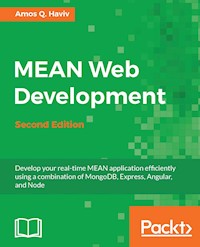
Develop your real-time MEAN application efficiently using a combination of MongoDB, Express, Angular, and Node
About This Book
- Construct a fully-functional MEAN application by using its components along with the best third-party modules
- Harness the power of the JavaScript ecosystem to effectively run, build, and test your MEAN application
- Gain a deep, practical understanding of real-time web application development through real-world examples
Who This Book Is For
If you are a JavaScript developer who is interested in building modern web applications using MongoDB, Express, Angular 2, and Node 5.0, then this book is for you. You only need knowledge of JavaScript development.
What You Will Learn
- Use MongoDB to store and retrieve your application's data
- Connect your Express application to MongoDB and use the Mongoose module
- Manage your users' authentication and offer them diverse login options using Passport
- Structure and use an Angular 2 application in your MEAN project
- Use Socket.io to create real-time communication between your client and server
- Test your application's Express and Angular 2 entities
In Detail
The MEAN stack is a collection of the most popular modern tools for web development that helps you build fast, robust, and maintainable web applications.
Starting with the MEAN core frameworks, this pragmatic guide will explain the key concepts of each framework, how to set them up properly, and how to use popular modules to connect it all together. By following the real-world examples shown in this tutorial, you will scaffold your MEAN application architecture, add an authentication layer, and develop an MVC structure to support your project development. You will learn the best practices of maintaining clear and simple code and will see how to avoid common pitfalls. Finally, you will walk through the different tools and frameworks that will help expedite your daily development cycles.
Watch how your application development grows by learning from the only guide that is solely orientated towards building a full, end-to-end, real-time application using the MEAN stack!
Style and approach
This comprehensive guide covers every part of the MEAN stack, and focuses on the gestalt power of the apps they can create through practical, real-world examples
Sie lesen das E-Book in den Legimi-Apps auf:
Seitenzahl: 407
Veröffentlichungsjahr: 2016
Ähnliche


















Table of Contents
MEAN Web Development Second Edition
MEAN Web Development Second Edition
Copyright © 2016 Packt Publishing
All rights reserved. No part of this book may be reproduced, stored in a retrieval system, or transmitted in any form or by any means, without the prior written permission of the publisher, except in the case of brief quotations embedded in critical articles or reviews.
Every effort has been made in the preparation of this book to ensure the accuracy of the information presented. However, the information contained in this book is sold without warranty, either express or implied. Neither the author, nor Packt Publishing, and its dealers and distributors will be held liable for any damages caused or alleged to be caused directly or indirectly by this book.
Packt Publishing has endeavored to provide trademark information about all of the companies and products mentioned in this book by the appropriate use of capitals. However, Packt Publishing cannot guarantee the accuracy of this information.
First published: September 2014
Second Edition: November 2016
Production reference: 1241116
Published by Packt Publishing Ltd.
Livery Place
35 Livery Street
Birmingham B3 2PB, UK.
ISBN 978-1-78588-630-0
www.packtpub.com
Credits
Author
Amos Q. Haviv
Reviewer
Liran Tal
Acquisition Editor
Larissa Pinto
Content Development Editor
Priyanka Mehta
Technical Editors
Bhavin Savalia
Dhiraj Chandanshive
Copy Editor
Stuti Srivastava
Project Coordinator
Izzat Contractor
Proofreader
Safis Editing
Indexer
Tejal Daruwale Soni
Production Coordinator
Melwyn Dsa
Cover Work
Melwyn Dsa
About the Author
Amos Q. Haviv is a software developer, technical consultant, and the creator of MEAN.IO and MEAN.JS. He has been a full-stack developer for almost a decade and worked for multiple start-ups and enterprise companies. For the past 6 years, Amos has been working with full-stack JavaScript solutions, including Node.js and MongoDB, as well as frontend frameworks such as Angular and React. In 2013, he created the first popular boilerplate for MEAN applications, MEAN.IO, and currently continues the development of MEAN solutions at http://meanjs.org. He also gives lectures on advanced web technologies at meetups and conferences, and he guides development teams at various companies.
I would like to thank my family and friends for their encouragement and support. I would also like to thank the contributors and developers who make the open source community the powerful and creative force that it is. You taught me more than I could have ever imagined.
About the Reviewer
Liran Tal is a top contributor to the open source MEAN.io, and a core team member of the MEAN.js full stack JavaScript framework. He has also authored several Node.js npm packages as well as actively contributed to many open source projects on GitHub. Being an avid supporter and contributor to the open source movement, in 2007, he redefined network RADIUS management by establishing daloRADIUS, a world-recognized and industry-leading open source project (http://www.daloradius.com).
Liran is currently leading the R&D Engineering team for Hewlett Packard Enterprise content marketplace, built on a microservices architecture for a combined technology stack of Java, NodeJS, AngularJS, MongoDB, and MySQL. He loves mentoring and empowering team members, drives for better code methodology, and seeks out innovative solutions to support business strategies.
He enjoys spending time with his beloved wife, Tal, and his son, Ori. Among other things, his hobbies include playing the guitar, hacking all things Linux, and continuously experimenting and contributing to open source projects.
You can connect with him at http://www.linkedin.com/in/talliran or e-mail him at <[email protected]>.
www.PacktPub.com
eBooks, discount offers, and more
Did you know that Packt offers eBook versions of every book published, with PDF and ePub files available? You can upgrade to the eBook version at www.PacktPub.com and as a print book customer, you are entitled to a discount on the eBook copy. Get in touch with us at <[email protected]> for more details.
At www.PacktPub.com, you can also read a collection of free technical articles, sign up for a range of free newsletters and receive exclusive discounts and offers on Packt books and eBooks.
https://www.packtpub.com/mapt
Get the most in-demand software skills with Mapt. Mapt gives you full access to all Packt books and video courses, as well as industry-leading tools to help you plan your personal development and advance your career.
Why subscribe?
This book is dedicated to the makers, whoever you are, wherever you are, whatever you do, I want to thank you for taking us forward.
Preface
Back in the spring of 1995, web browsers were very different from present day browsers. It had been 4 years since the release of the WorldWideWeb (the first Internet browser written by Tim Berners-Lee, later renamed Nexus), 2 years since the initial release of Mosaic, and Internet Explorer 1.0 was a few months away from release. The World Wide Web began to show signs of popularity, and though some of the big companies showed interest in the field, the main disruptor back then was a small company named Netscape.
Netscape's already popular browser, Netscape Navigator, was in the works for its second version, when the client engineering team and co-founder Marc Anderseen decided that Navigator 2.0 should embed a programming language. The task was assigned to a software engineer named Branden Eich, who completed it in ten days between May 6 and May 15, 1995, naming the language Mocha, then LiveScript, and eventually JavaScript.
Netscape Navigator 2.0 was released in September 1995 and transformed the way we perceived the web browser. By August 1996, Internet Explorer 3.0 introduced its own implementation of JavaScript, and in November of that year, Netscape had announced that they had submitted JavaScript to ECMA for standardization. In June 1997, the ECMA-262 specification was published, making JavaScript the de facto standard programming language for the Web.
For years, JavaScript was denigrated by many as the programming language for amateurs. JavaScript's architecture, fragmented implementation, and original "amateur" audience made professional programmers dismiss it. But then AJAX was introduced, and when Google released their Gmail and Google Maps applications in the mid-2000s, it suddenly became clear that AJAX technology could transform websites into web applications. This inspired the new generation of web developers to take JavaScript development to the next level.
What began with the first generation of utility libraries, such as jQuery and Prototype, soon got boosted by Google's next great contribution, the Chrome browser and its V8 JavaScript engine, released at the end of 2008. The V8 engine, with its JIT compiling capabilities, greatly enhanced JavaScript performance. This led to a new era in JavaScript development. 2009 was JavaScript's annus mirabilis; suddenly, platforms such as Node.js enabled developers to run JavaScript on the server, databases such as MongoDB popularized and simplified the use of JSON storage, and frameworks such as Angular and React are simplifying the creation of complex frontend applications. More than 20 years after its original debut, JavaScript is now everywhere. What used to be an "amateur" programming language, capable of executing small scripts, is now one of the most popular programming languages in the world. The rise of open source collaboration tools, along with the devoted involvement of talented engineers, created one of the richest communities in the world, and the seeds planted by many contributors are now flourishing in a burst of sheer creativity.
The practical implications are enormous. What was once a fragmented team of developers, each an expert in their own domain, can now become a homogeneous team capable of developing leaner, more agile software together using a single language across all layers.
There are many full-stack JavaScript frameworks out there, some built by great teams, some that address important issues, but none of them are as open and modular as the MEAN stack. The idea is simple, we'll take MongoDB as the database, Express as the web framework, Angular as the frontend framework, and Node.js as the platform, and combine them in a modular approach that will ensure the flexibility needed in modern software development. MEAN's approach relies on the communities around each of the open source modules keeping it updated and stable, ensuring that if one of the modules becomes useless, we can just seamlessly replace it with a better-suited one.
I would like to welcome you to the JavaScript revolution and assure you I will do my best to help you become a full-stack JavaScript developer.
In this book, we'll help you set up your environment and explain how to connect the different MEAN components together using the best modules. You'll be introduced to the best practices of maintaining your code clear and simple and be shown how to avoid common pitfalls. We'll walk through building your authentication layer and adding your first entity. You'll learn how to leverage JavaScript non-blocking architecture in building real-time communication between your server and client applications. Finally, we'll show you how to cover your code with the proper tests, and we'll show you what tools to use to automate your development process.
What this book covers
Chapter 1, Introduction to MEAN, introduces you to the MEAN stack and shows you how to install the different prerequisites on each OS.
Chapter 2, Getting Started with Node.js, explains explain the basics of Node.js and how it is used in web application development.
Chapter 3, Building an Express Web Application, explains how to create and structure an Express application by implementing the MVC pattern.
Chapter 4, Introduction to MongoDB, explains the basics of MongoDB and how it can be used to store your applications' data.
Chapter 5, Introduction to Mongoose, shows how to use a Mongoose to connect an Express application with a MongoDB database.
Chapter 6, Managing User Authentication Using Passport, explains how to manage your users' authentication and offer them diverse login options.
Chapter 7, Introduction to Angular, explains how to implement an Angular application in conjunction with your Express application.
Chapter 8, Creating a MEAN CRUD Module, explains how to write and use your MEAN application's entities.
Chapter 9, Adding Real-time Functionality Using Socket.io, shows you how to create and use real-time communication between your client and server.
Chapter 10, Testing MEAN Applications, explains how to automatically test the different parts of your MEAN application.
Chapter 11, Automating and Debugging MEAN Applications, explains how to develop your MEAN application more efficiently.
What you need for this book
This book is suitable for beginner and intermediate web developers with basic knowledge of HTML, CSS, and modern JavaScript development.
Who this book is for
This book is aimed at web developers interested in learning how to build modern web applications using MongoDB, Express, Angular, and Node.js.
Reader feedback
Feedback from our readers is always welcome. Let us know what you think about this book—what you liked or disliked. Reader feedback is important for us as it helps us develop titles that you will really get the most out of.
To send us general feedback, simply e-mail <[email protected]>, and mention the book's title in the subject of your message.
If there is a topic that you have expertise in and you are interested in either writing or contributing to a book, see our author guide at www.packtpub.com/authors.
Customer support
Now that you are the proud owner of a Packt book, we have a number of things to help you to get the most from your purchase.
Downloading the example code
You can download the example code files for this book from your account at http://www.packtpub.com. If you purchased this book elsewhere, you can visit http://www.packtpub.com/support and register to have the files e-mailed directly to you.
You can download the code files by following these steps:
Once the file is downloaded, please make sure that you unzip or extract the folder using the latest version of:
The code bundle for the book is also hosted on GitHub at https://github.com/PacktPublishing/MEAN-Web-Development. We also have other code bundles from our rich catalog of books and videos available at https://github.com/PacktPublishing/. Check them out!
Errata
Although we have taken every care to ensure the accuracy of our content, mistakes do happen. If you find a mistake in one of our books—maybe a mistake in the text or the code—we would be grateful if you could report this to us. By doing so, you can save other readers from frustration and help us improve subsequent versions of this book. If you find any errata, please report them by visiting http://www.packtpub.com/submit-errata, selecting your book, clicking on the Errata Submission Form link, and entering the details of your errata. Once your errata are verified, your submission will be accepted and the errata will be uploaded to our website or added to any list of existing errata under the Errata section of that title.
To view the previously submitted errata, go to https://www.packtpub.com/books/content/support and enter the name of the book in the search field. The required information will appear under the Errata section.
Piracy
Piracy of copyrighted material on the Internet is an ongoing problem across all media. At Packt, we take the protection of our copyright and licenses very seriously. If you come across any illegal copies of our works in any form on the Internet, please provide us with the location address or website name immediately so that we can pursue a remedy.
Please contact us at <[email protected]> with a link to the suspected pirated material.
We appreciate your help in protecting our authors and our ability to bring you valuable content.
Questions
If you have a problem with any aspect of this book, you can contact us at <[email protected]>, and we will do our best to address the problem.
Chapter 1. Introduction to MEAN
The MEAN stack is a powerful, full-stack JavaScript solution that comprises four major building blocks: MongoDB as the database, Express as the web server framework, Angular as the web client framework, and Node.js as the server platform. These building blocks are being developed by different teams, and involve a substantial community of developers and advocates pushing forward the development and documentation of each component. The main strength of the stack lies in its centralization of JavaScript as the main programming language. However, the problem of connecting these tools together can lay the foundation for scaling and architecture issues, which can dramatically affect your development process.
In this book, I will try to present the best practices and known issues of building a MEAN application, but before you begin with actual MEAN development, you will first need to set up your environment. This chapter will cover a bit of a programming overview, but mostly present the proper ways of installing the basic perquisites of a MEAN application. By the end of this chapter, you'll learn how to install and configure MongoDB and Node.js on all the common operating systems and how to use NPM. In this chapter, we will cover the following topics:
Three-tier web application development
Most web applications are built in a three-tier architecture that consists of three important layers: data, logic, and presentation. In web applications, the application structure usually breaks down to database, server, and client, while in modern web development, it can also be broken into database, server logic, client logic, and client UI.
A popular paradigm for implementing this model is the Model-View-Controller (MVC) architectural pattern. In the MVC paradigm, the logic, data, and visualization are separated into three types of object, each handling its own tasks. The View handles the visual part, taking care of user interaction. The Controller responds to system and user events, commanding the Model and View to change appropriately. The Model handles data manipulation, responding to requests for information or changing its state according to the Controller's instructions. A simple visual representation of the MVC architecture is shown in the following diagram:
Common MVC architecture communication
In the 25 years of web development, many technology stacks became popular for building three-tier web applications. Among those now ubiquitous stacks, you can find the LAMP stack, the .NET stack, and a rich variety of other frameworks and tools. The main problem with these stacks is that each tier demands a knowledge base that usually exceeds the abilities of a single developer, making teams bigger than they should be, less productive, and exposed to unexpected risks.
The evolution of JavaScript
JavaScript is an interpreted computer programming language that was built for the Web. First implemented by the Netscape Navigator web browser, it became the programming language that web browsers use to execute client-side logic. In the mid 2000s, the shift from websites to web applications, along with the release of faster browsers, gradually created a community of JavaScript developers writing more complex applications. These developers started creating libraries and tools that shortened development cycles, giving birth to a new generation of even more advanced web applications. They, in turn, created a continuous demand for better browsers. This cycle went on for a few years, where the vendors kept improving their browsers and JavaScript developers kept pushing the boundaries.
The real revolution began in 2008, when Google released its Chrome browser, along with its fast JIT-compiling V8 JavaScript engine. Google's V8 engine made JavaScript run so much faster that it completely transformed web application development. More importantly, the release of the engine's source code allowed developers to start reimagining JavaScript outside of the browser. One of the first products of this revolution was Node.js.
After looking into other options for a while, programmer Ryan Dahl found that V8 engine fit his non-blocking I/O experiment called Node.js. The idea was simple: help developers build non-blocking units of code to allow better use of system resources and create more responsive applications. The result was a minimal yet powerful platform, which utilized JavaScript's non-blocking nature outside of the browser. Node's elegant module system enabled developers to freely extend the platform using third-party modules to achieve almost any functionality. The reaction by the online community was a creation of various tools, from modern web frameworks to robotics server platforms. However, server-side JavaScript was only the beginning.
When Dwight Merriman and Eliot Horowitz set out to build their scalable hosting solution back in 2007, they already had a lot of experience with building web applications. However, the platform they built did not succeed as planned, so in 2009, they decided to take it apart and open source its components, including a V8-based database called MongoDB. Derived from the word "humongous", MongoDB was a scalable NoSQL database that used a JSON-like data model with dynamic schemas. MongoDB gained a lot of traction right away by giving developers the flexibility they needed when dealing with complex data, while providing RDBMS features such as advanced queries and easy scaling—features that eventually made MongoDB one of the leading NoSQL solutions. JavaScript broke another boundary. However, the JavaScript revolutionaries haven't forgotten where it all began. In fact, the popularization of modern browsers created a new wave of JavaScript frontend frameworks.
Back in 2009, while building their JSON as a platform service, developers Miško Hevery and Adam Abrons noticed that the common JavaScript libraries weren't enough. The nature of their rich web application raised the need for a more structured framework that would reduce grunt work and maintain an organized code base. Abandoning the original idea, they decided to focus on the development of their frontend framework and open sourced the project, naming it AngularJS. The idea was to bridge the gap between JavaScript and HTML, and help popularize single-page application development.
The result was a rich web framework, which presented frontend web developers with concepts such as two-way data binding, cross-component dependency injection, and MVC-based components. Angular, along with other modern frameworks, revolutionized web development by transforming the once unmaintainable frontend code base into a structured code base that can support more advanced development paradigms such asTest-driven Development (TDD).
The rise of open source collaboration tools, along with the devoted involvement of these talented engineers, created one of the richest communities in the world. More importantly, these major advancements allowed the development of three-tier web applications to be unified under JavaScript as the programming language across all three layers—an idea that is commonly referred to as the full-stack JavaScript. The MEAN stack is just a single example of this idea.
Introducing MEAN
MEAN is an abbreviation for MongoDB, Express, Angular, and Node.js. The concept behind it is to use only JavaScript-driven solutions to cover the different parts of your application. The advantages are great and are as follows:
However, there are still a few important questions that remain unanswered:
In this book, I'll try to answer these questions and many more. However, before we go any further, you will first need to install the basic prerequisites.
Installing MongoDB
For MongoDB's stable versions, the official MongoDB website supplies linked binaries that provide the easiest way to install MongoDB on Linux, Mac OS X, and Windows. Notice that you need to download the right architecture version for your operating system. If you use Windows or Linux, ensure that you download either the 32-bit or 64-bit version according to your system architecture. Mac users are safe to download the 64-bit version.
Note
The MongoDB versioning scheme works in such a way that only even version numbers mark stable releases. So, versions 3.0.x and 3.2x are stable, while 2.9.x and 3.1.x are unstable releases and should not be used in production. The latest stable version of MongoDB is 3.2.x.
When you visit the download page at http://mongodb.org/downloads, you'll be offered a download of an archive that contains the binaries you need to install MongoDB. After downloading and extracting the archive file, you will need to locate the mongod binary, which is usually located in the bin folder. The mongod process runs the main MongoDB server process, which can be used as a standalone server or a single node of a MongoDB replica set. In our case, we will use MongoDB as a standalone server. The mongod process requires a folder to store the database files (the default folder is /data/db) and a port to listen to (the default port is 27017). In the following subsections, we'll go over the setup steps for each operating system. We'll begin with the common Windows installation process.
Note
It is recommended that you learn more about MongoDB by visiting the official documentation at https://mongodb.org.
Installing MongoDB on Windows
Once you have downloaded the right version, run the .msi file. MongoDB should be installed in the C:\Program Files\MongoDB\ folder. While running, MongoDB uses a default folder to store its data files. On Windows, the default folder location is C:\data\db. So, in the command prompt, go to C:\ and issue the following command:
Tip
You can tell the mongod service to use an alternative path for the data files, using the --dbpath command-line flag.
Once you've finished creating the data folders, you'll get two options while running the main MongoDB service.
Running MongoDB manually
To run MongoDB manually, you will need to run the mongod binary. So, open the command prompt and navigate to the C:\Program Files\MongoDB\Server\3.2\bin folder. Then, issue the following command:
The preceding command will run the main MongoDB service that starts listening to the default 27017 port. If everything goes well, you should see a console output similar to the following screenshot:
Running the MongoDB server on Windows
Depending on the Windows security level, a security alert dialog, which notifies you about the blocking of some service features, will be issued. If this occurs, select a private network and click on Allow Access.
Note
You should be aware that the MongoDB service is self-contained, so you can alternatively run it from any folder of your choice.
Running MongoDB as a Windows service
The more popular approach is running MongoDB automatically after every reboot cycle. Before you begin setting up MongoDB as a Windows service, it's considered a good practice to specify a path for the MongoDB log and configuration files. Start by creating a folder for these files by running the following command in your command prompt:
Then, you'll need to create a configuration file at C:\Program Files\MongoDB\Server\3.2\mongod.cfg that contains these lines:
When you have your configuration file in place, open a new command prompt window with administrative privileges by right-clicking on the command prompt icon and clicking on Run as administrator. Notice that if an older version of the MongoDB service is already running, you'll first need to remove it using the following commands:
Then, install the MongoDB service by running the following command:
Notice that the install process will only succeed if your configuration file is set correctly. After installing your MongoDB service, you can run it by executing the following command in the administrative command prompt window:
Be aware that the MongoDB configuration file can be modified to accommodate your needs. You can learn more about it by visiting http://docs.mongodb.org/manual/reference/configuration-options/.
Installing MongoDB on Mac OS X and Linux
In this section, you'll learn the different ways of installing MongoDB on Unix-based operating systems. Let's begin with the simplest way to install MongoDB, which involves downloading MongoDB's precompiled binaries.
Installing MongoDB from binaries
You can download the right version of MongoDB using the download page at http://www.mongodb.org/downloads. Alternatively, you can do this via CURL by executing the following command:
Notice that we have downloaded the Mac OS X 64-bit version, so make sure you alter the command to fit the version suitable for your machine. After the downloading process is over, unpack the file by issuing the following command in your command-line tool:
Now, change the name of the extracted folder to a simpler folder name by running the following command:
MongoDB uses a default folder to store its files. On Linux and Mac OS X, the default location is /data/db, so in your command-line tool, run the following command:
Tip
You may experience some trouble creating this folder. This is usually a permission issue, so use sudo or super user when running the preceding command.
The preceding command will create the data and db folders, because the –p flag creates parent folders as well. Notice that the default folder is located outside your home folder, so make sure you set the folder permission by running the following command:
Now that you have everything prepared, use your command-line tool and go to the bin folder to run the mongod service as follows:
This will run the main MongoDB service, which will start listening to the default 27017 port. If everything goes well, you should see a console output similar to the following screenshot:
Running the MongoDB server on Mac OS X
Installing MongoDB using a package manager
Sometimes, the easiest way to install MongoDB is using a package manager. The downside is that some package managers are falling behind in terms of supporting the latest version. Luckily, the team behind MongoDB also maintains the official packages for RedHat, Debian, and Ubuntu, as well as a Homebrew package for Mac OS X. Note that you'll have to configure your package manager repository to include the MongoDB servers to download the official packages.
To install MongoDB on Red Hat Enterprise, CentOS, or Fedora using Yum, follow the instructions at http://docs.mongodb.org/manual/tutorial/install-mongodb-on-red-hat-centos-or-fedora-linux/.
To install MongoDB on Ubuntu using APT, follow the instructions at http://docs.mongodb.org/manual/tutorial/install-mongodb-on-ubuntu/.
To install MongoDB on Debian using APT, follow the instructions at http://docs.mongodb.org/manual/tutorial/install-mongodb-on-debian/.
To install MongoDB on Mac OS X using Homebrew, follow the instructions at http://docs.mongodb.org/manual/tutorial/install-mongodb-on-os-x/.
Using the MongoDB shell
The MongoDB archive file includes the MongoDB shell, which allows to you to interact with your server instance using the command line. To start the shell, navigate to the MongoDB bin folder and run the mongo service as follows:
If you successfully installed MongoDB, the shell will automatically connect to your local instance, using the test database. You should see a console output similar to the following screenshot:
Running the MongoDB shell on Mac OS X
To test your database, run the following command:
The preceding command will create a new article collection and insert a JSON object containing a title property. To retrieve the article object, execute the following command:
The console will output a text similar to the following message:
Congratulations! This means your MongoDB instance is working properly, and you have successfully managed to interact with it using the MongoDB shell. In the upcoming chapters, you'll learn more about MongoDB and how to use the MongoDB shell.
Installing Node.js
For the stable versions, the official Node.js website supplies linked binaries that provide the easiest way to install Node.js on Linux, Mac OS X, and Windows. Note that you need to download the right architecture version for your operating system. If you use Windows or Linux, make sure to download either the 32-bit or 64-bit version according to your system architecture. Mac users are safe to download the 64-bit version.
Note
After the merge between the Node.js and io.js projects, the version scheme continued directly from 0.12.x to 4.x. The team now uses the Long-term Support (LTS) policy. You can read about it at https://en.wikipedia.org/wiki/Long-term_support. The latest stable version of Node.js is 6.x.
Installing Node.js on Windows
Installing Node.js on a Windows machine is a simple task that can be easily accomplished using the standalone installer. To begin with, navigate to https://nodejs.org/en/download/ and download the right .msi file. Notice there are 32-bit and 64-bit versions, so make sure you download the right one for your system.
After downloading the installer, run it. If you get any security dialog boxes, just click on the Run button, and the installation wizard should start. You will be prompted with an installation screen similar to the following screenshot:
Node.js Windows installation wizard
Once you click on the Next button, the installation should begin. A few moments later, you'll see a confirmation screen similar to the following screenshot, telling you that Node.js was successfully installed:
Node.js Windows installation confirmation
Installing Node.js on Mac OS X
Installing Node.js on Mac OS X is a simple task that can be easily accomplished using the standalone installer. Start by navigating to the https://nodejs.org/en/download/ page and download the .pkg file. After downloading the installer, run it, and you will be prompted with an installation screen similar to the following screenshot:
Node.js Mac OS X installation wizard
Click on Continue, and the installation process should begin. The installer will ask you to confirm the license agreement and then ask you to select the folder destination. Choose the option most suitable for you before clicking on the Continue button again. The installer will then ask you to confirm the installation information and ask you for your user password. A few moments later, you'll see a confirmation screen similar to the following screenshot, telling you that Node.js was successfully installed:
Node.js Mac OS X installation confirmation
Installing Node.js on Linux
To install Node.js on a Linux machine, you'll have to use the tarball file from the official website. The best way of doing so is to download the latest version and then build and install the source code using the make command. Start by navigating to the http://nodejs.org/en/download/ page, and download the suitable .tar.gz file. Then, expand the file and install Node.js by issuing the following commands:
If everything goes well, the commands will install Node.js on your machine. Note that these commands are for the Node.js 6.9.1 version, so remember to replace the version number with the version you downloaded.
Note
It is recommended that you learn more about Node.js by visiting the official documentation at https://nodejs.org.
Running Node.js
After you have successfully installed Node.js, you will be able to start experimenting with it using the provided command-line interface (CLI). Go to your command-line tool and execute the following command:
This will start the Node.js CLI, which will wait for a JavaScript input. To test the installation, run the following command:
The output should be similar to the one that follows:
This is nice, but you should also try to execute a JavaScript file. Start by creating a file named application.js that contains the following code:




