


13,99 €
Mehr erfahren.
- Herausgeber: John Wiley & Sons
- Kategorie: Wissenschaft und neue Technologien
- Sprache: Englisch
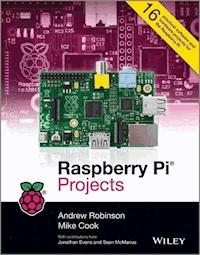
Learn to build software and hardware projects featuring the Raspberry Pi!
Congratulations on becoming a proud owner of a Raspberry Pi! Following primers on getting your Pi up and running and programming with Python, the authors walk you through 16 fun projects of increasing sophistication that let you develop your Raspberry Pi skills. Among other things you will:
- Write simple programs, including a tic-tac-toe game
- Re-create vintage games similar to Pong and Pac-Man
- Construct a networked alarm system with door sensors and webcams
- Build Pi-controlled gadgets including a slot car racetrack and a door lock
- Create a reaction timer and an electronic harmonograph
- Construct a Facebook-enabled Etch A Sketch-type gadget and a Twittering toy
Raspberry Pi Projects is an excellent way to dig deeper into the capabilities of the Pi and to have great fun while doing it.
Sie lesen das E-Book in den Legimi-Apps auf:
Seitenzahl: 605
Veröffentlichungsjahr: 2014
Ähnliche

















Table of Contents
Cover
Title
Copyright
Dedication
Publisher’s Acknowledgements
About the Authors
Introduction
A History of Making
Consumer Computing
Why Everyone Should Learn About Computing
Enter the Raspberry Pi
About This Book
How to Use This Book
The Future
Part I: Getting Started with the Raspberry Pi
Chapter 1: Getting Your Raspberry Pi Up and Running
The Operating System
Connecting Your Raspberry Pi
The Boot Process
Starting the Graphical Desktop
Starting a Terminal under X
Troubleshooting
Let the Fun Begin!
Chapter 2: Introductory Software Project: The Insult Generator
Running Your First Python Program
Saving Your Program
Generating an Insult
Insult Your Friends by Name!
Create a Stream of Insults!
Putting It All Together
Part II: Software Projects
Chapter 3: Tic-Tac-Toe
Errors
Making a Start
A Two-Player Game
Getting the Computer to Play
Over to You
Chapter 4: Here’s the News
Early Teleprompters
The Pi Prompter
What You Need to Do
A Step Closer to a Usable Program
Your Final Pi Prompter Code
The Physical Setup for Your Prompter
Over to You
Chapter 5: Ping
Early Commercial Products
The Ping Game
Improving the Ping Game
A Single-Player Game
A Two-Player Game
Over to You
Chapter 6: Pie Man
The Pie Man Game
Gather Your Resources
Setting the Stage
The Game Action
Drawing the Screen
The Final Function
Over to You
Chapter 7: Minecraft Maze Maker
Installing Minecraft
Starting Minecraft
Playing Minecraft
Preparing for Python
Using the Minecraft Module
Over to You
Part III: Hardware Projects
Chapter 8: Colour Snap
Implementing the Game
The Software for Testing the Game
The Software for the Game
Over to You
Chapter 9: Test Your Reactions
Welcome to the Embedded World!
Obtaining Components
Setting up PiFace Digital
Connecting PiFace Digital
Using the Emulator
Interfacing with Python
The Reaction Timer
What Will You Interface?
Chapter 10: The Twittering Toy
Hacking the Toy
Making It Talk
Making It Move
Connecting to Twitter
Putting It All Together
Wrapping Up
Chapter 11: Disco Lights
Defining Your Sequence
Getting the Code to Do More
A Small Detour into Theory
Designing the Sequencer
Implementing the Sequencer
The Lights
Using Longer Strip Lights
Making the Lights Move
Designing the Circuit
Building the Circuit
Running the Circuit
Over to You
Chapter 12: Door Lock
The System Overview
Safety-Critical Systems
The Door Lock Hardware
The Initial High-Level Software Simulation
The Output Block
The Input Block
The Authentication Block
Unlocking Doors Without Touching
Testing the Program and Fitting the Lock
Networking Multiple Doors
Over to You
The Art of Programming
Chapter 13: Home Automation
The Internet Of Things
Project 1: How to Create a Motion Sensor and Door Switch
Project 2: How to Monitor Your Home with a Webcam
Project 3: How to Make a Temperature Gauge
Project 4: How to Send an E-mail Alert
Project 5: How to Send an E-mail Using a Wireless Remote
Over to You
Chapter 14: Computer-Controlled Slot Car Racing
Obtaining a Slot Car Racer
Hacking Your Slot Car Racer
Getting the Player Input
The Software
The Game
Over to You
Chapter 15: Facebook-Enabled Roto-Sketch
The Concept
Rotary Encoder Types
The Encoder Output
Posting to Facebook
The Final Roto-Sketch Program
Creating a Symmetrical Pattern
Over to You
Chapter 16: The Pendulum Pi, a Harmonograph
The Concept
The Hall Effect
Enter the Arduino
Putting It Together
Programming the Arduino
Programming the Pi
Using the Pendulum Pi
Over to You
Chapter 17: The Techno–Bird Box, a Wildlife Monitor
Building Invisible Light Beam Sensors
Mounting the Sensors
Recording Activity to a File
Processing the Data
Dealing with Sensor Noise
Drawing a Graph
Putting the Nest Box into Service
Over to You
The Possibilities Are Endless
End User License Agreement
List of Tables
Chapter 6: Pie Man
Table 6-1 Sounds Required
Chapter 7: Minecraft Maze Maker
Table 7-1 Materials in Minecraft: Pi Edition
Chapter 13: Home Automation
Table 13-1 What You Will Need
Table 13-2 What You Will Need
Table 13-3 Nano Editing Commands
Table 13-4 Motion Configuration Changes
Table 13-5 What You Will Need
Table 13-6 What You Will Need
Chapter 16: The Pendulum Pi, a Harmonograph
Table 16-1 Length of Pendulum for Various Harmonics
Table 16-2 Keyboard Functions
Chapter 17: The Techno–Bird Box, a Wildlife Monitor
Table 17-1 Date-Formatting Codes
List of Illustrations
Chapter 1: Getting Your Raspberry Pi Up and Running
Figure 1-1: The Win32DiskImager window.
Figure 1-2: The Raspberry Pi, the size of a credit card and a miniature marvel of engineering.
Figure 1-3: Inserting the USB keyboard.
Figure 1-4: Inserting the USB mouse.
Figure 1-5: HDMI connection on the Raspberry Pi.
Figure 1-6: HDMI-DVI adapter.
Figure 1-7: HDMI-VGA adapter, Pi-View.
Figure 1-8: Phono connector for composite video.
Figure 1-9: Network connection.
Figure 1-10: Insert the SD card carefully.
Figure 1-11: Take care not to snap off the plastic that keeps the SD card from falling out.
Figure 1-12: Insert a micro USB for power.
Chapter 2: Introductory Software Project: The Insult Generator
Figure 2-1: Starting IDLE.
Figure 2-2: Python says “Hello World”.
Figure 2-3: Creating a new file.
Figure 2-4: Python prompts, “Source Must Be Saved”.
Figure 2-5: The Save As dialogue box in IDLE.
Figure 2-6: IDLE running Python code from a file.
Figure 2-7: Functions are little machines that process inputs to produce an output.
Figure 2.8: Autocomplete of the
function in IDLE.
Chapter 3: Tic-Tac-Toe
Figure 3-1: The relationship of the board to the list.
Figure 3-2: A flow diagram of move choice.
Chapter 4: Here’s the News
Figure 4-1: The Pi Prompter.
Figure 4-2: Pygame’s graphic memory model.
Figure 4-3: Scrolling part 1 – the offset value controlling the position of the lines.
Figure 4-4: Scrolling part 2 – how the lines scroll.
Figure 4-5: The first stage in building the autocue.
Figure 4-6: The finished autocue.
Figure 4-7: The autocue in action.
Figure 4-8: A closeup of the autocue, showing double reflections.
Chapter 5: Ping
Figure 5-1: The screen display of the Ping game.
Figure 5-2: The movement angle defined by the two values ∆X and ∆Y.
Figure 5-3: The reflection from a vertical surface by negating ∆X.
Figure 5-4: Calculating limits for a collision.
Figure 5-5: Snapping the ball to the colliding object.
Figure 5-6: Measurements for the bat and ball.
Figure 5-7: The collision geometry of the bat and ball.
Chapter 6: Pie Man
Figure 6-1: The finished Pie Man game.
Figure 6-2: The two basic Pie Man sprites.
Figure 6-3: All the Pie Man sprites.
Figure 6-4: All the ghosts.
Figure 6-5: The ghost dying sequence.
Figure 6-6: Screen drawing planes.
Figure 6-7: Detecting a wall.
Figure 6-8: Detecting a pill.
Chapter 7: Minecraft Maze Maker
Figure 7-1: Minecraft on the Pi.
Figure 7-2: The starter grid.
Figure 7-3: Your grid in Minecraft.
Figure 7-4: Finding your way around the maze.
Chapter 8: Colour Snap
Figure 8-1: The voltage against current relationship for an LED.
Figure 8-2: How to use an LED.
Figure 8-3: Voltage drop against current for an LED and resistor circuit.
Figure 8-4: The schematic for the colour snap game.
Figure 8-5: Circuit layout using through-hole components.
Figure 8-6: Cutting out some of the copper on a strip board to make the LED fit.
Figure 8-7: Circuit layout using surface mount components.
Figure 8-8: A photograph of the surface mount circuit layout.
Figure 8-9: How to put your box together.
Figure 8-10: The half ball ready to be glued into the supporting base.
Figure 8-11: The ball and supporting base resting on the underside of the box’s lid.
Figure 8-12: The box with its lid off.
Figure 8-13: The wire connections to the PiFace board.
Figure 8-14: The finished box for the game.
Figure 8-15: This top byte shows the output to PiFace.
Chapter 9: Test Your Reactions
Figure 9.1: Example SPI transaction: The microprocessor sends data 11011101, and the device sends 11110011.
Figure 9-2: The PiFace Emulator.
Figure 9-3: Enable the Keep Inputs Updated check box to show the status of inputs.
Figure 9-4: The status of inputs are shown in the emulator.
Figure 9-5: PiFace Digital’s connectors.
Figure 9.6: Electricity needs a complete circuit to flow and do work.
Figure 9-7: How to wire up an open-collector output.
Figure 9-8: Wiring up the LED and switch to the Raspberry Pi.
Figure 9.9: Twisting wires.
Figure 9.10: Screwing terminals.
Figure 9.11: Using a breadboard.
Figure 9.12: Soldering.
Figure 9-13: Wiring up a switch.
Chapter 10: The Twittering Toy
Figure 10-1: A naked chicken – the mechanism that makes the toy move.
Figure 10-2: Removing the case of the movement mechanism.
Figure 10-3: Add wires (shown as white in the figure) in parallel to the switch and add a knot to stop it from pulling through.
Figure 10-4: Toy post-surgery showing no ill effects. Touch the wires together to make the toy move.
Figure 10-5: Wiring the toy up to the normally open relay contacts.
Chapter 11: Disco Lights
Figure 11-1: The relationship between bits and bytes.
Figure 11-2: The sequencer application.
Figure 11-3: PiFace jumpers.
Figure 11-4: Where to cut the LED strip.
Figure 11-5: Wiring the LED strip to the PiFace board.
Figure 11-6: A non-inverting amplifier.
Figure 11-7: The schematic of the beat driver.
Figure 11-8: The physical layout of the beat driver circuit.
Chapter 12: Door Lock
Figure 12-1: The system diagram of the door lock.
Figure 12-2: An electromechanical keeper door lock.
Figure 12-3: The door lock circuit diagram for an electromagnetic lock.
Figure 12-4: The door lock circuit diagram for an electromechanical keeper.
Figure 12-5: An RFID reader and tags.
Chapter 13: Home Automation
Figure 13-1: A door switch.
Figure 13-2: A motion sensor.
Figure 13-3: A circuit showing a pull-up resistor.
Figure 13-4: A circuit showing a pull-down resistor.
Figure 13-5: A circuit diagram for the door switch and motion sensor connected to two GPIO pins on the Raspberry Pi.
Figure 13-6: The breadboard layout of the reed switch and motion sensor connected to the Raspberry Pi.
Figure 13-7: The configuration file for Motion.
Figure 13-8: A wiring diagram for a DS18B20 temperature sensor connected to a Raspberry Pi.
Figure 13-9: A breadboard diagram for a DS18B20 temperature sensor connected to a Raspberry Pi.
Figure 13-10: The temperature shown in the
w1_slave
file that was created by Modprobe.
Figure 13-11: A wireless remote kit.
Figure 13-12: A circuit diagram for the wireless receiver connected to a Raspberry Pi.
Figure 13-13: A breadboard layout for the wireless receiver connected to a Raspberry Pi.
Chapter 14: Computer-Controlled Slot Car Racing
Figure 14-1: Hacking into your slot car racing game.
Figure 14-2: Hacking into your slot car racing game if you can’t cut just a single wire.
Figure 14-3: A schematic of the joystick button controller.
Figure 14-4: The track side of the joystick button controller board.
Figure 14-5: The joystick button controller components for antiparallel LED.
Figure 14-6: The joystick button controller components for parallel LED.
Figure 14-7: A photograph of the joystick button controller components for antiparallel LED.
Figure 14-8: The joystick button box masked up before painting.
Figure 14-9: A side view of the joystick button controller button switches.
Figure 14-10: The joystick button controller slot for connecting ribbon cable.
Figure 14-11: The joystick button controller aligned under the central hole.
Figure 14-12: The complete joystick button controller.
Figure 14-13: The game in progress.
Chapter 15: Facebook-Enabled Roto-Sketch
Figure 15-1: The logic output of a rotary encoder.
Figure 15-2: The logic sequence of the rotary encoder.
Figure 15-3: The two types of detents for rotary encoders.
Figure 15-4: The schematic for the roto-sketch control box.
Figure 15-5: The wiring for the roto-sketch control box.
Figure 15-6: The finished roto-sketch control box!
Figure 15-7: Some of the pattern effects you can achieve.
Figure 15-8: Some drawings with four-fold symmetry.
Chapter 16: The Pendulum Pi, a Harmonograph
Figure 16-1: A harmonograph pattern from the Pendulum Pi.
Figure 16-2: How the Hall effect works.
Figure 16-3: The Hall effect sensors in the AS5040.
Figure 16-4: The front view of the pendulum frame.
Figure 16-5: The top view of the pendulum frame.
Figure 16-6: The notch needed on one side of each angled channel.
Figure 16-7: The base frame.
Figure 16-8: The whole pendulum assembly.
Figure 16-9: Fixing the pendulum to the threaded rod and channel.
Figure 16-10: The pendulum sections.
Figure 16-11: A schematic of one sensor board.
Figure 16-12: The mounted sensor board showing the chip.
Figure 16-13: The mounting of a sensor board.
Figure 16-14: A schematic of the sensor modules’ interconnections.
Figure 16-15: The Arduino mounted on top of the frame.
Figure 16-16: The complete system wired up.
Figure 16-17: The timing diagram for the AS5040 interface.
Figure 16-18: Splitting up the data to tag each byte.
Figure 16-19: Generating a displacement from an angle.
Figure 16-20: Some of the patterns generated with this project.
Chapter 17: The Techno–Bird Box, a Wildlife Monitor
Figure 17-1: Bird activity shown against temperature.
Figure 17-2: IR SFH484-2 IR LED emitter wiring.
Figure 17-3: Identifying the emitter (left) and collector (right) legs of the QSE113 phototransistor.
Figure 17-4: IR phototransistor detector wiring.
Figure 17-5: Cutting plans for plywood sheets.
Figure 17-6: A closeup of the IR LED emitter and phototransistor receiver in the slot near the hole for the nest entrance.
Figure 17-7: A state diagram for birds entering, leaving and bobbing their heads.
Guide
Cover
Table of Contents
Begin Reading
Pages
Cover
Contents
i
ii
iii
iv
1
2
3
4
5
6
7
9
10
11
12
13
14
15
16
17
18
19
20
21
22
23
24
25
26
27
28
29
30
31
32
33
34
35
36
37
38
39
40
41
42
43
44
45
47
49
50
51
52
53
54
55
56
57
58
59
60
61
62
63
64
65
66
67
68
69
70
71
72
73
74
75
76
77
78
79
80
81
82
83
84
85
86
87
88
89
90
91
92
93
94
95
96
97
98
99
100
101
102
103
104
105
106
107
108
109
110
111
112
113
114
115
116
117
118
119
121
122
123
124
125
126
127
128
129
130
131
132
133
134
135
136
137
138
139
140
141
142
143
144
145
146
147
148
149
150
151
152
153
154
155
156
157
158
159
160
161
162
163
164
165
166
167
168
169
170
171
172
173
174
175
177
178
179
180
181
182
183
184
185
186
187
188
189
190
191
192
193
194
195
196
197
198
199
200
201
202
203
204
205
206
207
208
209
210
211
212
213
214
215
216
217
218
219
220
221
222
223
224
225
226
227
228
229
230
231
232
233
234
235
236
237
238
239
240
241
242
243
244
245
246
247
248
249
250
251
252
253
254
255
256
257
258
259
260
261
262
263
264
265
266
267
268
269
270
271
272
273
274
275
276
277
278
279
280
281
282
283
284
285
286
287
288
289
290
291
292
293
294
295
296
297
298
299
300
301
302
303
304
305
306
307
308
309
310
311
312
313
314
315
316
317
318
319
320
321
322
323
324
325
326
327
328
329
330
331
333
334
335
336
337
338
339
340
341
342
343
344
345
346
347
348
349
350
351
352
353
354
355
356
357
358
359
360
361
362
363
364
365
366
367
368
369
370
371
372
373
374
375
376
377
378
379
380
381
382
383
384
385
386
387
388
389
390
391
392
393
394
395
396
397
398
399
400
401
402
403
404
405
406
407
408
409
410
411
412
413
414
415
416
417
418
419
420
421
422
423
424
425
426
427
428
429
430
431
432
433
434
435
436
437
438
439
440
441
442
443
444
445
446
447
448
449
450
451
452
453
454
455
456
457
458
459
460
Raspberry Pi® Projects
Dr. Andrew Robinson
Mike Cook
Jonathan Evans
Sean McManus
This edition first published 2014
© 2014 John Wiley & Sons, Ltd.
Registered office
John Wiley & Sons Ltd, The Atrium, Southern Gate, Chichester, West Sussex, PO19 8SQ, United Kingdom
For details of our global editorial offices, for customer services and for information about how to apply for permission to reuse the copyright material in this book please see our website at www.wiley.com.
The right of the authors to be identified as the authors of this work has been asserted in accordance with the Copyright, Designs and Patents Act 1988.
All rights reserved. No part of this publication may be reproduced, stored in a retrieval system, or transmitted, in any form or by any means, electronic, mechanical, photocopying, recording or otherwise, except as permitted by the U.K. Copyright, Designs and Patents Act 1988, without the prior permission of the publisher.
Wiley also publishes its books in a variety of electronic formats. Some content that appears in print may not be available in electronic books.
Designations used by companies to distinguish their products are often claimed as trademarks. All brand names and product names used in this book are trade names, service marks, trademarks or registered trademarks of their respective owners. The publisher is not associated with any product or vendor mentioned in this book. This publication is designed to provide accurate and authoritative information in regard to the subject matter covered. It is sold on the understanding that the publisher is not engaged in rendering professional services. If professional advice or other expert assistance is required, the services of a competent professional should be sought.
Trademarks: Wiley and the John Wiley & Sons, Ltd. logo are trademarks or registered trademarks of John Wiley and Sons, Ltd. and/ or its affiliates in the United States and/or other countries, and may not be used without written permission. Raspberry Pi is a trademark of the Raspberry Pi Foundation. All other trademarks are the property of their respective owners. John Wiley & Sons, Ltd. is not associated with any product or vendor mentioned in the book.
A catalogue record for this book is available from the British Library.
ISBN 978-1-118-55543-9 (paperback); ISBN 978-1-118-55556-9 (ePub); ISBN 978-1-118-55553-8 (ePDF)
To the kitchen table inventors, and their long-suffering families that have to live with them.
–Andrew Robinson
To Mike Bibby, who was the first editor to give me the opportunity to write regularly about computers and hardware. His unfailing enthusiasm about all things and his inability to take anything just on trust are an example to us all. A continuing and valued friend.
–Mike Cook
Publisher’s Acknowledgements
Some of the people who helped bring this book to market include the following:
Editorial and Production
VP Consumer and Technology Publishing Director
Michelle Leete
Associate Director–Book Content Management
Martin Tribe
Associate Publisher
Chris Webb
Executive Commissioning Editor
Craig Smith
Project Editor
Dana Lesh
Copy Editors
Dana Lesh, Kathryn Duggan
Technical Editor
Genevieve Smith-Nunes
Editorial Manager
Jodi Jensen
Senior Project Editor
Sara Shlaer
Editorial Assistant
Annie Sullivan
Marketing
Associate Marketing Director
Louise Breinholt
Marketing Manager
Lorna Mein
Senior Marketing Executive
Kate Parrett
Marketing Assistant
Polly Thomas
About the Authors
Andrew Robinson is the founder of a successful embedded computing design consultancy firm based in Manchester. Passionate about education, he runs workshops and training sessions for all levels of experience, from design engineers to teachers and school children. His projects with the Raspberry Pi have appeared in the national press and on ITV, Channel 5 and BBC television. He is an Honorary Research Fellow of the University of Manchester, where previously he completed his Ph.D. in low power-embedded processors.
Andrew can trace his enthusiasm for electronics and computers back to building a working model lighthouse at the age of five.
Mike Cook, veteran technical author and electronics maker from the U.K., was born in Manchester and still lives close by. He is best known to the public for a series of over 300 articles which appeared in The Micro User,Acorn Computing and Acorn User from 1983 to 2000. These were called the “Body Building Course” and “Run the Risc” and covered the design and build of new gadgets, interfaces and peripherals for the old (vintage) BBC computer and the RISC PC. He also wrote numerous reviews, software articles and the readers’ problem page in these magazines.
Mike started work in the late sixties at an industrial electronics company in Oldham. He went on to take a degree in physical electronics at Newcastle, including a year spent working at the Admiralty Underwater Weapons establishment at Portland. His post-graduate research was in sound compression at the University of Salford. He spent over 20 years at Manchester Metropolitan University (initially Manchester Polytechnic) lecturing in physics, specialising in computer instrumentation, astronomy and image processing. Later he moved back into industry where he headed the hardware design team for the pioneering digital terrestrial set top box, and has been a development manager for security and RFID products.
He now works freelance as an embedded electronics consultant and author. His last book was The Raspberry Pi For Dummies published by Wiley.
Recently he has been designing even more things in the arena of physical computing, exhibiting at the U.K. Maker Fairs, Mini Maker Fairs and the prestigious New York World Maker fair. Mike was the recipient of a Maker of Merit Blue Ribbon at the 2013 Rome Maker Faire.
Jonathan Evans has had a life-long interest in computers and electronics. At the tender age of 10, he taught himself how to program a computer, and he quickly learned how computers and electronics could be married for a functionality to keep his siblings out of his room. He has gone on to become a distinguished IT professional with over 20 years of experience. His passion for creation and innovation combines perfectly with the Raspberry Pi phenomenon, and in his spare time he enjoys exploring projects to make the Raspberry Pi relevant to everyday life. He enjoys sharing his ideas at www.projects.privateeyepi.com where he continues to explore the endless possibilities of this computing platform.
Sean McManus writes inspiring books and articles about computing. He contributed the chapter on Minecraft to Raspberry Pi Projects, and his previous books include Raspberry Pi For Dummies (written with Mike Cook), Scratch Programming in Easy Steps,iPad for the Older and Wiser,Microsoft Office for the Older and Wiser, and Web Design in Easy Steps. Visit his website at www.sean.co.uk.
Lesen Sie weiter in der vollständigen Ausgabe!
Lesen Sie weiter in der vollständigen Ausgabe!
Lesen Sie weiter in der vollständigen Ausgabe!
Lesen Sie weiter in der vollständigen Ausgabe!
Lesen Sie weiter in der vollständigen Ausgabe!
Lesen Sie weiter in der vollständigen Ausgabe!
Lesen Sie weiter in der vollständigen Ausgabe!
Lesen Sie weiter in der vollständigen Ausgabe!
Lesen Sie weiter in der vollständigen Ausgabe!
Lesen Sie weiter in der vollständigen Ausgabe!
Lesen Sie weiter in der vollständigen Ausgabe!
Lesen Sie weiter in der vollständigen Ausgabe!
Lesen Sie weiter in der vollständigen Ausgabe!
Lesen Sie weiter in der vollständigen Ausgabe!
Lesen Sie weiter in der vollständigen Ausgabe!
Lesen Sie weiter in der vollständigen Ausgabe!
Lesen Sie weiter in der vollständigen Ausgabe!
Lesen Sie weiter in der vollständigen Ausgabe!
Lesen Sie weiter in der vollständigen Ausgabe!
Lesen Sie weiter in der vollständigen Ausgabe!
Lesen Sie weiter in der vollständigen Ausgabe!
Lesen Sie weiter in der vollständigen Ausgabe!




