


13,99 €
Mehr erfahren.
- Herausgeber: John Wiley & Sons
- Kategorie: Wissenschaft und neue Technologien
- Sprache: Englisch
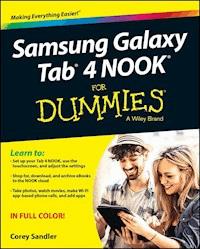
Your guide to the new Samsung Galaxy Tab 4 NOOK
Samsung Galaxy Tab 4 NOOK For Dummies provides you with all the information you need to get the most out of your NOOK tablet. You'll quickly get up to speed on the basics, like using the touchscreen technology, setting up wireless access, and performing software updates. Then you'll get introduced to the fun stuff: downloading and shopping for e-books, using the built-in web browser, streaming videos from Netflix, Hulu, and other sources, and creating cool slideshows of photos from your digital camera. If that's not enough to pique your interest, you'll find out how to use the Android-based applications that come with the Samsung Galaxy Tab 4 NOOK, interact with the device using the built-in microphone, create your own e-books, archive your e-books, and so much more!
Bringing together the absolute best of two worlds, the Samsung Galaxy Tab 4 Nook is a co-branded e-reader tablet produced by Samsung and Barnes & Noble. By teaming up with a thriving hardware brand, the creators of the NOOK have been able to focus on developing a more competitive device, giving you a better-performing and sleeker user-experience. With the help of this book, you'll get expert guidance on discovering everything this cool new tablet has to offer.
- Four-color design brings the information to life
- Offers clear instruction on navigating the touchscreen, browsing the web, and staying connected with email
- Covers the latest books, apps, magazines, and more
- Provides step-by-step guidance on streaming video, playing music, and reading e-books
If you've just purchased this awesome new device and want to find out everything it can do for you, you'll find Samsung Galaxy Tab 4 NOOK For Dummies out of this world.
Das E-Book können Sie in Legimi-Apps oder einer beliebigen App lesen, die das folgende Format unterstützen:
Seitenzahl: 309
Veröffentlichungsjahr: 2014
Ähnliche

















Samsung Galaxy Tab® 4 NOOK® For Dummies®
Published by: John Wiley & Sons, Inc., 111 River Street, Hoboken, NJ 07030-5774, www.wiley.com
Copyright © 2015 by John Wiley & Sons, Inc., Hoboken, New Jersey
Published simultaneously in Canada
No part of this publication may be reproduced, stored in a retrieval system or transmitted in any form or by any means, electronic, mechanical, photocopying, recording, scanning or otherwise, except as permitted under Sections 107 or 108 of the 1976 United States Copyright Act, without the prior written permission of the Publisher. Requests to the Publisher for permission should be addressed to the Permissions Department, John Wiley & Sons, Inc., 111 River Street, Hoboken, NJ 07030, (201) 748-6011, fax (201) 748-6008, or online at http://www.wiley.com/go/permissions.
Trademarks: Wiley, For Dummies, the Dummies Man logo, Dummies.com, Making Everything Easier, and related trade dress are trademarks or registered trademarks of John Wiley & Sons, Inc. and may not be used without written permission. Samsung Galaxy Tab is a registered trademark of Samsung Electronics Co., Ltd. NOOK is a registered trademark of Barnesandnoble.com, LLC. All other trademarks are the property of their respective owners. John Wiley & Sons, Inc. is not associated with any product or vendor mentioned in this book.
LIMIT OF LIABILITY/DISCLAIMER OF WARRANTY: THE PUBLISHER AND THE AUTHOR MAKE NO REPRESENTATIONS OR WARRANTIES WITH RESPECT TO THE ACCURACY OR COMPLETENESS OF THE CONTENTS OF THIS WORK AND SPECIFICALLY DISCLAIM ALL WARRANTIES, INCLUDING WITHOUT LIMITATION WARRANTIES OF FITNESS FOR A PARTICULAR PURPOSE. NO WARRANTY MAY BE CREATED OR EXTENDED BY SALES OR PROMOTIONAL MATERIALS. THE ADVICE AND STRATEGIES CONTAINED HEREIN MAY NOT BE SUITABLE FOR EVERY SITUATION. THIS WORK IS SOLD WITH THE UNDERSTANDING THAT THE PUBLISHER IS NOT ENGAGED IN RENDERING LEGAL, ACCOUNTING, OR OTHER PROFESSIONAL SERVICES. IF PROFESSIONAL ASSISTANCE IS REQUIRED, THE SERVICES OF A COMPETENT PROFESSIONAL PERSON SHOULD BE SOUGHT. NEITHER THE PUBLISHER NOR THE AUTHOR SHALL BE LIABLE FOR DAMAGES ARISING HEREFROM. THE FACT THAT AN ORGANIZATION OR WEBSITE IS REFERRED TO IN THIS WORK AS A CITATION AND/OR A POTENTIAL SOURCE OF FURTHER INFORMATION DOES NOT MEAN THAT THE AUTHOR OR THE PUBLISHER ENDORSES THE INFORMATION THE ORGANIZATION OR WEBSITE MAY PROVIDE OR RECOMMENDATIONS IT MAY MAKE. FURTHER, READERS SHOULD BE AWARE THAT INTERNET WEBSITES LISTED IN THIS WORK MAY HAVE CHANGED OR DISAPPEARED BETWEEN WHEN THIS WORK WAS WRITTEN AND WHEN IT IS READ.
For general information on our other products and services, please contact our Customer Care Department within the U.S. at 877-762-2974, outside the U.S. at 317-572-3993, or fax 317-572-4002. For technical support, please visit www.wiley.com/techsupport.
Wiley publishes in a variety of print and electronic formats and by print-on-demand. Some material included with standard print versions of this book may not be included in e-books or in print-on-demand. If this book refers to media such as a CD or DVD that is not included in the version you purchased, you may download this material at http://booksupport.wiley.com. For more information about Wiley products, visit www.wiley.com.
Library of Congress Control Number: 2014948514
ISBN 978-1-119-00834-7 (pbk); ISBN 978-1-119-00836-1 (ePub); ISBN 978-1-119-00835-4 (ePDF)
Manufactured in the United States of America
10 9 8 7 6 5 4 3 2 1
Samsung Galaxy Tab® 4 NOOK® For Dummies®
Visit www.dummies.com/cheatsheet/samsunggalaxytab4nook to view this book's cheat sheet.
Table of Contents
Introduction
About This Book
Foolish Assumptions
Icons Used in This Book
Beyond the Book
Where to Go from Here
Part I: Getting Started with Samsung Galaxy Tab 4 NOOK
Chapter 1: The First NOOK in the Galaxy
Cozying Up to Your NOOK
Charging the Battery
Inspecting the Gadget
The front
The left side
The right side
The top side
The bottom
The back
Turning On, Turning Off, Going to Sleep
Powering on
Powering off
Going to sleep
Setting the sleep timeout
Jetting into Airplane Mode
Putting More on a microSD Card
Installing a microSDHC card
Mounting a microSDHC card
Unmounting and ejecting a microSDHC card
Formatting a microSDHC card
Chapter 2: Laying Hands on the Screen
Keying In on the Basics
Gesturing at Your Touchscreen
Starting at Home Base
Wallpapering your Home screen
Crawl space: Bottom of the Home screen
One step up from the bottom: Shortcuts
Midscreen: A word from our sponsors
The Google search bar
The notification bar and panel
The status bar
Grabbing a Quick Menu
Flying the Tab 4 NOOK Wayback Machine
Opening Lots of Windows
Chapter 3: Typing by Tapping, Talking, Swiping
Finding the Keyboard to the Kingdom
Adjusting the Keyboard
Input Languages
Smart Typing
Keyboard Swipe
Key-Tap Feedback
Changing Keyboard Input
Moving the keyboard
Improving your penmanship
Talking it out
Chapter 4: Getting Set to Go
Being a First Timer
Setting up a Google account
The first sign-on
Firing Up the Wi-Fi
Four links in the Wi-Fi chain
Hunting for Wi-Fi
Enabling Wi-Fi on the tablet
Adding a Wi-Fi network manually
Switching Wi-Fi systems
Reconnecting to a Wi-Fi system after setup
Signing Up for Accounts and Other Preliminaries
Click here; read the fine print later
It’s a Google world after all
Signing up for a NOOK account
Who knows where the time goes?
Locking Things Down
Preparing the tablet for lockdown
Changing the lock
Customizing your unlock scheme
Encrypting Your Data
Encrypting
Decrypting
Doing First Things Last: Accessibility Options
Accessibility
Services
Vision
Hearing
Dexterity
Interaction Control
Part II: Communicating Across the Galaxy
Chapter 5: Making Further Connections
Working without a Wire
Advanced Wi-Fi settings
Wi-Fi Direct
King Bluetooth Lives
Understanding Bluetooth
Bluetooth limitations
Getting Physical: USB and Memory Cards
Making the USB connection
It’s in the cards
Sending Air Mail
Sending yourself email
Using the cloud
Chapter 6: Putting in Your Contacts
Roaming Friends and Countrymen
Everything but the Kitchen Sync
Creating a contact by hand
Importing contacts from a computer
Importing contacts through Gmail
Grouping and Degrouping Contacts
Cooking up multiple group contacts
The fifth Beatle: Removing group members
Renaming a group
Deleting a group
Playing Favorites with Contacts
Marking a contact as a favorite
Viewing contacts marked as favorites
Removing a favorite from a contact
Managing Your Contacts
Changing the order
Editing or deleting a contact
Sending Email from Your Contacts
Linking Duplicate Contacts
Chapter 7: We’ve All Got Email
Hey Mister Postman
Writing Home about the Email App
Setting up an email account, automatic style
Setting up an email account, manual style
Customizing Your General Email Settings
Display options
Composing and sending options
Customizing settings for specific accounts
Open It Up!
Starting an Email from Other Apps
Getting Attached
Chapter 8: Using the Galaxy to Go World Wide (Web)
Looking from the NOOK
Speaking Your Mind with Voice Search
Using a Search Engine Other Than Chrome
Skipping the Browser to Search the Web
Sharing Is Caring
Signing in to Chrome
Protecting Your Privacy
Being a revisionist: Clearing your history
Delving deeper into privacy settings
Adjusting content settings
Going incognito in Chrome
Customizing Chrome Sync settings
Encrypting your Google account data
Turning on bandwidth management
Preloading web pages
Leaving Bread Crumbs: Bookmarking
Editing or deleting a bookmark
Adding a web page to your Home screen
Popping open multiple browser tabs
Part III: Reading Electronics
Chapter 9: Looking into the NOOK Library
Rooting Around in Your NOOK Store
Finding a specific book
Buying a book
Buying magazines or newspapers
Subscribing to catalogs
Paying the bill
Archiving to the NOOK cloud
Archiving an item to the NOOK cloud
Performing a sync or refresh
Can I Borrow That?
Being Your Own Librarian
Reading covers
Building your own shelves
Opening and Reading an eBook
Turning the pages
Jumping to a page
Using tricky navigation
Using reading tools
Dog-earing a page
Designing Your Own eBook
Reading Brainy or Trashy: Flipping Through a Magazine
Page view
Article view
Smell of the Ink: Reading a Newspaper
Getting Kids into the Act: Picture Books
Kids’ books are special
Choosing a reading style
Geeking Out about NOOK Comic Books
Chapter 10: Finding Other eBook Sources
Snooping around the Google Play Store
Taking the Kindle Store for a Spin
Going in to OverDrive at the Library
Part IV: Throwing in the Kitchen Sink: Camera, Video, and Music
Chapter 11: Snapping Pictures
Putting Down a Book to Take a Picture
Taking a Camera Tour
Tap-Clicking with a Tablet
Zooming in for a Close-up
Changing the Resolution
Setting Up Picture Preferences
Choosing camera modes and filters
Customizing filenames and storage
Making Movies
Recording video
Zooming in or out
Chapter 12: Getting into the Gallery
Visiting Your Picture Gallery
Viewing images
Zooming in or out
Deleting images
Putting All Your Pictures in One Basket
Sorting Your Pictures
Tagging Your Buddies
Turning on Tag Buddy
Tagging photos in the Gallery
Putting Your Images to Work
Sharing Your Images
Shearing Before Sharing: Trimming a Video
Chapter 13: Singing and Dancing in the Galaxy
Starting with the Hardware
Speaking of Which . . .
Jamming Out on Your Tab 4 NOOK
Choosing what tabs to see
Pressing Play
Deleting a song
Creating (smart) playlists
Making the Music Player all Yours
Showing Your Own Movies
Loading a video
Managing your videos
Part V: The Part of Tens
Chapter 14: Ten Apps to Take Advantage Of
An Alarming Prospect
Planning Your Day with the Calendar
Get Offa My Clouds
Checking Your Latitude
Have the Tuna Eat the Mayo: Taking a Memo
Popcorn, Soda Pop, and Netflix
Editing Photos Without the Shop
Editing with the Photos app
Sharing and archiving
Talking to Your Tab 4 NOOK
My Tube or YouTube
Using Your Most Expensive Calculator
Chapter 15: Ten Steps to Maintaining the Galaxy
Treat the Battery with Respect
Protect the Charger, Too
Don’t Let the Galaxy Fall to Earth
Safeguard the Connector
Don’t Bring Your Own Beverage
Keep a Clean Screen
Don’t Point at the Display
Watch for the Misplaced Key
Clean Up the Memory
Back Up Your Data
Chapter 16: Ten Galaxy Tips and Tricks
Your Tab 4 NOOK Won’t Turn On
Your Tab 4 NOOK Won’t Turn Off
Your Tablet Is a Power Vampire
Extend Your Warranty
Find the Hidden Task Manager
Visit Android System Recovery
Troubleshoot Apps
Turning On Safe Mode
Turning Off Safe Mode
Troubleshooting apps
Do a Soft Reset
Go to Super-Secret Developer Mode
Perform a Factory Reset
About the Author
Cheat Sheet
More Dummies Products
Guide
Table of Contents
Begin Reading
Pages
1
2
3
4
5
6
7
8
9
10
11
12
13
14
15
16
17
18
19
20
21
22
23
25
26
27
28
29
30
31
32
33
34
35
36
37
38
39
40
41
43
44
45
46
47
48
49
50
51
52
53
55
56
57
58
59
60
61
62
63
64
65
66
67
68
69
70
71
72
73
74
75
77
78
79
80
81
82
83
84
85
86
87
88
89
90
91
93
94
95
96
97
98
99
100
101
102
103
104
105
106
107
109
110
111
112
113
114
115
116
117
118
119
120
121
123
124
125
126
127
128
129
130
131
132
133
134
135
136
137
138
139
140
141
142
143
144
145
146
147
148
149
150
151
152
153
154
155
156
157
158
159
160
161
162
163
164
165
166
167
168
169
170
171
172
173
174
175
176
177
178
179
180
181
182
183
184
185
186
187
189
190
191
192
193
194
195
196
197
198
199
200
201
202
203
204
205
206
207
208
209
210
211
212
213
214
215
216
217
218
219
221
222
223
224
225
226
227
228
229
230
231
232
233
234
235
236
237
238
239
240
241
242
243
244
245
246
247
248
249
251
252
253
254
255
256
269
270
Introduction
Nearly everything you can do on a desktop or laptop computer can now be accomplished on a small, battery-operated handheld rectangle of plastic and glass. The best way to think of a tablet like the Samsung Galaxy Tab 4 NOOK is as a super-sized smartphone, without the cellular phone connection (and monthly bill).
The tablet isn’t the most advanced model on the market — many others have sharper screens or better cameras or other fancy doodads — but for its purpose as an eBook reader and a portal on the Internet — the Samsung Galaxy Tab 4 NOOK is a very good option at a relatively low price.
About This Book
As good as the new NOOK tablet is, they have continued a long tradition in computer manufacturing: The skimpy little instruction manual that comes with it is laughably inadequate and the online booklet isn’t much better. Myself, I’m not complaining: I’ve made a nice living for a long time filling in the gaping blanks between. Herewith, then, the keys to the Galaxy.
You can read this book from front to back, if you wish. Or you can jump to a section that deals with whatever questions you have. Each of the parts deal with a particular task or function, and each chapter covers a specific topic.
My goal, as always, is to present news you can use and skip over as much unnecessary bafflegab as possible. When I feel it necessary to go a bit into technological detail, you’ll find those sections nicely fenced off; enter if you want, or keep the barn door latched. We’re in this together, and I’ve done my best to make the book easy to read and understand, and even entertaining in places.
The full name of the device we’re gathered to explore is the Samsung Galaxy Tab 4 NOOK. It’s very much a member of the Samsung Galaxy Tab family, in its fourth generation. But that last word, NOOK, means that some important parts of the operating system and reading apps are different from its cousins.
I’ll call the tablet by its first name when it seems appropriate, and in other places I call it the Tab 4 NOOK. And in places where the hardware is not the issue, I might even just call it the NOOK or the tablet. We’ll see, together.
Like other books in the constantly expanding For Dummies universe, you’ll be directed to do things by numbered steps. Sometimes you’ll be advised to choose a menu item, and then to tap a command. It’s all quite touchy-feely, I promise.
Foolish Assumptions
The first and most important assumption I make for all of my books of this sort is this: You, dear reader, are an intelligent, capable, and curious person who wants to know how to use what seems at first glance to be a very complex technical device.
Put another way, you’re not looking to build a Samsung Galaxy Tab 4 NOOK from spare parts recovered from your kitchen junk drawer, and you have no interest whatsoever in writing your own software to make the hardware sing and dance.
And the second assumption is this: You already own, or are seriously considering buying, a Tab 4 NOOK.
And because we’re more than halfway through the first decade of the tablet computer, I suspect that you have seen a tablet and probably made at least a few swipes at one. Because of this, I skip the “Isn’t it amazing?” part and get right to the point: They keep getting better and better.
I do believe that there are things that any reader would find interesting and helpful in this book, but to be fully honest about it, this book is pretty tightly focused on just that one model of tablet.
Although it isn’t essential, I also assume that you have your own desktop or laptop computer or have access to one. It doesn’t matter whether it be a Windows or Macintosh design. And I also have to assume that you have a Wi-Fi wireless computer network you can use at home or at work or in a public library or other place you can use; the Tab 4 NOOK needs a Wi-Fi connection to allow you to fill it with books and other media and to reach the Internet.
Another assumption is that you’ve heard this relatively new word many, many times: app. It is short for application, which is another word for a software program. On a desktop or laptop computer, software has become larger and more complex year by year. But in the reduced world of the tablet, there’s a different concept: small and specialized.
Icons Used in This Book
This icon is there to tell you when danger — or at least serious problems — lie ahead. If you don’t heed this information, you might damage your tablet or yourself or you might lose really important information.
This icon is there to remind you of something. This information tells you how to do something you’ll often need.
This icon tells you of useful tips and suggestions to get the most from your new tablet. This information might save you time or money. Or better — both.
You probably don’t need to know this stuff, but aren’t you a little bit curious? Go ahead, try a few. There are no pop quizzes in this book.
Beyond the Book
I’ve written a lot of extra content that you won’t find in this book. Links to the articles are on the parts pages. Go online to find the following:
Make a profile for each person who uses your tablet atwww.dummies.com/extras/samsunggalaxytabs
If you can’t automatically connect to an established email server, try Samsung’s recommendations atwww.dummies.com/extras/samsunggalaxytabs
Get the best pictures possible from the camera with help fromwww.dummies.com/extras/samsunggalaxytabs
Take certain points into consideration before buying an appwww.dummies.com/extras/samsunggalaxytabs
Find out about ten fun or helpful — and free — apps atwww.dummies.com/extras/samsunggalaxytabs
The Cheat Sheet for this book is atwww.dummies.com/cheatsheet/samsunggalaxytabs
Here you’ll find instructions for taking a panoramic picture, finding images online, make a slide show, using SoundAlive, and replacing regular alarm sounds with a song.
Updates to this book, if we have any, are atwww.dummies.com/extras/samsunggalaxytabs
Where to Go from Here
You go from here to the first part and the sections that lie behind. You could start by reading the copyright and trademark page, or read the names of all of the fine people at Wiley who helped transform my keyboard taps into the book you are holding. But perhaps you’d like to save that for an epilogue. Go forth and explore Samsung Galaxy Tab 4 NOOK and the device itself; they’re meant for each other.
Part I
Getting Started with Samsung Galaxy Tab 4 NOOK
Visit www.dummies.com for more great Dummies content online.
In this part …
Explore the Tab 4 NOOK parts.Turn it on and set it up it for first use.Read about how to use the touchscreen.Tap and talk to the keyboard.Chapter 1
The First NOOK in the Galaxy
In This Chapter
Figuring out how to turn it on and off
Going into Airplane Mode
Putting memory on a microSD card
You’ve got a small box that holds a thin, flat piece of plastic and circuitry that has more speed, more intelligence, and more magic than an entire field of mainframes. It can hold and display nearly all of the world’s books, magazines, and newspapers. It can sing, show videos, take pictures, make movies, determine its location from an orbiting satellite, connect to the Internet, and send and receive emails and messages.
Just about the only thing the Samsung Galaxy Tab 4 NOOK lacks is a decent instruction manual. If I might be so bold, I’m here to help.
Cozying Up to Your NOOK
To download books (or anything else) or to browse the web with a Tab 4 NOOK, you need access to a Wi-Fi system with an active connection to the Internet. See Figure 1-1.
The small, unpretentious brown cardboard box is about the size of a thick paperback book (remember those?) There’s not all that much within: the Galaxy Tab 4 NOOK and some goodies beneath it:
A USB cable: This cable carries data to and from your tablet when you connect the tablet, via the USB cable, to a laptop or personal computer. The USB cable also lets you recharge the internal battery.A battery charger: When you’re ready, plug it into an AC wall socket and attach the larger connector of the USB cable to it. Then plug the smaller connector to the Galaxy Tab 4 NOOK. See Figure 1-2.Photo courtesy of Barnes & Noble, Inc.
Figure 1-1:Wi-Fi signal strength, battery level, and time are in the upper right. The icon in the lower right displays apps.
Figure 1-2:The AC adapter plugs into a wall socket; the larger end of the USB cable attaches to the charger.
Keep the box, along with the warranty information and your receipt. If you need to return the tablet to the seller, send it in for service, or ship it to someone else, the original box is ready to serve and protect.
Sooner or later, you should remove the protective plastic sheet that sits atop the LCD screen. It works well to protect the device in transit, but it will interfere with your use of the touchscreen and collect dirt. Put it back in the box as a memento.
Nothing like Moses’s
What’s a tablet? Way back in ancient times, about 2007 or so, there were laptop computers and the first electronic reading devices, which were single-purpose handheld devices that used something called eInk to draw text on a nearly white background. A few years later the two devices came together in the first successful tablets, which were thin, flat multipurpose computers that used touchscreens instead of keyboards and memory chips instead of spinning hard drives to hold on to data. In 2010, Apple Computer jumped way out front of the pack with the first iPad, and everyone else—Samsung included—has been playing catchup ever since.
Charging the Battery
The Samsung Galaxy Tab 4 NOOK comes with a built-in (and non-removable) rechargeable battery. The battery probably still has some power in it from testing at the factory (mine arrived about half full), but please resist trying to use it immediately.
There are three reasons why you want to fully charge the battery before first use:
You want to be assured that the battery, the charger, and the tablet itself are each working properly.It may help the battery’s longevity. That is, if you properly condition it with a full charge before using it first. See Figure 1-3.After the battery is fully charged for the first time, let it drain down to nearly empty, then recharge it fully; do this for the first three or four cycles.
When you first turn on the tablet, you have to register the device with all of its various parts makers. You have to sign in to a Wi-Fi system with an active Internet connection and sign in with Samsung, Google, a few apps makers, and Barnes & Noble; be sure to install any software updates.Figure 1-3: The tablet beeps and warns you when the battery level drops to 15 percent. Don’t let it drain to 0.
And so, here’s how to give your tablet its first full charge:
Attach the larger end of the USB cable to the charger.Pay attention to the black positioning bar inside the charger and its corresponding bar inside the cable. Don’t force the two positioning bars against each other; the cable only fits one way.
Attach the USB cable to the Samsung Galaxy Tab 4 NOOK.The smaller connector on the cable connects to the port on the bottom of the tablet. The side of the cable end that has the three-forked USB symbol will be facing you as you’re looking at the front of the tablet. Again, don’t force the plug in the wrong way. See Figure 1-4.
Plug the charger into a wall outlet. Go for a walk, mow the lawn, read a book, bake a cake. For the first three or four times you use your tablet, I recommend draining the battery to near-empty and then fully recharging it.Figure 1-4: The smaller end of the USB cable plugs into the bottom of tablet.
When you plug the charger into a powered-off tablet, the screen will briefly show a battery-like object. You can see roughly how full (or empty) the device is. The drawing disappears after about 15 seconds, and after that there’s no way to know the device is being charged: no indicator lights. You’ll just have to school yourself to recharge the battery for six or eight hours if it nears empty.
You can recharge your Tab 4 NOOK by connecting the USB cable to a USB port on a PC, although this is a very slow process that takes as many as 10 hours for a full refill. Consider the USB charging option as an emergency backup only.
Inspecting the Gadget
Now for a physical examination. No need for a stethoscope or rubber gloves. Take your Tab 4 NOOK and place it on a desk or table in front of you. See Figure 1-5 for a guided tour of the front of the Samsung Galaxy Tab 4 NOOK. All of the following descriptions are based on looking at the tablet lying on its back, with its top facing away from you and the bottom closest to you: very much like the way you would look at a page from a book.
The front
The front is home to several items of note, one strictly for advertising purposes:
A Samsung logo at the top of the frontThe front-facing camera lensThe LCD color touchscreenThree keys at the bottom are shown in Figure 1-6. They are, from left to right: Recent. Touch and hold it to see apps you’ve used recently.Home. Wherever you are on your tablet, press this key to go to the Home screen.Back. Touch to return to the previous screen or option.Figure 1-5:A map to the external parts on the front of the Samsung Galaxy Tab 4 NOOK.
Figure 1-6:The keys just below the LCD screen are Recent, Home, and Back.
The left side
Move along. There’s nothing to see here, folks. Really. Nothing. The left side of the Galaxy Tab 4 NOOK is so elegantly empty it should go on display at a museum of contemporary art.
The right side
The right side is where you’ll find several essential keys, a blaster, a pinhole, and a slot. Yes, I said blaster. From top to bottom on the right side, they are:
A tiny hole behind which hides a microphone. It picks up sound for videos, video conferences, and your voice for Internet (not cellular) phone calls. Make sure neither the protective case you use, nor your hand, blocks the opening. The Power/Lock key. Press and hold it for a second or two to turn your Tab 4 NOOK on or off. Press it briefly and release to lock the tablet or wake it from sleep.The Volume key. When the Home screen is displayed, press one end or the other of this rocket key to adjust the volume. When you’re playing music, any adjustments you make here affect only music volume. Either way, you know how they work, I’m sure: + means louder and – means quieter, all the way down to mute.The Infrared Blaster. Sorry to have to tell you, but this isn’t the latest version of Han Solo’s particle beam energy weapon; I’d love to have one to render harmless drivers who cut me off on the expressway. What you have here is an infrared beam that can do things like control your flat-screen TV.Memory card slot. This tiny opening can accept a little sliver of microSD or microSDHC card that holds information in addition to your tablet’s built-in memory. And though 32GB is a whole lot of room, if you fill up one card, you can simply remove it and install a new card.The top side
Nice and simple, and logically designed: there is but one thing to see here: a headset jack. Here’s where you stick a 3.5mm connector for earbuds or connect to an external sound system.
The headset jack works well with earbuds or headphones, but you can also output audio from your Tab 4 NOOK to stereo systems with advanced controls and large speakers. For example, my car has a 3.5mm input jack for its radio; I bought a cable with a 3.5mm plug on each end (called a male-to-male cable) to use my NOOK as a music player.
The bottom
There’s just one thing to note down here. Although it’s lonely, it’s actually a very important, multipurpose portal: the microUSB port. Here’s where you attach the USB cable that came with your tablet. That cable, in turn, attaches to the AC adapter, allowing you to recharge the internal battery. You can disconnect that same cable from the AC adapter, then connect the cable to a PC or laptop to transfer or sync music or files.
The back
The tablet’s back gives the tablet something to hold up the front. To see it, turn your tablet over so that the front is facing down. Although you don’t have to baby your device, for safety’s sake put a cloth or a magazine under the screen.
Figure 1-7 points out the two items of note are on the back (plus some more advertising and a bit of legalese). Here’s what you’ll find:
The rear-facing camera. This is your tablet’s main camera, for taking photos or videos while you watch the LCD on the other side. In the lower-right corner is a grill that covers the speaker. If you’re going to listen closely to music or speech, don’t lay the tablet flat on its back; to get the best sound, you have to make sure the speaker isn’t covered.Figure 1-7:The back of the tablet has the rear-facing camera and a tiny speaker.
Turning On, Turning Off, Going to Sleep
The high-tech battery in your Tab 4 NOOK can hold its charge for several weeks when it’s young and fresh and the tablet is off. Once you turn it on, the battery should provide power for somewhere between six and ten hours.
You can save battery power by reducing the brightness of the screen and by turning off radios when you don’t need them.
Powering on
I imagine you’ve figured out this is the way to turn on your Samsung Galaxy Tab 4 NOOK: Press and hold the key for two seconds (one Mississippi, two Mississippi).
If this is the first time you’ve given life to your tablet, you’ll immediately start setup, which may take anywhere from 10 to 30 minutes, depending on how much detail you want to get into.
On the other hand, if you’ve already set up the device, turning it on brings you to either of two places:
The Home screen (if you haven’t required all users to enter a protective pattern, password, or PIN)The Lock screen (where have to enter the proper pattern, password, or PIN)I recommend using the Lock screen and requiring users to enter a code. You’ll store personal data, photos, and logins that may keep records of your credit card or banking information.
Powering off
Press the same switch for about two seconds while the device is running. A message asks if you really, really want to do that; tap Power Off to confirm.
Off is off. No alarms will ring, no email will be collected, no music will play.
Why would you want to completely turn off the NOOK tablet?
You’re on an airplane preparing for takeoff or landing and the flight attendant is glaring at you.You’re in a hospital room with sensitive medical equipment (and doctors).You want to put your tablet on the shelf for a month while you sit down with a yellow legal pad to write your own Great American (or Canadian) Novel. Your battery is very low and you want to fully recharge it as quickly as possible. Attach the microUSB connector to the tablet and the full-size USB connector to an AC adapter that’s plugged into the wall.Going to sleep
The third option is to put your tablet to sleep, which in electronic terms is not the same thing we mean when Fido is headed to the vet for the last time. Putting a tablet to sleep means that the LCD screen and most of its internal circuitry are turned off, and just a small amount of power is provided to the system — enough to allow the device to return from the vet, I mean from sleep, at the push of a button. If you put a fully charged NOOK into Sleep mode, it should hold its charge for several days.
Here’s how to put the NOOK tablet to sleep: Briefly touch the Power/Lock key. Don’t hold it and count river names.
While the tablet’s asleep, the following functions are still awake:
Email will still be received, if the Wi-Fi radio is turned on. You can turn off the Wi-Fi from Settings, or put the tablet into Airplane Mode to reduce power consumption.If your tablet is playing music, that will continue.Any alarms or timers you’ve set will remain active. (I discuss alarms in Chapter 14.)To wake up a sleeping NOOK, briefly press the Power/Lock key. If you have required entry of a pattern, password, or PIN, you’ll go to the unlock screen; otherwise, the tablet will go directly to the Home screen or the last page you were consulting before its hiatus.
Setting the sleep timeout
Your tablet will go to sleep all by itself if you don’t do anything on it for a while. Why would you want this to happen? It’ll save battery power and serve as a level of protection if someone lays paws on your NOOK without your permission.
Here’s how to customize the sleep control:
Swipe down from the top of the Home screen, and tap the Settings (gear) icon.Choose the Device Panel.




