


16,99 €
Mehr erfahren.
- Herausgeber: John Wiley & Sons
- Kategorie: Wissenschaft und neue Technologien
- Sprache: Englisch
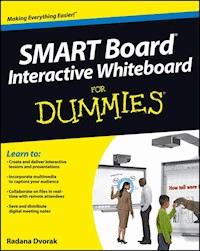
The easy-to-use guide to SMART Board® interactive whiteboards SMART Board interactive whiteboards--which combine the functionality of a computer with the simplicity of a whiteboard--are rapidly becoming fixtures in classrooms, boardrooms, and lecture halls everywhere. While these high tech devices are transforming the ways we teach and learn, getting the most out of them can be down right intimidating. SMART Board® Interactive Whiteboard For Dummies is here to help, explaining everything users need to know to make the most of their technology. Covering topics including how to calibrate a SMART Board interactive whiteboard using a computer, navigating software options, creating interactive presentations and lesson plans, incorporating sound and animation, managing content, and using digital ink with the touch of a finger, the book is designed to get your interactive whiteboard up and running in no time. * Introduces and explains SMART Board interactive whiteboards, computer-based white boards that are becoming widespread in classrooms and boardrooms around the world * Covers essential topics ranging from setting up a SMART Board interactive whiteboards to managing content * Provides the tools SMART Board interactive whiteboard users need to make the most of these new devices The go-to guide for anyone working with SMART Board interactive whiteboards, SMART® Board Interactive Whiteboard For Dummies is designed to make using the chalkboards of the twenty-first century a cinch.
Sie lesen das E-Book in den Legimi-Apps auf:
Seitenzahl: 331
Veröffentlichungsjahr: 2012
Ähnliche


















SMART Board® Interactive Whiteboard For Dummies®
by Radana Dvorak
SMART Board® Interactive Whiteboard For Dummies®
Published by John Wiley & Sons Canada, Ltd.6045 Freemont Blvd. Mississauga, ON L5R 4J3 www.wiley.com
Copyright © 2012 by John Wiley & Sons Canada, Ltd.
Published by John Wiley & Sons Canada, Ltd.
All rights reserved. No part of this book, including interior design, cover design, and icons, may be reproduced or transmitted in any form, by any means (electronic, photocopying, recording, or otherwise) without the prior written permission of the Publisher. Requests to the Publisher for permission should be addressed to the Permissions Department, John Wiley & Sons Canada, Ltd., 6045 Freemont Blvd., Mississauga, ON L5R 4J3, or online at http://www.wiley.com/go/permissions. For authorization to photocopy items for corporate, personal, or educational use, please contact in writing The Canadian Copyright Licensing Agency (Access Copyright). For more information, visit www.accesscopyright.ca or call toll free, 1-800-893-5777.
Trademarks: Wiley, the Wiley logo, For Dummies, the Dummies Man logo, A Reference for the Rest of Us!, The Dummies Way, Dummies Daily, The Fun and Easy Way, Dummies.com, Making Everything Easier, and related trade dress are trademarks or registered trademarks of John Wiley & Sons, Inc., and/or its affiliates in the United States and other countries, and may not be used without written permission. SMART Board, SMART Notebook, SMART Meeting Pro, Bridgit, SMART Exchange, SMART GoWire, SMART Ideas, Freestorm, SMART Classroom Suite, SMART Document Camera, SMART Response, SMART Slate, DViT, SMART Ink, SMART Sync, smarttech, the SMART logo, and all SMART taglines are trademarks or registered trademarks of SMART Technologies ULC in the U.S. and/or other countries.All other trademarks are the property of their respective owners. John Wiley & Sons Canada, Ltd., is not associated with any product or vendor mentioned in this book.
Limit of Liability/Disclaimer of Warranty: The publisher and the author make no representations or warranties with respect to the accuracy or completeness of the contents of this work and specifically disclaim all warranties, including without limitation warranties of fitness for a particular purpose. No warranty may be created or extended by sales or promotional materials. The advice and strategies contained herein may not be suitable for every situation. This work is sold with the understanding that the publisher is not engaged in rendering legal, accounting, or other professional services. If professional assistance is required, the services of a competent professional person should be sought. Neither the publisher nor the author shall be liable for damages arising herefrom. The fact that an organization or Website is referred to in this work as a citation and/or a potential source of further information does not mean that the author or the publisher endorses the information the organization or Website may provide or recommendations it may make. Further, readers should be aware that Internet Websites listed in this work may have changed or disappeared between when this work was written and when it is read.
For general information on John Wiley & Sons Canada, Ltd., including all books published by Wiley Publishing, Inc., please call our warehouse, Tel 1-800-567-4797. For reseller information, including discounts and premium sales, please call our sales department, Tel 416-646-7992. For press review copies, author interviews, or other publicity information, please contact our marketing department, Tel 416-646-4584, Fax 416-236-4448.
For technical support, please visit www.wiley.com/techsupport.
Wiley publishes in a variety of print and electronic formats and by print-on-demand. Some material included with standard print versions of this book may not be included in e-books or in print-on-demand. If this book refers to media such as a CD or DVD that is not included in the version you purchased, you may download this material at http://booksupport.wiley.com. For more information about Wiley products, visit www.wiley.com.
Library and Archives Canada Cataloguing in Publication Data
Dvorak, Radana
SMART Board interactive whiteboard for dummies / Radana Dvorak.
Includes index.
ISBN 978-1-11837-668-3
1. SMART Board (Computer file). 2. Interactive whiteboards.
3. Teaching—Aids and devices. I. Title.
LB1043.5.D86 2012 371.33’4 C2012-904784-8
ISBN 978-1-118-38742-9 (ebk); 978-1-118-38740-5 (ebk); 978-1-118-38741-2 (ebk)
Printed in the United States
1 2 3 4 5 RRD 16 15 14 13 12
About the Author
Radana Dvorak holds a PhD in computer science from the Queen Mary, University of London, a master’s degree in artificial intelligence from the University of Sussex, and a BA from the University of Michigan. Radana has been involved in eLearning since 1989, when her research in human computer interaction focused on computer-based training. She has been a researcher and a university instructor in the United Kingdom, the Cayman Islands, and the United States. She also has spent time in the software industry. Currently, she’s an associate dean at Saint Martin’s University in Lacey, Washington, where she heads an office charged with providing the general oversight and strategic planning for the improvement, growth, and development of Saint Martin’s online and off-campus learning opportunities. Her focus is combining her love for technology and education to help organizations with the transitions impacted by the enormous changes technology has brought to education.
Dedication
I dedicate this book to my children, Anna and James, and to my dear Paul, for encouraging and believing in me.
Author’s Acknowledgments
I want to go back a number of years and thank three professors: Professor Mike Sharples supervised my master’s thesis at the University of Sussex and was instrumental in developing my interest in human-computer interaction. Professor Peter Johnson accepted me into the computer science PhD program at Queen Mary, University of London. And Professor Stephen Summerville was instrumental in my research interests and supervised my PhD. His enthusiasm, dedication, and research interest, combined with the way he always made time for his students, made him a great role model. I’ll never forget his preaching that the best research questions are the simplest, those for which the question itself helps the learner to search for possible solutions and answers.
I want to thank the Saint Martin’s University community I have grown to adore. Special thanks to Dr. Joe Bessie, the provost, for bringing me to his team, and to Leon Chickering for embracing new technology and getting his MBA and BBA students excited to use the newly installed, state-of-the-art SMART Board interactive whiteboards. Dr. Joyce Westgard, the dean of the School of Education, was instrumental in making sure the university had the new technology for the graduate programs. The Instructional Technology Services team installed and looked after the interactive whiteboards for both the main campus and the extended campuses. Thanks also to all the faculty and students who have shared their experiences and provided feedback.
This book owes a great deal to Blair Munro at SMART Technologies. He came onto the project as a technical editor and created the screenshots and graphical components. Blair, I am indebted to you for your dedication and for promptly answering my e-mails filled with questions and scheduling phone calls before 7 a.m., so we could talk before the phones started ringing at work. Anam Ahmed, from John Wiley & Sons in Toronto, gave me the opportunity to write the book and was professional and supportive throughout the process. Elizabeth Kuball, the project editor, kept us on track and made sure the book was crafted in the For Dummies style.
Lastly, I am grateful for my children, my husband, and my parents for being so patient and understanding and putting up with my nocturnal working hours, stress, and abandonment while I was trying to meet tight deadlines.
Publisher’s Acknowledgments
We’re proud of this book; please send us your comments athttp://dummies.custhelp.com. For other comments, please contact our Customer Care Department within the U.S. at 877-762-2974, outside the U.S. at 317-572-3993, or fax 317-572-4002.
Some of the people who helped bring this book to market include the following:
Acquisitions and Editorial
Project Editor: Elizabeth Kuball
Acquiring Editor: Anam Ahmed
Copy Editor: Elizabeth Kuball
Technical Editor: Blair Munro and SMART Technologies
Production Editor: Lindsay Humphreys
Editorial Assistant: Kathy Deady
Cover and interior photos: © SMART Technologies
Cartoons: Rich Tennant (www.the5thwave.com)
Composition Services
Project Coordinator: Kristie Rees
Layout and Graphics: Jennifer Creasey, Corrie Niehaus
Proofreaders: Melissa Cossell, Rob Springer, Penny L. Stuart
Indexer: BIM Indexing & Proofreading Services
John Wiley & Sons Canada, Ltd.
Deborah Barton, Vice President and Director of Operations
Jennifer Smith, Publisher, Professional and Trade Division
Alison Maclean, Managing Editor, Professional & Trade Division
Publishing and Editorial for Consumer Dummies
Kathleen Nebenhaus, Vice President and Executive Publisher
Kristin Ferguson-Wagstaffe, Product Development Director
Ensley Eikenburg, Associate Publisher, Travel
Kelly Regan, Editorial Director, Travel
Publishing for Technology Dummies
Andy Cummings, Vice President and Publisher
Composition Services
Debbie Stailey, Director of Composition Services
SMART Board® Interactive Whiteboard For Dummies®
Visit www.dummies.com/cheatsheet/smartboardinteractivewhiteboard to view this book's cheat sheet.
Table of Contents
Introduction
Odds are, years ago, you used chalk and a blackboard. Then you progressed to a whiteboard. And now you’re moving to the SMART Board® interactive whiteboard. This book is the resource you need to make this transition a smooth one.
You’re probably familiar with the SMART Board interactive whiteboard. You may even have sat through a workshop and realized that you need more guidance, but you don’t want to spend hours reading online manuals or spend more time in training sessions. You just want a reference that you can keep by your side, something that’ll help you use the interactive whiteboard to accomplish your goals. You want a book that cuts through the vast amount of information out there and gets to the nuts and bolts you need.
Lesen Sie weiter in der vollständigen Ausgabe!
Lesen Sie weiter in der vollständigen Ausgabe!
Lesen Sie weiter in der vollständigen Ausgabe!
Lesen Sie weiter in der vollständigen Ausgabe!
Lesen Sie weiter in der vollständigen Ausgabe!
Lesen Sie weiter in der vollständigen Ausgabe!
Lesen Sie weiter in der vollständigen Ausgabe!
Lesen Sie weiter in der vollständigen Ausgabe!
Lesen Sie weiter in der vollständigen Ausgabe!
Lesen Sie weiter in der vollständigen Ausgabe!
Lesen Sie weiter in der vollständigen Ausgabe!
Lesen Sie weiter in der vollständigen Ausgabe!
Lesen Sie weiter in der vollständigen Ausgabe!
Lesen Sie weiter in der vollständigen Ausgabe!
Lesen Sie weiter in der vollständigen Ausgabe!
Lesen Sie weiter in der vollständigen Ausgabe!
Lesen Sie weiter in der vollständigen Ausgabe!
Lesen Sie weiter in der vollständigen Ausgabe!
Lesen Sie weiter in der vollständigen Ausgabe!
Lesen Sie weiter in der vollständigen Ausgabe!
Lesen Sie weiter in der vollständigen Ausgabe!
Lesen Sie weiter in der vollständigen Ausgabe!
Lesen Sie weiter in der vollständigen Ausgabe!
Lesen Sie weiter in der vollständigen Ausgabe!
Lesen Sie weiter in der vollständigen Ausgabe!
Lesen Sie weiter in der vollständigen Ausgabe!
Lesen Sie weiter in der vollständigen Ausgabe!
Lesen Sie weiter in der vollständigen Ausgabe!




