


27,99 €
Mehr erfahren.
- Herausgeber: John Wiley & Sons
- Kategorie: Wissenschaft und neue Technologien
- Sprache: Englisch
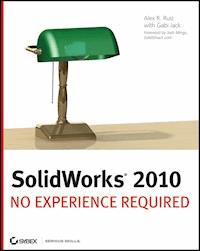
The only continuous, step-by-step tutorial for SolidWorks SolidWorks is a 3D CAD manufacturing software package that has been used to design everything from aerospace robotics to bicycles. This book teaches beginners to use SolidWorks through a step-by-step tutorial, letting you build, document, and present a project while you learn. Tools and functionality are explained in the context of professional, real-world tasks and workflows. You will learn the essential functions and gain the skills to use the software at once. * SolidWorks is a popular design software for manufacturing, and this book introduces it in the context of actually creating an object * Begins with an overview of SolidWorks conventions and the interface * Explains how to create models and drawings, create a revolved part and subassembly, and model parts within a subassembly * Explores modification capabilities and drawing and Bill of Materials templates * Moves on to top-level assembly models and drawings, Toolbox components and the Design Library, mates, export and printing capabilities, and creating renderings * Includes a glossary, a foreword from the SolidWorks product manager, and downloadable tutorial files SolidWorks 2010: No Experience Required quickly turns beginners into confident users of SolidWorks.
Sie lesen das E-Book in den Legimi-Apps auf:
Seitenzahl: 746
Veröffentlichungsjahr: 2010
Ähnliche



















Table of Contents
Cover
Title Page
Credits
Copyright
Publisher's Note
Dedication
Acknowledgments
About the Authors
Foreword
Introduction
What You Will Learn in This Book
Files on the Website
How to Contact the Author
Chapter 1: Becoming Familiar with SolidWorks
Start SolidWorks
Navigate the SolidWorks Interface
Use the CommandManager
Use and Customize the Menus
Use Toolbars
Use the Keyboard
Use the Mouse
Are You Experienced?
Chapter 2: Learning the Basics
Explore the Document Structure
Explore the Anatomy of a Part
Use Assemblies
Tell a Story with Drawings
Are You Experienced?
Chapter 3: Creating Your First Part
Save the Model
Set the Document Properties
Create a Base Extrusion
Add an Extruded Cut
Add Boss Extrusions
Core Out the Part
Add Fillets and Chamfers
Are You Experienced?
Chapter 4: Creating Your First Drawing
Create a Drawing from a Part
Add Views
Annotate the Drawing
Finalize the Drawing
Share the Drawing
Are You Experienced?
Chapter 5: Creating a Revolved Part
Create a Sketch for a Revolved Part
Draw Arcs
Dimension Sketches with Centerlines
Mirror a Sketch
Trim Sketch Entities
Revolve the Sketch
Add a Threaded Boss
Add a Revolve Cut
Finish the Shaft
If You Would Like More Practice…
Are You Experienced?
Chapter 6: Creating a Subassembly
Model a Washer
Model a Washer Cover
Create a Subassembly
Add Mates in Assemblies
Change the Appearance of Parts in an Assembly
If You Would Like More Practice...
Are You Experienced?
Chapter 7: Creating a Simple Assembly Drawing
Create the Drawing Views
Add a Bill of Materials
Add Balloons to the Drawing
Finish the Bill of Materials
If You Would Like More Practice…
Are You Experienced?
Chapter 8: Creating a More Complex Part Model
Create the Base Feature of the Shade Mount
Create a Swept Feature
Add a Swept Cut Feature
Model the Shade Retainer
Mirror Features
Finish the Model
Are You Experienced?
Chapter 9: Modeling Parts Within an Assembly
Create the Shade Subassembly
Create an In-Context Model
Finish the Shade Model
Finish the Shade Subassembly
Add Configurations to an Assembly
Are You Experienced?
Chapter 10: Making Modifications
Update Components in Isolation
Update the Drawing Document
Update Components Within Assemblies
Replace Components in Assemblies
If You Would Like More Practice…
Are You Experienced?
Chapter 11: Putting It All Together: Part 1
Create the Top-Level Assembly
Use the Design Library
Use the Width Mate
Use SmartMates to Mate Components
Finish the Appearance of the Assembly
If You Would Like More Practice...
Are You Experienced?
Chapter 12: Putting It All Together: Part 2
Understand Rigid and Flexible Subassemblies
Insert a Bill of Materials in an Assembly Document
Control the Display of the Assembly
Understand Selection Tools for Assemblies
Understand Assembly Visualization
Create an Exploded View of the Assembly
If You Would Like More Practice...
Are You Experienced?
Chapter 13: Making the Top-Level Assembly Drawing
Create an Exploded Assembly Drawing
Link to Assembly Bill of Materials
Update the Format of the BOM
Fill in the BOM
Are You Experienced?
Chapter 14: Sharing Your Documents with Others
Create PDFs of Drawings
Create Detached Drawings
Save Drawings in eDrawings Format
Export Drawings for Different Software Packages
Use Pack and Go to Send Files
Make Assembly Components Virtual
Create a Part from an Assembly
Open Files in eDrawings
If You Want More Practice…
Are You Experienced?
Chapter 15: Creating Your Own Templates: Part 1
Create Part and Assembly Templates
Create a Title Block for Parts and Assemblies
Create a Custom Property Tab
If You Would Like More Practice…
Are You Experienced?
Chapter 16: Creating Your Own Templates: Part 2
Set the Sheet Size and Drafting Standards
Start the Drawing Template
Create the Drawing Title Block
Learn Timesaving Features for the Drawing Template
Save and Share the Sheet Format and Template
Are You Experienced?
Chapter 17: Creating Simple, Stunning Renderings
Use the PhotoView 360 User Interface
Create Your First Rendering
Customize Your Rendering Even More
Create Renderings with Depth of Field
Are You Experienced?
Glossary
Index
Senior Acquisitions Editor: Willem Knibbe
Development Editor: Susan Herman
Technical Editor: Ricky Jordan
Production Editor: Angela Smith
Copy Editor: Kim Wimpsett
Editorial Manager: Pete Gaughan
Production Manager: Tim Tate
Vice President and Executive Group Publisher: Richard Swadley
Vice President and Publisher: Neil Edde
Book Designer: Franz Baumhackl
Compositor: James D. Kramer, Happenstance Type-O-Rama
Proofreader: Publication Services
Indexer: Ted Laux
Project Coordinator, Cover: Lynsey Stanford
Cover Designer: Ryan Sneed
Cover Image: Alex Ruiz
Copyright © 2010 by Wiley Publishing, Inc., Indianapolis, Indiana
Published simultaneously in Canada
ISBN: 978-0-470-50543-4
No part of this publication may be reproduced, stored in a retrieval system, or transmitted in any form or by any means, electronic, mechanical, photocopying, recording, scanning or otherwise, except as permitted under Sections 107 or 108 of the 1976 United States Copyright Act, without either the prior written permission of the Publisher, or authorization through payment of the appropriate per-copy fee to the Copyright Clearance Center, 222 Rosewood Drive, Danvers, MA 01923, (978) 750-8400, fax (978) 646-8600. Requests to the Publisher for permission should be addressed to the Permissions Department, John Wiley & Sons, Inc., 111 River Street, Hoboken, NJ 07030, (201) 748-6011, fax (201) 748-6008, or online at http://www.wiley.com/go/permissions.
Limit of Liability/Disclaimer of Warranty: The publisher and the author make no representations or warranties with respect to the accuracy or completeness of the contents of this work and specifically disclaim all warranties, including without limitation warranties of fitness for a particular purpose. No warranty may be created or extended by sales or promotional materials. The advice and strategies contained herein may not be suitable for every situation. This work is sold with the understanding that the publisher is not engaged in rendering legal, accounting, or other professional services. If professional assistance is required, the services of a competent professional person should be sought. Neither the publisher nor the author shall be liable for damages arising herefrom. The fact that an organization or Web site is referred to in this work as a citation and/or a potential source of further information does not mean that the author or the publisher endorses the information the organization or Web site may provide or recommendations it may make. Further, readers should be aware that Internet Web sites listed in this work may have changed or disappeared between when this work was written and when it is read.
For general information on our other products and services or to obtain technical support, please contact our Customer Care Department within the U.S. at (877) 762-2974, outside the U.S. at (317) 572-3993 or fax (317) 572-4002.
Wiley also publishes its books in a variety of electronic formats. Some content that appears in print may not be available in electronic books.
Library of Congress Cataloging-in-Publication Data
Ruiz, Alex, 1974- SolidWorks 2010 : no experience required / Alex Ruiz. — 1st ed. p. cm. ISBN-13: 978-0-470-50543-4 (cloth) ISBN-10: 0-470-50543-5 (cloth) 1. Computer graphics. 2. Engineering graphics. 3. SolidWorks. 4. Computer-aided design. I. Title. T385.R855 2010 620’.00420285536—dc22 2009052155
TRADEMARKS: Wiley, the Wiley logo, and the Sybex logo are trademarks or registered trademarks of John Wiley & Sons, Inc. and/or its affiliates, in the United States and other countries, and may not be used without written permission. SolidWorks is a registered trademark of Dassault Systemes SolidWorks Corporation. All other trademarks are the property of their respective owners. Wiley Publishing, Inc., is not associated with any product or vendor mentioned in this book.
10 9 8 7 6 5 4 3 2 1
Dear Reader,
Thank you for choosing SolidWorks 2010: No Experience Required. This book is part of a family of premium-quality Sybex books, all of which are written by outstanding authors who combine practical experience with a gift for teaching.
Sybex was founded in 1976. More than 30 years later, we’re still committed to producing consistently exceptional books. With each of our titles, we’re working hard to set a new standard for the industry. From the paper we print on, to the authors we work with, our goal is to bring you the best books available.
I hope you see all that reflected in these pages. I’d be very interested to hear your comments and get your feedback on how we’re doing. Feel free to let me know what you think about this or any other Sybex book by sending me an email at [email protected]. If you think you’ve found a technical error in this book, please visit http://sybex.custhelp.com. Customer feedback is critical to our efforts at Sybex.
Best regards,
Neil Edde
Vice President and Publisher
Sybex, an Imprint of Wiley
To my wife Griselda and my children,Orion, Ian, Venus, and Maya.
—Alex R. Ruiz
Acknowledgments
I am forever grateful to all those who contributed to the publication of this book. It all started with a fellow blogger, Donnie Gladfelter (the CAD Geek), introducing me to Lynn Haller. Lynn would eventually become my agent, and she helped me work with acquisitions editor Willem Knibbe. Willem was the driving force behind this book, and without his hard work and encouragement, you would not be reading this now.
My good friend and fellow SolidWorks blogger, Ricky Jordan, served as the technical editor. With his advanced knowledge of SolidWorks, Ricky ensured that every step of the tutorial was the best possible way to complete the project. Susan Herman served as the developmental editor, and she kept track of all my submissions and updates. Without her, the book would not have progressed as well as it did. Angela Smith was the senior production editor, and she and her team helped with the language and syntax. With their help, I sound smarter than I actually am in real life. Gabi Jack, another SolidWorks blogger and someone who has become a good friend over the years, helped me immensely when I fell behind schedule. She came into the project and helped write a few of the chapters. Without her, I don’t know what would have happened to this project.
I am also very appreciative of the help and support of the amazing people at SolidWorks, including Matthew West and Nancy Buchino. Everybody at SolidWorks was more than helpful, and they all went out of their way to provide me with all the support I needed in writing this book. I cannot mention SolidWorks without a tip of the hat to the amazing SolidWorks community of users and bloggers. The community was always quick to give their opinions and share their expertise whenever I became stuck on a problem.
I would also like to thank my close friend and boss, Matthew Wixey. Without his support and understanding, I would have never had the time to write this book. Most bosses would not have been so flexible, and I am grateful.
I also want to thank the rest of the team at Wiley. Everybody has worked so hard to get this book to print, and I am humbled to be supported by such a team. I look forward to working with everybody again on future updates of this book.
Finally, I want to thank you, the reader. I hope you find this book not only educational but also enjoyable. I hope you have as much fun using this book as I had writing it.
—Alex R. Ruiz
About the Authors
Alex R. Ruiz is a Certified SolidWorks Professional (CSWP) and engineering manager for a leading medical device manufacturer. He designs new products and trains and supports more than 100 SolidWorks users. Alex has close ties to the development team and is very well known in the SolidWorks community as the SolidWorks Geek, which is the name of his blog (www.TheSWGeek.com).
Gabi Jack is a Certified SolidWorks Professional and mechanical engineer who maintains a popular blog about solid modeling, design, and engineering (www.GabiJack.com).
Foreword
Do you really want to read a Foreword? Really? If I were you, I’d be skipping to the chapter on creating impressive looking surfaces, but since you’re here, I’ve got something really important to say to you. You are living in an amazing time. Way more amazing than the last “amazing time” someone told you about. This is the year you are learning SolidWorks. There’s a lot to be said about taking that on, but I’ll whittle it down to this: You’re in for a ride.
When people go about learning a 3D modeling application like SolidWorks there’s a hesitation that simmers in the idea that there’s just way too much to learn. It’s true. There is too much to learn—in one day. However, just as languages have a set of commonly used words, so too does SolidWorks have a set of commonly used features. Features which, after a week of practicing using this book, will give you all the abilities needed to introduce SolidWorks to your team, verify a design, get a better job, or create a new idea. I imagine one of those abilities is going to be very important for you over the coming years. What’s even more important is how you start gaining those abilities.
You could have started modeling 3D geometry 15 years ago when SolidWorks first came on the scene. You actually may have, but don’t kick yourself if you didn’t. Over those past 15 years, developing products in 3D has changed immensely. SolidWorks has been a big part of making that happen. I’ve seen the program gain an enormous feature set that has expanded from basic modeling features to complex assembly and surface design with added functionality for rich simulation and motion analysis. It is a program that spans an increasing number of industries and disciplines. With all of that it truly becomes a program which, in the right hands, would turn a capable person like yourself into a modeling genius. That’s the potential you have starting right now. Plus, you’re not alone. I’ve seen the user base grow to become one of the largest in the mechanical design communities in the world. People from around the world interact daily within online resources spanning video tutorials and model data across a growing number of web sites, blogs, and forums. If you want to model it in SolidWorks, there’s likely someone out there doing it.
So, you probably get the idea that there’s a lot of information out there about SolidWorks. It can get distracting and overwhelming. So, I want to give you a challenge. Focus intently on this book for a week with all the passion you can muster. Write in the margins, highlight the text, and apply each topic to what you design. This is it where it gets real. This is where you start to not only learn more about how to master SolidWorks, but also how to apply what you can do with SolidWorks daily to expanding your career. Many times the only thing missing is the right book. I’m convinced this book, is that book. So now, you have a great program, a great book, and a challenge to complete. You won’t be disappointed.
—Josh Mings
SolidSmack.com
Introduction
Whether you are a new user of SolidWorks or a professional who wants to improve your skills, this book was written for you. Learning any software can be difficult at times. You launch the software for the first time, and you feel overwhelmed, not knowing how to even start a new document. In 3D CAD programs, it can be especially difficult. Many times a whole new vocabulary and a whole new creative environment are introduced.
In this book, you will learn how to use the software—it covers everything from what you see when you open SolidWorks for the first time to 3D solid modeling and to how to create high-resolution renderings of the desk-top lamp that you will create by following the examples. With plain-English step-by-step tutorials, you will create 3D parts, assemblies, and drawings. Not only will you learn how to create models and drawings, but you will be introduced to some of the reasons why certain techniques are used and how to put them to use in your daily job.
As with previous releases, SolidWorks 2010 has introduced many new tools and commands to make your daily life easier. You will be introduced to the new tools in parts, assemblies, and drawings, including the new mouse gesture support, the changes to reference planes, the Dimension Palette in drawings, and many more. You will also learn how to create various templates and how to customize your workspace, all meant to increase your productivity. Although many of the more advanced modeling techniques are not covered in this book, any level of user will still be able to find something new about the software.
At the end of it all, you’ll use the model of the lamp to create photorealistic renderings using the newly updated PhotoView 360. In 2010, PhotoView 360 was updated with even more tools to create renderings rivaling that of PhotoWorks. With new ways of controlling scenes, support for background images and custom environments, and new camera effects, you can create images that bring your models to life. As with all the chapters in the book, you will learn how to create your own images with step-by-step tutorials.
What You Will Learn in This Book
Each chapter was written to gradually introduce new tools and concepts as the design progresses. Each subsequent chapter will describe progressively more advanced techniques. Specifically, the book is structured as follows:
Chapter 1 describes the SolidWorks user interface, including the menus and toolbars, the CommandManager, the FeatureManager design tree. You’ll also learn about ways to improve productivity with shortcut keys and mouse gestures.
In Chapter 2, you will learn the basics of using SolidWorks, including the various document types, how they relate to each other, and how parts, assemblies, and drawings are created.
In Chapter 3, you will create your first 3D model of the lamp base. You will learn how to create a fully defined sketch and how to use it to create extrusions that form the model.
In Chapter 4, using the model created in Chapter 3, you will create a 2D drawing suitable for manufacturing using a variety of drawing methods, including importing annotations from the model, using the Dimension Palette to tolerance a dimension, and creating various drawing view types.
Chapter 5 will demonstrate how to create the shaft for the lamp base by using a revolved feature.
Chapter 6 will continue to explore the revolve command to create a washer and washer cover for the lamp shade. Then, after creating the two models, you will learn how to create your first assembly, and you will be introduced to assembly mates.
In Chapter 7, using the assembly created in Chapter 6, you will create an assembly drawing and learn the basics of how to use a bill of materials (BOM).
In Chapter 8, you will learn even more modeling techniques, including how to create a swept feature, add reference planes, and use mirrored features. You will even learn how to create a modeled thread on the part.
Chapter 9 will show you how to create in-context models within a subassembly when you create the lamp’s shade. More assembly mates will then be demonstrated when you create multiple configurations to define the shade’s positions.
Chapter 10 will demonstrate some of the methods used to modify existing SolidWorks documents using a variety of techniques.
In Chapters 11 and 12, you will put everything together to create the top-level assembly of the desk lamp. After creating the assembly, you will learn how to add a BOM to the environment as well as create an exploded view of the top-level assembly to see how it all goes together.
Chapter 13 will show you how to create the final drawing for the desk lamp project and some additional drawing techniques meant to increase productivity.
In Chapter 14, you will learn various techniques for sharing your model and drawings with other users, manufactures, vendors, and sales teams.
Chapters 15 and 16 will describe the process for creating your own templates in SolidWorks.
Chapter 17 will introduce you to PhotoView 360 and will show you how to create photorealistic renderings of the desk lamp using new enhancements in the rendering software.
At the end of the book is a glossary of terms that are used in the book and that are related to SolidWorks and mechanical design, followed by an index.
Files on the Website
A few exercises in this book require additional files such as templates, tables, and some models not created in the exercise. The entire project including each part, assembly, and drawing is also available for download. You can download the accompanying files from this book’s page on Sybex’s website at www.sybex.com/go/solidworks2010ner. Click the Downloads button on that page to access the files. You can also find the same files as well as additional content, forums, and more examples at www.swner.com.
How to Contact the Author
I welcome feedback from you about this book or about books you’d like to see from me in the future. You can reach me by writing to [email protected]. For more information about my work, please visit my website at www.theswgeek.com.
Sybex strives to keep you supplied with the latest tools and information you need for your work. Please check its website at www.sybex.com, where we’ll post additional content and updates that supplement this book if the need arises. Enter SolidWorks in the Search box (or type the book’s ISBN—9780470505434), and click Go to get to the book’s update page.
Chapter 1: Becoming Familiar with SolidWorks
Start SolidWorksNavigate the SolidWorks InterfaceUse the CommandManagerUse and Customize the MenusUse ToolbarsUse the KeyboardUse the MouseSolidWorks 2010 is one of the most popular 3D mechanical computer-aided design (CAD) packages on the market today. Since its introduction in 1995, SolidWorks has become a favorite design tool for many of today’s engineers, mechanical designers, and industrial designers. In part because of its easy-to-learn graphical user interface and powerful set of tools, SolidWorks is used by many top companies worldwide to design, engineer, and document their products in a variety of fields.
At the core of SolidWorks is the ability to create parametric 3D solid geometry that is then used to create drawings, manufacturing instructions, instruction manuals, animations, full-color renderings, and other types of documentation. Regardless of the complexity of the item being created, the creation process is easy and follows the same basic steps. First a sketch is created that is turned into a base feature. The base feature is then further refined by adding features that add or remove material from the base feature. Individual part models can then be used to build assemblies that represent the final design. After creating the 3D part or assembly models, drawings are made to document the design and manufacturing process.
Learning a new CAD package can be a daunting task. In addition to the new terminology, first-time users may feel a bit overwhelmed with a new user interface, toolbars, and commands. In this chapter, you will spend some time launching SolidWorks for the first time, becoming familiar with the SolidWorks interface, and working with the CommandManager.
Start SolidWorks
Before installing and running SolidWorks for the first time, ensure that you meet the recommended minimum system requirements. SolidWorks currently supports the following operating systems:
Windows 7 (32-bit) Professional, Ultimate or Enterprise Edition.Windows 7 (64-bit) Professional, Ultimate or Enterprise Edition.Windows Vista (64-bit) Ultimate, Business, or Enterprise edition, SP0 or newerWindows Vista (32-bit) Ultimate, Business, or Enterprise edition, SP0 or newerWindows XP Professional (32-bit), SP2 or newerWindows XP Professional (64-bit)And here are the random-access memory (RAM) requirements:
Minimum 1GB RAM when parts contain fewer than 200 features and assemblies contain fewer than 1,000 components
Recommended 2GB RAM or more when parts contain more than 200 features and assemblies contain more than 1,000 components
Once you have verified that your computer is able to support SolidWorks and it is installed onto your system, you can launch it by selecting Start Programs SolidWorks 2010 SolidWorks 2010 SPX.X SolidWorks 2010.
NOTE All images in this book are from SolidWorks running on Windows7. You might notice a slight difference if you are using another version of windows such as Windows XP.
SolidWorks License Agreement
The first time you launch SolidWorks, you will be presented with the SolidWorks License Agreement. You must accept the license agreement in order to use SolidWorks. After reading the license, click Accept to continue.If for some reason you do not accept the terms of the license agreement, clicking Do Not Accept will exit SolidWorks.
Help and Workflow Customization
After accepting the SolidWorks License Agreement, you will then be presented with the Welcome To SolidWorks window. This screen allows you to customize the appearance of dynamic help as well as the workflow. You will see this only the first time you launch SolidWorks on your computer, but you can make changes to the options anytime you want in the SolidWorks Options window.
Three options are available in the Help Customization section of the screen. Each option will provide the user with a different level of dynamic help, so consider your needs when making your selection.
I Am A New User. Show Quick Tips To Help Me Get Started. This option will provide you with pop-up messages that appear while working in different modes of SolidWorks.
I Am New To This Version Of SolidWorks. Show Me Interactive What’s New Help. Experienced SolidWorks users will find this option helpful when they are working in a new version of SolidWorks. When this option is selected, a question-mark icon will be displayed on new menu items and new and changed PropertyManagers and will link to the corresponding sections of the What’s New manual. The topics in the What’s New manual will then provide more information about the new or updated functionality since the previous release.
Lesen Sie weiter in der vollständigen Ausgabe!
Lesen Sie weiter in der vollständigen Ausgabe!
Lesen Sie weiter in der vollständigen Ausgabe!
Lesen Sie weiter in der vollständigen Ausgabe!
Lesen Sie weiter in der vollständigen Ausgabe!
Lesen Sie weiter in der vollständigen Ausgabe!
Lesen Sie weiter in der vollständigen Ausgabe!
Lesen Sie weiter in der vollständigen Ausgabe!
Lesen Sie weiter in der vollständigen Ausgabe!
Lesen Sie weiter in der vollständigen Ausgabe!
Lesen Sie weiter in der vollständigen Ausgabe!
Lesen Sie weiter in der vollständigen Ausgabe!
Lesen Sie weiter in der vollständigen Ausgabe!
Lesen Sie weiter in der vollständigen Ausgabe!
Lesen Sie weiter in der vollständigen Ausgabe!
Lesen Sie weiter in der vollständigen Ausgabe!
Lesen Sie weiter in der vollständigen Ausgabe!
Lesen Sie weiter in der vollständigen Ausgabe!




