


43,19 €
Mehr erfahren.
- Herausgeber: Packt Publishing
- Kategorie: Wissenschaft und neue Technologien
- Sprache: Englisch
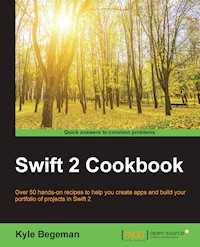
Over 50 hands-on recipes to help you create apps and build your portfolio of projects in Swift 2
About This Book
- Conceptualize and write effective applications for iOS/OS X using Swift 2
- Make the most of Swift's diverse features, from configuring your projects to using design patterns and different types of databases
- A fast-paced, comprehensive guide equipped with lots of tips and tricks to help you learn about Swift programming quickly
Who This Book Is For
If you are an Apple developer who wants to use Swift to build your applications, this book is for you. With Swift 2 going open source, this book will also help web developers. Some understanding of Objective-C or Swift would be helpful but is not required.
What You Will Learn
- Install Xcode from the App Store
- Upgrade your existing Swift 1.2 code to Swift 2.0
- Use the standard Swift 2.0 library and collections
- Work with structs, generics, and design patterns in Swift
- Use the new markup language to provide rich documentation of code
- Write a book using Playgrounds and Swift
- Debug and test your code using Xcode
- Integrate your code with Objective-C and use assembly code with Swift
- Leverage the Objective-C runtime when compiling Swift using associated objects
In Detail
Swift is Apple's innovative development language that was introduced at the WWDC (WorldWide Developers Conference) 2014 alongside Xcode 6 and iOS 8. This user-friendly language is packed with modern features to make programming easier and fun, with a lot of flexibility. With Swift 2 comes even better performance, a new error handling API, protocol extensions, and super support for availability checking.
This book will equip you with all the practical programming aspects of Swift 2. It covers the important features and paradigms that Swift provides to developers. You will begin by installing Xcode from the App Store and using Swift as an interpreter. Then, you will see how you can upgrade your existing Swift 1.2 code to Swift 2.0 with the help of Xcode. You will see how to use structs and generics, and work with different Design Patterns with Swift. Debug and test your code using Xcode and see how to use assembly code effectively with Swift.
By the end of this book, you will have the necessary skills to get the most out of Swift to develop effective mobile and web applications.
Style and approach
This book follows a problem-solution methodology using step-by-step recipes, and is filled with screenshots to help you create samples and learn something new in every recipe.
Sie lesen das E-Book in den Legimi-Apps auf:
Seitenzahl: 391
Veröffentlichungsjahr: 2016
Ähnliche



















Table of Contents
Swift 2 Cookbook
Swift 2 Cookbook
Copyright © 2016 Packt Publishing
All rights reserved. No part of this book may be reproduced, stored in a retrieval system, or transmitted in any form or by any means, without the prior written permission of the publisher, except in the case of brief quotations embedded in critical articles or reviews.
Every effort has been made in the preparation of this book to ensure the accuracy of the information presented. However, the information contained in this book is sold without warranty, either express or implied. Neither the author, nor Packt Publishing, and its dealers and distributors will be held liable for any damages caused or alleged to be caused directly or indirectly by this book.
Packt Publishing has endeavored to provide trademark information about all of the companies and products mentioned in this book by the appropriate use of capitals. However, Packt Publishing cannot guarantee the accuracy of this information.
First published: April 2015
Second edition: March 2016
Production reference: 1230316
Published by Packt Publishing Ltd.
Livery Place
35 Livery Street
Birmingham B3 2PB, UK.
ISBN 978-1-78588-921-9
www.packtpub.com
Credits
Author
Kyle Begeman
Reviewer
Cecil Costa
Commissioning Editor
Kunal Parikh
Content Development Editor
Amey Verangaokar
Technical Editor
Vivek Arora
Copy Editor
Joanna McMahon
Project Coordinator
Francina Pinto
Proofreader
Safis Editing
Indexer
Monica Ajmera Mehta
Graphics
Disha Haria
Production Coordinator
Arvindkumar Gupta
Cover Work
Arvindkumar Gupta
About the Author
Kyle Begeman is a self-taught programmer, entrepreneur, and educator. With over 6 years of experience in iOS development, Kyle has produced multiple applications personally and professionally (usually with large businesses). Kyle also produces educational videos and courses for others to learn how to program. A self-proclaimed nerd living in Silicon Valley, Kyle spends most of his free time listening to and playing music while thinking up the next great project. You can learn more about Kyle and his work by visiting www.kylebegeman.com.
About the Reviewer
Cecil Costa also known as Eduardo Campos in Latin countries, is a Euro-Brazilian freelance developer who has been learning about computers since getting his first PC 286 in 1990. From then on, he kept learning about programming languages, computer architecture, and computer science theory.
Learning is his passion as well as teaching; this is the reason why he worked as a trainer to a book's author. He has been delivering on-site courses for companies such as Ericsson, Roche, TVE (a Spanish television channel), and lots of other companies. He is also the author of the book Swift Cookbook (first edition), Swift 2 Blueprints, and Reactive Programming with Swift, all by Packt Publishing.
Nowadays, Cecil Costa teaches through online platforms, helping people from every part of the world.
In 2008, he founded his own company, Conglomo Limited (www.conglomo.es), which offers development and training programs both on site and online.
Over his professional career, he has created projects by himself and also worked for different companies, from small to big ones, such as IBM, Qualcomm, Spanish Lottery, and DIA%.
He develops a variety of computer languages (such as Swift, C++, Java, Objective-C, JavaScript, Python, and so on) in different environments (iOS, Android, Web, Mac OS X, Linux, Unity, and so on) because he thinks that a good developer needs to learn every kind of programming language to open his mind and only then will he really know what development is.
Nowadays, Cecil is based in the UK, where he is progressing in his professional career, working as an iOS Team Lead.
I would like to thank Mr. George Boole for making everything true or false and to Leonard Kleinrock for creating the idea of the Internet.
www.PacktPub.com
eBooks, discount offers, and more
Did you know that Packt offers eBook versions of every book published, with PDF and ePub files available? You can upgrade to the eBook version at www.PacktPub.com and as a print book customer, you are entitled to a discount on the eBook copy. Get in touch with us at <[email protected]> for more details.
At www.PacktPub.com, you can also read a collection of free technical articles, sign up for a range of free newsletters and receive exclusive discounts and offers on Packt books and eBooks.
https://www2.packtpub.com/books/subscription/packtlib
Do you need instant solutions to your IT questions? PacktLib is Packt's online digital book library. Here, you can search, access, and read Packt's entire library of books.
Why Subscribe?
Preface
After being available for over a year, Swift has begun to mature and add new features rapidly. Apple has introduced Swift 2 along with some great new features and benefits to Xcode and underlying technologies. This book is intended to update Objective-C developers who want to migrate to Swift 2 and also to help Swift developers get a stronger base with better knowledge of this programming language and its second version.
If you enjoy creating small apps, this book is perfect for you. It will show you how to create Swift apps from scratch. So, take your Mac, open your Xcode, and let's cook Swift!
What this book covers
Chapter 1, Getting Started with Xcode and Swift, introduces you to some Xcode features that are Swift-specific. This might sound a bit advanced for the first chapter, but it is not difficult and it is also very important, mainly for those people who would like to develop professionally.
Chapter 2, Standard Library and Collections, shows you how to manipulate arrays, dictionaries, sets, strings, and other objects using the Swift way. This chapter is very important for people who have been working with Objective-C.
Chapter 3, Using Structs and Generics, shows you how Swift structs are not the same as Objective-C (or even C) structs, and that generics is a feature that allows you to create functions that are not tied to only one type. Both features have their own tricks.
Chapter 4, Design Patterns with Swift, explains how to implement design patterns using Swift, especially if you like object-oriented programming.
Chapter 5, Multitasking in Your App, shows you how to use different types of multitasking in your application, a feature that is present in almost every app nowadays.
Chapter 6, Working with Playgrounds, teaches you how to use Playgrounds, a great Xcode feature that allows you to test your code before adding it to your project.
Chapter 7, Swift Debugging with Xcode, explains how to debug Swift code using Xcode, LLDB, and Instruments. Here, you learn some tricks for finding and solving bugs in your app.
Chapter 8, Integrating with Objective-C, shows you how Swift and Objective-C can live together and gives you a step-by-step guide on how to migrate your Objective-C app to Swift.
Chapter 9, Dealing with Other Languages, shows you how to use C, C++, and the assembly language with Swift, since you already know Swift is not alone in iOS and OS X development.
Chapter 10, Data Access, shows you different ways of storing data, which can be local or remote.
Chapter 11, Extensions, Photos, and More, expounds some topics that are very important in the Swift development world, from new frameworks such as the WatchKit to widely used ones. We will also cover some advanced topics such as method swizzling and associated objects.
What you need for this book
Developing with Swift 2 requires Xcode 7 or higher, which by itself needs to be installed on Yosemite (OS X 10.10). This can only be installed on a Mac computer. So, this is basically what you need.
A few recipes can only be tested on a physical device (iPhone, iPad, or iPod); therefore, they can only be installed if you are enrolled on the Apple Developer Program.
Who this book is for
If you are an experienced Objective-C programmer and are looking for quick solutions to many different coding tasks in Swift, then this book is for you. You are expected to have development experience, though not necessarily with Swift.
Reader feedback
Feedback from our readers is always welcome. Let us know what you think about this book—what you liked or disliked. Reader feedback is important for us as it helps us develop titles that you will really get the most out of.
To send us general feedback, simply e-mail <[email protected]>, and mention the book's title in the subject of your message.
If there is a topic that you have expertise in and you are interested in either writing or contributing to a book, see our author guide at www.packtpub.com/authors.
Customer support
Now that you are the proud owner of a Packt book, we have a number of things to help you to get the most from your purchase.
Downloading the example code
You can download the example code files for this book from your account at http://www.packtpub.com. If you purchased this book elsewhere, you can visit http://www.packtpub.com/support and register to have the files e-mailed directly to you.
You can download the code files by following these steps:
Once the file is downloaded, please make sure that you unzip or extract the folder using the latest version of:
Errata
Although we have taken every care to ensure the accuracy of our content, mistakes do happen. If you find a mistake in one of our books—maybe a mistake in the text or the code—we would be grateful if you could report this to us. By doing so, you can save other readers from frustration and help us improve subsequent versions of this book. If you find any errata, please report them by visiting http://www.packtpub.com/submit-errata, selecting your book, clicking on the Errata Submission Form link, and entering the details of your errata. Once your errata are verified, your submission will be accepted and the errata will be uploaded to our website or added to any list of existing errata under the Errata section of that title.
To view the previously submitted errata, go to https://www.packtpub.com/books/content/support and enter the name of the book in the search field. The required information will appear under the Errata section.
Piracy
Piracy of copyrighted material on the Internet is an ongoing problem across all media. At Packt, we take the protection of our copyright and licenses very seriously. If you come across any illegal copies of our works in any form on the Internet, please provide us with the location address or website name immediately so that we can pursue a remedy.
Please contact us at <[email protected]> with a link to the suspected pirated material.
We appreciate your help in protecting our authors and our ability to bring you valuable content.
Questions
If you have a problem with any aspect of this book, you can contact us at <[email protected]>, and we will do our best to address the problem.
Chapter 1. Getting Started with Xcode and Swift
In this chapter, we will cover the following recipes:
Introduction
In this chapter, we will learn the basics of creating a project with Swift. Even if you have already created your own project, it is worth reading the recipes of this chapter. You will learn how to interact with Xcode, how to test your code from the command line, and at the end, we will review the basics of this language.
Before downloading Xcode, note that Swift requires Xcode 6.0 for Swift 1.0, and 1.2 or Xcode 7.0 for Swift 2.0 and 2.1. We will be installing Xcode 7.0 (the latest version, as of this writing). To install version 7.0 of Xcode, you must have at least OS X Yosemite (OS X 10.10), so meet these requirements before installing it.
Installing Xcode from the App Store
The first way of installing Xcode is by downloading it from the App Store. The advantage of this method is that you will be warned about updates, and the system requirements will be checked before the download starts.
Getting ready
To download any program from the App Store, you must have an Apple ID; it's free and it won't take long to set up.
How to do it…
How it works…
Like any other application that you will install from the App Store, you only need to open the App Store application, search for it, and install it.
There's more…
If you buy a new computer, you will see that Xcode will be offered to be installed onto your new machine. This is because Apple keeps track of the applications you've already installed.
Downloading the Xcode image
The second way of installing Xcode is by downloading an image from the Apple Developer Center; this step is not free, it's only available to members of the Apple Developer Program (which costs approximately $99 a year) or for people who work in companies that are members of this program.
Getting ready
For this recipe, you will need to have 2.2 gigabytes of free space besides the space stored by the installed Xcode, but I will assume that you won't have this problem.
The advantage of downloading a DMG file is that you can save it onto a DVD as a backup (you never know when this version of Xcode will be removed from the App Store). Also, if you work in a team, it is very important to have every member working with the same Xcode version. In addition, if you want to install any beta version of Xcode, it will only be available through the Apple Developer Center.
How to do it…
To download the Xcode image, follow these steps:
Tip
You can have multiple versions of Xcode on a single machine; specifically, the public release and any beta versions made available by Apple.
Tip
Don't search for "download Swift" on your search engine as there is another programming language that is also called Swift, which has nothing to do with Apple devices.
How it works…
The DMG file ensures that you can always have a backup of this Xcode version, so if for any reason you have problems with future versions of Xcode, you can install the previous version. It is also possible to have more than one Xcode version installed onto your computer.
There's more…
The Apple Developer Center is a good website to get Xcode resources. Here, you can find videos, guides, code samples, and add-ons.
Starting a Swift project
Usually, starting Swift is something that is very straightforward; however, it is good to know what is going on in every step.
Getting ready
Before you start a project, make sure that you know your project name and in which folder it will be saved. Changing this kind of parameter can create problems after the project has been created. Once you have Xcode installed, you can open it from your application folder, from the Launch pad, or even from your dock if you have added Xcode onto it. As I'm a very lazy person, I prefer the latter; it's faster for me to have it on my dock.
How to do it…
The first time you open Xcode, it's possible that it will ask to install some additional packages, so do it. Some of these packages are important, depending on the type of application you are developing, and some of them are necessary to have access for some devices, mainly the newest ones.
If, for any reason, this window is not shown to you, there is always the option to go to File (on the menu bar) | New | Project.
The next step is to choose the type of project that you want to develop. For this example, I will use a Single View Application for iOS, but I'll make comments if there is anything different on OS X applications or for another type of project.The next dialog will ask you for some project information, one example being the programming language that you want to use. In this example, we will use Swift.
Choose Swift as the language and it will create the application with its delegate, with Swift code. Make sure that Use Core Data is unchecked to prevent having its code on the app delegate.You will also notice that Swift iOS applications now have no files called main.m, main.mm, or main.swift. OS X apps have a main.swift file, but it is smaller than the previous main.m file.
As you should already know, the product name is your application name, the organization name is the proprietary of this software, and the organization identifier is the reversed Internet domain, for example, uk.co.packtpub instead of packtpub.co.uk.
Note
Note that now there is no checkbox for creating unit tests because, by default, it is created for you using XCTest. If you don't want it, just remove the group from your project. I wouldn't remove it, it usually doesn't hurt.
How it works…
Creating a project is not something difficult; you only need to pay attention to some steps. Make sure that you have selected Swift as the main programming language; otherwise, you will see a lot of stuff with Objective-C.
Pay attention to the folder where you will create your project. Xcode will create another folder with your project name, and inside of it, Xcode will create the project bundle, a folder with the source code. If you want to copy your project, make sure that you copy the folder that contains everything.
There's more…
If you want to work on a team that has already started a project, you will probably clone the project using the Check out an existing project option. You will use a Git or a subversion repository and you will have your code synchronized with the other members of the team. Xcode offers us the basic tools to work with a VCS (version control system); these are enough for 80 percent of our tasks.
Using the Swift project options
Xcode projects come with lots of options. Here, we will know some of them, mainly the Swift-specific ones.
Getting ready
To perform this recipe, just create a new project, as shown in the previous recipe.
How to do it…
Note
Sometimes, with Objective-C, when you used to set a high level of optimization, the debugger used to lose some of the variable values. I haven't seen this phenomenon with Swift yet, but it's good to have it in mind.
Tip
You can use absolute or relative paths, but I would give preference to the relative ones.
How it works…
Changing settings is something that you have to do mainly when your project starts growing. There are some options that you set differently for debug and release configurations.
There's more…
Xcode has a lot of configuration settings; showing all of them would be out of the scope of this book. I recommend that you at least look at some of them, mainly if you want to work with big projects. My main recommendation here is: do not change your settings without synchronizing with the other members of your team (mainly with the project manager). If you cause a conflict with the VCS, it could be hard work to fix it.
Migrating an existing project to Swift 2.0
If you have an existing project written in Swift 2.0 or below, Apple has provided some handy tools with Xcode 7 for you to migrate to Swift 2.0 with ease.
Getting ready
For this recipe, you will need an existing Xcode project written in Swift 1.2 or below.
How to do it…
Follow these steps to migrate an existing project:
Tip
If there are any files you wish NOT to be migrated, simply uncheck them from the left pane list of files.
How it works…
Apple has made Xcode extremely versatile in code migration. Thankfully, this takes most of the hassle out of migration to Swift 2.0 and allows you to get straight to writing more code. However, the migration process is not perfect and manual changes are likely required for complex projects.
There's more…
If for any reason the migration prompt did not automatically display itself, you can still start the process on your own. Navigate from the menu bar to Edit | Convert | To Latest Swift Syntax. You will be brought directly to step 2 of this recipe.
Adding a developer account
Usually, Apple tries to make the developer's life easier by improving Xcode and creating tools, but there is an exception when we talk about certificates. If you want to test your app on a physical device (iPhone, iPad, or iPod), you need a certificate. If you would like to upload it onto the App Store, you also need this certificate.
The idea of a certificate is to protect your code from malicious code or from being modified after being signed, but this idea has a price. To get a certificate, you will need to be enrolled on the Apple Developer Program.
Getting ready
We will assume that if you continue with this recipe, you are already enrolled on this program. Let's recycle the previous project; open it, and let's start.
How to do it…
Follow these steps to add an Apple developer account:
Note
Your device should appear on the dialog. Xcode could take a while to read the device's symbols. In the case of attaching this device for the first time, you will see that you will have to ask to change the status of this device to developer mode.
Tip
Lowering the iOS Deployment Target to the minimum value is an idea very common among programmers to cover the maximum sort of devices. Doing this will prevent your development from using new features. Check out the features that you need first, and then change your iOS Deployment Target.
How it works…
Signing a code is something done for security; the main restriction is that you must be up to date with the Apple Developer Program. Apple allows up to 100 devices per account.
There's more…
Sometimes, the certificate causes us some headaches. Take care if it asks you to revoke your certificate; you may have to create a new one on the Apple Developer Center, and if you are working in a team, you may have to wait for the administrator's approval.
There are a few times that you need to change the code-signing option on the build settings; it happens mainly when you get code from another organization ID.
Testing your code on a device is something that is very useful; it's where you can test the real user experience. Whenever you have some low-level code, such as assembly code or something written in C language that uses type sizes or byte orders, it's good to test your project on a device. Remember that Apple's devices have CPUs based on ARM and ARM64, which are different to the Intel CPU that is used on Mac computers.
Compiling from the command line
I know that nowadays a lot of users, and even developers, think that using the command line is something from the past. The reality is that, even today, a lot of tasks that can be done from the command line, mainly automations tasks such as continuous integration, must be done using the command line.
This recipe will show you that it's not difficult, and better than this, you will have an increased understanding of the concept about what Xcode does behind the scenes.
Tip
If you've never worked with a command line, I would suggest you read a book about it; Linux Shell Scripting Cookbook, Packt Publishing, is a good one in my opinion, even knowing that some commands are Linux-specific.
Getting ready
Open a Finder window using the key combination command + Shift + U or open your Launchpad and click on the Others folder. Here, you can see an icon called Terminal, open it and you should see a window similar to the following one:
How to do it…
Tip
Remember that switching Xcode is a task that can only be done by an administrator, and it will affect every user.
After this, you will see lots of commands on screen, but the most important message is the last one that should be ** BUILD SUCCEEDED **; which means that the project was built without errors.
How it works…
When you type a command, your system will look for this command using the paths specified by the PATH variable. You can check the directories included in your PATH variable by typing echo $PATH. By default, the directory /usr/bin is included.
This directory contains Xcode commands, such as xcodebuild. When you want to use commands from other Xcode versions, you need to use xcode-select to overwrite these files to use the ones according to the version you want.
Once you have set it, you can compile your project. As your project is a set of lots of files such as source codes, images, and so on, it would be hard work if we had to do every single action (compiling, copying files, code signing, and so on) one by one. This is the reason it's easier to ask Xcode to do it by itself using the command xcodebuild.
The xcodebuild command has a lot of parameters, so you can specify the configuration to be Debug or Release, the target you want to compile, as well as many other options. Type xcodebuild -help to get a list of options.
Tip
The -help argument is very common on Xcode commands. Try to use it when you have any doubt.
There's more…
Another good feature about the xcodebuild command is that it shows the commands that are being used with all its arguments. So, you can appreciate that when you compile an Objective-C project, Xcode uses the clang compiler, but when you have a Swift project, Xcode uses the swiftc command. Type swiftc -help




