


39,59 €
Mehr erfahren.
- Herausgeber: Packt Publishing
- Kategorie: Wissenschaft und neue Technologien
- Sprache: Englisch
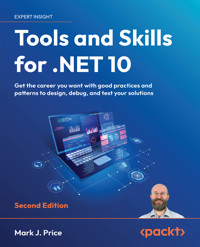
.NET is more powerful—and more complex—than ever. As the ecosystem evolves, so do the expectations from developers. Mastering the tools and patterns of professional .NET development can be the difference between simply shipping code and delivering resilient, scalable software. Tools and Skills for .NET 10 is a practical guide to leveling up in today’s .NET world, offering both hard technical skills and career strategies to help you thrive.
Inside, you’ll learn how to manage codebases with Git and implement debugging and memory analysis techniques that save hours of guesswork. The book also covers best practices for writing and maintaining documentation for your code, services, and APIs, which is crucial for team collaboration. You’ll explore cryptography for securing data and concurrency for building responsive apps. Further chapters explore dependency injection, testing for performance and reliability, and packaging your apps in Docker containers.
By the end of this book, you’ll be equipped not only with technical skills but also with the confidence to apply them in real environments. Whether you're aiming for a promotion, switching jobs, or preparing for technical interviews, you'll have the skills and the language to present yourself as a capable, well-rounded .NET developer ready for anything the industry throws at you.
Das E-Book können Sie in Legimi-Apps oder einer beliebigen App lesen, die das folgende Format unterstützen:
Seitenzahl: 1096
Veröffentlichungsjahr: 2026
Ähnliche







Tools and Skills for .NET 10
Second Edition
Get the career you want with good practices and patterns to design, debug, and test your solutions
Mark J. Price
Tools and Skills for .NET 10
Second Edition
Copyright © 2026 Packt Publishing
All rights reserved. No part of this book may be reproduced, stored in a retrieval system, or transmitted in any form or by any means, without the prior written permission of the publisher, except in the case of brief quotations embedded in critical articles or reviews.
Every effort has been made in the preparation of this book to ensure the accuracy of the information presented. However, the information contained in this book is sold without warranty, either express or implied. Neither the author, nor Packt Publishing or its dealers and distributors, will be held liable for any damages caused or alleged to have been caused directly or indirectly by this book.
Packt Publishing has endeavored to provide trademark information about all of the companies and products mentioned in this book by the appropriate use of capitals. However, Packt Publishing cannot guarantee the accuracy of this information.
Portfolio Director: Ashwin Nair
Relationship Lead: Nitin Nainani
Project Manager: Ruvika Rao
Content Engineer : Hayden Edwards
Technical Editor: Arjun Varma
Copy Editor: Hayden Edwards
Indexer: Manju Arasan
Proofreader: Hayden Edwards
Production Designer: Ajay Patule
Growth Lead: Priyadarshini Sharma
First published: July 2024
Second edition: January 2026
Production reference: 2070126
Published by Packt Publishing Ltd.
Grosvenor House
11 St Paul’s Square
Birmingham
B3 1RB, UK.
ISBN 978-1-83588-250-4
www.packtpub.com
Contributors
About the author
Mark J. Price is a Microsoft Specialist: Programming in C# and Architecting Microsoft Azure Solutions, with over 20 years of experience. Since 1993, he has passed more than 80 Microsoft programming exams and specializes in preparing others to pass them. Between 2001 and 2003, Mark was employed to write official courseware for Microsoft in Redmond, USA. His team wrote the first training courses for C# while it was still an early alpha version. While with Microsoft, he taught “train-the-trainer” classes to get Microsoft Certified Trainers up-to-speed on C# and .NET. Mark has spent most of his career training a wide variety of students, from 16-year-old apprentices to 70-year-old retirees, with the majority being professional developers. Mark holds a BSc in Computer Science.
Thank you to all my readers. Your support means I get to write these books and celebrate your successes. Special thanks to the readers who give me actionable feedback via my GitHub repository and email, and interact with me and the book communities on Discord. You help make my books even better with every edition.
About the reviewer
Pavel P. Oleynik has a Ph.D. in Computer Science and is the author of more than 100 scientific papers in various languages. He organized and regularly conducted the International Theoretical and Practical Conference, Object Systems. He has been developing software since 1999 and has held the positions of team leader, technical leader, architect, and CTO in multibillion-dollar holdings. He is a recognized expert in areas such as heavy industry, coal industry, agricultural industry, banking, fintech, healthcare, retail, ERP/MES systems, SCM, ITSM, low-code/no-code systems, and foodtech.
I would like to express my deep gratitude to Mark for inviting me to act as technical editor of his books and Packt for organizing the process. I would like to express my deep gratitude to my family. Daria, I am proud of you and your success. You are the most precious person I have in this world. I am sure that your perseverance and hard work will bear enormous fruit. Lena, thank you for respecting my boundless passion for information technology, even though it takes up all our family time. For more than 25 years of hard work in the IT industry, I have been lucky enough to work side by side with hundreds of highly qualified professionals from all over the world. Your unlimited knowledge, which you share, motivates me to constantly explore new things. Thank you for that and for the many hours we spent together rolling out new releases on seemingly hopeless projects. Millions of people successfully use the results of our work. The thought of this warms up in moments of IT desperation. For my friends and parents who do not know English, I want to express my words of gratitude in the language of my countryman, the great Russian writer Anton Pavlovich Chekhov: Для моих друзей и родителей, которые не знают английского языка, я хотел бы выразить слова благодарности на языке своего земляка, великого русского писателя Антона Павловича Чехова. Благодарю свою маму Светлану Александровну и папу Петра Павловича, за то, что вы всегда давали мне возможность самостоятельно принимать решения и делать собственный выбор по всем ключевым вопросам в моей жизни и за то, что принимаете меня таким, какой я есть. Я понимаю, что вам достался не лучший сын на этом свете, но зато мне достались самые лучшие родители из всех возможных. Выражаю благодарность своим верным друзьям: Вите, Диме, Саше и Тимофею. Мы так давно с вами дружим, что к нашим именам уже прочно приклеился префикс ‘Дядя’, да и я не помню в своей жизни того времени, когда вас не было рядом со мной. Я уверен, мы будем существовать вечно..
Learn more on Discord
To join the Discord community for this book – where you can share feedback, ask questions to the author, and learn about new releases – follow this QR code:
https://packt.link/TS2e
Share your thoughts
Once you’ve read Tools and Skills for .NET 10, Second Edition, we’d love to hear your thoughts! Please click here to go straight to the Amazon review page for this book and share your feedback.
Your review is important to us and the tech community and will help us make sure we’re delivering excellent quality content.
Free Benefits with Your Book
This book comes with free benefits to support your learning. Activate them now for instant access (see the “How to Unlock” section for instructions).
Here’s a quick overview of what you can instantly unlock with your purchase:
Free PDF copy with appendices
Next-Gen Web-Based Reader
Access a DRM-free PDF copy of this book to read anywhere, on any device.
Multi-device progress sync: Pick up where you left off, on any device.
Unlock the book’s appendices included with the free PDF.
Highlighting and notetaking: Capture ideas and turn reading into lasting knowledge.
Bookmarking: Save and revisit key sections whenever you need them.
Dark mode: Reduce eye strain by switching to dark or sepia themes.
How to Unlock
Scan the QR code (or go to packtpub.com/unlock). Search for this book by name, confirm the edition, and then follow the steps on the page.
Note: Keep your invoice handy. Purchases made directly from Packt don’t require one
1
Introducing Tools and Skills for .NET
In this first chapter, the goals are understanding the tools and skills that you will learn in this book, setting up your development environment to use Visual Studio 2026, Visual Studio Code, or JetBrains Rider, and then setting up a database and projects to use in the rest of the chapters. Throughout this book, I will use the names Visual Studio, VS Code, and Rider to refer to these three code editors respectively.
I use the term modern .NET to refer to .NET 10 and its predecessors like .NET 5, which derive from .NET Core. I use the term legacy .NET to refer to .NET Framework, Mono, Xamarin, and .NET Standard. Modern .NET is a unification of those legacy platforms and standards.
Every chapter in this book introduces some tools and some skills, but some chapters are more focused on a particular tool or a particular skill.
This chapter covers the following topics:
Introducing this book and its contentsSetting up your development environmentSetting up a database and projects for this bookMaking good use of the GitHub repository for this bookWhere to go for helpUsing future versions of .NET with this bookThe GitHub repository for this book has solutions using full application projects for all code tasks: https://github.com/markjprice/tools-skills-net10/.
After going to the GitHub repository, simply press the . (dot) key on your keyboard or change .com to .dev to change the repository into a live code editor based on VS Code using GitHub Codespaces. VS Code in a web browser is great to run alongside your chosen code editor as you work through the book’s coding tasks. You can compare your code to the solution code and easily copy and paste parts if needed.
Free Benefits with Your Book
Your purchase includes a free PDF copy of this book (containing Appendix A, B, and C), along with other exclusive benefits. Check the Free Benefits with Your Book section in the Preface to unlock them instantly and maximize your learning experience.
Introducing this book and its contents
Before we dive into an overview of this book, let’s set the context by understanding that this is one of four books about .NET 10 that I have written, covering almost everything a beginner to .NET needs to know.
Companion books to complete your learning journey
This book is the fourth of a quartet of books that completes your learning journey through .NET 10:
The first book, C# 14 and .NET 10 – Modern Cross-Platform Development Fundamentals, covers the fundamentals of the C# language, the .NET libraries, and using modern ASP.NET Core, Blazor, and Minimal API web services for web development. It is designed to be read linearly because skills and knowledge from earlier chapters build up and are needed to understand later chapters.The second book, Real-World Web Development with .NET 10, covers mature and proven web development technologies like ASP.NET Core MVC and controller-based Web API web services, as well as OData, FastEndpoints, and Umbraco CMS for building real-world web projects on .NET 10. You will learn how to test your web services using xUnit and test the user interfaces of your websites using Playwright, and then how to containerize your projects ready for deployment.The third book, Apps and Services with .NET 10, covers data using SQL Server, Dapper, and EF Core, as well as more specialized .NET libraries like internationalization and popular third-party packages including Serilog and Noda Time. You will learn how to build native ahead-of-time (AOT)-compiled services with ASP.NET Core Minimal API web services and how to improve performance, scalability, and reliability using caching, queues, and background services. You will also implement modern services using GraphQL, gRPC, and SignalR. Finally, you will learn how to build graphical user interfaces for websites, desktop, and mobile apps with .NET MAUI, Avalonia, and Blazor.This fourth book (the one you’re reading now), Tools and Skills for .NET 10, covers important tools and skills that a professional .NET developer should have. These include design patterns and solution architecture, debugging, memory analysis, all the important types of testing, whether it be unit, integration, performance, or web user interface testing, and then topics for testing cloud-native solutions on your local computer like containerization, Docker, and Aspire. Finally, we will look at how to prepare for an interview to get the .NET developer career that you want.A summary of the .NET 10 quartet and their most important topics is shown in Figure 1.1:
Figure 1.1: Companion books for learning .NET for beginner-to-intermediate readers
Audiences for this book
This book caters to two audiences:
Readers who have completed my book for learning the fundamentals of the C# language, .NET libraries, and using ASP.NET Core for web development, C# 14 and .NET 10 – Modern Cross-Platform Development Fundamentals, and now want to take their learning further.Readers who already have basic skills and knowledge about C# and .NET and want to acquire practical skills and knowledge of common tools to become more professional with their .NET development, and in particular join a team of .NET developers.Let’s look at an analogy:
First, an amateur cook might buy a book to learn fundamental skills, concepts, and terminology that any cook needs to make the most common dishes.Second, an amateur cook might also buy a recipe book to learn how to apply that knowledge and those skills to make complete meals. These meals might be traditional classics loved by most people, or daring dishes for a modern audience.Third, to become a professional cook, they would also need to understand the roles in a professional kitchen, learn more specialized tools and skills that are needed when cooking meals for many more people in a professional environment, and how to work in a team of cooks.These three scenarios are why I wrote four books about .NET. (The second scenario covers two types of food, mature and modern.)
The preface briefly introduces each chapter, but many readers skip the preface. So, let’s now review why each topic is covered in more depth.
Tools
There are many tools that a professional .NET developer should be familiar with. Some are built into most code editors like a debugger or source control integration, and some require separate applications and services like memory analysis and telemetry.
Even beginner developers quickly become familiar with the basic tools included with a code editor like the main editing window, managing files in a project, how to set a breakpoint and start debugging, and then step through the code statement by statement, and how to run a project, so those topics will not be covered in this book. If you don’t already have these skills, then I recommend that you read my book C# 14 and .NET 10 – Modern Cross-Platform Development Fundamentals.
Chapter 2, Making the Most of the Tools in Your Code Editor, is about the less commonly used tools built into Visual Studio, VS Code, and Rider. The major tools like a debugger or memory analysis tools are covered in separate later chapters. This chapter covers topics like refactoring features and how to customize your code editor using standards like .editorconfig.
Chapter 3, Source Code Management Using Git, covers the most common tasks that you would perform with Git to manage your source code, especially when working in a team of .NET developers. Git is a distributed source control system, so developers have a local copy of the entire repository. This enables offline work, fast branching, and merging. Git is the most popular source code control system for .NET projects, and there are tools and extensions available for seamless integration with all code editors and command-line tools. GitHub is a popular Microsoft platform for hosting Git repositories and collaborating on software projects.
Chapter 4, Debugging and Memory Troubleshooting, is about using the debugging tools in your code editor. You will learn how to use the built-in debugging features, how to decorate your own code with attributes to make it easier to see what’s happening while debugging, and how to use tools in your code editor to track the usage of memory to improve your apps and services.
Chapter 5, Logging, Tracing, and Metrics for Observability, is about how to instrument your code to enable tracing, metrics, and logging during production, and how to implement telemetry using OpenTelemetry to monitor your code as it executes to enable observability.
Skills
As well as learning how to use the tools themselves, a professional .NET developer needs skills like documenting code, leveraging dynamic code, and implementing cryptographic techniques to protect code and data.
Chapter 6, Documenting Code, APIs, and Services, discusses how to best document your code to help other developers maintain it in the future using comments, and how to document your services and APIs to enable other developers to call them as designed. Forcing yourself to document your code has the side benefit that you will often spot places where you could improve the design and refactor your code and APIs.
Chapter 7, Observing and Modifying Code Execution Dynamically, introduces you to some common types that are included with .NET for performing code reflection, applying and reading attributes, working with expression trees, and most usefully, creating source generators.
Chapter 8, Protecting Data and Apps Using Cryptography, is about protecting your data from being viewed by malicious users using encryption, and from being manipulated or corrupted using hashing and signing. You will also learn about using authentication and authorization to protect applications from unauthorized users.
Chapter 9, Multitasking and Concurrency, covers how to allow multiple actions to occur at the same time to improve performance, scalability, and user productivity for the applications that you build.
Chapter 10, Dependency Injection, Containers and Service Lifetime, is about reducing tight coupling between components, which is especially critical to performing practical testing. This also enables you to better manage changes and software complexity.
Testing
One of the most important tools and skills for a .NET developer is testing to ensure quality. Testing spans the whole life cycle of development, from testing a small unit of behavior to end-to-end testing of the user experience and system integration. The earlier in the development process that you test, the lower the cost of fixing any mistakes that you discover.
Chapter 11, Unit Testing and Mocking, introduces testing practices that will improve your code quality. Unit testing is easy to get wrong and can become useless, undermining the team’s trust. Get it right, and you will save time and money and smooth out the development process.
Chapter 12, Integration and Security Testing, introduces a higher level of testing across all components of a solution, and the types of testing needed to maintain the security of your projects.
Chapter 13, Benchmarking Performance, Load, and Stress Testing, introduces how to properly use the BenchmarkDotNet library to monitor your code to measure performance and efficiency. Then, you will see how to perform load and stress testing on your projects to predict required resources and estimate the costs of deployment in production using Bombardier and NBomber.
Chapter 14, Functional and End-to-End Testing of Websites and Services, introduces you to testing APIs and web user interfaces using Playwright for automation.
Chapter 15, Containerization Using Docker, introduces you to the concept of containerization and specifically using Docker to virtualize hosts for services in complex solution architectures.
Chapter 16, Cloud-Native Development Using Aspire, introduces you to Aspire, an opinionated way to manage a cloud-native development environment. It automates local deployments during development and includes integrations with tools you learned about earlier in the book like OpenTelemetry for observability, Docker containers for hosting microservices, and so on.
Design and career development
The final part of this book is about more theoretical concepts like design patterns, principles, and software and solution architecture, and ends with a chapter that wraps everything up with preparing for an interview to get the career that you want with a team of developers and other professionals.
Chapter 17, Design Patterns and Principles, introduces you to the SOLID design patterns as well as other common patterns and principles like DRY (Don’t Repeat Yourself), KISS (Keep It Simple, Stupid), YAGNI (You Ain’t Gonna Need It), and PoLA (Principle of Least Astonishment).
Chapter 18, Software and Solution Architecture Foundations, covers software and solution architecture, including using Mermaid to create architecture diagrams.
Chapter 19, Your Career, Teamwork, and Interviews, covers what you need to get the career you aspire to. To achieve this, you must impress with your resume and at an interview. This chapter covers commonly asked questions in interviews and suggested answers that fit with your experience to help you give realistic responses.
Setting up your development environment
Before you start programming, you’ll need a code editor for C#. Microsoft has a family of code editors and integrated development environments (IDEs), which include:
Visual Studio: Visual Studio 2026 for Windows. Visual Studio 2022 for Mac is no longer supported. You could also use Visual Studio in a virtual machine, or use Microsoft Dev Box as described at the following link: https://azure.microsoft.com/en-us/products/dev-box.VS Code: VS Code for Windows, Mac, Linux, the Web, or GitHub Codespaces.Rider: JetBrains Rider, which is available for Windows, Mac, or Linux. Since October 2024, it has a free version that you can read about at the following link: https://blog.jetbrains.com/dotnet/2024/10/16/rider-reveal-livestream-big-news-for-dotnet-and-game-devs/. Rider is popular with more experienced .NET developers.Choosing the appropriate tool and application type for learning
What is the best tool and application type for learning how to use tools and skills with C# and .NET?
I want you to be free to choose any C# code editor or IDE to complete the coding tasks in this book, including Visual Studio, VS Code, Rider, or a code editor that I’ve never heard of.
In this book, I give general instructions that work with all tools, so you can use whichever tool you prefer.
Using Visual Studio for general development
Visual Studio can create most types of applications, including console apps, websites, web services, desktop, and mobile apps. Visual Studio only runs on Windows 10 version 1909 or later, or Windows Server 2016 or later, and only on 64-bit versions. Version 17.4 was the first version to support native ARM64.
Warning! Visual Studio for Mac does not officially support .NET 8 or later and it reached its end-of-life in August 2024. If you have been using Visual Studio for Mac, then you should switch to VS Code for Mac or Rider for Mac, or use Visual Studio in a virtual machine on your local computer or in the cloud using a technology like Microsoft Dev Box. The retirement announcement can be read here: https://devblogs.microsoft.com/visualstudio/visual-studio-for-mac-retirement-announcement/.
Using VS Code for cross-platform development
The most modern and lightweight code editor to choose from, and the only one from Microsoft that is cross-platform, is VS Code. It can run on all common operating systems, including Windows, macOS, and many varieties of Linux, including Red Hat Enterprise Linux (RHEL) and Ubuntu. VS Code is a good choice for modern cross-platform development because it has an extensive and growing set of extensions to support many languages beyond C#.
Being cross-platform and lightweight, it can be installed on all platforms that your apps will be deployed to for quick bug fixes and so on. Choosing VS Code means a developer can use a cross-platform code editor to develop cross-platform apps.
VS Code is by far the most popular IDE, with over 75% of professional developers selecting it in the Stack Overflow 2025 survey, which you can read at the following link:
https://survey.stackoverflow.co/2025/technology/#1-dev-id-es.
Using GitHub Codespaces for development in the cloud
GitHub Codespaces is a fully configured development environment based on VS Code that can be spun up in an environment hosted in the cloud and accessed through any web browser. It supports Git repositories, extensions, and a built-in command-line interface so you can edit, run, and test from any device. Since it runs in the cloud and you interact with it via a web browser, there is nothing to download and install, and since it is based on VS Code, it works the same way VS Code does on your local computer.
You can learn more about GitHub Codespaces at the following link: https://github.com/features/codespaces.
Reviews of GitHub Codespaces are available at the following links:
https://dev.to/github/github-codespaces-ga-any-good-reviewed-and-tested-3e62https://medium.com/@pooyan_razian/github-codespaces-a-different-way-to-code-da455777f9abUsing Rider for cross-platform development
Rider is a third-party code editor from JetBrains, the maker of IntelliJ IDEA, the leading Java and Kotlin IDE, and ReSharper, the popular Visual Studio plugin for .NET developers. Rider runs on multiple platforms: Windows, macOS, and Linux.
Developers who use it are often professionals who appreciate the extra features it has like live code inspections, context actions, and refactorings. Using Rider can be an indicator of a more advanced developer.
You should expect new versions of Rider to support the latest version of .NET a few weeks after Visual Studio. For example, .NET 8 was released on November 14, 2023, and Visual Studio with official support for .NET 8 was released on the same day. But Rider version 2023.3 with official support for .NET 8 was not released until December 7, 2023.
Although JetBrains is a fantastic company with great products, both Rider and the ReSharper extension for Visual Studio are software, and all software has bugs and quirky behavior. For example, they might show errors like “Cannot resolve symbol” in your Razor Pages, Razor views, and Blazor components. Yet, you can build and run those files because there is no actual problem.
Warning! If you use Rider and you have installed the Unity Support or Heap Allocation Viewer plugins, then it will complain a lot about boxing. A common scenario when boxing happens is when value types like int and DateTime are passed as positional arguments to string formats. This is a problem for Unity projects because they use a different memory garbage collector than the normal .NET runtime. For non-Unity projects, like all the projects in this book, you can ignore these boxing warnings because they are not relevant. You can read more about this Unity-specific issue at the following link: https://docs.unity3d.com/Manual/performance-reference-types.html.
Will Microsoft merge Visual Studio and VS Code?
A reader, @automaton, posed a thought in the Discord channel for this book: “I wonder if the idea long term is to merge Code and VS.”
My best guess is that .NET developers on Windows will continue to prefer Visual Studio (this is likely about 70% of my readers), and everyone else will split between VS Code and Rider, especially now that Rider is free for non-commercial use.
Microsoft has been clear about their commitment to improving both Visual Studio and VS Code but keeping them distinct in their roles. While VS Code continues to be enhanced with new features and cross-platform capabilities, Visual Studio remains focused on being a best-in-class IDE for development on Windows.
Visual Studio is deeply integrated with Windows-specific technologies and APIs. It leverages components such as the Windows Presentation Foundation (WPF), which is not natively supported on other operating systems. Rewriting or adapting these dependencies for other platforms would require significant effort and resources.
My belief is that Microsoft will never port Visual Studio to other platforms or merge the two products. Instead, they will continue to add features from one to the other. For example, Solution Explorer has been added to VS Code, and HTTP Editor has been added to Visual Studio.
What I used
To write and test the code for this book, I used the following hardware and software:
Windows 11 on an HP Spectre (Intel) laptop and a Microsoft Surface Laptop 7 (ARM) with Visual Studio, VS Code, and Rider.macOS on an Apple Silicon Mac mini (M1) desktop with VS Code and Rider.I hope that you have access to a variety of hardware and software too, because seeing the differences on various platforms deepens your understanding of development challenges, although any one of the preceding combinations is enough to learn how to build practical apps and websites.
Deploying cross-platform
Your choice of code editor and operating system for development does not limit where your code gets deployed.
.NET 10 supports the following platforms for deployment:
Windows: Windows 10 version 1607 or later, Windows 11 version 22000 or later, Windows Server 2012 R2 SP1 or later, and Nano Server version 2019 or laterLinux: Alpine Linux 3.22, Azure Linux 3.0, CentOS Stream 9 or 10, Debian 12 or 13, Fedora 42, openSUSE Leap 15.6, RHEL 9 or 10, SUSE Enterprise Linux 15.6, and Ubuntu 22.04, 24.04, or 25.04Android: API 21 or later is the minimum SDK target. Versions 12, 12.1, 13, 14, and 15iOS and iPadOS: 18. iOS 12.2 is used as the minimum SDK targetMac: macOS 14 or 15You can review the latest supported operating systems and versions at the following link: https://github.com/dotnet/core/blob/main/release-notes/10.0/supported-os.md.
Downloading and installing Visual Studio
Many professional .NET developers use Visual Studio in their day-to-day development work. Even if you choose to use VS Code to complete the coding tasks in this book, you might want to familiarize yourself with Visual Studio too.
If you do not have a Windows computer, then you can skip this section and continue to the next section, where you will download and install VS Code on macOS or Linux.
Since October 2014, Microsoft has made a professional-quality edition of Visual Studio available to students, open-source contributors, and individuals for free. It is called Community Edition. Any edition is suitable for this book. If you have not already installed it, let’s do so now:
Download Visual Studio version 18.0 or later from the following link: https://visualstudio.microsoft.com/downloads/.At the time of publishing in January 2026, the latest version of Visual Studio is version 18.0, and it is branded as Visual Studio 2026. If you choose to do so, you should be able to use Visual Studio 2022 to complete this book, although the user interface might move things around a bit.
Visual Studio keyboard shortcuts
In this book, I will avoid showing keyboard shortcuts since they are often customized. Where they are consistent across code editors and commonly used, I will try to show them.
If you want to identify and customize your keyboard shortcuts, then you can, as shown at the following link: https://learn.microsoft.com/en-us/visualstudio/ide/identifying-and-customizing-keyboard-shortcuts-in-visual-studio.
Downloading and installing VS Code
VS Code has rapidly improved over the past couple of years and has pleasantly surprised Microsoft with its popularity. If you are brave and like to live on the bleeding edge, then there is the Insiders edition, which is a daily build of the next version.
Even if you plan to only use Visual Studio for development, I recommend that you download and install VS Code and try the coding tasks in this chapter using it, and then decide if you want to stick with just using Visual Studio for the rest of the book.
Let’s now download and install VS Code, the .NET SDK, and the C# Dev Kit extension:
Download and install either the Stable Build or the Insiders edition of VS Code from the following link: https://code.visualstudio.com/.If you need more help installing VS Code on any operating system, you can read the official setup guide at the following link: https://code.visualstudio.com/docs/setup/setup-overview.
Good practice: The latest SDK version at the time of publishing is 10.0.101. Always install or update to the latest patched version.
Good practice: Be sure to read the license agreement for the C# Dev Kit. It has a more restrictive license than the C# extension: https://aka.ms/vs/csdevkit/license.
Installing other extensions
In later chapters of this book, you will use more VS Code extensions. If you want to install them now, all the extensions that we will use are shown in Table 1.1:
Extension name and identifier
Description
C# Dev Kit
ms-dotnettools.csdevkit
An official C# extension from Microsoft. Manage your code with a solution explorer and test your code with integrated unit test discovery and execution.
It includes the C# and IntelliCode for C# Dev Kit extensions.
C#
ms-dotnettools.csharp
This offers C# editing support, including syntax highlighting, IntelliSense, Go To Definition, Find All References, debugging support for .NET, and support for csproj projects on Windows, macOS, and Linux.
GitHub Copilot Chat
github.copilot-chat
GitHub Copilot is an AI peer programming tool that helps you write code faster and smarter.
MSBuild project tools
tintoy.msbuild-project-tools
This provides IntelliSense for MSBuild project files, including autocomplete for <PackageReference> elements.
SQL Server (mssql) for VS Code
ms-mssql.mssql
This is for developing SQL Server, Azure SQL Database, and SQL Data Warehouse everywhere with a rich set of functionalities.
REST Client
humao.rest-client
With this, you can send an HTTP request and view the response directly in VS Code.
ilspy-vscode
icsharpcode.ilspy-vscode
With this, you can decompile Microsoft Intermediate Language (MSIL) aka .NET assemblies. It supports modern .NET, .NET Framework, .NET Core, and .NET Standard.
Table 1.1: VS Code extensions used in this book
Managing VS Code extensions at the command prompt
You can manage VS Code extensions at the command prompt or terminal, as shown in Table 1.2:
Command
Description
code --list-extensions
List installed extensions.
code --install-extension <extension-id>
Install the specified extension.
code --uninstall-extension <extension-id>
Uninstall the specified extension.
Table 1.2: Working with extensions at the command prompt
For example, to install the C# Dev Kit extension, enter the following at the command prompt:
code --install-extension ms-dotnettools.csdevkitI have created PowerShell scripts to install and uninstall the VS Code extensions in the preceding table. You can find them at the following link: https://github.com/markjprice/tools-skills-net10/tree/main/scripts/extension-scripts.
Understanding VS Code versions
Microsoft releases a new feature version of VS Code (almost) every month and bug-fix versions more frequently. For example:
Version 1.106.0, October 2025 feature releaseVersion 1.106.1, October 2025 bug fix releaseThe version of VS Code is less important than the version of the C# extension. While the C# extension is not required, it provides IntelliSense as you type, code navigation, and debugging features, so it’s something that’s very handy to install and keep updated to support the latest C# language features.
VS Code keyboard shortcuts
In this book, I will avoid showing keyboard shortcuts used for tasks like creating a new file since they are often different on different operating systems. The situations where I will show keyboard shortcuts are when you need to repeatedly press the key, for example, while debugging. These are also more likely to be consistent across operating systems.
If you want to customize your keyboard shortcuts for VS Code, then you can, as shown at the following link: https://code.visualstudio.com/docs/getstarted/keybindings.
I recommend that you download a PDF of keyboard shortcuts for your operating system from the following list:
Windows: https://code.visualstudio.com/shortcuts/keyboard-shortcuts-windows.pdfmacOS: https://code.visualstudio.com/shortcuts/keyboard-shortcuts-macos.pdfLinux: https://code.visualstudio.com/shortcuts/keyboard-shortcuts-linux.pdfDownloading and installing Rider
According to the Stack Overflow Survey, about 20% of professional C# and .NET developers use Rider in their day-to-day development work. Rider is cross-platform, so you can install and run it on Windows, macOS, and varieties of Linux. You can use an evaluation license key for a free 30-day trial.
JetBrains also offers Toolbox App to manage your IDEs easily and it’s free. It is especially useful for Linux users because Rider does not update through the apt (Advanced Package Tool) command like normal Linux programs. Plus, it gives you access to early access programs for software like JetBrains Fleet, a next-generation code editor.
If you have not already installed Rider and you want to use it, let’s do so now:
Download the latest version of Rider from the following link: https://www.jetbrains.com/rider/download/.If you’re on Ubuntu 16.04 or later, you can install Rider from the command prompt or terminal, as shown in the following command: sudo snap install rider --classic
If you have installed JetBrains ReSharper in Visual Studio, you will get similar tools as in Rider.
Other JetBrains tools
JetBrains offers a suite of tools designed to enhance productivity, code quality, and application performance for .NET developers. A brief overview of dotPeek, dotTrace, dotMemory, and dotCover, highlighting their capabilities and benefits, is included in the following list:
dotPeek: This tool can decompile .NET assemblies back to readable C# code, making it easier to explore and understand external code that lacks a source. It allows browsing the contents of assemblies, helping developers explore the structure and dependencies without needing the source code. It provides advanced navigation and search capabilities within decompiled code, such as quick jumping to symbol definitions and usages. It’s invaluable for understanding the inner workings of third-party libraries, frameworks, or any compiled .NET code without the original source. It can serve as a symbol server, making it possible to step into decompiled code during debugging sessions, aiding in the diagnosis of issues with external libraries. dotPeek is offered as a free tool, making advanced decompilation and assembly exploration accessible to all .NET developers.dotTrace: This tool provides detailed performance profiling for .NET applications, identifying performance bottlenecks by measuring execution times and call frequencies. It supports sampling, tracing, and timeline modes, each suited to different types of performance analysis. It offers a comprehensive set of views and filters to analyze the profiling data, including call trees, hot spots, and timeline views. It helps developers optimize application performance by pinpointing slow-running code and inefficient algorithms.dotMemory: This tool analyzes memory usage of .NET applications, identifying memory leaks and issues related to Garbage Collector (GC). It helps understand how memory is allocated and released, pinpointing excessive allocations that could lead to performance degradation. It allows the comparison of memory snapshots taken at different times, making it easier to identify memory leaks and the objects responsible. It facilitates memory optimization by providing insights into memory consumption patterns and detecting memory leaks.dotCover: This tool measures how much of the codebase is covered by tests, highlighting covered and uncovered code blocks. It works with various testing frameworks and supports all .NET applications, enhancing test effectiveness. It provides a continuous testing mode that automatically runs tests in the background as code changes, offering immediate feedback on test coverage and success. It helps improve code quality by ensuring higher coverage of tests, which can lead to fewer bugs and more stable applications. It facilitates an efficient testing process by identifying untested code, allowing developers to focus on areas lacking test coverage.Together, these JetBrains tools form a comprehensive toolkit that can significantly enhance the productivity and efficiency of .NET development teams.
Setting up a database and projects for this book
We will set up a database and some initial projects for this book, but first, let’s review some important features that make managing projects easier.
Central Package Management
By default, with .NET SDK CLI and most code editor-created projects, if you need to reference a NuGet package, you add the reference to the package name and version directly in the project file, as shown in the following markup:
<ItemGroup><PackageReferenceInclude"Microsoft.EntityFrameworkCore.SqlServer"Version"10.0.0" /> ... </ItemGroup>Central Package Management (CPM) is a feature that simplifies the management of NuGet package versions across multiple projects and solutions within a directory hierarchy. This is particularly useful for large solutions with many projects, where managing package versions individually can become cumbersome and error-prone.
Features and benefits of CPM
The key features and benefits of CPM include:
Centralized Control: CPM allows you to define package versions in a single file, typically Directory.Packages.props, which is placed in the root directory of a directory hierarchy that contains all your solutions and projects. This file centralizes the version information for all NuGet packages used across the projects in your solutions.Consistency: Ensures consistent package versions across multiple projects. Having a single source of truth for package versions eliminates discrepancies that can occur when different projects specify different versions of the same package.Simplified Updates: Updating a package version in a large solution becomes straightforward. You update the version in the central file, and all projects referencing that package automatically use the updated version. This significantly reduces the maintenance overhead.Reduced Redundancy: Removes the need to specify package versions in individual project files (.csproj). This makes project files cleaner and easier to manage, as they no longer contain repetitive version information.Good practice: It is important to regularly update NuGet packages and their dependencies to address security vulnerabilities.
Defining project properties to reuse version numbers
Microsoft packages usually have the same number each month, like 10.0.2 in February, 10.0.3 in March. You can define properties at the top of your Directory.Packages.props file and then reference these properties throughout the file. This approach keeps package versions consistent and makes updates easier.
For example, in your Directory.Packages.props file. At the top of the file, within a <ProjectGroup> tag, define your custom property and then reference it for the package version, as shown in the following markup:
<Project><PropertyGroup><MicrosoftPackageVersion>10.0.2</MicrosoftPackageVersion></PropertyGroup><ItemGroup><PackageVersionInclude"Microsoft.EntityFrameworkCore"Version"$(MicrosoftPackageVersion)" /><PackageVersionInclude"Microsoft.Extensions.Logging"Version"$(MicrosoftPackageVersion)" /><!-- Add more Microsoft packages as needed. --></ItemGroup><!-- Other packages with specific versions. --><ItemGroup><PackageVersionInclude"Newtonsoft.Json"Version"13.0.4" /></ItemGroup></Project>Note the following about the preceding configuration:
Define a property: The line <MicrosoftPackageVersion>10.0.2</MicrosoftPackageVersion> defines the property. This value can be changed once at the top of the file, and all references will update automatically.Reference the property: Use the syntax $(PropertyName) to reference the defined property. All occurrences of $(MicrosoftPackageVersion) will resolve to the version number that you set.When the monthly update rolls around, for example, from 10.0.2 to 10.0.3, you only have to update this number once.
You might want separate properties for related packages, such as:
<AspNetCorePackageVersion>10.0.3</AspNetCorePackageVersion><EFCorePackageVersion>10.0.3</EFCorePackageVersion>This allows independent updates if packages diverge in their release cycles or versions later.
After making changes, at the terminal or command prompt, run the following command:
dotnet restoreThis will verify the correctness of your references and quickly alert you if you’ve introduced errors. By adopting this pattern combined with CPM, you simplify version management, reduce redundancy, and make your projects easier to maintain over time.
Good practice: Choose clear and consistent property names, like MicrosoftPackageVersion or AspNetCorePackageVersion, to easily distinguish between different package ecosystems. Check your Directory.Packages.props file into source control. Regularly update and test after changing versions to ensure compatibility.
Configuring Central Package Management in a .NET solution
Let’s set up CPM for a solution that we will use throughout the rest of the chapters in this book:
Create a new folder named tools-skills-net10 that we will use for all the code in this book. For example, on Windows, create a folder: C:\tools-skills-net10.In the tools-skills-net10 folder, create a new file named Directory.Packages.props. You can do this at the command prompt or terminal using the following command: dotnet new packagespropsTo save you time manually typing this large file, you can download it at the following link: https://github.com/markjprice/tools-skills-net10/blob/main/code/Directory.Packages.props.
Warning! The <ManagePackageVersionsCentrally> element and its true value must all go on one line. Also, you cannot use floating wildcard version numbers like 10.0-* as you can in an individual project. Wildcards are useful to automatically get the latest patch version, but with CPM, you must manually update the versions.
For any projects that we add underneath the folder containing this file, we can reference the packages without explicitly specifying the version, as shown in the following markup:
<ItemGroup><PackageReferenceInclude"Microsoft.EntityFrameworkCore.SqlServer" /><PackageReferenceInclude"Microsoft.EntityFrameworkCore.Design" /></ItemGroup>CPM good practice
You should regularly review and update the package versions in the Directory.Packages.props file to ensure that you are using the latest stable releases with important bug fixes and performance improvements.
Good practice: I recommend that you set a monthly event in your calendar for the second Wednesday of each month. This will occur after the second Tuesday of each month, which is Patch Tuesday, the day when Microsoft releases bug fixes and patches for .NET and related packages. I do this myself and will try to keep the GitHub copy of this file updated every month (or so).
For example, throughout 2026, there are likely to be new versions each month, so you can go to the NuGet page for each of the packages. You can then update the versions in the Directory.Packages.props file, for example, as shown in the following markup:
<PackageVersionInclude"Microsoft.EntityFrameworkCore.SqlServer"Version"10.0.3" />Before updating package versions, check for any breaking changes in the release notes of the packages. Test your solution thoroughly after updating to ensure compatibility.
Educate your team and document the purpose and usage of the Directory.Packages.props file to ensure everyone understands how to manage package versions centrally.
You can override an individual package version by using the VersionOverride attribute on a <PackageReference />




