


28,99 €
Mehr erfahren.
- Herausgeber: John Wiley & Sons
- Kategorie: Wissenschaft und neue Technologien
- Sprache: Englisch
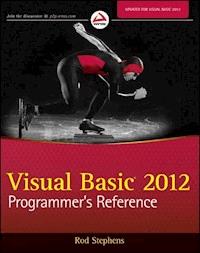
The comprehensive guide to Visual Basic 2012 Microsoft Visual Basic (VB) is the most popular programming language in the world, with millions of lines of code used in businesses and applications of all types and sizes. In this edition of the bestselling Wrox guide, Visual Basic expert Rod Stephens offers novice and experienced developers a comprehensive tutorial and reference to Visual Basic 2012. This latest edition introduces major changes to the Visual Studio development platform, including support for developing mobile applications that can take advantage of the Windows 8 operating system. * This new edition includes information on developing Win8-compatible Metro applications using pre-loaded templates * Explores the new design features and support for WPF designers * Explains how to develop Windows smartphone apps * Covers new VB language features such as Asynch and Await Visual Basic 2012 Programmer's Reference is the programmer's go-to reference for the 2012 edition of Visual Basic.
Sie lesen das E-Book in den Legimi-Apps auf:
Seitenzahl: 1247
Veröffentlichungsjahr: 2012
Ähnliche















CONTENTS
Part I: IDE
Chapter 1: Introduction To The IDE
Introducing the IDE
Different IDE Appearances
IDE Configurations
Projects and Solutions
Starting the IDE
Creating a Project
Saving a Project
Summary
Chapter 2: Menus, Toolbars, and Windows
IDE Tools
Menus
Toolbars
Secondary Windows
Summary
Chapter 3: Windows Forms Designer
Introducing Windows Forms Designer
Setting Designer Options
Adding Controls
Selecting Controls
Copying Controls
Moving and Sizing Controls
Arranging Controls
Setting Properties
Adding Code to Controls
Summary
Chapter 4: WPF Designer
Introducing WPF Designer
Editor Weaknesses
Recognizing Designer Windows
Adding Controls
Selecting Controls
Moving and Sizing Controls
Setting Properties
Setting Group Properties
Adding Code to Controls
Summary
Chapter 5: Visual Basic Code Editor
Editing Code
Margin Icons
Outlining
Tooltips
IntelliSense
Code Coloring and Highlighting
Code Snippets
Architectural Tools
The Code Editor at Run Time
Summary
Chapter 6: Debugging
Debugging and Testing
The Debug Menu
The Debug ⇒ Windows Submenu
The Breakpoints Window
The Command and Immediate Windows
Summary
Part II: Getting Started
Chapter 7: Selecting Windows Forms Controls
Controls
Controls Overview
Choosing Controls
Third-Party Controls
Summary
Chapter 8: Using Windows Forms Controls
Using Controls and Components
Controls and Components
Creating Controls
Properties
Methods
Events
Summary
Chapter 9: Windows Forms
Using Forms
Transparency
About, Splash, and Login Forms
Mouse Cursors
Icons
Properties Adopted by Child Controls
Property Reset Methods
Overriding WndProc
MRU Lists
Dialog Boxes
Wizards
Summary
Chapter 10: Selecting WPF Controls
WPF Controls and Code
Controls Overview
Containing and Arranging Controls
Making Selections
Entering Data
Displaying Data
Providing Feedback
Initiating Action
Presenting Graphics and Media
Providing Navigation
Managing Documents
Digital Ink
Summary
Chapter 11: Using Wpf Controls
WPF Controls
WPF Concepts
WPF in the IDE
XAML Features
Procedural WPF
Documents
Summary
Chapter 12: WPF Windows
Using WPF Windows
Window Applications
Page Applications
Summary
Chapter 13: Program and Module Structure
Solutions and Projects
Hidden Files
Code File Structure
Typographic Code Elements
Summary
Chapter 14: Data Types, Variables, and Constants
Variables
Data Types
Type Characters
Data Type Conversion
Variable Declarations
Initializing Collections
Option Explicit and Option Strict
Scope
Parameter Declarations
Property Procedures
Enumerated Data Types
Anonymous Types
Nullable Types
Constants
Delegates
Naming Conventions
Summary
Chapter 15: Operators
Understanding Operators
Arithmetic Operators
Concatenation Operators
Comparison Operators
Logical Operators
Bitwise Operators
Operator Precedence
Assignment Operators
The StringBuilder Class
Date and TimeSpan Operations
Operator Overloading
Summary
Chapter 16: Subroutines and Functions
Managing Code
Subroutines
Functions
Property Procedures
Extension Methods
Lambda Functions
Relaxed Delegates
Asynchronous Methods
Summary
Chapter 17: Program Control Statements
Controlling Programs
Decision Statements
Looping Statements
Summary
Chapter 18: Error Handling
The Struggle for Perfection
Bugs versus Unplanned Conditions
Structured Error Handling
Debugging
Summary
Chapter 19: Database Controls and Objects
Data Sources
Automatically Connecting to Data
Automatically Created Objects
Other Data Objects
Data Overview
Connection Objects
Transaction Objects
Data Adapters
Command Objects
DataView
DataRowView
Simple Data Binding
CurrencyManager
Complex Data Binding
Summary
Chapter 20: LINQ
The Many Faces of LINQ
Introduction to LINQ
Basic LINQ Query Syntax
Advanced LINQ Query Syntax
LINQ Functions
LINQ Extension Methods
LINQ to Objects
LINQ to XML
LINQ into XML
LINQ out of XML
LINQ to ADO.NET
PLINQ
Summary
Chapter 21: Metro-Style Applications
Building Metro-Style Applications
Starting a New Project
Special Image Files
Building MetroBones
Testing
Summary
Part III: Object-Oriented Programming
Chapter 22: OOP Concepts
Introducing OOP
Classes
Encapsulation
Inheritance
Polymorphism
Method Overloading
Extension Methods
Summary
Chapter 23: Classes and Structures
Packaging Data
Classes
Structures
Class Instantiation Details
Structure Instantiation Details
Garbage Collection
Constants, Properties, and Methods
Events
Summary
Chapter 24: Namespaces
Handling Name Conflicts
The Imports Statement
The Root Namespace
Making Namespaces
Classes, Structures, and Modules
Resolving Namespaces
Summary
Chapter 25: Collection Classes
Grouping Data
What Is a Collection?
Arrays
Collections
Dictionaries
CollectionsUtil
Stacks and Queues
Generics
Collection Initializers
Iterators
Summary
Chapter 26: Generics
Class Creators
Advantages of Generics
Defining Generics
Instantiating Generic Classes
Generic Collection Classes
Generic Methods
Generics and Extension Methods
Summary
Part IV: Interacting With The Environment
Chapter 27: Printing
Printing Concepts
Basic Printing
Drawing Basics
A Booklet Example
Summary
Chapter 28: Configuration and Resources
The Need for Configuration
My
Environment
Registry
Configuration Files
Resource Files
Application
Summary
Chapter 29: Streams
Stream Concepts
Stream
FileStream
MemoryStream
BinaryReader and BinaryWriter
TextReader and TextWriter
StringReader and StringWriter
StreamReader and StreamWriter
OpenText, CreateText, and AppendText
Custom Stream Classes
Summary
Chapter 30: Filesystem Objects
Programming Approaches
Permissions
Visual Basic Methods
.NET Framework Classes
My.Computer.FileSystem
My.Computer.FileSystem.SpecialDirectories
Summary
Appendices
Appendix A: Useful Control Properties, Methods, and Events
Appendix B: Variable Declarations and Data Types
Appendix C: Operators
Appendix D: Subroutine and Function Declarations
Appendix E: Control Statements
Appendix F: Error Handling
Appendix G: Windows Forms Controls and Components
Appendix H: WPF Controls
Appendix I: Visual Basic Power Packs
Appendix J: Form Objects
Appendix K: Classes and Structures
Appendix L: LINQ
Appendix M: Generics
Appendix N: Graphics
Appendix O: Useful Exception Classes
Appendix P: Date And Time Format Specifiers
Appendix Q: Other Format Specifiers
Appendix R: The Application Class
Appendix S: The My Namespace
Appendix T: Streams
Appendix U: Filesystem Classes
Appendix V: Visual Studio Versions
Introduction
Part I
IDE
CHAPTER 1
: Introduction to the IDE
CHAPTER 2
: Menus, Toolbars, and Windows
CHAPTER 3
: Windows Forms Designer
CHAPTER 4
: WPF Designer
CHAPTER 5
: Visual Basic Code Editor
CHAPTER 6
: Debugging
Chapter 1
Introduction to the IDE
WHAT’S IN THIS CHAPTER
Configuring the Visual Studio IDE for Visual Basic development
Understanding projects and solutions
Creating a simple project
Copying solutions
WROX.COM CODE DOWNLOADS FOR THIS CHAPTER
There are no code downloads for this chapter.
INTRODUCING THE IDE
The chapters in the first part of this book describe the Visual Studio integrated development environment (IDE). They explain the most important windows, menus, and toolbars that make up the environment, and show how to customize them to suit your needs. They explain some of the tools that provide help while you are writing Visual Basic applications and how to use the IDE to debug programs.
Even if you are an experienced Visual Basic programmer, you should at least skim this material. The IDE is extremely complex and provides hundreds (if not thousands) of commands, menus, toolbars, windows, context menus, and other tools for editing, running, and debugging Visual Basic projects.
Even after you’ve read these chapters, you should periodically spend some time wandering through the IDE to see what you’ve missed. Every month or so, spend a few minutes exploring little-used menus and right-clicking things to see what their context menus contain. As you become a more proficient Visual Basic programmer, you will find uses for tools that you may have dismissed or not understood before.
This chapter explains how to get started using the IDE. It tells how to configure the IDE for different kinds of development. It explains Visual Basic projects and solutions, and shows how to create, run, and save new projects. This chapter is mostly an introduction to the chapters that follow. The other chapters in this part of the book provide much more detail about particular tasks, such as using the IDE’s menus, customizing menus and toolbars, and using the Windows Forms Designer to build forms.
DIFFERENT IDE APPEARANCES
Before you start reading about the IDE and viewing screen shots, it’s important to understand that the Visual Studio IDE is extremely customizable. You can move, hide, or modify the menus, toolbars, and windows; create your own toolbars; dock, undock, or rearrange the toolbars and windows; and change the behavior of the built-in text editors (change their indentation, colors for different kinds of text, and so forth).
To avoid confusion, you should probably not customize the IDE’s basic menus and toolbars too much. Removing the help commands from the Help menu and adding them to the Edit menu will only cause confusion later. Moving or removing commands will also make it more difficult to follow the examples in this and other books, and will make it more difficult to follow instructions given by others who might be able to help you when you have problems.
Instead of making drastic changes to the default menus and toolbars, hide the menus and toolbars that you don’t want and create new customized toolbars to suit your needs. Then you can find the original standard toolbars if you decide you need them later.
The screens shown in this book may not look exactly like the ones on your system for several other reasons as well. Visual Studio looks different on different operating systems. The figures in this book were taken on a computer running Windows 8 so they display the Windows 8 look and feel. Additionally, some commands may not behave exactly the same way on different operating systems.
Visual Studio will also look different depending on which version you have installed. The free Visual Basic 2012 Express Edition product has fewer tools than other editions such as the high-end Team Suite. The figures in this book were captured while using Team Suite, so if you have another version, you may not see all of the tools shown here. Menu items, toolbars, and other details may also be slightly different for different versions. Usually you can find moved items with a little digging through the menus and customizations.
Finally, you may be using different configuration settings from the ones used while writing this book. You can configure Visual Studio to use settings customized for developing projects using Visual Basic, C#, web tools, and other technologies. This book assumes your installation is configured for Visual Basic development, and the screen shots may look different if you have selected a different configuration. The following section says more about different IDE configurations and tells how you can select a particular configuration.
IDE CONFIGURATIONS
When you install it, Visual Studio asks you what kinds of development settings you want to use. The most obvious choice for a Visual Basic developer is Visual Basic Development Settings. This choice customizes Visual Studio to work more easily with Visual Basic, and is a good selection if you will focus on Visual Basic development.
Another reasonable choice is General Development Settings. This option makes Visual Studio behave more like Visual Studio 2003. It’s a good choice if you’re used to Visual Studio 2003, or if you expect to use other Visual Studio languages, such as C#, somewhat regularly because these settings are fairly effective for C# development and Visual Basic development.
This book assumes that you have configured Visual Studio for Visual Basic development. If you have chosen a different configuration, some of the figures in this book may look different from what you see on your screen. Some of the menu items available may be slightly different, or may appear in a different order. Usually, the items are available somewhere, but you may have to search a bit to find them.
If you later decide that you want to switch configurations, open the Tools menu and select Import and Export Settings to display the Import and Export Settings Wizard. Select the Reset All Settings option button and click Next. On the second page, tell the wizard whether to save your current settings and click Next. On the wizard’s final page (shown in Figure 1-1), select the type of configuration you want and click Finish. When the wizard is done, click Close.
FIGURE 1-1: Use the Tools menu’s Import and Export Settings command to change the Visual Studio configuration.
PROJECTS AND SOLUTIONS
Visual Studio groups files into projects and solutions. A project is a group of files that produces some specific output. This output may take many forms such as a compiled executable program, a dynamic-link library (DLL) of classes for use by other projects, or a control library for use on other Windows forms.
A solution is a group of one or more projects that should be managed together. For example, suppose that you are building a server application that provides access to your customer order database. You are also building a client program that each of your sales representatives will use to query the server application. Because these two projects are closely related, it might make sense to manage them in a single solution. When you open the solution, you get instant access to all the files in both projects.
Both projects and solutions can include associated files that are useful for building the application but that do not become part of a final compiled product. For example, a project might include the application’s proposal and architecture documents. These are not included in the compiled code, but it can be useful to associate them with the project so they are easy to find, open, and edit while you are working on the project.
When you open the project, Visual Studio lists those documents along with the program files. If you double-click one of these documents, Visual Studio opens the file using an appropriate application. For example, if you double-click a file with a .doc, .docm, or .docx extension, Visual Studio normally opens it with Microsoft Word.
To associate one of these files with a project or solution, right-click the project file at the top of the Solution Explorer (more on the Solution Explorer shortly). In the context menu that appears, select the Add command’s New Item entry, and use the resulting dialog box to select the file you want to add.
STARTING THE IDE
When you launch Visual Studio, it initially displays the Start Page shown in Figure 1-2 by default. The Start Page’s Recent Projects section lists projects that you have worked on recently and provides links that let you open an existing project or website, or create a new project or website. The Get Started tab contains links to help topics that may be useful to beginners.
FIGURE 1-2: By default, Visual Studio initially displays the Start Page.
Click the Guidance and Resources tab to see general development topics such as a development overview, information about managing source code, and information about unit testing.
Click the Latest News tab to see an RSS feed listing current articles and stories about Visual Studio development. To change the feed, simply enter a new URL in the tab’s text box.
Use the links on the left of the Start Page to open or create new projects. Click New Project to start a new project. Click Open Project to browse for a project to open. Click one of the Recent Project links to quickly open a project that you have recently edited.
Instead of displaying the Start Page, Visual Studio can take one of several other actions when it starts. To change the startup action, open the Tools menu and select Options. Then select the Show All Settings check box at the bottom of the dialog box so you can see all of the options and open the Environment folder’s Startup item. In the At Startup drop-down box, you can select one of the following options:
Open Home Page
Load Last Loaded Solution
Show Open Project Dialog Box
Show New Project Dialog Box
Show Empty Environment
Show Start Page
Pick one and click OK.
CREATING A PROJECT
After you open Visual Studio, you can use the Start Page’s New Project link or the File menu’s New Project command to open the New Project dialog box shown in Figure 1-3.
FIGURE 1-3: The New Project dialog box lets you start a new project.
Use the Templates tree view on the left to select the project category that you want. Then select a specific project type on the right. In Figure 1-3, the Windows Forms Application project type is selected. Enter a name for the new project in the text box at the bottom.
After you fill in the new project’s information, click OK to create the project.
Figure 1-4 shows the IDE immediately after starting a new Windows Forms Application project. Remember that the IDE is extremely configurable, so it may not look much like Figure 1-4 after you have rearranged things to your liking (and I’ve arranged things to my liking here).
FIGURE 1-4: Initially a new project looks more or less like this.
The key pieces of the IDE are labeled with numbers in Figure 1-4. The following list briefly describes each of these pieces:
If you look at the bottom of Figure 1-4, you’ll notice that the Error List window has a series of tabs. The Task List tab displays items flagged for further action such as To Do items. The Immediate window lets you type and execute Visual Basic commands, possibly while a program is running, but paused.
The Output tab shows output printed by the application. Usually an application interacts with the user through its forms and dialog boxes, but it can display information here, usually to help you debug the code.
As soon as you create a new project, it is ready to run. If you open the Debug menu and select Start Debugging, the program will run. It displays only an empty form containing no controls, but the form automatically handles a multitude of mundane windowing tasks for you.
Before you write a single line of code, the form lets you resize, minimize, restore, maximize, and close the form. The form draws its title bar, borders, and system menu, and repaints itself as needed when it is covered and restored. The operating system also automatically handles many tasks such as displaying the form in the Windows taskbar and Task Manager. Some operating systems, such as Windows 7 and Vista, automatically generate thumbnail previews for the Flip and Flip 3D tools that you display by pressing Alt+Tab or Windows+Tab, respectively. Visual Basic and the operating system do a ton of work for you before you even touch the project!
The form contains no controls, can’t open files, doesn’t process data, in fact doesn’t really do anything unique, but a lot of the setup is done for you. It handles the windowing chores for you so you can focus on your particular problem.
SAVING A PROJECT
Later chapters explain in depth how to add controls to a form and how to write code to interact with the form. For now, suppose you have built a project complete with controls and code.
If you try to close Visual Studio or start a new project, the dialog box shown in Figure 1-5 appears. Click Save to make the Save Project dialog box shown in Figure 1-6 appear. Click Discard to throw away the existing project. Click Cancel to continue editing the current project.
FIGURE 1-5: Before closing Visual Studio or starting a new project, you must decide what to do with the previous project.
FIGURE 1-6: Use this dialog box to save a new project.
As you work with the new project, Visual Studio saves its form definitions and code in a temporary location. Each time you run the program, Visual Studio updates the files so it doesn’t lose everything if it crashes. The files are still temporary, however.
When you are ready to make the new project permanent, open the File menu and select Save All to display the Save Project dialog box shown in Figure 1-6.
The Name field shows the name that you originally gave the project when you created it. Verify that the name is okay or change it.
Next, enter the location where you want the project saved. The default location is similar to the rather non-intuitive value shown in Figure 1-6. (This image was taken while I was logged in as the user named Developer. When you save a project, the “Developer” part of the location would be replaced with your username.)
Be sure to pick a good location before you click Save. The next time you build a project, the default will be the location you specify now so you won’t need to be quite as careful in the future, assuming you want to build a lot of projects in the same directory.
If you check the Create Directory for Solution box, Visual Studio enables the Solution Name text box and adds an extra directory above the project directory to hold the solution. This is most useful when you want to include more than one project in a single solution. For example, you might want several projects in the same solution to sit in a common solution directory.
If you have Team Foundation Server installed, you can check the Add to Source Control box to place the new project’s code under source control.
After you have entered the project name and location, and optionally specified a separate solution directory, click Save.
SUMMARY
This chapter explained how to get started using the Visual Studio integrated development environment. It showed how to configure the IDE for different kinds of development and explained that different configurations might make your version of Visual Studio look different from the screen shots shown in this book. It explained what Visual Basic projects and solutions are, and showed how to create, run, and save a new project.
The next few chapters describe parts of the IDE in greater detail. Chapter 2, “Menus, Toolbars, and Windows,” describes the commands available in the IDE and the menus, toolbars, and secondary windows that hold them.
Chapter 2
Menus, Toolbars, and Windows
WHAT’S IN THIS CHAPTER
Finding IDE menus and tools
Setting Option Explicit, Option Strict, and Option Infer
Adding external tools to open a browser or send e-mail
Rearranging IDE windows
Displaying control properties and events
WROX.COM CODE DOWNLOADS FOR THIS CHAPTER
There are no code downloads for this chapter.
IDE TOOLS
The Visual Studio IDE is incredibly powerful and provides hundreds of tools for building and modifying projects. The price you pay for all of these powerful tools is extra complexity. Because so many tools are available, it can take some digging to find the tool you want, even if you know exactly what you need.
This chapter describes the menus, toolbars, and windows that contain the tools provided by the IDE. It explains some of the most useful tools provided by the IDE and tells where to find them, provided you haven’t moved them while customizing the IDE.
This chapter also tells how you can customize the menus and toolbars to give you easy access to the commands that you use most frequently and how to hide those that you don’t need.
MENUS
The IDE’s menus contain standard Visual Studio commands. These are generally commands that manipulate the project and the modules it contains. Some of the concepts are similar to those used by any Windows application (File ⇒ New, File ⇒ Save, Edit ⇒ Copy), but many of the details are specific to Visual Studio programming, so the following sections describe them in a bit more detail.
The menus are customizable, so you can add, remove, and rearrange the menus and the items they contain. This can be quite confusing, however, if you later need to find a command that you have removed from its normal place in the menus. Some developers place extra commands in standard menus, particularly the Tools menu, but it is generally risky to remove standard menu items. Usually it is safest to leave the standard menus alone and make custom menus and toolbars to hold customizations.
Many of the menus’ most useful commands are also available in other ways. Many provide keyboard shortcuts that make using them quick and easy. For example, Ctrl+N opens the New Project dialog box just as if you had selected the File ⇒ New Project menu command. If you find yourself using the same command very frequently, look in the menu and learn its keyboard shortcut to save time later.
Many menu commands are also available in standard toolbars. For example, the Debug toolbar contains many of the same commands that are in the Debug menu. If you use a set of menu commands frequently, you may want to display the corresponding toolbar to make using the commands easier.
Visual Studio also provides many commands through context menus. For example, if you right-click a project in the Solution Explorer, the context menu includes an Add Reference command that displays the Add Reference dialog box just as if you had invoked Project ⇒ Add Reference. Often it is easier to find a command by right-clicking an object related to whatever you want to do than it is to wander through the menus.
Lesen Sie weiter in der vollständigen Ausgabe!
Lesen Sie weiter in der vollständigen Ausgabe!
Lesen Sie weiter in der vollständigen Ausgabe!
Lesen Sie weiter in der vollständigen Ausgabe!
Lesen Sie weiter in der vollständigen Ausgabe!
Lesen Sie weiter in der vollständigen Ausgabe!
Lesen Sie weiter in der vollständigen Ausgabe!
Lesen Sie weiter in der vollständigen Ausgabe!
Lesen Sie weiter in der vollständigen Ausgabe!
Lesen Sie weiter in der vollständigen Ausgabe!
Lesen Sie weiter in der vollständigen Ausgabe!
Lesen Sie weiter in der vollständigen Ausgabe!
Lesen Sie weiter in der vollständigen Ausgabe!
Lesen Sie weiter in der vollständigen Ausgabe!
Lesen Sie weiter in der vollständigen Ausgabe!
Lesen Sie weiter in der vollständigen Ausgabe!
Lesen Sie weiter in der vollständigen Ausgabe!
Lesen Sie weiter in der vollständigen Ausgabe!
Lesen Sie weiter in der vollständigen Ausgabe!
Lesen Sie weiter in der vollständigen Ausgabe!
Lesen Sie weiter in der vollständigen Ausgabe!
Lesen Sie weiter in der vollständigen Ausgabe!
Lesen Sie weiter in der vollständigen Ausgabe!
Lesen Sie weiter in der vollständigen Ausgabe!
Lesen Sie weiter in der vollständigen Ausgabe!
Lesen Sie weiter in der vollständigen Ausgabe!
Lesen Sie weiter in der vollständigen Ausgabe!
Lesen Sie weiter in der vollständigen Ausgabe!
Lesen Sie weiter in der vollständigen Ausgabe!
Lesen Sie weiter in der vollständigen Ausgabe!
Lesen Sie weiter in der vollständigen Ausgabe!
Lesen Sie weiter in der vollständigen Ausgabe!
Lesen Sie weiter in der vollständigen Ausgabe!
Lesen Sie weiter in der vollständigen Ausgabe!
Lesen Sie weiter in der vollständigen Ausgabe!
Lesen Sie weiter in der vollständigen Ausgabe!
Lesen Sie weiter in der vollständigen Ausgabe!
Lesen Sie weiter in der vollständigen Ausgabe!
Lesen Sie weiter in der vollständigen Ausgabe!
Lesen Sie weiter in der vollständigen Ausgabe!
Lesen Sie weiter in der vollständigen Ausgabe!
Lesen Sie weiter in der vollständigen Ausgabe!
Lesen Sie weiter in der vollständigen Ausgabe!
Lesen Sie weiter in der vollständigen Ausgabe!
Lesen Sie weiter in der vollständigen Ausgabe!
Lesen Sie weiter in der vollständigen Ausgabe!
Lesen Sie weiter in der vollständigen Ausgabe!
Lesen Sie weiter in der vollständigen Ausgabe!
Lesen Sie weiter in der vollständigen Ausgabe!
Lesen Sie weiter in der vollständigen Ausgabe!
Lesen Sie weiter in der vollständigen Ausgabe!
Lesen Sie weiter in der vollständigen Ausgabe!
Lesen Sie weiter in der vollständigen Ausgabe!
Lesen Sie weiter in der vollständigen Ausgabe!
Lesen Sie weiter in der vollständigen Ausgabe!
Lesen Sie weiter in der vollständigen Ausgabe!
Lesen Sie weiter in der vollständigen Ausgabe!
Lesen Sie weiter in der vollständigen Ausgabe!
Lesen Sie weiter in der vollständigen Ausgabe!
Lesen Sie weiter in der vollständigen Ausgabe!
Lesen Sie weiter in der vollständigen Ausgabe!
Lesen Sie weiter in der vollständigen Ausgabe!
Lesen Sie weiter in der vollständigen Ausgabe!




