


36,59 €
Mehr erfahren.
- Herausgeber: Packt Publishing
- Kategorie: Wissenschaft und neue Technologien
- Sprache: Englisch
Proven, actionable ways to install, manage, secure and monitor your vSphere 6.7 environments
Key Features
- Get up to speed with the installation and life cycle management of a vSphere 6.7 environment, using a task-based approach
- Secure your vSphere environment using SSL Certificates
- Get introduced to the tools that are used to monitor the performance of the vSphere Environment
Book Description
VMware vSphere is the most comprehensive core suite of SDDC solutions on the market. It helps transform data centers into simplified on-premises private cloud infrastructures. This edition of the book focuses on the latest version, vSphere 6.7.
The books starts with chapters covering the greenfield deployment of vSphere 6.7 components and the upgrade of existing vSphere components to 6.7. You will then learn how to configure storage and network access for a vSphere environment. Get to grips with optimizing your vSphere environment for resource distribution and utilization using features such as DRS and DPM, along with enabling high availability for vSphere components using vSphere HA, VMware FT, and VCHA. Then, you will learn how to facilitate large-scale deployment of stateless/stateful ESXi hosts using Auto Deploy. Finally, you will explore how to upgrade/patch a vSphere environment using vSphere Update Manager, secure it using SSL certificates, and then monitor its performance with tools such as vSphere Performance Charts and esxtop.
By the end of this book, you'll be well versed in the core functionalities of vSphere 6.7 and be able to effectively deploy, manage, secure, and monitor your environment.
What you will learn
- Deploy a new vSphere 6.7 environment or upgrade an existing vSphere environment to version 6.7
- Learn how to configure and manage storage and network access for a vSphere environment
- Enable high availability for Hosts, VMs and vCenter Server
- Optimize your vSphere environment for resource distribution/utilization
- Patch or upgrade a vSphere environment using vSphere Update Manager
- Secure vSphere infrastructure components using SSL certificates
- Effectively monitor the performance of your vSphere environment
Who this book is for
If you are a systems administrator, support engineer, or anyone who wants to learn how to install, configure, and manage a vSphere environment in a quick, hands-on manner, then this book is for you. Consultants and infrastructure architects who wish to design and deploy vSphere 6.7 environments will also find this book helpful.
Das E-Book können Sie in Legimi-Apps oder einer beliebigen App lesen, die das folgende Format unterstützen:
Seitenzahl: 421
Veröffentlichungsjahr: 2019
Ähnliche
















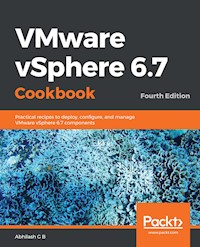
VMware vSphere 6.7 Cookbook Fourth Edition
Copyright © 2019 Packt Publishing
All rights reserved. No part of this book may be reproduced, stored in a retrieval system, or transmitted in any form or by any means, without the prior written permission of the publisher, except in the case of brief quotations embedded in critical articles or reviews.
Every effort has been made in the preparation of this book to ensure the accuracy of the information presented. However, the information contained in this book is sold without warranty, either express or implied. Neither the author, nor Packt Publishing or its dealers and distributors, will be held liable for any damages caused or alleged to have been caused directly or indirectly by this book.
Packt Publishing has endeavored to provide trademark information about all of the companies and products mentioned in this book by the appropriate use of capitals. However, Packt Publishing cannot guarantee the accuracy of this information.
Commissioning Editor: Vijin BorichaAcquisition Editor: Heramb BhavsarContent Development Editor: Drashti PanchalSenior Editor: Rahul DsouzaTechnical Editor: Prachi SawantCopy Editor: Safis EditingProject Coordinator: Vaidehi SawantProofreader: Safis EditingIndexer: Pratik ShirodkarProduction Designer: Jyoti Chauhan
First published: July 2013 Second edition: February 2015 Third edition: January 2018 Fourth edition: August 2019
Production reference: 1300819
Published by Packt Publishing Ltd. Livery Place 35 Livery Street Birmingham B3 2PB, UK.
ISBN 978-1-78995-300-8
www.packt.com
Packt.com
Subscribe to our online digital library for full access to over 7,000 books and videos, as well as industry leading tools to help you plan your personal development and advance your career. For more information, please visit our website.
Why subscribe?
Spend less time learning and more time coding with practical eBooks and Videos from over 4,000 industry professionals
Improve your learning with Skill Plans built especially for you
Get a free eBook or video every month
Fully searchable for easy access to vital information
Copy and paste, print, and bookmark content
Did you know that Packt offers eBook versions of every book published, with PDF and ePub files available? You can upgrade to the eBook version at www.packt.com and as a print book customer, you are entitled to a discount on the eBook copy. Get in touch with us at [email protected] for more details.
At www.packt.com, you can also read a collection of free technical articles, sign up for a range of free newsletters, and receive exclusive discounts and offers on Packt books and eBooks.
Contributors
About the author
Abhilash G B is a virtualization specialist, author, and a VMware vExpert (2014-2019). His primary focus is in the areas of data center virtualization and cloud computing. He has been in the IT industry for more than a decade and has been working on VMware products and technologies since the beginning of 2007. He holds several VMware certifications, including VCIX6-DCV, VCAP-DCA/DCD, VCP-DCV, VCP-Cloud, and VCP-NV. He is also the author of six other publications.
About the reviewer
Mario Russo is a senior solution architect at Atos Italy, and a solution leader expert – TTS – RFP – RFQ – Presales. He has worked as an IT architect, as a senior technical VMware trainer, and in the presales department, and has been involved with VMware technology since 2004. He is a VCI-certified instructor level 2s of VMware, and is certified in VCAP5- DCA - VCP-Cloud – VMware Certified Professional 6 – Data Center Virtualization, VMware Certified Professional 6 – Network Virtualization (NSX v6.2), VCP7-CMA VMware Certified Professional 7, and many other technologies. He has also been the technical reviewer of many other Packt books.
Packt is searching for authors like you
If you're interested in becoming an author for Packt, please visit authors.packtpub.com and apply today. We have worked with thousands of developers and tech professionals, just like you, to help them share their insight with the global tech community. You can make a general application, apply for a specific hot topic that we are recruiting an author for, or submit your own idea.
Table of Contents
Title Page
Copyright and Credits
VMware vSphere 6.7 Cookbook Fourth Edition
Dedication
About Packt
Why subscribe?
Contributors
About the author
About the reviewer
Packt is searching for authors like you
Preface
Who this book is for
What this book covers
To get the most out of this book
Download the color images
Conventions used
Sections
Getting ready
How to do it…
How it works…
There's more…
See also
Get in touch
Reviews
Deploying a New vSphere 6.7 Infrastructure
Installing ESXi – the interactive method
Getting ready
Hardware requirements
Software required for the installation
Using the ESXi image
How to do it...
How it works...
Configuring the ESXi Management Network
Getting ready
How to do it...
How it works...
OUI MAC addresses
Scripted deployment of ESXi
Getting ready
How to do it...
How it works...
There's more...
Deploying the vCenter Server Appliance (VCSA)
Getting ready
How to do it...
How it works...
Deploying vCenters in a Linked Mode configuration
Getting ready
How to do it...
How it works...
There's more...
Configuring Single Sign-On (SSO) identity sources
How to do it...
Part 1 – Joining the PSC to Active Directory
Part 2 – Adding the identity source
How it works...
Configuring vCenter Roles and Permissions
Getting ready
How to do it...
How it works...
Joining ESXi to an Active Directory domain
Getting ready
How to do it...
How it works...
Planning and Executing the Upgrade of vSphere
Planning the upgrade of your vSphere infrastructure
Getting ready
How to do it...
How it works...
Running VMware Migration Assistant
Getting ready
How to do it...
How it works...
Upgrading Platform Services Controllers (PSCs)
Getting ready
How to do it...
Migrating PSC (Windows) to PSC (Appliance) 6.7
Upgrading PSC Appliance to PSC 6.7
How it works...
Upgrading vCenter Servers
Getting ready
How to do it...
How it works...
Using the vCenter Convergence Tool
Getting ready
How to do it...
Decommissioning external PSCs
How it works...
Upgrading ESXi using the interactive installer
Getting ready
How to do it...
How it works...
Upgrading ESXi using the command-line interface
How to do it...
How it works...
Configuring Network Access Using vSphere Standard Switches
Creating vSphere Standard Switches
Getting ready
How to do it...
Creating a vSwitch using the HTML5 client
Creating a vSwitch using the ESXi command-line interface
How it works...
Creating Virtual Machine Port Groups on vSphere Standard Switches
Getting ready
How to do it...
Creating a standard port group using the HTML5 interface
Creating a standard port group using the ESXi CLI
How it works...
Creating additional VMkernel interfaces on vSphere Standard Switches
Getting ready
How to do it...
Creating a VMkernel interface using the HTML5 client
Creating VMkernel interfaces using the ESXi CLI
How it works...
Creating additional VMkernel TCP/IP stacks
Getting ready
How to do it...
How it works...
Managing the Physical Uplinks of a vSphere Standard Switch
How to do it...
How it works...
There's more...
Configuring Security, Traffic Shaping, Teaming and Failover
How to do it...
Configuring Network Access Using vSphere Distributed Switches
Creating a vSphere Distributed Switch (vDS)
How to do it...
How it works...
Connecting ESXi hosts to a vDS
How to do it...
How it works...
Creating Distributed Port Groups (dvPortGroup)
How to do it...
How it works...
Port binding and port allocation
Network resource pool
VLAN type
Configuring Security, Traffic Shaping, Teaming, and Failover
How to do it...
How it works...
Security
Promiscuous mode
MAC address changes and forged transmits
Traffic shaping
Teaming and failover
Route based on the originating virtual port ID
Route based on source MAC hash
Route based on IP hash
Route based on physical NIC load
Use explicit failover order
Network failure detection
Notify switches
Failback
Failover order
There's more...
Configuring VLANs on vDS
How to do it...
How it works...
External switch tagging
VST
VGT
Configuring Private VLANs on a vDS
How to do it...
How it works...
Configuring a Link Aggregation Group (LAG) on a vDS
How to do it...
Setting LAG as a standby uplink on distributed port groups
Reassigning the physical network adapters of hosts to the LAG ports
Setting the LAG to be the only active uplink on the distributed port groups
How it works...
Configuring user-defined network pools—NIOC
Getting ready
How to do it...
How it works...
Migrating Virtual Machine Network from vSS to vDS
Getting ready
How to do it...
How it works...
Migrating VMkernel interfaces from vSS to vDS
Getting ready
How to do it...
How it works...
There's more...
Configuring port mirroring on vDS
Getting ready
How to do it...
How it works...
Configuring NetFlow on vDS
How to do it...
How it works...
Upgrading a vDS
How to do it...
How it works...
Backing up and restoring a vDS
How to do it...
Exporting vDS configuration
Restoring from a backup
How it works...
Configuring Storage Access for Your vSphere Environment
Connecting ESXi hosts to a Fabric Storage
How to do it...
How it works...
Designing for redundancy
Avoiding single points of failure at the ESXi host
Avoiding single points of failure at the fabric
Avoiding single points of failure at the storage array
Fabric Zoning and Masking
Connecting ESXi to iSCSI Storage
Getting ready
How to do it...
How it works...
iSCSI multipathing using Port Binding
Getting ready
How to do it...
How it works...
Connecting ESXi hosts to NFS Storage
Getting ready
How to do it...
How it works...
Viewing storage devices and datastores on ESXi hosts
How to do it...
How it works...
Masking paths to a storage device
Getting ready
How to do it...
How it works...
Unmasking paths to a storage device
How to do it...
How it works...
Creating and Managing VMFS Datastores
Creating VMFS datastores
How to do it...
How it works...
Upgrading VMFS datastores
How to do it...
How it works...
Managing Storage Multipathing
How to do it...
How it works...
NMP
Multipathing – array types
Active/active arrays
Active/passive arrays
Asymmetric Logical Unit Access (ALUA) Arrays
Expanding or growing a VMFS datastore
How to do it...
How it works...
Extending a VMFS datastore
Getting ready
How to do it...
How it works...
Unmounting VMFS datastores and detaching storage devices
Getting ready
How to do it...
How it works...
Attaching storage devices and remounting VMFS datastores
How to do it...
How it works...
Managing VMFS snapshots
Getting ready
How to do it...
How it works...
SIOC, Storage DRS, and Profile-Driven Storage
Configuring Disk Shares on VM storage
How to do it...
How it works...
Enabling SIOC
Getting ready
How to do it...
How it works...
Balancing storage utilization using Storage DRS (SDRS)
Getting ready
How to do it...
How it works...
Defining storage capabilities using vCenter Tags
How to do it...
How it works...
Creating VM Storage Policies
Getting ready
How to do it...
How it works...
Configuring vSphere DRS, DPM, and VMware EVC
Enabling vSphere DRS on a cluster
Getting ready
How to do it...
How it works...
DRS automation levels
Migration threshold
Changing the default DRS behavior
How to do it...
How it works...
VM distribution 
Memory metric for load balancing
CPU over-commitment
Configuring VM Automation
Getting ready
How to do it...
How it works...
Creating DRS Groups
Getting ready
How to do it...
How it works...
Creating DRS VMs to Host Affinity Rules
Getting ready
How to do it...
How it works...
Creating DRS Inter-VM Affinity Rules
Getting ready
How to do it...
How it works...
Configuring Predictive DRS
Getting ready
How to do it...
Configuring vROPS for Predictive DRS
Enabling Predictive DRS
How it works...
Configuring DPM
Getting ready
How to do it...
How it works...
Using VMware Enhanced vMotion Compatibility (EVC)
How to do it...
How it works...
Achieving High Availability in a vSphere Environment
Enabling vSphere High Availability
How to do it...
How it works...
Host Failure Response
VM restart priority
VM dependency restart condition
Response for Host Isolation
Configuring vCenter Admission Control
How to do it...
How it works...
Cluster resource percentage 
The slot policy (power-on VMs) 
Dedicated failover hosts
Performance degradation VMs tolerate
Configuring Heartbeat Datastores
How to do it...
How it works...
Overriding Restart Priority for Virtual Machines
How to do it...
How it works...
Creating VM to VM Dependency Rules
Getting ready
How to do it...
How it works...
Disabling Host Monitoring
How to do it...
How it works...
Enabling Virtual Machine Monitoring
How to do it...
How it works...
Enabling Virtual Machine Component Protection (VMCP)
How to do it...
How it works...
Datastore with PDL
Datastore with APD
APD response recovery and response delay
Configuring vSphere Fault Tolerance (FT)
Getting ready
How to do it...
How it works...
Limitations
Configuring vCenter Native High Availability (VCHA)
Getting ready
How to do it...
How it works...
Achieving Configuration Compliance Using vSphere Host Profiles
Creating Host Profiles
Getting ready
How to do it...
Associating Host Profiles with ESXi hosts or clusters
How to do it...
Checking Host Profile Compliance
Getting ready
How to do it...
Scheduling Host Profile Compliance Checks
How to do it...
How it works...
Performing Host Customizations
Getting ready
How to do it...
Remediating non-compliant Hosts
Getting ready
How to do it...
How it works...
Using Host Profiles to push a configuration change
How to do it...
How it works...
Copying settings between Host Profiles
How to do it...
How it works...
Exporting Host Profiles
How to do it...
Importing Host Profiles
How to do it...
Duplicating Host Profiles
How to do it...
Building Custom ESXi Images Using Image Builder
Enabling ESXi Image Builder
How to do it...
How it works...
Importing a Software Depot
Getting ready
How to do it...
How it works...
Creating an Online Software Depot
Getting ready
How to do it...
How it works...
Creating a Custom Software Depot
Getting ready
How to do it...
How it works...
Cloning Image Profiles
Getting ready
How to do it...
How it works...
Creating Image Profiles using Software Packages
Getting ready
How to do it...
How it works...
Comparing Image Profiles
Getting ready
How to do it...
How it works...
Moving Image Profiles between Software Depots
Getting ready
How to do it...
How it works...
Exporting Image Profiles
How to do it...
How it works...
Auto-Deploying Stateless and Stateful ESXi Hosts
Enabling vSphere Auto Deploy
Getting ready
How to do it...
How it works...
Configuring the Trivial File Transfer Protocol (TFTP) server for an ESXi PXE boot environment
Getting ready
How to do it...
How it works...
See also
Configuring the DHCP server for a PXE boot
Getting ready
How to do it...
How it works...
Creating vSphere Auto Deploy rules
Getting ready
How to do it...
How it works...
Configuring Stateless Caching
Getting ready
How to do it...
How it works...
Deploying Stateful ESXi hosts
Getting ready
How to do it...
How it works...
Creating and Managing Virtual Machines
Creating a Virtual Machine
Getting ready
How to do it...
How it works...
Virtual machine components
Files that back a virtual machine
Creating Virtual Machine Snapshots
Getting ready
How to do it...
How it works...
There's more...
See also
Deleting Virtual Machine Snapshots
Getting ready
How to do it...
How it works...
See also
Reverting to the current Virtual Machine Snapshot
Getting ready
How to do it...
How it works...
Switching to an Arbitrary Virtual Machine Snapshot
Getting ready
How to do it...
How it works...
Consolidating Snapshots
Getting ready
How to do it...
How it works...
Exporting a Virtual Machine
Getting ready
How to do it...
How it works...
Upgrading and Patching Using vSphere Update Manager
Downloading Patch Definitions
Getting ready
How to do it...
How it works...
Creating Patch Baselines
Getting ready
How to do it...
How it works...
Creating Host Upgrade Baselines
Getting ready
How to do it...
How it works...
Creating Baseline Groups
Getting ready
How to do it...
How it works...
Configuring Update Manager's Remediation Settings
How to do it...
How it works...
Patching/upgrading ESXi hosts using Update Manager
Getting ready
How to do it...
How it works...
Upgrading VMware Tools and virtual hardware using Update Manager 
Getting ready
How to do it...
Installing the Update Manager Download Service on Linux
Getting ready
How to do it...
Configuring UMDS to download patches
Getting ready
How to do it...
How it works...
Configuring a Web Server on UMDS (Linux)
Getting ready
How to do it...
How it works...
Securing vSphere Using SSL Certificates
Using VMCA as a Subordinate or Intermediary CA
Getting ready
How to do it...
How it works...
Certificate management using the Hybrid approach
Getting ready
How to do it...
How it works...
Renewing ESXi certificates
How to do it...
Trusting root certificates to stop browser security warnings
Getting ready
How to do it...
How it works...
Monitoring the vSphere Infrastructure
Using esxtop to monitor performance
Getting ready
How to do it...
How it works...
Exporting/importing esxtop configurations
Getting ready
How to do it...
How it works...
Running esxtop in batch mode
Getting ready
How to do it...
How it works...
Gathering VM I/O statistics using vscsiStats
Getting ready
How to do it...
How it works...
Using vCenter Performance Charts
Getting ready
How to do it...
How it works...
Other Books You May Enjoy
Leave a review - let other readers know what you think
Preface
With more and more data centers being virtualized using its technologies, VMware is still the undisputed leader in providing virtualization solutions ranging from server virtualization to storage and network virtualization. Despite the efforts from Citrix and Microsoft, VMware's vSphere product line is still the most feature-rich and futuristic in the virtualization industry. Knowing how to install and configure the latest vSphere components is important if you want to give yourself a head start in virtualization using VMware. This book covers the installation and upgrade of the vSphere environment and also the administration tasks that one would commonly need to handle when managing a VMware infrastructure.
VMware vSphere 6.7 Cookbook is a task-oriented, fast-paced, practical guide to installing and configuring vSphere 6.7 components. It will take you through all of the steps required to accomplish various configuration tasks with less reading. Most of the tasks are accompanied by relevant screenshots and flowcharts with the intention of providing visual guidance as well. The book concentrates more on the actual task at hand, rather than the theory around it, making it easier to understand what is really needed to achieve the task. However, most of the concepts have been thoroughly described to help you understand the background and how they work.
Who this book is for
This book is for anyone who wants to learn how to install and configure VMware vSphere components. It is an excellent handbook for administrators, along with anyone else looking for a head start in learning how to upgrade, install, and configure vSphere 6.7 components. It is also a useful, task-oriented reference guide for consultants who design and deploy with vSphere.
What this book covers
Chapter 1, Deploying a New vSphere 6.7 Infrastructure, walks you through the proceduresinvolved in deploying a new vSphere 6.7 infrastructure. It covers the installation of ESXi and the deployment of the vCenter Server virtual appliance.
Chapter 2, Planning and Executing the Upgrade of vSphere, discusses the procedures involved in upgrading anexisting vSphere infrastructure to vSphere 6.7. It covers upgrading vCenter Server and the ESXi hosts.
Chapter 3, Configuring Network Access Using vSphere Standard Switches, explains how to set up and configure vSphere networking using vSphere Standard Switches.
Chapter 4, Configuring Network Access Using vSphere Distributed Switches, explains how to set up and configure vSphere networking using vSphere Distributed Switches. It covers advanced network configurations such as port mirroring, NetFlow, and the use of PVLANs.
Chapter 5, Configuring Storage Access for Your vSphere Environment, walks you through the procedures involved in configuring access to Fiber Channel, iSCSI and NFS storage for the ESXi hosts.
Chapter 6, Creating and Managing VMFS Datastores, walks you through the procedures involved in creating and managing VMFS datastores.
Chapter 7, SIOC, Storage DRS, and Profile-Driven Storage, covers the use of storagepolicies to ensure that the virtual machines (VMs) are placed in datastores categorized into different capability tiers, using SIOC to enable balanced I/O between VMs running on different hosts, and using Storage DRS to cluster datastores for I/O load balancing.
Chapter 8, Configuring vSphere DRS, DPM, and VMware EVC, covers the configuration of vSphere Distributed Resource Scheduler, Distributed Power Management, and VMware Enhanced vMotion Compatibility on an ESXi cluster.
Chapter 9, Achieving High Availability in a vSphere Environment, covers the concepts and configuration of high availability for vSphere components – the ESXi host (vSphere HA), the VM (VMware FT), and vCenter Server (VCHA).
Chapter 10, Achieving Configuration Compliance Using vSphere Host Profiles, covers the use of host profiles to create, manage, and use ESXi host configuration templates.
Chapter 11, Building Custom ESXi Images Using Image Builder, covers using Image Profiles to customize ESXi images.
Chapter 12, Auto-Deploying Stateless and Stateful ESXi Hosts, covers the procedures involved in standing up a vSphere Auto Deploy infrastructure to enable faster provisioning of stateless or stateful ESXi hosts.
Chapter 13, Creating and Managing Virtual Machines, covers essential virtual machine administration tasks.
Chapter 14, Upgrading and Patching Using vSphere Update Manager, covers the configuration of vSphere Update Manager and the Update Manager Download Service to update/patch ESXi hosts.
Chapter 15, Securing vSphere Using SSL Certificates, teaches you how to secure communication between the vSphere components and its endpoints using SSL certificates.
Chapter 16, Monitoring the vSphere Infrastructure, covers a high-level overview of the essential tools usedto monitor the performance of ESXi and VMs in a vSphere infrastructure.
To get the most out of this book
You will learn about the software requirements for every vSphere component covered in this book in their respective chapters, but to start with a basic lab setup, you will need at least two ESXi hosts, a vCenter Server, a Domain Controller, a DHCP server, a DNS server, and a TFTP Server. For learning purposes, you don't really need to run ESXi on physical machines. You can use VMware Workstation to set up a hosted lab on your desktop PC or laptop, provided the machine has adequate compute and storage resources.
For shared storage, you can use any of the following free virtual storage appliances:
OpenFiler can be downloaded from
https://www.openfiler.com
.
HP StoreVirtual VSA can be downloaded from
http://www8.hp.com/in/en/products/data-storage/storevirtual.html
.
Download the color images
We also provide a PDF file that has color images of the screenshots/diagrams used in this book. You can download it here: https://static.packt-cdn.com/downloads/9781789953008_ColorImages.pdf.
Conventions used
There are a number of text conventions used throughout this book.
CodeInText: Indicates code words in text, database table names, folder names, filenames, file extensions, pathnames, dummy URLs, user input, and Twitter handles. Here is an example: "Browse the ISO contents and navigate to the migration-assistant folder."
Any command-line input or output is written as follows:
esxtop -b -a -d 10 -n 50 > /tmp/perf_statistics.csv
Bold: Indicates a new term, an important word, or words that you see onscreen. For example, words in menus or dialog boxes appear in the text like this. Here is an example: "Specify an optional Name and Description and click Finish to create the Host Profile."
Sections
In this book, you will find several headings that appear frequently (Getting ready, How to do it..., How it works..., There's more..., and See also).
To give clear instructions on how to complete a recipe, use these sections as follows:
Getting ready
This section tells you what to expect in the recipe and describes how to set up any software or any preliminary settings required for the recipe.
How to do it…
This section contains the steps required to follow the recipe.
How it works…
This section usually consists of a detailed explanation of what happened in the previous section.
There's more…
This section consists of additional information about the recipe in order to make you more knowledgeable about the recipe.
See also
This section provides helpful links to other useful information for the recipe.
Get in touch
Feedback from our readers is always welcome.
General feedback: If you have questions about any aspect of this book, mention the book title in the subject of your message and email us at [email protected].
Errata: Although we have taken every care to ensure the accuracy of our content, mistakes do happen. If you have found a mistake in this book, we would be grateful if you would report this to us. Please visit www.packtpub.com/support/errata, selecting your book, clicking on the Errata Submission Form link, and entering the details.
Piracy: If you come across any illegal copies of our works in any form on the Internet, we would be grateful if you would provide us with the location address or website name. Please contact us at [email protected] with a link to the material.
If you are interested in becoming an author: If there is a topic that you have expertise in and you are interested in either writing or contributing to a book, please visit authors.packtpub.com.
Reviews
Please leave a review. Once you have read and used this book, why not leave a review on the site that you purchased it from? Potential readers can then see and use your unbiased opinion to make purchase decisions, we at Packt can understand what you think about our products, and our authors can see your feedback on their book. Thank you!
For more information about Packt, please visit packt.com.
Deploying a New vSphere 6.7 Infrastructure
vSphere is a suite of core infrastructure solutions that form the foundation of any modern data center that is virtualized using VMware. Planning the deployment of these components and their implementation is important as it forms the basis for any other solution.
vSphere essentially includes the hypervisor (ESXi), vCenter Server and its plugins, supporting databases and host management agents. These hypervisors create a platform to run virtual machines (VMs), and vCenter forms the management layer. vCenter enables the creation of virtual data centers. Every other solution interfaces and interacts with vCenter to manage or utilize the virtual data center. For example, vRealize Automation, NSX, and vRealize Operations interact with vCenter.
Having said that, VMware does offer APIs that allow third-party software developers to build tools that help to manage platforms or leverage the management layer formed by the vCenter servers in an environment. For example, your backup software interacts with vCenter to manage virtual machine backups.
The following software components form the foundation of a vSphere environment:
Hypervisor
: VMware ESXi 6.7
Core management software
: VMware vCenter 6.7 server and its components
Patch management software
: VMware Update Manager 6.7
ESXi Hypervisor is the abstraction layer that allows you to run multiple instances of traditional operating systems as VMs sharing the same physical resources. With every major release, 6.7 enhances the ability of the hypervisor to scale up, as well as other new features. One of the notable new features is Quick Boot. Unlike the previous versions, a reboot does not power cycle the host; instead, it restarts just the hypervisor, reducing a considerable amount of the time that is otherwise required during server initialization.
Although the book was based on vSphere 6.7 U1, VMware did release two additional updates post that. Read the release notes of vSphere 6.7 U2 and U3 for details.
vSphere 6.7 U2: https://docs.vmware.com/en/VMware-vSphere/6.7/rn/vsphere-esxi-67u2-release-notes.html and https://docs.vmware.com/en/VMware-vSphere/6.7/rn/vsphere-vcenter-server-67u2-release-notes.html
vSphere 6.7U3: https://docs.vmware.com/en/VMware-vSphere/6.7/rn/vsphere-esxi-67u3-release-notes.html and https://docs.vmware.com/en/VMware-vSphere/6.7/rn/vsphere-vcenter-server-67u3-release-notes.html
Core management software – VMware vCenter Server 6.7 and its components:
The vCenter Appliance with vSphere 6.5 was a significant improvement and saw a substantial shift in the adoption of vCenter Server Appliance (VCSA). VCSA 6.5/6.7 is equally scalable, as the Windows version of the vCenter, needless to say, is more stable and easier to troubleshoot as all the software components are packaged to run on a lightweight Linux operating system called PHOTON OS (https://vmware.github.io/photon/). Also, VMware is gradually shifting away from its dependence on Microsoft SQL and Oracle Database systems by using a PostgreSQL-based (https://www.postgresql.org/) database called vPostgres.
VMware began bundling essential services, such as SSO, Inventory Service, and certificate management, into a single manageable component called the Platform Services Controller (PSC), starting with vSphere 6.0. With versions prior to vCenter 6.0 for Windows, all of these components had individual installers, making it possible for them to be either installed on the same machine as the vCenter or installed onto separate machines. Therefore, it became necessary to protect and manage more than one virtual or physical machine running Windows. It also made upgrading and troubleshooting cumbersome. Bundling them together onto the same Windows machine or deploying as an appliance made management and the upgrade of these components a breeze.
PSC can be deployed as a separate virtual machine (Windows/VCSA) or remain as an embedded component of the VCSA. Starting with vSphere 6.7, the need for an external PSC has been deprecated.
SSO is an authentication server component that's embedded into the PSC. It acts as an authentication gateway and accepts authentication requests from registered components and validates the credential pair against identity sources that are added to the SSO server. Once successfully authenticated, they are provided with security tokens for authentication exchanges going forward.
vCenter Update Manager (VUM) is used to upgrade or patch a vSphere environment. It is predominantly used to install patches or perform ESXi upgrades. It can perform additional tasks, such as upgrading VMware tools and upgrading virtual machine hardware. The solution is fully integrated into the vCenter Appliance and is enabled by default.
vSphere Certificate Manager is a built-in certificate manager that uses VMware Certificate Authority (VMCA) as the issuing authority by default.
VMware Licensing Service is a repository for the licensing information of all VMware products that work with the PSC/vCenter. License information is replicated between PSCs that are in the same SSO domain.
The vCenter database is the source of truth for vCenter. vCenter will not function without an active connection to the database.
In this chapter, we will cover the following recipes:
Installing ESXi – the interactive method
Configuring the ESXi Management Network
Scripted deployment of ESXi
Deploying the vCenter Server Appliance (VCSA)
Deploying vCenters in a Linked Mode configuration
Configuring Single Sign-On (SSO) identity sources
Configuring vCenter Roles and Permissions
Joining ESXi to an Active Directory domain
Installing ESXi – the interactive method
VMware ESXi can be installed in more than one way. The traditional approach is to use the ESXi CD/DVD-ROM image to perform an interactive installation. In this recipe, we will learn how to install ESXi using the bootable installer image.
Getting ready
Before you begin, it is recommended that you refer to the VMware Compatibility Guide to verify whether the server hardware is compatible with VMware ESXi 6.7.
Hardware requirements
Once you have made sure that the server hardware is compatible, the next step is to make sure that the server meets the hardware capacity requirements, which are as follows:
The physical server should have at least two 64-bit x86 CPU cores.
AMD
No Execute
(
NX
) and Intel
Execute Disable
(
XD
) processor functions should be enabled in the server BIOS.
To be able to run 64-bit operating systems on VMs, you will need to allow the use of hardware virtualization (Intel VT-x or AMD RVI) in the server BIOS.
A minimum of 4 GB of physical memory for the hypervisor alone, and an additional 4 GB to start hosting VMs.
Software required for the installation
The VMware ESXi 6.7 hypervisor ISO image can be downloaded from VMware's downloads page, at https://my.vmware.com/web/vmware/downloads.
Using the ESXi image
You need a way to present the ISO to the physical machine so that it can boot from it.
Of course, you could burn the ISO to a physical DVD and then insert it into the DVD drive of the physical machine. However, most modern servers will have a method to present the ISO image to the server as a virtual drive via its IPMI interface. If you are an administrator, you may already be aware of terms such as ILO (HP), DRAC (Dell), and KVM manager (Cisco). These are web-based tools that will connect to a Remote Access Card (RAC) on the server and enable remote access to the server's console through the web interface.
How to do it...
The following procedure will guide you through the steps involved in deploying ESXi 6.7 using the interactive installer:
Mount the ISO to the server via its IPMI interface.
Boot the server of the ISO. Unlike the older version of the installers, it no longer presents you with the installer boot menu. Instead, it starts loading the installer into the memory and subsequently shows the following
Welcome to the VMware ESXi 6.7.0 Installation
screen:
Once you hit
Enter
to continue, on the next screen, hit
F11
to accept the license agreement and continue.
On the next screen, you will be prompted to choose a storage device to install ESXi on, which could be a local SSD, a local hard disk, or a LUN from remote storage (in a boot from a SAN scenario). Use the keyboard to make a selection and hit
Enter
to confirm. Alternatively, to make a cautious effort to ensure that you have selected the correct disk, and before you confirm the selection by hitting
Enter
, hit
F1
to fetch more details regarding the storage device that you've selected.
Step 5
covers this process:
An optional step: select the storage device and hit
F1
. You will now be presented with unique details, such as the CTL path to the device,
LUN ID
,
Target ID
(if using iSCSI), and the capacity of the disk, along with other general information. It will also tell you if an existing installation of ESXi is present on the storage device:
Once you are done with the verification process, hit
Enter
. You will be taken back to the
Select a Disk to Install or Upgrade
screen. Hit
Enter
to confirm the device selection.
On the next screen, select a keyboard layout. The US default is preselected. Make a different selection if necessary and hit
Enter
to continue.
You will be prompted to set a password for the ESXi
root
account. Once you type in the password, hit
Enter
to continue.
At the
Confirm Install
screen, review the storage device name that's displayed. If that is the correct device, hit
F11
to start the installation. If you are unsure, use
F9
to go back and make the necessary changes:
The
Install ESXi 6.7.0
screen will show the progress of the installation. It could take a few minutes to complete.
When the installation completes, you will be advised to remove the installation media (unmount the ISO) before you restart the server. Once done, hit
Enter
to reboot:
After a reboot, you will be at the main screen for ESXi 6.7.0.
This completes the process of installing ESXi on a bare-metal server using the ESXi installer ISO.
How it works...
The ESXi installer loads all the necessary modules into the memory, detects hardware resources, and then lets you perform the installation on a storage device that's been specified. Once installed, ESXi runs in a 60-day evaluation mode and needs to be licensed for production use. The first post-installation step is to make the ESXi host available on the network by configuring its management TCP/IP stack. Read the following Configuring the ESXi management network recipe to learn more.
Configuring the ESXi Management Network
After installing ESXi, it is essential to configure its management network. The management network configuration is associated with a VMkernel interface. Think of it as a virtual network interface for VMkernel. We will learn more about these in the Chapter 3, Configuring Network Access Using vSphere Standard Switches. ESXi hypervisor runs a DHCP client, so it procures a DHCP address if there is a DHCP server on its network; however, in most cases, this is not enough. For instance, if your management network is on a VLAN, then you will need to configure a VLAN ID. Also, it is recommended to assign a static IP address for ESXi's management network.
In this recipe, we will use the Direct Console User Interface (DCUI) to achieve this.
Getting ready
You will need the following information to proceed with the steps:
You will need access to the server's remote console via its IPMI interface (Dell DRAC, HPE ILO, Cisco KVM).
The password for the root account.
TCP/IP configuration - IP address, subnet mask, IP gateway address, VLAN ID, DNS server addresses, and hostname.
How to do it...
The following procedure will guide you through the steps that are required to set up the TCP/IP configuration for ESXi's management network:
At the main screen of ESXi, hit
F2
to log in to the DCUI by supplying the root password.
Navigate to
Configure Management Network
and hit
Enter
:
The
Configure Management Network
screen will present you with options to select the
Network Adapters
, assign a VLAN ID if necessary, and configure the IPv4/IPv6 settings and DNS configuration. Each of these sections can be selected by hitting
Enter
and then using the onscreen instructions to select/modify/confirm the settings:
The
N
etwork Adapters
section can be used to assign/unassign adapters to the Management Network Port Group. Use the onscreen instructions to make selections and confirm them:
The
VLAN (optional)
section is used to supply a VLAN ID for the interface. The
IPv4 Configuration
section is used supply an
IP Address
/
Subnet Mask
/
Default Gateway
:
The
IPv6
Configuration
section is used to supply IPv6 addresses. IPv6 is enabled by default. If IPv6 is not required for your environment, select the
Disable IPv6 (restart required)
option and hit
Enter
.
The
DNS Configuration
section can be used to supply primary/alternate DNS server addresses and hostnames:
Custom
DNS Suffixes
are optional if you used an FQDN as a hostname in the previous step:
Once you are done with all the network configuration, while on the
Configure Management Network: Confirm
screen, hit
Esc
. You will be prompted to apply the changes by restarting the management network. Hit
Y
to apply the settings and reboot the hosts:
Once the reboot is complete, you should be able to reach the ESXi host over the network. From here, the ESXi host can be managed directly using the host client or can be added to vCenter Server.
How it works...
Much like the VMs that would run on the ESXi hosts, the VMkernel would also need to interface with the network for a variety of purposes. These interfaces act as network node points for the VMkernel. The very first VMkernel interface - vmk0 is created during the installation of ESXi. This interface is the management interface for the ESXi host. VMware allows you to create a maximum of 256 (vmk0 – vmk255) VMkernel interfaces on an ESXi host.
The use cases include interfaces for Management traffic, VMotion traffic, FT traffic, Virtual SAN traffic, iSCSI, and NAS interfaces. Since each interface is a network node point, it will need an IP configuration and a MAC address.
OUI MAC addresses
Every physical network interface will have a burned-in 48-bit MAC address whose numbering is organizationally unique. This is because every vendor that makes the card will have a set of organizationally unique identifiers (OUI) assigned to them by the Institute of Electrical and Electronics Engineers (IEEE).
VMware also has a set of OUIs assigned to it, that is, 00:50:56 and 00:0C:29. Although both OUIs are used differently, they can be assigned to virtual machine NICs and the VMkernel interface.
Scripted deployment of ESXi
When you have a large number of ESXi hosts to deploy, any method to automate and reduce the amount of manual work is considered gold. The main benefit of automating installation is that it helps standardize multiple installations without having to carefully audit each installation. VMware has always supported the scripted installation of ESXi hosts, and that has not changed with vSphere 6.7.
Like with any automated task, the scripted installation of an ESXi host requires the use of a configuration file that contains the intended host configuration that's stored at a location that's accessible to the ESXi host. The configuration file is referred to as a kickstart file (.cfg).
A kickstart file can be stored at any of the following supported locations:
A webserver (access over HTTP or HTTPS)
A network file server (FTP/NFS)
A local storage medium that's accessible to the host (CD-ROM/USB)
In this recipe, we will learn how to perform an unattended installation of ESXi using the installer medium, a local USB device, and a network location.
Getting ready
Before you begin, prepare a script for the installation. A default script is available on every ESXi host at /etc/vmware/weasel/ks.cfg. Although the extension is .cfg, the filename doesn't need to be the same. It should be a plain text file with the .cfg extension.
Here is a sample script:
# Sample scripted installation file for vdescribed.lab# Accept the VMware End User License Agreementvmaccepteula# Clear/format existing partitionsclearpart --firstdisk --overwritevmfs# Set the root password for the DCUI and Tech Support Moderootpw password@123# The install media is in the CD-ROM drive install --firstdisk --overwritevmfs# Set a static IP Configurationnetwork --bootproto=static --device=vmnic0 --ip=192.168.78.91 --netmask=255.255.255.0 --gateway=192.168.78.1 --nameserver=192.168.78.130 --hostname=bkesx02reboot# Post Installation Tasks%firstboot --interpreter=busybox#Create vSwitchesxcli network vswitch standard add --vswitch-name=vSwitch2# Disable ipv6esxcli network ip set --ipv6-enabled=false sleep 30reboot
Once the script has been prepared, store it in one of the support locations. For this recipe, I have stored it on an NFS server.
How to do it...
The following procedure will guide you through the steps that are required to perform a scripted installation of the ESXi host:
Boot the server using the ESXi ISO. The ISO can be mounted to the server via its IPMI interface (DRAC, ILO, and so on).
At the
Loading ESXi Installer
screen, before it automatically boots, hit
Shift
+
O
to edit the boot options. This is indicated in the bottom right-hand corner of the screen:
On the next screen, enter the location of the kickstart file and hit
Enter
to begin the installation:
Once the installation is complete, if the kickstart script includes a
reboot
command, like it does in our script, the server will be rebooted; otherwise, you will be prompted for confirmation.
How it works...
When using a kickstart file, the ESXi installation requires no user intervention. The kickstart file can be configured to run a variety of tasks. It can also be configured to run Python scripts after the installation.
Let's examine the sample script that was used in this recipe. This script is available in the Getting ready section:
Script command
Purpose
vmaccepteula
Accepts the ESXi End User License Agreement.
clearpart --firstdisk --overwritevmfs
Used to format the selected disk and overwrite any VMFS volume. This is a destructive process and cannot be reversed.
install --firstdisk --overwritevmfs
Used to indicate that this is a fresh installation, and the installation will be informed on the first disk in the list by overwriting any VMFS volume.
rootpw password@123
Sets the root password as password@123.
network --bootproto=static --device=vmnic0 --ip=192.168.78.91 --netmask=255.255.255.0 --gateway=192.168.78.1 --nameserver=192.168.78.130 --hostname=bkesx02
Configures a static IP address, a DNS server address, and a hostname for ESXi.
reboot
Reboots the ESXi host.
%firstboot --interpreter=busybox




