


23,99 €
Mehr erfahren.
- Herausgeber: John Wiley & Sons
- Kategorie: Wissenschaft und neue Technologien
- Sprache: Englisch
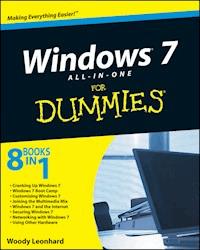
Eight references in one-fully revised to include all the new features and updates to Windows 7 As the #1 operating system in the world, Windows provides the platform upon which all essential computing activities occur. This much-anticiapted version of the popular operating system offers an improved user experience with an enhanced interface to allow for greater user control. This All-in-One reference is packed with valuable information from eight minibooks, making it the ultimate resource. You'll discover the improved ways in which Windows 7 interacts with other devices, including mobile and home theater. * Windows 7 boasts numerous exciting new features, and this reference is one-stop shopping for discovering them all! * Eight minibooks cover Windows 7 basics, security, customizing, the Internet, searching and sharing, hardware, multimedia, Windows media center, and wired and wireless networking * Addresses the new multi-touch feature that will allow you to control movement on the screen with your fingers With this comprehensive guide at your fingertips, you'll quickly start taking advantages of all the exciting new features of Windows 7.
Sie lesen das E-Book in den Legimi-Apps auf:
Seitenzahl: 1151
Veröffentlichungsjahr: 2009
Ähnliche
















Windows 7 All-in-One For Dummies®
Table of Contents
Introduction
About This Book
Conventions
What You Don’t Have to Read
Foolish Assumptions
Organization
Icons
Where to Go from Here
Book I: Cranking Up Windows 7
Book I: Chapter 1: Windows 7 4 N00bs
Hardware and Software
Why Do PCs Have to Run Windows?
A Terminology Survival Kit
Buying a Windows 7 Computer
Inside the big box
Screening
Managing disks and drives
Making PC connections
Futzing with video, sound, and multitudinous media
Netbooks
Book I: Chapter 2: Windows 7 for the Experienced
What’s New for Vista Victims
Better performance
Improved interface
Search that (finally!) works
Security improvements
Mo’ media and more
What you lose
What’s New for the XP Crowd
Looking through the Aero Glass
Checking out improved video effects
Interacting with gadgets
Sizing up other improvements
Do You Need Windows 7?
Book I: Chapter 3: Which Version? Pick a 7, Any 7
Pick a 7 — Any 7
Buying the right version the first time
Narrowing the choices
Choosing 32-Bit versus 64-Bit
Book I: Chapter 4: Upgrades, Clean Installs, Transfers
Can Your Computer Handle Windows 7?
Upgrading a Vista computer
Upgrading a Windows XP computer
Running the Windows 7 Upgrade Advisor
Performing a Clean Install
Using Easy Transfer
Knowing what will transfer
Making the transfer
Activating the Product
How Windows activates
Windows Activation Technologies
What If the Wheels Fall Off?
Book I: Chapter 5: Getting Essentials: The Rest of Windows 7
Understanding the Move to Downloadable Programs
Inventorying the Essentials
Distinguishing Essentials from the Other Live Components
Installing Essentially
Book II: Windows 7 Boot Camp
Book II: Chapter 1: Running Windows from Start to Finish
A Few Quick Steps to Make the Desktop Your Own
Changing the background
Getting gadgets
Cleaning up useless icons and programs
Mousing with Your Mouse
What’s up, Dock?
Changing the mouse
Starting with the Start Button
Touching on the Taskbar
Working with Files and Folders
Creating files and folders
Modifying files and folders
Bringing back previous versions
Showing filename extensions
Sharing folders
Recycling
Getting Around
Using Windows Explorer
Navigating
Viewing
Arranging Libraries
Creating Shortcuts
Sleep: Perchance to Dream
Book II: Chapter 2: Controlling Users
Logging On
Choosing Account Types
What’s a standard account?
What’s an administrator account?
Choosing between standard or administrator accounts
Controlling User Account Control
Adding Users
Enabling the Guest Account
Changing Accounts
Changing other users’ settings
Changing your own settings
Creating a password reset disk
Switching Users
Book II: Chapter 3: Maintaining Your System
Coping with Start-Up Problems
Creating a system repair disc
Using the system repair disc
Working with Backups
Restoring a file with shadow copies (previous versions)
Maintaining previous versions on different drives
Creating data backups
Managing and restoring data backups
Getting back the image backup (don’t give up the ghost)
Maintaining Drives
Running an error check
Defragmenting a drive
Using System Restore and Restore Points
Creating a restore point
Rolling back to a restore point
Scheduling the Task Scheduler
Starting with your parameters
Scheduling a task
Zipping and Compressing
Compressing with NTFS
Zipping the easy way with Compressed (zipped) Folders
Using the Windows 7 Resource Monitor and Reliability Monitor
Controlling the Control Panel
Removing and changing programs
Removing Windows patches
Book II: Chapter 4: Getting the Basic Stuff Done
Burning CDs and DVDs
Understanding -R and -RW
What to burn
Mastered or Live File System?
Burning with Windows 7
Improving Your Experience Index
Interpreting the numbers
Turning the numbers into real improvement
Getting Word Processing — Free
Running Notepad
Writing with WordPad
Taming the Character Map
Calculating — Free
Painting
Sticking Sticky Notes
Using Sneaky Key Commands
Conjuring up the Task Manager
Switching coolly
Book II: Chapter 5: Troubleshooting and Getting Help
Troubleshooting in the Action Center
Tracking Your System’s Stability
Tackling Windows Help and Support
The problem(s) with Windows Help
Using different kinds of help
Staying online
Choosing the index versus search
How to Really Get Help
Snapping and Recording Your Problems
Connecting to Remote Assistance
Understanding the interaction
Making the connection
Limiting an invitation
Troubleshooting Remote Assistance
Getting Help on the Web
Book III: Customizing Windows 7
Book III: Chapter 1: Personalizing Your Desktop
Recognizing Desktop Levels
Setting Color Schemes in Windows 7
Picking a Background
Controlling Icons
Changing Mouse Pointers
Selecting Screen Savers
Changing the screen saver
Setting up a Super Boss Key
Using Desktop Themes
Seeing Your Desktop Clearly
Setting the screen resolution
Activating and adjusting ClearType
Showing larger fonts
Using magnification
Book III: Chapter 2: Organizing Your Interface
Tricking Out the Taskbar
Anatomy of the taskbar
Jumping
Changing the toolbar
Making your own little toolbars
Working with the taskbar
Controlling the notification area
Customizing the Start Menu
Genesis of the Start menu
Pinning to the Start menu
Reclaiming most recently used programs
Changing the All Programs menu
Making minor tweaks to the Start menu
Book III: Chapter 3: Searching Your Computer
Searching Basics
Engaging your brain before the search
Stepping through a basic search
What Windows can (and can’t) find
Adding Boolean operators to a search
Breaking out the wildcard characters
Searching from the Start menu
Indexing for Fun and Profit
Setting index file type options
Adding locations to the index
Using Advanced Search Settings
Finding Files That Got Lost
First, don’t panic
Second, get determined
Book III: Chapter 4: Beating and Cheating Windows 7 Games
Get Yer Games Goin’
Solitaire
Standard scoring
Vegas scoring
FreeCell
Spider Solitaire
Minesweeper
The Internet Games
The Other Games
Book IV: Joining the Multimedia Mix
Book IV: Chapter 1: Jammin’ with Windows Media Player
What You Need to Know about C.R.A.P.
Adjusting WMP Privacy Settings
Setting options when you install WMP
Tweaking options after installation
Playing with Now Playing
Playback buttons
Playing a CD
Buying Music and Videos Online
Copying from a CD (Also Known As Ripping)
Organizing Your Media Library
Leafing through the library
Finding the tracks you want
Rating songs
Sorting songs
Searching
Managing Playlists
Creating a new playlist
Adding a track to a playlist
Renaming and deleting playlists
Managing the contents of playlists
Deleting tracks from the library
Burning CDs and DVDs
Burning an audio CD
Burning data CDs and DVDs with Media Player
Syncing with a Portable Player or Mobile Phone
Moving tracks to the player
Moving tracks from the player to your PC
Deleting tracks from your player
Sharing Your Windows Media Player Media
Customizing WMP
Book IV: Chapter 2: iPod and iTunes in Windows 7
What You Can’t Do
iPod the Apple Way
Installing the iTunes program
Setting up iTunes
Moving music to your iPod
Controlling syncing with playlists
Copying Songs to Your PC
Taking a Look at the iPod Ecosystem
Book IV: Chapter 3: Discovering Digital Cameras and Recorders
Buying a Camera or Camcorder: The Bottom Line
Moving Images to Your Computer
Sharing Your Pictures on the Web
Book IV: Chapter 4: Managing Pics with Windows Live Photo Gallery
Getting the Gallery Going
Leafing through the Gallery
Adding Photos to the Photo Gallery
Importing photos
Copying photos to the Pictures folder
Adding photos from a different folder
Scanning photos
Tagging Pictures
Skipping through tags
Tagging a picture
Tagging en masse
Rearranging the tag list
Finding a tagged picture
Touching Up Pictures
Stitching a Panoramic Photo
Getting Your Photos into Flickr
Book IV: Chapter 5: Lights! Action! Windows Live Movie Maker
Installing Windows Live Movie Maker
Meet Your Maker
Gathering Clips
Assembling a Movie
Creating a project
Playing a clip or a movie
Making transitions and adding effects
Trimming a clip
Typing titles
Mixing in the sound
Publishing a Movie
Finding the right publication method
Publishing directly to the Web
Using Windows DVD Maker
Making a DVD
Ripping, burning, and converting movies
Book IV: Chapter 6: Setting Up Media Center
Determining Whether You Need Media Center
Organizing the Normandy Invasion
Gathering the tools for an easier setup
Getting Windows in gear
Gathering folders for libraries
Setting Up Media Center
Beyond the Basics
Playing recorded TV shows
Burning DVDs
Book V: Windows 7 and the Internet
Book V: Chapter 1: Getting the Most from the Internet
What Is the Internet?
Getting Inside the Internet
What Is the World Wide Web?
Who Pays for All This Stuff?
Connecting with Broadband
The last mile
Uses and excuses for broadband
Setting Up an Internet Connection
Finding Internet Reference Tools
Speakeasy speed test
DNSStuff
3d Traceroute
Down for everyone or just me?
The Wayback Machine
Book V: Chapter 2: Finding Your Way Around Browsers
Exploring Internet Explorer Alternatives: Firefox and Chrome
Ready, Set, Browse!
Configuring your browser
Taking a walk around the Internet Explorer window
Pick a tab, any tab
Kicking your browsing up a notch
InPrivate Browsing: Porn mode
Thwarting Phishers
Saving and Printing Web Pages
Saving Web pages
Printing Web pages
Playing Favorites
Adding Favorites or Bookmarks of your own
Organizing your Favorites or Bookmarks
Book V: Chapter 3: Making Internet Explorer Your Own
Getting the Most from Internet Explorer
Making Internet Explorer Run Faster
Turning off graphics
Turning off animations and sounds
Increasing your storage space
Putting the Pedal to the Metal: Working with Accelerators
Hardening Internet Explorer 8
Dealing with Cookies
Deleting cookies
InPrivate Filtering
Working with RSS Feeds
Book V: Chapter 4: Using Firefox: The Advanced Course
Installing Firefox
Recapping Firefox Tips
Speeding Up Firefox
Bookmarking with the Fox
Creating Smart Folders
Working with RSS Feeds — the Real Way
Adding Firefox’s Best Add-Ons
Using Smart Keywords in Firefox
Book V: Chapter 5: Searching on the Internet
Understanding What a Search Engine Can Do for You
Searching for text
Searching for images
Searching for everything else: Blogs, news, and more
Finding What You’re Looking For
Using the other Google engines
Searching wisely
Using Advanced Search
Pulling out Google parlor tricks
Posting on Newsgroups
Book V: Chapter 6: Sending Windows Mail Live
Counting the Microsoft E-Mail Programs
Outlook
Hotmail
Windows Live Mail
Choosing an E-Mail Program
Getting Started with Windows Live Mail
Conversing with E-Mail
Setting up mail accounts
Retrieving messages and attachments
Creating a message
Adding a signature
Attaching files
Sending a message
Making Windows Live Mail wait to send and receive
Book V: Chapter 7: Chatting with Windows Live Messenger
Exploring the Alternatives
Making Windows Live Messenger Work
Choosing one or more Windows Live IDs
Signing up for an ID — or two
Installing Windows Live Messenger
Starting Windows Live Messenger the first time
Working with Contacts
Adding contacts
Making contact
Tweaking Settings in Windows Live Messenger
Revealing your Webcam
Making Messenger forget your password
Stopping Windows Live Messenger from starting automatically
Using the fancier features
Book VI: Securing Windows 7
Book VI: Chapter 1: Lock Down: Spies, Spams, Scams, and Slams
Understanding the Hazards — and the Hoaxes
Zombies and botnets
Phishing
0day exploits
Staying Informed
Relying on reliable sources
Ditching the hoaxes
Am I Infected?
Evaluating telltale signs
What to do next
Shunning scareware
Getting Protected
Protecting against malware
Using your credit card safely online
Defending your privacy
Keeping cookies at bay
Reducing spam
Book VI: Chapter 2: Action Center Overview
Entering the Action Center
Working with the Action Center
Watching Security Settings
Checking Maintenance Settings
Rooting out Rootkits
Book VI: Chapter 3: Windows Firewall
Comparing Firewalls
Understanding Windows 7 Firewall’s Basic Features
Speaking Your Firewall’s Lingo
Peeking into Your Firewall
Using Public and Private Networks
Making Inbound Exceptions
Allowing designated programs to bypass the firewall
Opening specific ports
Coping with the Windows 7 Outbound Firewall
Book VI: Chapter 4: Patching and Plugging
Patching Woes
Choosing an Update Level
Selectively Patching: A Panacea for Those Woes
Getting What You Need from a Security Bulletin
Decoding a security bulletin
Getting patches through a security bulletin
Checking and Uninstalling Updates
Book VI: Chapter 5: Fighting Viruses and Other Scum
Making Sense of Malware
Understanding Antivirus Software
Identifying the challenges for antivirus software
Understanding false positives
Caring for your antivirus software
Downloading and Installing AVG Free
Dealing with Spyware
Where’s Defender?
Blocking spies with Spybot–S&D
Blocking Bad Autostarting Programs
Book VII: Networking with Windows 7
Book VII: Chapter 1: Attaching to a Network
Choosing Between Home, Work, and Public
Understanding HomeGroups
Hooking Up to a Wireless Network
Hooking Up to a Wired Network
Caring for Your HomeGroup
Changing your network type
Changing the HomeGroup password
Adding or blocking folders in the HomeGroup
Book VII: Chapter 2: Setting Up Your Own Network
Understanding Networks
What a network can do for you
How a network networks
Organizing Networks
Understanding servers and serfs
Introducing client/server networks
Introducing peer-to-peer networks
Comparing the p-pros and c-cons
Cutting through the Terminology
Making Computers Talk
Understanding Ethernet
Adding wireless
Book VII: Chapter 3: Building Your Network
Planning Your Network
Using a wired network
Blocking out the major parts
Using Internet Connection Sharing
Installing (or Reinstalling) Your Network
More Troubleshooting
Networking on the road
Getting your computer to see another computer
Book VII: Chapter 4: Putting the Why in Wi-Fi
Choosing a Protocol
Installing a Wireless System
Wireless adapters and access points
Location, location, location
Setting Up a Secure Wireless Network
Connecting to a WPA2 Protected Network
Calming Two Fighting Mother Hens
Book VIII: Using Other Hardware
Book VIII: Chapter 1: Finding and Installing the Hardware You Need
Knowing What Windows 7 Wants
Upgrading the Basic Stuff
Choosing a new monitor
Changing resolutions and multiple monitors
Picking a video adapter
Upgrading keyboards
Choosing a mouse — or alternatives
Getting more out of USB
Understanding flash memory and USB key drives
Installing New Hardware
Having the store do it
Doing it yourself
Checking a driver’s version
Knowing what to do if anything goes wrong
Restarting with the last known good configuration
Installing USB hardware
Book VIII: Chapter 2: Using Device Stage
Getting a Grip on Device Stage
Taking Device Stage for a Spin
Establishing a Bluetooth Connection
Book VIII: Chapter 3: Printing (Almost) Effortlessly
Installing a Printer
Attaching a local printer
Connecting a network printer
Using the Print Queue
Displaying a print queue
Pausing and resuming a print queue
Pausing, restarting, and resuming a document
Canceling a document
Troubleshooting Printing
Catching a Runaway Printer
Windows® 7 ALL-IN-ONE For Dummies®
by Woody Leonhard
Windows® 7 ALL-IN-ONE For Dummies®
Published byWiley Publishing, Inc.111 River St.Hoboken, NJ 07030-5774www.wiley.com
Copyright © 2009 by Wiley Publishing, Inc., Indianapolis, Indiana
Published simultaneously in Canada
No part of this publication may be reproduced, stored in a retrieval system or transmitted in any form or by any means, electronic, mechanical, photocopying, recording, scanning or otherwise, except as permitted under Sections 107 or 108 of the 1976 United States Copyright Act, without either the prior written permission of the Publisher, or authorization through payment of the appropriate per-copy fee to the Copyright Clearance Center, 222 Rosewood Drive, Danvers, MA 01923, (978) 750-8400, fax (978) 646-8600. Requests to the Publisher for permission should be addressed to the Permissions Department, John Wiley & Sons, Inc., 111 River Street, Hoboken, NJ 07030, (201) 748-6011, fax (201) 748-6008, or online at http://www.wiley.com/go/permissions.
Trademarks: Wiley, the Wiley Publishing logo, For Dummies, the Dummies Man logo, A Reference for the Rest of Us!, The Dummies Way, Dummies Daily, The Fun and Easy Way, Dummies.com, Making Everything Easier, and related trade dress are trademarks or registered trademarks of John Wiley & Sons, Inc. and/or its affiliates in the United States and other countries, and may not be used without written permission. All other trademarks are the property of their respective owners. Wiley Publishing, Inc., is not associated with any product or vendor mentioned in this book.
Limit of Liability/Disclaimer of Warranty: The publisher and the author make no representations or warranties with respect to the accuracy or completeness of the contents of this work and specifically disclaim all warranties, including without limitation warranties of fitness for a particular purpose. No warranty may be created or extended by sales or promotional materials. The advice and strategies contained herein may not be suitable for every situation. This work is sold with the understanding that the publisher is not engaged in rendering legal, accounting, or other professional services. If professional assistance is required, the services of a competent professional person should be sought. Neither the publisher nor the author shall be liable for damages arising herefrom. The fact that an organization or Website is referred to in this work as a citation and/or a potential source of further information does not mean that the author or the publisher endorses the information the organization or Website may provide or recommendations it may make. Further, readers should be aware that Internet Websites listed in this work may have changed or disappeared between when this work was written and when it is read.
For general information on our other products and services, please contact our Customer Care Department within the U.S. at 800-762-2974, outside the U.S. at 317-572-3993, or fax 317-572-4002.
For technical support, please visit www.wiley.com/techsupport.
Wiley also publishes its books in a variety of electronic formats. Some content that appears in print may not be available in electronic books.
Library of Congress Control Number: 2009932712
ISBN: 978-0-470-48763-1
Manufactured in the United States of America
10 9 8 7 6 5 4 3 2 1
About the Author
Curmudgeon, critic, and self-described “Windows victim,” Woody Leonhard runs AskWoody.com, the Web’s single best source of up-to-the-nanosecond news about Windows and Office — warts and all. He’s also a contributing editor and secret leaker for the Windows Secrets newsletter, at WindowsSecrets.com.
With several dozen computer books under his belt, Woody knows where the bodies are buried. He’s a Microsoft MVP, was one of the first Microsoft Consulting Partners, and was a charter member of the Microsoft Solutions Provider organization. He’s a one-man, major Microsoft beta testing site and delights in being a constant thorn in Microsoft’s side. Along with several coauthors and editors, he has won an unprecedented six Computer Press Association awards and two American Business Press awards.
Woody and his son, Justin, moved to Phuket, Thailand, in late 2000. Woody’s dad, George, joined them in 2006. Woody, his wife Duangkhae Leonhard (better known as Add), and 33 talented Thai staff members run Khun Woody’s Bakery and the Sandwich Shoppes in Patong, Laguna, and Chalong. Woody is the president of the Rotary Club of Patong Beach (RotaryPatong.org), a group best known for ongoing tsunami relief work and the support of more than 260 orphaned schoolchildren.
Most mornings, you can see Woody jogging on Patong Beach with his dad and then downing a latté and New Yawk bagel-n-Philly at the Shoppe. Feel free to drop by and say, “Sawadee krap!” Microsoft hit squads, please take a number and form a queue at the rear of the building.
Dedication
To Add, who had to shoulder so many burdens while I was locked up, plunking away on the computer.
And to Dad, who’s always been happy to help.
Author’s Acknowledgments
My unending thanks to the entire editorial team — with Becky Huehls playing point. The flagship All-in-One For Dummies is an enormous undertaking, and I’m positively beaming at the result. Good show.
Thanks to Claudette Moore and Ann Jaroncyk, at Moore Literary Agency, the best agents a scribbler ever had.
Once again, Guy Wells has done yeoman work, with his fabulous UK-centric Media Center screen shots.
And, a particular thanks to the folks at Asus, who loaned me an Eee netbook running a full-fledged copy of Windows 7 Ultimate. I could hardly believe my eyes.
Publisher’s Acknowledgments
We’re proud of this book; please send us your comments through our online registration form located at www.dummies.com/register/.
Some of the people who helped bring this book to market include the following:
Acquisitions, Editorial, and Media Development
Project Editor: Rebecca Huehls
Acquisitions Editor: Amy Fandrei
Copy Editor: Rebecca Whitney
Technical Editor: Kit Malone
Editorial Manager: Leah P. Cameron
Sr. Editorial Assistant: Cherie Case
Cartoons: Rich Tennant (www.the5thwave.com)
Composition Services
Project Coordinator: Katherine Crocker
Layout and Graphics: Ana Carrillo, Samantha K. Cherolis, Reuben W. Davis, Joyce Haughey, Melissa K. Jester, Christin Swinford, Ronald Terry
Proofreaders: Caitie Copple, John Greenough, Shannon Ramsey
Indexer: BIM Indexing & Proofreading Services
Publishing and Editorial for Technology Dummies
Richard Swadley, Vice President and Executive Group Publisher
Andy Cummings, Vice President and Publisher
Mary Bednarek, Executive Acquisitions Director
Mary C. Corder, Editorial Director
Publishing for Consumer Dummies
Diane Graves Steele, Vice President and Publisher
Composition Services
Debbie Stailey, Director of Composition Services
Introduction
Welcome to Windows 7 All-in-One For Dummies — the no-bull, one-stop Windows 7 reference for the rest of us.
Step right up to the ab-so-lute-ly best-est Windows ever! Gorgeous graphics! Stranglehold security! Unsurpassed productivity! Audacious applications! And the greatest-est compatibility Windows has ever seen.
Ah, Phineas Barnum would’ve been proud.
Microsoft has been touting all those supposed improvements in the latest version of Windows for years: “seamless” graphics (whatever that means); rock-solid security (in yer dreams, Redmond); leaps and bounds in productivity enhancements (ever try to remove Antivirus 2009?); and peaceful coexistence with older hardware and programs (yeah, sure). Sometimes I think that the Microsoft marketing droids ran a global search-and-replace operation on their old ad copy, turning the term Windows 98 or Windows NT into Windows 7.
Every version of Windows gets a little better than the preceding version. Usually. (Okay, we won’t talk about Windows Me — or Vista. Yes, Vista draws a Bronx cheer in most circles. I said usually, eh?) But this time it looks like Microsoft has come up with a somewhat better-looking, marginally more secure, and substantially more compatible improvement on its previous version of Windows.
That’s not all. In Windows 7, the search function works — which is more than I can say about Vista or XP. The Windows 7 backup program is worthy of the term backup. Networking — after you get used to strange new concepts such as HomeGroups — works better than Vista, and significantly better than XP.
Microsoft giveth and Microsoft taketh away. Vista victims, er, users may be surprised to discover that Windows 7 dumps the Windows Sidebar, which was once touted as one of the major reasons to upgrade from XP to Vista: All the old Sidebar functions now take place on the desktop itself, in flagrante delicto. The Windows Meeting Space in Vista bit the big bit bucket. And, a whole passel (I think that’s the word for it) of old Windows applications have been yanked from the corpus Windowi, heart still beating, and cast out on the Net. There, you can find the as-yet-undead Windows Live Essentials and reunite them with Windows itself. Or not.
To many people — me included — Windows 7 is what Vista should’ve been.
Lest you think I’ve turned into Windows Fanboy 7.0, I readily admit that Windows 7 harbors a host of problems. Microsoft continues to rub me the wrong way, with its courtroom and regulatory shenanigans and vile business practices. I hate digital rights management, and I detest the way Windows 7 makes my life more difficult than it should be. Some of my old hardware doesn’t work with Windows 7, either. I feel your pain.
But when you get right down to it, Windows 7 is a towering achievement, a more-than-worthy successor to all the Windows that have come before. It’s literally awesome.
About This Book
Windows 7 All-in-One For Dummies takes you through the Land of the Dummies — with introductory material and stuff your grandmother could (and should!) understand — and then continues the journey into more advanced areas, where you can truly put Windows to work every day. I don’t dwell on technical mumbo jumbo, and I keep the baffling jargon to a minimum. At the same time, though, I tackle the tough problems you’re likely to encounter, show you the major road signs, and give you a lot of help where you need it the most.
Whether you want to set up a quick, easy, reliable network in your home office or publish provocative photos of your Boykin Spaniel on the Web, this is your book. Er, I should say eight books. I’ve broken out the topics into eight different minibooks, so you’ll find it easy to hop around to a topic — and a level of coverage — that feels comfortable.
I didn’t design this book to be read from front to back. It’s a reference. Each chapter, and each of its sections, is meant to focus on solving a particular problem or describing a specific technique.
Windows 7 All-in-One For Dummies should be your reference of first resort, even before you consult Windows Help and Support. There’s a big reason why: Windows Help was written by hundreds of people over the course of many, many years. Some of the material was written ages ago, and it’s confusing as all get-out, but it’s still in Windows Help for folks who are tackling tough “legacy” problems. Some of the Help file terminology is inconsistent and downright misleading, largely because the technology has changed so much since some of the articles were written. Finding help in Help frequently boggles my mind: If I don’t already know the answer to a question, it’s hard to figure out how to coax Help to help. The proverbial bottom line: I don’t duplicate the material in Windows 7 Help and Support, but I point to it if I figure it can help you.
Conventions
I try to keep typographical conventions to a minimum:
♦ The first time a buzzword appears in text, I italicize it and define it immediately. That makes it easier for you to glance back and reread the definition.
♦ Whenever I want you to type something, I put the letters or words in bold. For example: “Type William Gates in the Name text box.” If you need to press more than one key at a time on the keyboard, I add a plus sign between the keys’ names; for example, “Press Ctrl+Alt+Delete to initiate a Vulcan Mind Meld.”
♦ I set off Web addresses and e-mail addresses in monospace. For example, my e-mail address is [email protected] (true fact), and my Web site is at AskWoody.com (another true fact). You may be accustomed to seeing Web addresses (commonly known as URLs) spelled out in their entirety, such as http://www.dummies.com. Mercifully, some printed media drop the (completely superfluous) http:// and the most progressive printed sources drop the www. That’s the convention you see in this book: I write dummies.com instead of http://www.dummies.com. If you type dummies.com into your Web browser and it comes back with http://ww9.redirect.dummies.com/index.asp?lang=en,source=ohmy, don’t be too surprised, OK? Computers talk funny.
There’s one other convention, though, that I use all the time: I always, absolutely, adamantly include the filename extension — the period and (usually) three letters at the end of a filename, such as .doc or .vbs or .exe — when talking about a file. Yeah, I know Windows 7 hides filename extensions by default, but you can and should change that setting. Yeah, I realize that Bill G. himself made the decision to hide the extensions and that Steve B. won’t back off. (At least, that’s the rumor.)
I also know that, years ago, hundreds — probably thousands — of Microsoftemployees passed along the ILOVEYOU virus, primarily because they couldn’t see the filename extension that would’ve warned them that the file was a virus. Uh, bad decision, Bill.
(If you haven’t yet told Windows 7 to show you filename extensions, click the Start icon — the circle in the lower-left corner of the screen — and pick Documents. Press the Alt key on your keyboard. Choose Tools⇒Folder Options; then click to select the View tab. At the bottom of the Advanced Settings box, deselect the option marked Hide Extensions for Known File Types. Click OK, and then click the X (Close) button to close the Documents folder. [Sometimes I just say “X out of the dialog box.”] For full details, take a gander at Book II, Chapter 1.)
What You Don’t Have to Read
Throughout this book, I’ve gone to great lengths to separate “optional” reading from “required” reading. If you want to find out more about a topic or solve a specific problem, follow along in the main part of the text. You can skip the icons and sidebars as you go, unless one happens to catch your eye.
On the other hand, if you know a topic pretty well but want to make sure that you caught all the high points, read the paragraphs marked with icons and be sure that the information registers. If it doesn’t, glance at the surrounding text.
Sidebars stand as “graduate courses” for those who are curious about a specific topic — or who stand knee-deep in muck, searching for a way out.
Foolish Assumptions
I don’t make many assumptions about you, dear reader, except to acknowledge that you’re obviously intelligent, well-informed, discerning, and of impeccable taste. That’s why you chose this book, eh?
Okay, okay. The least I can do is butter you up a bit. Here’s the straight scoop: If you’ve never used Windows, bribe your neighbor (or, better, your neighbor’s kids) to teach you how to do three things:
♦ Play Solitaire.
♦ Get on the Web.
♦ Shut down Windows and make your PC sleep.
That covers it. If you can play Solitaire, you know how to turn on your computer, use the Start button, click, drag, and double-click. After you’re on the Web, well, heaven help us all. And, if you know that you need to click the Start icon to stop, you’re well on your way to achieving Dummy Enlightenment.
And that begins with Book I, Chapter 1.
Another assumption worth noting relates to the six versions of Windows 7. Yes, six. (I have the lowdown in Book I, Chapter 3.) One version is only for “emerging” countries (the Upper West Side?), and one is only available pre-installed on oh-so-incredibly-cute netbooks (see Book I, Chapter 1). One is available only by bulk licensing — typically, to large companies. That leaves three versions — Home Premium, Professional, and Ultimate — that most people need to think about (not counting the various European flavors, which may wax and wane depending on the negotiating capabilities of the Microsoft lawyers).
Most of this book is written for Windows 7 Home Premium. When a particular feature appears in Professional or Ultimate, but doesn’t appear in Vista Home Premium, I don’t tag the difference with an icon. Instead, I mention that fact loud and clear. If you find a feature that you can’t wait to try, make sure that your version of Windows 7 supports it before you get carried away.
Organization
Windows 7 All-in-One For Dummies contains eight minibooks, each of which gives a thorough airing of a specific topic. If you’re looking for information on a specific Windows topic, check the headings in the Table of Contents or refer to the index.
By design, this book enables you to get as much (or as little) information as you need at any particular moment. Want to know how to jimmy your Minesweeper score to amaze your boss and confound your co-workers? Look at Book III, Chapter 4. Want to activate the Windows 7 outbound firewall? Read why you shouldn’t even try, in Book VI, Chapter 3. Also by design, Windows 7 All-in-One ForDummies is a reference that you will reach for again and again whenever a new question about Windows comes up.
Here’s a description of the eight minibooks and what they contain:
Book I, Cranking Up Windows 7: With apologies to Dante, this book tells you what Windows can and can’t do, and what’s inside a PC and how Windows controls it. Do you truly need Windows 7? If you already know how to use Windows XP or Vista, what do you need to know about Windows 7? Which of the (many) versions is right for you? How do you upgrade? How do you find and install the missing Windows Live Essentials?
Book II, Windows 7 Boot Camp: Read this minibook to find out how to make Windows 7 work right whenever you add users (with a particular nod to security and the User Account Control bugaboo), manipulate files, use the Windows taskbar and shortcuts, make backups, and get help. I tell you all about the care and feeding of hard drives, how to burn CDs from Windows itself, and how to use the built-in applications for word processing and image manipulation.
Book III, Customizing Windows 7: Book III deals with fun stuff on your desktop: getting gadgets, using Glass, personalizing the desktop (with themes, colors, backgrounds, and the like), choosing mouse pointers, selecting screen savers, changing the Start menu, using the “super” taskbar, running searches easily and effectively, and beating the built-in Windows games. (Yeah, I know that’s why you bought this book.)
Book IV, Joining the Multimedia Mix: Become aware of any Windows Media Player tricks and traps, and find out how to rip material from audio CDs and burn your own CDs and DVDs in Media Player. This minibook tells you how to capture Windows Media streams, mentions digital licensing, and describes what you can do to thwart encroaching Microsoft lockdowns. Discover how to handle iTunes and your iPod in a Windows 7 world, and find out about Windows Movie Maker, digital cameras, camcorders, and other video devices. Also, I tell you how to “unshake” your movies, set up Media Center, convert file formats, and use the essential Photo Gallery.
Book V, Windows 7 and the Internet: In Book V, I tell you why you need broadband, and I describe how to log in to your computer from the Internet, using Internet Explorer, Firefox, or Chrome. Find out how to get the most from your RSS feeds, how to search effectively on the Internet, and how to use Windows Live Mail. I also explain how to make cheap or free phone calls and Webcam calls with Windows Live Messenger.
Book VI, Securing Windows 7: Take a look at the Action Center, and then find out how to control the User Account Control and Windows Firewall, and use Windows Defender and its big missing piece. Get the scoop on letting Windows Update work automatically (or not!) and know when to avoid it. Get virus protection — free. I tell you what the bad guys already know and what you can do about it.
Book VII, Networking with Windows 7: Find out how to attach your computer to any network, anywhere. Get basic information about domains, workgroups, and the new HomeGroups. I describe the concepts behind peer-to-peer and client/server networking and tell you how to build your own network quickly, easily, and reliably. I discuss Wi-Fi and other ethereal wireless topics, and I tell you how to protect your network and your privacy.
Book VIII, Using Other Hardware: In this minibook, I throw a ton of items at you (not literally, of course): internal and external devices, cameras, scanners, printers, audio, memory, USB key drives, monitors, hard drives, and more. I also tell you how to choose the right products and get them to work. I tell you all about DeviceStage.
Icons
Some of the points in Windows 7 All-in-One For Dummies merit your special attention. I set off those points with icons.
When I’m jumping up and down on one foot with an idea so absolutely cool that I can’t stand it any more, I stick a Tip icon in the margin. You can browse any chapter and hit its highest points by jumping from Tip to Tip.
Psst. Want to know the real story — not the stuff that the Microsoft marketing droids want you to hear but, rather, the kind of information that gives you some insight into this lumbering beast in Redmond? You see it all next to this icon, and on my eponymous Web site.
You don’t need to memorize the information marked with this icon, but you should try to remember that something special is lurking.
Achtung! Cuidado! Thar be tygers here! Anywhere that you see a Warning icon, you can be sure that I’ve been burnt — badly. Mind your fingers. These are really, really mean suckers.
Okay, so I’m a geek. I admit it. Sure, I love to poke fun at geeks. But I’m a modern, New Age, sensitive guy, in touch with my inner geekiness. Sometimes, I just can’t help but let it out, ya know? That’s where the Technical Stuff icon comes in. If you get all tied up in knots about techie-type stuff, pass these paragraphs by. (For the record, I managed to write this whole book without telling you that an IP address consists of a unique 32-bit combination of network ID and host ID, expressed as a set of four decimal numbers with each octet separated by periods. See? I can restrain myself sometimes.)
Where to Go from Here
That’s about it. It’s time for you to crack this book open and have at it.
Don’t forget to bookmark my Web site: www.AskWoody.com. It keeps you up-to-date on all the Windows 7 news you need to know — including notes about this book, the latest Windows bugs and gaffes, patches that are worse than the problems they’re supposed to fix, and much more — and you can submit your most pressing questions, for free consultation from The Woodmeister hisself.
See ya! [email protected]
Sometimes it’s worth reading the Intro, eh?
Book I
Cranking Up Windows 7
Contents at a Glance
Chapter 1: Windows 7 4 N00bs
Hardware and Software
Why Do PCs Have to Run Windows?
A Terminology Survival Kit
Buying a Windows 7 Computer
Chapter 2: Windows 7 for the Experienced
What’s New for Vista Victims
What’s New for the XP Crowd
Do You Need Windows 7?
Chapter 3: Which Version? Pick a 7, Any 7
Pick a 7 — Any 7
Choosing 32-Bit versus 64-Bit
Chapter 4: Upgrades, Clean Installs, Transfers
Can Your Computer Handle Windows 7?
Running the Windows 7 Upgrade Advisor
Performing a Clean Install
Using Easy Transfer
Activating the Product
What If the Wheels Fall Off?
Chapter 5: Getting Essentials: The Rest of Windows 7
Understanding the Move to Downloadable Programs
Inventorying the Essentials
Distinguishing Essentials from the Other Live Components
Installing Essentially




