


27,99 €
Mehr erfahren.
- Herausgeber: John Wiley & Sons
- Kategorie: Wissenschaft und neue Technologien
- Serie: Digital Classroom
- Sprache: Englisch
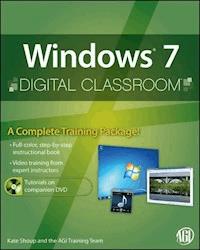
Bring the classroom to your home with this training DVD andfull-color instructional book! Windows 7 is the much-anticipated new operating system fromMicrosoft and is packed with new features and capabilities. Withthis book-and-DVD combination, you can learn essential skills andexplore all the exciting new possibilities that Windows 7 has tooffer. Fifteen self-paced lessons allow you to move at a speed thatis comfortable for your learning style. Step-by-step instructions,lesson files, and video tutorials complement each topiccovered. You'll investigate the new interface and functionality and learnhow to customize settings, work with Internet Explorer, andmaintain and troubleshoot issues. Packed with helpful information,this book encourages you to confidently get the most out of the newfeatures of Windows 7. * Serves as your own personal instructor, providing you with avaluable DVD-and-book combination that takes you from the basicsthrough intermediate-level topics * Allows you to learn the exciting new features of Windows 7 atyour own pace, with video tutorials that complement the topicscovered in the book * Demonstrates how to customize settings, work with InternetExplorer, and maintain and troubleshoot issues * Encourages you to get the most out of everything Windows 7 hasto offer Windows 7 Digital Classroom is like having your ownpersonal instructor guiding you through each lesson, while you workat your own pace.
Sie lesen das E-Book in den Legimi-Apps auf:
Seitenzahl: 453
Veröffentlichungsjahr: 2011
Ähnliche

















Windows® 7 Digital Classroom™
Kate Shoup & the AGI Training Team
About Windows® 7 Digital Classroom™
Windows 7 is the foundation for everything you do on your computer. You can use it to run software applications faster than ever, organize your documents and files, and quickly connect your computers to others or the Internet. Because Windows 7 does so many things for all types of users, you need a guide—and that where the Digital Classroom helps you. The Windows 7 Digital Classroom is like having your own personal tutor. You can jump to any lesson in the book at any time—they are completely self-contained. Each lesson has detailed step-by-step instructions They’re called lessons, not chapters, because each one is written by an expert instructor and you complete each lesson understanding what you need to know so you are up-and-running quickly, in plain, simple language.
Maybe you’re new to Windows. If so, start at the absolute basics in the first three chapters and discover the essential things you can do with Windows 7, including how to work with applications, windows, and folders. If you’re interested in customizing Windows 7 and getting connected to the Internet, jump right into Lesson 4, “Customizing Windows 7” and Lesson 5, “Surfing the Web with Internet Explorer 8.”
Maybe you want to get productive immediately, using word processing, instant messaging, e-mail, and organizing and sharing photos. If so, skip ahead to Lessons 11 through 13. If you’re interested in getting under-the-hood, setting up accounts, creating a network, and securing your system you can move right to Lessons 7 through 10. There’s even a lesson devoted to getting the most from Windows 7 on a laptop or netbook computer—it’s Lesson 14.
So go ahead, flip through the book and you’ll find that the Digital Classroom is the fastest, easiest way to understanding Windows 7. Filled with hundreds of images, illustrations, and plain-language step-by-step instructions, It is like having your own personal tutor.
Is this book for you?
This book is for anyone who wants to gain a better understanding of how to use and configure Windows 7. If you’re using Windows 7 at home or managing a small network at your office, the Windows 7 Digital Classroom is for you. It is filled with useful, easy-to-understand advice and instructions. The Windows 7 Digital Classroom is written for anyone who wants clear, plain explanations for how to get Windows 7 computers to work efficiently, organize their files, and keep their computer safe. Simply put, this book helps you get the most from all that Windows 7 offers. If you’re already an IT professional managing a large computer network, this book is probably not the type of resource you need. But if you’ve been given the role of managing Windows 7 computers in your office or need to do it at home, and you want a companion to help you, the Windows 7 Digital Classroom is a good choice for you.
About operating systems
An operating system is the software that provides the user interface that you use to interact with your computer. It is the direct link between your computer’s hardware—the memory, hard drive, mouse, keyboard, webcam, speakers—and the software such as Microsoft Word, PowerPoint, Photoshop, Internet Explorer, and the thousands of other programs that are available to run on your computer. Some common operating systems in use today include Windows, Linux, UNIX, Solaris, and, Mac OS. The most widely used operating system is Windows, and the latest version of the windows software is Windows 7. The Windows 7 operating system is what gives your computer its personality so that things look and act consistently from one program to the next. The operating system also makes it so each software program can interact with the other in harmony—so you can browse the Internet, edit photographs, and write an e-mail at the same time. Understanding your operating system is the first step to being able to work effectively with any program on your computer.
Prerequisites
Before starting the Windows 7 Digital Classroom, you should have Windows 7 installed. This book does not include the Windows 7 operating system, which you must purchase separately.
The lessons in the book will help you connect to a network, the Internet, and to a printer—so these can wait if you haven’t yet set up those elements.
If you have purchased a computer that includes Windows 7, start with the first lesson. If you are upgrading to Windows 7, and have not yet installed the software, you should continue with the Starting Up section which includes installation and upgrade instructions.
Windows 7 versions
There are three separate versions of Windows 7. There is Windows 7 Home, Windows 7 Professional, and Windows 7 Ultimate. This book covers most features found across all three versions, so it is a good companion for you gaining an understanding of Windows 7, regardless of which version you are using. You can learn about the different versions of Windows 7 in Appendix A.
System requirements
Before starting the lessons in the Windows 7 Digital Classroom, make sure that your computer is set up and running Windows 7. If you’re planning to upgrade to Windows 7, make sure your computer is equipped for running the Windows 7 operating system. Note that you must purchase Windows 7 separately from this book. The minimum system requirements for your computer to effectively use Windows 7 are listed below:
• 1 GHz or faster 32-bit (x86) or 64-bit (x64) processor
• 1 GB RAM (32-bit) or 2 GB RAM (64-bit)
• 16 GB available hard disk space (32-bit) or 20 GB (64-bit)
• DirectX 9 graphics device with WDDM 1.0 or higher driver
• CD or DVD drive
Additional requirements to use certain features:
• Internet access
• Depending on resolution, video playback may require additional memory and advanced graphics hardware
• Music and sound require audio output
Installing Windows 7
If you purchased Windows 7 separately and need to install it on your computer. You’ll want to get Windows 7 installed on your computer before going ahead with the lessons in this book. We cover three common scenarios:
• Upgrading to Windows 7 from Windows XP. Use the steps in this section to upgrade from Windows XP and keep your files, settings, and programs.
• Upgrading to Windows 7 from Windows Vista. Go to this section to see how you can easily upgrade from Windows Vista and keep your files, settings, and programs.
• Installing Windows using custom settings. Follow these instructions to completely replace your current operating system or if you are installing an operating system for the first time.
Starting up
To get started with the Windows 7 installation or upgrade process you will need:
• The Windows 7 disc. You’ll need the software to get started or if you purchased and downloaded Windows 7 online you’ll need the Windows installation file.
• Your Windows 7 product key. You can find your product key on the installation disc holder inside the Windows 7 software or in a confirmation e-mail if you purchased and downloaded Windows 7 online. A product key uses this format where the X’s represent the numbers in the key: XXXXX-XXXXX-XXXXX-XXXXX-XXXXX
• The Windows 7 Upgrade Advisor. You can download this free utility from Microsoft.com. It helps locate any potential problems before you upgrade. You can find the upgrade advisor here: http://www.microsoft.com/windows/windows-7/get/upgrade-advisor.aspx. Be sure to download and run this before performing an upgrade or installation of Windows 7.
The Windows 7 Upgrade Advisor.
• A place to back up your files. You’ll be going through a major change in your computer, and you want to make sure you have a second copy of any important files before you start this process. You can back up your files to an external hard disk, a DVD or CD. If you have a network, you can back them up to another folder or use Windows Live Mesh. It doesn’t really matter where you put your files—just make sure you have a second copy of them before you start this process.
• An Internet connection. Before you start the upgrade, confirm that your Internet connection is working. You’ll likely have certain drivers and updates that Windows 7 will want to access as part of the installation process. You can still install Windows without an Internet connection, but a connection is helpful.
• An antivirus program. You will want to make sure it is updated, and then run it. This helps to make sure that you’re starting the Windows 7 installation without any vulnerabilities. Turn it off after you have updated and run it. After you install Windows 7, be sure to turn your antivirus program on again, or install new antivirus software that works with Windows 7.
Deciding which version of Windows 7 to install: 32 bit or 64 bit
If you’re running a 32-bit version of Windows Vista, you can only upgrade to a 32-bit version of Windows 7, and if you are current using a 64-bit version of Windows Vista, you can only upgrade to a 64-bit version of Windows 7. To switch from a 32-bit version of Vista to a 64-bit version of Windows 7, use the Custom installation option.
A 64-bit operating systems can handle large amounts of memory—typically 4 gigabytes (GB) of random access memory. This is useful if you work with CAD files, image editing programs with really large images, or do extensive professional video editing. 64-bit software and computers are relatively new, so if you don’t work with the software mentioned above or your computer is more than a few years old, you are likely better off sticking with your 32-bit operating system.
To find out whether your computer is capable of using the 64-bit version of Windows, do the following on your computer:
1 Open Performance Information and Tools by pressing the Start button, clicking Control Panel, clicking System and Maintenance, and then clicking Performance Information and Tools.
2 Click View and print details.
3 Under System, you can see what type of operating system you’re currently running next to System type, and, next to 64-bit capable, whether you can run a 64-bit version of Windows. If your computer is already running a 64-bit version of Windows, the 64-bit capable listing is not displayed.
If the Upgrade option is not available
Some versions of Windows don’t work with all installation discs you’re utilizing. You might not see the option if you’ve inserted the 64-bit installation disc and you are using a 32-bit version of Windows Vista, or if you are trying to upgrade to Windows Vista Ultimate from a lower edition, like Home Premium. To make this type of change, you will need to use the Custom option during installation.
Remember that the upgrade options does not preserve your files, settings, or programs so it is important that you back up your files and settings before installing Windows 7. You’ll also need to reinstall your programs using the original installation discs or files.
Perform an Upgrade installation of Windows 7
Most users of Windows Vista can select the Upgrade option to install Windows 7. This is the most convenient way to install Windows 7 on your computer. It keeps your files, settings, and programs from Windows Vista. If you are upgrading from Windows XP, you will select the Custom option, which is described later in this section.
Choose the Upgrade option to upgrade your Vista system to Windows 7.
1 Insert the Windows 7 installation disc into your computer or double-click the installation file if you downloaded Windows 7. Setup should start automatically. If it doesn’t, press the Start button, click Computer, double-click your DVD drive to open the Windows 7 installation disc, and then double-click setup.exe.
2 On the Install Windows page, press Install now.
3 The Get important updates for installation page appears. Choose to get the latest updates to protect your computer against security threats. You computer will need to be connected to the Internet during Windows 7 installation to get these updates.
4 On the Please read the license terms page click I accept the license terms, then press Next.
5 On the Which type of installation do you want? page, select Upgrade.
6 Continue to follow the on-screen instructions to finish installing Windows 7.
Upgrading from Windows XP to Windows 7
Upgrading your computer from Windows XP to Windows 7 requires a custom installation, which doesn’t preserve your programs, files, or settings so you’ll want to follow the steps here to help transfer your files and user accounts.
Starting up
To transfer your files and settings, you’ll need the following:
• External hard drive. You’ll need to move your files off your computer before you install Windows 7 so they do not get destroyed. To make this easier, we recommend a free download called Windows Easy Transfer, which will require an external hard disk. They’re readily available at electronics and office supply stores, and they provide an easy way to add additional storage space to your computer.
• The original installation discs for your software programs. You’ll need to reinstall your programs after installing Windows 7.
Moving files and settings
Windows Easy Transfer is a free software utility from Microsoft that helps you move files and settings to your new version of Windows 7.
Windows Easy Transfer creates a single, large file containing your files and settings and it’s best to have it placed on an external hard drive. Windows Easy Transfer moves only your files and settings—not your programs. You’ll need to reinstall your programs once the Windows 7 installation is finished.
1 Download Windows Easy Transfer. Go to http://www.microsoft.com/windows and type Windows Easy Transfer in the search terms.
2 Navigate to the download site and click Download, then press Open.
Run Windows Easy Transfer to save your files and settings
1 Make sure your external hard disk or other storage device is connected to your computer.
2 Click Start > Programs > Windows Easy Transfer. The Windows Easy Transfer dialog box appears. Press Next.
The Windows Easy Transfer process moves your user accounts and program settings from your Windows XP computer to Windows 7.
3 Select an external hard disk or USB flash drive to indicate the destination where you will back-up the files.
4 Click This is my old computer.
5 Deselect any user accounts that you do not want to transfer, then press Next.
6 If you want to password protect the backup file, do so, otherwise leave the boxes blank, then press Save.
7 Browse to the external hard disk or other storage device where you want to save your Easy Transfer file, then press Save. Be certain to save the Easy Transfer file to your external hard disk, otherwise it will be deleted during the installation of Windows 7.
8 Windows Easy Transfer will back-up your files and settings. When completed, the location of the files will be confirmed along with the file name. Press Next, then press Close.
9 Disconnect the external drive, you will need it later in this process.
Gather your program discs and setup files
It’s important to remember that the Custom installation option doesn’t keep any of your programs, so you’ll need to reinstall the programs that you want to use in Windows 7.
1 Make sure you have the installation discs for the programs you want to keep using in Windows 7.
2 You might have downloaded some programs from the Internet. If you still have the installation files on your computer (often called setup.exe, install.exe, or similar), copy those setup files to your external hard disk as well. If you don’t have the installation files, you’ll need to download them again after Windows 7 installation is complete.
Performing a Custom installation of Windows 7
If you are upgrading from Windows XP, you will use the Custom installation option.
1 Insert the Windows 7 installation disc into your computer or double-click the installation file if you downloaded Windows 7. Setup should start automatically. If it doesn’t, press the Start button, click Computer, double-click your DVD drive to open the Windows 7 installation disc, then double-click setup.exe.
2 On the Install Windows page, press Install now.
3 The Get important updates for installation page appears. Choose to get the latest updates to protect your computer against security threats. You computer will need to be connected to the Internet during Windows 7 installation to get these updates.
4 On the Please read the license terms page click I accept the license terms, then press Next.
5 On the Which type of installation do you want? page, select Custom.
Choose Custom (advanced) to perform a custom installation.
6 Choose the partition containing Windows XP (this is often the computer’s C: drive), and then click Next. Be certain to not select an external hard drive that connects via USB.
7 In the Windows.old dialog box, press OK to continue.
8 Continue to follow the instructions to finish installing Windows 7. You will need to name your computer and set-up user accounts, as these are not carried-over as part of the installation process. You can use the same names that you used in Windows XP, which is a good idea if you have devices such as a network scanner that need to connect to your computer.
Dealing with installation problems
If an error message appears indicating that Windows can’t be installed to the partition you chose, click Show details. If the details indicate that Windows must be installed to a partition formatted as NTFS, then you will want to convert your hard disk to the NTFS format.
1 Cancel the Windows 7 installation, and remove the installation disc.
2 Click Start > All Programs > Accessories and right-click Command Prompt and select Run as….
3 Select The following user, choose a user with administrator permissions, type the password for this user, then press OK. The command prompt appears.
4 At the command prompt, type convert <drive letter>: /fs:ntfs and press Enter to convert the drive. For example, typing convert c: /fs:ntfs. Note that there is a space immediately before /fs.
Convert your hard drive to the NTFS format.
5 If asked if you would you like to force a dismount on this volume, type Y, then press Enter.
6 If asked if you want to schedule the drive to be converted the next time the system restarts, type Y, press Enter, then click to close the Command Prompt window.
7 Turn off your computer, then start your computer. Use this process instead of using the Restart command. Windows will convert the disk to NTFS and then restart your computer. When Windows XP starts again, return to section Performing a custom installation of Windows 7.
Transferring your files to Windows 7
After you’ve installed Windows 7, you can transfer you files by running Windows Easy Transfer a second time. You will want to run Windows Easy Transfer before reinstalling any programs because Windows Easy Transfer moves your files back to where your software programs need them to be located, and the program will expect to find them
1 Connect the external hard drive or storage device to your computer that contains your Windows Easy Transfer migration file.
2 Click the Start > Computer, and under Hard Disk Drives, double-click the storage device that contains the migration files. The default name of the file should be Windows Easy Transfer – Items from old computer. Double-click the file.
3 A window titled Choose what to transfer to this computer appears; select which user accounts from Windows XP are transferred to in Windows 7, then press Transfer. If you transfer more than one account, you may be asked to change the password the first time you log on. If so, enter a new password and then press Enter. If you don’t want to have a user account password, leave the boxes empty, and then press Enter.
Choose what to transfer to your Windows 7 computer.
4 When the transfer is finished, a window appears with the title Your transfer is complete. You can click to see what was transferred to view the user accounts and files that were transferred.
5 Click See a list of programs you might want to install on your new computer to view what was previously installed on Windows XP, then press Close. You may be asked to restart your computer.
Windows Easy Transfer Program Reports dialog box.
Reinstalling your programs and updating drivers
After using Windows Easy Transfer, it is time to reinstall your programs and update any drivers that help your computer to run better with Windows 7. Some programs such as Windows Mail are not included in Windows 7. Many of these have improved versions that are available at no additional cost from the Microsoft Live web site. See Lessons 12 and 13 for an overview of these Windows Live services.
Other programs, such as Microsoft Office or other software, will require you to use the original discs and to go through the process of installing the software, as the custom installation process removed these applications.
Updating drivers
Software drivers allows your computer to communicate with hardware such as your computer speakers, monitor, and keyboard—so they are pretty important! Many drivers come with Windows, or you can find them by using Windows Update and checking for updates. Press the Start button and choose All Programs > Windows Update. If you can’t locate a driver using Windows Update, you’ll want to locate the disc that came with the hardware or visit the web site of the device manufacturer. For example, if you have a printer from Epson, you would go to the Epson web site to find the latest drivers.
Cleaning up
The Windows 7 installation keeps many of the files were used under Windows XP. It places them in a folder named Windows.old. If you’re confident that you won’t need these again, you can delete them. You may want to do this if you’re trying to transfer files and you receive an error message that you don’t have enough free disk space to transfer your files and settings. To clean-up your old files:
1 Press the Start button. In the Search text field, type Disk Cleanup. In the list of results, double-click Disk Cleanup. Select the drive where you installed Windows 7, then press OK.
2 Click Clean up system files.
3 Select Previous Windows installation(s) then click OK, and then click Delete Files.
Note that this cleanup process does not have an option to undo, and all files deleted will be permanently deleted.
Working with the video tutorials
Included with this Windows 7 Digital Classroom book are video tutorials developed by the authors to help you understand the concepts explored in each lesson. Each tutorial demonstrates and explains the key concepts and features covered in the lesson. The tutorials vary in length from five to ten minutes per lesson.
The videos are designed to supplement your understanding of the material in the chapter. We have selected exercises and examples that we feel will be most useful to you. You may want to view the entire video for each lesson before you begin that lesson. ePub readers can view these video tutorials online at www.digitalclassroombooks.com/epub/windows7.
Loading lesson files
The Windows 7 Digital Classroom book includes files that can be used for many of the lessons. You may also use your own files with these lessons, or work with the sample files found in the lessons folder on the supplied DVD. If you are reading the ePub version, you will need to download these files from www.digitalclassroombooks.com/epub/windows7.
Copying the lesson files to your hard drive:
1 Insert the Windows 7 Digital Classroom DVD supplied with this book. ePub users go to www.digitalclassroombooks.com/epub/windows7.
2 On your computer desktop, navigate to the DVD and locate the folder named lessons. If you downloaded the files, you will need to Unzip (expand) them before working with them.
3 You can install all the files, or just specific lesson files. Do one of the following:
• Install all lesson files by dragging the lessons folder to your hard drive.
• Install only some of the files by creating a new folder on your hard drive named lessons. Open the lessons folder on the supplied DVD, select the lesson you wish to copy and drag the folder(s) to the folder you created on your hard drive.
Additional resources
The Digital Classroom series goes beyond the training books. You can continue your learning online, with training videos, at seminars and conferences, and in-person training events.
DigitalClassroomBooks.com
The DigitalClassroomBooks.com site includes updates, notes, and makes it easy for you to contact the authors. You can also learn more about the other books in the series, including many books on popular creative software.
Learn from the authors
The authors of the Digital Classroom seminar series frequently conduct in-person seminars and speak at conferences. Learn more about their regularly scheduled classes at agitraining.com. The authors also provide private classes for groups and organizations, including speaking engagements. Contact AGI training at [email protected].
Follow the authors on Twitter
Follow the Digital Classroom authors on Twitter at Twitter.com/agitraining.
Resources for educators
Contact your Wiley publishing education representative to access resources for educators including guides for adoptions Digital Classroom books into your curriculum. Get more information at Wiley.com.
Table of Contents
Starting Up
Lesson 1: Getting Started with Windows 7
Lesson 2: Working with Windows 7 Programs
Lesson 3: Working with Files and Folders
Lesson 4: Customizing Windows 7
Lesson 5: Surfing the Web with Internet Explorer 8
Lesson 6: Enjoying Audio and Video with Windows 7
Lesson 7: Maintaining Windows 7
Lesson 8: Setting Up User Accounts
Lesson 9: Networking Your Computer
Lesson 10: Securing Your Computer
Lesson 11: Getting Organized with Windows 7
Lesson 12: Communicating via E-mail and IM
Lesson 13: Working with images
Lesson 14: Using Windows 7 on a Laptop or Netbook Computer
Appendix
Shortcuts
Lesson 1: Getting Started with Windows 7
The public spoke, and Microsoft listened. Windows 7 boasts hundreds of improvements based on feedback from users of previous versions of the Windows operating system. The result: a faster, more intuitive, more reliable, and more streamlined operating system.
What you’ll learn in this lesson:
• What you can do with Windows 7
• Activating your copy of Windows 7
• Starting Windows 7
• The Windows 7 desktop
• Getting help
Starting up
Before you start, be sure you have Windows 7 installed on your computer. If you haven’t installed Windows 7 yet, refer to the section “Installing Windows 7” on page 3 of this book.
What you can do with Windows 7
The Windows 7 operating system has been designed with productivity in mind. In addition to being streamlined for speed, Windows 7 contains and supports a collection of tools, programs, and other resources to help you:
• Get work done. Windows 7 contains a word-processing program, WordPad, for generating documents; a calculator, which supports four modes—Standard, Scientific, Programmer, and Statistics—as well as several templates for calculating such real-world numbers as mortgages, salaries, etc. Windows 7 offer many productivity applications to help you be more efficient.
WordPad serves as a simple but useful word processor.
Calculator’s four modes: Standard (top left), Scientific (top right), Programmer (bottom left), and Statistics (bottom right.
• Create and edit pictures. Use Windows 7 to import images from a digital camera, scan images with a scanner, or download images from the Internet. Then view them individually or in slide show format using Windows Photo Viewer. You can also use the Paint program to create images of your own. For even more photo features, use the Windows Live Photo Gallery, which is covered in more detail in Lesson 13, “Working with Images.” When your images look the way you want them to, you can print them, e-mail them, burn them to a CD or DVD, or create a video DVD.
View your images in Windows Photo Viewer.
Windows Live Photo Gallery lets you edit and organize your images.
• Play music and other media. The Windows Media Player makes it easy to listen to audio CDs (and burn your own), play digital audio and video clips. You can also watch movies on DVD and tune into Internet radio. Using the Windows Media Center, you can locate and stream your favorite Internet TV shows, record regular TV, if your computer has a TV tuner, and view movies.
Use Windows Media Player to enjoy your favorite music and videos.
• Get online. With Windows 7, getting online is a breeze. Once you’re connected, you have all the tools you need to get the most out of the Web, including the Internet Explorer 8 web browser, which makes surfing a snap.
Lesen Sie weiter in der vollständigen Ausgabe!
Lesen Sie weiter in der vollständigen Ausgabe!
Lesen Sie weiter in der vollständigen Ausgabe!
Lesen Sie weiter in der vollständigen Ausgabe!
Lesen Sie weiter in der vollständigen Ausgabe!
Lesen Sie weiter in der vollständigen Ausgabe!
Lesen Sie weiter in der vollständigen Ausgabe!
Lesen Sie weiter in der vollständigen Ausgabe!
Lesen Sie weiter in der vollständigen Ausgabe!
Lesen Sie weiter in der vollständigen Ausgabe!
Lesen Sie weiter in der vollständigen Ausgabe!
Lesen Sie weiter in der vollständigen Ausgabe!
Lesen Sie weiter in der vollständigen Ausgabe!
Lesen Sie weiter in der vollständigen Ausgabe!
Lesen Sie weiter in der vollständigen Ausgabe!
Lesen Sie weiter in der vollständigen Ausgabe!
Lesen Sie weiter in der vollständigen Ausgabe!
Lesen Sie weiter in der vollständigen Ausgabe!




