


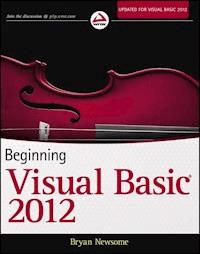
34,99 €
Mehr erfahren.
- Herausgeber: John Wiley & Sons
- Kategorie: Wissenschaft und neue Technologien
- Sprache: Englisch
The ultimate beginner's guide to programming in Visual Basic 2012 Visual Basic, used to write Windows applications and web apps with ASP.NET, is an essential language for beginning programmers. Using the time-tested Wrox approach, this guide provides a step-by-step format that gets beginners up and running quickly and confidently. Essential topics covered include writing Windows applications, working with dialog boxes and menus, object oriented programming techniques, programming for graphics, using Visual Basic with ASP.NET for web apps, and dealing with data access and SQL Server. * Visual Basic is a popular first language for beginning programmers; this Wrox beginner's guide covers all aspects of the newest version * Uses a basic, step-by-step approach to help beginners learn quickly and easily * Covers essential topics including flow control, data structure, writing Windows applications, error handling and debugging, objects and object oriented techniques, and class libraries * Explains Windows Forms, graphics programming, accessing databases, web programming using Visual Basic with ASP.NET, data access, SQL Server, ADO.NET, and XML Beginning Visual Basic 2012 is a must-have for programming newcomers who want to get a solid footing in one of the most important programming languages.
Sie lesen das E-Book in den Legimi-Apps auf:
Seitenzahl: 1088
Veröffentlichungsjahr: 2012
Ähnliche



















Table of Contents
Chapter 1: Welcome to Visual Basic 2012
Event-Driven Programming
Installing Visual Basic 2012
The Visual Studio 2012 IDE
Creating a Simple Application
Using the Help System
Summary
Chapter 2: The Microsoft .NET Framework
Microsoft's Reliance on Windows
Writing Software for Windows
Common Language Runtime
The Common Type System and Common Language Specification
Summary
Chapter 3: Writing Software
Information and Data
Working with Variables
Comments and Whitespace
Data Types
Storing Variables
Methods
Summary
Chapter 4: Controlling the Flow
Making Decisions
The If Statement
Select Case
Loops
Summary
Chapter 5: Working with Data Structures
Understanding Arrays
Understanding Enumerations
Understanding Constants
Structures
Working with ArrayLists
Working with Collections
Building Lookup Tables with Hashtable
Advanced Array Manipulation
Summary
Chapter 6: Extensible Application Markup Language (XAML)
What Is XAML?
XAML Syntax
Windows Presentation Foundation
Summary
Chapter 7: Building Windows Applications
Responding to Events
Building a Simple Application
Counting Characters
Counting Words
Creating More Complex Applications
Creating the Toolbar
Creating the Status Bar
Creating an Edit Box
Clearing the Edit Box
Responding to Toolbar Buttons
Using Multiple Forms
About Dialog
Summary
Chapter 8: Displaying Dialogs
The MessageBox
The OpenFileDialog Control
The SaveDialog Control
The FontDialog Control
The ColorDialog Control
The PrintDialog Control
The FolderBrowserDialog Control
Summary
Chapter 9: Creating Menus
Understanding Menu Features
Creating Menus
Context Menus
Summary
Chapter 10: Debugging and Error Handling
Major Error Types
Debugging
Error Handling
Summary
Chapter 11: Building Objects
Understanding Objects
Building Classes
Reusability
Designing an Object
Constructors
Inheritance
Objects and Structures
The Framework Classes
Summary
Chapter 12: Advanced Object-Oriented Techniques
Building a Favorites Viewer
An Alternative Favorite Viewer
Using Shared Properties and Methods
Understanding Object-Oriented Programming and Memory Management
Summary
Chapter 13: Building Class Libraries
Understanding Class Libraries
Using Strong Names
Registering Assemblies
Designing Class Libraries
Using Third-Party Class Libraries
Viewing Classes with the Object Browser
Summary
Chapter 14: Creating Windows Forms User Controls
Windows Forms Controls
Creating and Testing a User Control
Exposing Properties from User Controls
Design Time or Runtime
Creating a Command Link Control
Summary
Chapter 15: Accessing Data Using Structured Query Language
What You Need to Complete This Chapter's Exercises
What Is a Database?
Understanding Basic SQL Syntax
Executing Queries in SQL Server
Summary
Chapter 16: Database Programming with SQL Server and ADO.NET
ADO.NET
ADO.NET Data Namespaces
The ADO.NET Classes in Action
Data Binding
Summary
Chapter 17: Dynamic Data Website
Creating a Dynamic Data Entities Website
Customizing the Design of a Dynamic Data Website
Summary
Chapter 18: ASP.NET
Thin-Client Architecture
Web Forms versus Windows Forms
Web Applications: The Basic Pieces
Active Server Pages
Building Websites
Summary
Chapter 19: Deploying Your Application
What Is Deployment?
Creating a Visual Studio 2012 Setup Application
Customize the User Interface
Deploying Different Solutions
Summary
Chapter 20: Windows 8 Apps
Windows 8 Application Design Principles
Application Layout
Summary
Appendix A: Exercise Solutions
Chapter 1
Chapter 2
Chapter 3
Chapter 4
Chapter 5
Chapter 6
Chapter 7
Chapter 8
Chapter 9
Chapter 10
Chapter 11
Chapter 12
Chapter 13
Chapter 14
Chapter 15
Chapter 16
Chapter 17
Chapter 18
Chapter 19
Chapter 20
Appendix B: Where to Now?
Online Resources
Offline Resources (Books)
Introduction
Advertisements
Chapter 1
Welcome to Visual Basic 2012
What You Will Learn in this Chapter
Using event-driven programming
Installing Visual Basic 2012
Touring the Visual Basic 2012 integrated development environment (IDE)
Creating a simple Windows program
Using the integrated Help system
Wrox.com Code Downloads for this Chapter
The wrox.com code downloads for this chapter are found at www.wrox.com/remtitle.cgi?isbn=1118311813 on the Download Code tab. The code is in the 311813 C01.zip download.
This is an exciting time to enter the world of programming with Visual Basic 2012 and Windows 8. Windows 8 represents the latest Windows operating system from Microsoft and is packed with a lot of new features to make Windows programming fun. Much has changed in the Windows user interface, and Visual Basic 2012 makes it easy to write professional-looking Windows applications as well as web applications and web services. Haven't upgraded to Windows 8 yet? No worries; Visual Basic 2012 also enables you to write professional-looking applications for previous versions of Windows as well.
The goal of this book is to help you use the Visual Basic 2012 programming language, even if you have never programmed before. You will start slowly and build on what you have learned in subsequent chapters. So take a deep breath, let it out slowly, and tell yourself you can do this. No sweat! No kidding!
Programming a computer is a lot like teaching a child to tie his shoes. Until you find the correct way of giving the instructions, not much is accomplished. Visual Basic 2012 is a language you can use to tell your computer how to do things; but like a child, the computer will understand only if you explain things very clearly. If you have never programmed before, this sounds like an arduous task, and sometimes it can be. However, Visual Basic 2012 offers an easy-to-use language to explain some complex tasks. Although it never hurts to have an understanding of what is happening at the lowest levels, Visual Basic 2012 frees the programmer from having to deal with the mundane complexities of writing Windows applications. You are free to concentrate on solving real problems.
Visual Basic 2012 helps you create solutions that run on the Microsoft Windows operating systems, such as Windows 8, Windows Server 2008, and Windows Phone. If you are looking at this book, you might have already felt the need or desire to create such programs. Even if you have never written a computer program before, as you progress through the Try It Out exercises in this book, you will become familiar with the various aspects of the Visual Basic 2012 language, as well as its foundations in the Microsoft .NET Framework. You will find that it is not nearly as difficult as you imagined. Before you know it, you will feel quite comfortable creating a variety of different types of programs with Visual Basic 2012.
Visual Basic 2012 can also be used to create web applications and web services, as well as mobile applications that can run on Tablet PCs or smartphones. However, you will begin by focusing on Windows applications before extending your boundaries to other platforms.
Event-Driven Programming
A Windows program is quite different from yesteryear's MS-DOS program. A DOS program follows a relatively strict path from beginning to end. Although this does not necessarily limit the functionality of the program, it does limit the road the user has to take to get to it. A DOS program is like walking down a hallway; to get to the end you have to walk down the entire hallway, passing any obstacles that you may encounter. A DOS program would let you open only certain doors along your stroll.
Windows, on the other hand, opened up the world of event-driven programming. Events in this context include clicking a button, resizing a window, or changing an entry in a text box. The code that you write responds to these events. In terms of the hallway analogy: In a Windows program, to get to the end of the hall you just click the end of the hall. The hallway itself can be ignored. If you get to the end and realize that is not where you wanted to be, you can just set off for the new destination without returning to your starting point. The program reacts to your movements and takes the necessary actions to complete your desired tasks.
Another big advantage in a Windows program is the abstraction of the hardware, which means that Windows takes care of communicating with the hardware for you. You do not need to know the inner workings of every laser printer on the market just to create output. You do not need to study the schematics for graphics cards to write your own game. Windows wraps up this functionality by providing generic routines that communicate with the drivers written by hardware manufacturers. This is probably the main reason why Windows has been so successful. The generic routines are referred to as the Windows application programming interface (API), and most of the classes in the .NET Framework take care of communicating with those APIs.
Before Visual Basic 1 was introduced to the world in 1991, developers had to be well versed in C and C++ programming, as well as the building blocks of the Windows system itself, the Windows API. This complexity meant that only dedicated and properly trained individuals were capable of turning out software that could run on Windows. Visual Basic changed all that, and it has been estimated that there are now as many lines of production code written in Visual Basic as in any other language.
Visual Basic changed the face of Windows programming by removing the complex burden of writing code for the user interface (UI). By allowing programmers to draw their own UI, it freed them to concentrate on the business problems they were trying to solve. When the UI is drawn, the programmer can then add the code to react to events.
Visual Basic has also been extensible from the very beginning. Third-party vendors quickly saw the market for reusable modules to aid developers. These modules, or controls, were originally referred to as VBXs (named after their file extension). Prior to Visual Basic 5, if you did not like the way a button behaved, you could either buy or create your own, but those controls had to be written in C or C++. Database access utilities were some of the first controls available. Version 5 of Visual Basic introduced the concept of ActiveX, which enabled developers to create their own ActiveX controls.
When Microsoft introduced Visual Basic 3, the programming world changed significantly. You could build database applications directly accessible to users (so-called front-end applications) completely with Visual Basic. There was no need to rely on third-party controls. Microsoft accomplished this task with the introduction of Data Access Objects (DAOs), which enabled programmers to manipulate data with the same ease as manipulating the user interface.
Versions 4 and 5 extended the capabilities of version 3 to enable developers to target the new Windows 95 platform. They also made it easier for developers to write code, which could then be manipulated to make it usable to other language developers. Version 6 provided a new way to access databases with the integration of ActiveX Data Objects (ADOs). The ADO feature was developed by Microsoft to aid web developers using Active Server Pages (ASP) to access databases. All the improvements to Visual Basic over the years have ensured its dominant place in the programming world—it helps developers write robust and maintainable applications in record time.
With the release of Visual Basic .NET in February 2002, most of the restrictions that used to exist were obliterated. In the past, Visual Basic was criticized and maligned as a “toy” language because it did not provide all the features of more sophisticated languages such as C++ and Java. Microsoft removed these restrictions with Visual Basic .NET, which was rapidly adopted as a very powerful development tool. This trend has continued with the release of Visual Basic 2003; Visual Basic 2005; Visual Basic 2008; Visual Basic 2010; and the latest release, Visual Basic 2012. Each new release of the Visual Basic .NET programming language offers many new features, improvements, and trends, making it a great choice for programmers of all levels.
Installing Visual Basic 2012
You may own Visual Basic 2012 in one of the following forms:
As part of Visual Studio 2012, a suite of tools and languages that also includes C# (pronounced “C-sharp”) and Visual C++. The Visual Studio 2012 product line includes Visual Studio Professional Edition or Visual Studio Tools Team Editions. The Team Edition versions come with progressively more tools for building and managing the development of larger, enterprise-wide applications.
As Visual Basic 2012 Express Edition (a free edition for students and beginners), which includes the Visual Basic 2012 language and a smaller set of the tools and features available with Visual Studio 2012.
Both these products enable you to create your own applications for the Windows platform. The installation procedure is straightforward. In fact, the Visual Studio Installer is smart enough to figure out exactly what your computer requires to make it work.
The descriptions in the following Try It Out exercise are based on installing Visual Studio 2012 Professional Edition Beta 1. Most of the installation processes are straightforward, and you can accept the default installation options for most environments. Therefore, regardless of which edition you are installing, the installation process should be smooth when accepting the default installation options.
Figure 1.1
Figure 1.2
The Visual Studio 2012 IDE
You don't need Visual Basic 2012 to write applications in the Visual Basic .NET language. The capability to run Visual Basic .NET code is included with the .NET Framework. You could write all your Visual Basic .NET code using a text editor such as Notepad. You could also hammer nails using your shoe as a hammer, but that slick pneumatic nailer sitting there is a lot more efficient. In the same way, by far the easiest way to write in Visual Basic .NET code is by using the Visual Studio 2012 Integrated Development Framework, known as the “IDE”. This is what you see when working with Visual Basic 2012: the windows, boxes, and so on. The IDE provides a wealth of features unavailable in ordinary text editors—such as code checking, visual representations of the finished application, and an explorer that displays all the files that make up your project.
The Profile Setup Page
An IDE is a way of bringing together a suite of tools that makes developing software a lot easier. If Visual Studio is not running, fire it up and see what you've got. If you used the default installation, go to your Windows Start menu and then select Visual Studio 11. A splash screen briefly appears, and then you see the Choose Default Environment Settings dialog. Select the Visual Basic Development Settings option and your choice for the documentation installation; then click Start Visual Studio. After Visual Studio configures the environment based on the chosen settings, the Microsoft Development Environment will appear, as shown in Figure 1.3.
Figure 1.3
The Menu
By now, you might be eager to start writing some code; but hold off and begin your exploration of the IDE by looking at the menu and toolbar, which are not really all that different from the toolbars and menus available in other Windows applications (although they differ from the Ribbon in Microsoft Office 2007 and some of the newer Windows applications).
The Visual Studio 2012 menu is dynamic, which means items are added or removed depending on what you are trying to do. When looking at the blank IDE, the menu bar consists only of the File, Edit, View, Build, Debug, Team, SQL, Data, Format, Tools, Unit Test, Analyze, Window, and Help menus. When you start working on a project, however, the full Visual Studio 2012 menu appears, as shown in Figure 1.4.
Figure 1.4
At this point, there is no need to cover each menu topic in detail. You will become familiar with each of them as you progress through the book. Here is a quick rundown of what activities each menu item pertains to:
File:
Most software programs have a File menu. It has become the standard where you should find, if nothing else, a way to exit the application. In this case, you can also find ways of opening and closing single files and whole projects.
Edit:
The Edit menu provides access to the common items you would expect: Undo, Redo, Cut, Copy, Paste, and Delete.
View:
The View menu provides quick access to the windows that exist in the IDE, such as the Solution Explorer, Properties window, Output window, Toolbox, and so on.
Project:
The Project menu enables you to add various files to your application, such as forms and classes.
Build:
The Build menu becomes important when you have completed your application and want to run it without the use of the Visual Basic 2012 environment (perhaps running it directly from your Windows Start menu, as you would any other application such as Word or Access).
Debug:
The Debug menu enables you to start and stop running your application within the Visual Basic 2012 IDE. It also gives you access to the Visual Studio 2012 debugger. The debugger enables you to step through your code while it is running to see how it is behaving.
Team:
This menu connects to Team Foundation Server. You use this when working with a team to build software.
SQL:
The SQL menu allows you to work with a database and create SQL inside of the IDE.
Data:
This menu enables you to use information that comes from a database. You can view and add data sources, and preview data. Chapters 15 and 16 introduce you to working with databases.
Format:
This menu formats controls. When designing a windows form, you use this menu to finalize the form design, align controls, and resize controls so the form looks perfect.
Tools:
The Tools menu has commands to configure the Visual Studio 2012 IDE, as well as links to other external tools that may have been installed.
Unit Test:
The Test menu provides options that enable you to create and view unit tests for your application to exercise the source code in various scenarios.
Analyze:
The Analyze menu will help you check your code. Use this menu to run performance and code analysis tools to help you write better code.
Window:
This menu has become standard for any application that allows more than one window to be open at a time, such as Word or Excel. The commands on this menu enable you to switch between the windows in the IDE.
Help:
The Help menu provides access to the Visual Studio 2012 documentation. There are many different ways to access this information (e.g., through the Help contents, an index, or a search). The Help menu also has options that connect to the Microsoft website to obtain updates or report problems.
The Toolbars
Many toolbars are available within the IDE, including Formatting, Image Editor, and Text Editor, which you can add to and remove from the IDE through the View ⇒ Toolbars menu option. Each one provides quick access to frequently used commands, preventing you from having to navigate through a series of menu options. For example, the leftmost icon (New Project) on the default toolbar (called the Standard toolbar), shown in Figure 1.5, is available from the menu by navigating to File ⇒ New Project.
Figure 1.5
The toolbar is segmented into groups of related options, which are separated by vertical bars:
Navigation:
The first group of icons is for navigating through code. Use these to go backward and forward as you move through your code.
Project and file options:
The next four icons provide access to the commonly used project and file manipulation options available through the File and Project menus, such as opening and saving files.
Code commenting:
The third group of icons is for commenting out and un-commenting sections of code. This process can be useful in debugging when you want to comment out a section of code to determine which results the program might produce by not executing those lines of code.
Managing code edits:
The fourth group of icons is for undoing and redoing edits and for navigating through your code.
Code step through:
The fifth group of icons provides the ability to start (via the green triangle), pause, and stop your application. You can also use three icons in this group to step into your code line by line, step over entire sections of code, and step out of a procedure. The solution configuration is used to build your project so you can debug and step into your code or so you can produce a build that you can release to customers. These icons will be covered in depth in Chapter 10.
Find in files dialog:
The final icon gives you access to the Find In Files dialog. This is an important feature that you will use often. You can also access this dialog by the shortcut keys Ctrl+F.
If you forget what a particular icon does, you can hover your mouse pointer over it so that a ToolTip appears displaying the name of the toolbar option.
You could continue to look at each of the windows in the IDE by clicking the View menu and choosing the appropriate window; but as you can see, they are all empty at this stage and therefore not very revealing. The best way to look at the capabilities of the IDE is to use it while writing some code.
Creating a Simple Application
To finish your exploration of the IDE, you need to create a project so that the windows shown earlier in Figure 1.3 have some interesting content for you to look at.
Figure 1.6
Visual Studio 2012 allows you to target your application to a specific version of the Microsoft .NET Framework. The combo box at the top of the Templates pane in the New Project dialog has version 4.5 selected, but you can target your application to earlier versions of the .NET Framework.
The IDE then creates an empty Windows application for you. So far, your Hello User program consists of one blank window, called a Windows Form (or sometimes just a form), with the default name of Form1.vb, as shown in Figure 1.7.
Figure 1.7
Whenever Visual Studio 2012 creates a new file, either as part of the project creation process or when you create a new file, it will use a name that describes what it is (in this case, a form) followed by a number.
Windows in the Visual Studio 2012 IDE
At this point, you can see that the various windows in the IDE are beginning to show their purposes, and you should take a brief look at them now before you come back to the Try It Out exercise.
The following list introduces the most common windows:
Toolbox:
This contains reusable controls and components that can be added to your application. These range from buttons to data connectors to customized controls that you have either purchased or developed.
Design window:
This window is where a lot of the action takes place. This is where you will draw your user interface on your forms. This window is sometimes referred to as
the Designer
.
Solution Explorer:
This window contains a hierarchical view of your solution. A
solution
can contain many projects, whereas a
project
contains forms, classes, modules, and components that solve a particular problem.
Properties:
This window shows what
properties
the selected object makes available. Although you can set these properties in your code, sometimes it is much easier to set them while you are designing your application (for example, drawing the controls on your form). You will notice that the
File Name
property has the value
Form1.vb
. This is the physical filename for the form's code and layout information.
Figure 1.8
Figure 1.9
That was simple, but your little application isn't doing much at the moment. Let's make it a little more interactive. To do this, you will add some controls—a label, a text box, and two buttons—to the form. This will enable you to see how the Toolbox makes adding functionality quite simple. You may be wondering at this point when you will actually look at some code. Soon! The great thing about Visual Basic 2012 is that you can develop a fair amount of your application without writing any code. Sure, the code is still there, behind the scenes, but as you will see, Visual Basic 2012 writes a lot of it for you.
The Toolbox
The Toolbox is accessed through the View ⇒ Toolbox menu option, by clicking the Toolbox icon on the Standard menu bar, or by pressing Ctrl+Alt+X. Alternatively, the Toolbox tab is displayed on the left of the IDE; hovering your mouse over this tab will cause the Toolbox window to fly out, partially covering your form.
The Toolbox contains a Node-type view of the various controls and components that can be placed onto your form. Controls such as text boxes, buttons, radio buttons, and combo boxes can be selected and then drawn onto your form. For the HelloUser application, you'll use only the controls in the Common Controls node. Figure 1.10 shows a listing of common controls for Windows Forms.
Figure 1.10
Controls can be added to your forms in any order, so it doesn't matter whether you add the label control after the text box or the buttons before the label.
Figure 1.11
Figure 1.12
Figure 1.13
Figure 1.14
Figure 1.15
Now, before you finish your sample application, the following section briefly discusses some coding practices that you should be using.
Modified Hungarian Notation
You might have noticed that the names given to the controls look a little funny. Each name is prefixed with a shorthand identifier describing the type of control it is. This makes it much easier to understand what type of control you are working with as you look through the code. For example, say you had a control called simply Name, without a prefix of lbl or txt. You would not know whether you were working with a text box that accepted a name or with a label that displayed a name. Imagine if, in the previous Try It Out exercise, you had named your label Name1 and your text box Name2—you would very quickly become confused. What if you left your application for a month or two and then came back to it to make some changes?
When working with other developers, it is very important to keep the coding style consistent. One of the most commonly used styles for control names within application development in many languages was designed by Dr. Charles Simonyi, who worked for the Xerox Palo Alto Research Center (XPARC) before joining Microsoft. He came up with short prefix mnemonics that allowed programmers to easily identify the type of information a variable might contain. Because Simonyi is from Hungary, and the prefixes make the names look a little foreign, this naming system became known as Hungarian Notation. The original notation was used in C/C++ development, so the notation for Visual Basic 2012 is termed Modified Hungarian Notation. Table 1.1 shows some of the commonly used prefixes that you'll utilize in this book.
Table 1.1 Common Prefixes in Visual Basic 2012
Control
Prefix
Button
btn
ComboBox
cbo
CheckBox
chk
Label
lbl
ListBox
lst
MainMenu
mnu
RadioButton
rdb
PictureBox
pic
TextBox
txt
Hungarian Notation can be a real time-saver when you are looking at either code someone else wrote or code that you wrote months earlier. However, by far the most important thing is to be consistent in your naming. When you start coding, choose a convention for your naming. It is recommended that you use the de facto standard Modified-Hungarian for Visual Basic 2012, but it is not required. After you pick a convention, stick to it. When modifying others' code, use theirs. A standard naming convention followed throughout a project will save countless hours when the application is maintained. Now let's get back to the application. It's time to write some code.
The Code Editor
Now that you have the HelloUser form defined, you have to add some code to make it actually do something interesting. You have already seen how easy it is to add controls to a form. Providing the functionality behind those on-screen elements is no more difficult. To add the code for a control, you just double-click the control in question. This opens the Code Editor in the main window, shown in Figure 1.16.
Figure 1.16
Note that an additional tab has been created in the main window. Now you have the Design tab and the Code tab, each containing the name of the form you are working on. You draw the controls on your form in the Design tab, and you write code for your form in the Code tab. One thing to note here is that Visual Studio 2012 has created a separate file for the code. The visual definition and the code behind it exist in separate files: HelloUser.Designer.vb and HelloUser.vb. This is actually the reason why building applications with Visual Basic 2012 is so slick and easy. Using the design mode you can visually lay out your application; then, using Code view, you add just the bits of code to implement your desired functionality.
Note also the two combo boxes at the top of the window. They provide shortcuts to the various parts of your code. The combo box on the left is the Class Name combo box. If you expand this combo box, you will see a list of all the objects within your form. The combo box on the right is the Method Name combo box. If you expand this combo box, you will see a list of all defined functions and events for the object selected in the Class Name combo box. If this particular form had a lot of code behind it, these combo boxes would make navigating to the desired code area very quick—jumping to the selected area in your code. However, all the code for this project so far fits in the window, so there aren't a lot of places to get lost.
Figure 1.17
Figure 1.18
Figure 1.19
How It Works
Using the Help System
The Help system included in Visual Basic 2012 is an improvement over the Help systems in the earliest versions of Visual Basic. As you begin to learn Visual Basic 2012, you will probably become very familiar with the Help system. However, a brief overview would be useful, just to help speed your searches for information.
The Help menu contains the items shown in Figure 1.20.
Figure 1.20
As you can see, this menu contains a few more items than the typical Windows application. The main reason for this is the vastness of the documentation. Few people could keep it all in their heads—but luckily that is not a problem, because you can always quickly and easily refer to the Help system or search the forums for people who are experiencing or have experienced a similar programming task. Think of it as a safety net for your brain.
You can also quickly access the Help documentation for a particular subject by simply clicking on a keyword in the Code Editor and pressing the F1 key.
Summary
Hopefully, you are beginning to see that developing basic applications with Visual Basic 2012 is a breeze. You have taken a look at the IDE and have seen how it can help you put together software very quickly. The Toolbox enables you to add controls to your form and design a user interface very quickly and easily. The Properties window makes configuring those controls a snap, while the Solution Explorer gives you a bird's-eye view of the files that make up your project. You even wrote a little code.
In the coming chapters, you will go into even more detail and get comfortable writing code. Before you get too far into Visual Basic 2012 itself, however, the next chapter provides an introduction to the Microsoft .NET Framework, which is what gives all the .NET languages their ease of use, ease of interoperability, and simplicity in learning.
Exercises
The answers for this exercise and those at the end of each chapter in this book can be found in Appendix A.
What You Learned in this Chapter
Topic
Concepts
The integrated development environment (IDE)
How to create projects in the IDE, how to navigate between Design view and Code view, and how to run and debug projects.
Adding controls to your form in the Designer
How to use the Toolbox to drag and drop controls onto your form, and how to move and resize controls on your form.
Setting the properties of your controls
How to display text in the control and to name the controls something meaningful.
Adding code to your form in the code window
How to add code to control what your program does.
Chapter 2
The Microsoft .NET Framework
What You Will Learn in this Chapter
What the .NET Framework is
Using the .NET vision
Why Microsoft dared to spend billions on a single development project
The .NET Framework provides an unprecedented platform for building Windows, web, and mobile applications with one or more programming languages. It is a definitive guide, encompassing and encapsulating where we have come from as a development community and, of course, where we are going.
.NET has been a success in many respects. Within the .NET Framework, languages (C# and F#) have been born, and the well-established Visual Basic language has been reborn. The .NET Framework even supports legacy languages such as C++.
The .NET Framework provides the base for all development using Visual Studio 2012. It provides base classes, available to all Visual Studio 2012 languages, for such functions as accessing databases, parsing XML, displaying and processing Windows and web forms, and providing security for your applications. All languages in Visual Studio 2012 share and use the same base classes, making your choice of a programming language in Visual Studio 2012 a matter of personal preference and syntax style.
Lesen Sie weiter in der vollständigen Ausgabe!
Lesen Sie weiter in der vollständigen Ausgabe!
Lesen Sie weiter in der vollständigen Ausgabe!
Lesen Sie weiter in der vollständigen Ausgabe!
Lesen Sie weiter in der vollständigen Ausgabe!
Lesen Sie weiter in der vollständigen Ausgabe!
Lesen Sie weiter in der vollständigen Ausgabe!
Lesen Sie weiter in der vollständigen Ausgabe!
Lesen Sie weiter in der vollständigen Ausgabe!
Lesen Sie weiter in der vollständigen Ausgabe!
Lesen Sie weiter in der vollständigen Ausgabe!
Lesen Sie weiter in der vollständigen Ausgabe!
Lesen Sie weiter in der vollständigen Ausgabe!
Lesen Sie weiter in der vollständigen Ausgabe!
Lesen Sie weiter in der vollständigen Ausgabe!
Lesen Sie weiter in der vollständigen Ausgabe!
Lesen Sie weiter in der vollständigen Ausgabe!
Lesen Sie weiter in der vollständigen Ausgabe!
Lesen Sie weiter in der vollständigen Ausgabe!
Lesen Sie weiter in der vollständigen Ausgabe!
Lesen Sie weiter in der vollständigen Ausgabe!
Lesen Sie weiter in der vollständigen Ausgabe!
Lesen Sie weiter in der vollständigen Ausgabe!
Lesen Sie weiter in der vollständigen Ausgabe!
Lesen Sie weiter in der vollständigen Ausgabe!
Lesen Sie weiter in der vollständigen Ausgabe!
Lesen Sie weiter in der vollständigen Ausgabe!
Lesen Sie weiter in der vollständigen Ausgabe!
Lesen Sie weiter in der vollständigen Ausgabe!
Lesen Sie weiter in der vollständigen Ausgabe!




