


30,99 €
Mehr erfahren.
- Herausgeber: John Wiley & Sons
- Kategorie: Wissenschaft und neue Technologien
- Sprache: Englisch
* The book Photoshop users need to get bodies into shape. * This full-color book will show how both the newest and previous versions of Photoshop can be used to retouch and enhance the entire human form. * From body contouring to changing hairstyles to adding makeup and fixing nails, this book will be a must-have reference for anyone who uses Photoshop to fix people pictures. * The companion DVD includes before-and-after views of all pictures from the book, additional setting files for individual workshops, and trial versions of several Nik Multimedia filters.
Sie lesen das E-Book in den Legimi-Apps auf:
Seitenzahl: 303
Veröffentlichungsjahr: 2011
Ähnliche



















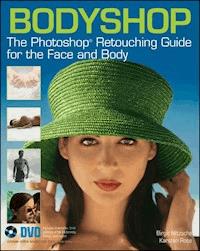
Bodyshop
The Photoshop Retouching Guide for the Face and Body
Birgit Nitzsche, Karsten Rose
Wiley Publishing, Inc.
Bodyshop: The Photoshop Retouching Guide for the Face and Body
Published by Wiley Publishing, Inc. 10475 Crosspoint Boulevard Indianapolis, IN 46256www.wiley.com
Copyright © 2010 by Wiley Publishing, Inc., Indianapolis, Indiana
Copyright © 2009 by Pearson Education Deutschland GmbH. All rights reserved.
First published in the German language under the title “Digitales Face & Bodystyling, Porträtretusche mit
Photoshop” by Addison-Wesley, an imprint of Pearson Education Deutschland GmbH, München.
Photos: All photos by Birgit Nitzsche. The following photos by Karsten Rose, pages: 132, 356 (bridge image), 406, 416.
Published simultaneously in Canada
ISBN: 978-0-470-62438-8
Manufactured in the United States of America
10 9 8 7 6 5 4 3 2 1
No part of this publication may be reproduced, stored in a retrieval system or transmitted in any form or by any means, electronic, mechanical, photocopying, recording, scanning or otherwise, except as permitted under Sections 107 or 108 of the 1976 United States Copyright Act, without either the prior written permission of the Publisher, or authorization through payment of the appropriate per-copy fee to the Copyright Clearance Center, 222 Rosewood Drive, Danvers, MA 01923, (978) 750-8400, fax (978) 646-8600. Requests to the Publisher for permission should be addressed to the Permissions Department, John Wiley & Sons, Inc., 111 River Street, Hoboken, NJ 07030, 201-748-6011, fax 201-748-6008, or online at http://www.wiley.com/go/permissions.
Limit of Liability/Disclaimer of Warranty:The publisher and the authors make no representations or warranties with respect to the accuracy or completeness of the contents of this work and specifically disclaim all warranties, including without limitation warranties of fitness for a particular purpose. No warranty may be created or extended by sales or promotional materials. The advice and strategies contained herein may not be suitable for every situation. This work is sold with the understanding that the publisher is not engaged in rendering legal, accounting, or other professional services. If professional assistance is required, the services of a competent professional person should be sought. Neither the publisher nor the authors shall be liable for damages arising herefrom. The fact that an organization or Web site is referred to in this work as a citation and/or a potential source of further information does not mean that the author or the publisher endorses the information the organization or Web site may provide or recommendations it may make. Further, readers should be aware that Internet Web sites listed in this work may have changed or disappeared between when this work was written and when it is read.
For general information on our other products and services or to obtain technical support, please contact our Customer Care Department within the U.S. at (877) 762-2974, outside the U.S. at (317) 572-3993 or fax (317) 572-4002.
Wiley also publishes its books in a variety of electronic formats. Some content that appears in print may not be available in electronic books.
Trademarks:Wiley and the Wiley Publishing logo are trademarks or registered trademarks of John Wiley and Sons, Inc. and/or its affiliates. All other trademarks are the property of their respective owners. Wiley Publishing, Inc. is not associated with any product or vendor mentioned in this book.
Credits
Senior Acquisitions Editor
Stephanie McComb
Translator
Almut Dworak
Editorial Director
Robyn Siesky
Business Manager
Amy Knies
Senior Marketing Manager
Sandy Smith
Vice President and Executive Group Publisher
Richard Swadley
Vice President and Executive Publisher
Barry Pruett
Media Development Project Manager
Laura Moss
Media Development Assistant Project Manager
Jenny Swisher
Media Development Associate Producer
Shawn Patrick
About the Authors
The authors are experts of photography and image retouching.
Their emphasis is primarily on practical application, in refreshing contrast to the vast majority of theoretical approaches in today’s image editing industry.
Birgit Nitzschehas been working in photography for 20 years. The main focus areas of her work are business and lifestyle. Her experience stems from international photo projects as well as her own studio in Munich (Germany). For the last 15 years, she has been working with the composer and Photoshop lecturer
Karsten Rose(Macromedia Academy of Media, Photoshop-Convention), who is known from his many seminars and workshop. Together they have managed to perfect the interplay between photo-shooting and digital image editing.
Preface
Image editing programs – above all Photoshop – have now become so powerful that almost any conceivable picture optimization and motif manipulation is possible. But we need to ask ourselves if something that is “possible” is also the right choice for the picture we want to edit. Or does the art lie rather in sifting through the multitude of possible choices to select exactly those methods that are most appropriate and best suited to the purpose of the final product?
The more perfect the picture, the better the conditions for digital optimization. However, not every portrait photo is taken after a four-week wellness holiday, and not every production budget allows booking a makeup artist. This book therefore aims to indicate where it is rewarding to invest time into taking a picture, and where it is quicker and more cost-effective to perfect a picture using the computer.
This book is not a theoretical reference work about Photoshop, but a practical handbook allowing the advanced Photoshop-user immediate access to portrait retouching in form of detailed practical exercises. The unusual approach of structuring the exercises “from head to toe” is intended to facilitate orientation and purposeful application for the user. Each chapter can be used independently, as both the basic overviews and the practical exercises are stand-alone and do not follow on from one another.
Bodyshop: The Photoshop Retouching Guide for the Face and Body contains a wealth of different retouching tutorials related to different body parts. All technical specifications in the workshops relate to a file size of about 15 MB. The pictures are present in the Adobe RGB color space. All technical specifications relate to high-quality output, as not everything that appears perfect and brilliant on the computer screen can be printed without losing quality. All images are copyright protected and may not be distributed or reproduced in any way.
We would like to thank our editors Kristine Kamm, Cornelia Karl and Heico Neumeyer for their continued assistance and support during the entire project, and Almut Dworak for providing the English translation. Our special gratitude to Mr Domke of Wacom Europe. Testing the newest devices was a great joy and made our work much easier. Many thanks to Julie Zaffarano at Nik-Multimedia for supplying the most recent versions of the creative and workflow filters which are included as trial versions on the enclosed DVD.
rotund lithe attractive perfect aesthetic shapeless corpulent fat obese slim trimtautathleticwrinkly unflatteringsportypadded flawless sexy overweight styled youthful bulky bare light plump tall shortmusculardelicate massive heavy strong petite firm ideal vigorous flabby curved straight upright slumped fat rotund lithe attractive perfect aesthetic shapeless corpulent fat obese slim trim tautathleticwrinkly unflattering sporty padded flawlesssexyoverweight styled youthful bulky bare light plump tall shortmusculardelicate massive heavy strong petite firm ideal vigorous flabby curved straight upright slumped fat
noble livelyattractivevital average common round pinched plainsymmetricalasymmetrical rigid unattractive mask-like flabby relaxed strainedinterestingstressed long wide oval square averagefineunattractiveprettyinteresting lively rough irregular animated lively regular shapeless rigid symmetrical asymmetrical plain lively prominent striking rough regularnoblevital mask-like unattractive flabby long wide oval square pointy triangular individual memorable inconspicuous attractive vital average common round pinched plainsymmetricalasymmetrical rigid unattractive mask-like flabby relaxed strained stressed long wide oval square triangular average long wide oval squarefineunattractiveprettyinteresting lively rough irregular animated lively regular shapeless rigid symmetrical asymmetrical plain lively prominent striking rough regularnoblevital
shinyexpressiveglowing attractive pretty brown bright make-up natural darklivelymysterious big small tired dull brilliant reddened over-worked blueradiantawake effective mystical damp clear open closed almond-shaped blinking happy enigmatic green swollen pronounced winking striking interesting curious striking wide inquisitive dull oval curious bored fascinating shiny expressive glowing attractive prettyalertbrown bright make-up natural dark lively beautifulmysteriousbig small tired dull brilliant reddened over-worked blue radiant awake effective mystical damp clear open closed almond-shaped blinking happy enigmatic green swollen pronounced winking striking interesting curious striking wide inquisitive dull oval curious bored fascinating beautiful
mysticalvoluminous pronouncedshinymatte red attractive beautiful curved colored plainvividglamorous sensuous sexy dark mysterious dull natural smiling thin full big small rough sore wide cheerful chapped enigmatic glossy pretty fascinating pinched mystical voluminous pronounced shiny matte red attractive beautifulcurvedcolored plain vivid glamorous sensuous sexy darkmysteriousdull natural smiling thin full big small rough sore wide cheerful chapped enigmatic glossy pretty fascinating pinched mystical voluminous pronounced shiny matte red attractive beautiful curved colored plain vivid glamorous sensuous sexy dark mysterious dull naturalsmilingthin full big small rough sore wide cheerful chapped enigmatic glossy pretty fascinating pinched mystical voluminous pronounced shiny matte red attractive beautifulcurvedcolored plain vivid glamorous sensuous sexy darkmysteriousdull natural smiling thin full big small rough sore wide cheerful chapped enigmatic glossy pretty fascinating pinched
freshtanned pale wrinklysmoothshiny matte chapped relaxed beautiful rosysilkypastel-shaded young old soft dimply wrinkled impure rough stretchedtendertaught uneven fine yellow pure saggy healthy sun-burnedflawlessreddened sore sallow smooth glowing matte crackedsoftbeautiful rosy silky pastel-shaded youngold smooth pale pasty spotty shiny dimply matte chapped soft attractive rosy silky tender young old
shapelessshinystrong matte dull healthy scruffy smooth silky full flat graycoloredtinted brittle worn-out brushed glossy tidy unkemptstyledred flaky greasy brunette blonde black short long fashionable styled dandruff curly wavy straight scruffy neat smooth frizzy split glamorous bouncy layered shapeless shiny strong matte dull healthy scruffy smooth silky full flat gray colored tinted brittle worn-out brushed glossy tidy unkempt red flaky greasy brunette blonde black short long fashionable styled dandruff curly wavy straight scruffy neat smooth frizzy split glamorous bouncy layered
aesthetic blotchytenderchappedsoftsore gnarled long short youthful large pampered neglectedmanicuredwrinkly straight strained ugly dry silky strong fine small rough veiny plump broad beautiful supple powerful nimble dry aesthetic blotchy tender chapped pampered soft sore gnarled long short youthful large neglected manicured wrinkly straight strained ugly dry silky strong fine small rough veiny plump broad beautiful supple nimble aesthetic blotchy tender chapped pampered soft sore gnarled long short youthful large neglected manicured wrinkly straight strained ugly dry silky strong fine small rough veiny plump broad beautiful supple powerful nimble aesthetic blotchy tender chapped pampered soft sore gnarled long short youthful large neglected manicured wrinkly straight strained ugly dry silky strong fine small rough veiny plump broad beautiful supple nimble
Retouching Tutorials
Chapter 1: Body contours
rotund lithe attractive perfect aesthetic shapeless corpulent fat obese slim trim taut athletic wrinkly unflattering sporty padded flawless sexy overweight styled youthful bulky bare light plump tall short muscular delicate massive heavy strong petite firm ideal vigorous flabby curved straight upright slumped fat rotund lithe attractive perfect aesthetic shapeless corpulent fat obese slim trim taut athletic wrinkly unflattering sporty padded flawless sexy overweight styled youthful bulky bare light plump tall short muscular delicate massive heavy strong petite firm ideal vigorous flabby curved straight upright slumped fat
Basic Overview Workflow
How to slimb limbs
How to improve posture
How to narrow waist and buttocks and create symmetry
How to modulate body shapes quickly and easily
How to change body size
How to lengthen legs shortened by perspective
How to reduce a big belly
How to change body shapes with light and shadow
How to create harmonious body contours
How to conjure up more muscles in the upper body
How to change body shape without destroying pattern and structures
How to achieve perfect upper body contours
How to replace missing body parts
How to draw with light in order to emphasize body shape
Slim legs against plain background
Picture analysis
1Slim legs, maintaining original size of coat
2Reduce raised veins and knee wrinkles
3Smooth ankles
4Adapt skin tone
These legs appear ungraceful not only because of their shape, but also due to other features such as raised veins, strong and hard shade transition between foot and shoe, wrinkles on the knee and the unhealthy skin tone.
ch1/santalegs.jpg
before
after
Slim legs
To make the legs and feet slimmer, apply theWarp tool to the entire picture.
Duplicate the background layer to make sure the original pixels remain unchanged. SelectEdit/Transform/Warp.
The Warp tool places a grid onto the picture. You can drag any of the intersection and corner points of the rectangles in order to compress or stretch the picture or achieve curves.
Drag the four intersection points of the center square slightly inwards, but keep the points on about the same horizontal. This compresses and thereby slims the legs. Now drag the lower intersection points of the bottom middle square slightly upwards. This slims the feet.
Apply a layer mask by clicking on the mask symbol at the bottom of the Layer palette and paint the coat back in its original size with black (D). Use the Brush tool (B, Size 120 pixels, Hardness 0%, Opacity 50%).
Correct mistakes
Copy the layer “Background” by clicking on it and pressingCMD/Ctrl+J. Activate the layer “Background copy 2”. Merge both layers (CMD/Ctrl+E). Now you can use the retouching tools to correct small flaws on the coat, such as duplicated folds or hard transitions in the fabric. Select these areas with the Patch tool (J) and drag the selection onto a wrinkle-free and smooth area. Quickly check the preview and then let go of the tool.
Reduceknee wrinkles
Use the Patch tool (J) again to correct the knee cap and any prominent veins.
First retouch the darkest wrinkles on the knee and then the lighter areas. As the knee has to stand out from the leg by its natural curve, you should not remove all raised areas and wrinkles, but only reduce them as appropriate.
After each correction you can selectEdit/Fadeand adapt the opacity of your correction. The more you reduce the opacity, the more the wrinkles and bulges will shine through the editing. Make sure the picture still appears natural. Completely without veins, the leg would appear very artificial.
For the moment you can disregard the transitions between areas of light and shadow around the knee cap. We will later correct these using a different method.
Smooth ankle
The right ankle on the foot in front is very pronounced. You can retouch it using the Clone Stamp tool (S, Size 12 pixels, Hardness 25%, Opacity 100%) in order to achieve pleasant transitions within the skin. The editing now hides the light border on the foot. Create a new empty layer and change to the Brush tool (B, Size 6 pixels, Hardness 0%, Opacity 17%). Use white to paint the lost shine back into the edge you just retouched.
Theneutral layer
In order to reduce the light edge and several shadow areas on the knee and the foot you could work with the Dodge tool or the Burn tool. These tools are however very inflexible as they are applied directly to the pixels. A better option is working in a neutral layer.
Create a new empty layer and fill it with50% Grayby selectingEdit/Fill. Set the layer’s blend mode toSoft Light. The gray layer does not change the picture’s appearance at first. Now you can paint onto this layer with the Brush tool (B). In this case you use white to lighten the shadows and use black to darken the light areas. To work even more effectively and flexibly, you can create two of these neutral layers, one forlightening, the other fordarkening. Now you can adjust the opacity of each layer independently and are therefore able to match lights and shadows even more exactly.
Proceed in the same manner with the dark border between foot and shoe. Use the Brush tool (B, Size 4 pixels, Hardness 0%, Opacity 15%, Foreground Color white).
You should vary the Size, as the original edge also has varying thickness in different places.
For large areas, as for example the knee, select 70 pixels as Size for the brush, set the opacity to 4% and the foreground color to black. Darken the various light flares on the leg, which helps to alleviate bumps and slight dents. You do however need to make sure that the knee still remains visible as slightly raised area.
Adaptskin color
The leg shape is now much improved, but the complexion still seems too yellow. The legs should be more reddish in color.
ChooseSelective Colorfrom the Layers palette..
UnderColors, chooseYellowsand change the color settings to:
Cyan–9Magenta+5Yellow–23Black0
Make sure that the method of this picture is set toAbsolute.
Reduce buttocks and create symmetry
Picture analysis
1Reduce buttocks
2Adjust left leg
3Replace and adjust right leg
4Change arm position
This picture is intended to express inner balance and harmony. The message is supposed to be emphasized by symmetry in the arrangement of the picture and the body posture. Unfortunately, the sitting position and the perspective of the shot make the buttocks appear very wide and unflattering. Furthermore, the hard shadow on the right leg and the slightly different leg angle have a negative effect. The leg appears shortened and disturbs the motif’s symmetry, as does the arm position which dips slightly to the right.
ch1/buttocks.jpg
before
after
Mask out body parts
Due to the multitude of necessary changes and adaptations it would be most efficient to place the individual body parts onto separate layers. Convert each of these layers to a smart object, for example by usingFilter/Convert for Smart Filters, in order to be able to change the position as many times as you like without affecting the quality. Now you can experiment at your leisure to reach the best result.
The following body parts are required:
- arms and shoulders
- swimsuit minus the hair
- left leg
We do not need the right leg because we are going to use the left leg and flip it over to the right.
Select the first body part with the Quick Selection tool (W) by dragging it over the area you wish to select.
In order to refine the selection, change to Mask mode (Q) and correct the mask with the Brush tool (B, Size 25 pixels, Hardness 60%, Opacity 100%). Change back to Normal mode and copy the body part onto a layer withCMD/Ctrl+J.
Proceed in the same manner for the other body parts.
The Layers panel should now look as on the screenshot shown here. Name each layer accordingly.
Prepare background
Hide all layers except for the background. Cover up all body parts which you want to replace with new ones, by copying the background (CMD/Ctrl+J) and using the Clone Stamp tool (S, Size 80 pixels, Hardness 75%). After your corrections, the picture should look something like this.
In order to be able to use the original as reference when transforming the individual body parts, you can copy the background layer (CMD/Ctrl+J) again and position it at the top of the Layers panel. Reduce the opacity until you are just able to see the original contours. Name this layer, for example “Reference Layer”. After editing, you should delete it again.
Warpswimsuit
Change to the layer “swimsuit” and selectEdit/Transform/Warp. Now drag the lower handles slightly inwards horizontally.
In the reference layer you can see exactly by how much you are shrinking the swimsuit. Then hide the reference layer again.
WithXyou can hide the grid to be able to see the changes more clearly.
Warp left leg
Change to the layer “Left leg” and move the thigh to the right until it touches the swimsuit. Make sure that the layer “Left leg” is beneath the layer “Swimsuit” in the Layers panel. That means you do not have to retouch the edges of the leg elaborately, because they are now under the swimsuit. Now, reselectEdit/Transform/Warpand reshape the leg. It takes a little bit of practice until the proportions are just right.
Attach rightleg
Copy the layer “Left leg” by selectingLayer/Smart Objects/New Smart Object Via Copy.
Flip the layer by selectingEdit/Transform/Flip Horizontaland call the layer “Right leg”. Adapt this leg accordingly with the Warp tool.
Body shadow
In order to create the impression of a diffuse body shadow on the leg you should darken the leg somewhat.
While holding theAlt-key, click onCreate new fill or adjustment layerin the Layers panel, then click onCurves. In the following dialog, activate the buttonUse Previous Layer to Create Clipping Maskand selectLuminosityas mode to make sure that the curve does not result in any unpleasant color changes. The layer thumbnail of the curve is displayed indented. The curve therefore only affects the layer “Right leg”.
Drag the center of the curve slightly downwards until you achieve a brightness that looks like it would correspond to the prevailing lighting conditions.
Change arm position and adaptupper body
Change to the layer “Arms”. In order to give theposition of the arms moresymmetry, select the rulers by pressingCMD/Ctrl+Rand pull up a guide. Now you can see clearly that the left arm is too high and the right arm too low. By selectingEdit/Free transform(CMD/Ctrl+T) you can turn the layer “Arms” slightly to the left, until both elbows are at the same level as the guide line.
Click on the Warp-button at the top and move the various anchor points. Make sure that especially the left arm does not get too wide. Keep correcting by dragging the next point along in the opposite direction. If you drag the left point marked on the picture inwards, you will need to drag the right point marked on the picture outwards.
During this same step, adapt the transitions between skin and swimsuit.
Complete shadows
Because of the changes made to the body, the shadows on the sand are no longer in the right place. Switch to the layer “Background copy”. Using the Clone Stamp tool (S, Size 60 pixels, Hardness 45%, Opacity 100%), stamp the light sand over the shadow. Pay close attention to the shape of the original.
Look closely at the original shadows. Check the shadows via the reference layer. Here, the shadows have a sharp edge. The tool tip of the stamp should therefore not be set to 0% Hardness. Experiment with different hardness settings.
Create a new empty layer by clicking on the New Layer icon in the Layers panel. Drag it above the layer “Background copy” and call this new layer “Shadow”. Use the Brush tool (B, Size 50 pixels, Hardness 80%, Opacity 100%) to draw a faint shadow at the bottom of the swimsuit. Set the blending mode toLuminosityto avoid color changes. If the shadow is too strong, reduce the layer opacity. When you are finished, check all details of your adjustments once more.
Changebody size
Picture analysis
1Make man taller
2Adapt arm position
At the moment when this picture was taken, the man was bending his knees so much that the woman appears considerably taller. In reality, he is actually 10 cm taller than her. In order to visually recreate this relationship of size, we will need to stretch the man a little bit.
ch1/bodysize.jpg
Mask out the man
In order to enlarge the man we first need to isolate him from the background. The question that always arises is how precise we have to be with our selection. In this case, we can afford to be less precise as the man will only be enlarged within the original picture. The surroundings and therefore the difficult transitions in the edges remain the same and do not require complicated adjustments.
Use the Quick Selection tool (W) to select the man. Vary the tool settings. Different settings are necessary due to the different brightness values. Then use theQkey to switch to Mask mode and improve the mask with the Brush tool (B, Size 9 pixels, Hardness 60%, Opacity 100%) with black and white. As you can see on the picture on the left, this does not have to be very exact. Switch back to Normal mode withQ.
In the Layers panel, click on theSave selection as channelicon. This creates a new channel, “Alpha 1”. Deselect the selection with CMD/Ctrl+D.
The Quick Selection tool does not have a feathered edge. The saved selection is consequently still too hard. In order to soften the transitions, useFilter/Blur Filter/Gaussian Blurwith a Radius of 1 pixel to soften the edges, or use the commandRefine Edge.
Copy the man
In order to copy the man, click on the composite RGB channel and click on the thumbnail “Alpha 1” while holding theCMD/Ctrl-key.
Switch back to the Layers panel. UseCMD/Ctrl+Jto copy the man onto a new layer and name this layer something like “Man”.
Prepare background
Hide the layer “Man” and activate the background layer. Remove the man by using the Clone Stamp tool (S, Size 20 pixels, Hardness 0%, Opacity 100%). The retouching does not need to be very precise, as the resized man will later cover the largest part of the original.
Transform man
First of all, change the layer “Man” to a Smart Object: holdCMD/Ctrlwhile you click on the layer and selectConvert to Smart Object. To make sure the man has the correct size, activate the rulers withCMD/Ctrl+Rand pull out a guide from the horizontal ruler. Position the guide on top of the upper edge of the man’s head and transform the man’s height just slightly with CMD/Ctrl+Tuntil he is a little bit taller than the woman. Confirm by pressing theENTER-key. Then when you no longer need the guide, delete it via theViewmenu.
Adapt hands
When checking the edges, you will notice that there is nothing to correct except for the left hand. Hide the layer “Man” and remove the man’s hand completely with the Clone Stamp tool (S, Size 20 Pixels, Hardness 60%, Opacity 100%), if you have not already done so in the step “Prepare Background”.
Activate the layer “Man” and position it with the Move tool until the two hands look something like on the picture.
Now use the Lasso tool (L, Feather 5 pixels) to select the arm and part of the upper body and copy it onto a new layer withCMD/Ctrl+J. Name this layer “Arm”. After you have copied the layer, it is no longer a smart object. Convert the layer to a smart object. Hide the layer “Arm” and create a layer mask on the layer “Man” by clicking on the mask symbol at the bottom of the Layers panel. Remove large parts of the arm with black (D).
Show the layer “Arm” again and useCMD/Ctrl+Tto rotate the arm. Move the pivot point of the rotation away from the center, towards the shoulder. The arm now rotates around the shoulder joint.
Now rotate the arm until the touching fingers line up.
Create again a layer mask on the layer “Arm” and remove the unwanted areas on the arm and upper body using the Brush tool (B, Size 20 pixels, Hardness 60%, Opacity 100%).
Hide the background to make it easier to spot small inconsistencies.
If you hide the layer “Man” as well, you can see what is left of the arm.
Improve background
After to the initial rough background retouching, we now have to smooth out some details. Check all transitions between the man’s outline and the background. We discovered the original toe and several mistakes in the horizon and the clothing. You will of course find different small inconsistencies during your own editing work. The best solution is to retouch the mistakes with the Clone Stamp tool (S, Size 45 pixels, Hardness 30%, Opacity 100%). Feel free to experiment with other tool settings as well.
Optimize skin tone
Finally, we want to correct the color slightly. The skin tones appear too red. But even if you have a well calibrated monitor, appearances can be deceptive. We therefore have to measure the colors exactly. Select the Info panel by pressingÐ. Use the Color Sampler tool to set a sampling point (sampler) on the woman’s thigh. The Info panel shows you this point as fixed value. Now we know for sure that there is too much red.
Use the button at the bottom of the Layers panel to create aSelective Coloradjustment layer. Correct theRedsas follows.
Magenta–21%Black+11%
In the Info panel you can see that the values have changed. Red and blue are reduced and green is increased. Red and green, the highest values, make yellow. The skin tone appears more yellow and therefore seems fresher and healthier.
Reduce belly
Picture analysis
1.Remove belly above swimming trunks
2.Narrow contours of waistline
3.Smooth wrinkles and light reflections on skin
4Tighten swimming trunks
5.Shrink and reposition belly button
To reduce a big belly in side view is fairly easy, you simply stamp it away. With a perspective from the front, you have to deal with several problems at the same time: the side contours have to be straightened, the belly has to be reshaped and the belly button needs repositioning. Finally, the swimming trunks require a different cut.
ch1/belly.jpg
before
after
Effective working
If you do not happen to own one of the most modern computers, some editing steps can be rather slow and nerve racking. If you are only working on one small part of the picture, it is worth saving the section that you are editing as separate file. Select the area with the Crop tool (C) and confirm by pressing theEnterkey. Save this image under a new name. Now the file is much smaller and the finished retouching can be copied into the original picture when you are done.
Push waistband “over” belly
First duplicate the background (J) to avoid altering the original. Name the layer “Belly 1”. Now useFilter/Liquifyand select the Forward Warp tool (W) which you will find at the top left of the Tools panel to edit the upper edge of the swimming trunks. For the first step, use the tool settings indicated on the picture on the left. Place the tool tip not exactly onto the waistband, but slightly below it in order to push primarily the waistband upwards and not the skin. Now push the waistband up a little. You need to repeat this step several times as the waist is only being incrementally changed.
Improvecontours
With the same procedure you can now edit the left and right waist contours.
Edit the edges on both sides of the body with the Clone Stamp tool (S, Size 40 pixels, Hardness 60%). If you do not have a very steady hand, you can also create a path for the shape, as described in Chapter 7, Basic Overview – Paths.
With skin retouching in particular you need to make sure that the new skin texture corresponds to the texture being replaced.
Removewrinkles and love handles
Remove the wrinkles with the Patch tool (J). Move the Patch tool around the dark areas of the wrinkles and drag these onto a smooth area, best of all straight up, where you find the same skin texture with less hair. Use the same method to reduce the light reflections. Now your picture should look something like this.
A sporty cut for swimming trunks
The now well-proportioned body also needs suitable swimming trunks. In our example, the cut is less than perfect.
In order to remedy this, straighten the waistband and the side contour on the left. Stamp out the offending wrinkles and bulges. Use the following settings: Clone Stamp tool (S), Size 30 pixels, Hardness 50%. The swimming trunks now look much tauter. Do the same on the right-hand side.
To improve and modernize the cut of the swimming trunks, stamp the leg texture upwards. With a graphics tablet and a little practice you can achieve a nice rounded shape even freehand. Alternatively, you can first create a selection for the shape, just as with all shape modifications.
Thebelly button
The belly button is a small but important detail. Because of the original shape and size of the belly, the belly button still sits much too low. In order to position it in the right place, we need to know where it should go. In a slim belly, as on the example on the far right, the belly button is situated at the same level as the narrowest point of the waistline.
We therefore want to move the belly button. Select it with the Lasso tool (L) with a feathered edge of 5 pixels and place the belly button onto a new layer withCMD/Ctrl+J. Right-click on the layer, then convert it to a smart object via the Layers panel. Now we can change the shape of the belly button at any time in order to match it better to the new belly. We named this layer “Belly Button”. Drag the belly button to the same level as the waistline. Remove the original belly button from the layer “Belly 1” with the Patch tool (J).
In order to adjust the belly button, create a mask by clicking on the mask icon in the Layers panel and remove the edges of the belly button with black (D) and the Brush tool (B, Size 45 pixel, Hardness 40%, Opacity 100%). Save the picture and then flatten all layers via the pop-up menu in the Layers panel. Select all withCMD/Ctrl+Aand copy it withCMD/Ctrl+Cto paste it into your original picture.
Insert retouching
Open the original picture and paste your retouching into it withCMD/Ctrl+V. Set the blend mode toDifference. Now you can insert the retouching accurately.
The retouched area becomes black when it is congruent, and only the altered edges become visible. Then you set the blend mode toNormal. Adjust the edges with a layer mask.
Achieve perfectleg contours
Picture analysis
Left lady:
1Narrowhips
2.Narrowthighs, inside and outside
3.




