


20,99 €
Mehr erfahren.
- Herausgeber: John Wiley & Sons
- Kategorie: Wissenschaft und neue Technologien
- Sprache: Englisch
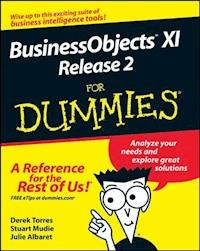
BusinessObjects may seem like a dauntingly complex topic, but BusinessObjects XI Release 2 For Dummies makes is a snap. Even if you're new to business intelligence tools, this user-friendly guide makes it easy to access, format and share data, analyze the information this data contains, and measure your organization's performance. In no time, you'll be finding your way around Universes to see how everything is shaping up, viewing and creating reports, building powerful queries on your organizations database, and measuring your company's performance using BusinessObjects XI Release 2. This completely jargon-free handbook will put you in complete control of the ways and means of a truly exciting and powerful suite of business intelligence tools. Discover how to: * Make business decisions with help from BusinessObjects * Use BusinessObjects XI wizards * Perform a server installation * Create and define a Universe * Set up desktop reporting * Customize and use InfoView * Measure performance with Dashboard and Analytics * Take advantage of data marts and understand how they fit into your BusinessObjects system Created by a team with more than 15 years combined experience working with BusinessObjects tools, BusinessObjects XI Release 2 For Dummies comes complete with several short lists of useful information, including tips on how to prepare for a successful BusinessObjects integration and helpful resources beyond the pages of this book. You'll also find an overview of Crystal Reports, BusinessObjects' companion reporting tool.
Sie lesen das E-Book in den Legimi-Apps auf:
Seitenzahl: 382
Veröffentlichungsjahr: 2011
Ähnliche



















BusinessObjects XITM Release 2 For Dummies
by Derek Torres,Stuart Mudie, and Julie Albaret
BusinessObjects XITM Release 2 For Dummies®
Published byWiley Publishing, Inc.111 River St.Hoboken, NJ 07030-5774www.wiley.com
Copyright © 2008 by Wiley Publishing, Inc., Indianapolis, Indiana
Published by Wiley Publishing, Inc., Indianapolis, Indiana
Published simultaneously in Canada
No part of this publication may be reproduced, stored in a retrieval system or transmitted in any form or by any means, electronic, mechanical, photocopying, recording, scanning or otherwise, except as permitted under Sections 107 or 108 of the 1976 United States Copyright Act, without either the prior written permission of the Publisher, or authorization through payment of the appropriate per-copy fee to the Copyright Clearance Center, 222 Rosewood Drive, Danvers, MA 01923, (978) 750-8400, fax (978) 646-8600. Requests to the Publisher for permission should be addressed to the Legal Department, Wiley Publishing, Inc., 10475 Crosspoint Blvd., Indianapolis, IN 46256, (317) 572-3447, fax (317) 572-4355, or online at http://www.wiley.com/go/permissions.
Trademarks: Wiley, the Wiley Publishing logo, For Dummies, the Dummies Man logo, A Reference for the Rest of Us!, The Dummies Way, Dummies Daily, The Fun and Easy Way, Dummies.com, and related trade dress are trademarks or registered trademarks of John Wiley & Sons, Inc. and/or its affiliates in the United States and other countries, and may not be used without written permission. BusinessObjects is a trademark of Business Objects SA. All other trademarks are the property of their respective owners. Wiley Publishing, Inc., is not associated with any product or vendor mentioned in this book.
LIMIT OF LIABILITY/DISCLAIMER OF WARRANTY: The publisher and the author make no representations or warranties with respect to the accuracy or completeness of the contents of this work and specifically disclaim all warranties, including without limitation warranties of fitness for a particular purpose. No warranty may be created or extended by sales or promotional materials. The advice and strategies contained herein may not be suitable for every situation. This work is sold with the understanding that the publisher is not engaged in rendering legal, accounting, or other professional services. If professional assistance is required, the services of a competent professional person should be sought. Neither the publisher nor the author shall be liable for damages arising herefrom. The fact that an organization or Website is referred to in this work as a citation and/or a potential source of further information does not mean that the author or the publisher endorses the information the organization or Website may provide or recommendations it may make. Further, readers should be aware that Internet Websites listed in this work may have changed or disappeared between when this work was written and when it is read.
For general information on our other products and services, please contact our Customer Care Department within the U.S. at 800-762-2974, outside the U.S. at 317-572-3993, or fax 317-572-4002.
For technical support, please visit www.wiley.com/techsupport.
Wiley also publishes its books in a variety of electronic formats. Some content that appears in print may not be available in electronic books.
Library of Congress Control Number: 2008925779
ISBN: 978-0-470-18112-6
Manufactured in the United States of America
10 9 8 7 6 5 4 3 2 1
About the Authors
Derek Torres is a technical communicator and author. He spent several years writing documentation for Business Objects at its headquarters in Paris, France. He has also authored or coauthored several titles, including The Unofficial Guide to Windows XP, The Unofficial Guide to Windows Vista, and The Windows Vista Ultimate Bible (Wiley Publishing, Inc). He is currently working on his first novel. He can be reached at www.bofordummies.com.
Stuart Mudie is a Scot living in Paris, France. A professional communicator since 1995, he has worked with numerous companies in the IT and Telecommunications sectors, including three years at Business Objects headquarters in Paris. He is coauthor of The Unofficial Guide to Windows Vista (Wiley Publishing), a part-time lyricist, and can be found on the Web at www.stuartmudie.com.
Julie Albaret is a Business Intelligence consultant. She has worked in the BI field for over ten years, taking part in BI projects and studies for many companies. She spent six years working for Business Objects, including three years as a Performance Management specialist. She worked first as a sales consultant in Paris, then in Bangalore (India) as a software testing project manager, before returning to the company’s Paris headquarters to work for two years as a Program Manager for Web Intelligence.
Dedications
To my late father
I regret that you didn’t make it to see the book come out.
Derek Torres
To Ellie and Justine, with love
Stuart Mudie
Authors’ Acknowledgments
Derek Torres: I want to thank my partners in crime, Stuart Mudie, Julie Albaret, and Patrick Albaret. It was a great team effort to pull this one together. I’d also like to thank our Executive Editor, Greg Croy, for his patience — we probably made him endure far more than he anticipated when he signed on for this project! I’d also like to thank our agent Lynn Haller for her hard work in selling this title. Thanks to everyone at Wiley past and present, including our Project Editor, Rebecca Senninger, and Jody Lefevere. Thanks to my friends and associates, past and present, at Business Objects. Thanks finally to my family for lending me to my laptop and publisher.
Stuart Mudie: Thanks to Justine and Ellie, for everything; my parents Marion and Bill Mudie, for encouraging me to dream, and then — most importantly — to follow those dreams; my brother Craig and his wife Leona, for giving me an excuse to break off from the writing of this book to be best man at their wedding; my co-authors Derek Torres and Julie Albaret, for their friendship over the years, and for joining me on this journey; Alan Daifuku, for hiring me to work at Business Objects in the first place, and for bringing me to live in France; my agent, Lynn Haller, for her hard work and dedication; our outstanding technical editor Patrick Albaret, for making everything clear; our Acquisitions Editor Greg Croy and our Project Editor Rebecca Senninger, for keeping us on the right track; and all the other fine folks at Wiley.
Julie Albaret: Thanks to Patrick, Stuart, and Derek for bringing me on this rich adventure; my family for their support and encouragement; my school EISTI friends and my coworkers at SQLI, Business Objects and Advanced-Schema, with whom I share the same passion and from whom I learnt and am still learning so much.
Publisher’s Acknowledgments
We’re proud of this book; please send us your comments through our online registration form located at www.dummies.com/register/.
Some of the people who helped bring this book to market include the following:
Acquisitions and Editorial
Project Editor: Rebecca Senninger
Executive Editor: Greg Croy
Senior Copy Editor: Barry Childs-Helton
Technical Editor: Patrick Albaret
Editorial Manager: Leah Cameron
Editorial Assistant: Amanda Foxworth
Sr. Editorial Assistant: Cherie Case
Cartoons: Rich Tennant (www.the5thwave.com)
Composition Services
Project Coordinator: Kristie Rees
Layout and Graphics: Stacie Brooks, Reuben W. Davis, Alissa D. Ellet, Brooke Graczyk, Melissa K. Jester
Proofreaders: Jessica Kramer, Christine Sabooni
Indexer: Lynnzee Elze
Special Help
Teresa Artman
Publishing and Editorial for Technology Dummies
Richard Swadley, Vice President and Executive Group Publisher
Andy Cummings, Vice President and Publisher
Mary Bednarek, Executive Acquisitions Director
Mary C. Corder, Editorial Director
Publishing for Consumer Dummies
Diane Graves Steele, Vice President and Publisher
Joyce Pepple, Acquisitions Director
Composition Services
Gerry Fahey, Vice President of Production Services
Debbie Stailey, Director of Composition Services
Contents
Title
Introduction
About This Book
Foolish Assumptions
How This Book Is Organized
Icons Used in This Book
Where to Go from Here
Part I : Getting Started with BusinessObjects
Chapter 1: Business Intelligence and BusinessObjects XI Release 2: Working Hand in Hand
Fitting Business Intelligence into Your Business
Taking a Closer Look at BusinessObjects XI Release 2 Enterprise
Chapter 2: Deploying on a Single Computer
Making Sure You’re Ready
Installing BusinessObjects Enterprise on Your Computer
Chapter 3: Performing a Server Installation
Making Sure You’re Ready
Installing BusinessObjects XI R2 on Your Server
Chapter 4: Taking Control with the Central Management Console
Knowing Your Rights: The BusinessObjects Security Model
Discovering the Central Management Console
Managing Users
Using Groups (To Make Your Life Easier)
Exploring the Rights Tab
Managing Applications
Part II : Universes
Chapter 5: Creating a Universe from the Safety of Your Desk
Working with BusinessObjects Designer
Building a Universe the Old-School Way
Becoming Master of the Universe (Builder)
Chapter 6: Defining a Universe
Planning for Your Universe
Importing Universes
Saving Universes
Exporting Universes
Chapter 7: Joining Your Universe
Before You Join: Creating Tables
Creating a Join
Using Loops
Chapter 8: Adding Dimensions to Your Universe
Creating Objects
Creating a Measure
Creating Classes
Creating a List of Values
Part III : Using Your Desktop for Reporting
Chapter 9: Reporting Live from the Desktop
Getting Yourself Connected
Interfacing the Desktop Intelligence Interface
Changing Your Password
Exploring Your Options
Chapter 10: Building Queries
Using the Query Panel
Creating a New Query
Handling Multiple Data Providers
Changing a Query to a BusinessObjects Universe
Chapter 11: Documents in BusinessObjects
Knowing the Difference between Documents and Reports
Creating a New Document
Saving Your Document
Opening a Document
Making Your Document Work for You
Part IV : Making Web Intelligence Work for You
Chapter 12: Getting Your Hands Dirty with InfoView
Logging On to InfoView
Customizing InfoView
I Did It MyInfoView’s Way
Chapter 13: Setting Up Your Documents
Creating a Document
Creating Other Types of Files
Using Prompts
Save a Document, Save a Life
Printing Your Document
Chapter 14: Working with Your Completed Documents
Accessing Saved Documents
Getting the Lowdown on Your Document
Viewing Documents
Sending Documents to Colleagues
Exporting Documents
Part V : Keeping Track of How Your Organization Is Doing
Chapter 15: A Different Kind of Dashboard
Accessing Dashboard Manager
Creating a Dashboard
Filling Up Your Dashboard
Defining Your Layout
Organizing Your Dashboard
Viewing Dashboards
Making a Dashboard Your Home Page
Chapter 16: Making Better Decisions through Analytics
Understanding the Value of Analytics
Creating Analytics Based on Universe Measures
Creating a Map Analytic Based on a Universe
Chapter 17: Using Performance Manager to Set Goals and Track Achievement
Configuring Your Environment to Build Metrics
Creating a Metric
Creating a Goal
Creating a Metric-Based Analytic
Part VI : Getting the Best Possible Data with Data Marts
Chapter 18: Putting Data Integrator to Work for You
Figuring Out Data Integrator
Getting the Hang of Data Integrator Designer
Playing Administrator with Data Integrator
Chapter 19: Working with Data Marts
Choosing Between a Data Warehouse and a Data Mart
BusinessObjects Rapid Marts
Part VII : The Part of Tens
Chapter 20: Ten Ways to Prepare for BusinessObjects Integration
Do Your Research!
Check Out businessobjects.com
Pick the Right Computer
Are You Upgrading?
Back Up Your System
Organize Your Computer
Organize Your Organization
Verify Troop Readiness!
Check for Any Service Packs or Hot Fixes
Be Patient!
Chapter 21: Ten Resources to Help You
The Business Objects Web Site
Diamond Community
Insight Blog
BOB: BusinessObjects Board
GBS — Business Objects Admin and Security Solutions
Business Intelligence.com
ITtoolbox Business Intelligence Knowledge Base
Business Intelligence Network
The Interop Vendor Alliance — Business Objects
Crystal Reports Links
BusinessObjects XI Release 2 For Dummies Companion Web Site
Part VIII : Appendixes
Appendix A: Reporting on Crystal Reports
What Is Crystal Reports?
Crystal Reports versus WebI
Appendix B: Glossary
Introduction
BusinessObjects XI Release 2 is an industry-leading suite of tools for reporting, query-and-analysis, performance management, and information management. The tools that make up the suite allow you to access, format, and share data, as well as analyze the information this data contains and measure your organization’s performance.
About This Book
For new users, business intelligence can seem dauntingly complex. BusinessObjects XI Release 2 For Dummies is an introductory-level book that helps you get started viewing and creating reports, building powerful queries on your organization’s database, and measuring your company’s performance — all without bombarding you with industry jargon and overly complex technical explanations.
The authors of this book have a combined experience of over 15 years of working with BusinessObjects tools; many of those years were spent working for the Business Objects company at its Paris headquarters. We combine and simplify — in a single book — what the official user documentation spreads across a large number of electronic manuals.
Foolish Assumptions
We wrote this book with certain assumptions in mind:
You’ve recently encountered the BusinessObjects suite for the first time and are trying to get to grips with it, or that you want to take your knowledge of the system to the next level.
You have a general familiarity with the personal computer, and you know your way around a basic user interface such as the one found in Microsoft Word — but at no time do we take it for granted that you are a technical expert.
We also suspect that you probably won’t read this book from cover to cover, at least not in one sitting (although there’s nothing to stop you from doing so if you feel the urge). Rather, we expect you’re more likely to jump from chapter to chapter, to dig around, and to use it as a quick reference when performing a task you haven’t done in a while.
How This Book Is Organized
This book contains eight major parts. Each part consists of several chapters.
Part I: Getting Started with BusinessObjects
Part I introduces you to some key Business Intelligence concepts. It goes on to look at the tools that make up the core of the BusinessObjects suite, and then walks you through installing them — both on a single computer and on a server — to the point where you’re ready to roll your sleeves up, get stuck in, and use them. Finally, it takes a look at the Central Management Console (CMC), the Web-based administration tool you use to manage your BusinessObjects installation once everything is in place.
Part II: Universes
Universes are at the heart of any BusinessObjects system. Part II tells you what they are (hint: they’re made of numbers, not stars), how to create one, and how to work with its different dimensions. Don’t worry; it’s less metaphysical than it sounds!
Part III: Using Your Desktop for Reporting
Part III explains how you can use the BusinessObjects desktop reporting tool to query, analyze data, and build reports. The desktop reporting tool is the actual BusinessObjects software installed on your computer, affectionately known to many users as DeskI. Think of it as the non-Web-based BusinessObjects.
Part IV: Making Web Intelligence Work for You
In Part IV, you find out all about InfoView, the Web-based portal that lets you work with your reports and access your organization’s data online. For most users, InfoView is the “public face” of BusinessObjects — offering all the desktop reporting features over a Web browser and allowing you to create reports from anywhere with an Internet connection. If you’re using BusinessObjects, you’re more likely to work with InfoView than any other tool.
Part V: Keeping Track of How Your Organization Is Doing
In Part V, we cover how to use dashboards, analytics, and other tools and methodologies to measure your organization’s performance against strategy.
Part VI: Getting the Best Possible Data with Data Marts
In Part VI, you discover what data marts are and how they fit into your BusinessObjects system.
Part VII: The Part of Tens
Part VII contains several short lists of useful information — including tips on how to prepare for a successful Business Objects integration, and a list of helpful resources beyond the pages of this book.
Part VIII: Appendixes
We close the book with our appendixes, which include an overview of Crystal Reports, BusinessObjects’ companion reporting tool, and a glossary.
Icons Used in This Book
The Remember icon highlights useful information that you may want to come back to at a later point.
Technical Stuff delves a little further into the topic being discussed without necessarily being essential for your overall understanding. Think of it as an aside, something that we find interesting and hope you do too.
A tip is a simple word of wisdom, something useful that we’ve learned over our many years of working with Business Objects products.
The advice this icon designates can often save you from some serious headaches.
Where to Go from Here
Are you ready? Turn to Chapter 1 to get started creating and viewing both simple and complex reports — and making sense of the information hidden away in your organization’s databases — using BusinessObjects XI Release 2.
Part I
Getting Started with BusinessObjects
In this part. . .
Undoubtedly, you’re itching to get started. But as you probably know if you’ve taken the trouble to pick up this book in the first place, business intelligence can be a complex subject and it’s worth taking the time to find your bearings a little before getting started with BusinessObjects
With this in mind, Chapter 1 gives you a general introduction to the world of business intelligence and some of its key concepts, before going on to look at how you can use BI applications and technologies to help you and your organization make better business decisions, and provides a brief overview of all the different products that make up the BusinessObjects XI Release 2 Enterprise product suite.
Part I then walks you through the steps involved in installing BusinessObjects, both on your local machine (Chapter 2) and, as is more typically the case, on a server (Chapter 3).
Chapter 4 introduces you to the workings of the Central Management Console (CMC), a Web-based system administration tool that lets you manage user profiles, security and access rights once your system is up and running.
Chapter 1
Business Intelligence and BusinessObjects XI Release 2: Working Hand in Hand
In This Chapter
Discovering how business intelligence can help your business
Delving into BusinessObjects XI Release 2
Before you roll your sleeves up and get running with BusinessObjects XI Release 2, it’s worth taking a moment to consider the bigger picture. At the beginning of this chapter, we give you an overview of business intelligence, and show how you can use business intelligence applications and technologies to help you make better business decisions.
If your business has been running Crystal Enterprise or BusinessObjects, you’re probably faced with having to upgrade — specifically, to BusinessObjects XI. If so, welcome to some enhanced capabilities. If not — if you’re just starting out with Business Objects XI — welcome to a whole new business universe. The last half of this chapter provides an overview of the different components that make up the BusinessObjects XI Release 2 Enterprise product suite — and offers some pointers on finding the right tools for the job — both for the migration and the projects to follow.
Fitting Business Intelligence into Your Business
Business intelligence (BI) is a business management term for the tools and methodologies used to collect, provide access to, and analyze data (which, in a typical organization, usually means information about a firm’s operations such as details of sales, production, or human resources).
Business intelligence lets you keep track of what’s going on in your company. It provides you with timely and pertinent insight so you can measure your performance against your company’s established goals, and take action at a time when it is still possible for you to influence the outcome. Best of all, it lets you do it all yourself, rather than having to depend on IT professionals to provide you with the data you need at a time that suits their schedule.
Put simply, BI lets you make better business decisions because it gives you access to the right information at the right time.
BusinessObjects XI Release 2 has four main functional areas, which allow you to track, understand, and manage your business:
Reporting: Reporting, as its name suggests, enables you to format and deliver information to large audiences both inside and outside your organization in the form of reports.
Query and analysis: Query and analysis tools provide you with a means of interacting with business information (by performing your own ad hoc queries) without having to understand the often complex data that lies underneath this information.
Performance management: Performance management tools let you keep track of and analyze key performance indicators and goals using Dashboards, Scorecards, and Analytics.
Data integration: Data integration lets you extract information from a range of sources and transform it so that it becomes usable by your other BI tools, data marts, and data warehouses.
Life before business intelligence
In the beginning was the data, and the data was hidden away somewhere deep in the bowels of the corporate databases where only an elite of highly trained users were able to reach it.
If you needed access to any of this data to do your job effectively, the only way to get at it was to beg one of those highly trained elite users for help. But when your query finally made its way to the top of Mr. Elite User’s in-tray, often several months later, the information that trickled down to you in the form of a spreadsheet or even a printed report would be horrendously out-of-date. As for whether Mr. Elite User was likely to understand your business requirements in the first place and so avoid supplying you with wrong (or at best irrelevant) information. . . well, you’re better off not even going there.
“Timely? Pertinent? I’m sorry, we don’t do those. Can I interest you in these global sales figures from the first quarter of last year instead?”
A tale of two products
BusinessObjects XI has illustrious ancestors: Both Crystal Enterprise and Business Objects products brought efficient, interactive reporting to databases — and a host of other tools that helped lay the foundation for what we now call business intelligence. Then their powers combined: Business Objects and Crystal Enterprise merged in late 2003 — and BusinessObjects XI fully integrated the features of both companies’ products.
BusinessObjects XI Release 2 has been around since 2005; about a year and a half later, an update appeared: BusinessObjects XI Release 2 Productivity Pack. That’s the subject of this book. And a formidable — though sometimes confusing — toolbox it is.
Taking a Closer Look at BusinessObjects XI Release 2 Enterprise
In this section, we take a look at some of the different members of the BusinessObjects XI Release 2 Enterprise family.
At first glance, BusinessObjects seems to offer a confusing range of tools that do the same job. But at least for the immediate future, there’s a good reason for the overlap in product functionality: Crystal Enterprise and BusinessObjects were originally different products. Check out the sidebar “A tale of two products” to find out more.
Tools for migrating from previous installations
Which tools you’ll need for the migration depends mainly on whether you’re coming from a BusinessObjects or Crystal environment. Be patient, and follow the ancient wisdom that says Get the right tool (or, in this case, wizard) for the job.
Import Wizard
The Import Wizard (see Figure 1-1) is a locally installed Windows appli-cation used by administrators to import user accounts, groups, reports, and folders from Crystal Enterprise, BusinessObjects, or Crystal Info into BusinessObjects XI Release 2 Enterprise. You can also use the wizard to move a test deployment of BusinessObjects XI to a production environment.
In BusinessObjects XI Release 2, the Import Wizard supports upgrades from these existing implementations:
BusinessObjects 5.1.4 and above
BusinessObjects 6.0, 6.1, and 6.5
Crystal Enterprise 8.5, 9, and 10
Application Foundation 6.1.b, 6.1.3, and 6.5.1
BusinessObjects XI (if you haven’t installed the Productivity Pack until now)
You can also administrate remote servers from the Import Wizard.
Figure 1-1: Importing user/group and object/folder information from a previous version of BusinessObjects using the Import Wizard.
Repository Migration Wizard
The Repository Migration Wizard has a much more specific use than the Import Wizard: It’s used solely to migrate a Report Design Repository from previous versions of Crystal Enterprise Server into the BusinessObjects XI Release 2 repository.
The repository is the database server that stores all the information about your BusinessObjects system and its users.
Data Source Migration Wizard
The Data Source Migration Wizard lets you migrate reports based on Crystal queries, dictionaries, and InfoViews to BusinessObjects Enterprise XI.
The Data Source Migration Wizard has a slightly misleading name, because you can use it to migrate two types of objects: data sources and reports. It works by converting the data source for each report into an object that can be used in BusinessObjects Enterprise, and then resetting the report’s data-source location so it points to the new object.
Report Conversion Tool
Okay, the Report Conversion Tool is not (strictly speaking) a migration tool — but you can use it to convert Desktop Intelligence reports to the Web Intelligence format — and then publish the converted reports — so it does serve as a bridge between technologies. It can convert the following types of report to the Web Intelligence XI Release 2 (.wid) format:
Legacy BusinessObjects reports (.rep) previously migrated to the Desktop Intelligence (.rep) format using the Import Wizard.
Desktop Intelligence reports created directly in the Desktop Intelligence tool.
The Report Conversion Tool isn’t a panacea. It can’t convert all Desktop Intelligence reports, nor all Desktop Intelligence features. Exactly what gets converted depends on the features of the original report; some features prevent the report from being converted at all; other features may be modified or removed during the conversion process.
You can also use the Report Conversion Tool to open reports from previous versions of the BusinessObjects desktop-reporting tool directly in Desktop Intelligence. However, to be sure that you take full advantage of the product’s security features, you’re better off using the Import Wizard to import your legacy reports.
All it takes to design a universe
As we explain in Part III, the concept of a universe (in effect, a collection of business objects) lies at the heart of any BusinessObjects XI Release 2 installation. When it comes to building and managing these universes, you have a couple of different tools at your disposal.
Designer
Business Objects Designer is the tool that enables BusinessObjects XI users to create universes (see Figure 1-2).
The person who creates business universes is called (believe it or not) a universe designer. Depending on the situation at your company, this person may be the database administrator, a programmer, a project manager, or even a report creator who has sufficient technical skills to create universes for other users.
Whatever the purpose of the larger universe may be, the purpose of a business universe is to let nontechnical users run queries against a database in order to create reports and analyze data. Its simple interface is designed to provide a business-focused front end to make the SQL structures in the database more easily understandable, using vocabulary that’s familiar to business users.
Figure 1-2: Using the Quick Design Wizard in Designer to create a universe.
Universe Builder
Universe Builder is another tool that you use for — you guessed it — building business universes. How it differs from Designer mainly concerns whether or not your metadata source was compatible with BusinessObjects XI Release 2 at the time it was released. If it was, you’re probably better off building your Universes with Designer. If not, use Universe Builder instead.
For more information on the specifics of Universe Designer, see Chapter 5.
BusinessObjects Desktop Intelligence
BusinessObjects Desktop Intelligence is a desktop reporting tool that allows you to analyze data, perform ad-hoc queries to fetch new data, and create new reports of your own. Now a feature of BusinessObjects XI, it was previously known as BusinessObjects — a stand-alone flagship product. It makes a seriously powerful desktop tool.
Using a desktop tool instead of a permanent network connection gives you a handy advantage by freeing up your IT resources as you use less bandwidth.
Part III explains the workings of BusinessObjects Desktop Intelligence in more detail.
BusinessObjects Web Intelligence
Sometimes, having to open a full-client application just isn’t the most convenient way of working, especially if your machine isn’t powerful enough for the job.
Fortunately, BusinessObjects also features a tool that makes it possible for you to perform a range of query and reporting tasks directly from a browser-based interface: BusinessObjects Web Intelligence.
Part IV looks in more detail at how Web Intelligence works.
Enterprise Performance Management
Although Desktop Intelligence and Web Intelligence are powerful tools in their own right, there may still come a time when you want to move on from the reports they let you build and take your use of the BusinessObjects XI suite to the next level.
Part V describes how you can use the suite’s Performance Management tools to create more complex dashboards, metrics, and analytics that allow you to keep track of how your organization is doing.
Publishing Wizard
The Publishing Wizard lets you add new documents to BusinessObjects XI Release 2 Enterprise. You can assign object rights to specific BusinessObjects Enterprise folders — allowing you to control who publishes what, and where (within the company, anyway).
Although the Publishing Wizard is a Windows application, you can use it to publish reports to servers running on both Windows or Unix.
InfoView
Consider InfoView your company’s business intelligence portal. As a browser-based tool, InfoView is the main interface for most users who work with objects in BusinessObjects XI Release 2. You can use InfoView to view, manage, and work with your organization’s different business-intelligence objects — including Crystal reports, Web Intelligence documents, and Desktop Intelligence documents, as well as the suite’s Enterprise Performance Management tools.
Part IV looks at InfoView in more detail.
Central Management Console
The Central Management Console (CMC), shown in Figure 1-3, is the Web interface that lets you or your administrator control and make best use of your BusinessObjects deployment. It enables you to carry out such tasks as setting up user roles, server administration, managing passwords, and more.
Chapter 4 examines this tool more closely.
Figure 1-3: Managing user rights with the Central Management Console.
Chapter 2
Deploying on a Single Computer
In This Chapter
Checking the minimum requirements
Installing BusinessObjects Enterprise on your computer
Typically (as you might suspect), BusinessObjects XI Release 2 Enterprise is not to be found on just any old home computer. Most end users interact with the tools that make up this product suite over the Web, using InfoView. However, the following client tools are also available as stand-alone applications you can install on your local PC:
BusinessObjects Designer: Enables you to create Universes (which requires fewer superpowers than you may think).
Desktop Intelligence: Allows you to analyze data, perform ad-hoc queries to fetch new data, and create reports. Often referred to as DeskI.
Publishing Wizard: Makes it easier for you to add new documents to BusinessObjects XI Release 2 Enterprise.
Business Views Manager: A tool from the Crystal Reports world that lets you build Business Views — objects that give report designers and end users access to specific types of business information.
Import Wizard: Used by administrators to import user accounts, groups, reports, and folders from Crystal Enterprise, BusinessObjects, or Crystal Info into BusinessObjects XI Release 2 Enterprise.
Report Conversion Tool: Lets you convert Deski reports to the Web Intelligence (WebI) format, and then publish them.
SDKs: Used by developers to integrate Business Objects products into other applications.
In this chapter, we show you how to install these applications locally if you’re responsible for developing applications or migrating data, or if you manage BusinessObjects Enterprise content.
Making Sure You’re Ready
To run BusinessObjects XI R2 — even if all you want to do is install the client software on your local PC — you need a pretty decent (and recent) machine.
Forget about trying to put BusinessObjects XI R2 on that old laptop that the IT department has had hanging around for the last five years; it just won’t be powerful enough.
To run BusinessObjects Enterprise XI R2 effectively, your computer must meet the following minimum hardware requirements:
Pentium III 700 MHz
1GB of RAM
5GB hard-drive space
CD-ROM drive (unless you are installing directly from a network)
In addition, you must be running one of the following operating systems:
We recommend not running BusinessObjects XI R2 with Windows Vista. You might get BusinessObjects XI R2 to run on Vista, but Business Objects won’t give you any help if you run into problems.
Installing BusinessObjects Enterprise on Your Computer
After you determine that your computer is up to the task, you are ready to get down to the nitty-gritty of actually installing the product. Sit back, hold tight, and follow these steps:
1.Insert the installation CD (or DVD) in your CD-ROM drive (or browse to the location on your network where the installation files are stored, and then click the Setup.exe file).
The Installation Wizard runs automatically; you’re given a choice of languages (a quite impressive 12 at the time of writing) in which to install the product, and links to other relevant reading material (as shown in Figure 2-1).
2.(Optional) Choose a language from the menu on the left.
You are then presented with links to a whole host of reading material, including the Installation Guide and the Release Notes, the Education and Consulting pages on the Business Objects Web site, and the Technical Support Web site.
Figure 2-1: Installation Wizard launch screen, with a choice of languages and links.
3.Click Install.
You are greeted with a Welcome Screen that invites you to exit all Windows programs you may have running before continuing with Setup.
4.When you’ve closed all Windows programs, click Next.
The License Agreement appears.
5.Read the License Agreement (you do read those things, don’t you?), select the I Accept the License Agreement option button, and then click Next.
On the following screen, you’re presented with a choice between performing a Client Installation and a Server Installation, as shown in Figure 2-2.
Because you’re installing BusinessObjects on your computer, the Client Installation, which installs Designer, Desktop Intelligence, Publishing Wizard, Business Views Manager, Import Wizard, Report Conversation Tools, and SDKs, is what you’re interested in.
6.Select the Perform Client Installation option button, and then click Next.
The next screen invites you to specify the folder where you want to install the software, as shown in Figure 2-3.
7.Choose to accept the default option (C:\Program Files\Business Objects\) or click the Browse button to select an existing directory or create a new one. In either case, click Next when you’re done.
Figure 2-2: Make your choice between a Client Installation and a Server Installation.
Figure 2-3: Specify the destination folder where you want to install the software.
The final screen offers you one last chance to go back and change any of the details, as shown in Figure 2-4; or, more precisely, a chance to click the Cancel button and start over from scratch! (If you’re a Business Objects User Interface designer, a summary of what those details are would have been nice to see at this point!)
8.If you can remember what options you selected and you’re completely certain they correspond to what you want to do, click Next.
Now you can sit back while the software is installed. When everything is ready, the final screen of the installation wizard informs you that the installation is complete. You’re good to go!
Figure 2-4: A BusinessObjects XI R2 installation in progress.
Chapter 3
Performing a Server Installation
In This Chapter
Making sure you’re ready
Installing BusinessObjects Enterprise on your server
Although (as Chapter 2 describes) you can install some of the client tools that make up the BusinessObjects XI Release 2 Enterprise product suite on your local PC, the fact is, you’re far more likely to install the suite on a server. Then you can allow several, several dozen, or several hundred users to connect to these tools remotely over the Web.
This chapter describes how you perform such an installation — first by ensuring that you have everything in place before you start, and then by taking you through each of the steps involved.
Making Sure You’re Ready
Before you go anywhere near that shiny installation DVD, you must first examine the system you already have in place: Ensure that it meets the minimum requirements for running a server-based installation of the BusinessObects XI R2 product suite.
Minimum requirements
To run BusinessObjects Enterprise XI R2 effectively, your server must meet the following minimum hardware requirements:
Pentium III 700 MHz
1GB of RAM
5GB hard-drive space (plus 1.5GB for the Performance Management feature)
CD-ROM drive (unless you’re installing directly from a network)
You must also be running one of the following operating systems.
The computer you’re setting up as your server needs to have both an application-server program and compatible database software that can store information about the system and its users. Ideally, these should be in place before you start installing the BusinessObjects software, but you can always install them as part of the BusinessObjects installation process. The upcoming sections describe these two requirements in more detail.
Choosing an application server
The machine on which you plan to install and run BusinessObjects XI R2 must have an application-server program up and running before you do the installation. Fortunately, BusinessObjects supports a range of application servers; while you’re deciding which one to use, take a good look at your current environment:
Note which application servers you currently have in place.
If you intend to develop custom applications, decide which Web-development environment you want to use.
If you don’t have an application server already in place on your server computer, BusinessObjects comes with one on your installation CD: Tomcat, which you can install along with BusinessObjects. Indeed, when we walk you through the installation process later in this chapter, we assume you’re doing just that.
The first question you need to address is which development environment — the programming language or languages you intend to use to develop your custom Web applications — you want to work in.
As it happens, the choice is pretty simple: Active Server Pages (ASP) or its more recent successor ASP.NET or JavaServer Pages (JSP). Be aware that whichever option you go for also affects, or is influenced by, your choice of application servers (the machine hosting your Web applications):
If you want to develop your custom applications using ASP or ASP.NET, you must use Microsoft Internet Information Server (IIS).
If you want to develop your custom applications using JSP, you can choose any of the supported application servers shown in Table 3-1. (Tomcat is one of those.)
Examining the relative merits of the ASP and JSP environments is beyond the scope of this book. A simple Web search will reveal scores of sites that debate the benefits of one or the other; if you don’t have your own opinion on the matter already, we’re pretty sure you will before long. Nonetheless, it’s worth noting that certain features — including support for DHTML in Web Intelligence, and Enterprise Performance Management capabilities — are only available in the JSP version.
What’s in a name?
In prior releases of BusinessObjects (before BusinessObjects XI), the database at the heart of the system was called the repository, and when Crystal Enterprise was a stand-alone product, the Central Management Server used to be known as the Crystal Management Server or Automated Process Scheduler (APS).
Database software: Repository of all knowledge . . .
. . . at least that’s the way BusinessObjects XI R2 sees the database software it uses to store information about the system and its users. You have to have a database program installed on your computer before you install BusinessObjects. The Central Management Server (CMS) feature of BusinessObjects interacts with this database program, which serves as the CMS database; Chapter 4 details how you can access and manage it.
BusinessObjects also includes Enterprise Auditor, a tool that enables you to monitor and record key information about the usage of your BusinessObjects deployment. If you want to use it, however, you need to have yet another database — this one specifically dedicated to Auditor — in place.
BusinessObjects XI R2 supports a range of databases, including Microsoft SQL Server 2000 SP3, Microsoft SQL Server 7.0 SP4, Oracle9.2, Oracle10.1, IBM DB2, Sybase ASE, Sybase AS IQ, and NCR Teradata. For details of exactly what is currently supported, we suggest you consult the Business Objects Web site: www.businessobjects.com/pdf/products/xi/boe_xi_supported_platforms.pdf. Be warned: It’s a pretty long and complicated list!
If you don’t have a database-server program already in place on your server computer, Business Objects helps you out: You can install MySQL as part of the BusinessObjects XI R2 installation process.
Installing BusinessObjects XI R2 on Your Server
After you have all the prerequisites in place for installing BusinessObjects XI R2, you’re ready to get down to the installation process proper. Follow these steps to do so:
1.Insert the installation CD (or DVD) in your CD-ROM drive or browse to the location on your network where the installation files are stored; then click Setup.exe.
The Installation Wizard runs automatically; you’re given a choice of languages in which to install the product (a quite impressive 12 at the time of writing), as shown in Figure 3-1.
2.(Optional) Choose a language from the menu on the left.
You’re presented with links to a whole host of reading material, including the Installation Guide and the Release Notes, the Education and Consulting pages on the Business Objects Web site, and the Technical Support Web site.
3.Click Install to get the installation process under way.
A Welcome Screen appears, inviting you to exit all Windows programs you may have running before continuing with Setup.
4.Close all Windows programs, and then click Next.
5.Read the License Agreement, click the I Accept the License Agreement option button, and then click Next.
You’re presented with a choice between performing a Client Installation and a Server Installation, as shown in Figure 3-2.
Because you’re installing BusinessObjects on a server, what you want is (unsurprisingly) the Server Installation. It installs all components, including the client SDK.
Figure 3-1: The Installation Wizard launch screen offers a choice of languages and links.
Figure 3-2: Choose Server Installation.
6.Select the Perform Server Installation option button, and then click Next.
You’re asked to enter your user information (full name and organization) and the product keycode, as shown in Figure 3-3.
7.Enter your full name, organization, and product keycode. Choose whether to install Performance Management. Click Next.
Performance Management is a series of more advanced tools, which we examine more closely in Part V, that you can use to create dashboards, metrics, and analytics to track how your organization is performing.
Figure 3-3: Personalize your installation on the User Information screen.
Only the product keycode is mandatory. Ask your BusinessObjects administrator for it if you don’t know what your keycode is.
Now you’re ready to specify the folder into which you want to install the software, as shown in Figure 3-4.
Figure 3-4: Specify the destination folder where you want to install the software.
8.Choose to accept the default option (C:\Program Files\Business Objects\); click Browse if you want to select an existing directory (or you can create a new one). Click Next when you’re done.
9.Choose the type of installation you want to perform by checking the appropriate check box, and then click Next.
Figure 3-5 shows these available options:
• New: Installs a standard set of both client and server components from the BusinessObjects XI R2 suite.
If you choose this option, you must also specify whether you intend to use an existing database server, or install a MySQL database server as part of the installation process.
• Expand: Lets you add additional components to an existing installation.
• Custom: Lets you specify exactly which components you want to install, as shown in Figure 3-6.
For the purposes of these steps, choose to perform a New installation, and to install MySQL as your database server at the same time.
Figure 3-5: Choose which type of installation you want to perform: New, Expand, or Custom.
Figure 3-6: In a Custom installation, specify exactly which components you want to install.
If you install MySQL as your database server, the next screen asks you to configure the MySQL installation, as shown in Figure 3-7.
10.Enter the port number, and then enter your choice of passwords for the root account and CMS user account. Click Next.
Enter the port number either by selecting the number suggested by default, or by entering whichever port number your organization has configured for the MySQL installation.
At this point, you’re ready to install the Java and/or .NET Web component adaptors; these programs connect your BusinessObjects installation to your application server (see Figure 3-8). See the section “Choosing an application server,” earlier in this chapter, for more information.
Figure 3-7: Configure your MySQL installation.
11.Choose an application server to install: Check the appropriate check box and/or option button. Then click Next.
You have these possible choices:
• A preinstalled Java application server
This choice requires manual configuration outside the BusinessObjects installer.
• Tomcat
• Microsoft IIS ASP.NET
For the purposes of these steps, choose to install and configure Tomcat as part of the BusinessObjects installation process.
Figure 3-8:




