


41,99 €
Mehr erfahren.
- Herausgeber: Packt Publishing
- Kategorie: Wissenschaft und neue Technologien
- Sprache: Englisch
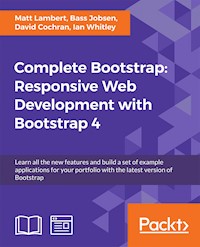
Learn all the new features and build a set of example applications for your portfolio with the latest version of Bootstrap
About This Book
- Do more with JavaScript and learn how to create an enhanced user experience
- Leverage Sass to make your CSS code maintainable, reusable and prevent code duplications
- Leverage Bootstrap's excellent JavaScript plugins
Who This Book Is For
This course is mainly intended for web developers who want to learn to build enterprise-level and professional websites efficiently with Bootstrap. You must have a basic and fundamental understanding of HTML, CSS, and JavaScript; however, there is no need to have prior Bootstrap experience.
What You Will Learn
- Fire up Bootstrap and set up the required build tools to get started
- Understand how and when to use Flexbox with the Bootstrap layouts
- Learn responsive web design and discover how to build mobile-ready websites with ease
- Find out how to extend the capabilities of Bootstrap with a huge range of tools and plugins, including jQuery
- Play around with the huge variety of components that Bootstrap offers
- Customize your designs by working directly with Bootstrap's SASS files
- Explore the inner workings of Bootstrap 4 by building different websites
In Detail
Since its debut in August 2011, Bootstrap has become by far the most popular framework for empowering and enhancing frontend web design. With version 4, Bootstrap reaches an exciting new milestone, a lean code base optimized for modern browsers. Bootstrap 4 introduces a wide range of new features that make frontend web design even more simple and exciting. So, if you're interested to unearth the potential of Bootstrap 4 to build highly responsive and beautiful websites using modern web techniques, then you should surely go for this course.
The highlights of this course are:
Learn out how to make your websites responsive
Explore the robust features of Bootstrap 4 and create exciting websites through excellent hands-on projects
Find out how to extend the capabilities of Bootstrap with a huge range of tools and plugins, including jQuery
Customize your designs by working directly with SASS files
Let's take a quick look at your learning journey. In this comprehensive course, you'll learn everything that you need to know excel in Bootstrap web development. You'll first learn to build a simple blog named Hello World! You'll then discover the principles of mobile-first design in order to ensure your pages can fit any screen size and meet the responsive requirements. You'll learn to play with Bootstrap's grid system and base CSS to ensure your designs are robust and that your development process is speedy and efficient. You'll then find out how you can extend your current build with some cool JavaScript plugins, and throw in some Sass to spice things up and customize your themes. Finally, you'll go through different hands-on projects on Bootstrap such as building your portfolio, building an ecommerce website, and many more!
By the end of this course, you will able to build amazingly beautiful and responsive websites with Bootstrap.
Note: This course is a blend of text and quizzes, all packaged up keeping your journey in mind. It includes content from the following Packt products:
- Learning Bootstrap 4, Second Edition by Matt Lambert
- Bootstrap 4 Site Blueprints by Bass Jobsen, David Cochran, and Ian Whitley
Style and approach
This course takes a practical approach to teach you how to build modern responsive websites with Bootstrap. It follows a project-based approach to creating different types of popular websites using Bootstrap.
Sie lesen das E-Book in den Legimi-Apps auf:
Seitenzahl: 422
Veröffentlichungsjahr: 2017
Ähnliche


















Table of Contents
Complete Bootstrap: Responsive Web Development with Bootstrap 4
Introduction
Bootstrap, the most popular frontend framework built to design elegant, powerful, and responsive interfaces for professional-level web pages has undergone a major overhaul. Since its debut in August 2011, Twitter Bootstrap, now simply Bootstrap, has become by far the most popular framework for empowering and enhancing frontend web design. Millions of amazing sites across the web are being built with Bootstrap.
Bootstrap provides a palette of user-friendly, cross-browser, tested solutions for most standard UI conventions. Its ready-made, community-tested, combination of HTML markup, CSS styles, and JavaScript plugins greatly accelerates the task of developing a frontend web interface, and it yields a pleasing result out of the gate. With the fundamental elements quickly in place, we can customize the design on top of a solid foundation.
With version 4, Bootstrap reaches an exciting new milestone, a lean code base optimized for modern browsers. Bootstrap enables you to build applications and websites that look good and work well on all types of devices and screen sizes from a single code base. Bootstrap 4 introduces a wide range of new features that make frontend web design even more simple and exciting.
What's in it for me – Course Roadmap?
Maps are vital for your journey, especially when you're holidaying in another continent. When it comes to learning, a roadmap helps you in giving a definitive path for progressing towards the goal. So, here you're presented with a roadmap before you begin your journey.
This course is meticulously designed and developed in order to empower you with all the right and relevant information on Bootstrap. We've created this Learning Path for you that consists of three modules. Each of these modules is a mini-course in their own way, and as you complete each one, you'll have gained key skills and be ready for the material in the next module.
Let's take a look at your learning journey:
How is this course different from other courses?
Packt courses are very carefully designed to make sure that they're delivering the best learning experience possible. This course is a blend of sections that form a sequential flow of concepts covering a focused learning journey presented in a modular manner. This helps you learn a range of topics at your own speed and also move towards your goal of learning the technology. We have prepared this course using extensive research and curation skills. Each section adds to the skilled learned and helps you to achieve mastery of Bootstrap. We hope you enjoy this and any other courses you might purchase from Packt.
What will I get from this course?
Prerequisites
This course is for web developers and designers who want to build enterprise-level and professional websites efficiently with Bootstrap 4. Some of the prerequisites that is required before you begin this course are:
Credits
This course is a blend of text and quizzes, all packaged up keeping your journey in mind. It includes content from the following Packt products:
Meet your experts
We have the best works of the following esteemed author to ensure that your learning journey is smooth:
Matt Lambert is a designer and developer with more than 16 years of experience. He currently works full-time as a senior product designer for CA Technologies in Vancouver, BC, Canada.
Bass Jobsen has been programming the web since 1995, ranging from C to PHP. He has a special interest in the processes between designer and programmer. He works on the accessibility of Bootstrap and his JBST WordPress starters theme. With over 5 years of experience with Bootstrap, Bass has been actively contributing to the community with his blogs (http://bassjobsen.weblogs.fm/) and Git repos (https://github.com/bassjobsen).
David Cochran serves as an associate professor of communication at Oklahoma Wesleyan University. He has been teaching interactive design since 2005. When Twitter Bootstrap was first released in August 2011, he recognized it as a tool that would speed up development while supporting best practices. Thus, he began folding Bootstrap into his university courses, much to the benefit of his students. In 2012, David produced a Bootstrap 2.0 tutorial series for https://webdesign.tutsplus.com/.
Ian Whitley developed a passion for writing and literature at a young age. In 2010, he developed a deep interest in web development and decided to get involved in it. He was one of the early adopters of Twitter Bootstrap when it was first released in 2011. With the help of David Cochran, he quickly conquered the system and has used it for many different web projects. Currently, he uses Bootstrap in relation to WordPress, using both in conjunction to create custom and creative solutions for his client.
Chapter 1. Setting up Our First Blog Project
Bootstrap is the most popular HTML, CSS, and JavaScript framework in the modern web development world today. Whether you are new to web development or an experienced professional, Bootstrap is a powerful tool for whatever type of web application you are building. With the release of version 4, Bootstrap is more relevant than ever and brings a complete set of components that are easy to learn and use. In this lesson, I'll show you how to set up our first blog project with all necessary files.
Implementing framework files
Before we get into building the basic template for a Bootstrap project, we should review the files that we need to include, so as to make the framework run properly. Minimal requirement for the purpose: one CSS file and two JavaScript files. These files can either be served from the Bootstrap Content Delivery Network (CDN) or downloaded and included directly in our project. When using CDN, simply include the following line of code in the head of your file:
<link rel="stylesheet" href="https://maxcdn.bootstrapcdn.com/bootstrap/4.0.0-alpha.2/css/bootstrap.min.css" integrity="sha384-y3tfxAZXuh4HwSYylfB+J125MxIs6mR5FOHamPBG064zB+AFeWH94NdvaCBm8qnd" crossorigin="anonymous">Note
CDNs help to distribute bandwidth across multiple servers and allow users to download static content from a closer source.
Bootstrap can be loaded from https://www.bootstrapcdn.com/. BootstrapCDN is powered by MaxCDN which can be found at https://www.maxcdn.com/.
Inserting the JavaScript files
As I mentioned earlier, we need to include two JavaScript files to implement the framework properly. The files are the jQuery and Bootstrap JavaScript framework files. As with the CSS file, you can either do this through the use of a CDN or download and insert the files manually. The JavaScript files should be inserted at the bottom of your page right before the closing </body> tag. If you choose to use the CDN, insert the following lines of code:
<script src="https://ajax.googleapis.com/ajax/libs/jquery/2.1.4/jquery.min.js"></script> <script src="https://maxcdn.bootstrapcdn.com/bootstrap/4.0.0-alpha.2/js/bootstrap.min.js" integrity="sha384-vZ2WRJMwsjRMW/8U7i6PWi6AlO1L79snBrmgiDpgIWJ82z8eA5lenwvxbMV1PAh7" crossorigin="anonymous"></script>If you prefer to insert the files yourself, go back to the Bootstrap package you downloaded earlier and locate the /js directory. There will be a few files here but the one you want is bootstrap.min.js. You'll need to also head to http://jquery.com to download the jQuery framework file. Once you've done that, drop both files into the /js directory for your own project. Next, enter the following lines of code at the bottom of your page template. Make sure jQuery is loaded before bootstrap.min.js. This is critical; if you load them in the opposite order, the framework won't work properly:
<script src="/path/to/your/files/jquery.min.js"></script> <script src="/path/to/your/files/bootstrap.min.js"></script>That concludes the explanation of the key Bootstrap framework files you need to include to get your project started. The next step will be to set up the basic starter template so you can begin coding your project.
The starter template
The basic starter template is the bare bones of what you'll need to get a page going using Bootstrap. Let's start by reviewing the code for the entire template and then I'll break down each critical part:
<!DOCTYPE html> <html lang="en"> <head> <!-- Required meta tags always come first --> <meta charset="utf-8"> <meta name="viewport" content="width=device-width, initial-scale=1, shrink-to-fit=no"> <meta http-equiv="x-ua-compatible" content="ie=edge"> <!-- Bootstrap CSS --> <link rel="stylesheet" href="https://maxcdn.bootstrapcdn.com/bootstrap/4.0.0-alpha.2/css/bootstrap.min.css" integrity="sha384-y3tfxAZXuh4HwSYylfB+J125MxIs6mR5FOHamPBG064zB+AFeWH94NdvaCBm8qnd" crossorigin="anonymous"> </head> <body> <h1>Hello, world!</h1> <!-- jQuery first, then Bootstrap JS. --> <script src="https://ajax.googleapis.com/ajax/libs/jquery/2.1.4/jquery.min.js"></script> <script src="https://maxcdn.bootstrapcdn.com/bootstrap/4.0.0-alpha.2/js/bootstrap.min.js" integrity="sha384-vZ2WRJMwsjRMW/8U7i6PWi6AlO1L79snBrmgiDpgIWJ82z8eA5lenwvxbMV1PAh7" crossorigin="anonymous"></script> </body> </html>HTML5 DOCTYPE
Like most projects nowadays, Bootstrap uses the HTML5 DOCTYPE for its template. That is represented by the following line of code:
<!DOCTYPE html>Avoid using other DOCTYPES such as XHTML strict or transitional or unexpected issues will arise with your components and layouts.
Structuring the responsive meta tag
Bootstrap is a mobile-first framework so the following meta tag needs to be included to allow for responsive web design. To make sure your project renders properly on all types of devices, you must include this meta tag in the <head> of your project:
<meta name="viewport" content="width=device-width, initial-scale=1, shrink-to-fit=no">If you're interested in learning more about how responsive web design works in Bootstrap, you should check out the documentation at: http://v4-alpha.getbootstrap.com/layout/responsive-utilities/ .
That brings to a close the most important parts of the template that you need to be aware of. The remainder of the code in the starter template should be straightforward and easy to understand.
Normalizing and Rebooting
As I mentioned earlier, Bootstrap uses normalize.css as the base CSS reset. With the addition of the Reboot reset, Bootstrap extends Normalize and allows for styling to only be done using CSS classes. This is a much safer pattern to follow, as it's much easier to deal with CSS specificity if you are NOT using CSS IDs for styling purposes. The CSS reset code is baked right into bootstrap.min.css so there is no need to include any further CSS files for the reset.
Taking the starter template further
Although we have our template set up, one of the main problems with static websites is when things change. If your project grew to 50, 100, or 500 pages and you wanted to possibly update to a new version of Bootstrap, you might be looking at having to update all of those files. This is extremely painful, to put it mildly. Now we enter static site generators.
Using a static site generator
One of the hottest trends right now in web development is the use of static site generators. What exactly does that mean? Instead of having several static files that require updating every time something changes globally, you can use a series of base templates then load your body content into them. This is sometimes called includes or partials. This way, you only have one or two layout files that include the header and footer code.
Then, when something changes, you only have to update a few files instead of 500. Once your website is complete, you then generate a version that is plain HTML, CSS, and JavaScript, and deploy it to your server. This is what I would call creating your own frontend web development environment. This is also how most people work on larger projects nowadays to keep them manageable.
Converting the base template to a generator
Why don't we integrate the basic template into a generator so that I can show you what I'm talking about? My generator of choice is called Harp.js and you can install it by following the steps provided in the code folder (Installation Manual).
There are a number of great arguments for using a static site generator such as Harp.js: cleaner code, modern best practices, and more. However, the best reason is that it will just make your life simple. Instead of having to update a header on all 50 pages of the website, you can simply update the header partially and then have that compiled into all your templates. You can also take advantage of using variables to insert content and configuration.
Setting up the blog project
Let's start by creating a new directory and call it something like Bootstrap Blog. Open up that folder and create the following sub-directories inside it:
css
The css directory will hold the Bootstrap framework's CSS file and a custom theme file which we'll build later on. Go to the Bootstrap source file directory and locate the dist/css folder. From there, copy bootstrap.min.css to our new blog project's css directory.
fonts
The fonts directory will hold either a font icon library such as Glyphicon or Font Awesome. Previously, Bootstrap shipped with Glyphicon but they have dropped it in version 4. If you wish to use it, you'll need to download the icon font set and then drop the files into this directory. You could also include a web font that you may want to use on your project in this directory. If you are looking for web fonts, a good place to start is Google Web Fonts.
img
The img directory will hold any images used in the blog.
js
The js or JavaScript directory will hold the Bootstrap framework JavaScript files. If you add any other third-party libraries, they should also be included in this directory. Go back to the Bootstrap source files one last time and locate the dist/js folder. From there, copy bootstrap.min.js to the js directory in the blog project.
partial
The partial directory will hold any reusable snippets of code that we want to use in multiple locations throughout our templates or web pages, for example, the header and footer for our project. It's important to note you can have as many partial files as you like or use none at all.
Within this folder, create two new files and name them _header.ejs and footer.ejs. For now, you can leave them blank.
EJS files
EJS stands for Embeddable JavaScript. This is a type of template file that allows us to use things such as partials and variables in our templates. Harp also supports Jade if you prefer that language. However, I prefer to use EJS because it is very similar to HTML and therefore really easy to learn. If you've ever used WordPress, it is very similar to using template tags to insert bits of content or components into your design.
Setting up the JSON files
Each Harp project has at least two JSON files that are used for configuring a project. JSON stands for JavaScript Object Notation and it's a lightweight format for data interchange. If that sounds complicated, don't worry about it. The actual coding of a JSON file is actually really straightforward, as I will show you now.
The first is called _harp.json and it's used for configuring global settings and variables that will be used across the entire blog. In this case, we're going to set up a global variable for the name of our project that will be inserted into every page template. Start by creating a new file in the root of blog project and call it _harp.json. Within the file, insert the following code:
{ "globals": { "siteTitle": "Learning Bootstrap 4" } }Here's what's happening in this code:
That completes the setup of the global _harp.json file. In a little bit, I'll show you how to add the variable we set up to the main layout file.
Creating the data JSON file
The next thing we need to do is set up the _data.json file that can hold template-specific variables and settings. For our project, we'll set up one variable for each page template which will hold the name of the page. Create another file in the root of the blog project and name it _data.json. In that file, insert the following code:
{ "index": { "pageTitle": "Home" } }Let me break down this code for you:
That completes the setup of the _data.json file for now. Later on, we'll need to update this file once we add more page templates. For now, this will give us the minimum resources that we need to get our project going.
Setting up the layout
Let's go ahead and set up the layout file for our project. The layout is a separate file that will be a wrapper for the content of all of our pages. It contains things such as the <head> of our page, a header partial, and a footer partial. This is one of the advantages to using a static site generator. We don't have to define this on every page so if we want to change something in our header, we only change it in the layout. On the next compile, all of the page templates' headers will be updated with the new code.
Create a new file in the root of the blog project called _layout.ejs. Since this is technically a type of layout file, we'll be creating it as an EJS template file. Once you've created the file, insert the following code into it:
<!DOCTYPE html> <html lang="en"> <head> <!-- Required meta tags always come first --> <meta charset="utf-8"> <meta name="viewport" content="width=device-width, initial-scale=1, shrink-to-fit=no"> <meta http-equiv="x-ua-compatible" content="ie=edge"> <title><%- pageTitle %> | <%- siteTitle %></title> <!-- Bootstrap CSS --> <link rel="stylesheet" href="css/bootstrap.min.css"> </head> <body> <%- partial("partial/_header") %> <%- yield %> <%- partial("partial/_footer") %> <!-- jQuery first, then Bootstrap JS. --> <script src="https://ajax.googleapis.com/ajax/libs/jquery/2.1.4/jquery.min.js"></script> <script src="js/bootstrap.min.js"></script> </body> </html>There are a few things going on here, so let me explain everything that you need to know:
That completes the setup of the layout. Next, let's move on to coding the header and footer partials.
Setting up the header
Let's set up our first partial by coding the header. We'll use the Bootstrap navbar component here for our global navigation for the blog. In the partial directory, open up the _header.ejs file that you created a little earlier and insert the following code:
<nav class="navbar navbar-light bg-faded"> <a class="navbar-brand" href="#">Learning Bootstrap 4</a> <ul class="nav navbar-nav"> <li class="nav-item active"> <a class="nav-link" href="index.html">Home</a> </li> <li class="nav-item"> <a class="nav-link" href="about.html">About</a> </li> <li class="nav-item"> <a class="nav-link" href="contact.html">Contact</a> </li> </ul> <form class="form-inline pull-xs-right"> <input class="form-control" type="text" placeholder="Search"> <button class="btn btn-primary" type="submit">Search</button> </form> </nav>If you're a Bootstrap 3 user, you'll likely notice that the code to render a navbar in version 4 is much cleaner. This will make the navbar much easier to use and explain. Let me break down the code for you:
Tip
Note the .active class on the index page link. This is optional and you may not want to include it in this manner as this is a global navigation.
Save the file and that will complete the setup of the header partial. Let's move on to setting up the footer.
Setting up the footer
The footer partial works exactly like the header. Open up the _footer.ejs file in the partial directory that we created earlier and paste in the following code:
<!-- footer //--> <div class="container"> <div class="row"> <div class="col-lg-12"> Learning Bootstrap 4 2016 </div> </div> </div>The footer content is going to be quite basic for our blog. Here's a breakdown of the code:
We're getting closer to having our Harp development environment set up. The last thing we need to do is set up our index page template and then we can compile and view our project.
Creating our first page template
For our first page template, we're going to create our Home or index page. In the root of the blog project, create a new file called index.ejs. Note this file is not prepended with an underscore like the previous files. With Harp, any file that has the underscore will be compiled into another and ignored when the files are copied into the production directory. For example, you don't want the compiler to spit out layout.html because it's fairly useless with the content of the Home page. You only want to get index.html, which you can deploy to your web server. The basic thing you need to remember is to not include an underscore at the beginning of your page template files. Once you've created the file, insert the following code:
<div class="container"> <div class="row"> <div class="col-lg-12"> <h1>hello world!</h1> </div> </div> </div>To get us started, I'm going to keep this really simple. Here's a quick breakdown of what is happening:
That will be it for now. Later on, we'll build this page out further. Save the file and close it. We've now completed setting up all the basic files for our Harp development environment. The last step is to compile the project and test it out.
Compiling your project
When we compile a project in Harp, it will find all the different partial, layout, and template files and combine them into regular HTML, CSS, and JavaScript files. We haven't used any Sass yet but, as with the template files, you can have multiple Sass files that are compiled into a single CSS file that can be used on a production web server. To compile your project, navigate to the root of the blog project in the Terminal. Once you are there, run the following command:
$ harp compileIf everything worked, a new blank line in the terminal will appear. This is good! If the compiler spits out an error, read what it has to say and make the appropriate changes to your template files. A couple of common errors that you might run into are the following:
Once your compile is successful, head back to the root of the blog project and notice that there is a new www directory. This directory holds all the compiled HTML, CSS, and JavaScript files for your project. When you are ready to deploy your project to a production web server, you would copy these files up with FTP or using another means of file transfer. Every time you run the harp compile command in your project, these files will be updated with any new or edited code.
Running your project
Harp has a built-in web server that is backed by Node.js. This means you don't need a web hosting account or web server to actually test your project. With a simple command, you can fire up the built-in server and view your project locally. This is also really great if you are working on a project somewhere with no Internet connection. It will allow you to continue building your projects Internet-free. To run the server, head back to the Terminal and make sure you are still in the root directory of your blog project. From there, enter the following command:
$ harp serverIn the Terminal, you should see a message that the server is running. You are now free to visit the project in a browser.
Viewing your project
Now that the project is up and running on the web server, simply navigate to the following URL to view it: http://localhost:9000.
By default, Harp runs on port 9000 but you can specify a different port by modifying the last command. Go back to the terminal and quit the server by hitting Ctrl + C. Now enter the following command:
$ harp server --port 9001Using this command, you can invoke any port you would like to use. Head back to the web browser again and change the URL slightly to read http://localhost:9001.
Your project should load for you and look something like this:
It might not be much to look at right now but it works! Your project is successfully set up and running. In future chapters, we'll add to this page and build some more using additional Bootstrap 4 components.
A note about Sass
When building a project with Bootstrap 4, there are two ways you can work with Sass. The first would be by editing the actual Bootstrap framework files and then recompiling them using Grunt. This is useful if you'd like to use something such as Flexbox for your grid layout. I'll discuss this in greater depth in the next lesson. The other way you might want to use Sass is to craft a unique theme that applies a custom look and feel to Bootstrap. This is done in the actual Harp project. Within the css directory, you can include Sass files; when you compile your Harp project, they will be converted to regular CSS, as Harp has a built-in Sass compiler. Then it is just a simple exercise of including those additional files in your layout template. I'll also get into that a little later in the course but I wanted to point out the difference now.
Browser support
Bootstrap 4 does not support Internet Explorer version 8 and earlier. Bootstrap 4 also comes with optional Flexbox support. Only Internet Explorer versions 11 and higher support the CSS3 Flexible Box Layout Module. Besides Internet Explorer 8 and earlier, Bootstrap supports all major browsers, including many mobile browsers.
Vendor prefixes
CSS3 introduced vendor-specific rules, which offer you the possibility of writing some additional CSS, applicable for only one browser. At first sight, this seems the exact opposite of what we want. What we want is a set of standards and practicalities that work the same with every browser and a standard set of HTML and CSS which has the same effect and interpretation for every browser. These vendor-specific rules are intended to help us reach this utopia. Vendor-specific rules also provide us with early implementations of standard properties and alternative syntax. Last but not least, these rules allow browsers to implement proprietary CSS properties that would otherwise have no working standard (and may never actually become the standard).
For these reasons, vendor-specific rules play an important role in many new features of CSS3. For example, animation properties, border-radius, and box-shadow: all did depend on vendor-specific rules in past years. You can easily see that some properties may evolve from vendor prefixes to standard, because currently, most browsers support the border-radius, and box-shadow properties without any prefix.
Vendors use the following prefixes:
Consider the following CSS code:
transition: all .2s ease-in-out;For full browser support, or to support at least the browser supported by Bootstrap, we'll have to write:
-webkit-transition: all .2s ease-in-out; -o-transition: all .2s ease-in-out; transition: all .2s ease-in-out;More information about the transition property and browser support can also be found at the following URL: http://caniuse.com/#feat=css-transitions.
Because of different browsers and their different versions, browsers may use different vendor prefixes to support the same property in writing cross-browser CSS code which can become very complex.
Bootstrap's Sass code, which compiles into CSS code does not contain any prefixes. Instead of using prefixes, the PostCSS autoprefixer has been integrated into Bootstrap's build process. When you create your own build process you should also use the PostCSS autoprefixer.
Troubleshooting
If things are not running smoothly, you should ask yourself the following questions:
When we have so many moving parts to work with, things are bound to happen and these are some of our best survival methods!
Bootply is a playground for Bootstrap, CSS, JavaScript, and jQuery; you can use it to test your HTML code. You can also add your compiled CSS code, but Bootply cannot compile your CSS code.
Note
Bootply can be found online at http://www.bootply.com/.
Our site template is almost complete. Let's pause to take stock before moving on.
Summary
That brings the first lesson to a close. In this lesson, we have set up our first blog project with all the necessary files.
Now that our environment is set up and ready to go, we'll start coding the blog in the next lesson. To get us started, we'll jump right into learning about how to use a Flexbox layout in Bootstrap.
Assessments
Chapter 2. Jumping into Flexbox
Alright, now that we have finished setting up all the Bootstrap build tools, let's jump into an actual great new feature of Bootstrap 4. The latest version of the framework comes with CSS Flexbox support. The goal of the Flexbox layout module is to create a more effective way of designing a layout for a website or web application. The grid of boxes is aligned in a way that distributes them across their container even if their size is unknown. This is where the "Flex" in Flexbox comes from.
The motivation for a flexible box arose from a web design for mobiles. A way to have a section grow or shrink to best fill the available space was needed when building responsive web applications or websites. Flexbox is the opposite of block layouts that are either vertically or horizontally driven. It's important to note that Flexbox is generally best suited for use when designing web applications. The traditional grid method still works best for larger websites.
In our blog project, we're going to use Flexbox to create a homepage. There will be several rows of blocks, each being a post. I'll show you a few ways to lay the blocks out and different ways you can customize the contents of each block, all using the new Flexbox layout in Bootstrap.
Flexbox basics and terminology
Before we go too far, we should define a few Flexbox basics and some terminology that I'll use throughout the chapter. Every Flexbox layout is dependent on an outer container. As we move through the chapter, I'll refer to this container as the parent. Within the parent container there will always be a collection of boxes or blocks. I'll refer to these boxes as children or child elements of the parent. Why don't we start by talking a little bit more about why you would want to use Flexbox? The main purpose of Flexbox is to allow for the dynamic resizing of child boxes within their parent container.
This works for the resizing of both width and height properties on-the-fly. Many designers and developers prefer this technique as it allows for easier layouts with less code:
Ordering your Flexbox
Flexbox is a really powerful module as it comes with several properties that you can customize. Let's quickly go over some more basics before we fully take the plunge and use Flexbox in Bootstrap. Let's start by talking about the order of child boxes. By default, they will appear in the order that you insert them in the HTML file. Consider the following code:
<div class="parent"> <div class="child"> 1 </div> <div class="child"> 2 </div> <div class="child"> 3 </div> </div>A proper CSS will produce a layout that looks like this:
Here's the CSS to produce this layout if you are following along at home:
.parent { display: flex; background: #ccc; padding: 10px; font-family: helvetica; } .child { padding: 10px; margin: 10px; background: #fff; flex-grow: 1; text-align:center; height: 100px; line-height: 100px; }Now using an order property we can reorder the children using some CSS. Let's put the third box at the beginning. If you are reordering some blocks, you need to define the position for each one; you can't simply enter the value for a single block. Add the following CSS to your style sheet:
.child:nth-of-type(1) { order: 2; } .child:nth-of-type(2) { order: 3; } .child:nth-of-type(3) { order: 1; }I'm using the nth-of-type pseudo selector to target each of the three boxes. I've then used the order property to set the third box to the first position. I've also adjusted the other two boxes to move them over one space. Save the file and your boxes should now look like this:
As you can see, the third box has moved to the first position. It's as easy as that to rearrange blocks on boxes on a page. I think you'll likely see how this could be useful for coding up a web application dashboard.
Stretching your child sections to fit the parent container
Another important Flexbox feature is the ability to stretch the width of the child boxes to fit the full-width of the containing parent. If you look at the preceding CSS you'll notice a flex-grow property on the .child class. The property is set to 1 which means that the child boxes will stretch to equally fill their parent. You could also do something where one box is set to a different value, using the nth-of-type selector, and then it would be wider than the others. Here's the code to create equal-width columns as that is what you'll likely do in most cases:
.child { flex-grow: 1; }




