


27,99 €
Mehr erfahren.
- Herausgeber: John Wiley & Sons
- Kategorie: Wissenschaft und neue Technologien
- Serie: Treehouse Book Series
- Sprache: Englisch
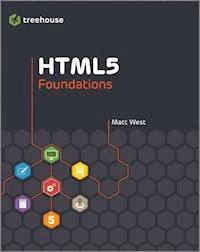
Master innovative and eye-catching website design with the exciting new Treehouse Series of books
Turn plain words and images into stunning websites using HTML5 and this beautiful, full-colour guide. Taking you beyond the constraints of prebuilt themes and simple site building tools, this new Treehouse book combines practicality with inspiration to show you how to create fully customized, modern, and dazzling websites that make viewers want to stop and stay.
The exciting new Treehouse Series of books is authored by Treehouse experts and packed with innovative design ideas and practical skill-building. If you're a web developer, web designer, hobbyist, or career-changer, every book in this practical new series should be on your bookshelf.
- Part of the new Treehouse Series of books, teaching you effective and compelling website development and design, helping you build practical skills
- Provides career-worthy information from Treehouse industry pros and trainers
- Explains HTML5 basics, such as how to format text, add scripts to pages, and use HTML5 for audio and video
- Also covers hypermedia, CSS and JavaScript, embedding video, geolocation, and much more
Leverage pages of dazzling website design ideas and expert instruction with a new Treehouse Series book.
Sie lesen das E-Book in den Legimi-Apps auf:
Seitenzahl: 434
Veröffentlichungsjahr: 2012
Ähnliche




















Table of Contents
Cover
Table of Contents
Title Page
Copyright
About the Author
Publisher’s Acknowledgements
Acknowledgments
Introduction
Who Should Read This Book?
What You Will Learn
How to Use This Book
Using This Book with Treehouse
part 1: Creating Web Pages with HTML5
chapter one: Getting Started with HTML5
What is HTML?
Setting Up Your Tools
Building Your First HTML5 Web Page
Constructing Elements
Validating Your Web Page
All Browsers Are Not Created Equal
Summary
chapter two: Structuring a Web Page
Creating Layout Templates
Extending the <head> with Metadata
Styling the Page with CSS
Summary
chapter three: Creating the Page Templates
Adding a Logo
Adding Navigation
Adding Footer Content
Global Attributes
Summary
chapter four: Creating the Web Pages
Adding Content to the Home Page
Adding Content to the About Page
Creating the Locations Page
Creating the Sitemap Page
Creating the Menu Page
Creating the News Page
Summary
part 2: Dealing with Data
chapter five: Working with Forms
Setting Up the Bookings Page with the <form> Element
Adding the Form Fields to the Bookings Page with <input> and <label> Elements
Adding a Message Box with the <textarea> Element
Adding a Submit Button to Your Bookings Page
Adding a Drop-Down Menu to Your Bookings Page
Handling Files
Grouping the Input Fields in Your Bookings Page Using <fieldset> and <legend>
Updating the Site Navigation and Sitemap
Summary
chapter six: Enhancing Your Web Forms with HTML5
Adding HTML5 to Your Bookings Form
HTML5 Input Types
HTML5 Input Attributes
Datalists
Summary
chapter seven: Validating Form Data Using HTML5
Adding Validations to Your Bookings Form
Requiring Data from the User
Restricting Length
Restricting Range
Matching Patterns
Regular Expression Basics
Summary
chapter eight: Using Microdata
About Schema.org
Using Microdata
Commonly Used Schemas
Summary
chapter nine: Ensuring Accessibility
Why Is Accessibility Important?
Screen Readers
Making Web Forms Accessible
Making Tables Accessible
Making Images Accessible
Making Links Accessible
Testing Accessibility
Summary
part 3: Enhancing Web Pages with HTML5 and JavaScript
chapter ten: Introducing JavaScript
What is JavaScript?
The <script> Element
JavaScript Basics
The Document Object Model (DOM)
JavaScript Libraries
Summary
chapter eleven: Adding Video and Audio
Converting Video and Audio Files
Adding a Video to the About Page Using the <video> Element
Creating Custom Controls Using JavaScript
Making Your Video Accessible
Summary
chapter twelve: Storing Data
Why Use Client-Side Storage?
LocalStorage
Saving Customer Data from the Bookings Form
Storing Objects and Arrays
SessionStorage
Additional Considerations on Using Client-Side Storage
Summary
part 4: Advanced HTML5 Technologies
chapter thirteen: Using Geolocation
Getting the User’s Location
Calculating the Distance Between Two Sets of GPS Coordinates
Finding the Nearest Restaurant
Summary
chapter fourteen: Using Canvas to Create Online Ads
Setting Up Your Canvas
Creating the Background
Adding Text
Drawing Lines
Drawing Circles
Creating Gradients
Adding Shadows
Adding the Offer Text
Saving and Restoring State
Adding Images
Summary
appendix a: Additional HTML Markup for Text
appendix b: HTML Elements Index
appendix c: Where to Go from Here
Books
Websites and Blogs
End User License Agreement
List of Illustrations
chapter one: Getting Started with HTML5
Figure 1-1 Editing an HTML document with Sublime Text 2.
Figure 1-2 Inspecting a web page using the Chrome developer tools.
Figure 1-3 Your first HTML5 web page.
Figure 1-4 Your web page with the new text you just added.
Figure 1-5 Your web page passed validation as HTML5.
Figure 1-6 A simple HTML web page in Google Chrome.
Figure 1-7 The same HTML web page displayed in Internet Explorer (using IE7 compatibility mode).
chapter two: Structuring a Web Page
Figure 2-1 A page from the Treehouse website.
Figure 2-2 Wireframe of the home page layout.
Figure 2-3 Wireframe of the content page layout.
Figure 2-4 Inspecting your page elements using the Chrome developer tools.
Figure 2-5 Inspecting the <header> element with the Chrome developer tools.
Figure 2-6 The index.html file with the new logo <div> element, as displayed in Google Chrome.
Figure 2-7 The home page template, complete with <nav> element.
Figure 2-8 Inspecting the main content <div> with the Chrome developer tools.
Figure 2-9 The content page template with the new page text section.
Figure 2-10 The home page template with new content sections, displayed with the Chrome developer tools.
Figure 2-11 The home page template.
Figure 2-12 The content page template.
Figure 2-13 The home page template, with CSS.
Figure 2-14 The content page template, with CSS.
Figure 2-15 A sample directory structure.
chapter three: Creating the Page Templates
Figure 3-1 Page hierarchy.
Figure 3-2 The home page with your new logo.
Figure 3-3 An unordered list.
Figure 3-4 An ordered list.
Figure 3-5 Navigation links.
Figure 3-6 The home page with new footer content.
Figure 3-7 A tooltip displaying the value of the title attribute.
chapter four: Creating the Web Pages
Figure 4-1 The home page with a completed main feature section.
Figure 4-2 The home page with the new text content.
Figure 4-3 The home page with the special offers section.
Figure 4-4 The About page.
Figure 4-5 A simple image displayed in Google Chrome.
Figure 4-6 The Locations page.
Figure 4-7 The Sitemap page.
Figure 4-8 A table of exam results.
Figure 4-9 A table with <th> elements that use the colspan attribute.
Figure 4-10 A table that uses the <thead>, <tbody>, and <tfoot> elements.
Figure 4-11 The Menu page with the new table.
Figure 4-12 A <figure> element with a <figcaption>.
Figure 4-13 The updated Menu page with product images.
Figure 4-14 The News page.
chapter five: Working with Forms
Figure 5-1 The completed Bookings page, displayed in Opera.
Figure 5-2 The newly created Bookings page.
Figure 5-3 A simple text input and label.
Figure 5-4 The updated Bookings page.
Figure 5-5 A password input field.
Figure 5-6 A simple checkbox.
Figure 5-7 Multiple input elements with the type radio.
Figure 5-8 The updated bookings form with the message box added.
Figure 5-9 The bookings form with the new Submit button.
Figure 5-10 Using the <select> element with <option> elements versus using radio buttons.
Figure 5-11 The updated restaurant field with a drop-down menu.
Figure 5-12 A <select> element with multiple <option> and <optgroup> elements, as displayed in Google Chrome.
Figure 5-13 The file browser displayed when a user clicks the file input in Mac OS X.
Figure 5-14 The finished Bookings page.
Figure 5-15 The updated Sitemap page.
chapter six: Enhancing Your Web Forms with HTML5
Figure 6-1 The bookings form with HTML5 input types and attributes (shown in Opera).
Figure 6-2 The iOS keyboard displayed for input elements with the type tel.
Figure 6-3 The iOS keyboard displayed for input elements with type email.
Figure 6-4 An input element with the type number, displayed in Google Chrome.
Figure 6-5 The iOS keyboard displayed for input elements with the type url.
Figure 6-6 An input element with the type search, as displayed in Google Chrome on Mac OS X.
Figure 6-7 An input element with the type range, as displayed in Google Chrome.
Figure 6-8 An input element with the type color, as displayed in Google Chrome on Mac OS X.
Figure 6-9 An input element with the type datetime, as displayed in Opera.
Figure 6-10 An input element with the type time, as displayed in Opera.
Figure 6-11 An input element with the type week, as displayed in Opera.
Figure 6-12 An input element with the type month, as displayed in Opera.
Figure 6-13 An <option> element that is linked to a <datalist>, as displayed in Opera.
chapter seven: Validating Form Data Using HTML5
Figure 7-1 The bookings form with validations, shown in Opera.
Figure 7-2 The tip displayed in Google Chrome if the user fails to fill in a required form field.
Figure 7-3 The validation tip displayed in Google Chrome when the input does not match the validation pattern.
chapter eight: Using Microdata
Figure 8-1 Extracting microdata from the Locations page using the Google Rich Snippets Tool.
chapter nine: Ensuring Accessibility
Figure 9-1 The VoiceOver screen reader in action.
Figure 9-2 The menu tables with captions.
Figure 9-3 Testing accessibility using WAVE.
Figure 9-4 The Google home page, converted to grayscale using Spur.
chapter ten: Introducing JavaScript
Figure 10-1 A visual representation of a segment from the DOM tree.
Figure 10-2 Selecting an element getElementById().
Figure 10-3 Selecting elements using getElementsByClassName().
Figure 10-4 Selecting Elements Using getElementsByTagName().
Figure 10-5 Selecting elements using getElementsByName().
chapter eleven: Adding Video and Audio
Figure 11-1 The About page with video.
Figure 11-2 How the About page appears if the user’s browser does not support HTML5 video.
Figure 11-3 The video element now has a poster image that replaces the black box that was previously displayed.
Figure 11-4 The new Play button.
Figure 11-5 The new Pause button.
Figure 11-6 The new Seek bar.
Figure 11-7 The new Volume control.
Figure 11-8 The Mute button.
Figure 11-9 The About page with video subtitles.
chapter twelve: Storing Data
Figure 12-1 Retrieving data in localStorage using the getItem() function.
Figure 12-2 Removing data using the removeItem() function.
Figure 12-3 Finding key names using the key() function.
Figure 12-4 Using the clear() function to delete all the stored data.
Figure 12-5 The Name, Phone, and Email fields are populated from data stored in LocalStorage.
Figure 12-6 Converting a JavaScript object to JSON.
Figure 12-7 Converting a JSON string to a JavaScript object.
Figure 12-8 Retrieving and parsing an object from LocalStorage.
chapter thirteen: Using Geolocation
Figure 13-1 Using the GeoLocation API to highlight the nearest restaurant on the Locations page.
Figure 13-2 Location permissions in Google Chrome.
Figure 13-3 An alert dialog showing my current position.
Figure 13-4 The Locations page with distance labels.
Figure 13-5 The finished Locations page with geolocation built in.
chapter fourteen: Using Canvas to Create Online Ads
Figure 14-1 The advertisement you are going to create.
Figure 14-2 The canvas coordinate grid.
Figure 14-3 The canvas with a semitransparent black rectangle.
Figure 14-4 Drawing text onto a canvas.
Figure 14-5 Drawing lines onto a canvas.
Figure 14-6 A simple circle drawn using Canvas.
Figure 14-7 Drawing a segment of a circle.
Figure 14-8 Drawing a sector of a circle.
Figure 14-9 Drawing a circle on your canvas.
Figure 14-10 A simple canvas gradient.
Figure 14-11 Adding a gradient to your canvas.
Figure 14-12 A simple shadow.
Figure 14-13 Adding a shadow to your canvas.
Figure 14-14 Drawing the offer text on your canvas.
Figure 14-15 Saving and restoring state.
Figure 14-16 Using the save() and restore() functions to remove the text shadow.
Figure 14-17 The finished HTML5 Canvas advertisement.
appendix a: Additional HTML Markup for Text
Figure A-1 The <s> element, as displayed in Google Chrome.
Figure A-2 The <ins> element, as displayed in Google Chrome.
Figure A-3 A <meter> element, as displayed in Google Chrome.
Figure A-4 A series of <meter> elements, showing the variations in color states.
Figure A-5 A <progress> element, as displayed in Google Chrome.
List of Tables
chapter three: Creating the Page Templates
Table 3-1 Link Types
chapter four: Creating the Web Pages
Table 4-1 Date/Time Formats
chapter seven: Validating Form Data Using HTML5
Table 7-1 Input Validations
chapter eleven: Adding Video and Audio
Table 11-1 Video Codec Support in Modern Browsers
Table 11-2 Audio Codec Support in Modern Browsers
Guide
Cover
Table of Contents
Begin Reading
Pages
i
ii
iii
iv
v
vi
1
2
3
4
5
7
8
9
10
11
12
13
14
15
16
17
18
19
20
21
22
23
24
25
26
27
28
29
30
31
32
33
34
35
36
37
38
39
40
41
42
43
44
45
46
47
48
49
50
51
53
54
55
56
57
58
59
60
61
62
63
64
65
66
67
68
69
70
71
72
73
74
75
76
77
78
79
80
81
82
83
84
85
86
87
88
89
90
91
92
93
94
95
96
97
98
99
100
101
102
103
104
105
106
107
109
110
111
112
113
114
115
116
117
118
119
120
121
122
123
124
125
126
127
128
129
130
131
132
133
134
135
136
137
138
139
141
142
143
144
145
146
147
148
149
150
151
152
153
154
155
157
158
159
160
161
162
163
164
165
166
167
168
169
170
171
173
174
175
172
176
177
178
179
180
181
182
183
184
185
186
187
188
189
190
191
192
193
194
195
196
197
198
199
200
201
202
203
204
205
207
209
210
211
212
213
214
215
216
217
218
219
220
221
222
223
224
225
226
227
228
229
230
231
232
233
234
235
236
237
238
239
240
241
242
243
244
245
246
247
248
249
250
251
252
253
254
255
256
257
258
259
260
261
262
263
264
265
266
267
268
269
270
271
272
273
274
275
276
277
278
279
280
281
282
283
285
286
287
288
289
290
291
292
293
294
295
296
297
298
299
300
301
302
303
304
305
306
307
308
309
310
311
312
313
314
315
316
317
318
319
320
321
322
323
324
325
326
327
328
329
330
331
332
333
334
335
336
337
338
339
340
341
342
343
344
345
346
347
348
349
350
351
352
353
354
355
356
HTML5 Foundations
treehouse
Matt West
This edition first published 2013
© 2013 Matthew West
Registered office
John Wiley & Sons Ltd, The Atrium, Southern Gate, Chichester, West Sussex, PO19 8SQ, United Kingdom
For details of our global editorial offices, for customer services and for information about how to apply for permission to reuse the copyright material in this book please see our website at www.wiley.com.
The right of the author to be identified as the author of this work has been asserted in accordance with the Copyright, Designs and Patents Act 1988.
All rights reserved. No part of this publication may be reproduced, stored in a retrieval system, or transmitted, in any form or by any means, electronic, mechanical, photocopying, recording or otherwise, except as permitted by the UK Copyright, Designs and Patents Act 1988, without the prior permission of the publisher.
Wiley also publishes its books in a variety of electronic formats. Some content that appears in print may not be available in electronic books.
Designations used by companies to distinguish their products are often claimed as trademarks. All brand names and product names used in this book are trade names, service marks, trademarks or registered trademarks of their respective owners. The publisher is not associated with any product or vendor mentioned in this book. This publication is designed to provide accurate and authoritative information in regard to the subject matter covered. It is sold on the understanding that the publisher is not engaged in rendering professional services. If professional advice or other expert assistance is required, the services of a competent professional should be sought.
Trademarks: Wiley and the Wiley logo are trademarks or registered trademarks of John Wiley & Sons, Inc. and/ or its affiliates in the United States and/or other countries, and may not be used without written permission. All other trademarks are the property of their respective owners. John Wiley & Sons, Ltd. is not associated with any product or vendor mentioned in the book.
A catalogue record for this book is available from the British Library.
ISBN 978-1-118-35655-5 (paperback); ISBN 978-1-118-43268-6 (ebook); 978-1-118-43270-9 (ebook); 978-1-118-43269-3 (ebook)
Set in Chaparral Pro Light 10/12.5 by Indianapolis Composition Services
About the Author
MATT WEST is a developer and entrepreneur who has a keen fascination with exploring new ways that technology can be used to make our lives simpler. Currently residing just outside Northampton, England, Matt fell into web development after getting involved in a number of open-source projects in his spare time.
Matt currently runs Developer City, a small web development agency that specializes in creating innovative web applications for clients all around the world.
Matt writes a blog called Coding Skyscrapers (http://codingskyscrapers.com) and can be found as @MattAntWest on Twitter.
Publisher’s Acknowledgements
Some of the people who helped bring this book to market include the following:
Editorial and Production
VP Consumer and Technology Publishing Director: Michelle Leete
Associate Director–Book Content Management: Martin Tribe
Associate Publisher: Chris Webb
Assistant Editor: Ellie Scott
Development Editor: Sara Shlaer
Copy Editor: Debbye Butler
Technical Editor: Nick Elliott
Editorial Manager: Jodi Jensen
Senior Project Editor: Sara Shlaer
Editorial Assistant: Leslie Saxman
Marketing
Associate Marketing Director: Louise Breinholt
Marketing Manager: Lorna Mein
Senior Marketing Executive: Kate Parrett
Composition Services
Compositor: Indianapolis Composition Services
Proofreader: Wordsmith Editorial
Indexer: BIM Indexing & Proofreading Services
For my father.
Acknowledgments
There may be a single name on the cover of this book, but if the past six months has taught me anything, it is that writing a book is truly a team effort. I am forever grateful for the support and guidance given by so many throughout this process.
To Sara Shlaer, for her solid feedback, patience, and sharp editing skills.
To Nick Elliot, for his incredible eye-for-detail and honest feedback throughout.
To Debbye Butler, for guiding my transition to US English (and correcting the many mistakes that I made along the way.)
To Ellie Scott, for her help in keeping the legal department happy and her general support throughout.
To Chris Webb, for his help in conceiving the direction for this book and for giving me the opportunity to write it in the first place.
To all those at Wiley (and beyond) whom I didn’t have the privilege of working with personally, but whom I know worked hard to make this book a reality.
To Ryan Carson, for putting his trust in a stranger and for creating a company that is changing the lives of people all over the world.
To the Treehouse team—particularly Jim Hoskins, Nick Pettit and Michael Poley—for providing support whenever it was needed.
To all those within the web industry who share their thoughts, knowledge, and ideas; their inspiration has been invaluable throughout this process.
To my family and friends, for keeping me reasonably sane over the past six months.
Thank you.
Introduction
SOMETIMES IT’S DIFFICULT to remember a time before the World Wide Web. A time before we could find information about anything we desired by simply typing a few words into a search box on our computers, and these days even our mobile phones.
The web has come a long way since its humble origins in the research labs of academics. It has grown to be the single most valuable resource for information that the world has ever known. In doing so, it has created countless billionaires, sparked revolutions within countries throughout the world, and transformed education and science. The United Nations has even proposed that access to the Internet should be a basic human right.
Lesen Sie weiter in der vollständigen Ausgabe!
Lesen Sie weiter in der vollständigen Ausgabe!
Lesen Sie weiter in der vollständigen Ausgabe!
Lesen Sie weiter in der vollständigen Ausgabe!
Lesen Sie weiter in der vollständigen Ausgabe!
Lesen Sie weiter in der vollständigen Ausgabe!
Lesen Sie weiter in der vollständigen Ausgabe!
Lesen Sie weiter in der vollständigen Ausgabe!
Lesen Sie weiter in der vollständigen Ausgabe!
Lesen Sie weiter in der vollständigen Ausgabe!
Lesen Sie weiter in der vollständigen Ausgabe!
Lesen Sie weiter in der vollständigen Ausgabe!
Lesen Sie weiter in der vollständigen Ausgabe!
Lesen Sie weiter in der vollständigen Ausgabe!
Lesen Sie weiter in der vollständigen Ausgabe!
Lesen Sie weiter in der vollständigen Ausgabe!
Lesen Sie weiter in der vollständigen Ausgabe!
Lesen Sie weiter in der vollständigen Ausgabe!
Lesen Sie weiter in der vollständigen Ausgabe!
Lesen Sie weiter in der vollständigen Ausgabe!
Lesen Sie weiter in der vollständigen Ausgabe!
Lesen Sie weiter in der vollständigen Ausgabe!




