


23,99 €
Mehr erfahren.
- Herausgeber: John Wiley & Sons
- Kategorie: Wissenschaft und neue Technologien
- Sprache: Englisch
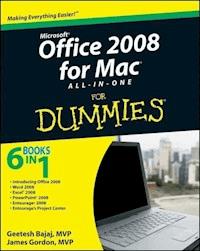
The perfect companion for taking the Microsoft Office suite to the Mac! So you finally got a Mac, but you're not looking forward to figuring out how Office works in a different environment? No worries! All you need is Microsoft Office 2008 For Mac All-in-One For Dummies to learn the fundamentals of Office 2008. With six books in one, it shows you how to use every Office 2008 for Mac application, so you can start getting things done right away. Written by Microsoft MVPs, Microsoft Office 2008 For Mac All-in-One For Dummies provides a user-friendly guide on how to master all the programs: Excel, Word, PowerPoint, and Entourage. This book explores ways to: * Use the new galleries to find features, formats, wizards, templates, and recently used files * Create your own templates on Excel and open Web pages in HTML format * Take advantage of PowerPoint by adding animation to your slides, inserting music from your iTunes library, and fine-tuning the timing * Organize your schedule on My Day, handle contacts and e-mail, and manage a database--all through Entourage * Manage projects of all sizes on the Project Center * Use all the applications together, and to their full potential With this all-in-one reference, you'll become an expert on sharing files with Windows users, integrating Office 2008 with iLife and other Mac applications, and working with Office and Web 2.0, as well as other common business tasks. This book makes it that easy!
Sie lesen das E-Book in den Legimi-Apps auf:
Seitenzahl: 960
Veröffentlichungsjahr: 2009
Ähnliche



















Office 2008 for Mac® All-in-One For Dummies®
Table of Contents
Introduction
About This Book
How to Use This Book
How This Book Is Organized
Book I: Introducing Office 2008
Book II: Word 2008
Book III: Excel 2008
Book IV: PowerPoint 2008
Book V: Entourage 2008
Book VI: Entourage’s Project Center
Bonus Chapters
Conventions Used in This Book
Stuff you type
Menu commands
Key combinations
Right-click versus Control-click
Display messages
Icons Used in This Book
Where to Go from Here
Book I: Introducing Office 2008
Book I: Chapter 1: Oscillating in the Office 2008 World
Getting Familiar with Office 2008
Getting started in Project Gallery
Helping Word veterans make the transition
Looking for Visual Basic for Applications (VBA)
De-mystifying Excel
Slide shows with PowerPoint
Making your day with Entourage
Mingling instantly with Messenger
Lighting the future with Silverlight
What’s New Office-Wide for 2008?
Elation from Elements Gallery
Getting smart with SmartArt Graphics
Discovering new Office-wide themes
Comparing Office 2008 for Mac with Office for Windows
Picking the products
Understanding file format compatibility
Navigating the interface
Coping with Office automation incompatibility
Co-existing with Office 2004 and earlier
Book I: Chapter 2: Project Gallery — The Natural Starting Point
Launching Project Gallery
Opening Blank Documents from Project Gallery
Opening blank new documents
Opening other blank documents
Exploring More Project Gallery Categories
Using My Templates to open new documents
Opening new documents based on My Themes
Starting with the right template, theme, or wizard
Filtering results by application
Finding the Fab Four (Wizards, That Is)
Making lists with the List Wizard
Making labels and name badges
Designing with the Envelope Wizard
Making perfect business letters
Viewing What’s in the Galleries
Finding Your Things in Project Gallery
Searching fast within Project Gallery
Finding things with Open Other
Finding recently used files
Remembering misplaced filenames
Getting another chance to find a file
Prospecting the Project Center Tab
Customizing Project Gallery
General settings
Documents and wizards settings
File location default settings
Changing file location settings for templates
Book I: Chapter 3: Menus and Toolbars
Cruising Elements Gallery
Summoning Pop-Up Menus
Traversing the Menus and Toolbars
Customizing Word, Excel, and PowerPoint toolbars and menus
Resetting, renaming, or trashing toolbars and menus
Sharing toolbars and menus
Customizing Entourage and Project Center Toolbars
Book I: Chapter 4: Busting Out Your Toolbox
Taking a Look Inside the Toolbox
Introducing the Toolbox palettes
Using palettes in the Toolbox
No Objections to the Object Palette
Squeezing shapes
Clamoring for clip art
Showing the way with symbols
Picking the perfect photo
Perfecting your pictures
Scrapbook: The Clipboard Evolves
Getting Serious with Reference Tools
Making Compatibility Checking a Snap
Peeking at Your Projects in the Project Palette
Book I: Chapter 5: Graphing, Drawing, and Making Art
Getting the Nitty-Gritty on Graphs and Charts
Graphing an equation with Grapher
Graphing data using Elements Gallery
Formatting charts in Word, Excel, and PowerPoint
Applying multiple formatting options
Discovering even more chart-formatting options
Graphing the old-fashioned way in Microsoft Graph
Making an Organization Chart with SmartArt Graphics
Organizing the organization chart
Working in the Text pane
Working with Organization Chart
Formatting your organization chart
Creating Your Own Shapes
Making a curvy line
Drawing a solid shape
Formatting your lines and shapes
Editing points on a line or shape
Making an Impression with WordArt
Creating WordArt
Formatting WordArt
Working in Layers
Starting at the back
Moving on to the layers on top
Book I: Chapter 6: Common Tools That Make Your Life Easier
Proofing Your Spelling and Grammar
Running spelling and grammar checks
Controlling the AutoCorrect feature
Configuring spelling and grammar preferences
Understanding Themes and Templates
Applying a theme
Saving your own theme
Getting to know more about themes
Saving Everything as a Template
Sharing Files in Other Formats
Saving as an Adobe PDF
Saving as a Web page
Saving as a 97 to 2004 document
Getting Mathematical with Equation Editor
Programming and Automation Options
Coping without VBA
Being savvy with AppleScript
Automating with Automator
Book I: Chapter 7: Getting Help!
Helping You with New Help
Sending feedback to Microsoft
Asking someone for help
Getting online training for free
Utilizing Newsgroups and Community Resources
Checking for Updates
Getting Help from Office Web Sites
Getting freebies from Mactopia
Getting freebies from the Microsoft Office Web site
Making the Most of MVP Sites
Welcome to Word:mac
Excelling with Excel MVPs
PowerPointing MVPs
Connecting with Entourage MVPs
Join the Club!
Joining a user group
Joining the Customer Experience Improvement Program
Getting Help for Legal and Medical Professionals
Book II: Word 2008
Book II: Chapter 1: Getting to Know Word’s Interface
Opening Blank Word Documents
Looking at Word’s Views
Working in Print Layout View
Taking notes in Notebook Layout View
Designing in Publishing Layout View
Making the Most of Toolbars
Making Word Behave the Way You Want It To
Finding Word’s new Preferences pane
Turning AutoCorrect on and off
Setting compatibility preferences
Customizing Word’s keyboard shortcuts
Book II: Chapter 2: An Open and Shut Case
Opening the World in Word
Trying out templates
Being normal with Normal.dotx
Becoming a whiz with wizards
Opening Web pages
Saving a document as a Web page
Extracting text from any file
Finding files in Finder
Comparing two Word documents
Recovering AutoRecover files
Saving Word Documents
Just close me
Giving a document a new name, a new location
Securing Word documents
Turning your document into a template
Being compatible with others
Sending copies everywhere — fast!
Book II: Chapter 3: Working with Text, Words, and Paragraphs
Triumphing Over Text
Formatting deftly with the Formatting Palette
Dropping a cap
Spacing sweetly
Making friends with subscript and superscript
Using special characters for special occasions
Shooting bullets and numbing numbers
Painless paragraph formatting
Tinkering with tabs
Formatting an Entire Document
Ruling margins by the Ruler
Breaking up things
Making columns
Tickling footers and watching your header
Getting around with bookmarks
Writing with Style
Applying slick styles
Applying document themes to styles
Making a homemade style
Using Organizer
Opening Organizer
Copying styles, AutoText, and toolbars
Renaming or deleting items
AutoFormat as You Type
Automatically Numbering Lines
Book II: Chapter 4: Reviewing and Proofing with Word
Keeping Track of Changes
Setting up tracking changes
Working with a changed document
Finishing up
Casting a Spell Check
Knowing how to spell is still important!
Cleaning up your grammar
Choosing a writing style
Creating a custom writing style
Book II: Chapter 5: Making Great Tables and Charts
Deciding Which Table Tools to Use
Inserting Quick Tables in a Flash
Creating Your Own Tables
Using the Tables button
Using the mouse
Using the Insert Table dialog
Formatting Tables
Using the Tables and Borders toolbar
Using the Formatting Palette
Applying a document theme
Using styles
Working with Tables
Basic table tips
Handling tables from the Web
Working with Charts
Whoa! It’s way too big!
Getting unstuck
This is a frame-up!
Changing a chart into a picture
Book II: Chapter 6: Saving Time in Word
Automating with AutoText
Teaching Word a lesson
Using AutoText on a daily basis
Teaching Word even more
Taming AutoText
Making Magic with Mail Merge
Getting started: Making a mail merge form letter
Merging to envelopes
Making labels
Using different data sources
Previewing merge results
Completing the merge
Automating Long Document Chores
Making an instant Table of Contents
Long Document Wizard
Creating an index
Creating a Table of Figures
Creating a Table of Authorities
Creating an executive summary or an abstract
Formatting the Background
Inserting a Citation
Book II: Chapter 7: Advanced Word Stuff
Wrapping Text around Objects
Flowing Text from One Text Box into Another
More fun with text boxes
Text boxes in Publishing Layout View
Publishing Newspapers, Newsletters, and Periodicals
Discovering new tools
Customizing a template
Font formatting controls
Mastering master pages
Working with static guides
Having a Field Day
Creating an Electronic Form
Using tables and frames in forms
Inserting a text form field
Inserting a check box on a form
Upgrading to a combo
Doing the math in Word forms
Grabbing just the form field data
Working Word with the Web
Opening Web pages in Word
Sending Word to the Web
Managing Multiple Open Documents
Embedding All Kinds of Things
Book II: Chapter 8: Printing for Posterity
Sizing Up Things with Page Setup
Configuring your settings
Formatting for a particular printer
Choosing a paper size
Previewing Your Document
Displaying a document preview
Previewing multiple pages
Other preview controls
Printing like a Pro!
Make it fast!
Getting a few more options
Seeing all the possible print options
Book III: Excel 2008
Book III: Chapter 1: Working Every Day in Excel
Introducing Ledger Sheets
Opening a ledger sheet
Entering text and data
Working with Other File Formats
Default format
Common formats
Specialty formats
Saving Your Workbook
Saving for compatibility (.xls)
Saving in Excel Workbook (.xlsx)
Saving small using Excel binary workbook (.xlsb)
Saving with AutoRecover
Viewing Workbooks
Using Page Layout View
Using Normal View
Using the common interface
Using the Formatting Palette
Orientation
Print scaling
Sheet
Working with Sheet Types
Sheet types
Making specific sheet types
Using Excel’s special Project Gallery
Book III: Chapter 2: Operating Inside the Workbook
Interacting with Excel
Selecting, editing, and naming cells
Clearing a cell
Clearing many cells at once
Making sense of cursors
Dragging a Series of Text, Numbers, or Dates
Filling in a series
Having Excel figure out a pattern
Using the Custom Lists feature
Entering in General Format
Making Cell Formulas
Entering formulas
Using Formula Builder
Knowing When to Be Absolute, Relatively Speaking
Using a relative reference
Using an absolute reference
Comparing relative and absolute references
Book III: Chapter 3: Formatting and Collaborating in Excel
Preparing to Format
Formatting Cells
Adjusting fonts
Applying number and text formats
Fitting and positioning content
Coloring cells and borders
Tilting your text
Building borders
Coloring and Shading
Working with Dates and Times
Finding today
Getting today’s serial number
Yesterday, tomorrow, and whenever
Finding the time of day
Formatting Based on Conditions
Sharing Workbooks
Inserting a comment
Tracking changes
Using Share Workbook
Book III: Chapter 4: Controlling Excel
Copying and Pasting
Simply copying and pasting
Pasting special
Moving and Copying Entire Sheets
Creating Camera Magic
Customizing the Camera tool
Using the Camera tool
Nesting and Nest Building
First things first
Applying some logic
Correcting Errors
Getting rid of hash marks
Circular references
Clearing #DIV/0
Other error messages
Book III: Chapter 5: Heavenly Charting
Making a Chart
Choosing the Chart’s Location
Moving to a chart sheet
Copying to Microsoft Word and PowerPoint
Applying Error Bars
Making a Gantt Chart
Making a Histogram
Making a histogram by using cell formulas
Making a histogram by using a chart
Book III: Chapter 6: Becoming Versatile with Excel
Helping You Remember
Preparing Your Forms
Customizing the Forms toolbar
Tabbing in a form
Protecting and unprotecting a worksheet
Making Your Own Form Templates
Using Your Form Templates
Making ordinary form fields
Restricting entry with data validation
Restricting entry with form controls
Getting the Web into Excel
Copying and pasting
Using a Web query
Opening a saved Web page
Getting Excel onto the Web
Preparing a workbook for the Web
Distributing a workbook “as is”
Making a Web page
Book III: Chapter 7: Being Intelligent with Data
Simplifying Database Jargon
Listing the List Rules
List Wizard Step 1 — Data locations
List Wizard Step 2 — Data types
List Wizard Step 3 — List options
Making a List the Fast Way
Working with Data by Using List Manager
Taking the PivotTable Course
Using Excel with Relational Databases
Explaining relational databases
Installing an ODBC driver
Buying an ODBC driver
Compatibility with Excel for Windows
Book III: Chapter 8: Printing from Excel
Using the Page Setup Dialog
Browsing the Sheet tab
Using the Margins tab
Working with Headers and Footers
Entering a header/footer
Finessing your footers (and headers)
Making a Watermark
Adjusting Print Quality
Telling your computer what to send to the printer
Telling your printer how to do its job
Setting the Paper Size
Book IV: PowerPoint 2008
Book IV: Chapter 1: Revealing PowerPoint
Getting Up and Running
Facing Your Audience
Building and Editing in Normal View
Organizing Slides in Slide Sorter View
Selecting slides
Changing slide order
Copying and pasting
Deleting the chaff from the wheat
Transitioning from one slide to the next
Book IV: Chapter 2: Open Sesame and Shut Sesame
Opening Special File Formats
Finding out about AutoRecover
Opening password-protected presentations
Saving in Special Formats
Packaging a PowerPoint presentation
Saving as a movie
Making a Web page
Saving with a password
Saving as a pile of pictures
Book IV: Chapter 3: Working with the Whole Show
Creating a Presentation
Starting from a Microsoft Word document
Starting from Project Gallery
Choosing a View
Using Normal View
Switching to Slide View
Adding notations in Notes Page View
Switching from one view to another
Starting from Scratch
Adding a New Slide
Formatting the Background
Gradient backgrounds
Clicking for additional options
Formatting Bullets and Numbers
Customizing bullet and number characters
Living in no-bullet land
Customizing bullets by using SmartArt graphics
Applying a New Theme
Creating Smaller Versions with Custom Shows
Book IV: Chapter 4: Mastering the Masters
Putting a Master Slide in Charge
Getting your bearings in Slide Master View
Looking at a new toolbar
Formatting Slide Layouts
Adding Another Set of Masters
Adding More Slide Layouts
Taking Note of Notes Masters
Handling Handout Masters
Book IV: Chapter 5: Proofing the Presentation
Banishing Spelling Mistakes
Setting spelling preferences
Getting rid of red squiggles
Checking the whole presentation
Correcting automatically while you type
Collaborating with Comments
Remembering to Remember
Book IV: Chapter 6: Adding Text, Pictures, Tables, and Charts
Getting the Right Text Format
Importing a Batch of Pictures
Making an Automator Action
Running the Automator Action
Charting the (New) Way
Tipping the Tables
Making a table the new way
Reformatting a table
Book IV: Chapter 7: Applying Animation
Classifying Custom Animations
Animating Text
Adding an entrance effect quickly
Getting a little fancier
Start options
Making a moth fly
Changing your mind
Animating a Chart
Book IV: Chapter 8: Presenting Sounds and Movies
Speaking to Your Audience
Rehearsing timings
Recording narrations
Adding Music and Sounds
Making audio and video play while a slide plays
Adding audio that plays when the slide starts
Adding audio that plays when clicked
Adding audio that plays when moused over
Adding a CD audio track
Recording a sound directly onto a slide
Filling the Transition Gap
Adding Narration and Video to a Slide
Creating a video narration
Adding video to a slide
Using Custom Animation to Control Movies and Audio
Dealing with Audio and Video Odds and Ends
Hiding sound icons
Linking and embedding
Discerning a sound difference
Making sounds compatible
Making video compatible
Book IV: Chapter 9: Printing and Sharing Presentations
Printing Your Presentations
Printing to PDF files
Printing handouts for everyone
Exploring Sharing Options
Distributing in PowerPoint format
Distributing as a movie
Sending directly to iPhoto
Sending by e-mail or MSN Messenger
Sharing with iChat
Sharing by using Google Docs
Exploring slide-sharing sites
Presenting Live
Using the letter B (or W)
Using Pen tools
Navigating while showing
Book V: Entourage 2008
Book V: Chapter 1: Introducing Entourage: Seven Applications in One
Introducing Entourage
Connecting to the Internet with Entourage’s Mail
Discerning the Exchange difference
Making connections to the world
Keeping Yourself Organized
Keeping track of people with your contacts list
Keeping track of your events with Calendar
Making notes for yourself
Assigning tasks
Making My Day your day
Organizing a project in the Project Center
Customizing Entourage toolbars
Automating Entourage
Taking Care of the Entourage Database
Verifying database integrity
Compacting your database
Rebuilding your database
Book V: Chapter 2: Welcome to the Setup Assistant
Setting Up with the Setup Assistant
Starting without importing anything
Importing from a previous version of Entourage
Importing from another e-mail program
Adding additional e-mail accounts
Configuring an e-mail account manually
Digging Deeper into Account Settings
Configuring settings
Opting for options
Settings for IMAP users
Accommodating digital signatures and encryption
Touring the Entourage Preferences
Going with general admission
Customizing the Address Book
Changing the To Do List
Clarifying the Calendar preferences
Fiddling with your fonts
Controlling the spell checker
Turning off that little mail notification
Staying slightly more secure
Syncing the services
Enjoying the Spotlight
Feeding MacBU
Nothing to read
Gaining your composure
Replying and forwarding fun
Viewing the colors
Book V: Chapter 3: Mastering Mail
Picking a Preview Pane View
Reading Mail
Creating a Message
Creating e-mail in Entourage
Creating e-mail in Microsoft Word
Exploring the Entourage Menu Options
Using File menu options
Using Edit menu options
Scoping the View menu
Minding the toolbar buttons and palettes
Sailing through the Script menu
Tooling Down the Toolbar Highway
Picking Apart the Panes
Living with the folder list
Creating a custom Mail view
Manipulating the message list
Understanding Digital Certificates
Book V: Chapter 4: Your Mail Rules and Newsgroups
Sandbagging the Flood of Junk Mail
Building Mailing List Rules
Ruling the Roost
Rules about rules
Making rules
Keeping on Schedule
Connecting to World Communities by Using Newsgroups
Book V: Chapter 5: Personalizing Your PIM
Perusing the Address Book Interface
Meeting Yourself
Adding Friends and Associates
Managing Your Contacts
Printing contacts
Finding contacts
Creating a custom view for a contact
Grouping contacts
Exporting contacts
Mapping contacts
Creating custom fields
Deleting contacts
Addressing Mail and Invitations
Sending from the Address Book
Sending a new message or invitation
Addressing automatically
Using address blocks
Using LDAP Directory Services
Setting up an LDAP account
Using directory services
Book V: Chapter 6: Crafting Your Calendar
Taking a Look at the Interface
Going on Holiday
Adding Calendar Events
Enhancing an Event
Opening an existing event
Creating a recurring event
Inviting others to an event
Changing your status
Assigning categories
Linking to other things
Receiving Invitations
Accepting an invitation
Tentatively accepting an invitation
Declining an invitation
Receiving Acceptances and Rejections
Changing Your Mind
Finding and Searching
Conducting a search
Saving a custom Calendar view
Using Special Exchange Features
Sharing Calendars and other items
Delegating authority
Importing an Outlook PST File
Printing Your Calendar
Book V: Chapter 7: Keeping Track of Your Day
Bringing Up Reminders
Snoozing
Fixing an accidental snooze
Dismissing forever
Making Notes for Future Reference
Looking at the Notes list
Making a note on the spot
Printing notes
Remembering to Do Things
Checking out the Tasks interface
Creating a new task
Marking a task as completed
Creating a new To Do item
Printing tasks and To Do lists
Making Your Day with My Day
Looking at My Day
Choosing a different day or time range
Creating a new task
Setting My Day preferences
Watching a My Day movie
Book VI: Entourage’s Project Center
Book VI: Chapter 1: Creating New Projects
Deciding When to Use Project Center
Determining the Scope
Single-user projects
Sharing projects
Starting a New Project
Wizard Step 1 — Setting the framework
Wizard Step 2 — Deciding where and what
Wizard Step 3 — Applying rules and tools
Wizard Step 4 — Summary
Book VI: Chapter 2: Overviewing and Sharing Projects
Lurking in the Projects List
Opening a project within the Project Center window
Opening a project in its own window
Touching the Tabs
Surveying the Overview
Trying out the toolbars
Peeking at the Calendar and Tasks
Customizing the customizable areas
Sharing a Project
Step 1 — Start the Assistant
Step 2 — Select which project to share
Step 3 — Choose the file location for the shared folder
Step 4 — Share existing items
Step 5 — Decide how to manage new items
Step 6 — Close the Project Sharing Assistant
Changing Project settings
Taking a Shortcut
Book VI: Chapter 3: Keeping on Schedule
Keeping Track of Events and Tasks
Working with the Calendar
Working with Tasks
Exploring the Lower Toolbar
Sharing your project with others
New button
Add button
Creating a Gantt Chart
Making a very simple Gantt chart
Making a more robust Gantt chart
Book VI: Chapter 4: Managing More Project Details
Viewing Project Mail
Watching your Project’s Files
Adding files to the Files list
Sharing a file
Stop sharing a file
Opening a file
Removing a file from a project
Sending files via e-mail or Microsoft Messenger
Speeding Up Things
Finding Files in Project Gallery
Associating with Project Contacts
Storing and Using Clippings
Using Notes in Project Center
Working with the Project Palette
Office 2008 for Mac® All-in-One For Dummies®
by Geetesh Bajaj and James Gordon
Office 2008 for Mac® All-in-One For Dummies®
Published byWiley Publishing, Inc.111 River St.Hoboken, NJ 07030-5774www.wiley.com
Copyright © 2009 by Wiley Publishing, Inc., Indianapolis, Indiana
Published simultaneously in Canada
No part of this publication may be reproduced, stored in a retrieval system or transmitted in any form or by any means, electronic, mechanical, photocopying, recording, scanning or otherwise, except as permitted under Sections 107 or 108 of the 1976 United States Copyright Act, without either the prior written permission of the Publisher, or authorization through payment of the appropriate per-copy fee to the Copyright Clearance Center, 222 Rosewood Drive, Danvers, MA 01923, (978) 750-8400, fax (978) 646-8600. Requests to the Publisher for permission should be addressed to the Permissions Department, John Wiley & Sons, Inc., 111 River Street, Hoboken, NJ 07030, (201) 748-6011, fax (201) 748-6008, or online at http://www.wiley.com/go/permissions.
Trademarks: Wiley, the Wiley Publishing logo, For Dummies, the Dummies Man logo, A Reference for the Rest of Us!, The Dummies Way, Dummies Daily, The Fun and Easy Way, Dummies.com, Making Everything Easier, and related trade dress are trademarks or registered trademarks of John Wiley & Sons, Inc. and/or its affiliates in the United States and other countries, and may not be used without written permission. Mac is a registered trademark of Apple, Inc. All other trademarks are the property of their respective owners. Wiley Publishing, Inc., is not associated with any product or vendor mentioned in this book.
Limit of Liability/Disclaimer of Warranty: The publisher and the author make no representations or warranties with respect to the accuracy or completeness of the contents of this work and specifically disclaim all warranties, including without limitation warranties of fitness for a particular purpose. No warranty may be created or extended by sales or promotional materials. The advice and strategies contained herein may not be suitable for every situation. This work is sold with the understanding that the publisher is not engaged in rendering legal, accounting, or other professional services. If professional assistance is required, the services of a competent professional person should be sought. Neither the publisher nor the author shall be liable for damages arising herefrom. The fact that an organization or Website is referred to in this work as a citation and/or a potential source of further information does not mean that the author or the publisher endorses the information the organization or Website may provide or recommendations it may make. Further, readers should be aware that Internet Websites listed in this work may have changed or disappeared between when this work was written and when it is read.
For general information on our other products and services, please contact our Customer Care Department within the U.S. at 877-762-2974, outside the U.S. at 317-572-3993, or fax 317-572-4002.
For technical support, please visit www.wiley.com/techsupport.
Wiley also publishes its books in a variety of electronic formats. Some content that appears in print may not be available in electronic books.
Library of Congress Control Number: 2009935234
ISBN: 978-0-470-46041-2
Manufactured in the United States of America
10 9 8 7 6 5 4 3 2 1
About the Authors
Geetesh Bajaj has been creating Microsoft Office documents, presentations, and templates for over a decade now. Geetesh heads Indezine, a presentation design studio based out of Hyderabad, India, and he also runs the popular indezine.com Web site. Geetesh is a Microsoft-awarded Most Valuable Professional (MVP) and author of four other computer books (two of them published by Wiley).
James Gordon is a lead programmer/analyst at the University at Buffalo and the State University of New York where he also teaches workshops on Microsoft Office and other technologies. Microsoft has presented its Most Valuable Professional (MVP) award to James for his contributions to technical communities. James has written several programs, including the popular InsertPicture add-in that runs in PowerPoint for Mac, and is a member and past-president of ProMac Users Group, Inc.
Dedication
To Steve Jobs and Bill Gates.
Authors’ Acknowledgments
We thank the divine, and other mere mortals with divine abilities.
Special thanks to everyone at Wiley for helping us put this book together. Acquisitions editor Kyle Looper and project editor Mark Enochs kept everything on track. Thanks go to the editorial team, including copy editors Jen Riggs and John Edwards, and technical editor James Russell.
Thanks go to our families and friends for allowing us to focus on our writing without deserting us. We express our appreciation to them all.
Geetesh wishes to thank his office staff who helped him take the time off to write this book as well as the amazing bunch of other Microsoft MVPs who are too numerous to be listed here.
Jim wishes to extend special thanks to the University at Buffalo for allowing leave to work on the book. The University at Buffalo is truly one of the best places to work or attend.
We thank the Macintosh Business Unit of Microsoft, who created the subject matter of the book, and Microsoft Corporation for the awesome MVP program, without which it is unlikely the authors would have been able to meet and collaborate. And we also thank Apple for creating an enriching OS platform.
Finally, both the authors thank each other!
Publisher’s Acknowledgments
We’re proud of this book; please send us your comments through our online registration form located at www.dummies.com/register/.
Some of the people who helped bring this book to market include the following:
Acquisitions, Editorial, and Media Development
Senior Project Editor: Mark Enochs
Acquisitions Editor: Kyle Looper
Copy Editors: Jennifer Riggs, John Edwards
Technical Editor: James Russell
Senior Editorial Manager: Leah Cameron
Media Development Project Manager: Laura Moss-Hollister
Media Development Assistant Project Manager: Jenny Swisher
Media Development Assistant Producers: Angela Denny, Josh Frank, Shawn Patrick, Kit Malone
Editorial Assistant: Amanda Graham
Sr. Editorial Assistant: Cherie Case
Cartoons: Rich Tennant (www.the5thwave.com)
Composition Services
Project Coordinator: Patrick Redmond
Layout and Graphics: Samantha K. Cherolis, Joyce Haughey, Christine Williams
Proofreaders: ConText Editorial Services, Inc., Caitie Copple
Indexer: BIM Indexing & Proofreading Services
Special HelpTonya Cupp, Laura Miller, Beth Taylor
Publishing and Editorial for Technology Dummies
Richard Swadley, Vice President and Executive Group Publisher
Andy Cummings, Vice President and Publisher
Mary Bednarek, Executive Acquisitions Director
Mary C. Corder, Editorial Director
Publishing for Consumer Dummies
Diane Graves Steele, Vice President and Publisher
Joyce Pepple, Acquisitions Director
Composition Services
Gerry Fahey, Vice President of Production Services
Debbie Stailey, Director of Composition Services
Introduction
Welcome to . We set out to make this book specifically for Mac users who for one reason or another spend a fair amount of time working in Office. Long-time Mac aficionados, recent switchers, and newbies will find valuable tips, advice, and how-to instruction throughout.
Lesen Sie weiter in der vollständigen Ausgabe!
Lesen Sie weiter in der vollständigen Ausgabe!
Lesen Sie weiter in der vollständigen Ausgabe!
Lesen Sie weiter in der vollständigen Ausgabe!
Lesen Sie weiter in der vollständigen Ausgabe!
Lesen Sie weiter in der vollständigen Ausgabe!
Lesen Sie weiter in der vollständigen Ausgabe!
Lesen Sie weiter in der vollständigen Ausgabe!
Lesen Sie weiter in der vollständigen Ausgabe!
Lesen Sie weiter in der vollständigen Ausgabe!
Lesen Sie weiter in der vollständigen Ausgabe!
Lesen Sie weiter in der vollständigen Ausgabe!
Lesen Sie weiter in der vollständigen Ausgabe!
Lesen Sie weiter in der vollständigen Ausgabe!
Lesen Sie weiter in der vollständigen Ausgabe!
Lesen Sie weiter in der vollständigen Ausgabe!
Lesen Sie weiter in der vollständigen Ausgabe!
Lesen Sie weiter in der vollständigen Ausgabe!
Lesen Sie weiter in der vollständigen Ausgabe!
Lesen Sie weiter in der vollständigen Ausgabe!
Lesen Sie weiter in der vollständigen Ausgabe!
Lesen Sie weiter in der vollständigen Ausgabe!
Lesen Sie weiter in der vollständigen Ausgabe!
Lesen Sie weiter in der vollständigen Ausgabe!
Lesen Sie weiter in der vollständigen Ausgabe!
Lesen Sie weiter in der vollständigen Ausgabe!
Lesen Sie weiter in der vollständigen Ausgabe!
Lesen Sie weiter in der vollständigen Ausgabe!
Lesen Sie weiter in der vollständigen Ausgabe!
Lesen Sie weiter in der vollständigen Ausgabe!
Lesen Sie weiter in der vollständigen Ausgabe!
Lesen Sie weiter in der vollständigen Ausgabe!
Lesen Sie weiter in der vollständigen Ausgabe!
Lesen Sie weiter in der vollständigen Ausgabe!
Lesen Sie weiter in der vollständigen Ausgabe!
Lesen Sie weiter in der vollständigen Ausgabe!
Lesen Sie weiter in der vollständigen Ausgabe!
Lesen Sie weiter in der vollständigen Ausgabe!
Lesen Sie weiter in der vollständigen Ausgabe!
Lesen Sie weiter in der vollständigen Ausgabe!
Lesen Sie weiter in der vollständigen Ausgabe!
Lesen Sie weiter in der vollständigen Ausgabe!
Lesen Sie weiter in der vollständigen Ausgabe!
Lesen Sie weiter in der vollständigen Ausgabe!
Lesen Sie weiter in der vollständigen Ausgabe!
Lesen Sie weiter in der vollständigen Ausgabe!
Lesen Sie weiter in der vollständigen Ausgabe!
Lesen Sie weiter in der vollständigen Ausgabe!
Lesen Sie weiter in der vollständigen Ausgabe!




