


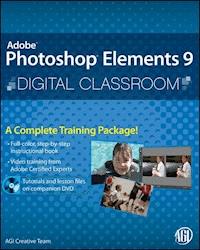
Photoshop Elements 9 Digital Classroom E-Book
25,99 €
Mehr erfahren.
- Herausgeber: John Wiley & Sons
- Kategorie: Wissenschaft und neue Technologien
- Serie: Digital Classroom
- Sprache: Englisch
Learn Photoshop Elements at your own pace with this uniquebook-and-DVD training package Photoshop Elements is the leading image-editing software, andthis personal training course uses a full-color book plus videotutorials on the DVD to teach you how to use all its features. Eachof the 13 lessons is presented with step-by-step instructions andincludes lesson files and a video explanation of the concepts. Youcan learn from leading instructors, and do it at your own pace. * Photoshop Elements provides professional quality image-editingtools at an affordable price; this book-and-DVD package offersstep-by-step training on the newest version of Elements * Full-color book presents 13 lessons you can work through atyour own pace, supported by video tutorials and lesson files on theDVD * Created by the same team of experts who developed many of theofficial training programs for Adobe Systems Photoshop Elements 9 Digital Classroom is like havingyour own personal instructor to teach you Photoshop Elements rightin your own home or office. Note: CD-ROM/DVD and other supplementary materials arenot included as part of eBook file.
Sie lesen das E-Book in den Legimi-Apps auf:
Seitenzahl: 414
Veröffentlichungsjahr: 2011
Ähnliche




















Adobe® Photoshop® Elements 9 Digital Classroom
AGI Creative Team
Table of Contents
Starting Up
Lesson 1: Lesson 1: Importing your Photos into Adobe Photoshop Elements
Lesson 2: Organizing Your Photos
Lesson 3: Fixing Common Photographic Problems
Lesson 4: Adjusting Exposure
Lesson 5: Adjusting Color
Lesson 6: Sharing Your Photos
Lesson 7: Working with Type
Lesson 8: Photo Retouching: Secrets of the Pros
Lesson 9: The Art of Illusion: Photo Composites
Lesson 10: Making Photoshop Elements Creations
Lesson 11: Photoshop Elements for Digital Photographers
Lesson 12: Photoshop Elements for Artists
Lesson 13: Creating Web and Video Graphics
Appendix A
Appendix B
Appendix C
About the Photoshop Elements 9 Digital Classroom
Adobe® Photoshop® Elements lets you edit and organize your digital images. It is a powerful product that includes some of the same capabilities found in the professional Photoshop products, but the Elements version makes image editing simple and accessible. Photoshop Elements is more than editing and organizing—it empowers storytelling with images and video, the ability to personalize and create galleries, calendars, and other projects with your images, both in print and on the Web.
Adobe Photoshop Elements is available for the Mac and Windows operating systems. Both Mac OS and Windows versions include the Organizer workspace where you can sort and organize your images, and the Editor workspace where you can manipulate your photos. This book covers both the organization and editing tools. You’ll also find great techniques on how to share your photos, whether on-line, printing on your own computer, or how to send your files from Elements directly to professional photo imaging companies.
AdobePhotoshop Elements Digital Classroom is like having your own personal instructor guiding you through each lesson while you work at your own speed. This book includes 13 self-paced lessons that let you discover essential skills and explore the new features and capabilities of Photoshop Elements. Each lesson includes step-by-step instructions, lesson files, and video tutorials, all of which are available on the included DVD or online at www.digitalclassroombooks.com/epub/pselements9. This book has been developed by the same team of Adobe Certified Experts who have created many of the official training titles for Adobe Systems and other books in the Digital Classroom book series.
Prerequisites
Before you start the lessons in Adobe Photoshop Elements Digital Classroom, you should have a working knowledge of your computer and its operating system. You should know how to use the directory system of your computer so that you can navigate through folders. You need to understand how to locate, save, and open files. You should also know how to use your mouse to access menus and commands.
Before starting the lessons files in Adobe Photoshop Elements Digital Classroom, make sure that you have installed Adobe Photoshop Elements. The software is sold separately, and not included with this book. You may use the 30-day trial version of Adobe Photoshop Elements available at the adobe.com web site, subject to the terms of its license agreement.
System requirements
Before starting the lessons in Adobe Photoshop Elements Digital Classroom, make sure that your computer is equipped for running Adobe Photoshop Elements 9, which you must purchase separately. The minimum system requirements for your computer to effectively use the software are listed below.
Windows OS
• Microsoft® Windows® XP with Service Pack 2 or 3, Windows Vista®, or Windows 7
• 1.6GHz or faster processor
• 1GB of RAM (2GB for HD video functions)
• 3GB of available hard-disk space (additional free space required during installation)
• Color monitor with 16-bit color video card
• 1024x576 monitor resolution at 96dpi or less
• Microsoft DirectX 9 compatible display driver
• DVD-ROM drive
• QuickTime 7 software (required if importing QuickTime formats)
• Internet connection required for Internet-based services
Mac OS
• Mac OS X v10.5.8 through v10.6
• Multi-core Intel® processor
• 1GB of RAM (2GB for HD video functions)
• 3.4GB of available hard-disk space (additional free space required during installation)
• 1024x768 display resolution
• DVD-ROM drive
• QuickTime 7 software (required if importing QuickTime formats)
• Internet connection required for Internet-based services
Starting Adobe Photoshop Elements 9
As with most software, Adobe Photoshop Elements is launched by locating the application in your Programs folder. If necessary, follow these steps to start the Adobe Photoshop Elements 9 application:
Windows
1 Choose Start > Programs > Adobe Photoshop Elements 9.
2 Use the Welcome Screen to determine if you will organize or edit your images.
Mac OS
1 Open the Applications folder, and then open the Adobe Photoshop Elements 9 folder.
2 Double-click the Adobe Photoshop Elements 9 application icon.
Menus and commands are identified throughout the book by using the greater-than symbol (>). For example, the command to print a document would be identified as File > Print.
Loading lesson files
The Photoshop Elements Digital Classroom DVD includes files that accompany the exercises for each of the lessons. You will need to copy the entire lessons folder from the supplied DVD to your hard drive. If you purchased the ePub version, you will need to download these lessons from www.digitalclassroombooks.com/epub/pselements9
For each lesson in the book, the files are referenced by the file name of each file. The exact location of each file on your computer is not used, as you may have placed the files in a unique location on your hard drive. We suggest placing the lesson files in your Documents folder or on your desktop.
Copying the lesson files to your hard drive:
1 Insert the Photoshop Elements Digital Classroom DVD supplied with this book. ePub users go to www.digitalclassroombooks.com/epub/pselements9.
2 On your computer, navigate to the DVD and locate the folder named Lessons. If you downloaded the files, you will need to Unzip (expand) the files before working with them.
3 Drag the Lessons folder to your hard drive.
Unlocking Mac OS files
Macintosh users may need to unlock the files after they are copied from the accompanying disc. This only applies to Mac OS computers and is because the Mac OS may view files and folders that are copied from a DVD or CD as being locked for writing.
If you are a Mac OS user and have difficulty saving over the existing files in this book, you can use these instructions so that you can update the lesson files as you work on them and also add new files to the Lessons folder.
Note that you only need to follow these instructions if you are unable to save over the existing lesson files, or if you are unable to save files into the lesson folder after you copy it to your hard drive.
1 After copying the files to your computer, click once to select the Lessons folder, then choose File > Get Info from within the Finder (not Photoshop Elements).
2 In the Lessons info window that opens, click the triangle to the left of Sharing and Permissions to reveal the details of this section.
3 In the Sharing and Permissions section, click the lock icon, if necessary, in the lower right corner so that you can make changes to the permissions of this folder and its contents.
4 Click to select a specific user or select everyone, then change the Privileges section to Read & Write. This allows the user(s) you specify to read and write files in this folder.
5 Click the lock icon to prevent further changes, and then close the window.
Managing catalogs
The catalog organizes and displays the images and videos you use with Photoshop Elements. When you start Photoshop Elements and identify photos on your computer, or import them from your digital camera, a catalog is automatically created for you. The files themselves are not imported directly into the catalog, rather, they remain on your hard drive in their original location, and the Photoshop Elements catalog keeps track of their location along with related information about the files, such as when the image was taken, and the kind of camera used.
Photoshop Elements uses only one catalog at a time. Because you will be working with many sample images in this book, you may wish to organize the exercise files in their own catalog, separate from your personal images. This is not required, but is an option if you prefer to keep the exercise files separate from your personal images. If you create a separate catalog for the images used in the book, you will need to switch back to your personal catalog after you have completed the exercises in this book, or any time you wish to work with your personal images.
Creating a new catalog
If you wish to store the exercise files for this book separately from your own images, you may create a new catalog. You can open only one catalog at a time, so you will need to follow the instructions in Switching catalogs in the next section when you want to access your personal images. This step is not required, but allows you to store the sample images separately from those used in the book. To create a new catalog:
1 With the Photoshop Elements Organizer open, choose File > Catalog.
2 Choose Custom Location, then press Browse. Navigate to the location where you have stored your lesson files that you copied from the DVD, such as your Desktop or your Documents folder and press OK. This will be the location where your catalog will be stored.
If you wish to store your catalog for the book exercises in the location of the other catalogs, choose the Catalogs Accessible By All Users option instead of choosing Custom Location.
3 Press New and type Digital Classroom in the Enter a Name for the New Catalog dialog box, then press OK. A new catalog is created and stored in the location you have specified.
If you created a separate catalog for the photos used in this book, you will still need to import these files from the DVD into the catalog. Because you have not done this yet, you may receive a warning message that there are no files in the catalog. This is fine, as you will discover how to do this on page 21 in the first lesson of this book.
If you backup and synchronize photos using Photoshop.com, be certain to disable the backup and synchronization before creating the new catalog because the backup and synchronization features only work with files in a single catalog. This only applies if you are creating a new catalog to use with this book, and only if you use Photoshop.com to backup your images automatically. To disable the backup and synchronization, follow these steps:
1 In the Organizer, choose Edit > Preferences > Backup/Synchronization. The Backup/Synchronization Preferences window appears.
2 In the Backup/Synchronization Preferences window, disable Backup/Synchronization.
3 After you switch back to your personal catalog, return to the Backup/Synchronization preferences and enable Backup/Synchronization so that your personal images are backed-up using Photoshop.com.
Switching catalogs
If you create a separate catalog for use with this book, you will want to switch back to the catalog containing your personal images after you complete the exercises. To switch back to your personal catalog, follow these steps.
1 In the Organizer, choose File > Catalog. The Catalog Manager dialog box appears.
2 Select the catalog you wish to open from the list of catalogs in the Catalog Manager window, then press Open.
If you wish to access the files from this book, you will need to repeat this process to return to the Digital Classroom catalog.
You can choose which catalog is used at the time you start the Organizer. Press and hold the Shift key while starting the Organizer. You can do this from the Editor mode by pressing and holding Shift, then clicking the Organizer button while continuing to hold the Shift key. A window appears in which you can choose the catalog to use.
Reconnecting to missing files
Once you start working with Photoshop Elements, you should use the program to organize, rename, and delete your image files. If you move your files using your operating system, Photoshop Elements will likely lose track of them, and a missing file icon appears in the Photo Browser. These steps are provided in case you accidentally move your images outside of Photoshop Elements, or receive a warning regarding missing files. You can return to this section if this occurs, but you do not need to perform these steps unless your image files are missing.
If you have moved an individual file using your operating system, and Photoshop Elements can’t locate it, use the Photo Browser to identify the new location of the file using these steps.
1 Working in the Photo Browser, click to select a missing file and choose File > Reconnect > Missing File.
2 If you have multiple files that are missing, choose File > Reconnect > All Missing Files without selecting the individual images that are missing. Photoshop Elements will search for all missing files and reconnect them automatically.
Reconnect missing files window
If Photoshop Elements notices files are missing, the program will automatically search the computer for the missing file(s). Click browse during the search for more options:
1 In the Reconnect Missing Files dialog box, select one or more missing files from the Files Missing From Catalog list, located on the left side of the dialog box. To select more than one file, Ctrl+click (Windows) or Command+click (Mac OS) the files you wish to reconnect.
2 On the right side of the dialog box, under the Locate The Missing Files section, click the Browse tab to see the last known folder location for the file. If you know the new location of the files, navigate to the new location, then select a folder or hard drive and press Find. Photoshop Elements will search the location you specify for the selected files. Press Reconnect after the files are located.
Working with the video tutorials
Your Photoshop Elements Digital Classroom book comes with video tutorials developed by the authors to help you understand the concepts explored in each lesson. Each tutorial is approximately five minutes long and demonstrates and explains key concepts and features covered in the lesson.
The videos are designed to supplement your understanding of the material in the chapter. We have selected exercises and examples that we feel will be most useful to you. You may want to view the entire video for each lesson before you begin that lesson.
The video tutorials
The DVD included with this book includes video tutorials for each lesson. Although you can view the lessons on your computer directly from the DVD, we recommend copying the folder labeled Videos from the Photoshop Elements Digital Classroom DVD to your hard drive. ePub users can view these videos online at www.digitalclassroombooks.com/epub/pselements9.
Additional resources
The Digital Classroom series goes beyond the training books. You can continue your learning online with training videos, or at seminars, conferences, and in-person training events.
Book series
Expand your knowledge of creative software applications with the Digital Classroom training series which includes books on Windows 7, Mac OS X, Photoshop, Flash, Dreamweaver, Illustrator, and more. Learn more at digitalclassroombooks.com.
Training & Professional Development
The authors of the Digital Classroom seminar series frequently conduct in-person seminars and are available for in-person training and professional development for your organization, company, school, or university. Learn more at agitraining.com.
Resources for educators
Visit digitalclassroombooks.com to access resources for educators, including instructors’ guides for incorporating Digital Classroom into your curriculum.
Lesson 1: Importing your Photos into Adobe Photoshop Elements
Adobe Photoshop Elements is an easy-to-use solution for organizing and editing your digital photos. You will be up-and-running, creating beautiful photographs before you know it. To start, you’ll need to import images from your camera or computer.
What you’ll learn in this lesson:
• Adding files to the Organizer
• Understanding workspaces
• Using the Photo Downloader
• Creating an album
Starting up
You will work with several files from the Lessons folder in this lesson. Make sure that you have copied the Lessons folder onto your hard drive from the supplied DVD or online. ePub users go to www.digitalclassroombooks.com/epub/pselements9. In order to access these files, you need to import them, which you will do in this lesson.
Before you start, note that the Photoshop Elements Editor remembers the last panel layout that you used. Before starting, make sure your tools and panels are consistent with the examples presented in these lessons by resetting the panels, by choosing Window > Reset Panels within the Editor.
If you aren’t ready to start working with your own images, you can jump ahead to “Adding Files and Folders to the Organizer” on page 21 to start working with files that came with this book.
How Photoshop Elements works
The fact that you’re reading this book indicates that you probably already own or are considering purchasing a digital camera. It’s probably also accurate to say that you’ve been taking photographs and truly enjoying the flexibility that digital photography has to offer. The ability to shoot as many images as you like, or at least as many as will fit onto your camera’s memory card, is one advantage that digital photography has over traditional film cameras. Another advantage is that you can choose which images to keep and which ones to delete from your camera’s memory card, instead of sifting through the photos that you had developed at your local photo store, picking out the good ones, and throwing away the bad ones. With digital photography, you only pay for the good photos!
So you’ve figured out how to shoot pictures with your digital camera but you’ve found that the clunky interface on your camera requires a lot of time to sift through the images in order to delete the poor photos that you don’t want. In addition, your photos may be accumulating on your camera’s memory card, requiring you to constantly remove images to make room for new ones. These are only a few of the problems that people are faced with in this world of digital photography, and this is where Adobe Photoshop Elements 9 fills a void.
Photoshop Elements provides you with the ability to import, organize, adjust, and output your images in limitless ways. Photoshop Elements makes organizing and editing photos a snap, by giving you the tools needed to accomplish everyday tasks without the complexity of the full version of Photoshop. With Photoshop Elements, you can utilize keyword tags, ratings, captions and other features to identify your images so that you can search for and find them easily in the future. You’ll never lose an image again. Let’s get started!
The welcome screen
When you launch Photoshop Elements, the Welcome screen opens automatically. The welcome screen is a gateway to the workspaces that are available within Photoshop Elements. Workspaces are different environments built into Photoshop Elements that allow you to perform different tasks. You’ll get a closer look at workspaces later in this book.
Lesen Sie weiter in der vollständigen Ausgabe!
Lesen Sie weiter in der vollständigen Ausgabe!
Lesen Sie weiter in der vollständigen Ausgabe!
Lesen Sie weiter in der vollständigen Ausgabe!
Lesen Sie weiter in der vollständigen Ausgabe!
Lesen Sie weiter in der vollständigen Ausgabe!
Lesen Sie weiter in der vollständigen Ausgabe!
Lesen Sie weiter in der vollständigen Ausgabe!
Lesen Sie weiter in der vollständigen Ausgabe!
Lesen Sie weiter in der vollständigen Ausgabe!
Lesen Sie weiter in der vollständigen Ausgabe!
Lesen Sie weiter in der vollständigen Ausgabe!
Lesen Sie weiter in der vollständigen Ausgabe!
Lesen Sie weiter in der vollständigen Ausgabe!
Lesen Sie weiter in der vollständigen Ausgabe!
Lesen Sie weiter in der vollständigen Ausgabe!
Lesen Sie weiter in der vollständigen Ausgabe!
Lesen Sie weiter in der vollständigen Ausgabe!




