


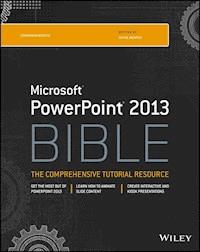
PowerPoint 2013 Bible E-Book
27,99 €
Mehr erfahren.
- Herausgeber: John Wiley & Sons
- Kategorie: Wissenschaft und neue Technologien
- Serie: Bible
- Sprache: Englisch
Master PowerPoint and improve your presentation skills with one book!
In today's business climate, you need to know PowerPoint inside and out, and that's not all. You also need to be able to make a presentation that makes an impact. From using sophisticated transitions and animation in your PowerPoint presentations to interfacing in person with your audience, this information-packed book helps you succeed. Start creating professional-quality slides that captivate audiences and discover essential tips and techniques for making first-rate presentations, whether you're at a podium or online.
- Combines both the technical software skills and the soft presentation skills needed to be a successful presenter in today's business climate
- Explains PowerPoint 2013's features and tools in detail, so you can create impressive,professional presentations for your job
- Shows you essential formatting techniques, including tables and working with Layouts, Themes, and Masters
- Covers working with drawings and SmartArt, photos, charts, sounds, music, video, and data from other sources
- Explains how to prepare for live presentations and also how to create and present material in the Cloud or online, including e-learning
For compelling, successful presentations in person, in the cloud, or on the web, start with PowerPoint 2013 Bible.
Das E-Book können Sie in Legimi-Apps oder einer beliebigen App lesen, die das folgende Format unterstützen:
Seitenzahl: 967
Veröffentlichungsjahr: 2013
Ähnliche




















Table of Contents
Part I: Building Your Presentation
Chapter 1: A First Look at PowerPoint
Who Uses PowerPoint and Why?
What's New in PowerPoint 2013?
Learning Your Way around PowerPoint
Changing the View
Zooming In and Out
Enabling Optional Display Elements
Opening a New Display Window for the Same Presentation
Using the Help System
Summary
Chapter 2: Creating and Saving Presentation Files
Starting a New Presentation
Saving Your Work
Setting Passwords for File Access
Closing and Reopening Presentations
Setting File Properties
Summary
Chapter 3: Creating Slides and Text Boxes
Creating New Slides
Inserting Content from External Sources
Managing Slides
Using Content Placeholders
Creating Text Boxes Manually
Working with Text Boxes
Summary
Chapter 4: Working with Layouts, Themes, and Masters
Understanding Layouts and Themes
Changing a Slide's Layout
Applying a Theme
Managing Themes
Changing Colors, Fonts, and Effects
Changing the Background
Working with Placeholders
Customizing and Creating Layouts
Managing Slide Masters
Summary
Chapter 5: Formatting Text
Changing the Font
Changing the Font Size
Adjusting Character Spacing
Changing Font Color/Text Fill
Applying a Text Outline
Applying Text Attributes
Applying WordArt Styles
Applying Text Effects
Copying Formatting with Format Painter
Inserting Symbols
Inserting Math Equations
Summary
Chapter 6: Formatting Paragraphs and Text Boxes
Formatting Bulleted Lists
Formatting Numbered Lists
Setting Indents and Tabs
Adjusting Line Spacing
Changing Horizontal Alignment
Formatting Text Boxes
Summary
Chapter 7: Correcting and Improving Text
Finding and Replacing Text
Correcting Your Spelling and Grammar
Setting the Editing Language
Using AutoCorrect to Fix Common Problems
Using AutoFormat As You Type
Using the Research Tools
Summary
Chapter 8: Creating and Formatting Tables
Creating a New Table
Moving around in a Table
Selecting Rows, Columns, and Cells
Editing a Table's Structure
Applying Table Styles
Formatting Table Cells
Using Tables from Word
Integrating Excel Cells into PowerPoint
Summary
Part II: Using Graphics and Multimedia Content
Chapter 9: Drawing and Formatting Objects
Working with the Drawing Tools
Selecting Objects
Deleting Objects
Moving and Copying Objects
Understanding Object Formatting
Resizing Objects
Arranging Objects
Merging Shapes
Applying Shape or Picture Styles
Understanding Color Selection
Applying an Object Border
Applying an Object Fill
Applying Object Effects
Summary
Chapter 10: Creating SmartArt Graphics
Understanding SmartArt Types and Their Uses
Inserting a SmartArt Graphic
Editing SmartArt Text
Modifying SmartArt Structure
Modifying a Hierarchy Graphic Structure
Formatting a SmartArt Graphic
Saving a SmartArt Graphic as a Picture
Summary
Chapter 11: Working with Clip Art and Photos
Choosing Appropriate Artwork
Inserting Clip Art
Understanding Raster Graphics
Inserting Photos
Sizing and Cropping Photos
Adjusting and Correcting Photos
Compressing Images
Exporting a Photo from PowerPoint to a Separate File
Creating a Photo Album Layout
Summary
Chapter 12: Working with Charts
Understanding the Parts of a Chart
Starting a New Chart
Working with Chart Data
Chart Types and Chart Layout Presets
Working with Chart Elements
Controlling the Axes
Formatting a Chart
Rotating a 3-D Chart
Working with Chart Templates
Summary
Chapter 13: Incorporating Content from Other Programs
Working with External Content: An Overview
Copying Content from Other Programs
Introducing OLE
Working with Linked and Embedded Objects
Exporting PowerPoint Objects to Other Programs
Summary
Chapter 14: Adding Sound Effects, Music, and Soundtracks
How PowerPoint Uses Audio
When to Use Sounds — and When Not To
Inserting an Audio Clip as an Icon on a Slide
Assigning a Sound to an Object
Adding a Digital Music Soundtrack
Adding a CD Audio Soundtrack
Configuring Sound Playback
Using the Advanced Timeline to Fine-Tune Sound Events
Summary
Chapter 15: Incorporating Motion Video
Understanding Video Types
Placing a Video on a Slide
Managing Clip Files and Links
Changing the Video's Formatting
Specifying Playback Options
Troubleshooting Video Problems
Summary
Chapter 16: Creating Animation Effects and Transitions
Assigning Transitions to Slides
Animating Slide Content
Layering Animated Objects
Summary
Part III: Interfacing with Your Audience
Chapter 17: Creating Support Materials
The When and How of Handouts
Creating Handouts
Creating Speaker Notes
Printing an Outline
Exporting Handouts or Notes Pages to Word
Summary
Chapter 18: Preparing for a Live Presentation
Starting and Ending a Show
Using the On-Screen Show Controls
Using the On-Screen Pen
Hiding Slides for Backup Use
Using Custom Shows
Creating and Using Sections
Giving a Presentation on a Different Computer
Working with Audio-Visual Equipment
Summary
Chapter 19: Designing User-Interactive or Self-Running Presentations
Understanding User Interactivity
Navigational Control Basics
Creating Text Hyperlinks
Creating Graphical Hyperlinks
Using Action Buttons
Creating Self-Running Presentations
Recording Narration and Timings
Using Kiosk Mode
Setting Up a Secure System
Summary
Chapter 20: Preparing a Presentation for Mass Distribution
Working with File Properties
Checking for Compatibility and Usability
Limiting User Access to a Presentation
Creating a PDF or XPS Version of a Presentation
Converting a Presentation to a Video File
Making a DVD Movie of a Presentation
Presenting Online
Working with the PowerPoint Viewer
Summary
Chapter 21: Sharing and Collaborating
Working with Comments
Comparing and Merging Presentations
Sharing Your Presentation File on a LAN
Sending a Presentation via E-Mail
Sharing a Presentation on Your SkyDrive
Sharing a Presentation via Office 365 SharePoint
Managing Simultaneous Edits
Sharing Slides with a SharePoint Slide Library
Summary
Chapter 22: Customizing PowerPoint
Setting Program Defaults
Configuring the Trust Center
Customizing the Ribbon
Customizing the Quick Access Toolbar
Managing Add-Ins
Customizing the Status Bar
Summary
Part IV: Project Labs
Lab 1: Presenting Content without Bulleted Lists
Lab 1A: Using Shapes as Text Boxes
Lab 1B: Converting Bullets to SmartArt
Lab 2: Adding Sound and Movement to a Presentation
Lab 2A: Fading Text and Graphics In and Out
Lab 2B: Replacing One Picture with Another
Lab 2C: Zooming In on a Picture
Lab 2D: More Animation Practice
Lab 2E: Using Transitions and Soundtracks
Lab 3: Creating a Menu-Based Navigation System
Lab 3A: Making Room for a Navigation Bar
Lab 3B: Creating a Navigation Bar
Lab 3C: Creating a Graphical Navigation System
Lab 4: Creating a Classroom Game
Lab 4A: Making the Game Board
Lab 4B: Creating the Question Slides
Lab 4C: Creating the Answer Slides
Lab 4D: Linking Up the Game Board
Appendix A: What Makes a Great Presentation?
Qualities of an Effective Presentation
Developing Your Presentation Action Plan
Choosing and Arranging the Room
Choosing Your Attire
Keeping the Audience Interested
Managing Stage Fright
Summary
Appendix B: Essential SkyDrive Skills
Understanding Your SkyDrive Interface Options
Managing Files on Your SkyDrive
Part I
Building Your Presentation
In This Part
Chapter 1 A First Look at PowerPoint
Chapter 2 Creating and Saving Presentation Files
Chapter 3 Creating Slides and Text Boxes
Chapter 4 Working with Layouts, Themes, and Masters
Chapter 5 Formatting Text
Chapter 6 Formatting Paragraphs and Text Boxes
Chapter 7 Correcting and Improving Text
Chapter 8 Creating and Formatting Tables
Chapter 1
A First Look at PowerPoint
In This Chapter
PowerPoint 2013 is a member of the Microsoft Office 2013 suite of programs. A suite is a group of programs designed by a single manufacturer to work well together. Like its siblings — Word (the word processor), Excel (the spreadsheet), Outlook (the personal organizer and e-mail manager), and Access (the database) — PowerPoint has a well-defined role. It creates materials for presentations.
A presentation is any kind of interaction between a speaker and audience, but it usually involves one or more of the following: computer-displayed slides, noncomputerized visual aids (such as transparencies or 35mm slides), hard-copy handouts, and/or speaker's notes. PowerPoint can create all of these types of visual aids, plus many other types that you'll learn about as you go along.
Because PowerPoint is so tightly integrated with the other Microsoft Office 2013 components, you can easily share information among them. For example, if you have created a graph in Excel, you can use it on a PowerPoint slide. It goes the other way too. You can, for example, take the outline from your PowerPoint presentation and copy it into Word, where you can dress it up with Word's powerful document formatting commands. Virtually any piece of data in any Office program can be linked to any other Office program, so you never have to worry about your data being in the wrong format. PowerPoint also accepts data from almost any other Windows-based application and can import a variety of graphics, audio, and video formats.
In this chapter you'll get a big-picture introduction to PowerPoint 2013, and then we'll fire up the program and poke around a bit to help you get familiar with the interface. You'll find out how to use the tabs and panes and how to get help and updates from Microsoft.
Who Uses PowerPoint and Why?
PowerPoint is a popular tool for people who give presentations as part of their jobs and also for their support staff. With PowerPoint, you can create visual aids that help get the message across to an audience, whatever that message may be and whatever the format in which it is presented. Although the traditional kind of presentation is a live speech presented at a podium, advances in technology have made it possible to give several other kinds of presentations, and PowerPoint has kept pace nicely. The following list outlines the most common PowerPoint formats:
Podium.
For live presentations, PowerPoint helps the lecturer emphasize key points through the use of computer-based shows (from a notebook or tablet PC, for example) or overhead transparencies.
Kiosk shows.
These are self-running presentations that provide information in an unattended location. You have probably seen such presentations listing meeting times and rooms in hotel lobbies and as sales presentations at trade show booths.
CDs and DVDs.
You can package a PowerPoint presentation on a CD or DVD and distribute it with a press release, a marketing push, or a direct mail campaign. The presentation can be in PowerPoint format, or it can be converted to some other format, such as PDF or a video clip.
Internet formats.
You can use PowerPoint to create a show that you can present live over a network or the Internet, while each participant watches from their own computer. You can even store a self-running or interactive presentation on a website in a variety of formats and make it available for the public to download and run on a PC.
When you start your first PowerPoint presentation, you may not be sure which delivery method you will use. However, it's best to decide the presentation format before you invest too much work in your materials because the audience's needs are different for each medium.
Most people associate PowerPoint with sales presentations, but PowerPoint is useful for people in many other lines of work as well. The following sections present a sampling of how real people just like you are using PowerPoint in their daily jobs.
Sales
More people use PowerPoint for selling goods and services than for any other reason. Armed with a laptop computer and a PowerPoint presentation, a salesperson can make a good impression on a client anywhere in the world. Figure 1.1 shows a slide from a sample sales presentation.
Figure 1.1 PowerPoint offers unparalleled flexibility for presenting information to potential customers.
These are just some of the sales tools you can create with PowerPoint:
Live presentations in front of clients with the salesperson present and running the show. This is the traditional kind of sales pitch that most people are familiar with.
Self-running presentations that flip through the slides at specified intervals so that passersby can read them or ignore them as they wish. These types of presentations are great for grabbing people's attention at trade show booths.
User-interactive product information demos distributed on CD/DVD that potential customers can view at their leisure on their own PCs. This method is very inexpensive because you can create a single presentation and distribute it by mail to multiple customers.
Marketing
The distinction between sales and marketing can be rather blurred at times, but marketing generally refers to the positioning of a product in the media rather than its presentation to a particular company or individual. Marketing representatives are often called upon to write advertising copy, generate camera-ready layouts for print advertisements, design marketing flyers and shelf displays, and produce other creative selling materials.
Lesen Sie weiter in der vollständigen Ausgabe!
Lesen Sie weiter in der vollständigen Ausgabe!
Lesen Sie weiter in der vollständigen Ausgabe!
Lesen Sie weiter in der vollständigen Ausgabe!
Lesen Sie weiter in der vollständigen Ausgabe!
Lesen Sie weiter in der vollständigen Ausgabe!
Lesen Sie weiter in der vollständigen Ausgabe!
Lesen Sie weiter in der vollständigen Ausgabe!
Lesen Sie weiter in der vollständigen Ausgabe!
Lesen Sie weiter in der vollständigen Ausgabe!
Lesen Sie weiter in der vollständigen Ausgabe!
Lesen Sie weiter in der vollständigen Ausgabe!
Lesen Sie weiter in der vollständigen Ausgabe!
Lesen Sie weiter in der vollständigen Ausgabe!
Lesen Sie weiter in der vollständigen Ausgabe!
Lesen Sie weiter in der vollständigen Ausgabe!
Lesen Sie weiter in der vollständigen Ausgabe!
Lesen Sie weiter in der vollständigen Ausgabe!
Lesen Sie weiter in der vollständigen Ausgabe!
Lesen Sie weiter in der vollständigen Ausgabe!
Lesen Sie weiter in der vollständigen Ausgabe!
Lesen Sie weiter in der vollständigen Ausgabe!
Lesen Sie weiter in der vollständigen Ausgabe!
Lesen Sie weiter in der vollständigen Ausgabe!
Lesen Sie weiter in der vollständigen Ausgabe!
Lesen Sie weiter in der vollständigen Ausgabe!
Lesen Sie weiter in der vollständigen Ausgabe!
Lesen Sie weiter in der vollständigen Ausgabe!
Lesen Sie weiter in der vollständigen Ausgabe!
Lesen Sie weiter in der vollständigen Ausgabe!
Lesen Sie weiter in der vollständigen Ausgabe!
Lesen Sie weiter in der vollständigen Ausgabe!
Lesen Sie weiter in der vollständigen Ausgabe!
Lesen Sie weiter in der vollständigen Ausgabe!
Lesen Sie weiter in der vollständigen Ausgabe!
Lesen Sie weiter in der vollständigen Ausgabe!
Lesen Sie weiter in der vollständigen Ausgabe!
Lesen Sie weiter in der vollständigen Ausgabe!




