


38,39 €
Mehr erfahren.
- Herausgeber: Packt Publishing
- Kategorie: Wissenschaft und neue Technologien
- Sprache: Englisch
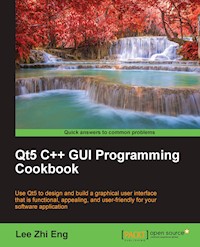
Use Qt5 to design and build a graphical user interface that is functional, appealing, and user-friendly for your software application
About This Book
- Learn to make use of Qt5 to design and customize the look-and-feel of your application
- Improve the visual quality of your application by utilizing the graphic rendering system and animation system provided by Qt5
- A good balance of visual presentation and its contents will make an application appealing yet functional
Who This Book Is For
This book intended for those who want to develop software using Qt5. If you want to improve the visual quality and content presentation of your software application, this book is best suited to you.
What You Will Learn
- Customize the look and feel of your application using the widget editor provided by Qt5
- Change the states of the GUI elements to make them appear in a different form
- Animating the GUI elements using the built-in animation system provided by Qt5
- Draw shapes and 2D images in your application using Qt5's powerful rendering system
- Draw 3D graphics in your application by implementing OpenGL, an industry-standard graphical library to your project
- Build a mobile app that supports touch events and export it to your device
- Parse and extract data from an XML file, then present it on your software's GUI
- Display web content on your program and interact with it by calling JavaScript functions from C++, or calling C++ functions from the web content
- Access to MySQL and SQLite databases to retrieve data and display it on your software's GUI
In Detail
With the advancement of computer technology, the software market is exploding with tons of software choices for the user, making their expectations higher in terms of functionality and the look and feel of the application. Therefore, improving the visual quality of your application is vital in order to overcome the market competition and stand out from the crowd.
This book will teach you how to develop functional and appealing software using Qt5 through multiple projects that are interesting and fun. This book covers a variety of topics such as look-and-feel customization, GUI animation, graphics rendering, implementing Google Maps, and more. You will learn tons of useful information, and enjoy the process of working on the creative projects provided in this book.
Style and approach
This book focuses on customizing the look and feel and utilizing the graphical features provided by Qt5. It takes a step-by-step approach, providing tons of screenshots and sample code for you to follow and learn. Each topic is explained sequentially and placed in context.
Sie lesen das E-Book in den Legimi-Apps auf:
Seitenzahl: 284
Veröffentlichungsjahr: 2016
Ähnliche
















Table of Contents
Qt5 C++ GUI Programming Cookbook
Qt5 C++ GUI Programming Cookbook
Copyright © 2016 Packt Publishing
All rights reserved. No part of this book may be reproduced, stored in a retrieval system, or transmitted in any form or by any means, without the prior written permission of the publisher, except in the case of brief quotations embedded in critical articles or reviews.
Every effort has been made in the preparation of this book to ensure the accuracy of the information presented. However, the information contained in this book is sold without warranty, either express or implied. Neither the author, nor Packt Publishing, and its dealers and distributors will be held liable for any damages caused or alleged to be caused directly or indirectly by this book.
Packt Publishing has endeavored to provide trademark information about all of the companies and products mentioned in this book by the appropriate use of capitals. However, Packt Publishing cannot guarantee the accuracy of this information.
First published: July 2016
Production reference: 1220716
Published by Packt Publishing Ltd.
Livery Place
35 Livery Street
Birmingham B3 2PB, UK.
ISBN 978-1-78328-027-8
www.packtpub.com
Credits
Author
Lee Zhi Eng
Reviewer
Symeon Huang
Commissioning Editor
Kartikey Pandey
Acquisition Editor
Indrajit Das
Content Development Editor
Priyanka Mehta
Technical Editors
Dhiraj Chandanshive
Ravikiran Pise
Copy Editor
Safis Editing
Project Coordinator
Izzat Contractor
Proofreader
Safis Editing
Indexer
Rekha Nair
Production Coordinator
Aparna Bhagat
Cover Work
Aparna Bhagat
About the Author
Lee Zhi Eng is a 3D artist-turned-programmer who worked in the video game industry as a game artist, game programmer, and a game programming lecturer. Later, he decided to take a break from games and ventured into software engineering by co-founding his current company, Reonyx Tech. Since then, he has been involved in multiple projects that are different from what he used to do, including geolocation and near-real-time navigation systems, Big Data analytics, and augmented reality. You can find out more about him at http://www.zhieng.com, or you can find out about his company at http://www.reonyx.com.
About the Reviewer
Symeon Huang is an experienced C++ GUI software developer and the author of Qt 5 Blueprints, Packt Publishing. He has finished his master's degree in high performance computing and has been working as a software engineer in industry.
I'd like to thank Packt Publishing for giving me the opportunity to review this book. As a reviewer, I've also learnt from this book and I'm sure this book will be of great use to all readers.
www.PacktPub.com
eBooks, discount offers, and more
Did you know that Packt offers eBook versions of every book published, with PDF and ePub files available? You can upgrade to the eBook version at www.PacktPub.com and as a print book customer, you are entitled to a discount on the eBook copy. Get in touch with us at <[email protected]> for more details.
At www.PacktPub.com, you can also read a collection of free technical articles, sign up for a range of free newsletters and receive exclusive discounts and offers on Packt books and eBooks.
https://www2.packtpub.com/books/subscription/packtlib
Do you need instant solutions to your IT questions? PacktLib is Packt's online digital book library. Here, you can search, access, and read Packt's entire library of books.
Why Subscribe?
Preface
The continuous growth of the computer software market leads to a very competitive and challenging era. Not only does your software need to be functional and easy to use, it must also look appealing and professional to the users. In order to gain an upper hand and a competitive advantage over other software products in the market, the look and feel of your product is of utmost importance and should be taken care of early in the production stage. In this book, we will teach you how to create a functional, appealing, and user friendly software using the Qt5 development platform.
What this book covers
Chapter 1, Look and Feel Customization, shows how to design your program's user interface using both the Qt Designer as well as the Qt Quick Designer.
Chapter 2, States and Animations, explains how to animate your user interface widgets by empowering the state machine framework and the animation framework.
Chapter 3, QPainter and 2D Graphics, covers how to draw vector shapes and bitmap images on screen using Qt's built-in classes.
Chapter 4, OpenGL Implementation, demonstrates how to render 3D graphics in your program by integrating OpenGL in your Qt project.
Chapter 5, Building a Touch Screen Application with Qt5, explains how to create a program that works on a touch screen device.
Chapter 6, XML Parsing Made Easy, shows how to process data in the XML format and use it together with the Google Geocoding API to create a simple address finder.
Chapter 7, Conversion Library, covers how to convert between different variable types, image formats, and video formats using Qt's built-in classes as well as third-party programs.
Chapter 8, Accessing Databases, explains how to connect your program to an SQL database using Qt.
Chapter 9, Developing a Web Application Using Qt Web Engine, covers how to use the web rendering engine provided by Qt and develop programs that empower the web technology.
What you need for this book
The following are the prerequisites for this book:
Who this book is for
This book intended for those who want to develop software using Qt5. If you want to improve the visual quality and content presentation of your software application, this book will suit you best.
Sections
In this book, you will find several headings that appear frequently (Getting ready, How to do it, How it works, There's more, and See also).
To give clear instructions on how to complete a recipe, we use these sections as follows:
Getting ready
This section tells you what to expect in the recipe, and describes how to set up any software or any preliminary settings required for the recipe.
How to do it…
This section contains the steps required to follow the recipe.
How it works…
This section usually consists of a detailed explanation of what happened in the previous section.
There's more…
This section consists of additional information about the recipe in order to make the reader more knowledgeable about the recipe.
See also
This section provides helpful links to other useful information for the recipe.
Conventions
In this book, you will find a number of text styles that distinguish between different kinds of information. Here are some examples of these styles and an explanation of their meaning.
Code words in text, database table names, folder names, filenames, file extensions, pathnames, dummy URLs, user input, and Twitter handles are shown as follows: "In the mylabel.cpp source file, define a function called SetMyObject() to save the object pointer."
A block of code is set as follows:
When we wish to draw your attention to a particular part of a code block, the relevant lines or items are set in bold:
New terms and important words are shown in bold. Words that you see on the screen, for example, in menus or dialog boxes, appear in the text like this: "Go to the Imports tab in the Library window and add a Qt Quick module called QtQuick.Controls to your project."
Note
Warnings or important notes appear in a box like this.
Tip
Tips and tricks appear like this.
Reader feedback
Feedback from our readers is always welcome. Let us know what you think about this book—what you liked or disliked. Reader feedback is important for us as it helps us develop titles that you will really get the most out of.
To send us general feedback, simply e-mail <[email protected]>, and mention the book's title in the subject of your message.
If there is a topic that you have expertise in and you are interested in either writing or contributing to a book, see our author guide at www.packtpub.com/authors.
Customer support
Now that you are the proud owner of a Packt book, we have a number of things to help you to get the most from your purchase.
Downloading the example code
You can download the example code files for this book from your account at http://www.packtpub.com. If you purchased this book elsewhere, you can visit http://www.packtpub.com/support and register to have the files e-mailed directly to you.
You can download the code files by following these steps:
You can also download the code files by clicking on the Code Files button on the book's webpage at the Packt Publishing website. This page can be accessed by entering the book's name in the Search box. Please note that you need to be logged in to your Packt account.
Once the file is downloaded, please make sure that you unzip or extract the folder using the latest version of:
The code bundle for the book is also hosted on GitHub at https://github.com/PacktPublishing/Qt5-C-GUI-Programming-Cookbook. We also have other code bundles from our rich catalog of books and videos available at https://github.com/PacktPublishing/. Check them out!
Downloading the color images of this book
We also provide you with a PDF file that has color images of the screenshots/diagrams used in this book. The color images will help you better understand the changes in the output. You can download this file from http://www.packtpub.com/sites/default/files/downloads/Qt5C++GUIProgrammingCookbook_ColorImages.pdf.
Errata
Although we have taken every care to ensure the accuracy of our content, mistakes do happen. If you find a mistake in one of our books—maybe a mistake in the text or the code—we would be grateful if you could report this to us. By doing so, you can save other readers from frustration and help us improve subsequent versions of this book. If you find any errata, please report them by visiting http://www.packtpub.com/submit-errata, selecting your book, clicking on the Errata Submission Form link, and entering the details of your errata. Once your errata are verified, your submission will be accepted and the errata will be uploaded to our website or added to any list of existing errata under the Errata section of that title.
To view the previously submitted errata, go to https://www.packtpub.com/books/content/support and enter the name of the book in the search field. The required information will appear under the Errata section.
Piracy
Piracy of copyrighted material on the Internet is an ongoing problem across all media. At Packt, we take the protection of our copyright and licenses very seriously. If you come across any illegal copies of our works in any form on the Internet, please provide us with the location address or website name immediately so that we can pursue a remedy.
Please contact us at <[email protected]> with a link to the suspected pirated material.
We appreciate your help in protecting our authors and our ability to bring you valuable content.
Questions
If you have a problem with any aspect of this book, you can contact us at <[email protected]>, and we will do our best to address the problem.
Chapter 1. Look and Feel Customization
In this chapter we will cover the following recipes:
Introduction
Qt allows us to easily design our program's user interface through a method that most people are familiar with. Qt not only provides us with a powerful user interface toolkit called Qt Designer, which enables us to design our user interface without writing a single line of code, but it also allows advanced users to customize their user interface components through a simple scripting language called Qt Style Sheets.
Use style sheets with Qt Designer
In this example, we will learn how to change the look and feel of our program and make it look more professional by using style sheets and resources. Qt allows you to decorate your Graphical User Interfaces (GUIs) using a style sheet language called Qt Style Sheets, which is very similar to Cascading Style Sheets (CSS) used by web designers to decorate their websites.
How to do it…
Let's try to do some simple styling with the Edit Style Sheet window.
Click Add Color and choose color.Pick a random color from the color picker window, let's say, a pure red color. Then click OK.Now, you will see a line of code has been added to the text field on the Edit Style Sheet window, which in my case is as follows:color: rgb(255, 0, 0);
Click the OK button and now you will see the text on your push button has changed to a red color.How it works...
Let's take a bit of time to get ourselves familiar with Qt Designer's interface before we start learning how to design our own UI:
There's more…
In the previous section, we discussed how to apply style sheets to Qt widgets through C++ coding. Although that method works really well, most of the time the person who is in charge of designing the program's UI is not the programmer, but a UI designer who specializes in designing user-friendly UI. In this case, it's better to let the UI designer design the program's layout and style sheet with a different tool and not mess around with the code.
Qt provides an all-in-one editor called Qt Creator. Qt Creator consists of several different tools, such as script editor, compiler, debugger, profiler, and UI editor. The UI editor, which is also called Qt Designer, is the perfect tool for designers to design their program's UI without writing any code. This is because Qt Designer adopted the What-You-See-Is-What-You-Get approach by providing accurate visual representation of the final result, which means whatever you design with Qt Designer will turn out exactly the same when the program is compiled and run.
The similarities between Qt Style Sheets and CSS are as follows:
Note
To learn about all the selectors available in CSS2 (which are also supported by Qt Style Sheets), please refer to this document: http://www.w3.org/TR/REC-CSS2/selector.html.
Basic style sheet customization
In the previous example, you learned how to apply a style sheet to a widget with Qt Designer. Let's go crazy and push things further by creating a few other types of widgets and change their style properties to something bizarre for the sake of learning. This time, however, we will not apply the style to every single widget one by one, but we will learn to apply the style sheet to the main window and let it inherit down the hierarchy to all the other widgets so that the style sheet is easier to manage and maintain in long run.
How to do it…
Insert the following style sheet:
How it works...
If you are ever involved in web development using HTML and CSS, Qt's style sheet works exactly the same way as CSS. Style sheets provide the definitions for describing the presentation of the widgets – what the colors are for each element in the widget group, how thick the border should be, and so on and so forth.
If you specify the name of the widget to the style sheet, it will change the style of a particular push button widget with the name you provide. None of the other widgets will be affected and will remain as the default style.
To change the name of a widget, select the widget either from the form editor or the object inspector and change the property called objectName in the property window. If you have used the ID selector previously to change the style of the widget, changing its object name will break the style sheet and lose the style. To fix this problem, simply change the object name in the style sheet as well.




