


18,99 €
Mehr erfahren.
- Herausgeber: John Wiley & Sons
- Kategorie: Wissenschaft und neue Technologien
- Serie: Teach Yourself VISUALLY (Tech)
- Sprache: Englisch
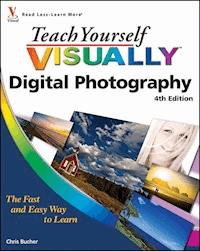
All-new update to this complete photography guide-over 125 photography tasks explained! Teach Yourself VISUALLY Digital Photography, Fourth Edition is a brand new take by a brand new author and professional photographer, who packs this book with heaps of essential tasks and new photos. Step-by-step screen shots show you best practices for completing more than 125 digital photography activities, including composing and lighting pictures; mixing and matching focus and lens settings; cropping, resizing, and sharpening photos; and enhancing photos with software. You'll find great tips and tricks for capturing your best photos and turning them into impressive prints and photo-based projects. * As digital photography technology and photo-editing software evolve, so do the latest digital photography techniques * Explores essential digital photography concepts, including composition, lighting, focus, sharpening, and enhancing photos with photo-editing software * Demonstrates through step-by-step instructions and numerous, full-color screen shots and photos, so you can see exactly how to perform tasks * Offers tips and tricks to help you make the best captures and turn them into impressive prints and photo-based projects See how to produce your best digital photographs ever with this easy-to-follow visual guide!
Sie lesen das E-Book in den Legimi-Apps auf:
Seitenzahl: 318
Veröffentlichungsjahr: 2010
Ähnliche



















Teach Yourself VISUALLY™ Digital Photography, 4th Edition
Table of Contents
Teach Yourself VISUALLY™ Digital Photography, 4th Edition
by Chris Bucher
Published by Wiley Publishing, Inc.10475 Crosspoint BoulevardIndianapolis, IN 46256
www.wiley.com
Published simultaneously in Canada
Copyright © 2010 by Wiley Publishing, Inc., Indianapolis, Indiana
No part of this publication may be reproduced, stored in a retrieval system or transmitted in any form or by any means, electronic, mechanical, photocopying, recording, scanning or otherwise, except as permitted under Sections 107 or 108 of the 1976 United States Copyright Act, without either the prior written permission of the Publisher, or authorization through payment of the appropriate per-copy fee to the Copyright Clearance Center, 222 Rosewood Drive, Danvers, MA 01923, 978-750-8400, fax 978-646-8600. Requests to the Publisher for permission should be addressed to the Permissions Department, John Wiley & Sons, Inc., 111 River Street, Hoboken, NJ 07030, 201-748-6011, fax 201-748-6008, or online at www.wiley.com/go/permissions.
Library of Congress Control Number: 2010932455
ISBN: 978-0-470-58946-5
Trademark Acknowledgments
Wiley, the Wiley Publishing logo, Visual, the Visual logo, Teach Yourself VISUALLY, Read Less - Learn More and related trade dress are trademarks or registered trademarks of John Wiley & Sons, Inc. and/or its affiliates. All other trademarks are the property of their respective owners. Wiley Publishing, Inc. is not associated with any product or vendor mentioned in this book.
Manufactured in the United States of America
10 9 8 7 6 5 4 3 2 1
LIMIT OF LIABILITY/DISCLAIMER OF WARRANTY: THE PUBLISHER AND THE AUTHOR MAKE NO REPRESENTATIONS OR WARRANTIES WITH RESPECT TO THE ACCURACY OR COMPLETENESS OF THE CONTENTS OF THIS WORK AND SPECIFICALLY DISCLAIM ALL WARRANTIES, INCLUDING WITHOUT LIMITATION WARRANTIES OF FITNESS FOR A PARTICULAR PURPOSE. NO WARRANTY MAY BE CREATED OR EXTENDED BY SALES OR PROMOTIONAL MATERIALS. THE ADVICE AND STRATEGIES CONTAINED HEREIN MAY NOT BE SUITABLE FOR EVERY SITUATION. THIS WORK IS SOLD WITH THE UNDERSTANDING THAT THE PUBLISHER IS NOT ENGAGED IN RENDERING LEGAL, ACCOUNTING, OR OTHER PROFESSIONAL SERVICES. IF PROFESSIONAL ASSISTANCE IS REQUIRED, THE SERVICES OF A COMPETENT PROFESSIONAL PERSON SHOULD BE SOUGHT. NEITHER THE PUBLISHER NOR THE AUTHOR SHALL BE LIABLE FOR DAMAGES ARISING HEREFROM. THE FACT THAT AN ORGANIZATION OR WEBSITE IS REFERRED TO IN THIS WORK AS A CITATION AND/OR A POTENTIAL SOURCE OF FURTHER INFORMATION DOES NOT MEAN THAT THE AUTHOR OR THE PUBLISHER ENDORSES THE INFORMATION THE ORGANIZATION OR WEBSITE MAY PROVIDE OR RECOMMENDATIONS IT MAY MAKE. FURTHER, READERS SHOULD BE AWARE THAT INTERNET WEBSITES LISTED IN THIS WORK MAY HAVE CHANGED OR DISAPPEARED BETWEEN WHEN THIS WORK WAS WRITTEN AND WHEN IT IS READ.FOR PURPOSES OF ILLUSTRATING THE CONCEPTS AND TECHNIQUES DESCRIBED IN THIS BOOK, THE AUTHOR HAS CREATED VARIOUS NAMES, COMPANY NAMES, MAILING, E-MAIL AND INTERNET ADDRESSES, PHONE AND FAX NUMBERS AND SIMILAR INFORMATION, ALL OF WHICH ARE FICTITIOUS. ANY RESEMBLANCE OF THESE FICTITIOUS NAMES, ADDRESSES, PHONE AND FAX NUMBERS AND SIMILAR INFORMATION TO ANY ACTUAL PERSON, COMPANY AND/OR ORGANIZATION IS UNINTENTIONAL AND PURELY COINCIDENTAL.
Contact Us
For general information on our other products and services please contact our Customer Care Department within the U.S. at 877-762-2974, outside the U.S. at 317-572-3993 or fax 317-572-4002.
For technical support please visit www.wiley.com/techsupport.
Sales: Contact Wiley at (877) 762-2974 or fax (317) 572-4002.
Acquisitions Editor
Aaron Black
Sr. Project Editor
Sarah Hellert
Technical Editor
Dennis R. Cohen
Copy Editor
Scott Tullis
Editorial Director
Robyn Siesky
Editorial Manager
Rosemarie Graham
Business Manager
Amy Knies
Sr. Marketing Manager
Sandy Smith
Vice President and Executive Group Publisher
Richard Swadley
Vice President and Executive Publisher
Barry Pruett
Sr. Project Coordinator
Kristie Rees
Graphics and Production Specialists
Andrea HornbergerJennifer Mayberry
Quality Control Technician
Jessica Kramer
Proofreader
Penny Stuart
Indexer
Christine Karpeles
Screen Artist
Jill A. Proll
Illustrators
Ronda David-BurroughsCheryl Grubbs
Credits
About the Author
Chris Bucher is an award-winning, Indianapolis-based commercial, editorial, and fine art photographer, and the author of Lighting Photo Workshop. His work is seen in publications throughout the country and his documentary fine art photography has been exhibited in many galleries in the United States and internationally. He has also been a technical editor for numerous Wiley titles and also has written for projects attached to his editorial photography. Chris is an avid mountain biker, and, along with his wife Jennifer, works with the foster care program of the Humane Society of Indianapolis.
Author’s Acknowledgments
Special thanks go to Aaron Black, Sarah Hellert, Scott Tullis, and Dennis Cohen for their work, guidance, and patience in working with me on this project. Without their help and suggestions this book would not have happened. I would also like to thank the Wiley graphics team for making my vague ideas into great illustrations explaining difficult concepts.
Extra special thanks to Enrique Lima for bailing me out of difficult, last minute, and panicked Windows problems and questions. He willingly went above and beyond what he needed to do, and always with a smile. Thanks EEL!
I also have to thank Kenneth Rhem and Nicole Fraga for their assistance.
And I especially need to thank my wife Jennifer for always being helpful, patient, and supportive in all the projects that we enter together.
How to Use This Book
Who Needs This Book?
This book is for the reader who has never used this particular technology or software application. It is also for readers who want to expand their knowledge.
The Conventions in This Book
Steps
This book uses a step-by-step format to guide you easily through each task. Numbered steps are actions you must do; bulleted steps clarify a point, step, or optional feature; and indented steps give you the result.
Notes
Notes give additional information — special conditions that may occur during an operation, a situation that you want to avoid, or a cross reference to a related area of the book.
Icons and buttons
Icons and buttons show you exactly what you need to click to perform a step.
Tips
Tips offer additional information, including warnings and shortcuts.
Bold
Bold type shows command names, options, and text or numbers you must type.
Italics
Italic type introduces and defines a new term.
Chapter 1: Understanding Digital Photography
Are you confused about how digital photography works? This chapter introduces you to the advantages of digital photography, the different types of digital, and how easy it is to work with and use digital pictures.
Why Go Digital?
Discover Digital Cameras
From Start to Finish: The Digital Workflow
Why Go Digital?
With digital photography, you can do more than take snapshots for your family album. You can use a digital camera to quickly and significantly improve your photography skills. You can e-mail your digital pictures to family and friends, share your photos on social networking sites, or create interesting Web pages about your hobbies, family, or even home business. You can also simplify everyday tasks, or take part in documenting your family history with a digital scrapbook.
Improve Your Photography Skills
Because digital pictures do not require film and processing, you can experiment with lighting, composition, camera modes, and creative techniques at no cost. Because you see images immediately, you can modify your setting or approach, and try new things, then evaluate all your images when you get home. The best way to become a better photographer is to take many pictures.
Simplify Everyday Tasks
A digital camera allows you to share and convey information easily. For example, you can capture special moments such as birthdays and anniversaries and almost immediately send the pictures to your friends in an e-mail message, or share them on a Web site. You can also take digital pictures of club members for a visual directory. Other tasks include creating a home inventory for insurance records, and photographing items you are selling online.
Share Pictures Online and in E-mail
Within minutes of taking a picture, you can share it in an e-mail message, or upload it to an online photo site to share with family and friends. By doing it this way, those loved ones who want prints of the photos can buy them online and receive the prints in the mail. There are countless online options for sharing photos and having prints made quickly.
Create Photo Slide Shows on CDs or DVDs
You can use programs such as iPhoto, Windows Live Photo Gallery, and Photoshop Elements to create digital image slide shows on recordable CDs and DVDs. Then you can add voice narration, captions, music, digital movie clips, and transitions to finish the slide show. Photoshop Elements and iPhoto also let you organize your digital images by assigning each photo a keyword. If you want, you can even add a rating, color, or flag to help select your favorites. You can use these keywords or ratings to find and select a particular photo for your slide show or just see all your best photos with a click of a button.
Discover Digital Cameras
When you understand how digital cameras work, you can take that knowledge and make an informed decision when it comes time to purchase your first digital camera or to upgrade your existing one. Knowing how digital cameras work also enables you to get better images from your camera.
How Digital Cameras Record Pictures
Digital cameras record pictures using an image sensor array — a grid composed of millions of light-sensitive pixels. The term pixel describes a picture element. The pixels are the building blocks of all digital images. A red, green, or blue filter covers each pixel on the sensor so that it responds to only one of the primary colors of light. Each pixel reads the brightness and color in a scene to produce an electrical signal. The signal is then converted to a digital number that represents the color and brightness of the pixel. The camera’s onboard computer processes the information to build a final image before storing it in memory.
Types of Image Sensors
Most digital cameras use one of two types of image sensors: a charge-coupled device (CCD) or a complementary metal-oxide semiconductor (CMOS). Although each type of sensor has technical differences in how the light energy is transferred into electronic signals, both produce high-quality images.
Resolution and Image Quality
Resolution is a measure of pixel density; higher-resolution images have more pixels per inch and the possibility of greater detail. On a digital camera, the greater the number of pixels on the image sensor, the larger you can print the photo. There are consumer cameras with sensor resolutions of up to 15 megapixels. Digital cameras with 6 to 8 megapixels offer excellent image quality for prints larger than 8×10 and can be very affordable. Cameras with higher resolution allow for more creative cropping and often come with more advanced features.
From Start to Finish: The Digital Workflow
A digital workflow is a step-by-step process that helps you get the best digital images and also manages your collection of images. The workflow includes taking, editing, sharing, organizing, and storing digital pictures. You can use the digital workflow described here as an introduction to and ongoing guide for working with your digital images.
Capture Images
The digital workflow begins by choosing camera settings that will produce the best photo. You can choose a preset scene mode (portrait, landscape, sunset, for example), use a fully automatic setting, or set the camera to operate in manual shooting mode. To learn more about exposure, see Chapter 3.
Confirm that the camera’s white balance matches the light in the scene or is set to auto. For more information on white balance, see Chapter 8.
Then compose the image in the frame, adjust the zoom, ensure the autofocus has the subject in focus, and take the picture.
Verify Exposure and Composition
Next, review the picture on the camera’s LCD screen to ensure that the exposure and composition are acceptable. As you review the image in your LCD, look for distracting background elements, closed eyes, and other elements that you can improve. If the picture is too light (overexposed), or too dark (underexposed), most cameras set to automatic allow you to easily correct that by adjusting the exposure using exposure compensation. When in doubt, retake the picture and try new things — as many times as you want.
Use the LCD
The LCD screens on today’s cameras are getting ever bigger, brighter, and clearer, but it still may be difficult to determine how good the photo is. Learn how to zoom the LCD display to get a closer look at the details of your photo. Unless the picture is hopelessly flawed, do not delete it. Instead wait and evaluate it on your computer — you may be able to save the picture or use the information in the photo to help you learn.
Transfer Pictures to a Computer
You can transfer pictures from your camera to your computer with a USB cable, a card reader, or a docking station. The fastest way to transfer pictures is by using a card reader. Card readers come in many forms, they are inexpensive, and they do not drain your camera battery — which happens when you hook your camera to the computer.
From Start to Finish: The DigitalWorkflow (continued)
Edit Pictures
You can use image-editing software that comes with your camera or computer, or software that you purchase to edit pictures. Image-editing programs enable you to rotate, adjust color and saturation, correct red eye, remove unwanted elements (even people), crop, resize, sharpen, combine, and add text to digital pictures. There is no end to the things you can do to your digital photos. See Chapters 12 and 13 to learn more about working with image-editing software.
Print and Share Pictures
After you edit, crop, and sharpen your pictures, you can print them on a home photo-quality printer, or at a commercial printing service — either online or at your local photo lab and even grocery stores. In many ways it is just like dropping film off to be processed, but now you only have to print the photos you know that you like. You can also share them in e-mail messages, on social networking Web sites, or on a photo-sharing Web site. For more information about printing and sharing pictures, see Chapters 15 and 16.
Organize and Store Digital Negatives
You should not alter the original image, which is the equivalent of a film negative. If you need to make changes to an image, get in the habit of making changes to a copy and keeping the original file untouched. This is not as hard as it sounds. Some image editors automatically apply your changes to a copy rather than to the original.
It does not take long until your picture collection will become large, so take advantage of the photo organizer programs that are available. Even with a photo organizer program, take some time to come up with a smart way to label and organize the folders of photos — either by date or event, or whatever makes sense to you and you can stick with. You can always find a particular photo quickly without spending hours searching for it if you consistently assign keywords and descriptions to your photos using programs such as iPhoto, Windows Live Photo Gallery, Photo Organizer, or Photoshop Elements.
Clear the Memory Card
After your pictures are on your computer, you can safely delete pictures from your memory card. Many image editors offer to delete pictures after they have been transferred, but you should be sure that the images have been successfully placed on your hard drive because when the images are deleted from the card, you cannot get them back. The optimum choice is to delete all the photos in the camera by formatting the card using your camera after you have downloaded the photos. The card format option is typically found as a menu option accessed from the menu on the LCD screen of your camera. Using this method also helps to maintain the internal file structure of the memory card, which should keep it working smoothly.
Chapter 2: What You Need to Get Started
Knowing the basics about digital cameras, resolution, lenses, batteries, and accessories helps you choose the right camera for you. Having the right equipment for your digital darkroom enables you to edit and print your images faster and easier.
Choose a Digital Camera
Consider Digital Camera Accessories
Build a Digital Darkroom
Choose a Photo Printer
Choose a Digital Camera
When choosing a digital camera, consider the size of camera, the resolution, how much control you want to have over the camera settings, the quality and focal range of the lens, the shooting modes you use most often, the life of the battery, and the type of storage media available.
Compact
Compact, or point-and-shoot, digital cameras typically capture photos with image resolutions ranging from 10 to 14 megapixels. They include a built-in flash and zoom. Although compact cameras offer limited manual controls, they often provide a number of handy shooting presets that allow you to optimize the settings for better pictures more easily.
Lesen Sie weiter in der vollständigen Ausgabe!
Lesen Sie weiter in der vollständigen Ausgabe!
Lesen Sie weiter in der vollständigen Ausgabe!
Lesen Sie weiter in der vollständigen Ausgabe!
Lesen Sie weiter in der vollständigen Ausgabe!
Lesen Sie weiter in der vollständigen Ausgabe!
Lesen Sie weiter in der vollständigen Ausgabe!
Lesen Sie weiter in der vollständigen Ausgabe!
Lesen Sie weiter in der vollständigen Ausgabe!
Lesen Sie weiter in der vollständigen Ausgabe!
Lesen Sie weiter in der vollständigen Ausgabe!
Lesen Sie weiter in der vollständigen Ausgabe!
Lesen Sie weiter in der vollständigen Ausgabe!
Lesen Sie weiter in der vollständigen Ausgabe!
Lesen Sie weiter in der vollständigen Ausgabe!




