


6,99 €
Mehr erfahren.
- Herausgeber: TechSavy Arena
- Kategorie: Wissenschaft und neue Technologien
- Sprache: Englisch
Unlock the Power of Windows 11—Effortlessly!
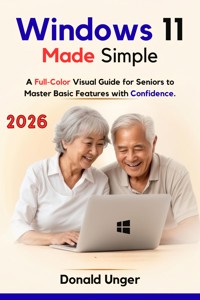
Are you ready to take control of your computer without feeling overwhelmed? "Windows 11 Made Simple: A Full-Color Visual Guide for Seniors to Master Basic Features with Confidence" is the ultimate guide designed specifically for beginners and seniors who want to confidently navigate Windows 11 and make the most out of their devices.
- Simplify Your Learning Process
- Build Confidence with Visuals
- Practical and User-Centered
Take Action Today!
Don’t let Windows 11 intimidate you. Transform your experience and master your computer in no time. Whether you’re just starting or need a quick refresher, this guide is your key to confidently navigating Windows 11.
Buy now and get started on your journey to mastering Windows 11 today!
Das E-Book können Sie in Legimi-Apps oder einer beliebigen App lesen, die das folgende Format unterstützen:
Veröffentlichungsjahr: 2025
Ähnliche

















Windows 11 Made Simple
A Full-ColorVisual Guide for Seniors to Master Basic Features withConfidence.
Donald Unger
Copyright © 2025 Donald Unger
All rights reserved. No part of this publication may be reproduced, distributed, or transmitted in any form or by any means, including photocopying, recording, or other electronic or mechanical methods, without the prior written permission of the publisher, except in the case of brief quotations embodied in critical reviews and certain other noncommercial uses permitted by copyright law.
Disclaimer
The information provided in "Windows 11 Made Simple For Seniors" is intended for general informational purposes only. Every effort has been made to ensure the accuracy of the information in this book; however, the author and publisher do not assume responsibility for any errors, omissions, or consequences that may arise from the use of the material contained herein.
Windows 11 is a product of Microsoft, and while this guide aims to provide clear, accessible instructions for users, the author and publisher are not affiliated with Microsoft. All trademarks, logos, and brand names mentioned in this book are the property of their respective owners.
The author encourages readers to back up important data before making any system changes, including updates or installations, and to always ensure their system is secure. Additionally, the instructions and steps in this book are based on the current version of Windows 11 at the time of publication and may differ as new updates are released.
By using this book, the reader agrees to take full responsibility for their actions and any decisions made based on the guidance provided. The author and publisher will not be held liable for any loss or damage to data, hardware, or software resulting from the use of this book.
Table of Contents
Introduction
Chapter 1: Welcome to Your Computer
Chapter 2: Your First Look at the Windows 11 Desktop
Chapter 3: Personalizing Your Experience
Chapter 4: Mastering File Explorer
Chapter 5: Getting Online Safely
Chapter 6: Keeping in Touch with Email
Chapter 7: Video Calls with Microsoft Teams
Chapter 8: Photos and Entertainment
Chapter 9: Finding New Apps: The Microsoft Store
Chapter 10: Keeping Your Computer Healthy
Chapter 11: Troubleshooting Common Problems
Appendices
Introduction
Welcome to Windows 11
Windows 11 is more than just an upgrade from its predecessor, Windows 10. It’s a complete redesign of the operating system that brings a fresh, modern look to the desktop, while also offering a range of features designed to make your computing experience smoother, faster, and more enjoyable. Whether you are someone who is transitioning from an older version of Windows or are new to computers altogether, this guide is here to walk you through every step of the way.
You may be wondering, “Why should I upgrade to Windows 11?” The answer is simple: Windows 11 was built with you in mind. It offers a user-friendly experience with an intuitive interface, improved performance, and robust security. If you’ve ever felt overwhelmed by the complexity of previous versions of Windows, rest assured that Windows 11 was designed to be accessible for people of all ages and experience levels. And, as you’ll see throughout this guide, it’s especially suited for seniors and beginners.
One of the most noticeable changes in Windows 11 is its visual appeal. The sleek, centered taskbar, rounded corners, and simplified menus create an interface that feels less cluttered and more intuitive. At its core, Windows 11 focuses on providing users with more control over their environment, enabling them to tailor their experience to meet their personal needs.
But it’s not just about looks; Windows 11 has a variety of new features that enhance functionality, security, and connectivity. From managing multiple desktops at once to improved voice commands, Windows 11 empowers you to navigate the digital world with confidence. While the operating system is packed with features, it’s designed to be easy to use and intuitive—meaning you don’t have to be a tech expert to make the most of it. That’s where this guide comes in: to break things down and help you get comfortable using your computer, whether you’re using it for work, entertainment, or staying connected with family and friends.
In this guide, we will walk through Windows 11 step-by-step, from setting up your computer to mastering all of the essential tools and features that will make your computing experience both efficient and enjoyable. The best part? We’ve included full-color visuals at each step, so you’ll always have a visual reference to guide you. This ensures that you never feel lost or uncertain about what to do next. And, don’t worry—there’s no technical jargon here. Everything is written in plain language, and we’ll guide you through every click, tap, and swipe.
How to Use This Guide
This book is organized to be as easy to follow as possible, with clear, step-by-step instructions that will make learning Windows 11 simple and enjoyable. Whether you are a beginner who is just getting started with computers, or you’re someone who wants to master the hidden features of Windows 11, you’ll find everything you need within these pages.
Each chapter is designed to break down the key concepts in a clear and accessible way, so you don’t have to worry about getting lost in complex technical language. We’ve kept things simple by using large, easy-to-read fonts and accompanying images that guide you through each task. Every screenshot, diagram, and visual aid has been carefully selected to enhance your understanding and show you exactly where to click or tap.
Before diving into each section, we’ll provide a brief introduction to what you’ll be learning, followed by clear, actionable steps to follow. You’ll know exactly what to do at every stage. As you go through the chapters, feel free to refer back to earlier sections if you need a refresher on a specific task or feature.
We’ve also included practical tips and best practices along the way to make sure you get the most out of your experience with Windows 11. These tips will help you avoid common pitfalls, save time, and streamline your computer use. And if you ever feel stuck, don't hesitate to revisit the images, as they will offer the visual clarity needed to keep you on track.
In addition to the step-by-step instructions, we’ve added specific areas where we recommend taking a moment to practice what you’ve learned. Building confidence with your computer takes time, and the more you practice, the more comfortable you will become. Don’t rush through it—take your time, revisit sections as needed, and remember that you’re in control of your learning pace.
This guide was made specifically for seniors, so you can expect instructions that are mindful of common challenges faced when using technology, such as small text, cluttered screens, and unintuitive menus. We have intentionally chosen to leave out any complicated terminology or unnecessary steps that might cause confusion. Instead, we focus on simplicity and clarity to ensure that your experience with Windows 11 is seamless.
Key Features of Windows 11
Now that you have an idea of how this guide works, let’s take a look at the standout features of Windows 11 that make it so special. As we walk through each section of this book, you’ll become acquainted with these features and learn how to use them to your advantage. Here are some of the key highlights that set Windows 11 apart from its predecessors:
The New Start Menu
: Windows 11 introduces a redesigned Start Menu that’s more intuitive and easier to navigate. The menu is now centered on the screen, making it simpler to access your apps and documents. You’ll find that the Live Tiles from Windows 10 are gone, replaced by more organized and manageable icons. This means that the Start Menu feels less cluttered and more user-friendly, even for those new to using a computer.
The Taskbar
: In Windows 11, the Taskbar is sleek, centered, and offers a streamlined experience. You can easily access your pinned apps, open windows, and even perform quick tasks like adjusting the volume or turning off your computer. The new layout is not only visually appealing, but also helps seniors who may find the older layout too crowded or confusing.
Virtual Desktops
: Virtual desktops allow you to create multiple desktops on your computer, each with its own set of apps and windows. This feature is particularly useful if you need to organize your tasks more effectively. For instance, you could have one desktop for work, another for personal use, and a third for entertainment. Switching between them is as simple as a click or swipe, making it easier to stay focused on the task at hand.
Snap Layouts and Snap Groups
: These features let you easily organize your open windows by snapping them into predefined layouts. This is especially useful if you often have multiple programs open at once. Windows 11 helps you arrange your windows in an easy-to-use grid, so you can view and work with multiple applications side by side. It’s a great way to keep things tidy and ensure you can quickly find the window you need.
Widgets
: Widgets provide you with quick access to important information like weather, news, calendar events, and reminders. Instead of opening individual apps or websites, you can simply glance at the widgets on your desktop to stay up-to-date. Windows 11 makes it easy to customize your widgets, so you only see the information that’s most important to you.
Microsoft Teams Integration
: With Windows 11, Microsoft Teams is integrated directly into the operating system. This means that staying in touch with family, friends, or colleagues has never been easier. You can instantly launch video calls or chat with people directly from the Taskbar. Whether you're staying in touch with loved ones or attending a work meeting, Teams makes connecting simple and seamless.
Enhanced Touch and Pen Support
: Windows 11 has improved its touch and pen input capabilities, making it even easier to interact with your computer using a stylus or your fingers. This is especially useful for tablet users or those who prefer more tactile input. With better pen support, you can draw, annotate, and navigate more naturally.
Improved Performance
: Windows 11 has been optimized to run faster and more efficiently than its predecessors. This means that your computer will boot up more quickly, apps will run more smoothly, and you’ll have a more responsive overall experience. Even if you have an older device, you’ll notice improved speed and stability.
Security Enhancements
: One of the most important updates in Windows 11 is the increased focus on security. The operating system includes improved encryption, secure boot, and hardware-based protections that help safeguard your personal data from potential threats. This ensures that your information is kept safe while you enjoy browsing the web, using applications, and staying connected online.
Microsoft Store Improvements
: The Microsoft Store in Windows 11 has been revamped to make it easier to discover, download, and manage apps. It now includes a broader selection of apps, including apps for work, entertainment, and education. You can also find free apps, games, and other content quickly and easily.
With all of these exciting features, Windows 11 is designed to be as user-friendly as possible, offering something for everyone—whether you’re a first-time user or a seasoned tech enthusiast. As you progress through this guide, you’ll become familiar with these features and learn how to make the most of them. Let’s get started on your journey to mastering Windows 11!
Chapter 1: Welcome to Your Computer
What is Windows 11?
Technology is constantly evolving, and so are the devices we use to navigate the digital landscape. One of the most exciting and user-friendly upgrades in recent years is Windows 11, the latest operating system from Microsoft. Whether you’re familiar with previous versions of Windows or brand new to the world of personal computers, Windows 11 is designed to offer a fresh, simplified experience that makes it easier for everyone, including seniors, to use their devices with confidence.
Windows 11 is packed with visual upgrades and improved features that not only enhance the aesthetic appeal of your computer but also optimize its performance and security. One of the first things you’ll notice when you start using Windows 11 is the clean and modern interface. The icons are now centered on your screen, giving it a more organized and approachable look. The Start Menu is now streamlined, making it easier to access your favorite apps, documents, and settings without unnecessary clutter.
In addition to the updated design, Windows 11 offers a variety of improvements over its predecessor, Windows 10. These include enhanced multitasking features, better system performance, and stronger security to help protect your data from potential threats. For seniors, this means an operating system that is more intuitive, user-friendly, and accessible, whether you’re using it for managing files, browsing the web, connecting with family, or enjoying entertainment.
As you journey through this guide, you’ll discover how to use Windows 11 with ease, no matter your level of experience. From setting up your computer to customizing it to your liking, each step will be broken down clearly and illustrated with visuals. By the end of this guide, you’ll have mastered the basic features of Windows 11 and be ready to explore its hidden gems.
Turning On Your Computer and Logging In
When you first turn on your computer, it may seem like a lot is happening all at once. The screen lights up, you hear the fan hum, and the operating system begins to load. But don’t worry, we’ll break it down step-by-step. Turning on your computer is the first step in navigating Windows 11, and once it’s on, logging in will become second nature.
To begin, look for the power button on your computer. On a desktop, this is usually located on the front or top of the computer tower. For a laptop, it’s often on the keyboard or the side of the device. Press the button, and you should see your computer’s logo appear on the screen as it powers up. Depending on your device, this may take a few seconds or a minute.
Once the computer has powered up, you’ll be presented with the login screen. If you’re using a desktop computer, you may need to select your user account first. If you have multiple accounts on the device, just click on your name. If it’s your first time logging in, you’ll need to enter a password or a PIN code that you created when you set up your computer.
Don’t worry if you forget your password—Windows 11 offers a password recovery option that will help you regain access to your account. You can either reset your password by following on-screen instructions or use your Microsoft account to recover it. Once logged in, the home screen of Windows 11 will appear, ready for you to start using your computer.
If you’ve set up your computer with a Microsoft account, logging in with your username and password will sync your settings and preferences across different devices. This means that whether you’re on your desktop at home or your laptop while traveling, your settings, files, and apps will be available to you, making your computing experience seamless.




