


6,99 €
Mehr erfahren.
- Herausgeber: TechSavy Arena
- Kategorie: Wissenschaft und neue Technologien
- Sprache: Englisch
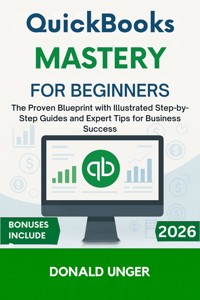
The Proven Blueprint with Illustrated Step-by-Step Guides and Expert Tips for Business Success
Are you ready to take control of your business finances and streamline your bookkeeping? QuickBooks Mastery for Beginners is your ultimate guide to mastering QuickBooks Online with zero accounting background required. Whether you're just starting out or looking to improve your current setup, this book offers an easy-to-follow blueprint for managing your business finances like a pro.
Discover the secrets to:
- Setting up QuickBooks the right way from scratch, so you can avoid costly mistakes and ensure smooth operations.
- Tracking income and expenses with ease, giving you a clear picture of your financial health at all times.
- Creating and sending professional invoices that will get you paid faster and without hassle.
- Managing bills, vendors, and payroll like an expert, with detailed, illustrated guides.
- Running year-end reports to simplify tax season and stay stress-free when it's time to file.
- Integrating QuickBooks with PayPal, Stripe, Shopify, and other business tools to automate and streamline your workflows.
Why is this book different?
Unlike other finance guides, QuickBooks Mastery for Beginners breaks down complex accounting terms and features into simple, actionable steps. You won’t just learn QuickBooks—you’ll master it, using clear illustrations, expert tips, and real-world examples that make everything easier to understand.
This step-by-step approach empowers you to take charge of your business finances and make data-driven decisions confidently. Whether you're a solopreneur, freelancer, or small business owner, QuickBooks Mastery for Beginners will give you the tools you need to save time, reduce stress, and boost your business success.
Ready to take your business to the next level? Click to buy now and start mastering QuickBooks today!
Das E-Book können Sie in Legimi-Apps oder einer beliebigen App lesen, die das folgende Format unterstützen:
Veröffentlichungsjahr: 2025
Ähnliche














QuickBooks Mastery for Beginners
The Proven Blueprint with Illustrated Step-by-Step Guides and Expert Tips for Business Success
Donald Unger
Copyright © 2025 Donald Unger
All rights reserved. No part of this publication may be reproduced, distributed, or transmitted in any form or by any means, including photocopying, recording, or other electronic or mechanical methods, without the prior written permission of the publisher, except in the case of brief quotations embodied in critical reviews and certain other noncommercial uses permitted by copyright law
Disclaimer
The information provided in QuickBooks Mastery for Beginners is intended for general informational purposes only. While every effort has been made to ensure the accuracy of the content, the author and publisher make no representations or warranties of any kind regarding the completeness, accuracy, reliability, or suitability of the information contained within this book.
The author is not a licensed accountant or tax professional, and this book does not provide legal, tax, or financial advice. Always consult with a qualified professional before making any business decisions, including but not limited to financial, tax, or accounting matters. The use of QuickBooks and any business-related software or tools should be done in compliance with applicable laws, regulations, and best practices.
The reader is solely responsible for any actions taken based on the content of this book. The author and publisher disclaim any liability for any losses, damages, or consequences arising from the use of the information presented in this book.
Contents
Introduction
How This Book Will Help You Succeed
How to Use This Guide: Simple, Step-by-Step Learning
Your Next Step Toward QuickBooks Mastery
Chapter 1: Getting Started with QuickBooks Online
What Is QuickBooks Online?
Setting Up Your QuickBooks Account from Scratch
Navigating the QuickBooks Dashboard: A Beginner’s Guide
How to Use the Dashboard to Track Your Business’s Performance
Your First Steps: Personalizing Your QuickBooks Settings
Chapter 2: Setting Up Your Company in QuickBooks
Creating Your Business Profile
Adding Company Information and Logo
Setting Up Your Chart of Accounts
Configuring Tax Settings and Preferences
Connecting Your Bank Account to QuickBooks
Chapter 3: Tracking Income and Expenses
How to Add and Track Income
Recording Expenses and Categorizing Transactions
Creating and Managing Expense Categories
Using QuickBooks to Track Cash Flow
Chapter 4: Creating and Sending Invoices
The Basics of Invoicing in QuickBooks
Customizing Invoice Templates to Match Your Brand
How to Create and Send Professional Invoices
Tracking Outstanding Invoices and Managing Payments
Chapter 5: Managing Bills and Vendor Payments
Setting Up Vendor Accounts
Recording Bills and Expenses
Paying Bills in QuickBooks
Keeping Track of Vendor Payments and Balances
Chapter 6: Payroll and Employee Management
Setting Up Payroll in QuickBooks
How to Add Employees and Contractors
Running Payroll and Managing Deductions
Paying Taxes and Filing Payroll Reports
Tracking Time and Managing Employees’ Hours
Chapter 7: Bank Reconciliation and Error Prevention
How to Reconcile Your Bank Accounts in QuickBooks
Detecting and Correcting Errors in Your Books
Ensuring Accuracy: Double-Checking Your Data
Best Practices for Regular Reconciliation
Chapter 8: Financial Reporting: Understanding Your Numbers
The Basics of Financial Reports in QuickBooks
Running Profit & Loss Reports and Balance Sheets
Running a Balance Sheet in QuickBooks
Creating Custom Reports to Track Key Metrics
Using Reports to Make Business Decisions
Chapter 9: Automating Your Workflow in QuickBooks
Setting Up Recurring Transactions
Automating Invoicing and Bill Payments
Streamlining Your Daily Tasks with QuickBooks Automation
Time-Saving Tips and Tools for Business Owners
Chapter 10: Preparing for Tax Season: Stay Stress-Free
How QuickBooks Helps with Tax Preparation
Running Year-End Reports for Taxes
Tracking Tax Payments and Deductions
Closing Your Books for the Year
Chapter 11: Troubleshooting and Best Practices
Common Mistakes and How to Avoid Them
QuickFix: Solving Basic QuickBooks Issues
Best Practices for Managing Your QuickBooks Account
Keeping Your Finances Organized All Year Round
Chapter 12: Integrating QuickBooks with Other Tools
How to Connect QuickBooks with PayPal, Stripe, and Other Payment Gateways
Integrating with Your CRM and Other Business Tools
Syncing QuickBooks with eCommerce Platforms (e.g., Shopify, Etsy)
Automating Workflows and Data Entry Between Apps
Conclusion
Appendices
BONUS: VIDEO GUIDE
Introduction
Y
ou’ve probably heard this a thousand times: "Good financial management is the backbone of a successful business." But, let’s face it—dealing with finances isn’t always exciting, and for many, it can feel like an overwhelming chore. When you're just starting out, the idea of keeping track of every dollar spent, every bill paid, and every invoice issued can feel like trying to solve a puzzle with missing pieces.
Enter QuickBooks Online. This tool is often touted as the answer to every business owner's accounting headache, but what makes it so special? For beginners, QuickBooks can feel like a high-tech beast—but it doesn’t have to be that way. This guide is designed to break down the complexity of QuickBooks and give you the confidence to use it as your trusted business partner. You’ll soon discover that, with the right approach, managing your business finances can be both simple and strategic.
Whether you’re a freelancer working from your kitchen table, a small business owner with big dreams, or someone who’s just tired of spreadsheets and messy receipts, QuickBooks is here to save you time and stress. But, in order to harness its full potential, you need a plan. And this book is that plan.
Mastering QuickBooks isn’t just about learning how to use the software—it’s about transforming the way you approach your business’s financial health. With a clear understanding of how to navigate QuickBooks, you’ll no longer feel helpless when tax season rolls around or anxious when you check your bank balance. Instead, you’ll have the tools and confidence to make informed financial decisions, track your profits, and set your business up for long-term success.
So, why does QuickBooks mastery matter for you? Because it’s more than just software—it’s the foundation of your business’s financial success. It’s the key to working smarter, not harder. It’s your first step toward stability, growth, and achieving your business goals.
How This Book Will Help You Succeed
Now that you know why QuickBooks is crucial for your business, let’s talk about how this book will guide you to mastering it—without the overwhelm, the confusion, or the frustration.
This isn’t just another manual packed with technical terms and jargon. Instead, this book is designed with you in mind—the beginner, the entrepreneur, the freelancer. You don’t need a degree in accounting to get started. You don’t need a background in finance. What you need is a guide that speaks your language and takes you through QuickBooks step by step, with clear explanations and real-world examples that make sense.
Here’s what makes this guide truly stand out:
Straightforward, Beginner-Friendly Learning
: We break everything down in simple, easy-to-understand language. No confusing accounting terms, no overwhelming technicalities. Whether you’re setting up your first QuickBooks account or learning how to reconcile your bank accounts, we’ll guide you through it in a way that makes sense.
Practical, Hands-On Examples
: You’ll learn through real-world examples that show you exactly how QuickBooks fits into everyday business operations. You’ll understand how to apply everything to your own business, not just memorize a set of features.
Visual Guides
: Sometimes, seeing is believing. Each chapter is packed with screenshots and visual cues to help you understand exactly what you need to do at every stage. You’ll be guided through the QuickBooks interface step by step, so there’s no guesswork involved.
Time-Saving Tips
: This isn’t just about doing things the right way—it’s about doing things the
smart
way. QuickBooks has built-in automation features that will save you hours of manual work. We’ll show you how to set up these time-saving tools to streamline your processes, freeing up your time to focus on growing your business.
Strategic Insights
: QuickBooks is a powerful tool, but how you use it matters. This book will help you
think strategically
about your financials, so you can use QuickBooks not just to track numbers, but to
make informed decisions
that drive your business forward.
By the end of this guide, you won’t just be comfortable using QuickBooks—you’ll be a master at managing your finances, handling invoices, running payroll, tracking expenses, and generating reports with ease. And the best part? You’ll feel confident every step of the way.
How to Use This Guide: Simple, Step-by-Step Learning
One of the biggest challenges when learning new software is not knowing where to start—or worse, feeling like you’re constantly playing catch-up. But don’t worry—this guide is designed to make learning QuickBooks a smooth and easy journey.
Here’s how to make the most out of this book:
Start at the Beginning
: Even if you’ve already used QuickBooks for a little while, we recommend starting from the first chapter. The setup process and foundational knowledge are crucial. Starting from scratch ensures that you won’t miss any essential steps.
Follow the Steps at Your Own Pace
: Each chapter has a structured approach to ensure that you’re not jumping ahead before you’re ready. Take it one step at a time.
Don’t rush
—practice and repetition are key to mastering QuickBooks.
Hands-On Practice
: As you read,
practice as you go
. If the chapter explains how to create an invoice, try doing it yourself in QuickBooks. If it’s setting up your account, follow the steps on your own.
Learning by doing
is the best way to retain information and become comfortable with the software.
Utilize the Visuals
: Each chapter contains
screenshots
and
illustrations
to help you visualize what you should be seeing on your screen. These images will make it easier for you to follow along and ensure you’re on the right track.
Go at Your Own Speed
: Learning QuickBooks is a journey, not a race. Take the time to review each chapter and come back to it as needed. Don’t feel pressured to memorize everything in one sitting. You’re learning a new skill, and that takes time.
Use the Tips and Tricks
: Throughout this guide, you’ll find
time-saving tips
and
best practices
for using QuickBooks. Don’t just read through them—
apply them
. They’ll save you time, prevent mistakes, and help you get the most out of QuickBooks.
Your Next Step Toward QuickBooks Mastery
By the time you reach the end of this book, you’ll have transformed the way you approach your business’s finances. QuickBooks won’t just be a tool you use—it will become an essential part of your daily operations. And most importantly, you’ll have the knowledge and confidence to use it to its full potential.
No more avoiding financial tasks. No more guessing about what goes where in your accounting records. No more stress during tax season. QuickBooks Mastery for Beginners is the first step toward taking control of your financial future and setting your business up for long-term success.
So, are you ready to take the next step in your business journey? Let’s dive in and unlock the power of QuickBooks together!
Chapter 1: Getting Started with QuickBooks Online
What Is QuickBooks Online?
If you’ve been searching for a solution to streamline your business finances, you’ve probably heard of QuickBooks Online. But what exactly is it? And why has it become the go-to accounting solution for small businesses, freelancers, and entrepreneurs?
QuickBooks Online is a cloud-based accounting software designed to simplify bookkeeping and financial management for small businesses. Unlike traditional desktop accounting software, which requires installation and runs only on a specific computer, QuickBooks Online is accessible from any device with an internet connection. This gives you the flexibility to access your financial data anytime, anywhere.
At its core, QuickBooks Online helps you manage your business’s financial data with ease. Whether you’re tracking income and expenses, managing invoices, paying bills, or running reports, QuickBooks makes these tasks easier and more organized. You can also use QuickBooks to reconcile your bank accounts, process payroll, and generate financial reports that help you understand how your business is performing.
For many small business owners, QuickBooks is more than just accounting software—it’s a financial hub that helps keep everything in one place. If you’ve been struggling with managing multiple spreadsheets, receipts, and paper invoices, QuickBooks Online offers a much-needed solution to automate and organize your financial data.
QuickBooks also offers a variety of plans that cater to businesses of different sizes and needs. Whether you're a freelancer managing only a few clients or a small business owner with employees and vendors, there’s a QuickBooks Online plan designed for you. The user interface is simple and intuitive, making it easy for anyone—even someone without an accounting background—to get started.
But QuickBooks Online is not just about doing the numbers; it's about providing you with insights. As you use QuickBooks, you’ll be able to generate reports that show how much money you’re making, where you’re spending it, and how much you owe in taxes. These insights are invaluable for making informed business decisions that can drive growth.
Setting Up Your QuickBooks Account from Scratch
Now that you have a general understanding of what QuickBooks Online is, it’s time to dive into setting up your account. If you're new to the world of QuickBooks, the setup process may seem a bit overwhelming at first. But don't worry, we’re here to walk you through it step by step.
Step 1: Choosing Your Plan
Before diving into QuickBooks, you’ll need to decide which version is right for your business. QuickBooks Online offers several plans to choose from, each designed to meet the needs of businesses at different stages. Here’s a quick breakdown of the most popular QuickBooks Online plans:
Simple Start
: This plan is ideal for solo entrepreneurs or freelancers. It covers the basics—income and expense tracking, invoice creation, and basic reporting.
Essentials
: The Essentials plan is great for small businesses with a few employees or contractors. It includes all the features of Simple Start, plus time tracking, bill management, and multi-user access.
Plus
: This plan is designed for growing businesses. In addition to everything included in Essentials, Plus allows you to track inventory, manage projects, and create more advanced financial reports.
Advanced
: For larger businesses with complex financial needs, the Advanced plan offers features like enhanced reporting, custom user roles, and dedicated support.
When choosing your plan, consider the size of your business, the features you need, and your budget. Don’t worry if you start with a smaller plan—you can always upgrade as your business grows. Once you've chosen the plan that best suits your needs, go ahead and sign up for an account.
Step 2: Signing Up and Creating an Account
To sign up for QuickBooks Online, visit the QuickBooks website and click on the “Sign Up” button. You’ll be asked to provide some basic information, including:
Email address
: This will be your primary login credential.
Business name
: This is the name of your business, which will appear on your QuickBooks dashboard.
Business type
: You’ll need to specify whether you’re a sole proprietor, a partnership, or a corporation. QuickBooks will ask for additional details based on your selection.
Phone number
: QuickBooks may use this to contact you regarding your account or support inquiries.
Once you’ve filled out your information, click Next to create your account. QuickBooks will then ask you to choose your preferred subscription plan. Select the plan that best fits your business needs.
Step 3: Personalizing Your Account
Once you’ve set up your QuickBooks account, it’s time to personalize it to fit your business. This includes entering key details about your company, such as:
Business address
: This is essential for generating tax-related reports and invoices.
Tax information
: Depending on your location, QuickBooks will need to know your sales tax rates, VAT, or other tax requirements. You can enter this information now or skip it and come back to it later.
Logo
: Upload your business logo so it can appear on invoices and other documents you create in QuickBooks.
QuickBooks will guide you through these steps, making it easy to complete each one. Don’t worry if you don’t have all the information ready—QuickBooks allows you to add or update your details later.
Step 4: Connecting Your Bank Account
Now that your account is set up, you can link your business’s bank account to QuickBooks. This step is crucial because it allows QuickBooks to automatically import your transactions and help you reconcile your accounts.
To connect your bank account, simply follow these steps:
Click on the
Banking
tab in your QuickBooks dashboard.
Select
Add Account
and search for your bank.
Enter your banking credentials (username and password) to allow QuickBooks to securely connect to your account.
Once connected, QuickBooks will begin importing your transactions automatically.
If you use more than one bank account or credit card for your business, you can link each account in the same way. QuickBooks will then categorize your transactions, making it easier for you to track income and expenses without manually entering each transaction.
Navigating the QuickBooks Dashboard: A Beginner’s Guide
Now that you’ve set up your QuickBooks Online account, it’s time to explore the QuickBooks Dashboard—the main hub where all your financial information will be displayed. This dashboard is designed to give you an overview of your business’s financial health, and understanding how to navigate it is key to using QuickBooks effectively.
As a beginner, the dashboard might seem like a lot at first. There are many different features, buttons, and options to explore, but don’t worry—this section will break down the dashboard into easy-to-understand sections and give you the tools you need to navigate it with confidence.
Overview of the QuickBooks Dashboard
When you first log into QuickBooks Online, you’ll be taken to the Home Dashboard. The layout is simple, clean, and intuitive. Here’s what you’ll see:
Navigation Bar
: Located on the left side of the screen, this vertical bar is your gateway to everything QuickBooks has to offer. It includes the major sections of QuickBooks such as
Dashboard
,
Sales
,
Expenses
,
Payroll
,
Reports
, and
Taxes
. This is your main menu, and it will be where you access all of your business’s financial information.
Income and Expenses Overview
: At the top of your dashboard, you’ll see a summary of your business’s
income
and
expenses
. These figures give you a quick snapshot of how much money is coming in and how much you’re spending. This is the first place you’ll want to check when logging in, as it gives you a high-level view of your cash flow.
Upcoming Transactions
: Below the income and expenses summary, QuickBooks will show a list of upcoming transactions, such as
unpaid invoices
,
upcoming bills
, and
upcoming payroll runs
. This section helps you stay on top of deadlines and financial obligations.
Recent Activity
: On the right side of the dashboard, you’ll see a summary of your most recent activity, such as
bank transactions
and
payment reminders
. QuickBooks uses this section to display the most recent updates to your financials so you can quickly access them.




