


6,99 €
Mehr erfahren.
- Herausgeber: TechSavy Arena
- Kategorie: Wissenschaft und neue Technologien
- Sprache: Englisch
BONUS INCLUDED
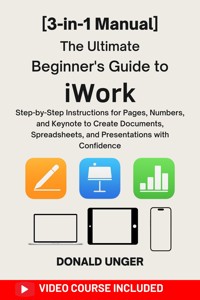
Unlock the Full Potential of Apple iWork with "The Ultimate Beginner’s Guide to Apple iWork"
Are you ready to master Pages, Numbers, and Keynote like a pro? Whether you're a student, a professional, or a business owner, this all-in-one guide is designed to help you create stunning documents, powerful spreadsheets, and engaging presentations with confidence. With The Ultimate Beginner’s Guide to Apple iWork, you’ll quickly unlock the full potential of Apple’s suite of productivity tools—no experience required!
Imagine creating beautiful documents, seamless presentations, and powerful data visualizations with just a few clicks. No more fumbling around with complicated features or getting lost in tech jargon. This beginner-friendly guide breaks down the essentials of iWork with clear, easy-to-follow instructions and practical tips. From crafting the perfect presentation in Keynote to organizing complex data in Numbers, you’ll feel empowered to get things done quickly and efficiently.
Inside this book, you’ll find step-by-step instructions for every iWork app, covering everything from basic setup to advanced techniques. Learn how to design eye-catching presentations, build powerful spreadsheets, and format professional documents—all while saving time and boosting productivity. Plus, discover valuable features like real-time collaboration, voice narration, interactive elements, and more.
Whether you’re preparing for a big presentation, organizing important data, or drafting polished documents, this guide will give you the tools to elevate your work. With expert tips, insider tricks, and helpful image prompts, you’ll quickly become an iWork expert, confidently navigating all the features that Pages, Numbers, and Keynote have to offer.
Ready to take your iWork skills to the next level? Don't wait—buy The Ultimate Beginner’s Guide to Apple iWork now and start creating stunning documents, spreadsheets, and presentations with ease. It’s time to unlock your productivity and craft work that stands out.
Get your copy today and start creating like a pro!
Das E-Book können Sie in Legimi-Apps oder einer beliebigen App lesen, die das folgende Format unterstützen:
Veröffentlichungsjahr: 2025
Ähnliche


















The Ultimate Beginner’s Guide to iWork
Step-by-Step Instructions for Pages, Numbers, and Keynote to Create Documents, Spreadsheets, and Presentations with Confidence [3-in-1 Manual]
Donald Unger
Copyright © 2025 Donald Unger
All rights reserved. No part of this publication may be reproduced, distributed, or transmitted in any form or by any means, including photocopying, recording, or other electronic or mechanical methods, without the prior written permission of the publisher, except in the case of brief quotations embodied in critical reviews and certain other noncommercial uses permitted by copyright law
Disclaimer
The information provided in The Ultimate Beginner’s Guide to iWork is intended for educational purposes only. While every effort has been made to ensure the accuracy and reliability of the content, the author and publisher make no representations or warranties regarding the completeness, accuracy, or suitability of the material for any particular purpose.
The iWork apps (Pages, Numbers, Keynote) and their associated features may change over time due to software updates from Apple. This guide is based on the most recent version of the apps available at the time of publication. The reader is encouraged to ensure they are using the latest version of iWork by regularly checking for updates via the App Store or Apple’s official website.
The author and publisher are not affiliated with Apple Inc., and any references to iWork, Pages, Numbers, and Keynote are made solely for instructional purposes. Apple Inc. is the sole owner of these applications and their associated intellectual property.
Any advice, tips, or suggestions provided within this guide are the opinions of the author and should not be considered as official or endorsed by Apple Inc. The reader is responsible for their own use of the software and any outcomes that result from following the content of this guide.
Table of Contents
Introduction
Pages for Beginners
Chapter 1: Getting Started with Pages
Chapter 2: Mastering Text Editing and Formatting
Chapter 3: Enhancing Documents with Media & Objects
Chapter 4: Advanced Features and Collaboration
Conclusion
Numbers for Beginners
Chapter 1: Creating and Managing Spreadsheets
Chapter 2: Entering and Organizing Data
Chapter 3: Formulas and Functions Made Easy
Chapter 4: Data Visualization & Analysis
Chapter 5: Enhancing Spreadsheets with Media & Interactivity
Chapter 6: Collaboration and Sharing
Conclusion
Keynote for Beginners
Chapter 1: Creating and Structuring Presentations
Chapter 2: Adding and Formatting Content
Chapter 3: Animations and Transitions
Chapter 4: Advanced Keynote Features
Chapter 5: Presenting and Sharing Like a Pro
Conclusion
Final Conclusion
BONUS ONE
BONUS TWO: VIDEO TUTORIAL
Introduction
H
ave you ever found yourself staring at a blank document, unsure of where to begin? Or maybe you’ve opened a spreadsheet only to be overwhelmed by the endless grid of cells, unsure of how to structure your data. Perhaps you’ve tried creating a presentation, but couldn’t find the right design or transitions to capture your audience’s attention. If this sounds familiar, you’re not alone. Many beginners struggle with the complexities of productivity software, especially when faced with new tools and applications.
That’s where Apple iWork comes in. Whether you’re a student, a professional, or simply someone looking to improve your digital productivity, iWork offers a powerful yet user-friendly suite of applications that make creating documents, managing data, and delivering presentations easier than ever. Pages, Numbers, and Keynote provide everything you need to tackle your tasks—without the unnecessary complications of traditional office suites.
In this guide, we’ll take you through the iWork suite step-by-step. No matter if you're just getting started with Apple's applications or you’ve tried them before but feel unsure about their capabilities, this guide is designed to give you the confidence to use Pages, Numbers, and Keynote like a pro. By the time you’re done, you’ll know how to create professional-looking documents, analyze data with ease, and design captivating presentations—all with minimal effort.
Overview of Apple iWork Suite: Pages, Numbers, and Keynote
Apple iWork is more than just a suite of office applications; it’s a powerful set of tools designed to help you work smarter, not harder. Integrated seamlessly across macOS, iPadOS, and iOS, iWork is built for both beginners and seasoned users alike.
At the core of iWork are three applications: Pages, Numbers, and Keynote. Each app is tailored to meet specific needs, allowing you to focus on what matters most: creating, organizing, and presenting your ideas clearly and professionally.
Pages
is Apple’s word processing and desktop publishing tool. Whether you need to draft a quick note or create a polished report, Pages makes it easy to format text, insert images, and even design multi-page documents with professional flair. Its integration with iCloud ensures that your work is always accessible, whether you're at home, at the office, or on the go.
Numbers
is a versatile spreadsheet app that makes organizing and analyzing data simple and visually appealing. Whether you’re tracking personal finances, creating a project plan, or analyzing large datasets, Numbers provides easy-to-use tools for managing data and creating dynamic charts and graphs.
Keynote
is Apple’s presentation software, designed to make your slideshows not only functional but visually captivating. From simple reports to complex business presentations, Keynote allows you to add animations, transitions, and multimedia elements to create presentations that leave a lasting impression.
Key Features of Pages, Numbers, and Keynote for Beginners
You don’t need to be an expert to get started with iWork. The suite is designed to be intuitive and easy to use, even for those who are new to digital productivity tools. Here are some key features of each app that make it particularly appealing for beginners:
Pages:
User-Friendly Interface
: With Pages, the interface is clean and easy to navigate. You don’t have to dig through menus to find the tools you need. Whether you're formatting text, adjusting margins, or inserting images, everything is right where you need it.
Templates
: Pages offers a wide range of templates for resumes, reports, letters, and more. You can choose one and customize it to suit your needs, making document creation faster and simpler.
Integration with iCloud
: All your documents are automatically stored in iCloud, ensuring you can access them from any device. Whether you’re working from your Mac, iPhone, or iPad, your progress is always up-to-date.
Numbers:
Ease of Data Entry
: Numbers makes it easy to input and organize data. Its straightforward interface allows you to quickly start adding values, formulas, and functions without feeling overwhelmed.
Customizable Templates
: Numbers offers templates for budgets, project plans, and more. These templates are fully customizable, so you can adapt them to fit your specific needs.
Charting and Data Visualization
: Numbers makes data analysis engaging with a wide range of charts and graphs. These tools make it easier to visualize your data and present it in a meaningful way.
Keynote:
Stunning Themes
: Keynote comes with a variety of pre-designed themes that make it simple to create visually stunning presentations. Whether you're presenting at work, school, or for personal projects, the themes are customizable to reflect your style.
Smooth Animations and Transitions
: Keynote offers seamless transitions between slides and smooth animations that make your presentations come to life. You can add subtle effects or go all out with dynamic animations, depending on your style and the type of presentation.
Integration with Apple Devices
: Whether you're presenting in person or virtually, Keynote’s integration with other Apple devices allows you to control your presentation with your iPhone or Apple Watch.
How This Guide Will Help You
This guide is designed with beginners in mind, and it’s structured to help you build your confidence with iWork step by step. We understand that new software can sometimes feel intimidating, especially when there are so many features and functions to explore. That’s why we’ve broken down each application into easy-to-follow chapters, starting from the very basics and gradually progressing to more advanced techniques.
Here’s what you can expect to learn:
In-depth walkthroughs
of Pages, Numbers, and Keynote, showing you how to navigate each app and make the most of its features.
Real-world examples
and
step-by-step instructions
for creating documents, spreadsheets, and presentations from scratch.
Pro tips on formatting
, collaboration, and sharing your work, so you can create professional-quality content effortlessly.
Advanced techniques
that will help you become a more efficient user of iWork, allowing you to streamline your workflow and save time.
Throughout the guide, you’ll find plenty of practical advice, helpful visuals, and even a few shortcuts to help you speed up your process. Whether you’re working on a personal project or a professional assignment, we’ll give you all the tools you need to make your work shine.
So, let’s dive in and start mastering the iWork suite—step by step!
Pages for Beginners
What is Pages?
Pages is Apple’s word processing application, designed to be a versatile, easy-to-use tool for creating everything from simple text documents to complex, multi-page reports and presentations. While it is often compared to other word processors, such as Microsoft Word, Pages offers a unique experience, optimized for macOS and iOS devices.
At its core, Pages provides a simple but powerful set of tools that allow users to create, format, and share documents. It features an easy-to-navigate interface, with all the key options just a click away. Whether you're typing up a letter, creating a newsletter, or designing a flyer, Pages makes it simple to structure and enhance your work.
One of the key strengths of Pages is its seamless integration with the Apple ecosystem. If you own multiple Apple devices, you can create or edit your documents on a Mac and then access them on your iPhone or iPad, thanks to iCloud synchronization. This integration means that no matter where you are, your documents are always within reach.
Here are a few standout features of Pages that make it appealing for beginners:
Templates
: Pages comes with a wide range of built-in templates for letters, resumes, newsletters, brochures, and more. These templates provide a great starting point and can be easily customized to suit your needs. Whether you’re writing a formal document or designing something more creative, templates help you jumpstart the process.
Collaboration Tools
: Pages allows you to collaborate with others in real-time. This is especially useful for team projects, where multiple people need to work on a document simultaneously. iCloud allows everyone to access and edit the document, with changes automatically synced across devices.
Smart Annotations
: With Pages, you can add comments and track changes as you edit a document. This is particularly useful when you’re working on a collaborative project or reviewing a document that someone else has created.
Multimedia Integration
: Pages is not just about text. You can add images, charts, shapes, and even videos to your documents. These elements can be easily resized and customized to fit seamlessly with your text.
Export Options
: Pages supports multiple file formats for exporting your work. You can save your document as a PDF, Word file, or even an ePub for digital publishing, ensuring your document is ready for any platform or device.
With these features and more, Pages offers a comprehensive set of tools that make document creation faster and more flexible than ever before.
Key Differences between Pages and Microsoft Word
For many people, Microsoft Word is the go-to word processor. It’s the most widely used software for creating documents, and most people are familiar with its features. So, what makes Pages different, and why might you want to choose it instead?
Simplicity vs. Complexity
: One of the biggest differences between Pages and Word is the user interface. Pages is known for its clean, minimalistic design that doesn’t overwhelm you with endless options. While Word has a ton of features, many of them are not immediately visible, which can sometimes make it hard to find what you’re looking for. Pages, on the other hand, focuses on simplicity. The essential tools are clearly laid out, making it easier for beginners to get started.
Integration with Apple Ecosystem
: Unlike Microsoft Word, which can be used across various platforms, Pages is deeply integrated into Apple’s ecosystem. If you use a Mac, iPad, or iPhone, Pages allows you to sync your work across devices using iCloud. This seamless integration is perfect for anyone who regularly switches between Apple devices.
Templates
: While Microsoft Word also offers templates, Pages comes with a wide variety of well-designed, customizable templates right out of the box. This makes it easy for users to create professional-looking documents without having to start from scratch.
Collaboration Features
: Pages makes collaboration easy, especially for users within the Apple ecosystem. Real-time collaboration with iCloud means that everyone can contribute to the same document, and changes are instantly reflected across all devices. While Word also has collaboration features, they can sometimes feel more clunky, especially if users are working on different platforms.
Cost:
Pages is free for all Apple users, whereas Microsoft Word requires a paid subscription to Office 365 for full access to its features. For many users, this is a major advantage, especially for those who only need basic word processing tools.
In short, Pages offers a simpler, more streamlined alternative to Word for those who use Apple devices. It may not have all the advanced features of Word, but it covers all the essentials in an easy-to-use package. For beginners, Pages is a great choice because it focuses on ease of use while still providing the flexibility to handle most word processing tasks.
Navigating the Pages Interface (macOS & iOS)
One of the first things you’ll notice when opening Pages is how clean and simple the interface is. Whether you’re using Pages on a Mac, iPad, or iPhone, the user experience is designed to feel intuitive, with all of your most-used tools just a click or tap away.
Pages on macOS
: On your Mac, Pages offers a full desktop experience. When you first open the app, you’ll be greeted by a blank document or a range of templates to choose from. Across the top, you’ll find the toolbar, which contains the most essential formatting options like font styles, sizes, and paragraph alignment. You can also add media like photos and charts from the toolbar.
The sidebar on the right provides additional formatting options. Here, you can adjust the document’s layout, add comments, and track changes. The sidebar also lets you insert tables, images, and shapes, giving you easy access to all the tools you need for document creation.
Pages on iOS
: On the iPad and iPhone, Pages is optimized for touch controls, making it just as easy to create and edit documents on the go. The interface on iOS is even more streamlined, with most tools hidden behind simple icons to keep things neat and uncluttered.
For example, to format text, all you need to do is tap on the text box and use the formatting toolbar that appears at the top of the screen. You can also insert media by tapping the plus icon, which opens a menu where you can choose from a variety of options like adding an image, table, or chart.
Overall, the Pages interface is designed to be easy to navigate, with all the tools you need right at your fingertips. Whether you’re using Pages on a Mac or an iOS device, you’ll quickly get the hang of it and be able to create and edit documents with ease.
Chapter 1: Getting Started with Pages
Setting Up a New Document
Starting a new document in Pages is a simple and intuitive process. The first time you open Pages, you’ll be presented with the option to either start with a blank page or choose from a variety of templates. If you’re not sure where to start, using templates can be a great way to quickly create a well-designed document without spending too much time on formatting.
To begin:
1. Open Pages: First, launch the Pages app on your Mac, iPad, or iPhone. If you're using iCloud, you can also use Pages on any web browser by visiting icloud.com.
2. Create a New Document:
On a Mac
: Once Pages is open, click the
New Document
button. You’ll be given a choice of templates, or you can start with a blank document.
On an iPhone/iPad
: Open the Pages app, tap the + icon (usually at the top-right corner), and select
Create Document
. You’ll see options for creating from a blank page or choosing a template.
3. Choosing a Template:
Pages offer a range of pre-designed templates for documents, including letters, resumes, reports, flyers, and more. Choosing the right template can save you a lot of time, especially if you’re working on a project that requires specific formatting. The templates in Pages are designed to be both functional and visually appealing, so you can start with a polished layout and then customize it to your needs.
Example Template
: If you’re writing a letter, the "Letter" template will include predefined margins, fonts, and spacing that you can easily edit.
Design Tip
: Even if you’re not sure which template to choose, starting with a template can help guide your design choices and make it easier to create a professional-looking document.
4. Blank Document:
If you prefer to start from scratch, simply select the Blank document option. This gives you a completely empty page, ready for your content. As you type, Pages will automatically format the text according to the default settings, but you can always change these settings later.
5. Saving Your Document:




