


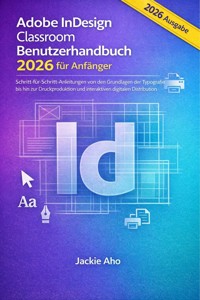
5,99 €
Mehr erfahren.
- Herausgeber: BookRix
- Kategorie: Wissenschaft und neue Technologien
- Sprache: Englisch
Master the Industry Standard for Professional Page Layout and Design
If you've ever struggled with Microsoft Word trying to create a simple brochure, or wondered how professional magazines achieve their polished, sophisticated layouts, this comprehensive guide is your answer.
Adobe InDesign is the tool that design professionals worldwide use to create everything from business cards to 300-page books—and now you can harness that same power, even as a complete beginner.
Your Complete Learning Journey This classroom-tested guide takes you from absolute zero to confident designer through a carefully structured, eight-chapter progression:
Foundation (Chapters 1-3): Begin with the essentials—understanding the InDesign environment, setting up documents correctly, mastering typography fundamentals, and handling text frames and images. No intimidating jargon, just clear explanations of where to click and why it matters.
Professional Techniques (Chapters 4-6): Discover the secrets that separate amateurs from professionals. Learn character, paragraph, and object styles for consistent, efficient design. Master color management with swatches and advanced appearance options. Create sophisticated tables and structured data layouts that make complex information accessible.
Production Ready (Chapters 7-8): Complete the journey by learning essential prepress techniques for professional printing, proper PDF export settings, and interactive digital publishing for web and mobile. Your beautiful designs will translate perfectly from screen to paper—or stay digital with interactive elements.
Why This Guide Works Unlike dense technical manuals, this book is written in conversational, encouraging language that assumes zero prior design knowledge. Every concept is explained with the "why" behind the technique, helping you understand professional thinking rather than just memorizing button clicks. Real-world context, troubleshooting guidance, and industry best practices are woven throughout.
What Makes InDesign Essential
While word processors are perfect for text documents, InDesign is your digital design studio—a sophisticated tool for arranging text, images, colors, and graphics into publication-quality layouts. It's the missing link between your creative vision and professional execution, integrating seamlessly with Photoshop and Illustrator in the Adobe Creative Cloud ecosystem.
Perfect For:
✓ Aspiring graphic designers building foundational skills
✓ Small business owners creating professional marketing materials in-house
✓ Marketing and communications professionals gaining layout independence
✓ Students preparing for design, publishing, or media careers
✓ Anyone ready to move beyond Word's frustrating limitations
✓ Self-publishers creating book interiors and covers
✓ Non-profits stretching budgets by handling their own design Your Investment in Professional Skills Stop paying designers for simple layouts. Stop fighting with inadequate software.
Stop settling for amateur-looking materials. This guide provides the structured, supportive learning path you need to create genuinely professional work—from your very first project. Whether you're designing a wedding invitation, a company newsletter, a product catalog, or a complete magazine, this classroom guide gives you the skills, confidence, and professional know-how to make it happen.
Start your InDesign journey today. Professional layouts await.
Das E-Book können Sie in Legimi-Apps oder einer beliebigen App lesen, die das folgende Format unterstützen:
Veröffentlichungsjahr: 2026
Ähnliche








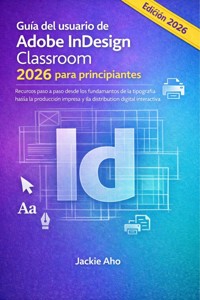
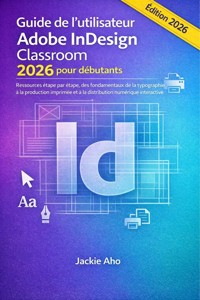





Adobe Indesign Classroom User Guide 2025 for Beginners
Title Page
Copyright
Adobe Indesign Classroom User Guide 2026 for Beginners
Chapter 2
Introduction
Chapter 1: The Environment (Where Am I?): We start here. Before you can drive the car, you need to know where the steering wheel, the gas, and the brakes are. We cover the screen layout, the panels, the basic tools, and how to start a new document with the correct size.
Chapter 2 & 3: The Core Ingredients (Text and Images): The two most important things in any publication are the words and the pictures. These chapters focus entirely on mastering these two elements--how to make text beautiful (Typography) and how to place and control images (Graphics).
Chapter 4, 5, & 6: The Efficiency and Polish (Styles, Color, Tables): Once you can place text and images, these chapters teach you how to work smarter, not harder. Styles (Chapter 4) are the professional secret to consistency. Color (Chapter 5) is where your design comes to life. Tables (Chapter 6) let you organize complex data cleanly.
Chapter 7 & 8: The Finish Line (Exporting and Printing): You've finished your design--now what? These final chapters cover the crucial steps of preparing your file for a professional printer (Prepress) and exporting interactive versions for the web (Digital Publishing). A beautiful design is useless if it can't be printed or shared correctly!
Chapter 1: The InDesign Environment and Document Setup
Chapter 2: Core Typography: Text Frames and Formatting
Chapter 3: Mastering Graphics and Images
Chapter 4: Styles and Efficiency: Character, Paragraph, and Object Styles
Chapter 5: Color, Swatches, and Advanced Appearance
Chapter 6: Tables, Tabs, and Structured Data
Chapter 7: Prepress and Print Production Essentials
Chapter 8: Interactive Documents and Digital Publishing
Appendix
Adobe Indesign Classroom User Guide 2025 for Beginners
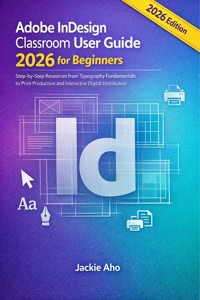
Step-by-Step Resources from Typography Fundamentals to Print Production and Interactive Digital Distribution
Jackie Aho
Copyright Notice
Title: Adobe Indesign Classroom User Guide 2025 for Beginners
All Rights Reserved Copyright © 2025
This publication is protected by copyright, and all rights are reserved.
Adobe Indesign Classroom User Guide 2026 for Beginners
Chapter 2
Step-by-Step Resources from Typography Fundamentals to Print Production and Interactive Digital Distribution.
Jackie Aho
🔒 Copyright Notice
Title: [Adobe Indesign Classroom User Guide 2026 for Beginners]
All Rights Reserved
Copyright © 2026
This publication is protected by copyright, and all rights are reserved. No part of this guidebook, including but not limited to the design, text, exercises, illustrations, and photographic images, may be reproduced, distributed, or transmitted in any form or by any means, electronic or mechanical, including photocopying, recording, or by any information storage and retrieval system, without the prior written permission of the copyright holder, except in the case of brief quotations embodied in critical reviews and certain other non-commercial uses permitted by copyright law.
Licensing and Trademarks
Software Trademarks: Adobe InDesign, Adobe Photoshop, Adobe Illustrator, Adobe Creative Cloud, and all associated product names and logos are registered trademarks of Adobe Systems Incorporated in the United States and/or other countries. This guide is an independent publication and is not sponsored by, endorsed by, or affiliated with Adobe Systems Incorporated.
Purpose: This guide is intended for educational purposes only. While every effort has been made to ensure the accuracy of the information provided, the author and publisher shall not be held liable for any loss or damage caused or alleged to be caused directly or indirectly by this book.
Introduction
If you are holding this book--whether physically in your hands, enjoying the scent of fresh paper, or viewing it on a crisp digital screen--you've already taken the most important step: the decision to create. You have a story to tell, a business to brand, a club newsletter to refine, or perhaps a family cookbook that deserves a stunning, professional look. Whatever your inspiration, know this: Adobe InDesign is the powerful, elegant tool that will transform your raw ideas, text, and photos into beautifully structured, professional-quality publications.
We understand that taking on new software, especially one with a reputation for professional use, can feel a bit daunting. You might be looking at the screenshots of complex menus and thinking, "Can I really learn this?" The answer is a resounding yes. This book, Adobe InDesign Classroom User Guide 2025 for Beginners, was written specifically with you in mind--the enthusiastic, creative, and discerning senior learner. We recognize that you bring a lifetime of experience, wisdom, and an appreciation for quality and precision. Unlike younger learners who grew up clicking on apps, you might prefer a methodical, clear, and context-rich approach. We've designed every page, every explanation, and every step to be exactly that: patient, contextual, and deeply rewarding. We won't rush you. We won't use baffling jargon. We will explain why you are doing something, not just how.
This guidebook is your patient co-pilot. We will navigate the vast landscape of digital layout together, beginning with the absolute basics--where to click, how to open a file--and building your skills methodically, brick by beautiful brick, until you can confidently produce layouts that rival those made by seasoned professionals. Imagine creating that perfect, custom photo album, designing a charity event invitation that truly pops, or finally formatting your memoirs exactly as you envisioned. InDesign is the key to unlocking that creative control. Prepare to replace any apprehension with the satisfaction of making something truly beautiful and enduring. Let's open the door to design together!
Part I: Why InDesign? The Context and the Canvas
What is InDesign, and Why Do I Need It?
Before we dive into pixels and panels, let's establish the "why." You may already be comfortable with programs like Microsoft Word or Google Docs. They are excellent for writing letters, reports, or drafting simple documents. But what happens when you need to control the exact spacing between two lines of text, ensure a photo perfectly wraps around a paragraph in a magazine style, or prepare a 300-page book for a professional printer? Suddenly, Word feels like trying to build a skyscraper with a set of toy blocks. It's not built for the precision and complexity required in professional publishing.
Adobe InDesign is the industry standard for page layout and design. Think of it not just as a writing program, but as a sophisticated digital drafting table or design studio. Its sole purpose is to arrange text, graphics, and other elements into aesthetically pleasing and functionally sound publications. Whether the final output is a glossy magazine, an intricate annual report, a vibrant brochure, or a clean, readable e-book, InDesign is the tool that makes it happen. It allows for frame-based design, meaning you place containers (frames) for everything--text, images, and color--and then precisely manipulate those containers on the page. This frame-by-frame control is the fundamental difference that elevates InDesign above simpler word processors, giving you true mastery over your final product. This level of control is what ensures your newsletter isn't just readable, but truly designed .
The Three Pillars of Creative Cloud: A Foundational Explanation
InDesign is not an island; it's part of a powerful ecosystem called the Adobe Creative Cloud. Understanding its relationship with its "siblings" is crucial, as they work together seamlessly. For a beginner, the three most important siblings are:
Adobe Photoshop (Image Editing): This is where you would edit photographs. Need to fix a red eye, adjust lighting, or crop a family photo? You do that in Photoshop. InDesign's job is to display that image beautifully, not to change it.
Adobe Illustrator (Vector Graphics): This is where you would create logos, complex line art, custom icons, or any design that needs to be infinitely scalable without losing quality. Illustrator creates vector graphics (math-based shapes), which InDesign then imports.
Adobe InDesign (Page Layout): This is where you assemble everything. You take the text you wrote, the photos you edited in Photoshop, and the logo you designed in Illustrator, and you arrange them all on the final page, setting the typography, grid, and flow.
Think of it like building a custom home: Photoshop is the carpenter prepping the wood, Illustrator is the architect drafting the blueprints, and InDesign is the project manager arranging all those high-quality materials into the final, stunning structure. This integrated workflow is why professionals use InDesign: it ensures efficiency, quality, and consistency across all elements of a publication. We will focus 100% on InDesign, but understanding where your text and images come from will make your learning journey much clearer.
A Mindset Shift: From Typing to Layout
For decades, many of us have used the computer primarily as a typewriter. You open the program, start at the top left, and type down the page. InDesign demands a slight, but important, mindset shift. You are no longer just typing; you are designing.
You don't type directly onto the page. You first draw a Text Frame (a box) and then type or paste your content into that frame. This frame can be moved, resized, and rotated, just like a picture frame.
Images are linked, not embedded. When you place a high-resolution photo, InDesign doesn't typically stuff the huge file into your document (which would make it massive and slow). Instead, it creates a link to the original file on your computer. This means you must always keep your original files organized and in one place. We'll cover this crucial concept of file management in detail, as it's the number one cause of frustration for new users.
The Grid is Your Friend. Professional design is built on invisible structures called grids and guides. They are the scaffolding that ensures everything aligns perfectly--from the margins of the page to the baseline of your text columns. InDesign is built to help you respect these structures, leading to a result that feels harmonious and professional, even if the reader can't consciously articulate why.
This guide will consistently remind you of this design-first mindset, translating complex professional concepts into simple, actionable steps.
Part II: Preparing for the Journey: Your Learning Path
The Senior Advantage: Patience and Precision
Let's talk about the unique advantage you bring to this learning process. Mastering software like InDesign requires patience, attention to detail, and a methodical approach--qualities that many seniors possess in abundance. Unlike rushing younger learners who might click ahead without reading instructions, your inherent appreciation for detail is a huge asset here.
Pacing is Key: This guide is designed to be read slowly, in order. We strongly encourage you to spend time simply exploring the tool after reading a section. Click on things. See what happens. Don't worry about breaking anything; that's what the Undo command (Edit > Undo, or the shortcut Ctrl+Z on Windows / Command+Z on Mac) is for!
Muscle Memory and Shortcuts: As you progress, you will notice us highlighting Keyboard Shortcuts (like T for the Type tool, or V for the Selection tool). For a beginner, learning every shortcut isn't necessary, but focusing on the one or two shortcuts you use constantly will dramatically speed up your workflow and help build that crucial muscle memory. We will introduce them gently, encouraging you to integrate them only when you feel ready.
The Power of Repetition: Design is a craft built on repetition. You won't master Character Styles after reading the section once. You will master them after creating, applying, deleting, and re-creating them a dozen times. Our exercises and examples are structured to encourage this necessary repetition.
How This Guide is Structured (A Road Map)
This book is laid out logically, mirroring the steps you would take to create a real-world document. This structure ensures you are never working on a complex topic without the necessary foundational knowledge.
Chapter 1: The Environment (Where Am I?): We start here. Before you can drive the car, you need to know where the steering wheel, the gas, and the brakes are. We cover the screen layout, the panels, the basic tools, and how to start a new document with the correct size.
Chapter 2 & 3: The Core Ingredients (Text and Images): The two most important things in any publication are the words and the pictures. These chapters focus entirely on mastering these two elements--how to make text beautiful (Typography) and how to place and control images (Graphics).
Chapter 4, 5, & 6: The Efficiency and Polish (Styles, Color, Tables): Once you can place text and images, these chapters teach you how to work smarter, not harder. Styles (Chapter 4) are the professional secret to consistency. Color (Chapter 5) is where your design comes to life. Tables (Chapter 6) let you organize complex data cleanly.
Chapter 7 & 8: The Finish Line (Exporting and Printing): You've finished your design--now what? These final chapters cover the crucial steps of preparing your file for a professional printer (Prepress) and exporting interactive versions for the web (Digital Publishing). A beautiful design is useless if it can't be printed or shared correctly!
We strongly suggest following the chapters in this sequence. Each section builds upon the previous one.
Essential Prerequisite: Computer Confidence
While this book assumes no prior knowledge of InDesign, it does assume a basic level of computer familiarity. If these terms are confusing, we recommend a quick brush-up on foundational computer skills before diving into the software:
File Management: Understanding folders, subfolders, and the difference between saving a file (.indd) and exporting a file (.pdf). Organization is non-negotiable in InDesign. You must know where your source images and text files are located.
Basic Operating System Skills: Knowing how to copy, paste, click-and-drag, right-click (Contextual Menu), and use basic dialog boxes on your Windows PC or Mac.
Internet Access: You will need a reliable internet connection for the initial installation of the Adobe Creative Cloud software and for accessing the latest tutorials and updates (though the core program is used offline).
If you are already comfortable with these fundamentals, you are more than ready to begin!
Part III: Defining the Design Toolkit (The Foundation)
Precision vs. Flexibility: Understanding InDesign's Core Philosophy
One of the greatest challenges for new InDesign users is navigating the sheer volume of options. Why are there three ways to move an object? Why so many text settings? The answer lies in InDesign's core philosophy: Precision and Flexibility.
Precision: Everything in InDesign is measured in tiny, precise units (usually points or millimeters). When you move a text frame, you are moving it to an exact coordinate on the page. When you adjust the space between lines (Leading), you are setting an exact point value. This precision is what separates amateur work from professional, and it is a concept we will reinforce constantly. Forget the vagueness of dragging elements in PowerPoint; here, we work with rulers and coordinates .
Flexibility: While Word is a single, continuous stream of text, InDesign is a collage of independent objects. This flexibility means you can have one column of text starting on page 3 and continuing on page 15, while a completely separate text block exists only on page 8, and a photo bleeds off the edge of page 9--all within the same master file. You have the ultimate freedom to arrange, layer, and manipulate every single element independently.
The Role of Layers: Organizing Complexity
When you draw or place objects in InDesign, they exist on Layers. Think of layers like transparent sheets stacked on top of each other. An object on a higher layer will obscure an object on a lower layer. This is vital for complex designs. You might use one layer for background images, one for text, and one for annotations or graphics.
Organization: Layers keep your document tidy. If you want to change the color of all the background shapes, you can simply lock the text and image layers, ensuring you only select the shapes on the background layer.
Control: Layers are often used to manage different language versions or different final outputs from a single file. You can have one layer named "English Text" and another named "French Text," and simply hide or show the appropriate layer before exporting.




