


4,99 €
Mehr erfahren.
- Herausgeber: BookRix
- Kategorie: Fachliteratur
- Sprache: Englisch
QuickBooks Online for Beginners is the clear, confidence-building guide every small business owner, freelancer, and entrepreneur needs to finally take control of their finances—without confusion, jargon, or accounting overwhelm .
If QuickBooks Online has ever felt intimidating, cluttered, or “not made for regular people,” this book changes everything.
Instead of throwing you into technical terminology or assuming prior bookkeeping knowledge, this guide walks you step by step from absolute beginner to confident, capable user. It doesn’t just show you where to click—it explains why each step matters, so you understand your business finances, not just record them.
Inside, you’ll learn how to:
- Set up QuickBooks Online correctly from day one—choosing the right plan, configuring settings, and avoiding costly setup mistakes
- Build and manage a clean, accurate Chart of Accounts that makes reports easy to read and tax-ready
- Record income, expenses, invoices, sales receipts, refunds, and discounts with real-world clarity
- Connect bank and credit card accounts, reconcile transactions, and fix common bank feed errors
- Track payroll, employees, liabilities, and deductions with confidence
- Read and customize essential financial reports like Profit & Loss, Balance Sheet, cash flow, and KPIs
- Use automation, rules, classes, locations, and tags to save time and gain deeper business insights
- Secure, back up, and protect your financial data properly
- Troubleshoot common QuickBooks issues and integrate third-party tools as your business grows
By the time you finish this guide, you won’t just use QuickBooks Online—you’ll understand it. You’ll know where your money is going, what your numbers mean, and how to make smarter decisions with confidence instead of guesswork.
Whether you’re moving away from spreadsheets, starting your first business, or finally ready to get organized and tax-ready year-round, this book gives you the clarity, structure, and confidence you’ve been missing.
Buy a copy now.
Das E-Book können Sie in Legimi-Apps oder einer beliebigen App lesen, die das folgende Format unterstützen:
Veröffentlichungsjahr: 2026
Ähnliche












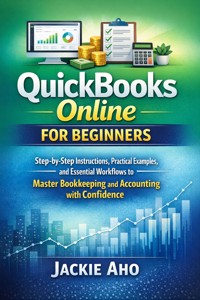
QuickBooks Online for Beginners
Step-by-Step Instructions, Practical Examples, and Essential Workflows to Master Bookkeeping and Accounting with Confidence
Jackie Aho
Copyrights Notice
© 2026 All Rights Reserved.No part of this publication may be reproduced, stored in a retrieval system, or transmitted in any form or by any means—electronic, mechanical, photocopying, recording, scanning, or otherwise—without prior written permission from the publisher, except in the case of brief quotations embodied in critical articles or reviews.
Disclaimer
This book is an independent educational guide and is not affiliated with, sponsored by, or endorsed by Intuit Inc., the maker of QuickBooks.All product names, trademarks, and registered trademarks are the property of their respective owners. The information provided in this guide is based on publicly available documentation and practical user experience as of the time of writing.
While every effort has been made to ensure accuracy, the author and publisher assume no responsibility for errors, omissions, or outcomes resulting from the use of this information. Users are advised to verify settings and procedures against the most current version of QuickBooks Online and applicable accounting regulations.
Table of Contents
Introduction
Getting Started with QuickBooks Online
Introduction to QuickBooks Online
Choosing the Right QuickBooks Plan
Creating and Setting Up Your QuickBooks Account
Navigating the Dashboard and Main Menus
Customizing Company Settings and Preferences
Managing Company Data and Chart of Accounts
Understanding the Chart of Accounts
Adding, Editing, and Deleting Accounts
Managing Opening Balances and Account History
Creating Classes, Locations, and Tags
Backing Up and Securing Your Company Data
Recording Income and Sales
Setting Up Customers and Products/Services
Creating and Sending Invoices
Recording Sales Receipts and Payments
Managing Credit Memos, Refunds, and Discounts
Tracking Sales Tax and Reporting Revenue
Managing Expenses and Bills
Setting Up Vendors and Expense Categories
Recording Bills and Vendor Credits
Entering and Matching Expenses
Scheduling and Paying Bills
Analyzing Expense Reports and Cash Flow
Banking, Reconciliation, and Automation
Connecting Your Bank and Credit Card Accounts
Downloading and Categorizing Bank Transactions
Manual vs. Automatic Bank Reconciliation
Fixing Bank Feed Errors and Duplicates
Automating Recurring Transactions and Bank Rules
Payroll and Employee Management
Understanding QuickBooks Payroll Options
Setting Up Employee Profiles and Pay Schedules
Running Payroll and Direct Deposit
Handling Payroll Liabilities and Deductions
Filing Payroll Taxes and Generating Forms
Financial Reports and Business Insights
Understanding Financial Statements in QBO
Customizing and Filtering Reports
Budgeting and Forecasting in QuickBooks
Tracking Key Performance Indicators (KPIs)
Exporting and Sharing Reports Professionally
Troubleshooting, Integrations, and Next Steps
Common QuickBooks Online Issues and Fixes
Integrating Third-Party Apps and Extensions
Data Migration and Import/Export Tools
Using QuickBooks Mobile App Effectively
Next Steps: Becoming a Confident QuickBooks User
APPENDICES
Appendix A — Quick Reference Chart
Appendix B — Glossary of QuickBooks and Accounting Terms
APPENDIX C — Troubleshooting & Shortcuts FAQ
APPENDIX D — Recommended Resources and Learning Paths
APPENDIX E — Keyboard Shortcuts and Productivity Tips
Introduction
If you’re holding this book in your hands, chances are you’ve reached a pivotal point in your business journey. Maybe you’ve launched your first small business and suddenly realized that running it means more than great ideas—it means managing cash flow, tracking expenses, paying employees, and keeping the IRS happy. Or maybe you’ve been in business for a while and are finally ready to replace spreadsheets, notebooks, or a shoebox of receipts with a smarter, more reliable system.No matter where you are on that path, you’ve made an incredibly smart decision: learning to master QuickBooks Online.
QuickBooks Online—commonly called “QBO”—is more than just accounting software. It’s a living, breathing ecosystem built to help small business owners take control of their money, understand where every dollar goes, and make confident financial decisions without needing a degree in accounting. It’s an empowering tool that transforms financial chaos into clarity, and by the time you finish this guide, you’ll not only know how to use it, but you’ll understand why every feature matters.
But let’s be honest—learning accounting software can be intimidating. The first time you open QuickBooks, you’re met with dashboards, tabs, charts, and terminology like “reconciliation,” “debits,” and “Chart of Accounts.” It’s easy to feel overwhelmed, especially when all you really want to know is: How do I keep my business organized and stay out of tax trouble? The good news is that QuickBooks Online was built for everyday people like you—entrepreneurs, freelancers, shop owners, and service providers who need a practical way to track the financial heartbeat of their business.
This book was written with one clear goal: to help you move from confusion to confidence. It’s not a dry manual filled with jargon; it’s a hands-on roadmap designed for real-world use. Every page has been crafted to explain things in plain English, to show you why each feature exists, and to guide you step-by-step through setup, transactions, payroll, and reporting. You’ll learn by doing—building a foundation of skills that can serve you for years to come.
The Heart of Small Business: Why Financial Control Matters
Every successful business—no matter how creative or passionate its mission—runs on numbers. Profit and loss. Cash in and cash out. Assets and liabilities. These terms might sound abstract, but they represent the living pulse of your enterprise. The better you understand them, the more control you have over your destiny.
Many small business owners start out focused on their craft or service—baking, design, consulting, landscaping, or tech repairs—and only later realize that poor bookkeeping can make or break a company. Late tax filings, missed payments, and inaccurate records can drain resources faster than any competitor ever could. QuickBooks Online was created to eliminate that risk by giving small business owners access to enterprise-level financial tools—without needing an accountant’s degree or a stack of textbooks.
In the U.S., where tax rules, deductions, and financial compliance can get complicated quickly, this matters even more. The IRS expects clear, consistent records, and lenders or investors look for reliable financial statements before making funding decisions. QuickBooks Online helps you meet all those demands by automating the hardest parts—calculations, categorization, and reconciliation—so you can focus on running and growing your business.
But it’s not just about compliance or taxes. Financial literacy—the ability to read, understand, and act on your business’s numbers—is freedom. When you know exactly where your money goes, you make smarter decisions about pricing, marketing, hiring, and investment. That’s what QuickBooks offers: visibility. It turns accounting from a headache into a roadmap for growth.
Why QuickBooks Online Is the Right Choice
There’s a reason QuickBooks has become the dominant financial software for small businesses in the U.S. It’s intuitive, cloud-based, and tailored to entrepreneurs who want professional-grade tools without complexity. Here are just a few ways it transforms your workflow:
Access Anywhere:
Because QuickBooks Online is cloud-based, you can log in from your laptop, tablet, or phone—whether you’re at your desk or on the go.
Automatic Bank Connections:
It securely connects to your bank and credit card accounts, downloading transactions daily and reducing manual data entry.
Built-In Compliance:
It handles U.S. tax rates, payroll deductions, and accounting standards automatically.
Scalability:
Whether you’re a one-person shop or have a growing team, you can upgrade seamlessly from Simple Start to Advanced.
Collaboration:
Your accountant or bookkeeper can log in securely to help you—no file transfers or version mismatches.
For many entrepreneurs, the first moment of relief comes when QuickBooks automatically matches a bank deposit to a recorded invoice or categorizes an expense correctly. Suddenly, bookkeeping stops feeling like a burden and starts feeling like a living dashboard—a tool that tells you exactly how healthy your business is today.
QuickBooks Online isn’t just software—it’s a partner in your business journey. It gives you visibility into your profit, lets you anticipate cash flow problems before they happen, and equips you to make decisions confidently, supported by data rather than guesswork.
What This Book Will Teach You
Think of this guide as your personal trainer for financial fitness. We’ll start with the absolute basics—getting your QuickBooks account set up, navigating the dashboard, and customizing it for your business. Then, chapter by chapter, you’ll gain hands-on skills that turn you into a capable bookkeeper for your own enterprise.
Here’s what’s ahead:
Chapter 1:
Getting Started with QuickBooks Online
You’ll learn how to choose the right plan, set up your company profile, and understand the core layout of the dashboard.
Chapter 2:
Managing Company Data and Chart of Accounts
This is the backbone of all bookkeeping. You’ll learn how to organize your accounts so every dollar you earn or spend has a proper home.
Chapter 3:
Recording Income and Sales
Learn how to create invoices, record payments, and track customer transactions efficiently.
Chapter 4:
Managing Expenses and Bills
From categorizing receipts to scheduling payments, this chapter helps you stay in control of your outgoing money.
Chapter 5:
Banking, Reconciliation, and Automation
Discover how to connect your bank feeds, reconcile statements, and use automation to eliminate manual work.
Chapter 6:
Payroll and Employee Management
Learn to set up employees, run payroll, and handle taxes—all from within QuickBooks.
Chapter 7:
Financial Reports and Business Insights
Master the art of interpreting Profit & Loss and Balance Sheets to make smarter business decisions.
Chapter 8:
Troubleshooting, Integrations, and Next Steps
Wrap up with best practices, app integrations, and advanced features to take your bookkeeping to the next level.
Each chapter is designed to build upon the last, transforming your understanding step by step. By the end, you’ll not only know how to use QuickBooks—you’ll think like a business owner who understands financial flow.
From Overwhelm to Empowerment
If you’ve ever tried to keep track of your income and expenses manually, you know how quickly things get out of hand. One missed entry, one lost receipt, one late reconciliation—and suddenly you’re scrambling during tax season. Many small business owners describe this as one of the most stressful parts of entrepreneurship.
But here’s the encouraging truth: bookkeeping doesn’t have to be complicated. It’s just about consistency and structure—and QuickBooks Online provides both.
When you first log in, the dashboard may seem busy. But as you’ll soon discover, every button, tab, and chart has a purpose. Once you learn how to navigate it confidently, you’ll find yourself using QuickBooks as naturally as checking your email. You’ll see your income trends, expense breakdowns, and profit summaries with just a few clicks. The sense of control that comes from that is powerful—it gives you peace of mind that your business is healthy and compliant.
In this book, I’ll show you how to use QuickBooks not just as a recordkeeping tool but as a decision-making ally. You’ll learn to answer critical questions:
How much profit did I actually make this month?
Which clients or products bring the most revenue?
Where can I cut expenses without hurting growth?
How can I prepare now for taxes later?
By the end of this guide, you’ll have a clear system—a routine that keeps your books organized, your accountant impressed, and your stress levels down.
The Real-World Benefits of Mastering QuickBooks Online
Let’s talk about what this mastery looks like in practice.
1. Saving Time
What used to take hours every week—entering transactions, totaling receipts, calculating balances—becomes a matter of minutes. QuickBooks automates repetitive tasks and keeps everything organized automatically.
2. Reducing Mistakes
Manual bookkeeping is prone to human error. QuickBooks minimizes that by validating entries, detecting duplicates, and automatically updating account totals.
3. Tax Readiness
When tax season arrives, you’ll have everything neatly categorized. Reports can be exported to your accountant or integrated directly with TurboTax. No more scrambling for missing documents.
4. Business Growth Insights
Once you have consistent data, you can see what’s working and what’s not. You can budget intelligently, project future income, and identify trends that might otherwise stay hidden.
5. Professional Credibility
Accurate financials inspire confidence. Whether you’re applying for a business loan or presenting to investors, QuickBooks helps you showcase transparency and professionalism.
Why This Book Is Different
There are plenty of QuickBooks manuals out there—but most read like software documentation, written by accountants for accountants. This book takes a different approach. It’s written for real small business owners—people who juggle customers, invoices, and day-to-day operations and need practical guidance without the fluff.
You’ll find:
Real-life examples from small businesses.
Step-by-step walkthroughs illustrated with screen descriptions.
Plain-English explanations of accounting concepts.
Pro tips that come from actual users’ experiences.
Warnings about common mistakes and how to avoid them.
Think of this guide as your co-pilot. Every step is explained, every feature is contextualized, and every concept connects back to your daily business reality.
The Journey Ahead
Learning QuickBooks Online isn’t about memorizing buttons—it’s about understanding the story your numbers tell. Once you know how to read that story, you’ll see patterns you never noticed before: which months are most profitable, which clients are slow to pay, and how much cash flow you truly have at any given moment.
That knowledge is empowering. It allows you to make informed decisions—to hire when ready, to price strategically, to identify waste, and to grow sustainably.
You don’t have to be a financial expert to do this. You just need curiosity, patience, and this guide. Together, we’ll demystify bookkeeping and give you the confidence to take control of your financial destiny.
So, take a deep breath, log in to QuickBooks Online, and get ready to discover what’s possible when your numbers finally make sense.
Getting Started with QuickBooks Online
Every thriving small business eventually reaches a point where guesswork is no longer enough. Receipts pile up, invoices blur together, and the once-simple question—“How much did I really make this month?”—becomes harder to answer. QuickBooks Online was designed to solve exactly that problem. It brings order to chaos, giving entrepreneurs clear visibility into the financial heartbeat of their companies.
This opening chapter lays the foundation for everything you’ll do later in the book. You’ll first learn what QuickBooks Online (QBO) actually is, how it fits into your daily operations, and why it has become the go-to accounting system for millions of U.S. small businesses. Then you’ll learn how to choose the right plan—because QuickBooks is not one-size-fits-all. The right subscription can make the difference between frustration and flawless bookkeeping.
Introduction to QuickBooks Online
Imagine having a financial assistant who never sleeps, never miscalculates, and keeps every penny organized in real time. That’s QuickBooks Online in essence—a cloud-based accounting platform developed by Intuit to help individuals and small businesses record, analyze, and manage their money with ease.
What QuickBooks Online Is
QuickBooks Online (QBO) is the web-based version of Intuit’s long-running accounting software, QuickBooks Desktop. Instead of being installed on a single computer, QBO lives securely in the cloud. You access it through any modern web browser or the QuickBooks mobile app, logging in with your Intuit ID. Your data is stored on Intuit’s encrypted servers, automatically backed up, and synced across all devices.
That simple shift—from local software to the cloud—changes everything. It means:
No installation or maintenance
. You always have the latest version.
Any-device access.
Whether on a PC, Mac, tablet, or phone, your books travel with you.
Real-time collaboration.
Your accountant, bookkeeper, or business partner can log in simultaneously and see what you see.
Automatic updates.
New IRS-compliant tax rules, payroll tables, and bank-feed enhancements arrive seamlessly in the background.
Think of QuickBooks Online as both a digital filing cabinet and a real-time control panel for your business. It records every transaction, organizes it into meaningful categories, and transforms those numbers into financial statements you can actually understand.
How QuickBooks Online Works
At its core, QBO follows the logic of double-entry accounting, the same system professional accountants have used for centuries. Every transaction affects at least two accounts—for example, paying a vendor decreases cash while increasing an expense. But don’t worry: QuickBooks handles that math automatically. All you see are friendly fields—“Vendor,” “Amount,” “Payment Method”—and QBO handles the rest behind the scenes.
When you connect your bank and credit-card accounts, QuickBooks automatically downloads each transaction every day. You review and categorize them into income, expense, or transfer. Over time, the software learns your habits and suggests categories automatically.
Meanwhile, the Dashboard gives you a bird’s-eye view:
Invoices Outstanding:
What customers owe you.
Expenses This Month:
Where your money went.
Profit & Loss:
Your overall financial health.
Bank Balances:
Reconciled in near real time.
This living dashboard updates continuously, letting you spot cash-flow issues before they become crises.
Why QuickBooks Online Matters for Small Businesses
For a small-business owner, cash flow is king. You can have full order books and loyal customers but still run into trouble if payments are late or expenses spiral out of control. QuickBooks Online prevents those blind spots by turning your daily transactions into actionable insights.
Here’s how it directly benefits U.S. entrepreneurs:
Saves Time on Bookkeeping
QBO automates tedious tasks like transaction entry, reconciliations, and recurring invoices. What used to take hours on spreadsheets now happens automatically.
Improves Accuracy
By pulling data directly from bank feeds and payment processors, it reduces the human error that often plagues manual bookkeeping.
Keeps You Tax-Ready Year-Round
Every categorized expense builds your deduction list for April 15. With integrations to TurboTax Online and certified ProAdvisors, filing becomes far simpler.
Supports Decision-Making
Reports such as
Profit and Loss
or
Cash Flow by Month
help you see patterns, plan budgets, and set revenue targets.
Professional Presentation
Customizable invoices, payment portals, and financial statements give your business a polished, credible image when dealing with clients, investors, or banks.
Compliance and Security
Intuit uses bank-level encryption (256-bit SSL) and multi-factor authentication to protect your financial data—critical for U.S. privacy and tax compliance laws.
The QuickBooks Online Interface at a Glance
When you first log in, the left-hand Navigation Bar is your command center. The main sections include:
Dashboard:
Summary of cash flow, invoices, expenses, and profits.
Banking:
Where connected accounts appear and transactions are reviewed.
Sales:
For invoices, estimates, and customer payments.
Expenses:
For vendor bills, purchase orders, and receipts.
Payroll:
Employee setup, pay runs, and tax filings (for payroll plans).
Reports:
All financial statements live here.
Taxes:
Sales-tax configuration and filing tools.
Accounting:
The Chart of Accounts—the foundation of your bookkeeping.
Across the top, you’ll see a Search bar, a “+ New” button for creating transactions, and an alert bell for reminders or updates. Every screen is cleanly organized so you can move intuitively between tasks.
How QuickBooks Online Fits into Daily Operations
Let’s say you own a small landscaping company in Ohio. Here’s a glimpse of how QBO supports you from morning to night:
Morning:
You send an invoice to a client for last week’s lawn maintenance using the QuickBooks mobile app.
Afternoon:
The client pays online through QuickBooks Payments; the deposit appears automatically in your linked checking account.
Evening:
You review bank transactions, approve your assistant’s payroll run, and check the Profit & Loss chart to see if this week met your revenue goal.
No more duplicate data entry, no manual calculations—everything updates automatically. At tax time, your accountant simply logs in, reviews your books, and exports what’s needed for filing.
That seamless workflow explains why QuickBooks Online has become the standard for small-business accounting across the United States.
Common Myths About QuickBooks Online
Because QBO is so widely used, misinformation circulates. Let’s clear up a few misconceptions:
Myth 1: It’s only for accountants.
False. QuickBooks Online was designed precisely for non-accountants. Its guided setup, tooltips, and built-in help make it beginner-friendly.
Myth 2: You must know bookkeeping rules first.
You’ll learn as you go. The software automates debits and credits; you only need to understand categories conceptually.
Myth 3: It’s too expensive.
Most small businesses spend less on QuickBooks per month than on one late-fee penalty from a missed bill. The productivity payoff far outweighs the cost.
Building the Habit of Daily Use
The key to success with QuickBooks isn’t technical skill—it’s consistency. Logging in regularly, even for five minutes a day, keeps your books current and your decisions informed. Waiting until tax season to “catch up” creates panic and inaccuracies. Treat QuickBooks as your morning coffee companion: open it, glance at yesterday’s numbers, approve transactions, and move on confidently.
Choosing the Right QuickBooks Plan
Before diving deeper, you’ll need to choose which version of QuickBooks Online fits your business. Intuit offers several subscription tiers, each tailored to a different level of complexity and team size. Picking the right one at the start saves frustration later.
Let’s look at each plan—Simple Start, Essentials, Plus, and Advanced—and what kind of user they suit.
1. Simple Start
Best For: Sole proprietors, freelancers, and one-person operations.
Core Features:
Track income and expenses
Create and send invoices and estimates
Accept online payments (credit cards, ACH)
Capture and organize receipts via mobile app
Basic reports such as Profit & Loss and Balance Sheet
Manage sales tax
Limitations:
Only one user (plus your accountant)
No bill-pay or time-tracking tools
No project or class tracking
Limited customization for reports and invoices
Example Use Case:A freelance graphic designer who bills clients monthly, tracks deductible expenses, and needs a clean Profit & Loss statement for taxes. Simple Start is perfect—affordable, straightforward, and easy to master.
2. Essentials
Best For: Small service businesses with a few employees or contractors who need to manage bills and track time.
Adds These Features Beyond Simple Start:
Multiple users (up to three)
Manage and pay bills directly from QBO
Track billable hours and integrate with payroll
Create recurring transactions for subscriptions or retainers
More detailed reporting and user-permission controls
Example Use Case:A small plumbing company with two technicians and an office manager. They receive bills from suppliers, track time on each job, and need to pay vendors through QuickBooks. Essentials gives them exactly those capabilities without unnecessary extras.
3. Plus
Best For: Growing businesses that manage inventory, projects, or multiple locations.
Adds These Features:
Inventory tracking with automatic quantity updates
Project profitability tracking
Class and location tracking for segmented reporting
Budgets and budget-vs-actual reports
Five user accounts (plus accountant access)
Example Use Case:A boutique retailer managing stock across two stores. Plus tracks product quantities, cost of goods sold, and gross margins automatically. The owner can see which location or product line generates the most profit.
For many small businesses in the U.S., Plus strikes the ideal balance between power and price—it supports growth without the enterprise-level cost.
4. Advanced
Best For: Established companies with large teams, complex reporting, or in-house accounting staff.
Adds Enterprise-Grade Tools:
Up to 25 users with custom roles and permissions
Customizable dashboards and advanced analytics powered by Fathom Reports
Batch invoicing and expense entry
Dedicated account manager and priority customer support
Data restoration and backup automation
Integrations with third-party CRM and ERP tools
Example Use Case:A 40-employee marketing agency with multiple departments, client retainers, and intricate expense allocations. The CFO can build consolidated reports and grant restricted access levels to team leads.
Feature Comparison at a Glance
Feature
Simple Start
Essentials
Plus
Advanced
Income & Expense Tracking
✅
✅
✅
✅
Invoicing & Payments
✅
✅
✅
✅
Bill Management
❌
✅
✅
✅
Time Tracking
❌
✅
✅
✅
Inventory
❌
❌
✅
✅
Project Tracking
❌
❌
✅
✅
Budgets
❌
❌
✅
✅
Custom Reports & Analytics
Basic
Standard
Advanced
Premium
User Seats
1
3
5
25
Support Level
Standard
Standard
Priority
Premium with Manager
(Feature availability subject to Intuit updates.)
How to Choose Wisely
When deciding which plan to subscribe to, consider these practical questions:
How many people will access QuickBooks?
If it’s just you and your accountant,
Simple Start
may suffice. Add office staff or partners, and you’ll quickly outgrow it.
Do you manage inventory or physical stock?
That single factor pushes you straight to
Plus
or
Advanced
.
Do you need job or project costing?
Service-based businesses—consultants, contractors, agencies—should choose
Plus
for accurate project profitability tracking.
Is bill management part of your workflow?
If you regularly receive invoices from suppliers,
Essentials
or higher is a must.
Budget constraints:
Always weigh monthly cost against time saved. Even upgrading one tier often pays for itself in hours recaptured.
Trial and Upgrade Flexibility
Intuit offers a 30-day free trial on all QBO plans. Start small; explore. If you discover you need inventory tracking or more users, upgrading is seamless. Conversely, downgrading is possible too—though you may lose access to higher-tier features like projects or classes.
Pro Tip: before upgrading, export a backup copy of key reports (Chart of Accounts, Balance Sheet, P&L). That way, you retain snapshots of historical data should you revert later.
Add-Ons and Integrations
Beyond core plans, you can bolt on specialized services:
QuickBooks Payroll:
Full-service payroll that calculates taxes, files forms, and handles direct deposit.
QuickBooks Payments:
Lets customers pay invoices online by credit card or ACH transfer.
QuickBooks Time (formerly TSheets):
Advanced time tracking with GPS.
QuickBooks Capital:
Access to business loans based on your financial data.
Third-Party Apps:
Shopify, PayPal, Square, HubSpot, and hundreds more via the QuickBooks App Store.
These integrations transform QBO from simple ledger software into a complete business-management ecosystem.
Cost Perspective
As of 2025, standard U.S. pricing (subject to promotions) is roughly:
Simple Start ≈ $30/month
Essentials ≈ $60/month
Plus ≈ $90/month
Advanced ≈ $200/month
When comparing, factor in your potential time savings. If QuickBooks saves you three hours per week and your time is worth even $25 per hour, that’s $300 in monthly value—more than covering the subscription.
When to Consult an Accountant
Even though this book equips you to manage most bookkeeping tasks yourself, a licensed CPA or ProAdvisor can be invaluable when:
Setting up your Chart of Accounts the first time
Migrating data from Excel or another platform
Preparing year-end financial statements
Handling payroll tax or multi-state sales tax complexities
The beauty of QBO is that your accountant can log in securely without emailing files back and forth. Collaboration is instant, and they can adjust journal entries or reconcile accounts while you focus on operations.
Future-Proofing Your Choice
Your needs will evolve. The plan you start with today may not fit tomorrow’s business. QuickBooks Online’s scalability means you can grow without switching systems—a major advantage over cheaper but inflexible software. Think of QBO as infrastructure: once built, it expands as your company expands.
Key Takeaways
QuickBooks Online is a
cloud-based accounting hub
designed for small U.S. businesses.




