


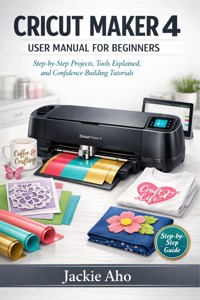
4,99 €
Mehr erfahren.
- Herausgeber: BookRix
- Kategorie: Lebensstil
- Sprache: Englisch
Unlock the Full Potential of Your Cricut Maker 4 – Even If You've Never Used a Cutting Machine Before
Are you staring at your brand-new Cricut Maker 4, excited but overwhelmed? This comprehensive user manual transforms beginners into confident crafters through clear, step-by-step guidance written specifically for those who need extra hand-holding.
Inside This Complete Guide:
• Easy Setup & First Cut – Connect your machine, install Design Space, and complete your first successful project in under an hour
• Master Essential Materials – Detailed tutorials for adhesive vinyl, heat transfer vinyl (HTV), paper, and fabric with exact settings and techniques
• Design Space Made Simple – Navigate the software with confidence, upload SVGs, customize projects, and avoid common beginner mistakes
• Tools & Materials Decoded – Understand which blades, mats, and accessories you actually need (and which ones you don't)
• Troubleshooting Solutions – Fix cutting errors, calibration issues, material problems, and software glitches with proven fixes
• Maintenance Secrets – Keep your Maker 4 running perfectly with proper cleaning, blade care, and long-term upkeep strategies
• Real Project Walkthroughs – Three complete beginner projects from start to finish: vinyl decals, iron-on shirts, and precision papercraft
• Senior-Friendly Instructions – Written with patience and clarity for absolute beginners, with no tech jargon or assumptions
Stop feeling intimidated by your investment. Start creating beautiful, professional projects today.
Buy your copy now and transform from confused beginner to confident Cricut creator!
Das E-Book können Sie in Legimi-Apps oder einer beliebigen App lesen, die das folgende Format unterstützen:
Veröffentlichungsjahr: 2026
Ähnliche














Cricut Maker 4 User Manual for Beginners
Mastering Design Software, Blades, Mats, and Troubleshooting for Flawless Project Results.
Jackie Aho
Copyright © 2026
All Rights Reserved.
No part of this publication may be reproduced, distributed, or transmitted in any form or by any means, including photocopying, recording, or other electronic or mechanical methods, without the prior written permission of the publisher, except in the case of brief quotations embodied in critical reviews and certain other noncommercial uses permitted by copyright law. Requests for permission should be addressed to the publisher.
Important Legal Notices
Disclaimer: This guide is intended for informational and educational purposes only. The author and publisher are not affiliated with Cricut, Inc., and this manual is an independent publication. While every effort has been made to ensure the accuracy and completeness of the information provided herein, the publisher assumes no responsibility for any errors, omissions, or contrary interpretations of the subject matter. The reader is responsible for the appropriate use of tools and materials and for adhering to all manufacturer safety warnings and instructions.
Trademarks:Cricut and Cricut Maker are registered trademarks of Cricut, Inc. The trademarks, logos, and service marks mentioned in this book are the property of their respective owners. Their use in this publication is for identification purposes only and does not imply endorsement by, or affiliation with, the trademark holder.
Limitation of Liability: The author and publisher shall have neither liability nor responsibility to any person or entity with respect to any loss or damage caused or alleged to be caused directly or indirectly by the information contained in this book.
Introduction
There is a very specific feeling that comes with buying a Cricut Maker 4. It usually starts in the store (or while hovering over the "Add to Cart" button online), a mix of giddy excitement and a sudden rush of adrenaline. You imagine the possibilities. You picture the custom t-shirts you’ll make for the family reunion, the perfectly labeled spice jars that will finally organize your pantry, the intricate balsa wood dinosaurs for your grandchild, or the professional-grade leather keychains you might sell at a local craft fair. The dream is vivid, colorful, and incredibly inspiring. You aren’t just buying a machine; you are investing in a version of yourself that is more creative, more capable, and more productive.
But then, the box arrives.
It sits on your dining room table or your craft desk, sleek and heavy. Suddenly, that excitement might curdle into something else: intimidation. The machine looks futuristic, perhaps a little more like a piece of aerospace engineering than a crafting tool. You might start thinking about the technology involved—Bluetooth connectivity, calibration, downward force, adaptive tools. You might worry about the software, Cricut Design Space, and wonder if it requires a degree in graphic design to operate (spoiler alert: it does not). You might even worry about the cost of materials, terrified that your first attempt will result in a mangled ball of expensive vinyl rather than a masterpiece.
I want you to stop right there and take a deep breath. If you are staring at that box with a mixture of awe and slight terror, you are in exactly the right place. In fact, almost every single "expert" Cricut user you see on YouTube or Instagram started in this exact spot. They all had a "Day One." They all had a moment where they didn't know the difference between a Fine-Point Blade and a Rotary Blade. They all wasted a piece of vinyl on their first try. This hesitation you are feeling is not a sign that you aren't "tech-savvy" enough or "creative" enough; it is simply a sign that you care about making things well.
This book is your permission slip to open that box. It is your permission to be a beginner, to ask questions, to make mistakes, and eventually, to master this incredible piece of technology. We are going to strip away the jargon and the confusion. We are going to replace that intimidation with competence. By the time you finish this guide, that sleek machine on your table won't look like a scary robot anymore; it will look like an extension of your own hands—a faithful partner ready to bring whatever is in your imagination into the real world.
Welcome to the community of makers. Your journey starts right now.
Why You Chose the Maker 4 (And Why It Was the Right Choice)
In the world of electronic cutting machines, there are many options. There are smaller machines, older models, and competitor brands. But you chose the Cricut Maker 4, and I want to validate that decision right out of the gate. You didn't just buy a cutter; you bought a powerhouse. Understanding why this machine is special is the first step in respecting what it can do for you, without fearing it.
The "Maker" line of Cricut machines was a significant departure from everything that came before it. Before the Maker, digital die-cutting machines were essentially sharp knives that moved left and right. They were great for paper and standard vinyl, but they struggled with anything distinct. If you wanted to cut fabric, you had to bond it to a stabilizer first. If you wanted to cut wood, you were largely out of luck.
The Maker 4 is different because it possesses an industrial-grade "heart." It utilizes a sophisticated gear system that delivers 10 times the cutting force of the entry-level machines. This isn't just a marketing statistic; it is the difference between dragging a blade across a material and driving a blade through a material with precision. This power allows you to work with over 300 distinct materials. We aren't just talking about cardstock and sticker paper here. We are talking about basswood, leather, corrugated cardboard, delicate crepe paper, denim, and even thin metals for engraving.
Furthermore, the Maker 4 is built for speed. It is faster than its predecessors, meaning those large, intricate projects that used to take forty minutes can now be done in a fraction of the time. This matters because it changes how you create. When a machine is slow, you hesitate to experiment. When a machine is fast and responsive, you feel free to try "one more version" or make a quick gift an hour before a party. The speed of the Maker 4 removes the friction between having an idea and holding the finished object.
But perhaps the most important feature—and the one we will spend a lot of time on in this book—is the Adaptive Tool System. Unlike other machines that just drag a blade, the Maker 4 has gears that can lift, turn, and control the pressure of the tool in real-time. This allows you to use the Rotary Blade (which rolls through fabric like a pizza cutter) or the Knife Blade (which saws through wood). It allows for Scoring Wheels, Engraving Tips, and Debossing tools. You have essentially purchased a factory that fits on your desk.
The "Tech Fear" Factor: Addressing the Elephant in the Room
I want to take a moment to speak directly to the "Seniors" part of our title, and indeed to any absolute beginner who feels that technology is moving faster than they are. A common narrative I hear from new users is: "I'm good with my hands. I can sew, I can paint, I can scrap, but I am not good with computers."
There is a fear that the Cricut Maker 4 is more computer than craft. There is a fear that you will press the wrong button and break the machine, or that the software will be so confusing that the machine will become an expensive paperweight or a dust collector.
Let’s dismantle that fear right now with three truths:
You Cannot "Break" the Software: Cricut Design Space, the program you use to run the machine, is incredibly resilient. You can click buttons, drag shapes, resize things, and delete things as much as you want. You cannot delete the "internet." You cannot permanently ruin the program. If you get lost, you can always close the window and start again. This book will treat the software like a sandbox—a place to play, not a minefield to navigate.
The Machine is Smarter Than You Think: The Maker 4 has sensors. If you load the wrong tool, it will often tell you. If you try to cut a material that is too thick without the right settings, it won't explode; it will just pause or fail to cut through. The machine is designed with safety protocols to protect itself and you.
Crafting Logic is Universal: Even though this is a digital tool, the logic of crafting remains the same. If you are a quilter, you know about seam allowances. If you are a card maker, you know about layering. The Cricut is just a new way to perform the actions you already understand. We are simply translating "cutting with scissors" to "telling the robot to cut."
This book is written with the assumption that you want the "why" and the "how," not just a list of technical specs. We will walk through the digital aspects slowly, step-by-step, with no skipped beats. We will bridge the gap between the analog skills you already have and the digital skills you are about to acquire.
How This Guidebook is Structured
To get the most out of this manual, it helps to understand how it is organized. I have structured this book not just as a reference guide, but as a curriculum. It is designed to be read in order, though you can certainly jump around if you need to solve a specific problem.
We begin in Chapter 1 with the physical machine. We will unbox it together, identify every single part, and set up your workspace safely. We won't even plug it in until we know what we are looking at.
Chapter 2 is where the "digital handshake" happens. We will tackle the setup process, get your computer or tablet talking to the machine, and perform your very first cut. This first project is designed to be an easy win—something to boost your confidence immediately.
In Chapter 3, we dive into the "Cricut Ecosystem." This is where many beginners get overwhelmed. There are different colored mats (Green, Blue, Purple, Pink)—what do they mean? There are different blades—which one do I use? We will clarify your toolkit so you never have to guess which mat to grab for a project.
Chapters 4, 5, and 6 are your "Core Skills" chapters. We will tackle the "Big Three" materials: Adhesive Vinyl (stickers and decals), Iron-On (T-shirts and fabric), and Paper/Cardstock. Each of these chapters includes a dedicated project that teaches you the nuances of that specific material. By the end of Chapter 6, you will be able to handle 90% of the projects you see on Pinterest.
Chapter 7 is dedicated to Cricut Design Space. Once you are comfortable with the machine, you will want to start designing your own images rather than just buying them. This chapter unlocks the power of the software, teaching you how to weld, slice, and contour your way to custom designs.
Finally, Chapter 8 covers maintenance. Your Maker 4 is a precision instrument, and like a car or a sewing machine, it needs a little love to keep running smoothly. We will cover cleaning, troubleshooting, and how to extend the life of your mats and blades.
Throughout the book, you will see specific formatting designed to help you scan and retain information:
Bold Text: This indicates a key term, a button you need to press, or a critical safety warning.
Bullet Points: These are used for checklists (like materials you need) or steps in a process.
Notes and Tips: Look for indented blocks of text; these contain "pro tips" that will save you time and money.
Visual Cues: I will describe exactly what you should be seeing on your screen or your table, so you never feel lost.
The Financial Aspect: Saving Money and Avoiding Waste
We need to have an honest conversation about the cost of crafting. The Cricut Maker 4 was an investment, and the materials—vinyl, cardstock, leather, transfer tape—add up. One of the biggest hurdles for beginners is the "Fear of Waste." You might hesitate to cut into that beautiful sheet of holographic vinyl because you are terrified of ruining it.
This fear is the enemy of creativity.
This book is designed to be economical. I will teach you how to perform "Test Cuts"—tiny cuts in the corner of your material to ensure your settings are perfect before you commit to the whole design. I will teach you how to "weed" (remove excess vinyl) in a way that saves your scraps for future projects. I will show you how to restick your cutting mats so you don't have to buy new ones constantly.
We will also discuss when to buy the "name brand" materials and when it is perfectly fine to use generic alternatives. Being a smart crafter means managing your resources, and I want you to feel confident that you are getting the most out of every dollar you put into this hobby. We will turn "I can't afford to mess this up" into "I know exactly how to set this up for success."
A Note on Patience and the Learning Curve
I am going to be very honest with you: You will make mistakes.
You will accidentally load a mat crooked. You will forget to mirror your image before cutting a T-shirt design (we all do it, even the pros). You will tear a piece of delicate paper while trying to remove it from the mat.
This is not failure. This is data.
Every time something goes wrong, you learn something about the machine and the material. You learn that cardstock has a "grain." You learn that vinyl reacts to temperature. You learn that different brands of iron-on require different heating times.
I encourage you to adopt a "Scientist's Mindset." When a project doesn't work out, don't say, "I'm bad at this." Say, "That was an interesting result. What variable can I change next time?" This book is here to help you identify those variables. We will troubleshoot together. I have included detailed solutions for the most common problems, so when something goes wrong, you can flip to the relevant section and find the fix.
The learning curve for the Maker 4 is real, but it is not a cliff. It is a gentle slope, and we are walking up it together. Be patient with yourself. Allow yourself to be a beginner. The joy of using this machine comes from the progress, not just the perfection.
The "Maker" Philosophy: Moving from Consumer to Creator
There is a profound shift that happens when you start using a Cricut Maker 4. You stop looking at objects in stores as finished products and start seeing them as blank canvases.
You’ll walk down the aisle of a department store, see a pillow with a slogan on it, and think, "I could make that. And I could make it in a better font, and in a color that actually matches my sofa." You’ll see a personalized water bottle online for $30 and realize you could make it for $5.
This shift from Consumer to Creator is empowering. It gives you control over your environment. It allows you to give gifts that are deeply personal and carry the weight of your time and care. In a world of mass-produced, disposable goods, making something with your hands (and your robot assistant) is a radical act of care.
The Maker 4 is versatile enough to grow with you. You might start with paper labels. Then, you might move to vinyl decals. Six months from now, you might find yourself buying a deep-point blade to cut magnetic sheets or thin leather. The machine is ready for whatever phase of creativity you enter next. This book is designed to be a reference that you come back to again and again as you unlock new skills and try new materials.
Setting the Scene: Your "Cricut Space"
Before we turn the page to Chapter 1, I want you to start visualizing where this magic is going to happen. You don't need a massive studio or an "Instagram-worthy" craft room. You just need a flat surface.
However, the Maker 4 does have some physical requirements. It needs room behind the machine. As the mat feeds through the machine, it sticks out the back. If you have your Maker pushed right up against a wall, the mat will hit the wall, bend, and ruin your project.
Start thinking about where your "Production Zone" will be. Do you have a reliable power outlet? Do you have good lighting so you can see the fine lines when you are weeding vinyl? Do you have a comfortable chair? Setting up your space is part of the ritual of creativity. Even if it’s just clearing off the dining table on Sunday afternoons, treating your workspace with respect sets the tone for the work you will do.
Your Commitment to the Process
If you are reading this, you have already taken the first step. You have the machine, and you have the guide. The only missing ingredient is your time and your willingness to try.
I ask you to commit to just one thing: Open the box.
It sounds simple, but it is the hardest part. Commit to opening the box, taking out the styrofoam, and plugging the machine in. Once the lights come on, the fear dissipates. Once the machine hums to life, the potential takes over.
We are about to embark on a wonderful journey. We will transform raw materials into tangible expressions of love, humor, and organization. We will navigate the software, master the blades, and conquer the mats. You are capable of this. You are ready for this.
So, grab a cup of coffee or tea. Clear a space on the table. Wash your hands (oils are bad for adhesive mats!).
Turn the page. Let’s meet your new creative partner.
Chapter 1: Welcome to Your New Creative Partner
Congratulations! You have officially decided to stop staring at the box and start owning the machine. This chapter is all about the "Physical Reality" of the Cricut Maker 4. Before we ever download software or design a masterpiece, we need to get acquainted with the hardware. Think of this like buying a new car; before you drive onto the highway, you need to know where the turn signal is, how to adjust the mirrors, and where the gas tank is located.
The unboxing experience of the Maker 4 is designed to be premium, much like opening a new Apple product. Everything has a place. However, once you start pulling things out, it’s easy to get mixed up. What is that little bag of scraps for? Why is there a USB cord if it’s Bluetooth? Is that blade sharp? We are going to go through this process in slow motion. We will identify every cable, every adapter, and every sample material so that nothing gets thrown away by accident.
We will also be taking a "Grand Tour" of the machine’s anatomy. The Maker 4 is sleek and minimalist, which looks great, but it also means the buttons aren't labeled with big text. We will decode the symbols on the buttons—the flashing arrows, the stylized "C," and the pause button. We will look under the hood at the carriages (Clamp A and Clamp B) and explain why they are different. Understanding these physical touchpoints now will save you massive frustration later when a tutorial says, "Load your pen into Clamp A," and you know exactly where that is.
Beyond the buttons, we need to talk about the "Why." Why is this machine so heavy? Why does it make those specific mechanical noises? Understanding the Adaptive Tool System—the gear-driven technology that separates the Maker from the Explorer series—will help you appreciate what is happening when the machine is working. It isn't just dragging a knife; it is intelligently steering a tool.
Finally, and perhaps most critically, we will discuss safety. While the Maker 4 is a consumer appliance, it is also a machine that wields a very sharp blade with 4kg of downward force. It commands respect. We will cover how to handle blades safely, how to keep your fingers safe during a cut, and the electrical safety required for a machine of this caliber. By the end of this chapter, your machine will be out of the box, set up on your desk, and you will be on a first-name basis with every inch of it.
1.1: What’s in the Box? A Guided Unboxing and Component Check
There is a distinct sense of occasion when you first bring the Cricut Maker 4 into your home. The packaging is designed to be an experience in itself, reminiscent of opening a high-end laptop or a piece of luxury tech. The box is heavy, dense, and tightly packed, signaling immediately that what lies inside is not a flimsy toy, but a substantial piece of machinery. As you slide the lid off or lift the top flap, you aren't just unpacking a printer; you are unpacking a studio. However, amidst the excitement of the "new car smell" and the shiny plastic, it is very easy for a beginner to become overwhelmed or, worse, to accidentally discard something vital.
The unboxing process is your first introduction to the ecosystem of Cricut. Every piece of paper, every plastic wrapper, and every cable tucked into the cardboard recesses serves a specific purpose. In my years of teaching crafters, I have seen countless people throw away the "calibration sheet" thinking it was scrap, or panic because they couldn't find the blade that was staring them right in the face. We are going to avoid those pitfalls. We are going to slow this process down. Instead of tearing into the box like it’s Christmas morning, we are going to approach it like a surgeon setting up a tray—methodical, organized, and observant.
In this subchapter, we will identify every single component that ships with your Maker 4. We will discuss what each item does, why you need to keep it, and where it fits in the grand scheme of your crafting journey. We will also address the variations in "bundles" so you aren't left wondering why your box looks slightly different from a video you saw online. By the end of this section, you will have a complete inventory and the peace of mind that you are 100% ready for setup.
So, clear off your dining room table, grab a pair of scissors (to cut the tape, not the cables!), and let’s dive in.
The Star of the Show: The Machine Itself
The first thing you will encounter is the machine, cocooned in molded pulp or Styrofoam and likely wrapped in a protective plastic film. Lift it out of the box by holding the bottom of the machine—never lift it by the lid or the metal carriage bar.
The Protective Tape: You will notice blue or clear tape securing the lid and the carriage. This is "transport tape" meant to keep moving parts from shifting during shipping.
Action: Gently peel off all exterior tape. Open the lid. Inside, you will likely find a piece of foam wedged into the tool carriage to stop it from sliding. Remove this foam and discard it; you won't need it again unless you plan to move houses.
The Power System: The Lifeline
Tucked away in a white cardboard sub-box or a side compartment, you will find the power assembly. It comes in two distinct parts that must be connected.
The Power Brick: This is a white, rectangular block, very similar to what you’d find with a laptop. It converts the electricity from your wall into the specific voltage the machine needs.
The Wall Cord: This connects the brick to your wall outlet. Depending on where you live (US, UK, EU), the plug head will look different.
Important Note: When you connect the wall cord to the brick, push firmly. It can sometimes feel like it is plugged in when it is actually loose. Give it a solid push until it sits flush.
The USB Cable: Your "Plan B" Connection
You will find a white cable that is roughly 3 to 4 feet long. One end is a standard USB-A (the flat rectangle we all know), and the other is a square-ish USB-B connector (often called a printer cable).
Why do I need this? The Maker 4 has excellent Bluetooth connectivity. However, Bluetooth can be fickle. If your Wi-Fi is down, if there is interference, or if you are doing a very long, complex cut, a wired connection is always more stable and faster.
Storage: Do not throw this away thinking, "I’ll just use wireless." Keep this cable in a drawer near your machine. It is your safety net.
The "Missing" Blade Mystery
This is the number one panic moment for new users. You look through the box, shake the plastic bags, and check the cardboard flaps, but you cannot find the blade.
The Solution: Stop looking in the box. The Premium Fine-Point Blade is already installed in the machine.
Verification: Look at the tool carriage inside the machine (the part that moves). On the right-hand side (Clamp B), you will see a shiny gold or silver metal housing. The blade is pre-loaded inside that housing. Cricut does this to save packaging and get you cutting faster.
The Material "Start Here" Envelope
You will find a flat envelope or folder, usually labeled with "Open Me First" or simply containing documentation. Inside this folder is not just paperwork; it is your "Calibration Kit."
Smart Vinyl (Removable): A small rectangular sheet, usually black or white.
Smart Iron-On (HTV): A small sheet for fabric projects.
Smart Paper Sticker Cardstock: A thick sheet with a sticky back.
Transfer Tape: A clear, crinkly sheet.
The Purpose: These are Smart Materials, meaning they are designed to be cut without a mat. The software will ask you to use these specific pieces for your first practice cut. Do not use them for a random experiment until you have completed the guided setup!
The Cutting Mat Confusion
Here is where things get tricky depending on what you bought.
Scenario A: The "Machine Only" Box. If you bought the standard Maker 4 box, it does not include cutting mats. This is a departure from older models. The Maker 4 is optimized for "Smart Materials" which don't need mats. If you want to cut scrap paper or regular vinyl, you will need to buy a LightGrip (Blue) and StandardGrip (Green) mat separately.
Scenario B: The Bundle. If you bought a "Everything Bundle" from a retailer like Costco, Michaels, or HSN, your box might include a variety of mats.
The Takeaway: Check the box. If you don't see a sticky grid mat, don't panic. It wasn't forgotten; it just isn't standard equipment anymore. I highly recommend purchasing a StandardGrip mat immediately, as you will eventually want to cut materials that aren't "Smart."
Documentation and Warranty
Finally, you’ll find a small booklet regarding safety and warranty. While not the most exciting read, keep this in your file cabinet. It contains the serial number information and safety warnings about the blade sharpness that are good to have on hand.
Summary Checklist:
Cricut Maker 4 Machine (Tape and foam removed).
Power Brick + Wall Cord.
USB Cable (White).
Premium Fine-Point Blade (Inside Clamp B).
Material Envelope (Smart Vinyl, Iron-On, Sticker Paper).
Once you have accounted for these five items, you are ready to move on. You have successfully navigated the unboxing without losing a single component!




