


6,99 €
Mehr erfahren.
- Herausgeber: BookRix
- Kategorie: Wissenschaft und neue Technologien
- Sprache: Englisch
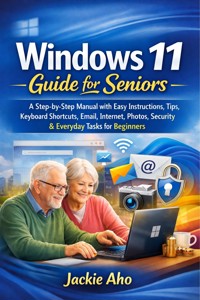
Windows 11 Guide for Seniors is a calm, reassuring, and truly beginner-friendly companion designed for anyone who wants to use their computer with confidence—without frustration, fear, or technical overwhelm. If modern technology feels confusing, rushed, or written for “experts only,” this book was created specifically for you.
Unlike typical manuals filled with jargon and skipped steps, this guide assumes nothing. Every action is explained slowly, clearly, and patiently—as if a trusted friend were sitting beside you, guiding you one click at a time. Whether you are brand new to computers, returning after years away, or helping a senior loved one gain independence, this book meets you exactly where you are.
Inside, you’ll discover how to:
- Turn your computer on and off with confidence and understand what Windows 11 actually is
- Navigate the desktop, Start menu, and taskbar without feeling lost
- Adjust text size, contrast, colors, and accessibility settings for comfort and clarity
- Use the internet safely, send emails, join video calls, and avoid scams
- Organize photos, documents, and files so nothing feels “lost” again
- Install and manage apps, printers, and everyday tools with ease
- Protect your privacy, secure your computer, and back up what matters
- Troubleshoot common problems calmly—without panic or guesswork
The included Quick Reference Training Tutorial and Cheat Sheets provide easy reminders for daily tasks, keyboard shortcuts, security essentials, and everyday Windows use—perfect for keeping close by when you just need a quick answer.
More than a technical manual, this book is about independence, connection, and peace of mind. It empowers you to email family, organize memories, manage finances, enjoy entertainment, and confidently participate in today’s digital world—on your terms, at your pace.
You are never “too old” to learn something new. You deserve technology that works for you, not against you.
Buy a copy now and take your first confident step into Windows 11—calmly, clearly, and with total support.
Das E-Book können Sie in Legimi-Apps oder einer beliebigen App lesen, die das folgende Format unterstützen:
Veröffentlichungsjahr: 2026
Ähnliche

















Windows 11 Guide for Seniors
A Step-by-Step Manual with Easy Instructions, Tips, Keyboard Shortcuts, Email, Internet, Photos, Security & Everyday Tasks for Beginners
Jackie Aho
Copyright Notice
Copyright © 2026All rights reserved.
No part of this publication may be reproduced, stored in a retrieval system, or transmitted in any form or by any means—electronic, mechanical, photocopying, recording, or otherwise—without the prior written permission of the copyright holder, except for brief quotations in reviews or articles.
This guide is intended for educational and informational purposes only. While every effort has been made to ensure accuracy, the publisher and author accept no liability for any errors or omissions, or for damages arising from the use of information contained herein.
Windows and Windows 11 are registered trademarks of Microsoft Corporation. This book is an independent publication and is not affiliated with, authorized, sponsored, or endorsed by Microsoft Corporation.
Table of Contents
Introduction
Why This Guide Was Written for You
What You Will Learn
How This Guide is Structured
Using This Guide
What You Will Achieve
Chapter 1: Getting Started with Windows 11
1.1 What is Windows 11? An Introduction
1.2 Turning On and Shutting Down Your PC
1.3 Exploring Your Computer: The Desktop, Start Menu, and Taskbar
1.4 Using a Mouse, Touchpad, and Keyboard Basics
1.5 Logging In and Managing User Accounts
Chapter 2: Personalizing Your Experience
2.1 Changing Desktop Backgrounds and Themes
2.2 Adjusting Font Size and Display Settings
2.3 Setting Up Dark Mode and High Contrast
2.4 Customizing the Start Menu and Taskbar
2.5 Adding and Removing Desktop Shortcuts
Chapter 3: Mastering the Start Menu and Taskbar
3.1 Pinning and Unpinning Apps
3.2 Searching for Programs and Files
3.3 Switching Between Open Windows
3.4 Using Task View and Virtual Desktops
3.5 Understanding Notification and Quick Settings
Chapter 4: Managing Files and Folders
4.1 Introduction to File Explorer
4.2 Organizing Documents, Pictures, and Videos
4.3 Creating, Renaming, and Deleting Folders
4.4 Copying, Moving, and Deleting Files
4.5 Using USB Drives and External Storage
Chapter 5: Connecting to the Internet
5.1 Setting Up Wi-Fi and Ethernet Connections
5.2 Understanding Internet Browsers: Microsoft Edge and Alternatives
5.3 Safe Browsing Practices
5.4 Bookmarking and Saving Websites
Chapter 6: Sending and Receiving Email
6.1 Setting Up Your Email Account
6.2 Understanding the Mail App
6.3 Writing, Sending, and Receiving Emails
6.4 Attaching Files and Photos to Emails
6.5 Avoiding Email Scams and Spam
Chapter 7: Communicating Online
7.1 Using Chat and Video Calling Tools (Skype, Teams, Zoom)
7.2 Setting Up and Using Social Media Accounts
7.3 Sharing Photos and Videos with Friends
7.4 Managing Contacts
7.5 Online Etiquette and Safety
Chapter 8: Managing Photos and Videos
8.1 Importing Photos from Cameras and Phones
8.2 Browsing and Organizing Your Photo Collection
8.3 Basic Editing: Cropping and Enhancements
8.4 Creating Albums and Slideshows
8.5 Sharing Photos and Videos
Chapter 9: Accessibility and Ease of Use
9.1 Adjusting Text Size and Magnifier Tools
9.2 Setting Up Narrator and Speech Recognition
9.3 Customizing Mouse and Keyboard Settings
9.4 Using On-Screen Keyboard
9.5 Accessibility Shortcuts and Tips
Chapter 10: Installing and Managing Apps
10.1 Introduction to the Microsoft Store
10.2 Searching for and Installing New Apps
10.3 Uninstalling or Updating Existing Apps
10.4 Managing App Permissions and Settings
10.5 Essential Free Apps for Seniors
Chapter 11: Keeping Your Computer Secure
11.1 Setting Strong Passwords and Using PINs
11.2 Understanding Windows Security
11.3 Updating Windows and Apps
11.4 Avoiding Viruses, Malware, and Scams
11.5 Creating Backups and Restoring Your System
Chapter 12: Printing and Scanning
12.1 Adding and Managing a Printer
12.2 Printing Documents and Photos
12.3 Scanning Documents and Photos
12.4 Managing Print Jobs and Troubleshooting
12.5 Setting Printing Preferences
Chapter 13: Troubleshooting and Support
13.1 Finding Help: Help App and Online Resources
13.2 Fixing Common Issues (Freezing, Slowdowns)
13.3 Using System Restore and Recovery Options
13.4 Managing Storage and Cleaning Up Space
13.5 Resetting Your PC Safely
Chapter 14: Using Windows 11 for Everyday Tasks
14.1 Creating and Editing Documents (Word, Notepad)
14.2 Managing Finances and Budgets (Excel, Calculator)
14.3 Setting Reminders and Calendar Events
14.4 Shopping and Banking Online Safely
14.5 Entertainment: Music, Movies, and Games
Chapter 15: Moving Forward with Confidence
15.1 Continuing to Learn: Finding More Guides and Tutorials
15.2 Joining Community Groups and Classes
15.3 Staying Up to Date with Windows 11 Features
15.4 Customizing Windows for Your Lifestyle
15.5 Encouragement and Staying Secure Online
Conclusion
Bonus: Windows 11 Quick Reference Training Tutorial Guide
Windows 11 Basics Quick Start Turning On/Off Your Computer Logging In and Switching Users
Essential Mouse & Keyboard Shortcuts
Start Menu & Taskbar Essentials
Managing Files and Folders
Internet & Browser Tips
Sending & Receiving Email
Photos and Documents
Accessibility & Ease of Use
Customization & Personalization
Security Essentials
Troubleshooting & Support\
Staying Organized
Essential Settings at a Glance
Printing & Scanning
Tips for Using This Cheat Sheet
Introduction
Welcome to Windows 11: A Complete User Guide for Seniors—a book crafted so you can unlock the power, fun, and independence that your computer brings to modern life. Whether you are brand new to Windows, returning to computers after a break, or just eager to build fresh skills at your own pace, this guide was created with your unique needs, concerns, and ambitions in mind.
Why This Guide Was Written for You
Today's world is shaped by technology. For some, adopting new tools is thrilling; for others, it can feel intimidating, even overwhelming. Many seniors find that software and device manuals are filled with jargon, confusing steps, and assumptions about what you already know. This book is different. Every chapter is written for beginners and for those with changing vision, dexterity, or memory needs—always putting clarity, patience, and encouragement first.
The aim is not only to help you use your computer but to instill genuine confidence. You’ll learn the basics, master essential tasks, discover how to personalize your computer to your taste, protect your data, and explore new ways to connect with loved ones and your community. As you progress, you’ll see how Windows 11 is not just a tool but a companion for creativity, organizing, enjoyment, and staying engaged with the wider world.
What You Will Learn
This guide starts at square one: turning on your device and discovering what Windows 11 is and how it looks and operates. You will gently build your knowledge across chapters—learning how to find files, adjust settings for comfort, browse the internet, send emails, work with photos and documents, safeguard your information, and seek help when you need it. Special focus is given to accessibility features, security, and troubleshooting, so that your digital experience remains enjoyable and worry-free.
You will find tips for connecting online with friends and family, joining video calls, exploring games, music, movies, managing budgets, doing online banking, and shopping from home. There are clear instructions for using practical tools like printing, scanning, reminders, and the calendar.
How This Guide is Structured
Each chapter focuses on one main area of Windows 11 use, starting with a gentle introduction before guiding you step by step through common tasks. Chapters are organized to build on each other but are also designed so you can dip into them as needed—no need to read straight through if you don’t want to. Every concept is broken down with detailed explanations, and most technical terms are defined right in the text. The structure is as follows:
Clear Step-by-Step Instructions
: Tasks are laid out in order, using everyday language.
Visual Descriptions
: Each action references what you'll see on-screen, so you always know if you're in the right place. (Where applicable, screenshots and diagrams support the text in print or digital editions.)
Quick Tips and Reassurance
: Look for "Quick Tip" boxes and encouraging notes—these highlight tricks, common pitfalls, and reminders that it's okay to practice and take things slow.
Accessibility and Comfort
: Special callouts help you adjust text, colors, and other settings for easier reading and navigation.
No Assumptions
: Every step is explained as if you’re starting from scratch, with no expectation of prior computer experience.
Using This Guide
You can use this guide in whatever way suits you best:
Go from Start to Finish
: Beginning with basic skills and working through the chapters is ideal for those completely new to Windows.
Jump to What You Need
: If you have a specific goal—like learning how to email photos, or use a calendar—scan the table of contents and jump to those sections.
Revisit Chapters
: Don’t hesitate to go back to earlier instructions for a refresher. Repetition helps learning stick, and there’s no prize for finishing quickly.
Mark Up Your Book
: If using a printed copy, add notes, underline key points, and use bookmarks or sticky notes for quick access to favorite pages.
Try, Then Return
: Try the steps on your computer, and reread the guide whenever you need clarification or encouragement.
Whenever something confuses you, pause reading and try performing the steps slowly on your computer. If things look different, check if your version of Windows 11 has received an update; the guide includes pointers on how to respond to interface changes. If a task seems challenging, take a break and return with fresh eyes.
Tailored for Seniors—But Welcoming to All
Seniors may face particular challenges—such as reduced vision, hearing, or dexterity, or simply a lack of confidence with new technology. This guide anticipates those needs. Font sizes, color themes, and keyboard and mouse settings are all explained, and you’ll learn about the powerful accessibility options that make Windows a pleasure to use at any age. Safety tips are designed for peace of mind, from creating strong passwords to avoiding online scams and protecting your privacy. For those caring for a parent, friend, or spouse, this book also serves as a gentle guide to supporting your loved one’s digital independence.
Building Digital Confidence—One Step at a Time
Think of this guide as a patient teacher (or a skillful friend) sitting beside you: gently encouraging, offering reminders, celebrating your achievements, and urging you to try again when something doesn’t go as planned. There is no single “right way” to use Windows 11—only the approach that feels empowering and enjoyable for you. Technology should serve your goals, not the other way around.
Mistakes are simply part of learning. The most skilled computer users all make errors daily—it’s not about being perfect, but about knowing how to recover and try again. You’ll find stories, examples, and troubleshooting sections that reassure you it’s normal to ask for help, to forget steps, or to change your mind.
Staying Supported, Connected, and Curious
Learning and technology don’t happen in isolation. This guide recommends ways to keep growing—finding new tutorials, joining local classes or online communities, or exploring more advanced resources as your curiosity grows. You’ll discover how to locate quality help online and in your neighborhood, and how to keep your computer safe and up to date in a changing digital landscape.
You are encouraged to connect with others—using email, chat, or video, joining clubs, attending classes, or simply sharing your skills with a friend. Community makes digital learning fun and builds confidence, turning an intimidating process into a shared adventure full of support and friendship.
What You Will Achieve
By the end of this guide, you will be able to:
Start up and navigate Windows 11 with ease and confidence, regardless of prior experience.
Personalize your PC for comfort, accessibility, and style, making every session welcoming and easy on your eyes and hands.
Find, organize, and manage files, documents, and photos, overcoming “lost-in-the-computer” frustration.
Connect to the internet, browse safely, communicate by email and video, and enjoy music, photos, movies, and games.
Shop, bank, and communicate online with security and peace of mind, protecting yourself from scams and learning how to respond if anything goes wrong.
Tackle common issues with calm—using built-in troubleshooting tools and knowing how and where to get trustworthy help.
Manage system updates and backups, print and scan documents, and discover new applications to extend what your computer can do for you.
Continue your digital education for years to come—joining classes, using new resources, and inspiring confidence in others.
Your Digital Adventure Awaits
Windows 11 is not just a computer operating system—it’s your gateway to information, communication, creativity, connection, and joy. Whether you want to send a letter to a grandchild, organize precious photos, join an online book club, or enjoy your favorite music on a rainy afternoon, the skills in this guide open those doors.
Read at your leisure, revisit chapters as you wish, experiment proudly, and build on your successes. Above all, bring patience and a sense of humor—these are your best companions every step of the way.
As you set out on this journey, remember: every new click, every new message, every shared video call isn’t just a task completed—it’s a celebration of growth, independence, and participation in today’s vibrant, connected world.
Let’s begin this exciting adventure together. Your digital future, with Windows 11 as your partner, starts now.
Getting Started with Windows 11
This chapter is designed for absolute beginners—especially seniors—who are either new to computers or encountering Windows 11 for the first time. We’ll take each step together, using clear language and plenty of small, confidence-building wins along the way. If you get stuck, remember: there’s no rush, and everyone learns at their own pace. Let’s begin!
1.1 What is Windows 11? An Introduction
Welcome to Windows 11!
Windows 11 is the latest version of Microsoft's popular computer operating system. Think of it as the “brain” that helps you run your programs, browse the internet, and keep your files safe and organized. If you’ve used a Windows computer before, you’ll notice it looks fresh and modern—a bit friendlier and easier to navigate than past versions.
Why Should I Care About Windows 11?
It powers almost everything you do on your computer, whether it’s writing an email, viewing photos, or joining a Zoom call.
Windows 11 brings larger icons, easy-to-read fonts, and helpful features for those who prefer things simpler, quieter, and more accessible.
What Makes Windows 11 Different?
A new (and more centered) Start button and taskbar make it easier to find your favorite apps.
Cleaner, less cluttered screens.
New “Widgets” for weather, news, and calendar at a glance.
Built-in enhancements for security, updates, and accessibility.
What Is an Operating System?If your computer is like a house, Windows 11 is the foundation, floors, walls, and roof. It lets you move through different rooms (apps), organize your belongings (files), and keep the doors locked (security). Without an operating system, the computer is just empty hardware.
A Friendly Reminder:Don’t worry if you don’t remember everything about Windows 11 right away. This guide is designed for you—to go slowly, review as needed, and learn step by step.
Quick Tip:The “Start” button (which looks like four little windows or a blue square) is your best friend. If you ever feel lost, click it to begin again.
Encouragement:If you’ve ever been nervous about computers, you’re not alone. Today is a new starting point, and you already have what it takes to use Windows 11!
1.2 Turning On and Shutting Down Your PC
Getting comfortable with turning your computer on and off is the very first step to independence with technology. Let’s practice it together:
Turning On (Powering Up) Your Computer
Find the Power Button:
Desktop computers usually have a round or rectangular button on the case (sometimes with a power symbol: ⏻). Laptops have a button above the keyboard or along the side.
Tip: The power button may glow when the computer is on.
Press the Power Button:
Press it firmly once (no need to hold it down).
Wait patiently: you may hear fans whirr and see a logo appear on screen.
Wait for Windows 11 to Load:
You’ll see the Windows logo or a screen with swirling dots. This means it’s working.
When ready, you’ll arrive at a login screen (we’ll cover this in Section 1.5).
Shutting Down (Turning Off) Your Computer Properly
Never just hold the power button to turn off your PC unless it has frozen completely. Shutting down the proper way protects your files and helps your computer last longer.
The Proper Way in Windows 11
Open the Start Menu:
Click the Start button (it looks like a blue Windows icon) in the bottom center (or left) of your screen.
Click the Power Icon:
Look for a small circle with a vertical line inside (⏻), usually in the bottom right or lower area of the Start menu.
Choose “Shut Down”:
A menu will appear. Click “Shut Down.”
Wait as the screen darkens; your computer will safely turn off.
If Your Computer Freezes
If your computer completely stops responding, you can press and hold the physical power button for about 5 seconds to force it off—but use this only as a last resort.
Quick Tip:Want to take a break but return later? Choose “Sleep” from the power menu instead of “Shut Down.” Your PC will restart quickly and pick up right where you left off.
Encouragement:Getting the hang of turning your computer on and off is a big achievement! Don’t worry if you forget the steps—this guide is always here to help you review.
1.3 Exploring Your Computer: The Desktop, Start Menu, and Taskbar
Just like learning the layout of a new kitchen, getting to know your Windows 11 workspace will make everything easier. Let’s break down the three most important places:
The Desktop
What You’ll See:
The background image (you can change this later!)
Small pictures called “icons” for things like “Recycle Bin,” “My Documents,” or your favorite programs
How to Use It:
Double-click icons to open them.
You can organize icons by dragging them where you want with your mouse.
The Start Menu
What It Is:
Your command center for everything on your computer.
Found as a rounded blue or white Windows logo—now usually centered (sometimes on the bottom left).
How to Use It:
Click the Start button once.
A menu pops up with a list of commonly used apps at the top, all apps as a list, and quick access to things like files and system settings.
Key Features:
Search Bar:
Type what you’re looking for (“Word,” “Photos,” or “Calculator”) to find it instantly.
Pinned Apps:
Your favorite programs can “live” here for easy access.
The Taskbar
Where It Is:
A long bar at the bottom of your screen.
What It Does:
Shows icons for open apps and windows.
Includes shortcuts to important programs (Web browser, File Explorer, Start menu).
Has the time, date, network, and volume controls on the right side.
A Simple Walkthrough: Opening a Program
Let’s open the Calculator app as an example:
Click the Start button.
Type “Calculator” (no need to click anywhere—just type).
Click on Calculator when it appears.
Quick Tip:If an app is often used (like your web browser), “right-click” its taskbar icon and select “Pin to taskbar.” This keeps it handy at all times!
Encouragement:It’s normal to feel overwhelmed at first, but soon you’ll know your way around this new “home”! Exploring one small area at a time makes all the difference.
1.4 Using a Mouse, Touchpad, and Keyboard Basics
Even if you’re new to computers, you’ll use your hands a lot—just in new ways. Don’t worry if things feel awkward at first. Let’s practice some basics:
Mouse
Parts:
Left button: Most common for selecting things.
Right button: Opens menus with more options.
Scroll wheel: Helps move up and down pages.
Common Actions:
Point and Click:
Move the mouse until the pointer is on what you want, then quickly press and release the left button.
Double-Click:
Quickly press the left button twice; used to open files and programs.
Right-Click:
Press the right button to see a menu of actions.
Dragging:
Hold down the left button and move the mouse while holding it—useful for moving windows or icons.
Touchpad (on laptops)
Found below the keyboard; use a finger to move the pointer.
Tap once for a left-click; tap with two fingers for a right-click.
Use two fingers up/down to scroll through a page.
Keyboard
Most Important Keys:
Letters and numbers (for typing)
Enter:
Finalizes a command, creates a new line, or starts a search.
Backspace:
Erases what’s to the left of the cursor.
Tab:
Moves focus to the next box or area (great on forms).
Arrow Keys:
Move the cursor (pointer) up, down, left, or right.
Practicing Keyboard Shortcuts:
Copy:
Ctrl + C (hold Control, then press C)
Paste:
Ctrl + V
Undo:
Ctrl + Z
Tip for Those With Limited Dexterity:
Use the On-Screen Keyboard (Settings > Accessibility > Keyboard) to tap keys with a mouse or touchpad.
Quick Tip:Having trouble seeing where your pointer is? You can make it larger or change its color under Settings > Accessibility > Mouse Pointer and Touch.
Encouragement:Just like learning to hold a new tool, practice makes perfect. Each click or keystroke brings you closer to feeling at home!
1.5 Logging In and Managing User Accounts
Logging in safely keeps your computer personal and secure. Windows 11 makes this simple—let’s walk through it.
Logging In
Welcome Screen:
After turning on, you’ll see a screen with the date and time.
Press any key, or click the mouse to continue.
Enter Your Password or PIN:
You’ll see a place to type your password (what you set up when your computer was new).
For many people, Windows 11 uses a shorter PIN (just numbers).
Type your password or PIN, then press Enter.
Don’t Have a Password?
If someone else set up your computer for you, they may have left it blank. Just click the arrow (or press Enter) to go in.
What if You Forget Your Password?
Windows 11 offers a “Forgot password?” link you can click. It walks you through steps to reset it, usually by confirming your identity.
If still stuck, ask a trusted friend or family member for help—or consult your guide for detailed troubleshooting.
Managing User Accounts
Each person using your PC can have their own account, keeping files and settings separate.
Adding a New User
Click Start > Settings (the gear icon).
Choose “Accounts.”
Select “Family & other users.”
Click “Add account” and follow the steps (you can create one without an email address if needed).
Switching Users
If more than one person uses the PC, look for your name/picture by the Start menu or at the login screen. Click it to switch to another user.
Signing Out
When finished, click the Start button, then your name/picture, and choose “Sign out.”
Quick Tip:If you want your PC to log in faster, you can switch from a full password to a shorter PIN (Settings > Accounts > Sign-in options).
Encouragement:It’s okay if you enter the wrong password, or if you need to write it down (keep it somewhere safe!). Everyone slips up sometimes, but you’ll soon be logging in with ease.
Chapter 1 At a Glance
We’ve started with the heart of Windows 11—learning what it is, how to turn your computer on and off, finding your way around, using your mouse/keyboard, and keeping your account secure. Take your time to revisit any section as often as you like. Practice truly does make perfect, and with every click you’re building confidence and control over your technology!
Recap: Quick Tips
Lost?
Look for the Start button—the home for all your programs.
Mouse pointer too small?
Make it bigger under Settings > Accessibility.
Forgot your password?
Use the “Forgot password?” link on the login screen.
Prefer a simpler login?
Set up a PIN in Settings > Accounts > Sign-in options.
Need a break?
Use “Sleep” instead of “Shut Down” for quick stops.
Moving Forward
Congratulations on completing your first steps with Windows 11! Don’t worry if you need to go over them again. In later chapters, we’ll learn about customizing your PC, managing files, browsing the internet, and much more—always at a pace that works for you. With each chapter, your skills (and confidence!) will grow.
Remember:Learning something new at any age is a great accomplishment. You’re doing wonderfully just by getting started. Whenever you feel overwhelmed, come back to this chapter or ask for help—the journey is just beginning, and you’re well on your way!
Personalizing Your Experience
Windows 11 is not just a tool—it’s your digital home. Making it inviting, accessible, and uniquely yours will help you feel comfortable and confident every time you sit down at your computer. In this chapter, we’ll explore five vital ways to make Windows 11 fit your needs: changing desktop backgrounds and themes, adjusting font and display settings, setting up dark mode and high contrast, customizing your Start menu and taskbar, and managing desktop shortcuts. Each section takes you step-by-step, with lots of encouragement—there’s no rush, and you can redo these steps as often as you like.
2.1 Changing Desktop Backgrounds and Themes
Why Personalize Your Desktop?Your desktop is the first thing you see when your computer starts. Just like decorating your living room, choosing a background or theme lets you create a space that feels friendly and familiar.
What Can You Change?
Background (Wallpaper):
The main picture or color behind your icons.
Theme:
A collection of background, sounds, and colors that go together.
Step-by-Step: Changing Your Desktop Background
Go to Your Desktop:
Minimize any open windows so you can see your “wallpaper.”
Right-click anywhere with your mouse (that is, press the right mouse button).
Select “Personalize”:
In the menu that appears, left-click on “Personalize.” This takes you to the Settings window.
Choose Background:
On the left side, click “Background.”
You’ll see some picture options. Click any picture to set it as your background.
Want to use your own photo? Click “Browse,” navigate to your Pictures folder, select an image, and click “Choose picture.”
Adjust the Fit:
Under “Choose your fit,” select how the picture is displayed (Fill, Fit, Stretch, Tile, or Center). “Fill” works for most photos.
Changing the Entire Theme
Open Settings:
Right-click the desktop; choose “Personalize.”
Click “Themes” (on the left side).
Pick a Theme:
Windows comes with several built-in themes. Click a theme to see a preview.
You can visit the Microsoft Store (link at the top) for even more themes—nature, cityscapes, animals, and more.
Apply and Enjoy:
Click the theme you like, and it will update the background, sounds, and colors all at once.
You can switch back anytime.
Quick Tip:If you want your favorite family photo on your desktop, be sure it’s saved in your Pictures folder. It’s easy to find that way!




