


20,99 €
Mehr erfahren.
- Herausgeber: John Wiley & Sons
- Kategorie: Wissenschaft und neue Technologien
- Serie: Visual Blueprint
- Sprache: Englisch
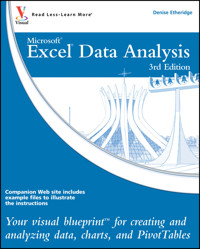
Advanced techniques for Excel power users Crunch and analyze Excel data the way the professionals do with this clean, uncluttered, visual guide to advanced Excel techniques. Using numerous screenshots and easy-to-follow numbered steps, this book clearly shows you how to perform professional-level modeling, charting, data access, data slicing, and other functions. You'll find super techniques for getting the most out of Excel's statistical and financial functions, Excel PivotTables and PivotCharts, Excel Solver, and more. * Provides a clear look at power-using Excel, the world's leading spreadsheet application from Microsoft, and part of the new Microsoft Office 2010 suite * Expands your Excel knowledge and helps you use Excel data more efficiently * Demonstrates how to retrieve data from databases;; cut, slice, and pivot data using PivotTables; model data and chart data; and use advanced formulas * Explores all features and functions in friendly, two-color pages packed with screenshots, numbered steps, and other visual graphics that clearly show you how to accomplish tasks * Includes practical examples, tips, and advice to help you get the most out of Excel's features and functions Learn Excel at the highest levels with this practical guide.
Sie lesen das E-Book in den Legimi-Apps auf:
Seitenzahl: 495
Veröffentlichungsjahr: 2011
Ähnliche



















Excel® Data Analysis
Table of Contents
Chapter 1: Getting Started
Introducing Data Analysis with Excel
Tour the Excel Window
Explore the Ribbon
Using the Mini Toolbar and Context Menu
Select Options on the Status Bar
Take a Look at Backstage View
Upload a File to Excel’s Web-based Application
Create a File Using Excel’s Web-based Application
Enter Data
Select Cells
Chapter 2: Formatting a Worksheet
Using the Ribbon to Format Numbers
Using the Format Cells Dialog Box
Understanding Dates and Times
Format Percentages
Format Fractions
Format in Scientific Notation
Format as Text
Add a Border
Change the Font or Font Size
Add a Background Color
Change the Font Color
Bold, Underline, or Italicize
Align Data
Rotate Data
Wrap Text
Merge and Center
Apply a Style
Using Format Painter
Clear Formats
Chapter 3: Structuring Your Workbook
Cut, Copy, and Paste Cells
Using Live Preview with Paste
Paste from the Office Clipboard
Insert or Delete
Find and Replace Information
Change the Name of a Worksheet
Change Column Widths or Row Heights
Hide Columns or Rows
Hide Columns or Rows
Hide a Worksheet
Move or Copy a Worksheet
Freeze Worksheet Titles
Hide Gridlines, Headings, or the Formula Bar
Show or Hide Gridlines, Headings, or the Formula Bar
Chapter 4: Creating Formulas
Understanding Formulas
Calculate with an Operator
Calculate Using a Function and Cell Addresses
Create an Array Formula
Using the Sum, Average, Count, Min, and Max Functions
Create a Formula that Refers to Another Worksheet
Create a Formula that Refers to Another Worksheet
Understanding Relative and Absolute Cell Addresses
Edit Formulas
Name Cells and Ranges
Define and Display Constants
Create Formulas That Include Names
Check Formulas for Errors
Trace Precedents and Dependents
Chapter 5: Using Functions
Understanding the Function Wizard
Round a Number
Create a Conditional Formula
Calculate a Conditional Sum
Calculate a Conditional Count
Find the Square Root
Retrieve Column or Row Numbers
Using VLOOKUP
Determine the Location of a Value
Using INDEX
Perform Date and Time Calculations
Chapter 6: Using Financial Functions
Calculate Future Value
Calculate Present Value
Calculate Loan Payments
Calculate Principal or Interest
Calculate the Interest Rate
Calculate the Internal Rate of Return
Calculate Straight-Line Depreciation
Calculate Declining Balance Depreciation
Calculate Double-Declining Balance Depreciation
Calculate Sum-of-the-Years-Digits Depreciation
Chapter 7: Using Statistical Functions And Tools
Calculate an Average
Calculate a Conditional Average
Calculate the Median or the Mode
Calculate Rank
Determine the Nth Largest Value
Calculate Frequency
Calculate Variance and Standard Deviation
Find the Correlation
Install Excel Add-Ins
Calculate a Moving Average
Compare Variances
Using the Data Analysis Toolpak to Determine Rank and Percentile
Calculate Descriptive Statistics
Chapter 8: Organizing Worksheet Data
Enter Data with a Form
Perform Simple Sorts and Filters
Perform Multilevel Sorts
Perform a Custom Sort
Sort by Cell Color, Font Color, or Cell Icon
Perform Complex Filters
Enter Criteria to Find Records
Using Advanced Filtering Techniques
Filter Duplicate Records
Count Filtered Records
Subtotal Records
Using Auto Outline
Define Data as a Table
Modify a Table Style
Using Database Functions with a Table
Chapter 9: Working with PivotTables
Create a PivotTable
Create a PivotTable (continued)
Modify a PivotTable Layout
Summarize PivotTable Values
Create a PivotTable Calculated Field
Group the Rows or Columns in a PivotTable
Apply a Style to a PivotTable
Filter a PivotTable
Sort a PivotTable
Retrieve Values from a PivotTable
Using Slicer
Chapter 10: Charting Data
Create a Chart
Add Chart Details
Create a Combination Chart
Change the Chart Type
Add or Remove Chart Data
Add Sparklines
Create a Trendline
Add Error Bars
Create a Histogram
Chart Filtered Data
Create a PivotChart
Filter a PivotChart
Chapter 11: Working with External Data
Paste Link into Word
Embed a Worksheet
Hyperlink a Worksheet
Query a Web Site
Import a Text File
Import an Access Database
Query an Access Database
Chapter 12: Using Data Analysis Tools and Techniques
Perform What-If Analysis
Optimize a Result with Goal Seek
Using Solver
Solve a Formula with a Data Table
Extend a Series with Auto Fill
Join Text
Add a Calculator
Consolidate Worksheets
Highlight Cells that Meet Your Criteria
Find the Highest or Lowest Ranked Values
Add Data Bars to Your Worksheet
Add Icon Sets to Your Worksheet
Remove Conditional Formatting
Change Conditional Formatting Rules
Paste with Paste Special
Chapter 13: Sharing Your Workbook with Others
Validate with a Validation List
Validate with Data Entry Rules
Add Comments to Your Worksheet
Track Changes
Protect Your Worksheet
Save Your Workbook as a Template
Choose a Format When Saving a Workbook
Print Your Workbook
Print Multiple Areas of Your Worksheet
Chapter 14: Automating with Macros
Introducing Macros
Set Macro Security
Create a Digital Signature
Record a Macro
Assign a Digital Signature to a Macro
Run a Macro
Create and Launch a Keyboard Shortcut
Assign a Macro to the Quick Access Toolbar
Delete a Macro
Chapter 15: Illustrating Your Worksheets
Place a Screenshot in Your Worksheet
Insert Clip Art into Your Worksheet
Crop a Clip Art Illustration or a Photograph
Insert a Picture into Your Worksheet
Recolor a Picture
Adjust the Sharpness, Brightness, and Contrast
Compress a Picture
Add a Border
Add a Picture Effect
Apply a Picture Style
Add an Artistic Effect
Remove a Background
Chapter 16: Illustrating Your Ideas
Insert a Text Box
Format a Text Box
Insert a Shape
Add Text to a Shape
Change the Size of an Object
Rotate an Object
Change the Stacking Order
Group Objects
Align Objects
Insert a Symbol
Using SmartArt Graphics
Modify a SmartArt Graphic
Apply a SmartArt Style
Apply a SmartArt Layout
Chapter 17: Customizing Excel
Add a Form Control to a Worksheet
Assign Values to a Form Control
Add a Macro to a Form Control
Customize the Quick Access Toolbar
Customize the Ribbon
Appendix A: Using Excel Keyboard Shortcuts
Excel® Data Analysis
Your visual blueprint™ for creating and analyzing data, charts, and PivotTables, 3rd Edition
by Denise Etheridge
Excel® Data Analysis: Your visual blueprint™ for creating and analyzing data, charts, and PivotTables, 3rd Edition
Published by Wiley Publishing, Inc.10475 Crosspoint BoulevardIndianapolis, IN 46256
www.wiley.com
Published simultaneously in Canada
Copyright © 2010 by Wiley Publishing, Inc., Indianapolis, Indiana
No part of this publication may be reproduced, stored in a retrieval system or transmitted in any form or by any means, electronic, mechanical, photocopying, recording, scanning or otherwise, except as permitted under Sections 107 or 108 of the 1976 United States Copyright Act, without either the prior written permission of the Publisher, or authorization through payment of the appropriate per-copy fee to the Copyright Clearance Center, 222 Rosewood Drive, Danvers, MA 01923, (978) 750-8400, fax (978) 646-8600. Requests to the Publisher for permission should be addressed to the Permissions Department, John Wiley & Sons, Inc., 111 River Street, Hoboken, NJ 07030, 201-748-6011, fax 201-748-6008, or online at www.wiley.com/go/permissions.
Library of Congress Control Number: 2010928469
ISBN: 978-1-118-03623-5
Manufactured in the United States of America
10 9 8 7 6 5 4 3 2 1
Trademark Acknowledgments
Wiley, the Wiley Publishing logo, Visual, the Visual logo, Visual Blueprint, Read Less - Learn More and related trade dress are trademarks or registered trademarks of John Wiley & Sons, Inc. and/or its affiliates. Excel is a registered trademark of Microsoft Corporation in the United States and/or other countries. All other trademarks are the property of their respective owners. Wiley Publishing, Inc. is not associated with any product or vendor mentioned in this book.
LIMIT OF LIABILITY/DISCLAIMER OF WARRANTY: THE PUBLISHER AND THE AUTHOR MAKE NO REPRESENTATIONS OR WARRANTIES WITH RESPECT TO THE ACCURACY OR COMPLETENESS OF THE CONTENTS OF THIS WORK AND SPECIFICALLY DISCLAIM ALL WARRANTIES, INCLUDING WITHOUT LIMITATION WARRANTIES OF FITNESS FOR A PARTICULAR PURPOSE. NO WARRANTY MAY BE CREATED OR EXTENDED BY SALES OR PROMOTIONAL MATERIALS. THE ADVICE AND STRATEGIES CONTAINED HEREIN MAY NOT BE SUITABLE FOR EVERY SITUATION. THIS WORK IS SOLD WITH THE UNDERSTANDING THAT THE PUBLISHER IS NOT ENGAGED IN RENDERING LEGAL, ACCOUNTING, OR OTHER PROFESSIONAL SERVICES. IF PROFESSIONAL ASSISTANCE IS REQUIRED, THE SERVICES OF A COMPETENT PROFESSIONAL PERSON SHOULD BE SOUGHT. NEITHER THE PUBLISHER NOR THE AUTHOR SHALL BE LIABLE FOR DAMAGES ARISING HEREFROM. THE FACT THAT AN ORGANIZATION OR WEBSITE IS REFERRED TO IN THIS WORK AS A CITATION AND/OR A POTENTIAL SOURCE OF FURTHER INFORMATION DOES NOT MEAN THAT THE AUTHOR OR THE PUBLISHER ENDORSES THE INFORMATION THE ORGANIZATION OR WEBSITE MAY PROVIDE OR RECOMMENDATIONS IT MAY MAKE. FURTHER, READERS SHOULD BE AWARE THAT INTERNET WEBSITES LISTED IN THIS WORK MAY HAVE CHANGED OR DISAPPEARED BETWEEN WHEN THIS WORK WAS WRITTEN AND WHEN IT IS READ.
FOR PURPOSES OF ILLUSTRATING THE CONCEPTS AND TECHNIQUES DESCRIBED IN THIS BOOK, THE AUTHOR HAS CREATED VARIOUS NAMES, COMPANY NAMES, MAILING, E-MAIL AND INTERNET ADDRESSES, PHONE AND FAX NUMBERS AND SIMILAR INFORMATION, ALL OF WHICH ARE FICTITIOUS. ANY RESEMBLANCE OF THESE FICTITIOUS NAMES, ADDRESSES, PHONE AND FAX NUMBERS AND SIMILAR INFORMATION TO ANY ACTUAL PERSON, COMPANY AND/OR ORGANIZATION IS UNINTENTIONAL AND PURELY COINCIDENTAL.
Contact Us
For general information on our other products and services please contact our Customer Care Department within the U.S. at 877-762-2974, outside the U.S. at 317-572-3993 or fax 317-572-4002.
For technical support please visit www.wiley.com/techsupport.
The Metropolitan Cathedral of BrasiliaA vision of architect Oscar Niemeyer, the breathtaking Metropolitan Cathedral of Brasilia reflects the innovative architecture and design that characterize this young and original city. Sweeping skyward, the Cathedral’s sixteen gracefully curved columns symbolize hands lifted in prayer, while the unique bell tower replicates a candelabra. Begun in 1959, the Cathedral was designated a Historic Monument in 1967, thereby accessing public funds for its completion. It was dedicated in 1970.Learn more about Brasilia’s unusual history and architecture in Frommer’s Brazil, 5th Edition (ISBN 978-0-470-59151-2), available wherever books are sold or at www.Frommers.com.
Disclaimer
In order to get this information to you in a timely manner, this book was based on a pre-release version of Microsoft Office 2010. There may be some minor changes between the screenshots in this book and what you see on your desktop. As always, Microsoft has the final word on how programs look and function; if you have any questions or see any discrepancies, consult the online help for further information about the software.
Sales
Contact Wileyat (877) 762-2974or (317) 572-4002.
Credits
Executive Editor
Jody Lefevere
Project Editor
Jade L. Williams
Technical Editor
Namir Shammas
Copy Editor
Lauren Kennedy
Editorial Director
Robyn Siesky
Business Manager
Amy Knies
Senior Marketing Manager
Sandy Smith
Vice President and Executive Group Publisher
Richard Swadley
Vice President and Executive Publisher
Barry Pruett
Project Coordinator
Lynsey Stanford
Graphics and Production Specialists
Carrie CesaviceJennifer Mayberry
Quality Control Technician
Lauren Mandelbaum
Proofreading
Sossity R. Smith
Indexing
Johnna VanHoose Dinse
Media Development Project Manager
Laura Moss
Media Development Assistant Project Manager
Jenny Swisher
Media Development Associate Producer
Shawn Patrick
Screen Artist
Ana Carrillo, Jill A. Proll
Illustrator
Cheryl Grubbs
Special Help
Microsoft Corporation, Inc.
About the Author
Denise Etheridge is a certified public accountant as well as the president and founder of Baycon Group, Inc. She publishes Web sites and authors’ computer related books. You can visit www.baycongroup.com to view her online tutorials.
Author’s Acknowledgments
Writing this book was an absolute privilege. I would like to thank all of the people who assisted me. I give special thanks to Jody Lefevere, for allowing me this privilege; Jade Williams, for keeping things on track; Namir Shammas, for his technical review; and Lauren Kennedy, for her copy review.
Dedication
This book is dedicated to my brother, Erskine Etheridge.
How to Use This Visual Blueprint Book
Who This Book Is For
This book is for advanced computer users who want to take their knowledge of this particular technology or software application to the next level.
The Conventions in This Book
Steps
This book uses a step-by-step format to guide you easily through each task. Numbered steps are actions you must do; bulleted steps clarify a point, step, or optional feature; and indented steps give you the result.
Notes
Notes give additional information — special conditions that may occur during an operation, a situation that you want to avoid, or a cross reference to a related area of the book.
Icons and Buttons
Icons and buttons show you exactly what you need to click to perform a step.
Extra or Apply It
An Extra section provides additional information about the preceding task — insider information and tips for ease and efficiency. An Apply It section takes the code from the preceding task one step further and allows you to take full advantage of it.
Bold
Bold type shows text or numbers you must type.
Italics
Italic type introduces and defines a new term.
Courier Font
Courier font indicates the use of scripting language code such as statements, operators, or functions, and code such as objects, methods, or properties.
Chapter 1: Getting Started
Introducing Data Analysis with Excel
This book is about using Microsoft Excel to analyze your data. Microsoft Excel is an electronic worksheet you can use to perform mathematical, financial, and statistical calculations; create charts; analyze your data with a PivotTable; maintain lists; and much more. Excel can help you locate data, find trends in your data, and present your data to others.
Each Excel file is a workbook. Each workbook can have multiple worksheets. Worksheets are made up of rows and columns of cells you can use to enter information.
The most powerful feature in Excel is its ability to calculate. When you enter a formula into Excel, Excel can automatically calculate the result, and when you make changes to your worksheet, Excel can automatically recalculate.
You can also use Excel to create charts. A chart is a graphical representation of your data. When using Excel, you can choose from several types of charts, including Column, Line, Pie, Bar, Area, and Scatter. Charts can make your data easier to read, easier to understand, and easier to compare.
A PivotTable is an interactive table you can use to analyze data. A PivotTable gives you an easy way to summarize and view large amounts of data. Using a PivotTable, you can rotate rows and columns of data so you can see different views of your data easily. You can use Excel to create PivotTables.
Excel provides a way for you to create and maintain lists. A list is a series of rows and columns. Each column has a label — for example, name, address, telephone number. Each row under a column has information pertaining to the column label. You can sort, filter, and analyze your lists in Excel.
Introducing Data Analysis with Excel
Open a New Workbook
Click the File tab.
A menu appears.
Click New.
Double-click Blank workbook.
• Excel opens a new workbook.
Tour the Excel Window
When you open an Excel workbook, Excel presents the Excel window. You use the window to create Excel documents. Your window should be similar to the one in the illustration. It may not be exactly the same because Excel renders windows based on the size of your screen, the resolution to which your screen is set, and the other screen display options.
View of the Excel Window
FILE TAB
Click the File tab to open, save, print, prepare, send, publish, and close files.
QUICK ACCESS TOOLBAR
Place commands you use often on the Quick Access Toolbar.
TABS
Click a tab to view Ribbon options.
RIBBON
Click the buttons in the Ribbon to execute Excel commands.
Minimize the Ribbon
Click the chevron to Hide the Ribbon so that only tabs show.
CELL
Enter data into cells.
SHEETS
Enter data into each sheet of a workbook.
INSERT SHEET
Click this button to insert a new sheet.
NAME BOX
Displays the name of the active cell.
DROP-DOWN LIST
Displays a list of defined range names.
FORMULA BAR
Use the formula bar to enter and edit data.
EXPAND FORMULA BAR
Click the chevron to make the formula bar larger.
Explore the Ribbon
You use commands to tell a program what you want it to do. In Excel, you use the Ribbon to issue commands. The Ribbon consists of several tabs. Tabs group related commands together. The most frequently used commands are on the Home tab, the commands you use to insert objects into a worksheet are on the Insert tab, the commands you use to layout your document are on the Page Layout tab and so on.
Within a tab, related commands are organized into groups. For example, on the Home tab, commands relating to cutting, copying, and pasting are in the Clipboard group. Commands, related changing the size, color, or style of a font, are in the Font group. Some groups have a launcher. When you click the launcher, a menu or dialog box appears. You can use the menu or dialog box to access additional commands.
Ribbon Commands
The Ribbon contains commands organized in three components: tabs, groups, and commands. Tabs appear across the top of the Ribbon and contain groups of related commands. Groups organize related commands with each group name appearing below the group on the Ribbon. Note some groups have a Dialog Box Launcher button in the lower-right corner. Commands appear within each group.
Tabs
Tabs appear across the top of the Ribbon and contain groups of related commands. The File tab provides access to the Backstage view in all Office programs. In Backstage view, you can open, save, and print worksheets.
Groups
Commands are arranged into groups with the group names shown at the bottom of the tab.
Dialog Box Launcher
This button appears in the lower-right corner of many groups on the Ribbon. Clicking this button opens a dialog box, menu or task pane that provides more options.
Contextual Tabs
Some tabs only appear when needed. These tabs are called contextual tabs. For example, the tabs that you use to edit a chart only appear when you are modifying a chart.
Galleries
Galleries provide you with a list of choices. As you hover over each gallery choice, Excel provides you with a live preview of how your document will appear if you choose that option. For example, in Excel you can apply a style to a table. When you hover over a style in the Table Styles gallery, Excel provides you with a live preview of how the style will appear if you choose it.
Using the Mini Toolbar and Context Menu
Excel makes some commands readily available via the Mini toolbar and the context menu. When you right-click in Excel, the Mini toolbar and a context menu appear. Most often, the Mini toolbar appears first and the context menu appears under it. What appears on the Mini toolbar and context menu depends upon what you are working on at the time you right-click. For example, if you right-click while you have a range of cells selected, options related to modifying cells appear. If you right-click while you are modifying a chart, options related to modifying a chart appear. In general, you can use the Mini toolbar to perform popular formatting commands. You can use the context menu to perform popular commands related to the object on which you are working.
Apply It
When you select within a cell or other object, the Mini toolbar appears automatically. To prevent it from appearing, click the File tab and then click Options. The Excel Options dialog box appears. Click General. The General Options for Working with Excel pane appears. Deselect Show Mini Toolbar on Selection ( changes to ). Click OK. You cannot easily prevent the Mini toolbar from appearing when you right-click.
Using the Mini Toolbar and Context Menu
Right-click.
The Mini toolbar and context menu appear.
Click a button or menu option to select a command.
Excel executes the command.
• In this example, Excel applies a fill.
Select Options on the Status Bar
The status bar appears at the bottom of the Excel window. It displays the status of several options. For example, the Zoom button appears on the status bar. It displays the current zoom level. You can click the Zoom button to open the Zoom dialog box and manually set the zoom level. The Zoom slider also appears in the status bar. You can drag it to the right to zoom in, thereby making the contents of your worksheet larger, or drag it to the left to zoom out, thereby making the contents of your worksheet smaller. When you right-click the status bar, you can select which options appear on it. Several options, such as the Zoom slider, Zoom button, and Macro Recorder, appear by default.
Extra
You can automate the tasks you perform in Excel by recording a macro. By default, the Macro Recorder button () appears on the status bar. Click the Macro Recorder button to begin recording a macro. The Record Macro dialog box appears. Fill in the fields and then perform the steps you want to automate. When you are finished performing the steps, click the Macro Recorder button again. See Chapter 14 for detailed information.
Select Options on the Status Bar
Right-click the status bar.
A list of options appears. Selected options have a check mark. Deselected options do not have a check mark.
Click options to select or deselect them ( changes to or changes ).
• Selected options appear on the status bar.
Some options only appear when appropriate.
Take a Look at Backstage View
The File tab is located in the upper-left corner of the Excel window. When you click the tab, you are moved to an area Microsoft calls Backstage view. You can use this area to do such things as open a file, save a file, print a file, review a file, or set Excel options. In short, to create and edit your document you use the Ribbon; to work with your document you use Backstage view. The commands you need to open a new or existing document, to set document properties, or to share a file by printing, e-mailing, or faxing are all located in Backstage view.
Apply It
To save an Excel document, click the Save button () on the Quick Access Toolbar or click the File tab, and then click Save. You can also click Save As to save a document under another name.
To open a document, click the File tab and then click Open. The Open dialog box appears. Locate and click the document you want to open and then click the Open button.
Take a Look at Backstage View
Click the File tab.
The Backstage view options appear.
Click an option to select it.
• Excel opens the option’s pane.
Upload a File to Excel’s Web-based Application
With the Microsoft Excel Web App, you can create and edit an Excel workbook even if you are on a computer that does not have Excel installed. For example, if your office e-mails you an Excel document while you are staying in a hotel, you can update it. With the Microsoft Excel Web App, you can use the hotel’s community computer to make the changes even if it does not have Excel on it. You can use the Web App in any supported browser — Internet Explorer, Firefox, or Safari.
The Microsoft Excel Web App is part of Windows Live, a collection of free services offered by Microsoft that include e-mail, photo sharing, personal Web pages, and more. The Web-based application is included in SkyDrive. You can use SkyDrive to store files online and share them
with others. To sign up for SkyDrive or to sign in to your SkyDrive account, go to http://skydrive.live.com. Signing up for a SkyDrive account is easy. Just click the Sign Up button and the Web site will prompt you through the process. If you have a Hotmail, Xbox LIVE, or any other type of Windows Live account, you already have a SkyDrive account.
You can use the Save to SkyDrive option in the Share section of BackOffice to save documents to SkyDrive. The Save to SkyDrive option lets you save any open file to a SkyDrive folder. By default, you have two SkyDrive folders: Public and My Documents. Documents you save to the Public folder are available to everyone. Documents you save to the My Documents folder are available only to you. You can also access an Excel file from a Share Point server that is running Web Apps.
Upload a File to Excel’s Web-Based Application
Sign-up for a SkyDrive account.
Open the file you want to upload.
Click the File tab.
Click Save & Send.
Click Save to Web.
Click Sign In.
The Connecting to docs.live.net dialog box appears.
Type your e-mail address.
Type your password.
Click OK.
The Save to Windows Live pane appears.
Click a folder.
Click Save As.
The Connect to doc.live.net dialog box appears.
Type your e-mail address
Type your password.
Click OK.
The Save As dialog box appears.
Click Save.
Excel saves your file to your SkyDrive account.
Apply It
You can sign in to SkyDrive from Excel. Click the File tab. A menu appears. Click Share. The Share Pane appears. In the Share Pane, click Save to SkyDrive. The Save to SkyDrive pane appears. Next to Go To, click SkyDrive. You are taken to http://skydrive.live.com. You can log in to SkyDrive. If you are already logged in, you can access your SkyDrive files.
From Excel, you can create new SkyDrive folders. Log in to SkyDrive from Excel. In the SkyDrive pane, click New Folder. Excel takes you to the Create a Folder page. Enter the folder name in the Name field. In the Share With field, select how you want to share the file. Click Next. The Application creates the folder and provides you with an opportunity to upload files. Click Browse. Locate and click the file you want to upload. Click Open. You can upload up to five files at one time. Click Upload. SkyDrive uploads the files. To add additional files, click Add Files.
Create a File Using Excel’s Web-based Application
You can create Excel files with Excel’s Web-based application. For example, if the computer you are using does not have Excel, you can sign in to SkyDrive and create an Excel worksheet.
The look a feel of the Excel Web-based application is the same as the desktop application. To issue commands, you use the Ribbon. For the most part, the commands work exactly as they do in the desktop application. Therefore, as you are learning Excel, you are also learning the Web-based application. You will find, however, that the commands available to you are limited and are not as sophisticated as they are in the desktop application.
If you upload a file to SkyDrive, you can view most features. For example, you can upload and view a PivotTable and the sort and filter buttons are available to you. However, you cannot create a PivotTable in the Web-based application. You can view a chart, but you cannot create a chart. If you edit the data a chart is based on, the chart will update.
You cannot view comments, shapes, and a few other objects when using the Web-based application. If a workbook has any objects that you cannot view, the Web-based application will warn you when you attempt to view the workbook. You can view a workbook that has objects you cannot view in it, but you cannot edit it. If you need to edit the workbook, use the File menu to make a copy of the file and then edit the copy.
All the functions that are available to you in Excel are available to you in the Web-based application.
Create a File Using Excel’s Web-Based Application
Sign in to SkyDrive.
Click the folder where you want to store the file.
You move to the folder.
Click New.
A menu appears.
Click Microsoft Excel workbook.
The New Microsoft Excel workbook page appears.
Type a name.
Click Create.
The Microsoft Excel Web App opens.
Create your document.
Click a path location.
Exit the file.
You do not need to save the file.
• Click here to sign out.
Apply It
You can view a workbook in SkyDrive. Sign in to Sky Drive. Click the folder where you saved the file. Click the file and then click View. The file opens in the Web-based application. If you want to edit the file, click Edit. The file opens in the Microsoft Excel Web App and you can edit the file.
You can edit a workbook in SkyDrive. Sign in to Sky Drive. Click the folder where you saved the file. Click the File. Click Edit. The file opens in the Microsoft Excel Web App. You can edit the file. Click a path location at the top of the page to exit the file.
In the Microsoft Excel Web App you can view a workbook that has objects in it that you cannot view, such as comments. However, if you want to edit the file, you must make a copy of the file and edit the copy. To make a copy of the file, click File. Click Save a Copy. Excel displays a message stating the unsupported features will not be saved. Click Yes. Enter a new filename and then click Save. Excel saves the file.
Enter Data
Worksheets divide information into rows and columns of data. People often use worksheets to calculate financial, statistical, or engineering data. Microsoft Excel is an electronic worksheet. You can use it to enter, display, manipulate, analyze, and print the information you organize into rows and columns.
Each Excel worksheet has more than 1 million rows and more than 16,000 columns. Excel labels each row in numerical order, starting with 1. Excel labels each column in alphabetical order, starting with A. When Excel reaches the letter Z, it begins ordering with AA, AB, AC, and so on. You refer to the intersection of a row and column as a cell. The intersection of a row and column also forms the cell name. For example, you refer to the first row in column A as cell A1 and the seventh row in column C as cell C7. When using Excel, you enter your data into worksheet cells.
To move to a cell, move your mouse pointer to the cell and then click in it. The cell becomes the active cell and Excel surrounds it with a black border. Once in a cell, you can use the arrow keys on your keyboard to move up, down, left, and right. You can enter text, numbers, dates, and formulas into cells.
Alphabetic characters and numerical data you do not use in mathematical calculations are text. Excel considers any sequence of characters that contains a letter text. By default, Excel considers all numerical data numbers. If you wish to enter numerical data as text, precede your entry with an apostrophe.
As you type, the data you enter into a cell appears on the formula bar. You can click Enter — the check mark on the formula bar — or you can press the Enter key to enter your data into a cell.
Enter Data
Enter Text
Click in a cell.
Type the text.
Press Enter.
Excel enters the text and then moves down to the next cell.
Alternatively, you can click Enter () — the check mark on the formula bar.
Enter Numbers
Click in a cell.
Type the number.
Press Enter.
Excel enters the number and then moves down to the next cell.
Alternatively, you can click on the formula bar.
Enter Numbers as Text
Click in a cell.
Type an apostrophe followed by the number.
Click on the formula bar.
Excel enters the number as text.
Alternatively, press Enter.
If you receive an error, click the Error button () and then click Ignore Error.
Enter Dates
Click in a cell.
Type the date.
Click on the formula bar.
Excel enters the date.
Alternatively, press Enter.
Extra
When you enter numbers as text, an Error button () may appear. Excel is checking to see if you entered the number as text by mistake. You should click the button and then click Ignore Error.
When you press Enter after typing an entry into a cell, by default, Excel moves down one cell. If you want Excel to move to the cell to the right, press the right-arrow key or the Tab key. If you want Excel to move up, press the up-arrow key. If you want Excel to move to the left, press Shift+Tab or the left-arrow key.
By default, when you press the Enter key after typing an entry, Excel moves down one cell. You can change the default location to which Excel moves. Click the File tab. A menu appears. Click Options. The Excel Options dialog box appears. Click Advanced. Make sure the After Pressing Enter, Move Selection check box is selected and then choose Right, Up, or Left in the Direction field to cause Excel to move right, up, or left when you press Enter. Click OK.
Select Cells
Before you can execute an Excel command, you must select the cells to which you want the command to apply. For example, if you want to bold several cells, you start the process by selecting the cells. The most common way to select cells is to click and drag. Excel highlights the selected cells. The range of cells you select does not have to be contiguous. You can hold down the Ctrl key as you click and drag to select multiple ranges of cells. If you select multiple ranges of cells, Excel highlights each selected range. If you do not hold down the Ctrl key, Excel deselects the first range of cells when you begin to select a new range of cells.
You can select a single cell or the entire worksheet. To select a single cell, click in the cell. To select every cell in a worksheet, click the Select All button or press Ctrl+A.
To select an entire row or an entire column, simply click the row or column identifier. For example, to select all the cells in column C, click the C identifier for the column. To select multiple columns, click the first column and then continue holding down the mouse button as you drag to the other columns you want to select. To select entire rows, click the row identifiers on the left side of the rows.
You can quickly select a large range of cells by clicking in the first cell you want to select, holding down the Shift key, and then clicking in the last cell you want to select.
Select Cells
Select the Entire Worksheet
Click the Select All button ().
Alternatively, press Ctrl+A.
Select Contiguous Cells
Click the first cell.
Drag to the last cell.
Alternatively, click the first cell, hold down the Shift key, and then click the last cell.
Select Noncontiguous Cells
Click the corner of the first block of cells.
Drag the mouse to highlight the desired cells.
Press Ctrl.
Repeat Steps 1 and 2 to select the next block of cells.
Repeat Steps 3 and 4 to select additional cell ranges.
Select Columns or Rows
Click the label for the first column or row you want to select.
Drag to the last column or row you want to select.
• Excel selects the columns or rows.
Apply It
You can easily select all cells with formulas, comments, conditional formatting, constants, or data validation. Click the Home tab. Click Find & Select in the Editing group. A menu appears. Click the option you want. Excel selects all the cells that contain the option you selected. For example, if you chose Formulas, Excel selects all the cells that contain formulas.
You can also use the arrow keys to select cells. Click in any cell, hold down the Shift key and then use the left, right, up, and down arrow keys to expand your selection.
You can press Ctrl+Shift+an arrow key to select everything from the active cell to the next blank cell that is to the right, to the left, above, or below the active cell.
You can press Ctrl+Shift+* to select a block of cells. You will find this option particularly useful with large tables. For a list of keyboard shortcuts, see the Appendix.




