


45,59 €
Mehr erfahren.
- Herausgeber: Packt Publishing
- Kategorie: Fachliteratur
- Sprache: Englisch
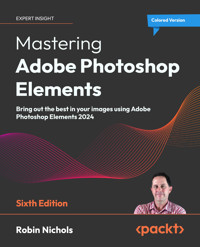
Dive into the world of digital photo editing with this latest edition, crafted by a seasoned photographer and digital imaging expert, and harness the full potential of the latest Photoshop Elements 2024. With a unique blend of in-depth tutorials and practical applications, this book is an essential resource for photographers at all levels.
Alongside introducing new features like Dark Mode, Match Color, and Photo Reels, as well as advanced techniques like layering and artistic effects, this book addresses common user feedback from previous editions, ensuring a refined and user-friendly experience. With the help of this guide, you’ll learn how to leverage AI to stitch widescreen panoramas, remove people from backgrounds, defocus backgrounds, recompose images, and even create a range of calendars and greeting cards for your friends and family.
You’ll take your prowess to the next level by learning how to correct optical distortion, reshape images, exploit layers, layer masking, and get to grips with sharpening techniques to create the perfect picture or imaginative fantasy illustration. The online realms of animation, video creation, and third-party plugins will also be covered.
By the end of this book, you'll know how to leverage the incredible features of Photoshop Elements 2024 with complete confidence.
Das E-Book können Sie in Legimi-Apps oder einer beliebigen App lesen, die das folgende Format unterstützen:
Seitenzahl: 657
Veröffentlichungsjahr: 2024
Ähnliche


















Mastering Adobe Photoshop Elements
Sixth Edition
Bring out the best in your images using Adobe Photoshop Elements 2024
Robin Nichols
BIRMINGHAM—MUMBAI
Mastering Adobe Photoshop Elements
Sixth Edition
Copyright © 2024 Packt Publishing
All rights reserved. No part of this book may be reproduced, stored in a retrieval system, or transmitted in any form or by any means, without the prior written permission of the publisher, except in the case of brief quotations embedded in critical articles or reviews.
Every effort has been made in the preparation of this book to ensure the accuracy of the information presented. However, the information contained in this book is sold without warranty, either express or implied. Neither the author, nor Packt Publishing or its dealers and distributors, will be held liable for any damages caused or alleged to have been caused directly or indirectly by this book.
Packt Publishing has endeavored to provide trademark information about all of the companies and products mentioned in this book by the appropriate use of capitals. However, Packt Publishing cannot guarantee the accuracy of this information.
Senior Publishing Product Manager: Larissa Pinto
Acquisition Editor – Peer Reviews: Gaurav Gavas
Project Editor: Rianna Rodrigues
Content Development Editor: Soham Amburle
Technical Editor: Aniket Shetty
Indexer: Manju Arasan / Rekha Nair
Presentation Designers: Pranit Padwal
Developer Relations Marketing Executive: Sohini Ghosh
First published: August 2018
Second edition: April 2020
Third edition: December 2020
Fourth edition: December 2021
Fifth edition: December 2022
Sixth edition: January 2024
Production reference: 1240124
Published by Packt Publishing Ltd.
Grosvenor House
11 St Paul’s Square
Birmingham
B3 1RB, UK.
ISBN 978-1-83546-938-5
www.packt.com
In memory of Echo and her never-ending curiosity, may she rest in peace.Also to Otto, who has some big pawprints to fill - but who may yet prove to be the best thing we've experienced this year...
– Robin Nichols, Sydney, 2023
Contributors
About the author
Born in the UK, Robin Nichols has always had a great love for recording the world with a camera. After finishing school, he studied fine art, before moving on to study at Nottingham Trent University, where he gained a degree in creative photography. He subsequently worked in the advertising industry for several years, before emigrating to Australia in 1985. Robin has always worked in photography: as a black and white printer, a cameraman, a stock photographer, and a freelance photographer.
During the 1990s, Robin contributed to several photo-centric publications in Australia, New Zealand, Singapore, and the UK. This led to a full-time position as the editor of the Sydney-based Commercial Photography magazine, and later, Australian Photography magazine, a post that he held for 5 years.
In 1997, he founded the critically acclaimed Digital Photography and Design magazine. During this period, he also authored books for Focal Press and Octopus Press, lectured at seminars in Sydney, Melbourne, and Brisbane, as well as in Seattle and Chicago, and ran highly successful photographic workshops in Dubai for seven years.
In 2000, he started his own publishing business, launching what became Australia's best-selling specialist digital photography publication: Better Digital Magazine. With this he pursued the goal of presenting clear, well-illustrated information written in jargon-free English.
Two years later, he launched a second magazine, also a world first, called Better Photoshop Techniques. As a publisher during this period, Robin was lucky enough to interview some of the biggest names in photography, including Elliott Erwitt, David Doubilet, Joe McNally, Gregory Heisler, David Hobby, and even keen photographer and jazz legend Don Burrows, on one occasion.
Both magazines ran for more than 10 years, but as distribution and paper costs spiraled and access to free information on the internet exploded, he made the move into teaching. However, after ten years of teaching recent events, most notably COVID, forced an early retirement - and now Robin divides his time equally between his woodworking shop and his ever-changing home garden.
About the reviewer
David Asch lives in Haywards Heath, England. He works as a Content Designer and is also an artist with a passion for digital art and technology.
David has been working with digital imaging tools for over 20 years. In that time, he has authored several titles on Adobe Photoshop Elements and Adobe Muse, as well as numerous articles for digital photography publications and online resources. He is an Adobe Certified Expert in Photoshop CC and teaches Photoshop and Photoshop Elements.
Authored publications:
Creative Web Design with Adobe Muse (Focal Press)How to Cheat in Photoshop Elements (Focal Press)Focus on Photoshop Elements (Focal Press)Digital Photo Doctor (co-authored) (Reader's Digest)Contents
Preface
Who this book is for
What this book covers
To get the most out of this book
Download the color images
Conventions used
Get in touch
Share your thoughts
Download a free PDF copy of this book
Color keys
Chapter 1: Photoshop Elements Features Overview
What's New in Photoshop Elements 2024?
How Elements is designed to work
A typical image editing workflow example
How I like to edit images
The five faces of Adobe Photoshop Elements 2024
The Home screen
The Organizer
The Catalog
Photo Editor: Quick Edit mode
Photo Editor: Guided Edit mode
Photo Editor: Advanced Edit mode
Working with panels and the Panel Bin
Panel functions
The Create and Share menus
The Enhance menu
Working with video and Premiere Elements
Create menu features
Summary
Chapter 2: Setting Up Photoshop Elements from Scratch
Setting up a photo editing computer
Importing media into the Elements Organizer
Reviewing your media
Backing up your media
Organizing your work: Star Rating photos
Organizing your work: picture search using Metadata
Organizing your work: Keyword Tagging
Organizing your work: Places
Organizing your work: Events
Organizing your work: People
Understanding JPEG, RAW and other file formats
Saving your files
Saving Version Sets
Managing Catalogs
Digitizing photos with a Scanner
Digitizing photos with a Camera
Color management: understanding Color Spaces
Color management: Color Settings
Color Management: Screen and Printer Calibration
Organizer keyboard shortcuts
Summary
Chapter 3: The Basics of Image Editing
The Editing Workflow and Best Practices
Overview: editing RAW files
Editing Raw files: the Basic tab
Editing RAW files: the Detail (sharpening) tab
Editing RAW files: Noise Reduction
Editing Raw files: Other features
10 ways to open a photo for editing
Understanding photo Resolution
Cropping for better composition
The Straighten Tool
Increasing or decreasing file size: Resampling
Instant photo-fixing in the Organizer
Using Auto Correction tools
Mastering contrast: using Levels
Mastering contrast: Shadows/Highlights
Mastering color: using Hue/Saturation
Simple retouching: Smooth Skin feature
Simple retouching: Spot Healing Brush
Additional resources
Summary
Chapter 4: Getting Started with Simple Solutions
What's that strange-looking graph?
How do I make a dull-looking photo appear better?
My contrast looks 'greyish', what's wrong?
My colors look weak or 'desaturated'
My photo looks boring – how can I add impact?
I want to make my complexion look better...
I look a bit overweight in photos. Help!
My kid looks too serious in family photos. Help!
I want to remove people from my picture
I want to move a person/object to make a better composition
My picture looks 'messy'—how can I clean it up?
My pictures never look 100% level
My photo needs cutting (cropping)
My background looks too clear (sharp)
How can I add a person from another picture?
My picture doesn't look sharp
My picture looks great on screen but dark once printed
How can I make my scans look perfect?
How do I make my photo look like a sketch?
Can I make my photo look like a painting?
I don't have the patience to work on my photos. Can AI help?
Can AI help? (continued...)
I want to make a really big photo print. How do I do this?
Summary
Chapter 5: Easy Creative Projects
Simple visual effects: using Filters
Instant Artistic Effects
Quick Effects: Color Match
Lomo Camera Effect
Effects Collage
Colorize: AI-driven creativity
Photomerge Panorama
Making a multi-deck panorama
Photomerge Scene Cleaner
Photomerge Faces
Creating Slideshows
Create a TikTok-ready Photo Reel
Creating Photo Calendars
Creating simple Greeting Cards
Summary
Chapter 6: Advanced Techniques: Transformations, Layers, Masking, and Blend Modes
Transformations: Correcting Perspective
Transformations: Pictures in a Picture
Transformations: Warping shapes for a 3D Shadow
Transformations: Warping text
Introduction to Layers
Other features on the Layers panel
Layer opacity
Merging layers
Pseudo Layer Masking
Layer Masking: Adjustment Layers
Layer Masking: the basics
Layer Masking: Advanced techniques
Blend Modes
Tool Blend Modes
Layers: Smart Objects
Keyboard shortcuts
Summary
Chapter 7: Advanced Techniques: Retouching, Selections, and Text
Retouching: Spot Healing Brush and Clone Stamp Tools
Advanced Retouching Techniques
Retouching: the Object Removal tool
Local Retouching: the Burn, Dodge, and Sponge Tools
Local Retouching: the Blur, Sharpen, and Smudge brushes
Simple selections: Subject Selection
Simple Selections: Background Select
Simple Selections: Background Select #2
Simple Selections: Sky Select
Advanced Selections: Selection features
Saving Selections
Advanced Selections: Feathering
Advanced Selections: The Refine Selection Brush Tool
Advanced Selections: The Refine Edge Tool
Advanced selections: the Marquee and Lasso Tools
Advanced selections: the Magic Wand Tool
Simple Selections: the Quick Selection Tool
The Selection Brush Tool
The Auto Selection Tool
Basic Text: Text Styles
Basic Text: The Type tool
Basic Text: Styles and effects
Advanced Text: Custom Text
Keyboard shortcuts
Summary
Chapter 8: Additional Tools and Features
Image Modes
Adjust Color Curves
The Smart Brush
The Paint Bucket Tool
The Gradient Tool
The Haze Removal Tool
The Content-Aware Move Tool
The Recompose Tool
Extend Background feature
Move & Scale Object feature
Moving Photos feature
Quote Graphic feature
Guided Edit Text
Convert to Black and White feature
Duotone Effect filter
B&W Color Pop filter
Old Fashioned Photo filter
Perfect Landscape feature
Perfect Portrait feature
Perfect Pet feature
Adjust Facial Features
Adjust Facial Features – Face Tilt
Open Closed Eyes feature
Keyboard shortcuts
Summary
Chapter 9: Advanced Drawing, Painting and Illustration Techniques
The View menu
The Eraser Tools
Using Brushes: Controlling Brush Settings
Brush and Pencil Tools
The Cookie Cutter Tool
Color Replacement Tool
The Impressionist Brush
Basic drawing techniques
Working with Vector Graphics
Vector Graphics: Custom Shape Tool
Text Graphics
Adobe Vectors: Custom Greeting Card
Custom Vector Illustrations
Filter FX: Texturizing & Artistic Effects
Scrapbooking Techniques
Collages: Auto Page Layout
Custom Brushes
Technique: Photobashing
Photobashing? Adobe Stock to the rescue!
Using a graphics tablet
Keyboard shortcuts
Summary
Chapter 10: Exporting Work, Sharpening, and Plug-ins
Elements Web and Mobile Companion App
Posting online: web and blogging
Posting online: Facebook
Posting online: Instagram and Flickr
Inkjet Printing: general features
Inkjet Printing: Page Setup
Images online: Save for Web
The Sharpen tools: Unsharp Mask
The Sharpen tools: Shake Reduction
The Sharpen tools: High Pass sharpening
The Sharpen tools: Sharpen filters
Third Party Software: working with Plug-ins
How a plug-in works:
Exporting work: Export as New Files
Exporting work: Process Multiple Files
Keyboard shortcuts
Summary
Chapter 11: Troubleshooting and Additional Techniques
File-saving issues
Finding lost or disconnected files
Using the Find Menu
Adjusting Date and Time for different time zones
Reinstating your Catalog
Resolution issues: Adding Pixels
Remove Color Cast
Fixing Skin Tones
Altered reality: adding Lens Flare
Altered Reality: Correcting Camera Distortion
Altered Reality: Creating Depth of Field FX
Altered Reality: Tilt Shift Effect
Altered Reality: Changing Eye Color
Altered Reality: The Liquify filter
Using the Help Menu
Summary
Chapter 12: Feature Appendix
Home Screen
Organizer – Import
Organizer—its five view spaces
Quick Edit mode: Tool bar
Quick Edit: Adjustments
Guided Edit mode
Basics
Color
Black and White
Fun Edits
Special Edits
Photomerge
Advanced Edit mode: Tool bar
VIEW tools
SELECT tools
ENHANCE tools
DRAW tools
MODIFY tools
Color Picker
Drop-down menus
File menu
Edit menu
Image menu
Enhance menu
Layer menu
Select menu
Filter menu
View menu
Window menu
Help menu
The Panels
Layers panel
Effects panel
Filters panel
Styles panel
Graphics panel
Actions panel
Color swatches
More tabs
Histogram panel
History panel
Favorites panel
Navigator panel
Info panel
Create Menu
Slideshow
Photo Collage
Photo Reel
Quote Graphic
Photo Book
Greeting Card
Photo Calendar
Video Story
Video Collage
Highlight Reel
Share menu
Flickr
Vimeo and YouTube
PDF Slideshow
Glossary
Other Books You May Enjoy
Packt is searching for authors like you
Share your thoughts
Download a free PDF copy of this book
Landmarks
Cover
Index
Preface
Welcome to Mastering Adobe Photoshop Elements. This book is designed to take you on an image creation journey, from the absolute basics of photo editing all the way through to some of the most advanced and creative techniques possible using this comprehensive, powerful, and ever-popular image editing application.
Who this book is for
Mastering Adobe Photoshop Elements - Sixth Edition is written by a photographer for photographers of all skill levels. Its target audience is anyone with a thirst for knowledge and a desire to take control of their file organization while improving their visual creativity potential through the incredible power of photo editing.
Although novices are advised to start at the beginning, the book's structure is one that allows you to sample the chapters almost at random, depending on your skill level and the direction in which you might want to take your work.
It's certainly not an attempt to be the only book you'll ever need on the subject, but I hope it will entertain and inform those of you who want to escalate your level of expertise, from beginner through intermediate levels, and eventually toward being a professional in the fields of image creation, editing, photography, and even graphic design.
What this book covers
Chapter 1, Photoshop Elements Features Overview, firstly introduces you to the new features in this latest version. Not surprisingly, you are going to experience bunch of new AI features - including 20-plus one-button effects - most of which will blow your mind!
To fully explain Elements, this chapter sets out how the program has been designed to operate and includes a typical workflow scenario as well as a clear explanation of the roles of all five sections of Photoshop Elements: the Home Screen, the Organizer, and, in the Photo Editor section, Quick Edit mode, Guided Edit mode, and finally, Expert Edit mode.
It also explains the importance of the application's organizational heart, the Catalog, plus its panels, panelfunctions, and the Panel Bin, along with the Create, Share, and Enhance menus. Finally, the chapter wraps up with a look at the relationship between Photoshop Elements and Premiere Elements, its video editing sibling.
Chapter 2, Setting Up Photoshop Elements from Scratch, helps you overcome the first hurdle of buying and installing the software. Your next move is to learn how to configure the application to produce the quickest and most efficient results. This chapter deals with how to prepare your camera (setting the correct Color Space in its menu), best practices for imaging computers (Windows and Mac), how to review all your media, as well as the all-important media backup strategies.
Following that is a description of the best ways to import picture files into the Organizer, plus all the techniques Elements provides for organizing media, using organizational tools such as Star ratings, Keyword Tagging, Places, Events, People, albums, tags, and metadata.
You'll also find a section on the different characteristics of the most popular file formats, bit depth, how to save your files, saving files as Version Sets, and Managing Catalogs. You'll also discover a new section on digitzing photos using a scanner and a camera. The final part of the chapter explains the basics of color management and screen calibration.
Chapter 3, The Basics of Image Editing, discusses the editing workflow and suggests a number of best practices. It illustrates how to get started with photo editing by covering a range of topics, including an in-depth look at RAW file and JPEG editing, then 10 ways to get an image file opened in Elements, plus a look at pictureresolution (and its impact on image quality). Other techniques discussed here include cropping image files, leveling photos with the Straighten tool, increasing or decreasing file size using a technique called resampling, applying "instant" photo fixes in the Organizer, and using the Auto Correction tools.
Besides getting up to speed with these basics, the chapter also covers how to master contrast, color, sharpness and clarity using the powerful Levels, Hue/Saturation, and Shadow/Highlights features.
At the end of the chapter, you'll discover how to create perfect skin tones using the Smooth Skin feature, plus basic but effective retouching techniques using the amazingly effective Spot Healing Brush tool.
Chapter 4, Getting Started with Simple Solutions. This all-new chapter sets out to answer some of the most popular photo editing queries. There are more than 20 excellent examples - all of them have several possible solutions - these are ranked in order of simplicity.
Some questions include: 'What does the Histogram Do?', 'How do I make a dull picture look great?', 'How do I fix poor contrast?', 'How can I turn my photo into a painting?', 'How do I make my photo better with AI?',How do I make my shots look sharper?', 'Can I remove someone from the image?', 'How can I add a person from another image?' and 'How do I make my photos look perfect in a print' - and many more.
Chapter 5, Easy Creative Projects. In this chapter, features covered include simple but effective "looks" using the massive range of creative filters found in Elements, plus a range of Artistic and Color Match Effects, creating a Lomo Camera 'look', an Effects Collage, making your own hand-coloring effects using the Colorize Photo tool, creating wide-screen and multi-deck panoramas with Photomerge Panorama, and delving into Elements' amazing Photomerge Scene Cleaner and its fun-to-use Photomerge FacesGuided Edit feature.
The chapter finishes with an overview of the easy-to-make slideshow, a TikTok-ready Photo Reel, photo calendar, and greeting cards projects.
Chapter 6, Advanced Techniques: Transformations, Layers, Masking and Blend Modes, moves on from the basics described in previous chapters to turbo-charge your creativity.
The chapter introduces you to perspective correction, resizing pictures in pictures and warping shapes to make 3D shadows and text effects using Transformations. This is the place to discover the power of Layers as well as quick 'Pseudo' Layermasking effects, Adjustment Layers, Adjustment Layer Masking, and finally basic and advanced Layer techniques.
If that isn't enough, the chapter also demonstrates the power of layer based Blend Modes as well as Tool-based Blend Mode effects and Smart Objects.
Chapter 7, Advanced Techniques: Retouching, Selections, and Text, moves on from the power to Layers to look at fully understanding the use of retouching tools - in simple beauty retouching, using the powerful CloneStamp tool, the magical HealingBrush and Spot Healing Brush tools, and the highly underrated Burn, Dodge, and Sponge tools. If adventurous you could go straight to the new AdvancedRetouching section for greater in-depth features.
The chapter also highlights one of Elements' impressive retouching tools - the ObjectRemoval Tool. We also tackle the complex world of selections, which, like layers, will transform how you edit images. There's also three of Elements' more esoteric, but highly effective retouching features: the Blur, Sharpen and Smudge brushes.
We also look at its effective SubjectSelection feature - plus the new automated AI-driven Sky and Background selection tools, how to save your selections, Feathering selections, the RefineSelectionBrush tool and the RefineEdge tool, before getting to grips with more advanced selection features like the Marquee and Lasso tools. We also take a look at the excellent MagicWand tool, the SelectionBrush tool, the QuickSelection tool, and the AutoSelection tools.
What many never appreciate is that Elements also features some great graphics tools, including the handy Horizontal Type tool—used, of course, to add text to images—plus all the different type and font options, as well as how to find, download, and use cool custom fonts for special projects.
Chapter 8, Additional Tools and Features, moves on from the power of RAWfileediting and the basics of the Levels and Hue/Saturation tools and illustrates dozens more really excellent features to be found in Photoshop Elements. Some are AI-driven, while many others stem from the mightily handy Guided Edit mode.
In this chapter, you'll find a selection of more than 20 fabulous features that you might have passed by when performing routine edits. Some are hugely visual in their nature, some are designed for fixing photo problems, while others are there just for fun.
These include to Adjust Color Curves, the Blur, Sharpen, and Smudge brushes, the Eraser tools, SmartBrush, PaintBucket, the Gradient tool, the HazeRemoval tool, the Content-aware Move tool, the Recompose tool, the useful new Extend Background feature, the MoveandScaleObject tool, MovingPhotos, QuoteGraphic, AddText, ConverttoBlackandWhite, DuotoneEffect, B&W Color Pop, OldFashionedPhoto, PerfectLandscape, PerfectPortrait, the Perfect Pet feature, AdjustFacialFeatures (including its scary FaceTilt feature), and an equally scary but handy OpenClosedEyes feature.
Chapter 9, Advanced Drawing, Painting and Illustration Techniques, explains that Elements comes with a wide range of credible graphics and illustrationtools, making it more of an all-around creative powerhouse than many might give it credit for.
To kick off this chapter, we highlight the best ways to master the handy design and layouthelpers that you'll find under the View menu, plus the benefits of using Brush and Pencil tools (and their various behaviours).
This chapter also demonstrates the CookieCuttertool, the ColorReplacementBrush and the ImpressionistBrush - before moving on to cover some basicdrawingtechniques.
Elements has a large range of graphics tools - including scalable VectorGraphics, a handy CustomShapetool, and a good selection of preset TextGraphics. We look at a basic DIY custom greeting card project, as well as advanced vector designs, Texturizing and other ArtisticEffects. The back of this chapter encompasses scrapbookingprojects, AutoPageLayout features, and amazing (free) downloadable CustomBrushes. The final section in this chapter takes you up another level with a Photobashing exercise demonstrating how to bring a wide range of photographic and graphic elements together to make your own custom illustrations. And if you find you need an extra image for your photobashing exercise, look no further than the File Menu and Adobe's free stock feature. Finally there's a short section on graphics tablets.
Chapter 10, Exporting Work, Sharpening and Plug-ins. In this chapter, we look at Elements on the Web and its MobileCompanionApp - plus the various resolution requirements for different social media platforms, as well as how to prepare files for print. Because so many photographers are now so reliant on the internet, it's important to get a handle on how to prepare pictures for display (using the Save for the Web feature), as well as how best to sharpen files for different print and online applications using the industry-standard UnsharpMask tool, the excellent Shake Reduction tool, High Pass Sharpening effects, and the generic sharpen filters.
A new section deals with expanding the power of Elements by using third party Plug-ins - for sharpening your image files, for adding cool special effects - there are even plug-ins designed for converting your photographic images into something that looks a lot more like a painting. The sky's the limit!
Finally, this chapter takes a good look at how to export multiple instances of your work (with the Export as New Files feature), as well as how to bulk-process and even copyrightfiles using the effective Process Multiple Files utility.
Chapter 11, Troubleshooting and Additional Techniques, deals with how to fix all the things that can go wrong when trying to manage a database of thousands, or tens of thousands, of images, and how to deal with image files that are not quite perfect. The chapter starts by explaining file-saving protocols: what options to go for. We also investigate what to do if files get lost or disconnected from the catalog, how to fully utilize the features of the powerful Find menu, adjusting dates for different time zones, as well as how to re-instate a lost or damaged Catalog. There's also information on how to fix resolution issues - typically when using low resolution files in print - using Resampling techniques.
You will also find a section on how to fix skin tone color (Adjust Color for Skin Tones), fix a color cast (Remove Color Cast), alter reality by adding LensFlare, correcting LensDistortion, creating your own DepthofFieldEffects, adding a Tilt-Shift effect, plus how to change eye color and use the amazingly quirky Liquify filter.
Chapter 12,Feature Appendix, highlights all the tool features, panels, processes, and menus in Photoshop Elements. Use it to get more information on all the features in Elements, and check out the author's personal feedback on how effective or important many of these features might be for beginners.
To get the most out of this book
The point of this publication is that you don't need to have extensive experience before starting out in the world of photo editing. That was the premise of the original Adobe application many versions ago, and today, that idea, with the introduction of so many new AI-driven features, is stronger than ever.
That said, it would be immensely useful to have a fundamental knowledge of how computers operate, including Mac or Windows operating systems, and perhaps an inkling of basic image editing, just to get started. Also, be prepared to experiment with your images as much as you have the time for. It's the best way to learn.
Develop a network of friends or mentors who might be able to help you if you get stuck. To do this, you may find that it's a good idea to join a camera club in order to get help with both your photography and post-processing questions.
Above all, have fun, and experiment as much as you can.
Download the color images
We will provide all the color images and screenshots/diagrams used in the book for you to practice. You can download it here: https://packt.link/gbp/9781835469385.
You can also find the image bundle here: https://github.com/PacktPublishing/Mastering-Adobe-Photoshop-Elements-6E.
Conventions used
There are a number of text conventions used throughout this book.
Code in text: Indicates code words in text, database table names, folder names, file names, file extensions, pathnames, dummy URLs, user input, and Twitter handles. Here is an example: "TIFF files can end up being larger than the same file saved in the .psd format."
Bold: Indicates a new term, an important word, or words that you see onscreen. For example, words in menus or dialog boxes appear in the text like this. Here is an example: "Start the program and from the Home Screen, click the Organizer button."
Tips or important notes
Appear in boxes like this.
Get in touch
Feedback from our readers is always welcome.
General feedback: If you have questions about any aspect of this book, mention the book title in the subject of your message and email us at [email protected].
Errata: Although we have taken every care to ensure the accuracy of our content, mistakes do happen. If you have found a mistake in this book, we would be grateful if you would report this to us. Please visit http://www.packtpub.com/submit-errata, selecting your book, clicking on the Errata Submission Form link, and entering the details.
Piracy: If you come across any illegal copies of our works in any form on the Internet, we would be grateful if you would provide us with the location address or website name. Please contact us at [email protected] with a link to the material.
If you are interested in becoming an author: If there is a topic that you have expertise in and you are interested in either writing or contributing to a book, please visit authors.packtpub.com.
Share your thoughts
Once you've read Mastering Adobe Photoshop Elements, Sixth Edition, we'd love to hear your thoughts! Please click here to go straight to the Amazon review page for this book and share your feedback.
Your review is important to us and the tech community and will help us make sure we're delivering excellent quality content.
Download a free PDF copy of this book
Thanks for purchasing this book!
Do you like to read on the go but are unable to carry your print books everywhere?
Is your eBook purchase not compatible with the device of your choice?
Don't worry, now with every Packt book you get a DRM-free PDF version of that book at no cost.
Read anywhere, any place, on any device. Search, copy, and paste code from your favorite technical books directly into your application.
The perks don't stop there, you can get exclusive access to discounts, newsletters, and great free content in your inbox daily
Follow these simple steps to get the benefits:
Scan the QR code or visit the link belowhttps://packt.link/free-ebook/9781835469385
Submit your proof of purchaseThat's it! We'll send your free PDF and other benefits to your email directlyColor keys
Hello reader,
I am excited for you to get your hands to this book and partner with you on this journey!
I wrote this book to include all the techniques I’d have loved to read and learn when I started off as a Photoshop artist. The book has been thoroughly updated with the latest features and techniques announced in PSE 2023 and I hope you enjoy reading and playing around with the tool as you progress and produce.
To make it easier for you to relate to the increasing complexity of the chapters, I’ve designed a color-key for this book. I’ve assigned a color stripe to every chapter to convey the difficulty level as follows:
Categories:
Skill Level Required
Photo Editing
Easy
Photo Editing
Intermediate
Photo Editing
Advanced
Projects
Easy
Illustration & Graphics
Intermediate to Advanced
Theory
Easy
Happy reading!
Robin Nichols
1
Photoshop Elements Features Overview
Adobe Photoshop Elements is a pixel-based graphics photo editing application that was first released in 2001. Its appearance followed on from an entry-level program called Photoshop LE, a light edition of Adobe Photoshop, which was a product made available mostly for students and teachers, though it was sometimes bundled with other hardware products at the point of sale. If you count its LE predecessor, Photoshop Elements 2024 is now in its 24th version.
Initially, Photoshop Elements was released as a basic, entry-level product for consumer moms and dads trying to get their collective heads around digital technology. But over the years, it has dramatically expanded its feature set, inheriting many significant professional-level tools from its more complex sibling, Adobe Photoshop.
So, how different is Elements from Photoshop? Interestingly, Adobe maintains that the principle difference between the two is that Elements is still essentially a screen-based, RGB(Red,Green,andBlue) editing program, whereas Photoshop is not only a picture editing powerhouse—it's also designed to convert RGB files for work in the commercial CMYKprint space—making it the go-to graphics application for all professionals working in print.
However, the market has changed significantly in the past 20 years, with so many more businesses trading online; therefore, the demand for print-ready conversions has reduced significantly. In my own experience, I have found that any good commercial print shop will gladly convert Elements' RGB files to its preferred CMYK color space, usually with only a nominal prepress charge, thus enabling everything produced using Elements to be commercially printed to the highest degree of quality.
In Elements 2024, you'll find a terrific range of sophisticated tools, features, and creative capabilities packed into an affordable editing package, making it a serious professional tool, as well as having the advantage of being significantly simpler to use than its big brother, Adobe Photoshop.
As you will quickly come to appreciate, this software is, in fact, made up of two separate applications, plus a number of different modes that are designed to address different user experience levels, all rolled into one bundle called Elements. Although it has technically evolved from other products, such as Adobe Photoshop LE and Photoshop Album, it's now an incredibly powerful and cohesive standalone tool designed for transforming photographic images, while remaining both affordable and, with each new version, increasingly easy to use.
What's important to learn in this chapter is that it's not necessary to know everything about Elements to succeed in editing your work—you can use just one, or a combination of its components to produce vibrant photo edits, or even impressive images from scratch, depending on your experience, creativity, and, indeed, your drive for perfection.
As you will see in the upcoming sections, this chapter is all about learning what each bit of Elements does—and therefore its relevance to your own creative workflow. And if you are indeed just starting out, the sections here will help you understand what's important right from the outset—and what can be tackled later, when you have more time and experience, to take more advanced features on board.
What you'll learn in this chapter:
What's new in Elements 2024?How Elements is designed to workThe Home ScreenThe OrganizerThe CatalogA typical workflow exampleThe Edit modes: Quick EditThe Edit modes: Guided EditThe Edit modes: Advanced EditPanels and the Panel BinPanel functionsCreate and Share menusThe Enhance MenuVideo and Premiere ElementsPeek Through Overlay
Sounds a bit corny, but this cool Guided Edit effect is really neat, easy to use, and produces a very effective 'look' that, if you had to do it manually, might take hours to achieve!
What's New in Photoshop Elements 2024?
Adobe has a hard time with each new software version released because its current version is so capable - it's hard to image what could possibly top what we already have. Like the previous version, most changes are seen in the field of artificial intelligence. But first off, you'll notice that the GUI, the interface, is now available in light or dark grey. Plus it's been redesigned, looking a lot cleaner and, in my opinion, visually it works better.
To change the color of the interface, you must open the Preferences (Edit>Preferences>General or Ctrl/Cmd + K), select the appropriate GUI color then restart the application from the Home Screen to lock-in the new interface color.
One of the best new features, in my opinion, is the inclusion of more AI driven features - these introduce a degree of easy automation mixed with great creativity. In this example, I clicked the innocuous-looking Add Blue Sky button and within a few seconds I had a new sky, almost seamlessly applied to the base image. There are 25 'quick fixes' but, as most are AI driven, you don't do anything - the software does it all for you. See more on these AI features in Chapter 4: Getting Started with Simple Solutions.
Below: the Guided Edit mode is now home to the Add Text feature - this packs all Elements' text features into the one place, providing another raft of great features for the creative photographer and designer.
One of my favourite features is this woodblock effect. One click and it's done. Magic!
Another nice touch is the JPEG Artefact Removal feature - this does a great job of cleaning up pictures that are old, that have been over-compressed and images that just look a bit 'rough' around the edges.
The screen grab at the bottom of the page displays Elements Web Companion App, a feature carried over from Elements 2023 - this now automatically synchronises with its new Mobile Companion App.
Select>Subject has been one of the best one-click selection actions for a couple of versions. Elements 2024 now has a Select>Background and a Select>Sky feature.
Both work very well, producing, as you see with the dog and his new background, at left.
Look at the mask mode (pink screenshot below), the dog selection looks remarkably accurate with just a few whiskers escaping attention...
In a nod to the younger generation, Photoshop Elements has extended its online presence with a Web Companion App (screen shot opposite, bottom of the page) that automatically synchronises with its new Mobile Companion App (examples below).
Color Match is another new feature in Elements 2024. This is accessed via the Effects Panel located in either the Quick or the Advanced Edit modes. The difference between the two locations is that, in the Advanced mode, you can import one of your own images as the sample photo (see above right here) you can then use that as a base for the color change by clicking the Import photo button (highlighted in red).
Elements uses the tones from the sample to drop a color mask onto the active image. What this means is that your picture is not going to look exactly the same color as one of the samples - but it does take on the general tint or mood from that image - such as warm, neutral or cool, reflecting the dominant color in the sample. I picked a blue toned portrait of mine so the picture of the vaulted ceiling (main pic) has changed to cool, with hints of blue...
What's in a name?
Past Elements users should also note that the name of one of the three Edit Modes is different. There's still a Quick Edit and a Guided Edit mode but the Expert Edit mode is now called the Advanced Edit mode. Advanced does the same job, it just has a different name...
How Elements is designed to work
Elements' designers have produced an application that offers everything, from a comprehensive method of file organization (vital in such a media-rich environment), to a highly sophisticated level of editing prowess. It'll look a bit scary if you have not used this program before, but don't let this get in the way! Elements can be used in any number of different ways, from a super easy mode (see the new How do I do that... section), to super complex. It's entirely up to you which path you choose—and, of course, you can chop and change your editing style whenever the situation suits. Its "official" workflow might be something like the following:
With your images already transferred to a computer, install and start Elements. Start the program and from the Home Screen, click the Organizer button:
Use the Organizer to import your media bit by bit so as not to overwhelm yourself—you can import stills, music, and even video clips.Sort your media into small, manageable groups using Albums, Keywords, Tags, Face recognition, Metadata and GPS co-ordinates—but there's no need to do this all at once. This is more a project for a rainy day.Once your images are sorted, move on to the following:
Perform basic edits on files displayed in the Organizer—using, for example, the Instant Fix tab (bottom left of the screen) or bringing them across to the Elements Photo Editor (a separate app from the Organizer). To bring them over, right-click the thumbnail image and choose Edit with Photoshop Elements Editor from the pop-out menu. This opens the file in either the Quick, Guided, or Advanced Edit mode. (Note: you can easily change between these edit windows at any time.)Edit pictures using the Quick Edit mode. This part of Elements contains a wide range of easy, one-click photo fixes plus loads of special effects.Or, try editing your work using the more complex Advanced Edit mode.Once finished, save the file as a .jpg (if destined for a photo book), a TIFF (.tif) file, or a Photoshop (.psd) file, if destined for print or more complex editing processes (such as retouching or adding text).If you are not 100% sure of how to go about your picture editing, Elements offers the excellent Guided Edit mode, designed to hold your hand while it escorts you through the edit cycle in a clear step-by-step process. This is easy to follow and effective.
I hope that by reading through the various chapters and sections in this book, you'll begin to devise your own workflow. Remember, there's no right or wrong way to edit pictures, just the one that works best for you. Experiment with the different edit modes using the same file and you'll quickly come to appreciate what works for you—and what doesn't.
Guided Edit mode: The Guided Edit mode is as perfect for simple tone fixes as it is for more complex and creative project-type effects, like this striking Painterly Effect—which took me all of two minutes to complete. More about this feature in Chapter 4: Getting Started with Simple Solutions, page 123.
Advanced Edit mode: Even if you jump into the deep end and choose Advanced Edit, many of its features, such as the excellent Haze Removal tool seen here, are easy to use and produce, in most picture examples, really impressive results (inset).
A typical image editing workflow example
To give you an idea of where to start, here's how I use Elements.
First off, I always transfer files via a card reader into a pre-named folder (i.e. '2023 CairnsHoliday') located on an external hard drive. Some photographers prefer just dates - it's your choice how you name folders.
After each download, I back up everything to a second drive—by dragging and dropping from one drive (symbol) to the other drive (symbol). You can also do this by selecting all the new folder's content, copying it, then pasting the copied files to the backup drive. Everyone has their own method to do this. Note, if you are a PC and a MAC user, format your external drive so it is 100% readable on both platforms - this is easily done using a format called ExFAT.
Card reader: I manually download image files straight into pre-labelled folders. This is my travel file—so folders are labelled by year and destination. Inside each are more folders corresponding to each day of travel in that location.
Since I always specifically name folders each time I download a new batch of files, I don't need to use the Organizer a great deal—but I would recommend that beginners use it because, when it comes to making sense of hundreds or thousands of image files, you'll find it incredibly helpful.
I work almost exclusively in Advanced Edit mode and usually open images for editing using the keyboard shortcut Ctrl/Cmd + O to open files (PC/Mac). But that's just me...
Opening images for editing: From the Open dialog window, I navigate to the folder I'm after, then double-click the icon to open it, then double-click the image icon to get started. I'm lucky in that although I cannot always remember what I did last week, I can remember where all my photos are saved. This somewhat old-fashioned technique has worked well for me for many years.
How I like to edit images
I've learned from years of picture editing that even though nearly every digital file might look OK on the camera's LCD screen, they are often a bit lackluster once viewed on a high res computer monitor. This could be because the original lighting was poor, or because your computer screen isn't calibrated. But it's most likely because, being a machine, the camera does not record colour or contrast in the same way as the human eye does. This was especially true of early cameras, but now it's safe to say that the software that converts light into a usable electronic file in our camera is considerably more sophisticated, thus produces far more accurate results - which in turn requires less editing by the photographer. It's important to know that a JPEG file has already been processed by the camera software but a RAW file has not - it's up to you, the photographer, to make it look better!
Editing Raw Files: Double-click a RAW file and it must open first in this special RAW edit window. Here, you can achieve an amazing range of tonal improvements—from simple contrast and color boosts, to noise reduction, cropping, and sharpening. The original is on the left, and the edited version (right) has had five sliders adjusted (in red) to add visual drama to the file.
Here's how I (try to) make each image pop on the page. The first thing is to correct the global tones in the file (using the contrast slider).
If it's a RAW file, it opens in the Camera RAW window—see image above. Once there, I adjust the brightness and contrast, before fine-tuning the photo with the Highlight, Whites, Shadows, and Blacks sliders (but only if it needs it). This is normally enough to make the file look sharper with better contrast and color.I save the file, giving it a proper name so it can be readily identified later.When editing non-RAW files, I use Levels for contrast and brightness adjustments, the Hue/Saturation tool to add/subtract color where needed. That should be enough editing.As with RAW files, I save the file with a proper name, either as a .jpg file (when it's being added to a photo book) or in .psd (Photoshop) format for when additional editing is required.The five faces of Adobe Photoshop Elements 2024
Here's a brief overview of the five main parts of Photoshop Elements that you'll encounter when working on your images—the HomeScreen, Organizer, Quick Edit, Guided Edit, and Advanced Edit. Generally, you might use just one or two of these windows—for example, the Organizer and the Advanced Edit mode. But of course, you can freely swap between the editor and the Organizer, depending on your requirements—and skill level.
This is the Home Screen, the first panel you'll see when Elements starts. Use it to gain inspiration from the range of auto creations shown, and as a source of instruction (from the web links), or simply as a gateway to the other parts of Elements: the Organizer and the Quick, Guided, and Advanced Edit modes.
This is the Organizer. Use this part of Elements to import and view all your pictures, Photoshop Elements projects, videos, and music clips. Use Organizer to sort your growing image collection into Albums, add Keywords, Tags, captions, and more. Or just use it as a jumping-off point to take images to one of the other three editing panels: the Quick, Guided, or Advanced Edit modes.
This is the Quick Edit window. Use this to make quick, impressive edits to photos brought directly from Organizer (or from folders) with the Color Adjustments showing at right.
This is the Guided Edit window. Choose from more than 60 of these easy to follow projects that are presented in a step-by-step format, making even complex processes quick and easy to achieve.
This is the cleaner-looking Advanced Edit window in its new dark mode. Note: this used to be called the Expert Edit mode. This is the most complex part of Elements because, unlike the Quick and Guided Edit modes, it has few instructions and fewer one-button "fixes." You have to know what you want to achieve first—then you need to know what tools and techniques are required to make it all happen—so some prior experience would be of considerable benefit.
This is Elements' Preferences panel (Ctrl/Cmd + K or Edit>Preferences>General). It's not one of the five main panels, but it's worth knowing about—it does have its uses. Here, you can change things such as the GUI color, how files are saved, units of measurement, grid size and color, some key shortcuts, computer resources, transparency settings, and plug-in data.
The Home screen
What was referred to in Adobe Photoshop Elements 2018 as the eLive screen is now the Home screen. It's the first thing you see when Elements starts and, like its predecessor, is there to provide users with creative inspiration on how to edit images, embark on creative projects, and use its many auto creations (highlighted in red in the following screenshot). You can use it to learn how to accomplish basic editing tasks and for fun activities such as creating YouTube memes, automated slideshows, movies, and more, simply by clicking any of the pictorial links on the Home screen—which then takes you to an online tutorial.
Getting started: This is the new Elements 2024 Home screen. Over time, the application adds effects using your own images and provides online links (along the top of the screen) to more creative processes as a source of inspiration. It's also the go-to screen to open previously edited files (icons on the lower right), or to start one of the applications: Organizer, Photo Editor, or Video Editor.
The screen displays a short (text) list of previously opened files, which is a nice feature, plus shortcuts to open the photo editor, the media browser (called the Organizer), and the video editor, plus links to Adobe, Facebook, and X (formerly Twitter).
It's important to note that if you've not bought Elements and Premiere Elements together as a bundle, clicking the third icon, Video Editor, will prompt you to download and try Premiere Elements. Buying the bundle saves a fair chunk of money and makes sense because so many of us shoot video—plus you'll find several new features in Elements 2024 are now animated and so must be saved in a motion graphic file format such as .gif or .mp4.
Auto creations are amazing—Elements picks random images from your Organizer collections and applies a selection of AI-driven features to them. I was quite surprised when I first saw this because I had forgotten that Adobe was doing the hard work for me! Though its image selection isn't always appropriate, it's still an effective preview feature.
If you are already using Adobe Premiere Elements 2024, you'll notice several new features, including the handy auto reframing feature, animated overlays, better shadow and highlight controls, plus easier file compression for refining image quality over a range of different display media. But that's a topic for another book...
Photoshop Elements users will note that to begin with, the handy Auto Creations feature on the Home screen remains blank until you import images to the Organizer.
Because the Home page is linked to Adobe's servers, it also provides access to the Help menu, plus thousands more pages of inspiration covering a massive range of topics, from basic tone enhancement and scrapbooking to pro-standard retouching techniques and much, much more.
The Organizer
One drawback of digital photography is that we accumulate masses of images and other assets like audio files and video clips. Keeping track of everything can be a nightmare, especially if you plan on upgrading your skill set from keen amateur status to something approaching a professional occupation.
Sorting everything into meaningful collections, therefore, is the main function of the Organizer. Once installed, note that it runs as a separate application, albeit one with almost inseparable ties to the photo-editing part of Elements, and, indeed, with its video-editing partner, Adobe Premiere Elements (often sold with Elements as a bundle).
Photos and other digital assets are imported into the Organizer and sorted into meaningful groups using a range of clever tools such as albums, keywords, labels, place and people tags, star ratings, and metadata. All these attributes can be applied to your files which means its organizational and file search capabilities are very extensive, making it one of the best asset management systems in the business.
The Organizer is also the place to go for quick fixes—called Instant Fixes—as well as a number of other creative activities, such as: Slideshows, Photo Collages, Photo Reels, Quote Graphics, Photo Prints, Photo Books, Greeting Cards, Photo Calendars, Video Stories, Video Collage and Highlight Reels (the last three are made using Adobe Premiere Elements).
We also use the Organizer for uploading our creations to the new Elements Web Companion Application (which synchronises with the new Mobile Companion App) - as well as to social media platforms such as Vimeo, Twitter, Facebook, and YouTube.
The Catalog
Elements refers to your image files using links—nothing is ever physically moved into the application. When files are imported, Elements makes links to where the images are kept (normally this is in the Pictures folder but it could also be other hard drives in the computer or external drives). This linking information, along with all the metadata, image thumbnails, tags, attributes, and keywords—in fact, everything you do with the program—is what is saved in the all-important catalog.
Occasionally, you'll be reminded to "back up" the catalog. If you have downloaded and installed Elements and just got stuck in organizing and editing, you might not even know that there was a catalog or what it does. It's important to back up this catalog on a hard drive that's separate to where Elements is located - an external hard drive is a good choice for this task.
The Catalog Manager (Organizer>File> Manage Catalogs) allows you to monitor one or multiple catalogs. I'd recommend just having one catalog. Having multiple catalogs is practical if you share Elements with your partner, kids, or your work colleagues, but, because you can only ever open one catalog at a time, stick to one.
Though your original high-resolution files are not stored in the catalog, copies of the files are. Catalogs should be backed up periodically onto a separate hard drive—preferably one that doesn't contain your original image file. We'll cover this in detail in Chapter 2, Setting Up Photoshop Elements from Scratch.
Tip: Rotating your photos one at a time can be time consuming. Select multiple images in the Organizer (Shift-Click to select multiples, or Ctrl + Click to select multiples in isolation) then use the Rotate button (base of Organizer) to Rotate left or right and job done! It's an easy and fast technique.
Links: As you might understand from this illustration, 'importing' files is really a process of 'linking' files—from their original physical location into the Organizer window. If you delete, move, or rename any original file that's already 'imported', you'll still see its thumbnail in the Organizer but, as the link to the high res original has been broken, you won't be able to edit it. If this happens, Elements should immediately search for the missing file based on the name it originally imported with the metadata. When it locates the 'lost' file, it automatically re-links it. If not, then you can manually search for the lost file. (Note: A single image will have multiple links if it appears in multiple Organizer albums.)
Lost an image? If, for whatever reason, you lose a few files—something that does happen from time to time—Elements can be sent in hot pursuit of the errant images. When files are imported into the application, although it never copies the actual image files, it does bring in data such as file names, the metadata, and a thumbnail image—so Elements does know what that missing file looks like and what its name is. In my experience, provided that the missing files have not been renamed or deleted, the software will eventually locate them for you (Organizer>File>Reconnect All Missing Files).
Photo Editor: Quick Edit mode
Adobe presents its editing features in three different windows or edit modes located in Photo Editor, which is a separate application from the Organizer. If you are a newcomer to Elements, I'd suggest starting with the simplest editing mode—this is the Quick Edit mode.
Quick Edit 'before' and 'after': As you can see here, in the Quick Edit mode, the image being edited can be displayed in different view formats: a before view, an after view, or, as seen here, the more useful before-and-after view mode. The right-hand side of the screenshot displays some of the excellent single-click effects available in this mode (accessed by clicking the Effects tab, arrowed, at the bottom of the screen) and choosing from the Classic, Artistic or the new Color Match panel. This is a fantastic feature, producing one-click results, many of which are quite inspirational.
During the editing process, you'll use the Organizer to search for and find images that are then opened in one or, depending on your creative requirements, several of the three edit modes. After editing, they are saved and appear updated back in the Organizer. The process of getting images from the Organizer to the editor is dealt with in detail in Chapter 3, The Basics of Image Editing.
(Note that all three edit modes are interchangeable. This means that you can easily transfer an image from Quick, to Guided, to Advanced, and back again, if needed.)
The Quick Edit mode enables users to make simple but significant improvements to any picture using a range of tonal and special effects adjustments. These are listed in a specific top-to-bottom order so as to produce the best editing workflow. The Adjustments panel, next to the Effects panel, includes a Smart Fix, Exposure, Lighting, Color, Balance, and Sharpness tool.
This screenshot shows an enlarged view of the Quick Edit mode's Toolbar (top left) as well as its tool Options panel (lower left, set for the Spot Healing Brush tool), and its basic but effective Classic Effects panel, far right—opened by pressing the Effects tab (enlarged, bottom right). Effects now encompass the original list of ClassicEffects plus Artistic looks and a new Color Match panel.
This mode's tools include the following:
Zoom tool—used for enlarging/reducing the size of images onscreenHand tool—used for moving a greatly enlarged image around the screenQuick Selection tool—ideal for selecting/isolating specific parts of the imageEye tool—specializes in removing red-eye and (green) pet-eyeWhiten Teeth tool—selects and brightens teeth in one easy actionStraighten tool—an easy way to level wonky horizonsType tool—specifically designed for adding text to an imageSpot Healing and Healing Brush tools—powerful tools for retouching photosCrop tool




