


50,99 €
Mehr erfahren.
- Herausgeber: John Wiley & Sons
- Kategorie: Fachliteratur
- Sprache: Englisch
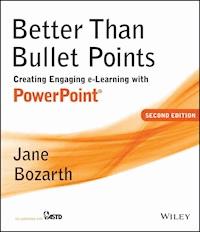
Featuring a complete update of the previous edition to reflect the new and expanded tools of PowerPoint 2013. By providing in-depth guidance, specific instructions, and helpful exercises, the book helps everyday trainers to create potent e-learning through the readily available popular desktop application. Established expert Jane Bozarth guides readers through the powerful new and updated features of the soon-to-be-released 2013 version, covering everything from text to art, animation to interactivity. If you have PowerPoint, this book will immediately put free real-world tools in your hands. Also features many online tools, including relevant technical design elements from older PowerPoint versions as well as a wealth of additional tools, templates, and examples. SECTION ONE: FOUNDATIONS Chapter One: Creating E-Learning with PowerPoint Chapter Two: It's About Design, Not Software SECTION TWO: INTERFACE AND CONTENT Chapter Three: The Graphic User Interface and Course Architecture Chapter 4 Designing for Impact Chapter Five: Creating and Editing Art Chapter Six: Animation Chapter Seven: Interactivity Chapter Eight: Add-Ons, Blending, Performance Support, and Job Aids Chapter Nine: Adding Narration and Multimedia SECTION THREE: DELIVERY AND SUPPORT Chapter Ten: Saving, Uploading, and Distributing Appendix: PowerPoint Basics References and Other Sources Other Resources
Sie lesen das E-Book in den Legimi-Apps auf:
Seitenzahl: 203
Veröffentlichungsjahr: 2013
Ähnliche


















CONTENTS
Website Contents
List of Figures and Tables
Acknowledgments
Introduction
Section 1: Foundations
Chapter 1: Creating e-Learning with PowerPoint
Examples
Let’s Get Started
Versions
One More Thing
Next Stop: It’s About Design, Not Software
Chapter 2: It’s About Design, Not Software
Who Are Your Learners?
Objectives and Strategies
Cognitive Load
About mLearning
Choosing a Treatment
Writer’s Block?
Can You Find a Story?
From Classroom to Online: Think “Transform,” Not “Transfer”
Cut-n-Chunk
What’s Working? What’s Not?
Inventory Your Assets
Why Storyboard?
Types of Storyboards
Next Stop: The program Interface and Architecture
Section 2: Interface and Content
Chapter 3: Graphic User Interface and Course Architecture
Graphic User Interface
GUI Basics
Learner Control: Some Decisions
Navigation Tools and Action Buttons
Eye Movement and Placement of Items
Building the GUI
Architecture
Next Stop: Designing for Impact
Chapter 4: Designing for Impact
Use Graphics with Soul
Blunders
Text
Next Stop: Creating and Editing Art
Chapter 5: Creating and Editing Art
Bitmap or Vector?
Working with Shapes and ClipArt
Editing Photos in PowerPoint
MS Paint
File Size: Compressing Images
New Horizons
Next Stop: Animation
Chapter 6: Animation
Animation Basics
Animations That Teach
Next Stop: Interactivity
Chapter 7: Interactivity
It’s All About Hyperlinking
Quizzes—Some Shaped Like Games
Linking to External Games and Quizzes
Simulations
Case Studies and Stories
The Skinny on Hyperlinking
What About “Gamification”?
Mazes
Treasure Hunts
About Visual Basic for Applications (VBA)
Next Stop: Add-Ons, Blending, Performance Support, and Job Aids
Chapter 8: Add-Ons, Blending, Performance Support, and Job Aids
Other Documents
Site Samplers
Add-On Software
“Blending”
Performance Support, Job Aids, and the Nice to Know
Next Stop: Adding Narration and Multimedia
Chapter 9: Adding Narration and Multimedia
Adding Narration
Adding Sound Effects and Music
Adding Video
Next Stop: Saving, Uploading, and Distributing Your Program
Section 3: Delivery and Support
Chapter 10: Distributing Your e-Learning Program
Saving and Uploading Your Files
Tracking
Test, Test, Test—and Launch!
Summary
Appendix: PowerPoint Basics
References and Other Sources
Other Resources
Index
About the Author
Copyright © 2013 by John Wiley & Sons, Inc. All Rights Reserved.
Published by Wiley
One Montgomery Street, Suite 1200, San Francisco, CA 94104-4594
www.wiley.com
Cover design: JPuda
Cover image: © TUNA TIRKAZ/Getty
No part of this publication may be reproduced, stored in a retrieval system, or transmitted in any form or by any means, electronic, mechanical, photocopying, recording, scanning, or otherwise, except as permitted under Section 107 or 108 of the 1976 United States Copyright Act, without either the prior written permission of the Publisher, or authorization through payment of the appropriate per-copy fee to the Copyright Clearance Center, Inc., 222 Rosewood Drive, Danvers, MA 01923, 978-750-8400, fax 978-646-8600, or on the web at www.copyright.com. Requests to the Publisher for permission should be addressed to the Permissions Department, John Wiley & Sons, Inc., 111 River Street, Hoboken, NJ 07030, 201-748-6011, fax 201-748-6008, or online at http://www.wiley.com/go/permissions.
Limit of Liability/Disclaimer of Warranty: While the publisher and author have used their best efforts in preparing this book, they make no representations or warranties with respect to the accuracy or completeness of the contents of this book and specifically disclaim any implied warranties of merchantability or fitness for a particular purpose. No warranty may be created or extended by sales representatives or written sales materials. The advice and strategies contained herein may not be suitable for your situation. You should consult with a professional where appropriate. Neither the publisher nor author shall be liable for any loss of profit or any other commercial damages, including but not limited to special, incidental, consequential, or other damages. Readers should be aware that Internet websites offered as citations and/or sources for further information may have changed or disappeared between the time this was written and when it is read.
For additional copies/bulk purchases of this book in the U.S. please contact 800–274–4434.
Wiley books and products are available through most bookstores. To contact Wiley directly call our Customer Care Department within the U.S. at 800-274-4434, outside the U.S. at 317-572-3985, fax 317-572-4002, or visit www.wiley.com
Wiley publishes in a variety of print and electronic formats and by print-on-demand. Some material included with standard print versions of this book may not be included in e-books or in print-on-demand. If this book refers to media such as a CD or DVD that is not included in the version you purchased, you may download this material at http://booksupport.wiley.com. For more information about Wiley products, visit www.wiley.com.
Library of Congress Cataloging-in-Publication Data
Bozarth, Jane.
Better than bullet points: creating engaging e-learning with PowerPoint®/Jane Bozarth.—Second edition.
pages cm
Includes bibliographical references and index.
ISBN 978-1-118-67427-7 (pbk.) ISBN 978-1-118-67424-6 (ebk) -- ISBN 978-1-118-67416-1 (ebk)
1. Employees—Training of—Computer-assisted instruction. 2. Computer-assisted instruction. 3. Microsoft PowerPoint (Computer file) 4. Presentation graphics software. 5. Internet in education. I. Title.
HF5549.5.T7B6196 2013
658.3′12404028553—dc23
2013018081
WEBSITE CONTENTS
The following materials are available for download from
Chapter 1
Chapter 3
Chapter 4
Chapter 5
Chapter 6
Chapter 7
Chapter 8
Chapter 9
Chapter 10
Appendix
LIST OF FIGURES AND TABLES
Chapter 1
Figure 1.1.
Multiple-Choice Quiz
Figure 1.2.
Matching Exercise
Figure 1.3.
Jeopardy-Type Quiz
Figure 1.4.
Maze
Figure 1.5.
Case Study
Figure 1.6.
Simulation with Branching Decision Making
Figure 1.7.
Animation Illustrating Concept
Chart 1.1.
Process Overview
Table 1.1.
Development Checklist
Figure 1.8.
New 16:9 Default Screen Ratio in PowerPoint 2013
Figure 1.9.
New File Menu in PowerPoint 2013
Chapter 2
Table 2.1.
Match Outcomes to Strategies
Figure 2.1.
Example of Cognitive Overload
Table 2.2.
Mayer’s SOI Model
Figure 2.2.
Before: Text List of Required Items
Figure 2.3.
After: Sample Letter Shows Items in Realistic Context
Figure 2.4.
Before: Slide with Extraneous Material
Figure 2.5.
After: Slide with Extraneous Information Removed
Figure 2.6.
Before: Text Separated from the Image Increases Cognitive Load
Figure 2.7.
After: Text Integrated into Image Helps Learners Acquire Information
Figure 2.8.
Treatment for Program for Art Museum
Figure 2.9.
Treatments for Ethics Program for New Veterinarians
Figure 2.10.
Treatment for Electrical Circuitry Program
Figure 2.11.
Treatment for Sexual Harassment Course
Figure 2.12.
Treatment for Equal Employment Opportunity Course
Figure 2.13.
Free-Association
Table 2.3.
Possible Approaches to “Sharks”
Figure 2.14.
Story: “A. Pintura: Art Detective”
Figure 2.15.
Story: “Hunger Banquet”
Figure 2.16.
Story: “Mission: Turfgrass”
Figure 2.17.
Simple Hand-Drawn Storyboard
Figure 2.18.
Storyboard Created with PowerPoint SmartArt
Figure 2.19.
PowerPoint Slide Sorter View
Figure 2.20.
Using Speaker Notes Area to Create a Storyboard
Figure 2.21.
Send PowerPoint File to Word to Create Side-by-Side Storyboard
Figure 2.22.
Text Storyboard
Chapter 3
Figure 3.1.
Clean, Clear Interface
Figure 3.2.
Slide Counter and “What’s Happening”
Figure 3.3.
Simple GUI
Figure 3.4.
GUI from “A. Pintura: Art Detective”
Figure 3.5.
Action Buttons Included with PowerPoint
Figure 3.6.
Setting Action Buttons
Figure 3.7.
PowerPoint’s Action Buttons Can Be Customized
Figure 3.8.
Choose “Insert-Hyperlink” and Browse for Destination Slide
Figure 3.9.
Varied Options for Navigation Tools
Figure 3.10.
Good GUI Recognizes “Z” Eye Movement
Figure 3.11.
Value of Screen “Real Estate”
Figure 3.12.
Common Problems with GUIs
Figure 3.13.
Background Makes Text Hard to Read
Figure 3.14.
Fonts Are Hard to Read
Figure 3.15.
Font Color Does Not Sharply Contrast
Figure 3.16.
Access the Slide Master View
Figure 3.17.
Blank Slide Master
Figure 3.18.
Add Navigation Elements, in This Case, Buttons
Figure 3.19.
Completed Program
Figure 3.20.
Slide Master for Program Uses Shapes
Figure 3.21.
Each Screen Will Look Like This
Figure 3.22.
GUI with Tabbed Navigation
Figure 3.23.
Subsequent Slides Contain Links to Topics
Figure 3.24.
Steps in Creating Screen, Including Tabs for Navigation
Figure 3.25.
Icon-Based Navigation
Figure 3.26.
Icon-Based Navigation Without Markers
Figure 3.27.
Button-Based Navigation (Shown in Articulate Player)
Figure 3.28.
Advance Organizer
Figure 3.29.
Explanation of Navigation
Figure 3.30.
Example of a Site Map
Chapter 4
Figure 4.1.
Images from Clipart Gallery Search for “Email”
Figure 4.2.
Graphic with Soul for the Email Etiquette Program
Figure 4.3.
Choose Your Heart Surgeon
Figure 4.4.
Civil Rights Timeline
Figure 4.5.
Addition of Watts Riot Photo
Figure 4.6.
Typical Approach to Request for Support
Figure 4.7.
Information from
Figure 4.6
Provided as Voiceover to This Image
Figure 4.8.
Text-Only Slide
Figure 4.9.
Same Slide Re-Created with Graphics Instead of Text
Figure 4.10.
Slide 1 Shows the Completed Circuit
Figure 4.11.
Slide 2 Explains the Symbols
Figure 4.12.
Slide 3 Provides Schematic of the Circuit
Figure 4.13.
Diagrams in PowerPoint’s SmartArt Gallery
Figure 4.14.
Before: Text List of Required Items
Figure 4.15.
After: Sample Letter Shows Items in Realistic Context
Figure 4.16.
Example of Design Mistakes
Figure 4.17.
Decorative Graphic
Figure 4.18.
Slide Includes Too Much Extraneous Information
Figure 4.19.
Extraneous Information Removed
Figure 4.20.
This Screen Is Too “Noisy” to Be Effective
Figure 4.21.
Insulting Approach
Figure 4.22.
Insulting Approach
Figure 4.23.
Before-and-After Overall Design Using PowerPoint
Figure 4.24.
Edit
Chapter 5
Figure 5.1.
Bitmap Images Are Made Up of Pixels
Figure 5.2.
Enlarging a Vector Graphic Does Not Affect the Quality
Figure 5.3.
Infographic Created with PowerPoint Shapes
Figure 5.4.
Airplane Created with PowerPoint Shapes
Figure 5.5.
Notepad and Pencil Created with PowerPoint Shapes
Figure 5.6.
Begin with Shapes and Drawing Tools; Draw a Hill
Figure 5.7.
Color the Hill Green
Figure 5.8.
Insert Clipart Tree and Cloud
Figure 5.9.
Add Water and Fill with Blue
Figure 5.10.
Send Water Back Behind Hill
Figure 5.11.
Create Condensation Lines
Figure 5.12.
Create Waves
Figure 5.13.
Completed Image
Figure 5.14.
Use Picture Tools to Set Transparent Areas
Figure 5.15.
Farm Images from the Same Style/Gallery
Figure 5.16.
Clipart Image of Haystack
Figure 5.17.
Right-Click and Select “Grouping—Ungroup”
Figure 5.18.
Editable Areas Will Appear. Regroup and Delete Pieces of Rake
Figure 5.19.
Create Copies of Haystack
Figure 5.20.
Copy Haystack and Paste onto Screen to Create Finished Image
Figure 5.21.
Eyedropper Color Picker Tool
Figure 5.22.
Options for Recoloring Image
Figure 5.23.
Artistic Effects Can Be Applied to Photos and Other Images
Figure 5.24.
PowerPoint Shapes Emphasize Important Points of Photo
Figure 5.25.
Removing Backgrounds Is a Simple Task
Figure 5.26.
Paint Is in the “Accessories” Folder
Figure 5.27.
Tools Available in MS Paint
Figure 5.28.
MS Paint Allows You to Edit and Customize Clipart
Figure 5.29.
Use Paint to Remove Man with Chainsaw, Then Touch Up Area
Figure 5.30.
Edited Tree Copied and Pasted to Form Orchard
Figure 5.31.
MS Paint Allows You to Edit and Customize Photos
Figure 5.32.
Smaller Files Show Reduction in Quality
Figure 5.33.
Compressing Pictures
Chapter 6
Figure 6.1.
Select Object and Choose “Animations”
Figure 6.2.
Choose Entrance, Emphasis, and Exit Effects
Figure 6.3.
Animation Effects Are Numbered and Color Coded
Figure 6.4.
Array of Entrance Effects Available
Figure 6.5.
Array of Emphasis Effects Available
Figure 6.6.
Array of Exit Effects Available
Figure 6.7.
Array of Preset Motion Paths. Custom Paths Can Also Be Drawn
Figure 6.8.
Set Timings for Animations
Figure 6.9.
Animated Line Shows Smoke’s Path
Figure 6.10.
Submarine Submerges as Air Chambers Fill with Water
Figure 6.11.
Animation Illustrates Working Pump
Figure 6.12.
Gear Spin Animation
Figure 6.13.
Spin Animation Used to Illustrate Turn
Figure 6.14.
Motion Path Animation Allows Learner to See Order
Figure 6.15.
Motion Paths for the “Grocery” Animation
Figure 6.16.
“Before” Image from Online AIDS Program
Figure 6.17.
Important Information—the Increase in Cases—Is Animated
Figure 6.18.
Animated Timeline
Figure 6.19.
Animated Timeline Shows the Fits and Starts in a Process
Figure 6.20.
Chart Elements Can Be Animated Separately
Figure 6.21.
Diagramming with PowerPoint
Figure 6.22.
Animating a Diagram
Figure 6.23.
Animation Can Be Used to Annotate Graphics
Figure 6.24.
Worked Example of Applying Calculation to Problem
Figure 6.25.
Car Moves While Perspective Changes
Figure 6.26.
Animation Settings for the Moving Car
Figure 6.27.
Setting the Trigger Animation for the “Start Spin” Button
Figure 6.28.
Choose “Effect Options” to See Choices for Setting Triggers
Figure 6.29.
Triggers Allow Learners More Control
Figure 6.30.
Clicking the Ovals Triggers Appearance of Explanatory Text
Chapter 7
Figure 7.1.
Creating Hyperlinks with Action Buttons
Figure 7.2.
Text Hyperlinks to Corresponding Slide
Figure 7.3.
PowerPoint Action Buttons Hyperlink to Corresponding Slides
Figure 7.4.
Objects (Boxes) Hyperlink to Corresponding Slides
Figure 7.5.
Invisible Hotspots Link to Corresponding Slides
Figure 7.6.
Creating a Hotspot
Figure 7.7.
Object (Phone) Links to Voice Clip
Figure 7.8.
Before: Text-Only Matching Quiz
Figure 7.9.
After: Matching Quiz with Images
Figure 7.10a.
Before: Text-Only Multiple-Choice Quiz
Figure 7.10b.
After: Multiple-Choice Quiz Using Images
Figure 7.11.
Matching Exercise
Figure 7.12.
Matching Exercise
Figure 7.13.
Set Items to Appear on Click
Figure 7.14.
Example of True/False Quiz
Figure 7.15.
Multiple-Choice Quiz
Figure 7.16.
Diversity Challenge Question and One Character’s Opinion
Figure 7.17.
Another Character’s Opinion
Figure 7.18.
Jeopardy-Type Quiz
Figure 7.19.
“Pyramid” Quiz
Figure 7.20.
Sample Squares Game Board
Figure 7.21.
Sample Squares Question
Figure 7.22.
“Millionaire” Quiz with Hints
Figure 7.23.
“50/50” Option Takes Away Half the Choices
Figure 7.24.
Setting Up Timed Quiz; Slide Advances After Ten Seconds
Figure 7.25.
Photo Reveal Activity. Point Value Decreases as More of the Image Is Revealed
Figure 7.26.
Timer Changes with One Slide per Second
Figure 7.27.
Clock-Type Timer Used in a Quiz
Figure 7.28.
“Bacteriopoly” Game Board
Figure 7.29.
PowerPoint Linking to External Quiz
Figure 7.30.
A Hyperlink from the PowerPoint Slide to the Online Quiz
Figure 7.31.
PowerPoint e-Learning Program Links to Online Quiz
Figure 7.32.
Example of Feedback Provided to Learner
Figure 7.33.
“Trouble Spots” Report, One of Several Reports Available
Figure 7.34.
One Type of Simulation Provides Practice with a Task
Figure 7.35.
Decision Tree for a Simple Simulation
Figure 7.36.
Choice of Role
Figure 7.37.
Presentation of Problem
Figure 7.38.
Learner Presented with Choices and Result of Decision
Figure 7.39.
Simulation Showing Email Interaction
Figure 7.40.
“Hindenburg’s Dilemma” Provides Choices and Consequences
Figure 7.41.
Icons Hyperlink to Choice of Actions
Figure 7.42.
Screen from “Gamekeeper’s Conundrum” Simulation
Figure 7.43.
Setting and Introduction of “A. Pintura: Art Detective”
Figure 7.44.
Comparison of Found Painting to a Raphael
Figure 7.45.
One Case from
www.hungerbanquet.org
Figure 7.46.
Continuation of the Case
Figure 7.47.
Schematic for the “Mission Turfgrass” Course
Figure 7.48.
Girders Collapse If Learner Touches with Cursor
Figure 7.49.
Girders Are Set to Collapse on Mouseover
Figure 7.50.
Treasure Hunt
Figure 7.51.
The VBA Window
Chapter 8
Figure 8.1.
Hyperlink to Other Documents
Figure 8.2.
Example of a Site Sampler
Figure 8.3.
SnagIt Offers Options for Editing Screen Captures
Figure 8.4.
Template Elements Take Up Nearly Half of Slide Space
Figure 8.5.
Animated Help Notes Walk Learners Through Filling Out Form
Figure 8.6.
Interactive Periodic Table of the Elements
Figure 8.7.
Telephone Tutorial
Figure 8.8.
Interactive Map
Figure 8.9.
Company History
Figure 8.10.
Organization Chart
Figure 8.11.
From PowerPoint-Based New-Hire Orientation Program
Figure 8.12.
Process Map Created with PowerPoint Art Tools
Figure 8.13.
New Hire’s First Day
Chapter 9
Figure 9.1.
Click “Slide Show—Record Slide Show”
Figure 9.2.
Steps for Recording the Show
Figure 9.3.
Slide Contains Two Sounds: Ringing Phone and Caller’s Voice
Figure 9.4.
Insert Ringing Sound, Hide the Sound Icon/Control, and Set the Ringing Sound “Automatic”
Figure 9.5.
Set Audio Clip to Play When Phone Is Clicked
Figure 9.6.
Accessing the “Record Sound” Tool
Figure 9.7.
Insert Video Clip
Figure 9.8.
Video Formatting Options
Figure 9.9.
Video Effect Options
Figure 9.10.
“Nail Care” Uses Photos
Figure 9.11.
“Gamekeeper’s Conundrum”
Figure 9.12.
Workplace Harassment
Chapter 10
Figure 10.1.
iSpring Pro Converter Dashboard
Figure 10.2.
Example of Full Player View
Figure 10.3.
Printable Completion Form
Figure 10.4.
Completion Set to Auto-Email
Figure 10.5.
Options for Saving to a Particular Standard
Chart 10.1.
Creating e-Learning with PowerPoint
Appendix
Figure A.1.
PowerPoint 2013 Interface
Figure A.2.
“Backstage”
Figure A.3.
Ribbon
Figure A.4.
Drawing Tools (Will Open When You Insert and Highlight a Shape)
Figure A.5.
Arrange Objects
Figure A.6.
Shapes
Figure A.7.
Shapes Effects
Figure A.8.
Modifying Shapes
Figure A.9.
WordArt Gallery
Figure A.10.
SmartArt Gallery Categories
Figure A.11.
SmartArt Category Example
Figure A.12.
Animation Tab
Figure A.13.
Fill Color Palette
Figure A.14.
Fills for Shapes
Figure A.15.
About Shape Fills
Figure A.16.
Fill Effects
Figure A.17.
Format Picture (Will Open When You Insert and Highlight a Picture)
ACKNOWLEDGMENTS
So it turns out that, while the first book is an exciting adventure, subsequent books are work. I am indebted to the dozens of people and organizations who contributed screenshots and other materials, and continue to be amazed at the remarkable and quick generosity of others. There is always danger in singling out particular entities, but I really must comment on the extraordinary help and extra effort from designer extraordinaire Kevin Thorn (www.learnnuggets.com/); Trina Rimmer (www.trinarimmer.com); the folks at http://ferl.becta.org.uk, the Royal Veterinary Cottage; Professor Danton O’Day; and Tom and Alice Atkins of Right Seat Software, makers of Vox Proxy. Many thanks to Tom Kuhlmann not only for his contributions to this book but for his remarkable contributions to the field and to his community. I am also appreciative of those who have offered feedback for this edition, particularly the instructors at colleges using it for a course textbook.
I am especially appreciative of the most generous Adam Warren of Southampton University, who contributed website materials and graciously loaned me his design for the instructional screens herein.
Thanks, too—as usual—to Wiley staff Matt Davis and Lisa Shannon (how delightful to have an editor who just gives me whatever I want!). Because I can find no more public place to thank him, I want to mention my favorite narrator, Michael Telesca, whose good humor and patience are as valuable as his golden tones. Also, many thanks to world’s best neighbor Colleen O’Connor Grochowski, Ph.D. As always, much appreciation to the world’s most supportive employers, Thom Wright, Ann Gillen Cobb, and Paula Kukulinski. Thanks for letting me work.
Finally, and it is not enough: very special thanks to my dear husband Kent Underwood, who in supporting my books and The Dissertation never complained about having not eaten at our dining room table since the last millennium.
Introduction
Getting the Most from This Resource
What Will This Book Do for You?
There is so much more to e-learning, and to PowerPoint®, than bullets and animated text. This book will show you how to use PowerPoint to create engaging, successful e-learning programs. This edition of Better Than Bullet Points updates the earlier edition to provide information on working with PowerPoint 2013, but much content is applicable to earlier versions.
Why PowerPoint?
With so many authoring tools available, why would a trainer choose to stick with PowerPoint? A better question might be, “With PowerPoint so intuitive, familiar, and easy to use, why would a trainer choose to buy an expensive authoring tool?”
PowerPoint allows for rapid development and deployment of e-learning.
PowerPoint provides for easy addition of graphics and simple animation.
Many training shops have libraries of PowerPoint presentations, originally developed for classroom use, ripe for updating or rethinking as online programs.
The advent of motion path animation gives PowerPoint users animation options previously only available to users of higher-end graphics programs.
Even novice PowerPoint users will find the learning curve shorter than that associated with other tools (and often downplayed in the sales pitches for those tools).
e-Learning created with PowerPoint brings with it none of the licensing fees or per-user costs associated with other tools.
Those new to e-learning may be unaware of the time and costs attached to updating online training content; using PowerPoint can make maintenance much easier.
And odds are, if you’re a trainer, you already own PowerPoint.
Really, you may find that you never need much more for creating engaging, compelling e-learning.
According to Brian Chapman of Brandon Hall Research (2005), PowerPoint is the most popular e-learning tool on the market. Used by itself or in conjunction with a PowerPoint-based add-on authoring tool (such as Articulate Presenter), PowerPoint is being used for e-learning purposes by many small firms as well as large organizations like Nestle, John Deere, the State of North Carolina, Deloitte Touche Tohmatsu, the American Society for Prevention of Cruelty to Animals, and Dade Behring.
Who This Book Is For
This book is primarily for the trainer wearing several hats, including that of instructional designer and, now, e-learning expert. As many readers are likely making the shift from classroom to online training approaches, there is a good deal of coverage on instructional design for e-learning. The book is intended for those with minimal (or who have no interest in) programming and coding skills, who wish to use PowerPoint partly due to its user-friendly, programming-free capabilities.




