


3,99 €
Mehr erfahren.
- Herausgeber: Richardson Dunne
- Kategorie: Lebensstil
- Sprache: Englisch
<h4>Do you love to create things? Are You Interested in Developing Your Craft? Want to Make the Most of Your Cricut Maker 3 and Learn More About Your Cutting Machine?</h4><p>If so, you ought to read this book. You can learn all there is to know about the Cricut Maker 3, its tools and accessories, the Design Space software, and more in the book "The Cricut Maker 3 Guide for Beginners." This book simplifies the overall steps involved in getting started on your creative path, going beyond the technical knowledge of your cutting machine.</p><p>The Cricut Maker 3 is a wonderful tool designed to produce high-quality cuts on over 300 varieties of materials. Wood, leather, matboard, vinyl, fabric, and paper are just a few of the materials you can work with. Furthermore, the Cricut Maker 3's smart tool system enables you to swap out 13 various tools that can be used to foil, engrave, emboss, score, draw, write, and cut a variety of different materials.</p><p><b>You will learn the following in this book:<br></b></p><ul><li>Discover how to configure the Cricut Maker 3.<br></li><li>Learn how to connect or pair your Cricut Maker 3 using USB or Bluetooth using a computer or a mobile device.<br></li><li>See how to create amazing artistic projects with the Cricut Maker 3.<br></li><li>Discover what extra supplies, tools, or accessories are needed to complete the ones you already have.<br></li><li>Learn how to use Design Space to create your first design.<br></li><li>Understand the intricacies of Cricut Smart Materials.<br></li><li>See how to select material settings, create custom material settings, and edit or delete custom materials for Windows, Mac, iOS, and Android.<br></li><li>Discover 300+ Cricut cutting materials along with their corresponding Multi-Cut, Blade Type, and Cut-Pressure Setting.<br></li><li>Discover the fundamentals of Cricut markers and pens, such as their types, setup, as well as how to draw and write with them.<br></li><li>Learn about the various Cricut blade types, their functions, how to replace them, storage suggestions, as well as how to maintain and sharpen your blades.<br></li><li>Identify the steps for replacing the Bonded-Fabric, Rotary, Deep-Point, Knife, and Fine-Point Blades.<br></li><li>Find out more about the different Machine Mat Grip strengths and the materials that they're all designed to hold.<br></li><li>Discover how to clean the rear rods, clamps, bars, and rollers, as well as the outside, inside, and beneath your cutting machine.<br></li><li>Learn the essentials of Design Space, including the homepage, canvas, header, and design panel, and more.</li></ul><p>The Cricut Maker 3 and other related topics are covered in-depth in this book, making it a must-have and your go-to resource. Start your artistic and creative journey right away.</p><p><b>Scroll Up and Click on "Buy now" to Start
Enjoying your Cricut Maker 3 TODAY!<br></b><br></p>
Das E-Book können Sie in Legimi-Apps oder einer beliebigen App lesen, die das folgende Format unterstützen:
Veröffentlichungsjahr: 2023
Ähnliche


















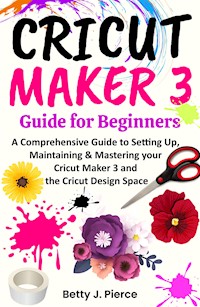
Cricut Maker 3 Guide for Beginners
A Comprehensive Guide to Setting Up, Maintaining & Mastering your Cricut Maker 3 and the Cricut Design Space
Betty J. Pierce
Copyright © 2023 Betty J. Pierce
All rights reserved. No part of this publication may be reproduced, distributed, or transmitted in any form or by any means, including photocopying, recording, or other electronic or mechanical methods, without the prior written permission of the publisher, except in the case of brief quotations embodied in critical reviews and certain other noncommercial uses permitted by copyright law.
Limit of Liability/Disclaimer of Warranty: While the publisher and author have used their best efforts in preparing this book, they make no representations or warranties with respect to the accuracy or completeness of the contents of this book and specifically disclaim any implied warranties of merchantability or fitness for a particular purpose. No warranty may be created or extended by sales representatives or written sales materials. The advice and strategies contained herein may not be suitable for your situation. You should consult with a professional where appropriate. Neither the publisher nor author shall be liable for any loss of profit or any other commercial damages, including but not limited to special, incidental, consequential, or other damages.
Contents
Introduction
Chapter 1
1.1 A Cricut Machine: What Is It?
1.2 What a Cricut Machine Does
1.3 Cricut Machines Types
1.3.1 Cricut Explore 3
1.3.2 Cricut Explore Air 2
1.3.3 Cricut Maker 3
1.3.4 Cricut Maker
1.3.5 Cricut Joy
1.3.6 Earlier Cricut Models
1.4 After Unboxing Your Cricut
1.4.1 Using Cricut Design Space: Getting Started
1.5 How Does Cricut Access Work?
1.6 What Tools Are Required to Get Started Using Cricut?
Chapter 2
2.1 Get Started with Cricut Maker 3
2.2 What Can the Cricut Maker 3 Do?
2.3 In the Box: What the Cricut Maker 3 Comes with
2.4 Cricut Maker Vs. Cricut Maker 3
2.5 Cricut Smart Materials: What Are They?
2.5.1 How Much Material Can a Cricut Maker 3 Cut?
2.5.2 Different Types of Cricut Smart Materials
2.5.3 Special Tools for Cricut Smart Materials
Chapter 3
3.1 Setting Up Your Cricut Machine
3.1.1 Android & iOS Setup
3.1.2 Mac & Windows Setup
3.2 Bluetooth Usage in Cricut Maker 3
3.3 Getting the Current Cricut Design Space Version
3.3.1 Mac
3.3.2 Windows
3.3.3 Android
3.3.4 iOS
3.4 Selecting Material Settings
3.5 Android
3.5.1 What If My Material Isn't Included There?
3.5.2 What If I'm Unsure About the Fabric Type I have?
3.6 Mac/Windows
3.6.1 What If My Material Isn't Included There?
3.6.2 What If I'm Unsure About the Fabric Type I have?
3.7 Cricut Custom Cut Settings
3.7.1 Making Use of the Custom Material Setting
3.7.2 How to Create a New Custom Material
3.7.3 How to Delete or Edit Custom Materials
3.7.4 Recommendations on How to Create Custom Settings
Chapter 4
4.1 Must-Have Accessories for a Cricut Machine
4.1.1 Knife Blade and Housing
4.1.2 Scoring Wheel Combo Box
4.1.3 Weeding Tool Set
4.1.4 Premium Fine Point Replacement Blade
4.1.5 Scraper and Spatula
4.1.6 Cutting Mats
4.1.7 Blue LightGrip Mat
4.1.8 Green StandardGrip Mat
4.1.9 Purple StrongGrip Mat
4.1.10 Cricut Cutting Mats: Some Helpful Hints
4.1.11 Sewing Kit
4.1.12 Pink FabricGrip Mat
4.1.13 Brayer and Remover Tool
4.2 Must-Have Materials for Your Cricut Maker 3
4.2.1 Cricut Iron-On
4.2.2 Premium Removable and Permanent Adhesive Vinyl
4.2.3 Cricut Felt
4.2.4 2mm Chipboard
4.2.5 Cricut Fabrics
4.3 Cutting Materials
4.4 Cricut Pens: The Fundamentals
4.4.1 Types of Cricut Markers & Pens
4.4.2 0.3mm "XF" Extra Fine
4.4.3 0.4mm "F" Fine
4.4.4 0.8mm "GG" Glitter Gel
4.4.5 1mm "G" Gel
4.4.6 1mm "M" Marker
4.4.7 2.0mm/2.5mm "C" Calligraphy
4.4.8 Installing Cricut Pens on a Cricut Maker 3
4.4.9 Writing and Drawing with Your Cricut Machine
4.5 Blades and Tools Specific to Cricut Maker 3
4.6 Fine-Point Blades
4.6.1 Color Codes of Cricut Fine-Point Blades
4.6.2 Premium Fine-Point Blade
4.6.3 Bonded-Fabric Blade
4.6.4 Deep-Point Blade
4.6.5 Guidelines for Using Blades
4.7 Machine Tools
4.7.1 Scoring Stylus
4.7.2 Foil Transfer Tool
4.7.3 Roll Holder
Chapter 5
5.1 A Variety of Blades for a Variety of Materials
5.1.1 Materials Compatible with the Deep Point Blade
5.1.2 Materials Compatible with the Fine Point Blade
5.1.3 Materials Compatible with the Foil Transfer Kit (New)
5.1.4 Materials Compatible with the Bonded Fabric Blade
5.1.5 Materials Compatible with the Knife Blade
5.1.6 Materials Compatible with the Rotary Blade
5.2 QuickSwap Tips and Blades for Cricut Maker Series
5.2.1 Wavy Blade
5.2.2 Perforation Blade
5.2.3 Debossing Tip
5.2.4 Engraving Tip
5.2.5 Scoring Wheel (Tip 01 and 02)
5.3 Changing a Cricut Machine's Blade
5.3.1 When to Change the Blade on a Cricut Machine
5.3.2 Replacing the Blades on a Cricut Machine
5.4 Cricut Blades: How to Care for Them
5.5 Storing Your Cricut Blades
5.6 Sharpening Cricut Blades
5.7 Various Machine Mat Grip Strengths and Corresponding Material Types
5.7.1 LightGrip Machine Mat
5.7.2 StrongGrip Machine Mat
5.7.3 StandardGrip Machine Mat
5.7.4 FabricGrip Machine Mat
5.8 Cricut Machine Mats: How to Care for Them
5.9 Cleaning Your Cricut Machine
5.9.1 Materials Required to Clean your Cricut Maker Machine
5.9.2 Cricut Cleaning Prerequisites
5.9.3 Cleaning Your Cricut Machine Insides
5.9.4 Cleaning the Interior Surfaces of Your Cricut Machine
5.9.5 Cleaning Out the Clamps
5.9.6 Cleaning the Entire Cutting Machine a Second Time
5.9.7 Cleaning the Rear Rod
5.9.8 Cleaning your Cricut Machine's Outer Surface
5.9.9 Cleaning Your Cutting Machine's Back
5.9.10 Cleaning Cricut's Adaptive Tool System
5.9.11 Cleaning Cricut Blades
Chapter 6
6.1 Cricut Design Space: Everything You Need to Know
6.2 Cricut Design Space Canvas
6.3 Sections of Design Space
6.4 Getting Started
6.4.1 How to Create a Blank Canvas in Cricut Design Space
6.4.2 Link Cartridge
6.4.3 Calibration
6.4.4 Settings
6.5 The Left-Side Toolbar: An Overview
6.5.1 New
6.5.2 Templates
6.5.3 Projects
6.5.4 Images
6.5.5 Text
6.5.6 Shapes
6.5.7 Upload
6.6 The Top Toolbar: An Overview
6.6.1 Redo and Undo Arrows
6.6.2 Operation
6.6.3 Select and Deselect
6.6.4 Edit
6.6.5 Offset
6.6.6 Align
6.6.7 Arrange
6.6.8 Flip
6.6.9 Size
6.6.10 Rotate
6.6.11 Position
6.7 The Text Toolbar: An Overview
6.7.1 Font
6.7.2 Style
6.7.3 Font Size
6.7.4 Letter Space
6.7.5 Line Spacing
6.7.6 Alignment
6.7.7 Curve
6.7.8 Advanced
6.8 The Top-Right Header Toolbar: An Overview
6.8.1 My Projects
6.8.2 Save
6.8.3 Machine Button
6.8.4 Make It
6.9 The Right Side Toolbar: An Overview
6.9.1 Group
6.9.2 Ungroup
6.9.3 Duplicate
6.9.4 Delete
6.9.5 Weld
6.9.6 Slice
6.9.7 Attach
6.9.8 Detach
6.9.9 Flatten
6.9.10 Contour
Chapter 7
7.1 Cricut Vinyl Projects Guide
7.2 Types of Cricut Vinyl
7.2.1 Heat Transfer Vinyl/HTV
7.2.2 Basic Vinyl
7.2.3 Premium Removable Vinyl
7.2.4 Other Special Vinyl Types
7.3 Cricut Vinyl Cutting and Application
7.3.1 Project Sizing
7.3.2 Making a Material Choice
7.3.3 Vinyl weeding
7.3.4 Surface Application of Vinyl
Chapter 8
8.1 Making Projects with A Cricut
8.2 The Things a Cricut Can Create
8.2.1 Sewing Projects
8.2.2 Home Decor
8.2.3 Accessories
8.2.4 Paper Crafts
8.2.5 Wearables
8.3 Cricut Maintenance
8.3.1 Firmware/Software Update
8.3.2 Cleaning Your Cricut Machine
8.3.3 Deleting Old Projects
8.3.4 Machine Calibration
8.3.5 Mat Cleaning
Conclusion
Introduction
You thought that it would be a terrific idea to start a hobby because occasionally being at home and having some free time finally got the best of you. Crafting became the very first activity that popped into your head.
Well, allowing your creative juices flow is a good thing, and when you've got the appropriate equipment for making those ideas a reality, things are going to get a lot simpler and perhaps even profitable.
Speaking of equipment, Cricut is a company that manufactures a vast range of products which are useful to DIY crafters. The Cricut Maker, together with the Cricut Maker 3, is the company's flagship machine and offers a lot of updates over the earlier versions.
Sadly, not everybody understands how to make use of the machine to its fullest capacity, and even though the majority of people likely know what it can do, there seems to be a good chance that they are not making the most of it and could very well be losing out on some of its incredible functions.
Among the most powerful equipment that are available for crafting, the Cricut machines rank among the best. They are frequently used to create an assortment of crafts, such as stickers, cards, personalized t-shirts, and a lot more.
We will go over an array of information on the features of the Cricut cutting machine family in the following sections. We will discuss what they do, how they function, and exactly what things are needed to get started on your crafting journey.
Chapter 1
1.1 A Cricut Machine: What Is It?
A Cricut is an automated cutting device which can cut a wide range of patterns from materials like iron-on transfers, card stock, vinyl, and paper. Even wood and leather can also be cut with some Cricut machines!
Everything and anything you'd usually cut with an X-acto knife or a scissors may be cut using a Cricut. All in all, a Cricut is able to cut with significantly greater accuracy and speed than the human hand can!
Some people often refer to equipment like the Cricut as craft plotters or die-cutter machines. The Cricut Joy, Cricut Maker 3, and Cricut Explore 3 are three different models of Cricut machines that are available at the moment.
The most successful Cricut cutting machine is the mid-range Cricut Explore Air 3. A step up from the Explore 3, the Cricut Maker 3 can cut a broader range of materials with a larger selection of tools. The newest Cricut machine is known as Joy, and it's a more compact device that really is simple to set up and run.
1.2 What a Cricut Machine Does
A Cricut cutting device is similar to a home printer. However, a Cricut machine cuts out your pattern from a sheet of paper using a little, moving blade instead of printing it onto the paper or other material.
You first must make a design through using Cricut design application or software. And after that, you use USB or Bluetooth to transfer the pattern to the Cricut cutting device. The design is sent to the Cricut machine, which then uses a little, precision blade to cut it out.
Here is a quick breakdown on how to use a Cricut:
Pick out your cutting material first, then put it down on the sticky cutting mat. (While the Cricut machine performs the cuts, the cutting mat secures the material in place.)
Place the cutting material and mat inside the Cricut machine.
Pick a good design in Cricut Design Space next. Send the design to your Cricut cutting machine after selecting your material settings.
To begin to cut, hit the button on your Cricut machine.
Retrieve the mat and remove the material off the mat after the machine has finished cutting.




