


29,99 €
Mehr erfahren.
- Herausgeber: Packt Publishing
- Kategorie: Fachliteratur
- Sprache: Englisch
Learn Java with Projects bridges the gap between introductory Java guides and verbose, theoretical references. This book is crafted to build a strong foundation in Java programming, starting from the Java environment itself. It goes far beyond a superficial review of the topics; it demonstrates, with practical examples, why these fundamentals are crucial for developing a deep understanding of the language.
You'll not only learn about classes and objects but also see how these concepts are used in practical scenarios, enhancing your ability to write clean, efficient code. The engaging projects throughout the book provide real-world applications of complex topics, ensuring you can connect theoretical knowledge with practical skills.
What makes this book stand out is the expertise of its authors. Seán, a seasoned university lecturer with over 20 years of experience, brings academic rigor and real-world insights, thanks to his work with a prestigious software company. Maaike, a passionate software developer and award-winning trainer, brings hands-on experience and a love for teaching.
By the end of this book, you'll not only understand Java's core concepts and the critical advanced ones, but also gain practical experience through projects that mimic real-life challenges.
Das E-Book können Sie in Legimi-Apps oder einer beliebigen App lesen, die das folgende Format unterstützen:
Seitenzahl: 804
Veröffentlichungsjahr: 2023
Ähnliche


















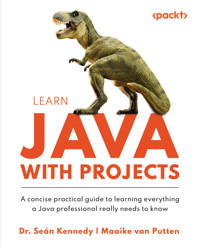
Learn Java with Projects
A concise practical guide to learning everything a Java professional really needs to know
Dr. Seán Kennedy
Maaike van Putten
BIRMINGHAM—MUMBAI
Learn Java with Projects
Copyright © 2023 Packt Publishing
All rights reserved. No part of this book may be reproduced, stored in a retrieval system, or transmitted in any form or by any means, without the prior written permission of the publisher, except in the case of brief quotations embedded in critical articles or reviews.
Every effort has been made in the preparation of this book to ensure the accuracy of the information presented. However, the information contained in this book is sold without warranty, either express or implied. Neither the author(s), nor Packt Publishing or its dealers and distributors, will be held liable for any damages caused or alleged to have been caused directly or indirectly by this book.
Packt Publishing has endeavored to provide trademark information about all of the companies and products mentioned in this book by the appropriate use of capitals. However, Packt Publishing cannot guarantee the accuracy of this information.
Associate Group Product Manager: Kunal Sawant
Book Project Manager: Deeksha Thakkar
Senior Editor: Rounak Kulkarni
Technical Editor: Jubit Pincy
Copy Editor: Safis Editing
Indexer: Hemangini Bari
Production Designer: Vijay Kamble
DevRel Marketing Coordinator: Shrinidhi Manoharan and Sonia Chauhan
Business Development Executive: Kriti Sharma
First published: September 2023
Production reference: 1231123
Published by Packt Publishing Ltd.
Grosvenor House
11 St Paul’s Square
Birmingham
B3 1RB, UK
ISBN 978-1-83763-718-8
www.packtpub.com
To my wife Maria, and my daughters, Emily, Miriam, and Lilian.
– Dr. Seán Kennedy
To Adnane, for not distracting me.
– Maaike van Putten
Contributors
About the authors
Dr. Seán Kennedy is a university lecturer with over 20 years of experience in teaching. He has a Ph.D. in IT and is Oracle-certified in Java at the Professional level (OCP). In his daily work, he has taught Java on Ericssons’ bespoke Master’s program for over a decade. He has several very popular Java courses on Udemy, one of which, ‘Java 21, Java 17, Java 11, Advanced Java 8’, has been selected for inclusion in their Udemy Business program (where only the top 3% of courses qualify). He has a YouTube channel called Let’s Get Certified that teaches Java at all levels and prepares candidates for Java certification. Outside of work, he enjoys tennis, walking, reading, TV, and nature.
I want to thank those who have always supported me, especially my wife, Maria, and my late parents.
Maaike van Putten is a software consultant and trainer with a passion for empowering others in their careers. Her love for Java shows in numerous software development projects she participated in and the 5 Oracle Java certifications she obtained. She has designed and delivered a broad spectrum of training courses catering to beginners and seasoned developers in Java and many other languages and frameworks. Next to that, she has authored multiple books and online courses through multiple platforms reaching over 600,000 learners.
I want to thank all my students for inspiring and motivating me.
About the reviewers
Alejandro Duarte is a Software Engineer, published author, and award winner. He currently works for MariaDB as a Developer Relations Engineer. Starting his coding journey at 13 with BASIC on a rudimentary black screen, Alejandro quickly transitioned to C, C++, and Java during his academic years at the National University of Colombia. He relocated first to the UK and then to Finland to foster his career in the open-source software industry. He’s a recognized figure in Java circles, credited with articles amassing millions of views, as well as technical videos and presentations at international events. You can contact him on X (Twitter) @alejandro_du.
Thanks to the global Java community for being part of such an amazing technology. Thanks to MariaDB plc for allowing me the flexibility to work on this project.
Thiago Braga Rodrigues, a university lecturer, researcher, and Java specialist, has journeyed academically from Brazil to Ireland over the span of a decade. He holds a BEng in Biomedical Engineering and a Ph.D. in IT. Throughout his academic journey, Thiago’s research endeavors have led him to globally recognized institutions, such as Harvard Medical School in the USA, and Athlone Institute of Technology in Ireland, where he delved into the intricacies of bioinformatics. His expertise encompasses programming, biomedical engineering, and software engineering, with a particular focus on developing hardware and software solutions for wearable systems. As both an author and reviewer for various academic journals and conferences, Thiago persistently contributes to the advancement of his field. Outside of academia and work, he is a classically trained violin teacher with experience playing in several orchestras. An avid gamer, Thiago seamlessly blends technology, arts, and leisure throughout his enriching journey.
Giuseppe Pedullà is a senior software developer and software architect, working since 2014. He has worked in some large companies and created some products for clients such as banks, insurance companies, and so on. He has developed complex solutions for his clients, making architectural decisions to improve software efficiency. He also teaches coding, conducts webinars, and so on.
I thank my wife and my children who are very patient and push me to do things that realize me as a developer and so on. I thank them because they help me and they understand that I want to do something to help me improve in what I do.
Anurag Sharma is a seasoned Integration Architect, boasting 11 years of rich experience in the IT realm, with deep-seated expertise in JAVA/J2EE and a broad suite of integration technologies, including a prominent presence in the Salesforce ecosystem as a MuleSoft Ambassador. As a JAVA-certified professional, Anurag has a track record of success in developing and designing solutions across diverse domains such as airlines, retail, and manufacturing, to name a few.
With a dual-level certification in JAVA and comprehensive certifications in MuleSoft, Anurag has been a vital asset to tech giants like Oracle and HCL, in both India and the UK. His thought leadership and insights have resonated on global stages such as Salesforce’s London World Tour and Dreamforce, where he has been a sought-after speaker.
Anurag is known for his commitment to the Integration community, where he spearheads mentorship programs, nurturing both novices and seasoned professionals in the field. He solves problems on Tech helper forums. Beyond his mentorship roles, Anurag contributes to the vibrancy of the tech world through his writings, illuminating tech articles that decipher complex technical landscapes for a broader audience.
In the quieter moments, you will find Anurag immersed in literature, as reading and writing about technology are not just hobbies but gateways to staying ahead in the ever-evolving tech universe.
Table of Contents
Preface
Part 1: Java Fundamentals
1
Getting Started with Java
Technical requirements
Exploring Java features
OOP in Java
Working with OOP
Compiled language
Write once, run anywhere
Automatic memory management
Installing Java
Checking whether Java is installed on your system
Installing Java on Windows
Installing Java on macOS
Installing Java on Linux
Running Java online
Writing our first program
Hello world
Steps to create the program
Understanding the program
Compiling and running Java programs
Understanding the compilation process
Compiling the code with javac on the command line
Running the compiled code with Java on the command line
Working with an IDE
What is an IDE?
Choosing an IDE
Creating and running a program with an IDE
Creating a program in an IDE
Running your program
Debugging a program
Exercises
Project
Summary
2
Variables and Primitive Data Types
Technical requirements
Understanding and declaring variables
What is a variable?
Declaring a variable
Naming a variable
Accessing a variable
Accessing a variable that you have not declared
Understanding Java’s primitive data types
Java’s primitive data types
Screen output
Exercises
Project – dinosaur profile generator
Summary
3
Operators and Casting
Technical requirements
Learning how Java’s operators cooperate
Order of precedence
Associativity
Understanding Java’s operators
Unary operators
Arithmetic operators
Relational operators
Logical operators
Bitwise operators
Ternary operator
Compound assignment operators
Explaining Java casting
Widening
Narrowing
Exercises
Project – Dino meal planner
Summary
4
Conditional Statements
Technical requirements
Understanding scope
What is a block?
Exploring if statements
The if statement itself
else if statements
else statements
Mastering switch statements and expressions
switch statements
switch expressions
Exercises
Project – Task allocation system
Summary
5
Understanding Iteration
Technical requirements
while loops
do-while loops
while versus do-while
for loops
Traditional for loop
Enhanced for loop
Nested loops
break and continue statements
break statements
continue statements
Exercises
Project – Dino meal planner
Summary
6
Working with Arrays
Technical requirements
Arrays – what, when, and why?
Arrays explained
When to use arrays
Declaring and initializing arrays
Declaring arrays
Initializing arrays
Short syntax for array initialization
Accessing elements in an array
Understanding indexing
Accessing array elements
Modifying array elements
Working with length and bounds
Determining the length of an array
Dealing with the bounds of an array
Iterating over arrays
Using the for loop
Using the for each loop
Choosing between the regular loop and the enhanced for loop
Handling multidimensional arrays
Declaring and initializing multidimensional arrays
Accessing and modifying elements of multidimensional arrays
Iterating over multidimensional arrays
Using Java’s built-in methods for arrays
Built-in Arrays class for working with arrays
Exercises
Project – Dino tracker
Summary
7
Methods
Technical requirements
Explaining why methods are important
Flow of control
Abstraction
Code duplication
Understanding the difference between method definition and method execution
Method definition
Method execution
Exploring method overloading
Method signature
Overloading a method
Explaining varargs
Mastering call by value
Primitives versus references in memory
Exercises
Project – Mesozoic Eden assistant
Summary
Part 2: Object-Oriented Programming
8
Classes, Objects, and Enums
Technical requirements
Understanding the differences between classes and objects
Classes
Objects
Getting familiar with the new keyword
Contrasting instance with class members
Instance members (methods/data)
Class members (methods/data)
Exploring the “this” reference
Associating an instance with the “this” reference
Shadowing or hiding an instance variable
Applying access modifiers
private
Package-private
protected
public
packages
Encapsulation
Achieving encapsulation
Mastering advanced encapsulation
Call By value revisited
The issue
The solution
Delving into the object life cycle
Garbage collection
Object life cycle example
Explaining the instanceof keyword
Understanding enums
Simple enums
Complex enums
Appreciating records
Record patterns
Exercises
Project – Mesozoic Eden park manager
Summary
9
Inheritance and Polymorphism
Technical requirements
Understanding inheritance
Advantages of inheritance
Disadvantages of inheritance
Base class
Subclass
The “is-a” relationship
Applying inheritance
extends
implements
Exploring polymorphism
Separating the reference type from the object type
Applying polymorphism
JVM – object type versus reference type usage
Contrasting method overriding and method overloading
Method overloading
Method overriding
Exploring the super keyword
super()
super.
An example of using super
Revisiting the protected access modifier
The UML diagram
The package with the protected member
The other package
Pattern matching for switch
Explaining the abstract and final keywords
The abstract keyword
The final keyword
Applying sealed classes
sealed and permits
non-sealed
Example using sealed, permits, and non-sealed
Understanding instance and static blocks
Instance blocks
static blocks
Mastering upcasting and downcasting
Upcasting
Downcasting
Exercises
Project
Summary
10
Interfaces and Abstract Classes
Technical requirements
Understanding abstract classes
Mastering interfaces
Abstract methods in interfaces
Interface constants
Multiple interface inheritance
Examining default and static interface methods
‘default’ interface methods
‘static’ interface methods
Multiple interface inheritance
Explaining ‘private’ interface methods
Exploring sealed interfaces
Exercises
Project – unified park management system
Summary
11
Dealing with Exceptions
Technical requirements
Understanding exceptions
What are exceptions?
Need for exception handling
Common situations that require exception handling
Understanding the exception hierarchy
Checked exceptions
Unchecked exceptions
Working with basic I/O operations
Reading from a file using FileReader
Writing to a file using FileWriter
Throwing exceptions
The throw keyword
Creating and throwing custom exceptions
The catch or declare principle
Understanding the principle
Declaring exceptions using throws
Handling exceptions with try-catch
Handling exceptions with try-with-resources
Working with inheritance and exceptions
Declaring exceptions in method signatures
Overriding methods and exception handling
Exercises
Project – dinosaur care system
Summary
12
Java Core API
Technical requirements
Understanding the Scanner class
Using Scanner to read from the keyboard
Using Scanner to read from a file
Using Scanner to read from a string
Comparing String with StringBuilder
String class
StringBuilder class
String versus StringBuilder example
Designing a custom immutable type
The checklist
Examining List and ArrayList
List properties
Exploring the Date API
Dates and times
Duration and Period
Additional interesting types
Formatting dates and times
Exercises
Project – dinosaur care system
Summary
Part 3: Advanced Topics
13
Generics and Collections
Technical requirements
Getting to know collections
Overview of different collection types
List
ArrayList
LinkedList
Exploring the basic operations for lists
Set
HashSet
TreeSet
LinkedHashSet
Performing basic operations on a set
Map
HashMap
TreeMap
LinkedHashMap
Basic operations on maps
Queue
Queue implementations
Basic operations on the Queue interface
Sorting collections
Natural ordering
The Comparable and Comparator interfaces
Working with generics
Life before generics – objects
Use case of generics
Syntax generics
Bounded generics
Hashing and overriding hashCode()
Understanding basic hashing concepts
hashCode() and its role in collections
Overriding hashCode() and best practices
Using hashCode() in custom generic types
Exercises
Project – advanced dinosaur care system
Summary
14
Lambda Expressions
Technical requirements
Understanding lambda expressions
Functional Interfaces
Lambda expressions
final or effectively final
Exploring functional interfaces from the API
Predicate and BiPredicate
Supplier
Consumer and BiConsumer
Function and BiFunction
UnaryOperator and BinaryOperator
Mastering method references
Bound method references
Unbound method references
Static method references
Constructor method references
Method references and context
Exercises
Project – agile dinosaur care system
Summary
15
Streams – Fundamentals
Technical requirements
Understanding stream pipelines
Stream pipeline
Exploring stream laziness
Creating streams
Streaming from an array
Streaming from a collection
Stream.of()
Streaming from a file
Infinite streams
Mastering terminal operations
count()
min() and max()
findAny() and findFirst()
anyMatch(), allMatch, and noneMatch()
forEach()
reduce()
collect()
collect(Collector)
Exercises
Project – dynamic dinosaur care system
Summary
16
Streams: Advanced Concepts
Technical requirements
Examining intermediate operations
filter(Predicate)
distinct()
limit(long)
map(Function)
flatMap(Function)
sorted() and sorted(Comparator)
Delving into primitive streams
Creating primitive streams
Common primitive stream methods
New primitive stream interfaces
Mapping streams
Mapping from Object streams
Mapping from primitive streams
Explaining Optionals
Creating Optionals
Using the Optional API
Primitive Optionals
Understanding parallel streams
Creating parallel streams
Parallel decomposition
Parallel reductions using reduce()
Parallel reductions using collect()
Exercises
Project – dynamic dinosaur care system
Summary
17
Concurrency
Technical requirements
Understanding concurrency
Multiprocessing
Multitasking
Multithreading
Importance of concurrency in modern applications
Challenges in concurrent programming
Working with threads
The Thread class
The Runnable interface
Lambda expressions with Runnable
Thread management – sleep() and join()
The Thread.sleep() method
Handling InterruptedException
Using the join() method
Atomic classes
AtomicInteger, AtomicLong, and AtomicReference
The synchronized keyword
Using synchronized methods
Using synchronized blocks
Synchronized methods versus synchronized blocks
The Lock interface
ReentrantLock
Best practices for working with locks
Concurrent collections
Concurrent collection interfaces
Understanding SkipList collections
Understanding CopyOnWrite collections
Synchronized collections
ExecutorService and thread pools
Executing tasks using SingleThreadExecutor
The Callable interface and Future
Submitting tasks and handling results
Future objects and their methods
Invoking multiple tasks and handling the results
Thread pools and task execution
ScheduledExecutorServices
Data races
Threading problems
Data races
Race conditions
Deadlocks
Livelocks
Starvation
Exercises
Project – Park Operations System – the calm before the storm
Summary
Index
Part 1: Java Fundamentals
In this part, we will start by looking into the features of Java and how to get set up using Java and an IDE. We will examine variables and Java’s eight primitive data types. Following that, we will discuss Java’s operators and casting. We then move on to Java conditional statements and looping constructs. After that, we will look at using arrays, before finally finishing with methods.
This section has the following chapters:
Chapter 1, Getting Started with JavaChapter 2, Variables and Primitive Data TypesChapter 3, Operators and CastingChapter 4, Conditional StatementsChapter 5, Understanding IterationChapter 6, Working with ArraysChapter 7, Methods1
Getting Started with Java
Welcome to the exciting world of Java! Java is a very popular programming language. It is a multipurpose, powerful, and popular programming language that has been used by millions of developers worldwide to create a wide variety of applications. And yes, it really is multipurpose since it can be used to create all sorts of applications, from web and mobile apps to game development and beyond.
So, you’ve done a great job choosing a (new) language. We’re going to take you on a (hopefully) fascinating journey that will provide you with valuable skills and open new opportunities in the ever-evolving field of technology.
What are we waiting for? In this chapter, we’re going to cover the following main topics:
Java featuresInstalling JavaCompiling and running Java programsWorking with an integrated development environment (IDE)Creating and running a program with an IDETechnical requirements
Before diving into the magical world of Java programming, let’s ensure you have the right hardware. If your hardware doesn’t meet these requirements, don’t worry; online alternatives are discussed later in this chapter. If you are using your work laptop, make sure that you have download rights. Here’s a brief overview of the requirements:
Operating system: Java can run on various operating systems, including Windows, macOS, and Linux. Ensure that you have a recent version of one of these operating systems installed on your computer.Java Development Kit (JDK): To compile and run Java programs, you’ll need the JDK installed on your system. The JDK includes the Java Runtime Environment (JRE), which contains the necessary libraries and components for running Java applications. We’ll see how to install this later.System resources: More is always better, but Java isn’t too demanding. It doesn’t require high-end hardware, but it’s still a good idea to have a system with sufficient resources for a smooth development experience. The following are the minimum and recommended system requirements:Minimum requirements:CPU: 1 GHz or faster processorRAM: 2 GBDisk space: 1 GB (for JDK installation and additional files)Recommended requirements:CPU: 2 GHz or faster multi-core processorRAM: 4 GB or moreDisk space: 2 GB or more (for JDK installation, additional files, and projects)Keep in mind that these requirements may change with future updates to the JDK and related tools. We have placed the files in a GitHub repository. You can clone the projects with the use of Git and import them to your computer this way. It’s beyond the scope of explaining how to use Git here but it’s recommended to look into it independently. You can access the files and examples used in this book here: https://github.com/PacktPublishing/Learn-Java-with-Projects.
Exploring Java features
Java was developed by James Gosling at Sun Microsystems in the mid-1990s. When Java was created, it was originally designed as a language for consumer electronics. It attempted to support complex host architectures, focused on portability, and supported secure networking. However, Java outgrew its own ambitions. It quickly gained momentum as a versatile language for creating enterprise, web, and mobile applications. Today, Java no longer belongs to Sun Microsystems. Oracle Corporation acquired Sun Microsystems in 2010. And with that acquirement, Java became an integral part of Oracle’s software ecosystem.
Java was very unique at the time it was created. The huge success of Java can be attributed to some of its core features. These features were very innovative at the time but are now found in many other (competing) languages. One of the core features is object-oriented programming. OOP allows us to structure our code in a neat way that helps with reusability and maintainability. We’re going to start discussing the core features by having a look at object-oriented programming (OOP).
OOP in Java
Arguably the most important feature of Java is its support for OOP. If you ask any Java developer what Java is, the answer is often that it’s an OOP language.
It’s safe to say that OOP is a key feature. What is this OOP thing? you may wonder. OOP is a programming paradigm. It structures applications to model real-world objects and their interactions and behaviors. Let’s go over the main concepts of OOP:
Objects: This may be stating the obvious but, in OOP, objects are the main building blocks of your program. An object is a representation of a real-world entity, such as a user, an email, or a bank account. Each object has its own attributes (data fields) and behaviors (methods).Classes: Objects are created using their class. A class is a blueprint for creating objects. It defines the attributes and methods that objects of the class should have. For example, a Car class might define attributes such as color, make, and model, and methods such as start, accelerate, and brake.Inheritance: Another key feature is inheritance. Inheritance allows one class to inherit the attributes and methods of another class. For example, Car could inherit from a Vehicle class. We’re not going to cover the details here, but inheritance helps to better structure the code. The code is more reusable, and the hierarchy of related classes opens doors in terms of what we can do with our types.Encapsulation: Encapsulation is giving a class control over its own data. This is done by bundling data (attributes) and methods that operate on that data. The attributes can only be accessed via these special methods from outside. Encapsulation helps to protect the internal state of an object and allows you to control how the object’s data can be accessed or modified. Don’t worry if this sounds tricky still, we’ll deal with this in more detail later.Polymorphism and Abstraction: These are two key concepts of OOP that will be explained later when you’re ready for them.Working with OOP
I can imagine this all sounds very abstract at this point, but before you know it, you’ll be creating classes and instantiating objects yourself. OOP helps to make code more maintainable, better structured, and reusable. These things really help to be able to make changes to your application, solve problems, and scale up when needed.
OOP is just one key feature of Java. Another key feature is that it’s a compiled language. Let’s make sure you understand what is meant by that now.
Compiled language
Java is a compiled programming language, which means that the source code you write must be transformed into a machine-readable format before it can be interpreted. This machine-readable format is called bytecode. This process is different from that of interpreted languages, where the source code is read, interpreted, and executed on the fly. During runtime, the computer interprets an interpreted language line by line. When a compiled language is running, the computer interprets the bytecode during runtime. We’ll dive deeper into the compilation process in just a bit when we are going to compile our own code. For now, let’s see what the benefits of compiled languages are.
Benefits of Java being a compiled language
Compiling code first requires an extra step, and it takes time in the beginning, but it brings advantages. First of all, the performance of compiled languages is typically better than interpreted languages. This is because the bytecode gets optimized for efficient execution on the target platform.
Another advantage of compilation is the early detection of syntax errors and certain other types of errors before the code is executed. This enables developers to identify and fix issues before deploying the application, reducing the likelihood of runtime errors.
Java code is turned into bytecode – a form of binary code - by the compiler. This bytecode is platform-independent. This means that it allows Java applications to run on different operating systems without modification. Platform independence is actually the key feature that we’re going to be discussing next.
Write once, run anywhere
Java’s Write Once, Run Anywhere (WORA) principle is another key feature. This used to set Java apart from many other programming languages, but now, this is rather common, and many competing languages also implemented this feature. This principle ensures that Java code can run on different platforms without requiring different versions of the Java code for each platform. This means that a Java program is not tied to any specific operating system or hardware architecture.
When you have different versions of the code for each platform, this means that you have to maintain all these versions of the code as well. Let’s say you have a code base for Linux, macOS, and Windows. When a new feature or a change is required, you need to add this to three places! You can imagine that WORA was a game-changer at the time Java came out. And it leads to an increased reach of your application – any device that can run Java applications can run yours.
Understanding the WORA elements
The WORA principle is made possible by bytecode and the Java Virtual Machine (JVM). Bytecode is the compiled Java program. The compiler turns the Java code into this bytecode, and this bytecode is platform-independent. It can run on any device that can run the bytecode executer.
This bytecode executer is called the JVM. Each platform (Windows, macOS, Linux, and so on) has its own JVM implementation, which is specifically designed to translate bytecode into native machine code for that platform. Since the bytecode remains the same across platforms, the JVM handles the differences between operating systems and hardware architectures. The WORA principle is explained in Figure 1.1.
Figure 1.1 – The WORA principle in a diagram
You can see that the compiler creates bytecode and that this bytecode can be picked up by the JVM. The JVM is platform-specific and does the translation to the platform it’s on. There’s more that the JVM does for us, and that is automatic memory management. Let’s explore this next.
Automatic memory management
Another key feature that made Java great is its automatic memory management, which simplifies development and prevents common memory-related errors. Java handles memory allocation and garbage collection for you. The developer doesn’t need to take care of manually managing the memory.
Nowadays, this is the rule and not the exception. Most other modern languages have automatic memory management as well. However, it is important to know what automatic memory management means. The memory allocation and deallocation are done automatically. This actually leads to simplifying the code. There is no boilerplate code that just focuses on the allocation and deallocation of the memory. This also leads to fewer memory-related errors.
Let’s make sure you understand what is meant by memory allocation and deallocation.
Memory allocation
In code, you create variables. Sometimes, these variables are not simple values but complex objects with many data fields. When you create an object, this object needs to be stored somewhere in the memory of the device that it’s running on. This is called memory allocation. In Java, when you create an object, device memory is automatically allocated to store the object’s attributes and associated data. This is different from languages such as C and C++, where developers must manually allocate and deallocate memory. Java’s automatic memory allocation streamlines the development process and reduces the chances of memory leaks or dangling pointers, which can cause unexpected behavior or crashes. It also makes the code cleaner to read, since you don’t need to deal with any allocation or deallocation code.
Garbage collection
When a memory block is no longer used by the application, it needs to be deallocated. The process Java uses for this is called garbage collection. Garbage collection is the process of identifying and reclaiming memory that is no longer in use by a program. In Java, when an object is no longer accessible or needed, the garbage collector automatically frees up the memory occupied by the object. This process ensures that the memory is efficiently utilized and prevents memory leaks and the problems that come with it.
The JVM periodically runs the garbage collector to identify and clean up unreachable objects. Java’s garbage collection mechanism uses many different sophisticated algorithms to determine when an object is no longer needed.
Now that we’ve covered the basics, let’s move on to installing Java.
Installing Java
Before you can start writing and running Java programs, you’ll need to set up the JDK on your computer. The JDK contains essential tools and libraries required for Java development, such as the Java compiler, the JRE, and other useful utilities that help development.
We will guide you through the process of installing Java on Windows, macOS, and Linux, and we’ll give you some suggestions for when you don’t have access to either one of those. But before proceeding with the installation of Java, it’s a good idea to check whether it’s already installed on your system.
Checking whether Java is installed on your system
Java may have been pre-installed, or you may have installed it previously without realizing it. To check whether Java is installed, follow these simple steps. The first one depends on your operating system.
Step 1 – Open a terminal
For Windows, press the Windows key, type cmd, and press Enter to open the Command Prompt.
For macOS, press Command + Space to open the Spotlight search, type Terminal, and press Enter to open Terminal.
For Linux, open a Terminal window. The method for opening the Terminal window varies depending on your Linux distribution (for example, in Ubuntu, press Ctrl + Alt + T).
Step 2 – Check for the Java version
In the Command Prompt or Terminal window, type the following command and press Enter:
java -versionStep 3 – Interpret the response
If Java is installed, you will see the version information displayed. If not, the Command Prompt will display an error message, indicating that Java is not recognized or found.
If you find that Java is already installed on your system, make sure it’s version 21 or later to ensure compatibility with modern Java features. If it’s an older version or not installed, proceed with the installation process for your specific platform, as described in the following sections. If an older version is installed, you may want to uninstall this first to avoid having an unnecessarily complicated setup. You can install this the common way of uninstalling programs for your operating system.
In Figure 1.2 and Figure 1.6, you’ll see examples of the output you can expect when Java is installed.
Figure 1.2 – The macOS terminal output where Java 19 is installed
Now, let’s see how to install Java on each operating system.
Installing Java on Windows
To install Java on a Windows operating system, follow these steps:
Visit the Oracle Java SE Downloads page at https://www.oracle.com/java/technologies/downloads/. This software can be used for educational purposes for free, but requires a license in production. You can consider switching to OpenJDK to run programs in production without a license: https://openjdk.org/install/.Select the appropriate installer for your Windows operating system (for example, Windows x64 Installer).Download the installer by clicking on the file link.Run the downloaded installer (the .exe file) and follow the on-screen instructions to complete the installation.To add Java to the system’s PATH environment variable, search for Environment Variables in the Start menu and select Edit the system environment variables. You should see a screen similar to Figure 1.3.Figure 1.3 – The System Properties window
In the System Properties window, click on the Environment Variables… button. A screen like the one in Figure 1.4 will pop up.Under System variables, find the Path variable, select it, and click Edit. You can see an example of which one to select in the following Figure 1.4:Figure 1.4 – The Environment Variables window
Click New… and add the path to the bin folder of your Java installation (for example, C:\Program Files\Java\jdk-21\bin). In Figure 1.5, this has been done already.Figure 1.5 – Adding the path to Java to the Path variable
Click OK to save the changes and close the Environment Variables windows.Verify Java is installed by opening the Command Prompt (reopen it if you have it open already) and then typing the following: java -versionThe output should look as shown in Figure 1.6. However, your version should be 21 or higher to keep up with all the snippets in this book.Figure 1.6 – Command Prompt after Java version check after installing Java
Installing Java on macOS
To install Java on a macOS operating system, follow these steps:
Visit the Oracle Java SE Downloads page at https://www.oracle.com/java/technologies/javase-jdk16-downloads.html.Select the macOS installer (for example, macOS x64 Installer).Download the installer by clicking on the file link.Run the downloaded installer (the .dmg file) and follow the on-screen instructions to complete the installation.Java should be automatically added to your system’s PATH environment variable. To verify the installation, open the Terminal and run the following command: java -versionYou should see the version of Java you just installed, similar to Figure 1.2.Installing Java on Linux
Installing on Linux can be a little bit tricky to explain in a few steps. Different Linux distributions require different installation steps. Here, we will see how to install Java on a Linux Ubuntu system:
Open the Terminal and update your package repository by running the following command: sudo apt-get updateInstall the default JDK package by running the following command: sudo apt install default-jdkTo verify the installation, run the java -version command. You should see the version of Java you just installed.If you need to set the JAVA_HOME environment variable (which you won’t need for working your way through this book but will need for doing more complex Java projects), you first need to determine the installation path by running the following command: sudo update-alternatives --config javaTake note of the path displayed (for example, /usr/lib/jvm/java-19-openjdk-amd64/bin/java).Open the /etc/environment file in a text editor with root privileges: sudo nano /etc/environmentAdd the following line at the end of the file, replacing the path with the path you noted in Step 4 (excluding the /bin/java part): JAVA_HOME="/usr/lib/jvm/java-19-openjdk-amd64"Save and close the file. Then, run the following command to apply the changes: source /etc/environmentNow, Java should be installed and configured on your Linux operating system.
Running Java online
If you don’t have access to a computer with macOS, Linux, or Windows, there are online solutions out there. The free options are not perfect but, for example, the w3schools solution for trying Java in the browser is not bad at all. There are quite a few of these out there.
In order to work with multiple files there might be free tools out there, but most of them are paid. A currently free one that we would recommend is on replit.com. You can find it here: https://replit.com/languages/java.
You need to sign up, but you can work for free with multiple files and save them on your account. This is a good alternative if you would for example only have a tablet to follow along with this book.
Another option would be to use GitHub Codespaces: https://github.com/codespaces. They have the opportunity to enter a repository (for example the one we use for this book) and directly try the examples that are available in the repo and adjust them to try new things.
Having navigated through the installation of Java, it’s time to talk about compiling and running programs.
Writing our first program
Before diving into the process of compiling and running Java programs, let’s create a simple Java program using a basic text editor. This will help you understand the structure of a Java program and how to write and save a Java source code file. For this example, we will create a “Hello world!” program that will be used to demonstrate the process of compilation and execution.
Hello world
You may have heard of “Hello world!” programs. They are a common way to start learning a new programming language. It’s a simple program that prints the message "Hello world!" to the console. Writing this program will provide you with a very basic understanding of Java syntax, and it will help you to become familiar with the process of writing, compiling, and running Java code.
Steps to create the program
Alright, let’s start coding. Here are the steps:
First, open a basic text editor on your computer. Notepad on Windows, TextEdit on macOS, or Gedit on Linux are suitable options.Write the following Java code in your text editor: public class HelloWorld { public static void main(String[] args) { System.out.println("Hello world!"); } }Save the file as HelloWorld.java in a directory of your choice. Don’t forget the .java extension when saving the file. This indicates that the file contains Java source code. The code should not have .txt after .java. This happens sometimes in Windows, so make sure to not select the text file in the filetype dropdown.TextEdit – file extension issues
The later versions of macOS have some issues with TextEdit. You can’t save it as a Java file by default. In order to enable this, you need to go to Format | Make Plain Text and select UTF-8.
After this, you can save it as a .java file. You may still run into encoding errors; the problem is with the encoding, and fixing it might be a lot of effort missing the goal of this exercise. It might be better to download Notepad++, TextPad, or Sublime for this part. Or go ahead and download the HelloWorld.java file from our GitHub repository.
Understanding the program
Let’s have a look at the code we just used. First of all, be aware that this is case-sensitive. That means that when you look at the code, most things will not work as you expect if you mix up lowercase and uppercase.
First, we created a class named HelloWorld with a main method. We’ll cover classes and methods in a lot more detail, of course. But a class is the fundamental building block of Java applications, and it can contain methods. Methods can be executed to do things – things being executing statements.
The main method is a special method. It is the entry point of our Java program and contains the code that will be executed when the program is run. The line with System.out.println("Hello world!"); writes the Hello world! message to the console. Please note, that println stands for print line, so it uses a lowercase L and not an uppercase i.
With the HelloWorld.java file saved, we are now ready to move on to the next section, where we will learn how to compile and run the Java program using the command line and an IDE.
Compiling and running Java programs
Now that we have our first program written, let’s discuss how we can compile and run it. We will cover the basics of the compilation process, the role of the JVM, and how to compile and run Java code using the command line and an IDE.
Understanding the compilation process
The source code is written in a human-readable format using the Java programming language. Or at least, we hope that this is your opinion after this book. Before the code can be executed, it must be transformed into a format that the computer can understand. You already know that Java is a compiled language and that this process is called compilation.
During compilation, the Java compiler (javac) converts the source code (.java files) into bytecode (.class files). Once the bytecode is generated, it can be executed by the JVM. We have already learned that the JVM is the bytecode executer and that every platform has its own custom JVM enabling the WORA feature of Java.
Compiling the code with javac on the command line
To compile a Java program using the command line, follow these steps:
Open a terminal (Command Prompt on Windows, Terminal on macOS or Linux).Navigate to the directory containing your Java source code file (for example, the directory of your previously created HelloWorld.java file). In case you don’t know how to do that, this can be done with the cd command, which stands for change directory. For example, if I’m in a directory called documents and I want to step into the subfolder called java programs, I’d run the cd "java programs" command. The quotes are only needed when there are spaces in the directory name. It’s beyond the scope of this book to explain how to change directories for any platform. There are many excellent explanations for every platform on how to navigate the folder structure using the command line on the internet.Once you’re in the folder containing the Java file, enter the following command to compile the Java source code: javac HelloWorld.javaIf the compilation is successful, a new file with the same name but a .class extension (for example, HelloWorld.class) will be created in the same directory. This file contains the bytecode that can be executed by the JVM.
Let’s see how we can run this compiled code.
Running the compiled code with Java on the command line
To run the compiled Java program, follow these steps:
In the terminal, make sure you are still in the directory containing the .class file.Enter the following command to execute the bytecode: java HelloWorldThe JVM will load and run the bytecode, and you should see the output of your program. In this case, the output will be as follows:
Hello world!It’s pretty cool that we can write Java in Notepad and run it on the command line, but the life of a modern-day Java developer is a lot nicer. Let’s add IDEs to the mix and see this for ourselves.
Working with an IDE
Creating files in text editors is a little old-fashioned. Of course, you can still do it this way – it’s actually an excellent way of becoming an amazing programmer, but it’s also a very frustrating way. There are tools available to do quite a bit of the heavy work for us and to assist us while writing our code. These tools are called IDEs.
What is an IDE?
An IDE is a software application that comes with everything you need to write, compile, run, and test your code. Using an IDE can make it easier to develop all sorts of programs. Not only that but also debugging and managing your code is easier. Comparatively, you can think of an IDE somewhat like Microsoft Office Word for me as I write this book. While I could have written it using Notepad, using Word provides significant advantages. It assists in checking for spelling errors and allows me to easily add and visualize layouts, among other helpful features. This analogy paints a picture of how an IDE doesn’t just provide a platform to write code but also offers a suite of tools to streamline and enhance your coding experience.
Choosing an IDE
When it comes to Java development, there are several IDEs available, each with its own set of features and capabilities. In this section, we will discuss the factors to consider when choosing an IDE and help you set up some popular Java IDEs. Throughout this book, we’ll be working with IntelliJ. Alternatives that are also great would be VS Codeand Eclipse.
Factors to consider when choosing an IDE
Most modern IDEs have features such as code completion, debugging, version control integration, and support for third-party tools and frameworks. Some of them have better versions of these than others. Compare and contrast what you prefer when choosing or switching IDEs.
Some IDEs require a heavier system to run on than others. For example, VS Code is rather lightweight and IntelliJ is rather heavy. Also, VS Code can be used for many languages, including Java. It is uncommon to do a lot of other things with IntelliJ rather than Java. Choose an IDE that provides a balance between features and performance, especially if you have limited system resources.
And of course, it’s possible that the IDE you’d prefer is not available for the platform you’re using. Make sure that it’s available and stable for your system.
Lastly, and very importantly, think about the costs. Some IDEs are free and others require a paid license. Luckily, many of the ones that require a paid license have a free edition for non-commercial use. So, make sure to also consider your budget and the licensing you need when choosing an IDE.
In the following subsections, we’ll walk you through the steps of setting up the three (currently) most common IDEs for Java development:
IntelliJEclipseVisual Studio CodeNote
We’ll be working with IntelliJ for the rest of this book.
Setting up IntelliJ
So, let’s start with that one. IntelliJ IDEA is a popular Java IDE that was developed by JetBrains. It offers both a free Community Edition and a paid Ultimate Edition. It provides a wide range of features, including intelligent code completion, debugging tools, version control integration, and support for various Java frameworks.
Here are the steps for installing IntelliJ:
Visit the IntelliJ IDEA download page at https://www.jetbrains.com/idea/download/.Choose the edition you prefer: the free Community Edition or the paid Ultimate Edition. For beginners, the Community Edition is truly great already.Download the installer for your operating system (Windows, macOS, or Linux).Run the installer and follow the instructions to complete the installation.Launch IntelliJ IDEA. If you’re using the Ultimate Edition, you may need to enter your JetBrains account credentials or a license key.On the Welcome screen, you can create a new project, import an existing project, or explore the available tutorials and documentation.Setting up Eclipse
Eclipse is a free, open source Java IDE that is widely used in the Java community. It has been around for a really long time already and quite a lot of companies work with it still. It offers a variety of features, just like IntelliJ. Eclipse can be customized to suit your needs, but its interface may be less intuitive than other IDEs.
To set up Eclipse, follow these steps:
Visit the Eclipse download page at https://www.eclipse.org/downloads/.Download the Eclipse installer for your operating system (Windows, macOS, or Linux).Run the installer and select Eclipse IDE for Java Developers from the list of available packages.Choose an installation folder and follow the instructions to complete the installation.Launch Eclipse and select a workspace directory. This is where your projects and settings will be stored.On the Welcome screen, you can create a new Java project, import an existing project, or explore the available tutorialsand documentation.Setting up Visual Studio Code
Visual Studio Code, often referred to as VS Code, is a lightweight, free, and open source code editor developed by Microsoft. It’s incredibly popular for all sorts of tasks because it supports a wide range of programming languages. It is a popular choice for developers who prefer a more minimalist and fast-performing environment. All sorts of additions can be added with the use of extensions.
Here are the steps for installing VS Code and preparing it for




