


6,99 €
Mehr erfahren.
- Herausgeber: BookRix
- Kategorie: Lebensstil
- Sprache: Englisch
Have you just unboxed your Silhouette Cameo 5 Plus and felt a mix of excitement… and overwhelm?
You’re not alone.
The Cameo 5 Plus is one of the most powerful crafting machines ever made—but for beginners and seniors, getting started can feel confusing, technical, and intimidating. That’s exactly why this guide was written.
This book is not a rushed reference manual or a jargon-filled tech guide. It’s a patient, beginner-friendly workshop designed to walk you step by step from your very first power-on to confident, professional-quality projects—without frustration, wasted materials, or guesswork.
What Makes This Guide Different?
✔ Built specifically for absolute beginners and seniors
Every chapter is written in clear, conversational language with no assumptions about prior crafting or computer experience.
✔ Start at the box—end with real projects
You’ll learn everything in the exact order you need it:
- Unboxing and workspace setup
- Software installation and connection (USB & Bluetooth)
- Blade selection, loading mats, and cut settings
- Vinyl, cardstock, heat transfer vinyl, and specialty materials
- Print & Cut, perforation cuts, and larger 15-inch projects
Instead of dumping every feature on you at once, this book focuses on the 20% of tools you’ll use 80% of the time, so you gain confidence fast and build skills naturally.
✔ Clear explanations of new Cameo 5 Plus features
Including:
- Patented Force Technology
- Dual tool carriage workflow
- Powered tools (Heat Pen, embossing tools)
- The revolutionary Electrostatic Mat
- Roll feeder and wide-format cutting
Common issues like incomplete cuts, tearing, registration mark failures, and software connection problems are explained right where they happen, plus a dedicated troubleshooting section for quick fixes.
✔ Perfect for self-paced learning
No rushing. No pressure. No confusing leaps. You’ll understand not just what to do—but why you’re doing it.
Who This Book Is For
- First-time Silhouette owners
- Seniors who want a calm, step-by-step learning experience
- Crafters upgrading to the Cameo 5 Plus
- Anyone tired of confusing videos and trial-and-error mistakes
- Hobbyists who want professional-looking results without stress
If you’re ready to turn that intimidating machine into a creative partner—and finally enjoy crafting the way it’s meant to be enjoyed—this is the guide you’ve been looking for.
Buy a copy now and start creating with confidence today.
Das E-Book können Sie in Legimi-Apps oder einer beliebigen App lesen, die das folgende Format unterstützen:
Veröffentlichungsjahr: 2026
Ähnliche



















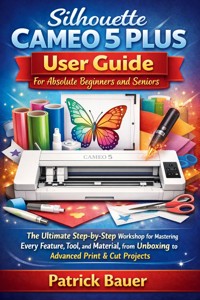
Silhouette Cameo 5 Plus User Guide For Absolute Beginners and Seniors
The Ultimate Step-by-Step Workshop for Mastering Every Feature, Tool, and Material, from Unboxing to Advanced Print & Cut Projects.
Patrick Bauer
Copyright © 2026
All rights reserved. No part of this publication may be reproduced, stored in a retrieval system, or transmitted in any form or by any means—electronic, mechanical, photocopying, recording, or otherwise—without prior written permission from the publisher, except for brief quotations used in reviews or educational content.
Disclaimer
This book is an independent publication and is not affiliated with, authorized, sponsored, or endorsed by Silhouette America, Inc. or any of its affiliates. While every effort has been made to ensure accuracy, the author and publisher assume no responsibility for errors, omissions, or damages resulting from the use of the information contained herein. Users should always refer to the official Silhouette Cameo 5 Plus documentation and follow manufacturer safety instructions when operating the machine.
Table of Contents
Table of Contents
Introduction
Getting Started: Unboxing and Setup
1.1 What's in the Box? (Checking Your Inventory)
1.2 Finding the Perfect Workspace & Powering On
1.3 Installing the Silhouette Studio Software
1.4 Connecting the Cameo to Your Computer (USB vs. Bluetooth)
1.5 Initial Machine Registration and Firmware Update
Deciphering Silhouette Studio: The Software Hub
2.1 Navigating the Interface: A Quick Tour for Beginners
2.2 Understanding the Design Page and Mat Setup (Media Size and Orientation)
2.3 The Essential Tools: Select, Draw, and Edit Points
2.4 Working with Libraries, Downloads, and Cloud Sync
2.5 Basic Text Editing and Font Management
The Core Mechanic: Cut, Load, and Send
3.1 Anatomy of the Tool Carriage and Blade Housing
3.2 Loading the Cutting Mat and Setting the Roll Feeder (Cameo Plus Capacity)
3.3 Understanding Cut Settings: Blade Depth, Force, Speed, and Passes
3.4 The "Send" Panel: Reviewing Cut Lines and Action Settings
3.5 Performing a Test Cut and Unloading Materials Safely
Tools of the Trade: Blades, Pens, and Specialties
4.1 Detailed Look at the Autoblade (Type B) and Manual Blade
4.2 Using Sketch Pens and Pen Holders (Drawing vs. Cutting)
4.3 Introduction to the New Powered Tool Features (e.g., Heat Pen)
4.4 The Essential Role of the Standard Grip Mat and Its Alternatives
4.5 NEW FEATURE FOCUS: Understanding and Utilizing the Electrostatic Mat
Working with Digital Assets: Design and Manipulation
5.1 Importing and Tracing Simple External Images (The Trace Panel)
5.2 Grouping, Ungrouping, and Compounding Paths
5.3 Creating Simple Shapes and Combining Them (Weld, Subtract, Intersect)
5.4 Scaling, Rotating, and Duplicating Designs Accurately
5.5 Understanding Layers, Offsets, and Design Management
Material Mastery: Vinyl and Cardstock
6.1 The Fundamentals of Adhesive Vinyl (Types, Weeding, and Transfer Tape)
6.2 Mastering the Art of Weeding and Transferring Vinyl Decals
6.3 Working with Cardstock: Thickness, Textures, and Optional Scoring
6.4 Cutting Heat Transfer Vinyl (HTV) and Mirroring Designs
Advanced Projects: Print & Cut and More
7.1 Understanding the Print & Cut Process (Registration Marks)
7.2 Troubleshooting Registration Mark Reading Failures
7.3 Creating Perforated Cuts for Tear-Off Projects (The Perforation Setting)
7.4 Introduction to Etching, Debossing, and Other Specialty Functions
7.5 Mastering Repetitive Cuts with the Roll Feeder and Multi-Cuts
Maintenance, Troubleshooting, and Next Steps
8.1 Common Cutting Issues and How to Solve Them (Tears, Incomplete Cuts)
8.2 Caring for Your Mat: Cleaning, Refreshing, and Replacement
8.3 Blade and Tool Maintenance: Cleaning and Storage
8.4 Software and Connectivity Troubleshooting (Bluetooth/USB Errors)
8.5 Beyond the Basics: Where to Find Tutorials and Community Support
Appendix
Appendix A: Quick Reference Cut Settings and Blade Chart
Appendix B: Troubleshooting Error Codes and Quick Fixes
Appendix C: Glossary of Essential Cameo Terminology
Appendix D: Safety, Cleaning, and Care Checklist
Appendix E: Advanced Measurement and Sizing Guide
Introduction
Embarking on the Creative Adventure
For many of you, this book might represent a brand-new beginning—a first step into the thrilling, and sometimes overwhelming, world of digital crafting. Perhaps you’ve watched countless mesmerizing videos of crafters effortlessly peeling perfect decals or assembling intricate 3D paper sculptures. You finally took the plunge, and now, that beautiful, shiny box containing your Silhouette Cameo 5 Plus is sitting right next to you. Take a moment and congratulate yourself! You have acquired a powerful, precision-engineered creative tool that is about to transform how you think about handmade projects.
The feeling you have right now might be a blend of excitement and pure intimidation. We totally get it. Unboxing a sophisticated piece of technology designed to work with equally sophisticated software can feel daunting. You might be wondering: Where do I even plug this thing in? Which blade do I use? Will I accidentally break it just by turning it on? If these questions are swirling in your head, relax. This guidebook was written specifically for you—the absolute beginner. We are going to ignore the confusing jargon, skip the advanced features (for now), and focus entirely on the fundamentals. We believe that with the right guidance, patience, and a friendly, step-by-step approach, anyone can master the Cameo.
Think of your Silhouette Cameo 5 Plus not just as a cutting machine, but as a digital manufacturing assistant. It’s an extension of your own creativity, capable of transforming simple materials like paper, vinyl, and fabric into personalized, professional-looking masterpieces. Whether you dream of creating custom t-shirts, designing unique home decor, making personalized gifts, or just organizing your pantry with beautiful labels, the Cameo 5 Plus is your key. Its "Plus" designation means you have a wider cutting width (15 inches!), giving you even more flexibility for larger projects right out of the box.
This journey is a marathon, not a sprint. We won't rush you. The goal of this guide is not just to teach you what button to push, but why you’re pushing it. We want to build your confidence layer by layer, starting with the absolute basics of setup, moving through the essential software tools, and concluding with real, satisfying projects. By the time you finish this book, you won't just be using your Cameo; you'll be mastering it, feeling confident enough to troubleshoot minor issues and tackle complex designs on your own. So, take a deep breath, push that initial intimidation aside, and let's turn that beautiful box into a portal for limitless creativity. We’re in this together.
What Makes the Cameo 5 Plus Special?
The Silhouette Cameo has always been a beloved machine in the crafting community, but the Cameo 5 Plus brings significant advancements that make it even more user-friendly and powerful, especially for a beginner. It’s important to appreciate the capabilities of the machine you now own, as it will help you understand why certain steps in the setup and cutting process are necessary.
Precision and Power Redefined
The most important improvement is the move to Patented Force Technology. This isn't just a marketing term; it's a revolutionary change in how the machine cuts. Older machines used a belt-driven system, which could sometimes lead to slight inconsistencies or noise. The Cameo 5 Plus uses a new motor and gear system that translates to incredibly precise cuts, especially on small, intricate details. For you, the beginner, this means less wasted material due to miscuts and quieter operation, allowing you to craft late at night without waking up the house!
The Wider Canvas
The "Plus" designation is critical: it grants you a 15-inch cutting width. While the standard machines cut up to 12 inches wide, those extra three inches are a game-changer. Imagine cutting a full-sized decal for a laundry room sign or a large, seamless banner. This increased size means fewer seams and less piecing together large projects, saving you time and giving your creations a more professional finish. We'll show you how to utilize both the standard cutting mat area and the specialized roll feeder area to take full advantage of this space.
Tools that Transform
The machine now supports Powered Tools. This is a huge leap forward. Previously, most tools were passive (like the standard blade or a pen holder). Now, the Cameo 5 Plus has ports that can power specialized tools like the Heat Pen (for foil transfers) or the Embossing Tool. While we won't jump into these advanced features immediately, knowing they exist means your machine is future-proofed and capable of tasks that go far beyond simple cutting, truly turning it into an all-in-one desktop production center.
The Electrostatic Mat Option
One of the most exciting additions is the capability to use the optional Electrostatic Mat. This mat uses static electricity (like rubbing a balloon on your hair) to hold thin materials, such as paper, without sticky adhesive. For beginners, this dramatically simplifies working with delicate cardstock and prevents the frustrating curling and tearing that can happen when removing paper from a standard, sticky mat. We dedicate an entire section of this book to understanding and potentially using this revolutionary accessory.
How This Guide is Built for You (The Absolute Beginner)
This book is structured not just as a reference manual, but as a guided course. We anticipate your frustrations, answer your questions before you ask them, and prioritize clarity over technical completeness. Here is the framework we’ve built to ensure your success:
1. From Box to Blueprint: The Linear Approach
We start at the very beginning—Chapter 1: Unboxing and Setup. You should work through this book linearly, at least for the first few chapters. Don’t skip the setup and software chapters! A strong foundation in Silhouette Studio (the software) is the single most important predictor of success with your Cameo. We will hold your hand through the software installation, making sure your computer and machine are talking to each other correctly.
2. Focus on the Fundamentals: The 80/20 Rule
The Cameo 5 Plus and the Silhouette Studio software have hundreds of features. A quick look at the software interface might cause instant panic. We will focus on the 20% of features you’ll use 80% of the time. This means mastering basic shapes, the Trace Panel, the Send Panel, and the few essential cut settings (Force, Speed, and Passes). Once you are comfortable with these core concepts, learning the more complex features (like warping, manipulation panels, and specialty tools) becomes much easier.
3. Clear Visual Guidance: The Role of Images
Cutting machines are highly visual tools. It is nearly impossible to explain how to load a mat or align a blade without a picture. Throughout this guide, you will see **** tags. These indicate the precise moment where a photograph or diagram is essential. When you encounter these in the final published book, take time to look at the corresponding visual, as they are crucial to understanding the physical interactions required with the machine. For instance, **** will save you minutes of frustration trying to blindly insert the tool.
4. Conversational and Human Language
You won't find dry, technical language here. We’ve deliberately chosen a conversational, encouraging, and human tone. We use varied sentence structures and clear formatting (Bolds, Bullets, and Pro Tip Boxes) to make the information digestible. If a concept is tricky (like the difference between a Cut Edge and a Cut Action in the Send Panel), we will explain it from multiple angles, using analogies to solidify your understanding.
STOP & REVIEW: If you feel confused or rushed, stop! Re-read the last section, verify the setting on your machine, and take a quick break. Crafting is a pleasure, not a chore.
5. Troubleshooting as Part of Learning
One universal truth of digital crafting is that things will go wrong occasionally. Your machine might not read the registration marks, your blade might tear the vinyl, or the software might freeze. These aren't failures; they are learning opportunities. Chapter 8 is dedicated entirely to troubleshooting. However, throughout the book, we integrate common problems and solutions directly into the relevant chapters. This way, if you run into an issue while cutting HTV, the solution is right there in the "Material Mastery" chapter.
Essential Preparations: Before You Turn the Page
Before we officially dive into Chapter 1, let's take a quick mental inventory of what you should have nearby. Getting organized now will eliminate interruptions later.
Your Essential Toolkit Checklist
Make sure you have or can easily access the following items. These are the tools that will make your crafting life infinitely easier:
The Cameo 5 Plus Box:
Everything is in here!
A Clear Workspace:
You need space for the machine itself (about 25 inches wide by 10 inches deep)
plus
room for the cutting mat to move in and out (the mat is 15 inches wide and can be up to 15 inches long).
Computer Access:
A Windows or Mac computer that meets the basic specifications for running
Silhouette Studio
. (Don't worry, they are quite low.)
Internet Access:
Necessary for software downloads, updates, and machine registration.
A Weeding Tool:
The official Silhouette hook tool is perfect, but a sharp craft pick or even a dental pick will do. This is a crucial, small tool for removing excess material.
Scraper Tool:
A flat plastic spatula or credit card is needed to smooth materials onto the mat and apply transfer tape.
Standard Grip Mat (15”):
This should be included with your machine.
A Note on the Software: Silhouette Studio
Your machine requires the free Silhouette Studio software to operate. The machine is essentially a printer; the software is the word processor. You must design and send your project from the software.
The Free Version is Enough:
You do
not
need to purchase the Designer Edition or Business Edition upgrades to use your machine effectively. The basic, free version of the software has all the essential tools we cover in the first half of this book.
Updates are Important:
Silhouette is constantly refining the software. We will guide you through how to check for and install updates because they often contain fixes for bugs or new features for your Cameo 5 Plus.
Now, with your mindset adjusted and your toolkit ready, you are prepared to truly begin. Let's start with the most satisfying step of all: opening the box and setting up your incredible new machine.
Getting Started: Unboxing and Setup
The moment has arrived. You've read the introductory chapters, cleared a space on your desk, and you're staring at the box. This first chapter is perhaps the most exciting, yet most critical, part of your journey. While the urge to rip open the packaging and immediately start cutting a design is strong, a measured and thorough setup process will save you hours of frustration later. Think of this phase as laying the foundation for a perfectly built house—if the foundation is solid, everything you build on top of it will be stable and successful. We're going to take this slow, step-by-step, ensuring every component is accounted for and properly placed.
For the absolute beginner, the Silhouette Cameo 5 Plus is a new kind of machine, demanding both a physical setup and a digital setup. Many first-time users focus intensely on the physical—plugging it in and loading a mat—and overlook the digital steps: installing the software, registering the machine, and ensuring the firmware is up-to-date. Neglecting these digital housekeeping tasks is the number one cause of early frustration. You might find your machine won't connect, or that the cutting is inconsistent. This chapter is designed to eliminate those initial headaches entirely.
The Cameo 5 Plus is a precision instrument. It relies on seamless communication between the hardware, the software (Silhouette Studio), and your computer. We'll start by making friends with every piece of equipment that came in the box. You'll learn to identify the Autoblade, the Tool Carriage, and the Power Cable, understanding their role before they ever touch the machine. This initial inventory check isn't just about counting parts; it's about familiarizing yourself with the machine's anatomy. Knowledge reduces anxiety, and by the end of this chapter, you’ll look at your machine and see not a scary gadget, but a familiar and intuitive partner.
Following the unboxing, we'll tackle the logistics of your creative space. Where you place your Cameo 5 Plus matters more than you might think. We'll discuss the required clearance for the cutting mat, the necessity of surge protection, and how to organize your soon-to-be-growing collection of tools and materials. A dedicated, well-organized workspace fosters creativity and efficiency. Once the space is defined, we'll power the machine on for the very first time, experiencing the satisfying low hum of the Patented Force Technology that sets the Cameo 5 Plus apart.
Ultimately, this chapter is the launch sequence. By patiently working through the inventory, setting up your space, and preparing the hardware for its first operation, you are building confidence and muscle memory. Resist the urge to skip ahead. Everything you learn here—from identifying the correct USB port to understanding the concept of machine clearance—will serve you well in every project you undertake. Get ready; let's unpack this powerhouse and bring your creative assistant to life.
1.1 What's in the Box? (Checking Your Inventory)
The box your Cameo 5 Plus arrived in contains the heart of your new crafting system. Before you do anything else, it is paramount that you check every item against the list below. Not only does this ensure you have all the necessary components before starting the setup, but it also helps you learn the names and functions of the most critical parts. Familiarity with the terminology we use here will make following instructions in later chapters much easier.
The Machine Itself: The Cameo 5 Plus
First, gently lift the main unit out of the box. This is your Silhouette Cameo 5 Plus machine. Observe its size—15 inches wide, which is larger than the standard Cameo, offering greater cutting potential. Place it carefully aside on a stable, flat surface, keeping it near the box for the moment. Notice the Tool Carriage (where the blades go) and the Roller Bar (the mechanism that holds the mat or material in place).
Essential Accessories: The Must-Haves
Every Cameo 5 Plus package comes with several non-negotiable accessories required for initial operation. Take each of these out and verify they match the descriptions below. If you are missing anything, contact your retailer or Silhouette support immediately.
Power Cable and Adapter:
This cable is essential for powering the machine. It typically comes in two parts: the AC adapter block and the power cord that connects to the wall outlet. The Cameo 5 Plus is an advanced machine and requires direct power for its motor systems.
USB 2.0 Cable:
This is the primary method for connecting the Cameo to your computer (PC or Mac) for a direct, reliable connection. While the machine supports
Bluetooth
(which we'll cover later), the USB cable often provides the most stable connection, especially for large or complex projects, and is crucial for initial setup and firmware updates.
15-Inch Cutting Mat (Standard Grip):
This is the large, sticky sheet of plastic that holds your materials (like paper or vinyl) in place while the machine cuts. The standard grip is the most common and versatile. Note its size—it matches the 15-inch capacity of the Plus model.
Do not peel off the protective clear cover yet.
This cover keeps the adhesive clean.
The Autoblade (Type B):
This is your most-used tool. It's identifiable by its color (often black) and the letters
Type B
. This blade is revolutionary because the Cameo 5 Plus automatically adjusts its depth setting based on the material you select in the Silhouette Studio software. You do not manually turn a dial on this blade.
Blade Adjustment Tool (Optional/Included):
Some packages may include a small plastic tool used to manually adjust older or specialty blades. It’s a good piece to keep, but it is
not
used for the Type B Autoblade.
Crosscutter Tool:
This small, removable tool is located on the back of the machine. It allows you to manually cut straight across rolled vinyl or media after the machine has finished cutting, ensuring a clean, straight edge when working without a mat.
Documentation:
This includes a basic instruction manual and registration cards. Keep the serial number handy, as you will need it when registering your machine online and installing the software.
Pro Tip: Keep the Box! It might seem like clutter, but the original box and its custom foam inserts are the safest way to store and transport your Cameo 5
Plus. Store it in a closet until you are absolutely certain you won't need to move the machine.
Understanding the Tool Carriage Slots
Take a moment to look closely at the Tool Carriage—the sliding part inside the machine where the blades go. You will notice two distinct slots, often labeled Tool 1 and Tool 2.
Tool 1 (Left Slot):
This is the
primary tool slot
and is the only slot that accepts the Autoblade (Type B). It is the default location for all cutting operations. More importantly, this slot is designed to receive the extra force and precise control offered by the new Patented Force Technology.
Always place your Autoblade here for general cutting.
Tool 2 (Right Slot):
This is the
secondary tool slot
, often used for simultaneous operations. For example, you might place a Sketch Pen in Tool 2 and the Autoblade in Tool 1. The machine can then draw a design with the pen and immediately cut it out, all in one pass, without you needing to swap tools. This feature is called
Dual Carriage Functionality
and is a huge time-saver!
First Physical Interaction: Inserting the Blade
While we will cover the proper loading and locking in detail in Chapter 3, a quick, safe practice now can build confidence.
Locate Tool 1:
It's the slot on the left of the carriage.
Lift the Lock Lever:
Gently lift the white or gray lever located in front of Tool 1. This unlocks the slot.
Insert the Autoblade:
Hold the Autoblade and align the small notch on the blade's body with the corresponding shape inside the Tool 1 slot. Push the blade down gently until it sits flush. It should not require excessive force.
Lock it Down:
Push the white/gray lock lever back down until it clicks into place. This secures the blade and ensures the cutting depth is consistent.
STOP & REVIEW: Take a moment to wiggle the blade in the locked slot. If it moves or lifts easily, repeat the locking process. A loose blade leads to ruined cuts.
Inventory Summary Table
Component
Function
Status (Check Off)
Cameo 5 Plus Unit
The main cutting machine
$\square$
Power Cable & Adapter
Provides necessary power
$\square$
USB 2.0 Cable
For stable computer connection
$\square$
15-inch Standard Grip Mat
Holds materials during cutting
$\square$
Autoblade (Type B)
The standard cutting tool
$\square$
Crosscutter Tool
Located on the back for slicing rolls
$\square$
Documentation
Serial number and basic guides
$\square$
1.2 Finding the Perfect Workspace & Powering On
With your inventory checked and your key tools identified, the next crucial step is defining the machine's home. The placement of your Cameo 5 Plus impacts both the machine's performance and your overall workflow. A cutting machine, especially the 15-inch Plus model, requires more space than a standard printer because the mat (or material) must travel completely through the machine during the cutting process.
Defining the Cameo’s Footprint
Do not underestimate the clearance required. The Cameo 5 Plus unit itself has a footprint of approximately 25 inches wide and 10 inches deep. However, the operational space is much larger.
Front Clearance (Output):
When the machine cuts, the mat extends out the front of the machine. If you are using the full 15-inch mat, you need at least
16 to 18 inches of clear, flat space
in front
of the machine so the mat can emerge unimpeded. If the mat hangs off the edge of a desk or hits an obstacle, the cut will shift, resulting in ruined material.
Back Clearance (Input):
Similarly, when the mat is initially loaded, it needs room at the back to straighten out and stabilize before the cut begins. If you are using the
Roll Feeder
(for long vinyl rolls), the vinyl must feed into the back of the machine straight and freely.
Stable Surface is Essential:
The new Patented Force Technology provides incredible precision, but that force generates subtle vibrations. The machine must be placed on a solid, level surface (a sturdy desk or a dedicated crafting table). Avoid flimsy fold-out tables or surfaces that wobble, as any instability can translate into jagged or inaccurate cuts.
Pro Tip: The Back Wall Trap: Never push your Cameo 5 Plus flush against a back wall. This restricts the mat's movement and, more importantly, blocks the Crosscutter track and the space needed for the optional Roll Feeder setup. Give it at least 6 inches of breathing room from the back edge of the table.
Powering Up: Surge Protection and Connectivity
The Cameo 5 Plus is a sensitive piece of electronics. Just like a computer, it should be protected from electrical spikes.
Use a Surge Protector:
Plug your machine and your computer into a
surge protector strip
rather than directly into a wall outlet. This protects your investment from power surges, which can instantly ruin the delicate internal electronics.
Plug in the Power Cable:
Locate the power port on the back of the Cameo. It is typically on the far left or right corner. Firmly insert the
AC Adapter
cable into the machine.
Connect to the Wall:
Plug the other end into your
Surge Protector
.
The Initial Power On
It’s time for the first contact!
Locate the Power Button:
The power button is usually a small circular or recessed button located on the right-hand side of the machine's back panel.
Press and Hold:
Press the button briefly. The machine will come to life with a quiet whir.
The Touch Screen:
The
Touch Screen Display
will light up on the machine's front panel. The new Cameo 5 Plus features a modern, responsive touch interface. Take a moment to familiarize yourself with the basic icons, such as the
Load/Unload
icon and the
Tool/Settings
icons. The machine is now in its
Ready State
.




