


9,99 €
Mehr erfahren.
- Herausgeber: BookRix
- Kategorie: Wissenschaft und neue Technologien
- Sprache: Englisch
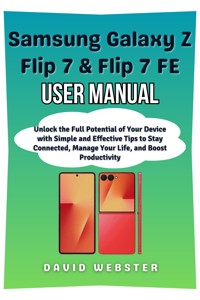
The Samsung Galaxy Z FE is designed for users who want premium performance, smart features, and a smooth everyday experience without unnecessary complexity. This book is created for people who want to understand their device fully, use it with confidence, and get real value from every feature built into it.
Samsung Galaxy Z FE User Guide: A Clear Step-by-Step Manual to Master Setup, Features, Settings, and Everyday Use walks you through the phone in a simple, practical way that makes learning easy from the very first page. Whether this is your first Samsung device or you are upgrading from another model, this guide helps you feel comfortable and in control from day one.
Inside, you will learn how to set up your Galaxy Z FE properly, personalize the interface, manage apps, adjust display settings, and navigate One UI with ease. Each section is written with everyday users in mind, using clear explanations and real-life examples that show how features fit into daily routines like work, communication, entertainment, and travel.
The book also covers camera features in detail, helping you take better photos and videos without needing technical experience. You will learn how to use shooting modes, optimize camera settings, manage storage, and edit media directly on your device. Battery management, charging habits, performance tuning, and device care are explained step by step so your phone stays fast and reliable over time.
Security and privacy are treated with care, showing you how to protect your data, manage permissions, use biometric security, back up important files, and recover information when needed. Troubleshooting sections help you fix common issues on your own, saving time and reducing frustration.
This guide is suitable for beginners, professionals, students, content consumers, and anyone who wants to enjoy their Samsung Galaxy Z FE without confusion. It is written as a long-term companion you can return to whenever you want to learn something new or solve a problem quickly.
Das E-Book können Sie in Legimi-Apps oder einer beliebigen App lesen, die das folgende Format unterstützen:
Veröffentlichungsjahr: 2026
Ähnliche
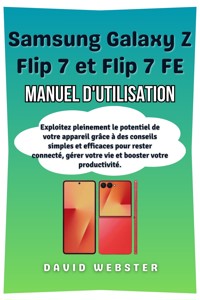
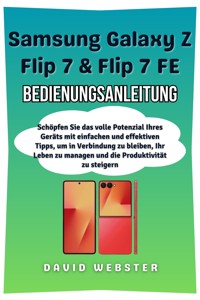







Samsung Galaxy Z
Flip 7 & Flip 7 FE
User Manual
Unlock the Full Potential of Your Device with Simple and Effective Tips to Stay Connected, Manage Your Life, and Boost Productivity
David Webster
Copyright Notice
Copyright © 2025 by David Webster. All rights reserved.
This publication may not be copied, shared, or reproduced in any format—whether digital, mechanical, or otherwise—without explicit written consent from the author. Exceptions apply only for brief excerpts used in reviews or legally permitted noncommercial purposes under copyright law. For inquiries or permissions, please contact the author directly at the address provided below.
Disclaimer
This guide is designed solely to educate and inform users of the Samsung Galaxy Z series. Although great care has been taken to ensure the information is accurate, the author and publisher cannot guarantee that all content provided is entirely complete or fully reliable. The specific features, functionalities, and software updates for the Samsung Galaxy Z series may differ based on your location, device model, or software version.
The author and publisher are not responsible for any inaccuracies, omissions, or difficulties you may encounter when applying the instructions or suggestions in this guide. Users should always refer to the official Samsung Galaxy Z series documentation or contact certified technicians for personalized technical assistance and troubleshooting. Furthermore, the author will not be held responsible for any damages, loss of data, or unexpected outcomes that may occur from using this guide.
Table of Contents
Chapter 1 11
Getting Started with Your Galaxy Z Flip 7 and Z Flip 7 FE 11
1.1 Unboxing Your Samsung Galaxy Z Flip 7 and Z Flip 7 FE 11
1.2 Initial Setup for Both Devices 12
Step 1: Inserting Your SIM Card 12
Step 2: Powering On Your Galaxy Z Flip 7 or Z Flip 7 FE 12
Step 3: Language and Region Selection 13
Step 4: Connecting to Wi-Fi 13
Step 5: Samsung Account Setup 13
Step 6: Transferring Data from Your Old Phone 13
1.3 Understanding the Foldable Design 14
Opening and Closing Your Device 14
Using the Flex Window 14
1.4 Navigating One UI 8 15
Navigating the Home Screen 15
Customizing Your Display Settings 15
1.5 Essential Settings to Personalize Your Device 16
1.6 Final Tips and Customization 16
Conclusion 16
Chapter 2 18
Display Features on Both Models 18
2.1 Z Flip 7 Display Features 18
Dynamic AMOLED 2X Display 18
Super AMOLED Flex Window 19
2.2 Z Flip 7 FE Display Features 20
AMOLED Display 20
Super AMOLED Flex Window 21
2.3 Display Comparison: Z Flip 7 vs Z Flip 7 FE 21
2.4 Optimizing Your Display Experience 22
2.5 Conclusion 23
Chapter 3 24
Mastering One UI 8 on Your Z Flip 7 and Z Flip 7 FE 24
3.1 Navigating One UI 8 24
Home Screen and App Drawer 24
Gestures vs. Navigation Bar 25
3.2 Customizing Your Home Screen 25
Changing Wallpapers 25
Adding Widgets 26
3.3 Using the Edge Panels 26
Enabling Edge Panels 26
Using Edge Panels 27
3.4 Multi-Window and Multitasking 27
Using Multi-Window Mode 27
Flex Mode 27
3.5 Bixby Routines and AI Features 28
Setting Up Bixby Routines 28
3.6 Customizing the Quick Settings 29
3.7 Conclusion 29
Chapter 4 30
Understanding and Using the Camera System on Your Z Flip 7 and Z Flip 7 FE 30
4.1 Camera System Overview 30
Z Flip 7 Camera Specs: 30
Z Flip 7 FE Camera Specs: 31
4.2 Camera Modes and Features 31
Auto Mode (Standard Photography) 31
Night Mode 32
Portrait Mode 32
4.3 FlexCam: Hands-Free Photography 33
How to Use FlexCam on Both Models: 33
4.4 Video Recording 33
How to Record Video: 33
How to Use Front Camera for Video Calls or Selfies: 34
4.5 Camera Settings and Customization 34
4.6 Comparison: Z Flip 7 vs Z Flip 7 FE Camera Performance 35
4.7 Conclusion 36
Chapter 5 37
Optimizing Performance on Your Z Flip 7 and Z Flip 7 FE 37
5.1 Performance Overview 37
Z Flip 7 Performance Specs: 37
Z Flip 7 FE Performance Specs: 37
5.2 Boosting Performance on Both Devices 38
Enable Performance Mode 38
Close Unused Apps to Improve Speed 38
5.3 Storage Management 39
How to Check Storage Usage 39
How to Free Up Space 39
5.4 Battery Optimization and Management 40
Understanding Battery Usage 40
Optimizing Battery Life 40
Charging Your Device 41
5.5 Gaming Performance 41
Optimizing Gaming Performance 41
5.6 Comparing Performance: Z Flip 7 vs Z Flip 7 FE 42
5.7 Conclusion 43
Chapter 6 44
Connectivity and Advanced Features 44
6.1 5G Connectivity on the Z Flip 7 and Z Flip 7 FE 44
How to Enable 5G on Your Z Flip 7 or Z Flip 7 FE: 44
6.2 Wi-Fi 7 Connectivity 45
How to Connect to Wi-Fi 7: 45
6.3 Bluetooth and Pairing Devices 45
How to Pair Bluetooth Devices: 45
6.4 NFC and Samsung Pay 46
How to Use Samsung Pay with NFC: 46
6.5 SmartThings Integration: Connecting Your Devices 46
How to Set Up SmartThings: 47
6.6 USB-C and Wired Connections 47
How to Use USB-C for Data Transfer: 47
6.7 Wireless DeX Mode: Desktop Experience 48
How to Use Samsung DeX: 48
6.8 Conclusion 48
Chapter 7 50
Battery Optimization and Charging Your Z Flip 7 and Z Flip 7 FE 50
7.1 Battery Capacity and Performance 50
Z Flip 7 Battery Specs: 50
Z Flip 7 FE Battery Specs: 50
7.2 Charging Your Device 51
How to Charge Your Z Flip 7 and Z Flip 7 FE: 51
7.3 Power-Saving Modes 52
How to Use Power Saving Mode: 52
Maximizing Battery with Adaptive Power Saving 52
7.4 Battery Care and Tips for Longevity 53
7.5 Charging Accessories and Fast Charging Tips 54
7.6 Comparing Battery Performance: Z Flip 7 vs Z Flip 7 FE 55
7.7 Conclusion 56
Chapter 8 57
Advanced Features and Hidden Tips 57
8.1 Samsung DeX: Turning Your Z Flip into a Desktop 57
How to Set Up Samsung DeX: 57
8.2 Bixby Routines: Automating Your Day 58
How to Set Up Bixby Routines: 58
8.3 Customization Options: Making Your Z Flip Truly Yours 59
Customizing the Edge Panels 59
Themes and Wallpaper Customization 59
8.4 Flex Mode Tips: Getting the Most Out of Your Foldable Screen 59
How to Use Flex Mode: 60
Recommended Apps for Flex Mode: 60
8.5 Developer Options: Unlocking Advanced Settings 60
How to Enable Developer Options: 61
Custom Developer Features: 61
8.6 Wireless PowerShare: Charging Other Devices 61
How to Use Wireless PowerShare: 62
8.7 Hidden Features: Unlocking Secret Options 62
One-Handed Mode 62
Dual Messenger 62
8.8 Conclusion 63
Chapter 9 64
Troubleshooting and Maintenance for Your Z Flip 7 and Z Flip 7 FE 64
9.1 Common Issues and How to Fix Them 64
Issue 1: Device Not Turning On 64
Issue 2: Touchscreen Not Responding 65
Issue 3: Poor Battery Life 65
Issue 4: Connectivity Problems (Wi-Fi, Bluetooth, 5G) 66
9.2 Screen Issues (Flickering, Dead Pixels) 67
9.3 Resetting Your Z Flip 7 or Z Flip 7 FE 68
How to Perform a Factory Reset: 68
9.4 Regular Maintenance for Your Z Flip 7 and Z Flip 7 FE 69
Cleaning Your Device: 69
Keeping Your Software Up-to-Date: 69
9.5 Conclusion 70
Chapter 10 71
Maximizing Productivity with Your Z Flip 7 and Z Flip 7 FE 71
10.1 Multitasking: Get More Done with Split-Screen and Flex Mode 71
How to Use Split-Screen Mode: 71
How to Use Flex Mode: 72
10.2 Samsung DeX: Turn Your Phone Into a Desktop Workstation 73
How to Set Up Samsung DeX: 73
10.3 Organize Your Workflow with Samsung Notes and Other Apps 74
Using Samsung Notes: 74
Other Productivity Apps: 75
10.4 Using Google Assistant and Bixby for Voice Productivity 75
How to Set Up Google Assistant: 75
How to Use Bixby: 76
10.5 Samsung Ecosystem Integration: Seamless Connection Across Devices 76
How to Set Up SmartThings: 76
10.6 Conclusion 77
Chapter 11 78
Maintenance and Care Tips for Your Z Flip 7 and Z Flip 7 FE 78
11.1 Cleaning Your Z Flip 7 and Z Flip 7 FE 78
How to Clean the Display: 78
11.2 Hinge and Foldable Screen Care 79
Cleaning the Hinge: 79
Maintaining the Foldable Screen: 79
11.3 Battery Maintenance and Care 80
Tips for Optimizing Battery Life: 80
Charging Best Practices: 80
11.4 Software Maintenance: Keep Your Phone Up to Date 81
How to Update Software: 81
11.5 Protecting Your Z Flip 7 and Z Flip 7 FE 81
Using a Case for Protection: 81
Use Screen Protectors: 82
11.6 Troubleshooting Tips for Hardware and Software 82
Software Glitches or Slowdowns: 82
App Crashes or Freezes: 83
Connectivity Issues (Wi-Fi, Bluetooth, 5G): 83
11.7 Warranty and Samsung Support 83
Samsung Warranty: 83
How to Access Samsung Support: 83
11.8 Conclusion 84
Chapter 12 85
Final Thoughts and Maximizing Your Z Flip 7 and Z Flip 7 FE Experience 85
12.1 Embrace the Foldable Design: The Future of Smartphones 85
Why the Foldable Design Matters: 85
12.2 Keep Your Device Updated 86
How to Stay Updated: 86
12.3 Utilize Advanced Features for Maximum Efficiency 86
Focus on Efficiency: 87
12.4 Focus on Care and Maintenance 87
Best Practices for Maintenance: 87
12.5 Consider Accessories to Enhance Your Experience 88
Recommended Accessories: 88
12.6 Stay Ahead with the Foldable Future 89
What’s Next for Foldable Phones? 89
12.7 Conclusion: You’re Ready to Enjoy Your Foldable Experience! 90
Glossary 91
AMOLED (Active Matrix Organic Light Emitting Diode) 91
Bixby 91
Bluetooth 91
DeX 91
Flex Mode 92
5G 92
Hinge 92




