


9,99 €
Mehr erfahren.
- Herausgeber: BookRix
- Kategorie: Wissenschaft und neue Technologien
- Sprache: Englisch
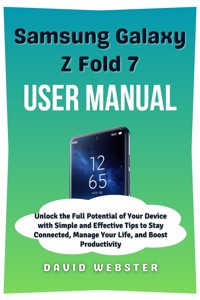
The Samsung Galaxy Z Fold 7 is more than a smartphone—it is a productivity tool, entertainment hub, and daily companion wrapped into one powerful device. This book is written for users who want to unlock everything the Galaxy Z Fold 7 can do without confusion, frustration, or wasted time.
Samsung Galaxy Z Fold 7 User Guide: A Practical Step-by-Step Manual to Master Features, Settings, Productivity Tools, and Hidden Functions walks you through the device from first setup to advanced usage in clear, simple language. Whether you are new to foldable phones or upgrading from an earlier Galaxy model, this guide helps you feel confident using your device from day one.
Inside, you will learn how to set up your Galaxy Z Fold 7 properly, customize the interface, manage apps across the large folding display, and use multitasking features that turn your phone into a pocket-sized workstation. The book explains split screen, multi-window mode, taskbar usage, app continuity, and Flex Mode with real-life examples that show how people actually use these tools during work, travel, and daily life.
You will also discover how to get the best performance from the Fold 7’s camera system, battery, display settings, and security options. Step-by-step instructions cover photo and video settings, device protection, privacy controls, file management, cloud backups, and system optimization so your phone stays fast, organized, and reliable over time.
Dedicated sections focus on productivity, showing how to use Samsung DeX, S Pen features, note-taking, document editing, and workflow shortcuts. The guide also helps you solve common problems, extend battery life, manage storage, and troubleshoot issues without needing technical support.
This book is designed for everyday users, professionals, content creators, business owners, and tech enthusiasts who want to enjoy their Galaxy Z Fold 7 to the fullest. Clear explanations, practical tips, and easy-to-follow guidance make it a reliable companion you will return to whenever you want to do more with your device.
Backend Keywords:
Samsung Galaxy Z Fold 7 user guide, Galaxy Z Fold 7 manual, Samsung foldable phone guide, Galaxy Z Fold tips and tricks, Samsung Fold multitasking guide, Galaxy Z Fold setup instructions, Samsung Fold camera guide, Galaxy Z Fold battery optimization, Samsung Fold productivity tips, Galaxy Z Fold troubleshooting, Samsung DeX Fold guide, Galaxy Z Fold S Pen guide, Samsung Fold security settings, Galaxy Z Fold hidden features, Samsung Fold beginner guide, Galaxy Z Fold advanced settings, Samsung Fold display customization, Galaxy Z Fold software guide, Samsung Fold daily use guide
Das E-Book können Sie in Legimi-Apps oder einer beliebigen App lesen, die das folgende Format unterstützen:
Veröffentlichungsjahr: 2026
Ähnliche



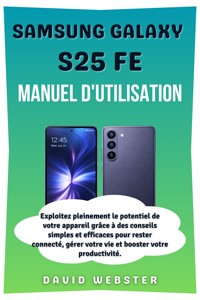








Samsung Galaxy
Z Fold 7
User Manual
Unlock the Full Potential of Your Device with Simple and Effective Tips to Stay Connected, Manage Your Life, and Boost Productivity
David Webster
Copyright Notice
Copyright © 2025 by David Webster. All rights reserved.
This publication may not be copied, shared, or reproduced in any format—whether digital, mechanical, or otherwise—without explicit written consent from the author. Exceptions apply only for brief excerpts used in reviews or legally permitted noncommercial purposes under copyright law. For inquiries or permissions, please contact the author directly at the address provided below.
Disclaimer
This guide is designed solely to educate and inform users of the Samsung Galaxy Z series. Although great care has been taken to ensure the information is accurate, the author and publisher cannot guarantee that all content provided is entirely complete or fully reliable. The specific features, functionalities, and software updates for the Samsung Galaxy Z series may differ based on your location, device model, or software version.
The author and publisher are not responsible for any inaccuracies, omissions, or difficulties you may encounter when applying the instructions or suggestions in this guide. Users should always refer to the official Samsung Galaxy Z series documentation or contact certified technicians for personalized technical assistance and troubleshooting. Furthermore, the author will not be held responsible for any damages, loss of data, or unexpected outcomes that may occur from using this guide.
Table of Contents
Chapter 1: Introduction 9
1.1 Overview of the Galaxy Z Fold 7 9
1.2 What's in the Box 10
1.3 Device Specifications 11
Display 11
Processor 11
RAM and Storage 12
Camera System 12
Battery 12
Operating System 13
Build Quality 13
Connectivity 13
Water and Dust Resistance 14
Chapter 2: Getting Started 15
2.1 Inserting the SIM Card 15
Step-by-Step Guide to Inserting the SIM Card: 15
2.2 Powering On the Device 16
Step-by-Step Guide to Powering On Your Device: 16
2.3 Connecting to Wi-Fi and Mobile Networks 17
Step-by-Step Guide to Connecting to Wi-Fi: 18
Step-by-Step Guide to Connecting to Mobile Networks: 18
2.4 Transferring Data from Another Device 19
Using Samsung Smart Switch: 19
Alternative Methods: 20
Chapter 3: Navigating the Interface 22
3.1 Understanding the Foldable Display 22
How the Foldable Display Works: 22
Why the Foldable Display is Revolutionary: 23
3.2 One UI 8 Features 23
1. Optimized Multitasking: 24
2. Gesture Navigation: 24
3. One-Handed Mode: 25
4. Edge Panel: 25
3.3 Managing Notifications and Quick Settings 25
Managing Notifications: 25
Quick Settings: 26
3.4 Flex Mode and Multitasking on the Foldable Display 26
How Flex Mode Works: 27
Multi-Window Mode: 27
3.5 Using the App Drawer and Organizing Apps 27
Accessing the App Drawer: 28
Organizing Apps: 28
Conclusion 28
Chapter 4: Customizing Your Device 30
4.1 Home Screen Layout 30
Organizing the Home Screen: 30
4.2 Themes and Wallpapers 32
Using Themes: 32
Changing Wallpapers: 33
4.3 Lock Screen and Security Settings 33
Setting Up Biometrics: 34
Secure Folder: 35
4.4 Accessibility Features 35
Visual Accessibility: 35
Hearing Accessibility: 36
Interaction and Dexterity: 37
Conclusion 37
Chapter 5: Using the Camera System 39
5.1 Camera Hardware Overview 39
Camera Specifications: 39
5.2 Camera Modes and Features 40
1. Auto Mode: 41
2. Pro Mode: 41
3. Night Mode: 41
4. Portrait Mode: 42
5. Super Steady Mode: 42
6. Slow Motion and Super Slow Motion: 42
7. Time-Lapse: 43
5.3 Advanced Camera Techniques 43
1. Using Flex Mode for Hands-Free Photography: 43
2. Multi-Camera Use: 43
3. AI Scene Optimization: 44
5.4 Troubleshooting Camera Issues 44
1. Camera Not Opening: 44
2. Blurry Photos: 44
3. Low-Quality Selfies: 45
4. Overexposed Images: 45
5. Camera Freezing or Crashing: 45
Conclusion 45
Chapter 6: Battery and Charging 47
6.1 Charging the Device 47
Wired Charging: 47
Wireless Charging: 48
Reverse Wireless Charging: 49
6.2 Battery Management Tips 49
1. Enabling Power Saving Mode: 50
2. Managing Screen Brightness: 50
3. Disabling Unnecessary Background Apps: 51
4. Disable Always-On Display: 51
5. Turn Off Location Services: 52
6. Turn Off Vibration: 52
6.3 Power Saving Modes 52
Power Saving Mode: 52
Ultra Power Saving Mode: 53
Conclusion 53
Chapter 7: Connectivity and Networking 55
7.1 Connecting to Bluetooth Devices 55
Step-by-Step Guide to Pairing Bluetooth Devices: 55
Troubleshooting Bluetooth Connectivity: 56
7.2 Using Wi-Fi and Mobile Data 57
Connecting to a Wi-Fi Network: 57
Using Mobile Data: 58
7.3 NFC and Samsung Pay 58
Using Samsung Pay: 59
7.4 USB-C and OTG Support 60
Connecting USB Accessories: 60
7.5 5G Connectivity 61
How to Enable 5G: 61
Conclusion 61
Chapter 8: Advanced Features 63
8.1 Samsung DeX 63
Setting Up Samsung DeX: 63
DeX Tips and Best Practices: 64
8.2 Flex Mode Applications 65
How to Use Flex Mode: 65
Flex Mode Tips: 67
8.3 S Pen Integration 67
How to Set Up the S Pen: 67
S Pen Features: 68
8.4 Multi-Window and App Pairing 69
Using Multi-Window Mode: 69
Creating App Pairs: 69
Conclusion 70
Chapter 9: Maintenance and Care 71
9.1 Cleaning and Protecting the Device 71
How to Clean Your Samsung Galaxy Z Fold 7: 71
Protecting Your Samsung Galaxy Z Fold 7: 72
9.2 Software Updates 73
How to Check for Software Updates: 73
Benefits of Software Updates: 74
Troubleshooting Software Update Issues: 74
9.3 Troubleshooting Common Issues 75
1. The Device Is Not Turning On: 75
2. The Screen Is Not Responding: 75
3. Poor Battery Life: 76
4. Wi-Fi or Mobile Data Issues: 76
5. Camera Issues: 76
6. The Device Is Overheating: 77
Conclusion 77
Chapter 10: Warranty and Support 78
10.1 Understanding the Warranty 78
What Is Covered by the Warranty: 78
What Is Not Covered by the Warranty: 79
Duration of the Warranty: 80
10.2 Accessing Samsung Support 80
How to Contact Samsung Support: 80
10.3 Repair and Service Options 82
Authorized Service Centers: 82
10.4 Warranty Claims Process 83
How to File a Warranty Claim: 84
Conclusion 85
Glossary of Terms 86
1. AMOLED (Active Matrix Organic Light Emitting Diode) 86
2. AI (Artificial Intelligence) 86
3. Bluetooth 5.4 86
4. DeX (Samsung DeX) 87
5. Dynamic AMOLED 2X 87
6. Flex Mode 87
7. IP48 Rating 87
8. NFC (Near Field Communication) 88
9. One UI 8 88
10. OTG (On-The-Go) 88
11. Pro Mode 89
12. Snapdragon 8 Elite Processor 89
13. Super Steady Mode 89
14. S Pen 89
15. USB-C 90
16. Wireless PowerShare 90
17. 5G Connectivity 90
18. Wireless Charging 90
19. Adaptive Battery 91
20. Multi-Window Mode 91
21. One-Handed Mode 91
22. Always-On Display 92
23. HDR (High Dynamic Range) 92
24. Fast Charging 92
25. One UI 92
Chapter 1: Introduction
1.1 Overview of the Galaxy Z Fold 7
The Samsung Galaxy Z Fold 7 is the latest in Samsung’s groundbreaking line of foldable smartphones. This device builds on the innovations introduced in its predecessors, bringing major upgrades in terms of performance, design, and versatility. The Galaxy Z Fold series has consistently pushed the boundaries of what smartphones can do, and with the Z Fold 7, Samsung takes it even further, combining high-end hardware with cutting-edge foldable display technology.
Unlike traditional smartphones, the Z Fold 7 features a foldable form factor, allowing users to experience both the compactness of a regular phone and the expansive screen of a tablet in one device. When folded, it functions like a regular smartphone with a 6.5-inch external display, but when unfolded, it reveals a massive 8.2-inch Dynamic AMOLED 2X display that offers an immersive experience for entertainment, productivity, and multitasking.
Samsung’s flexible AMOLED display technology allows the screen to fold seamlessly, creating an uninterrupted surface when unfolded. The device is equipped with multiple cameras that allow for high-quality photography, a powerful Snapdragon 8 Elite chipset, and a long-lasting battery to support all your day-to-day needs.
In terms of design, the Z Fold 7 introduces new refinements. The hinge system has been upgraded for smoother opening and closing, and the overall build quality is stronger than ever. The device is crafted with premium materials, including a ceramic glass back and titanium frame, making it not only visually striking but also durable enough to withstand everyday wear and tear.
The Z Fold 7 is also part of Samsung’s 5G-enabled lineup, offering fast internet speeds for streaming, browsing, and downloading. This makes it ideal for both business professionals and tech enthusiasts who require a device that can keep up with their demanding tasks.
1.2 What's in the Box
When you open the box for your Samsung Galaxy Z Fold 7, you’ll find everything you need to get started and more. Here’s a detailed look at the contents:




